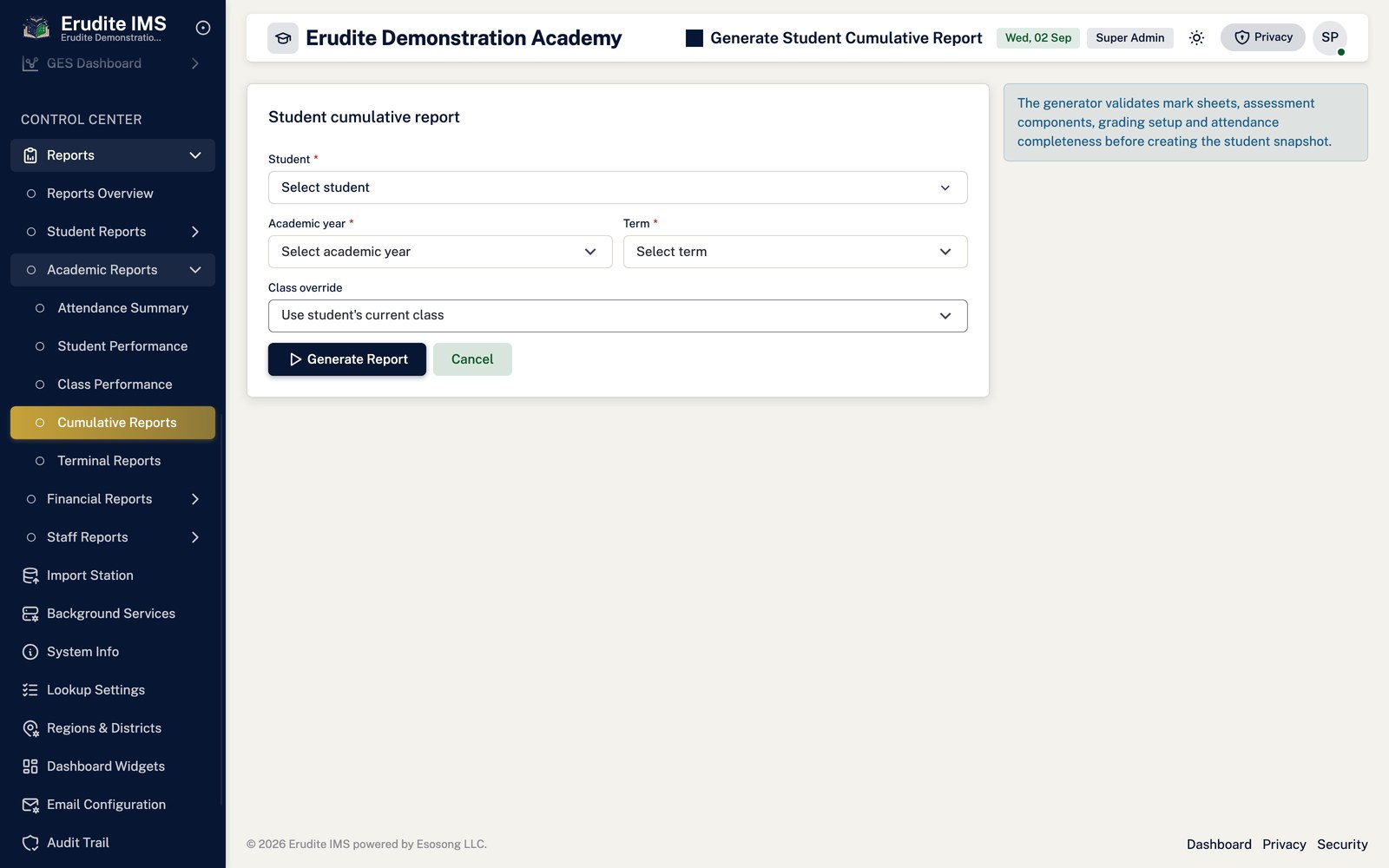
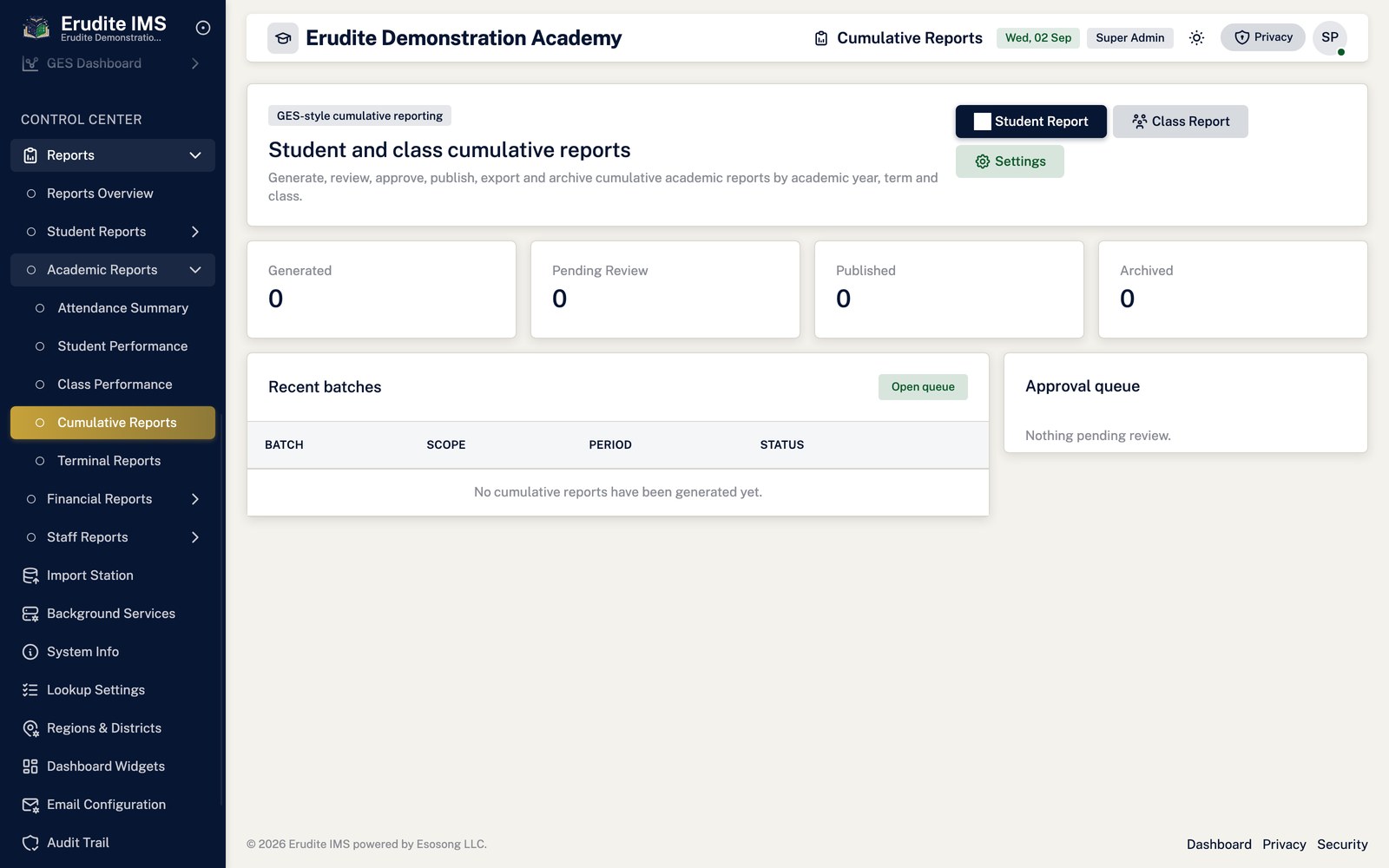
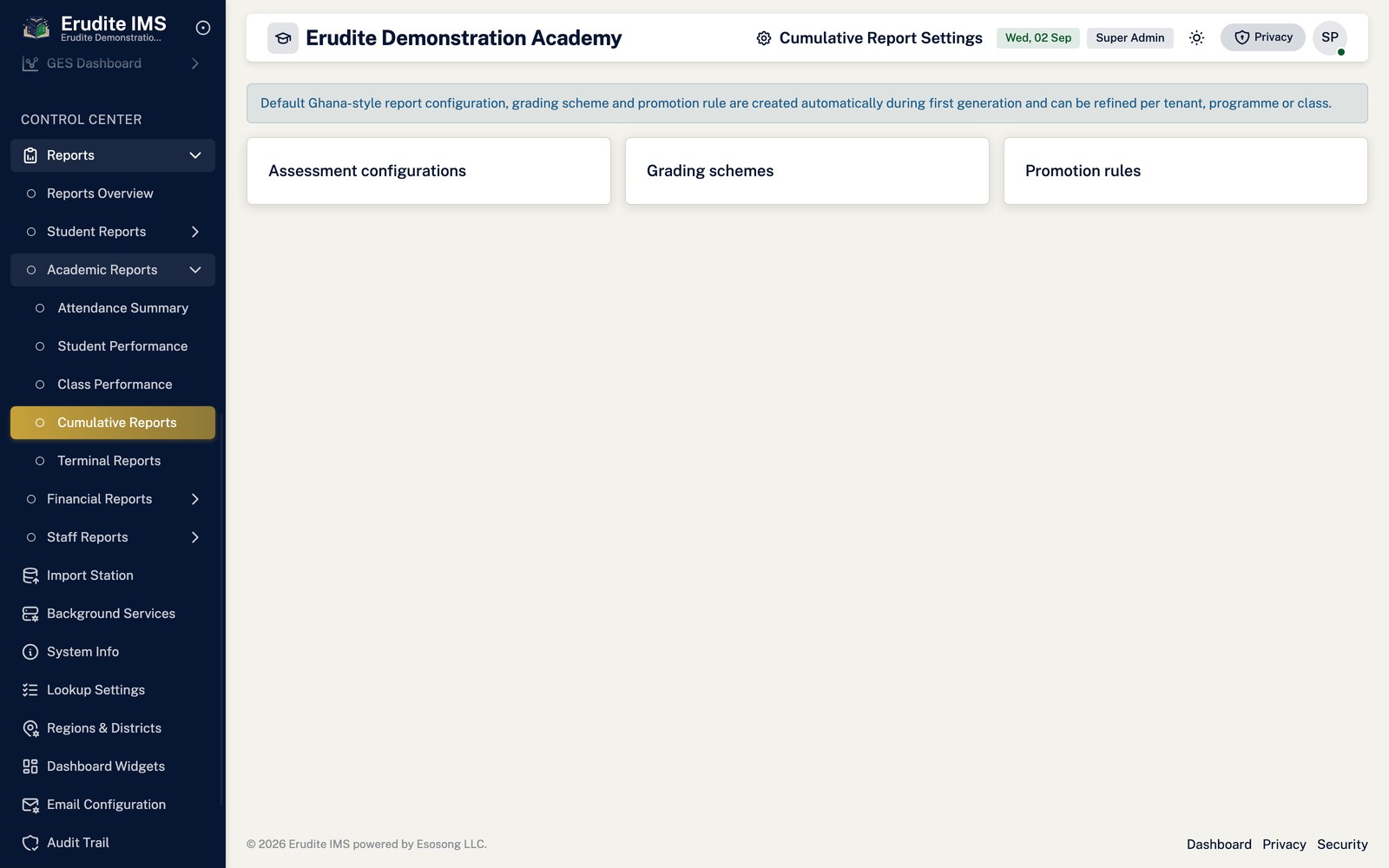
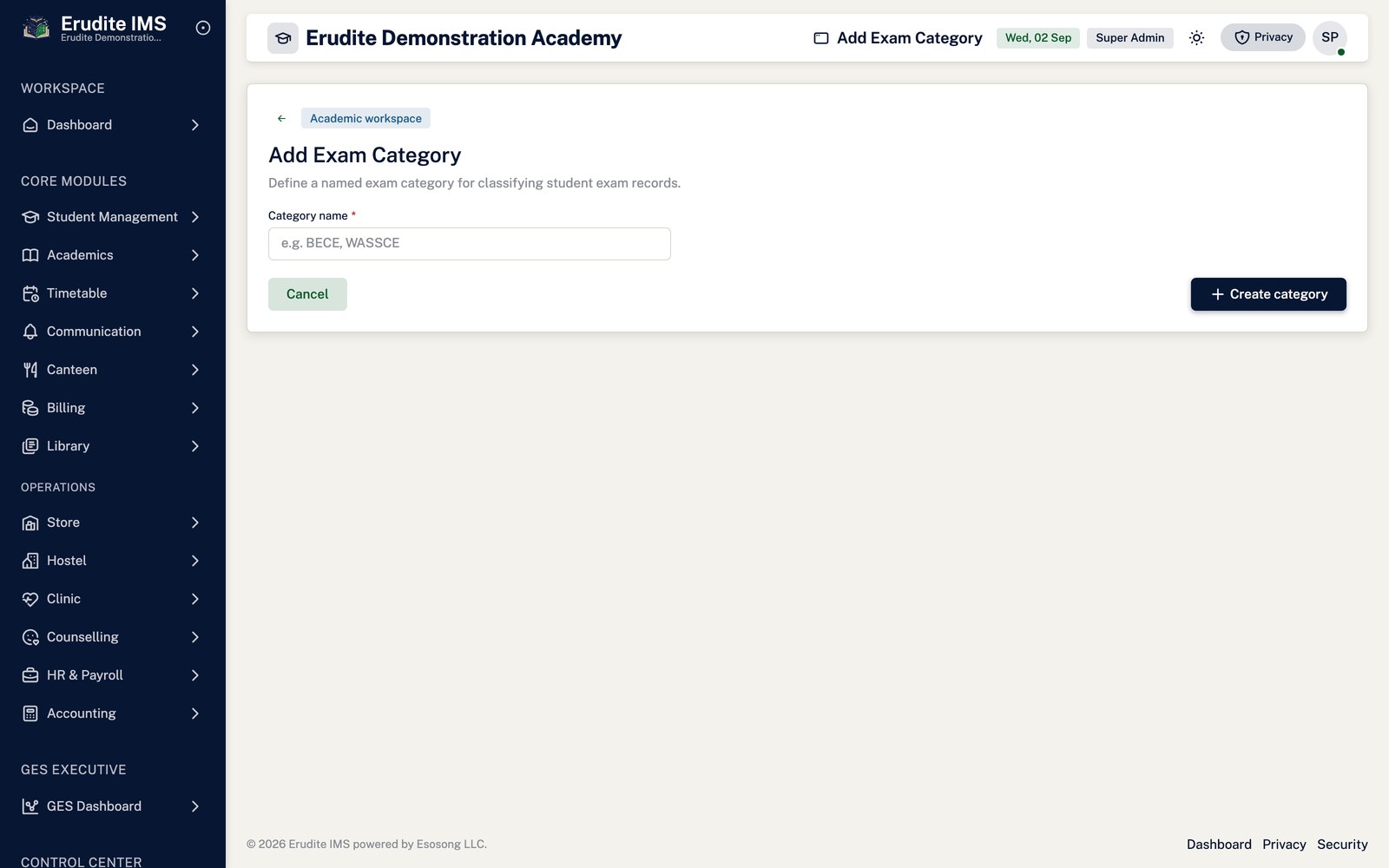
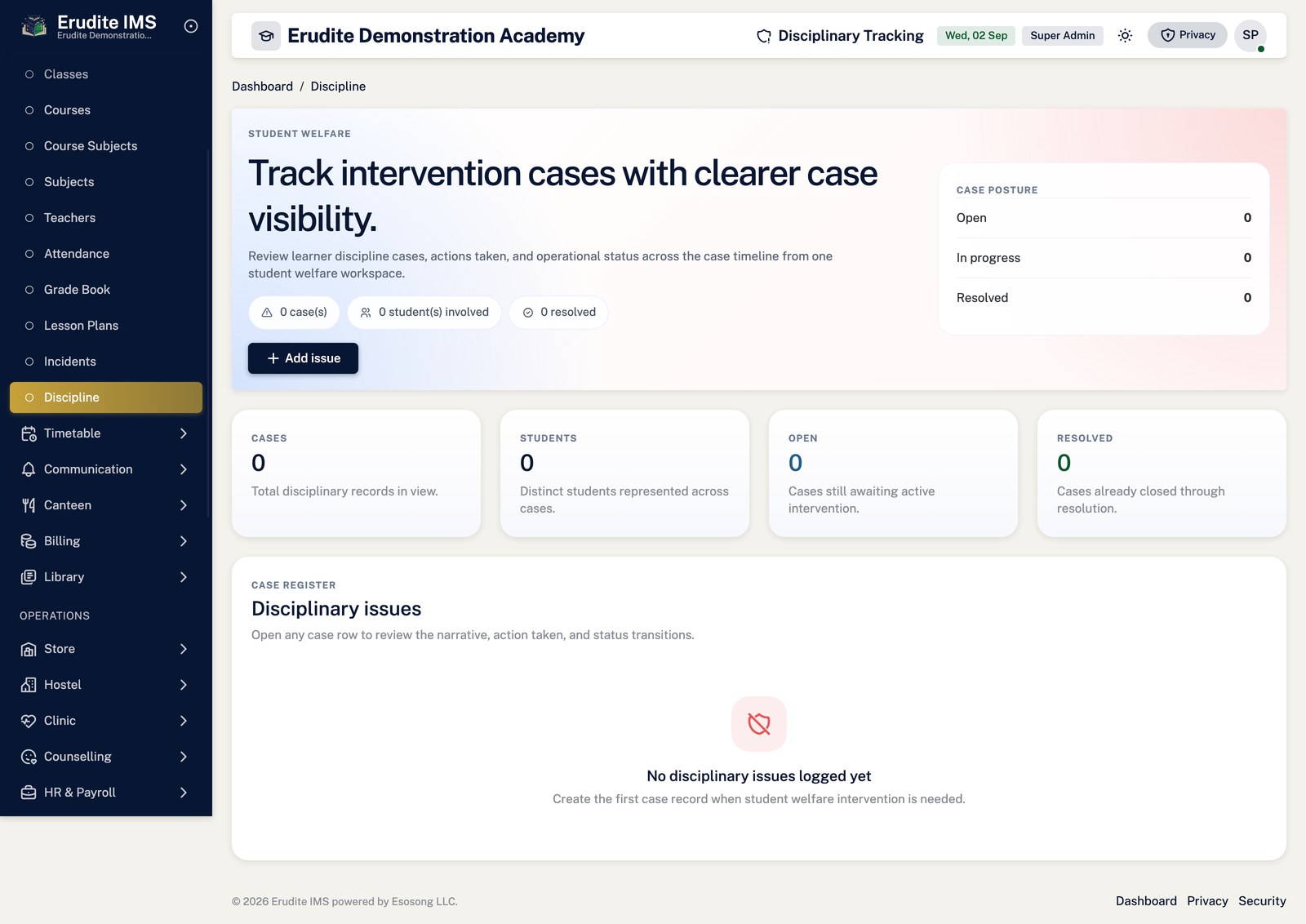
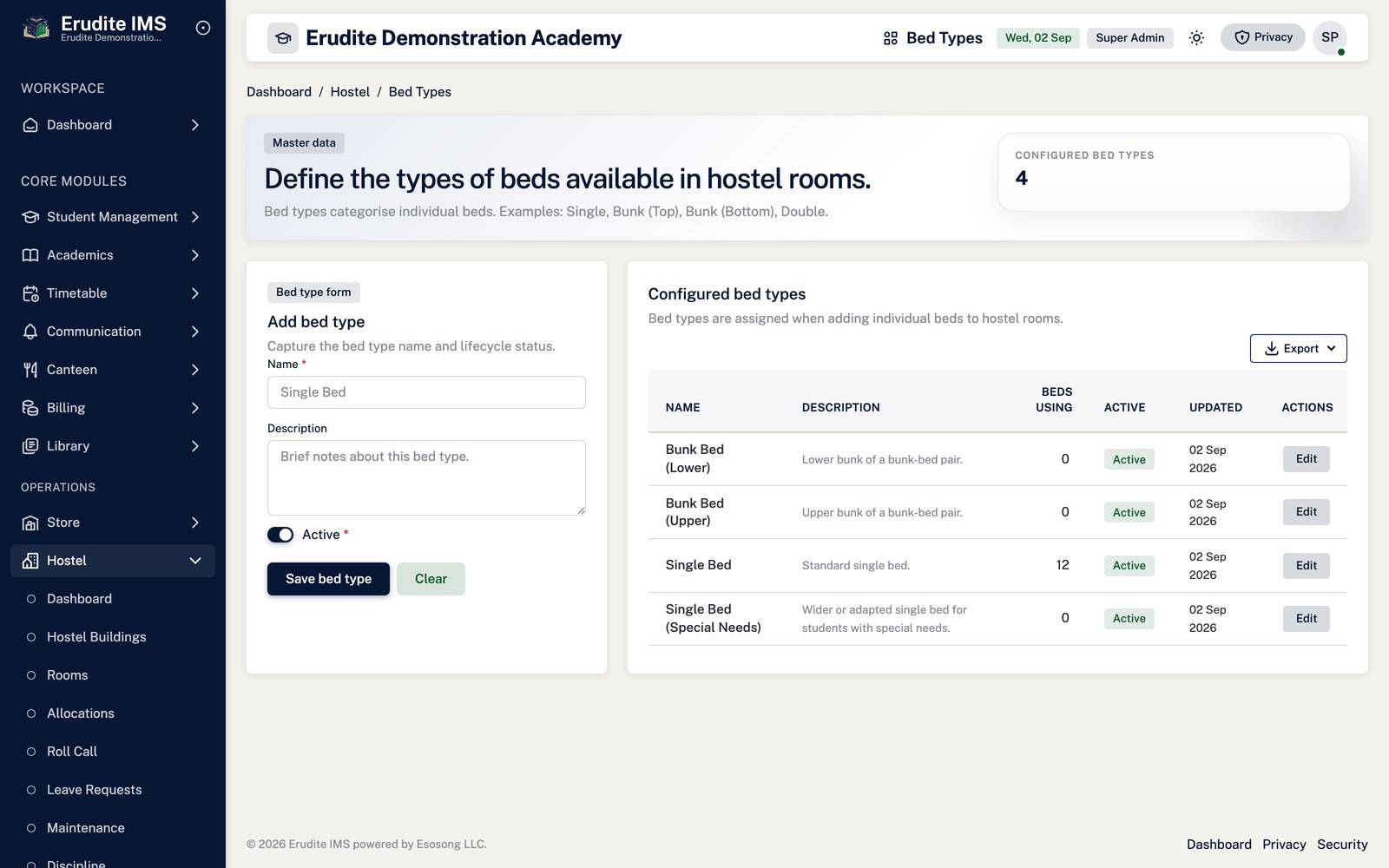
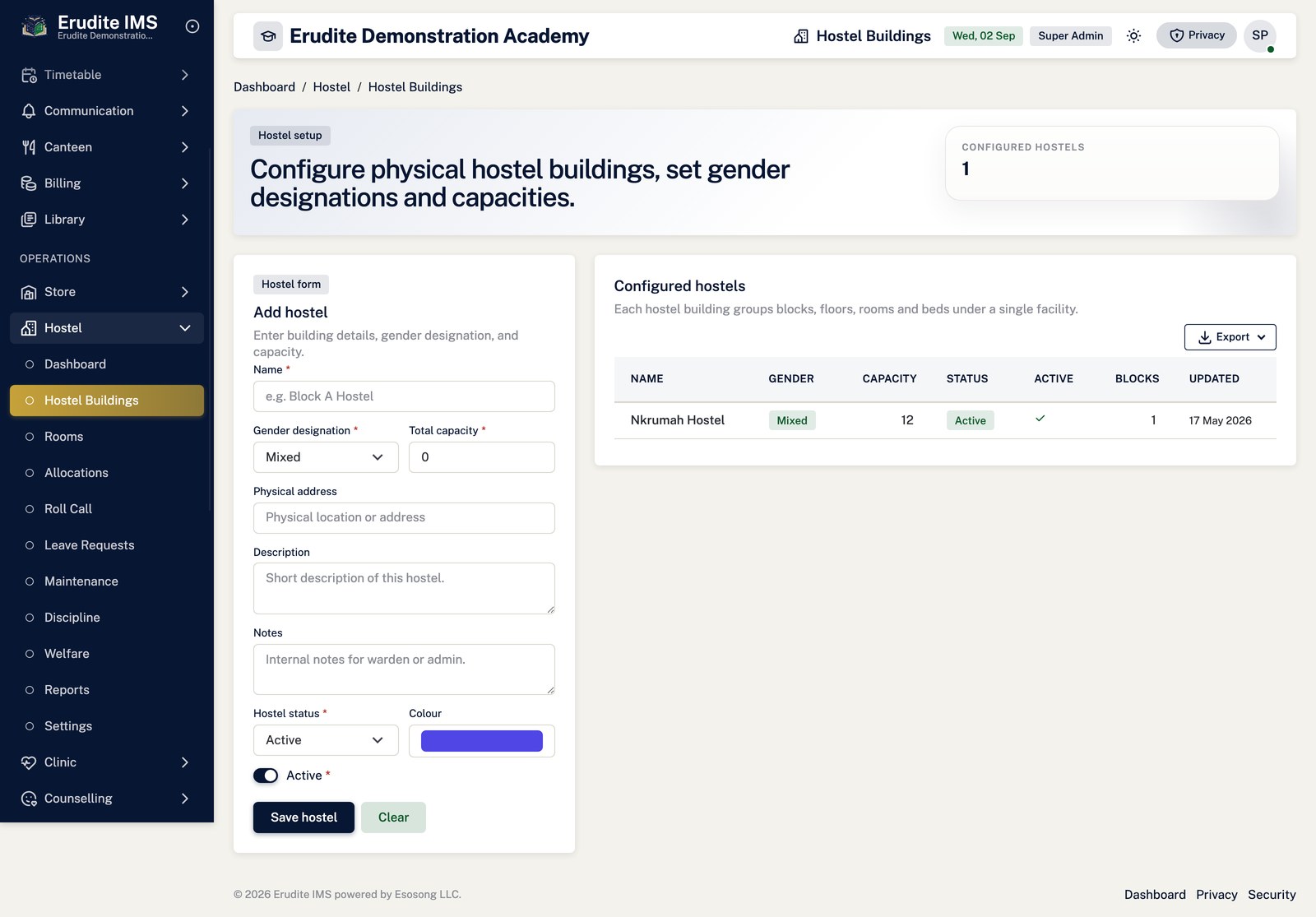
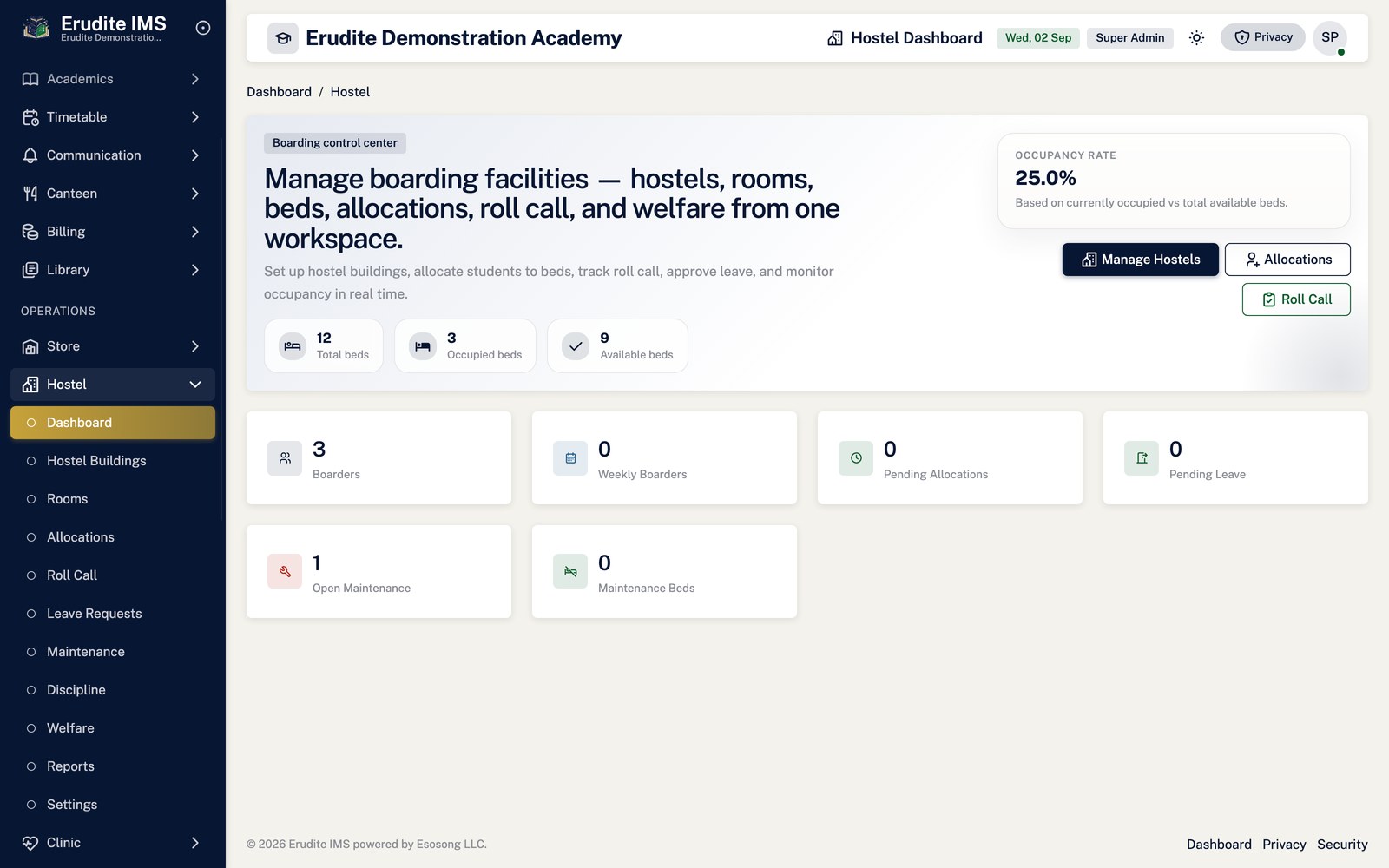
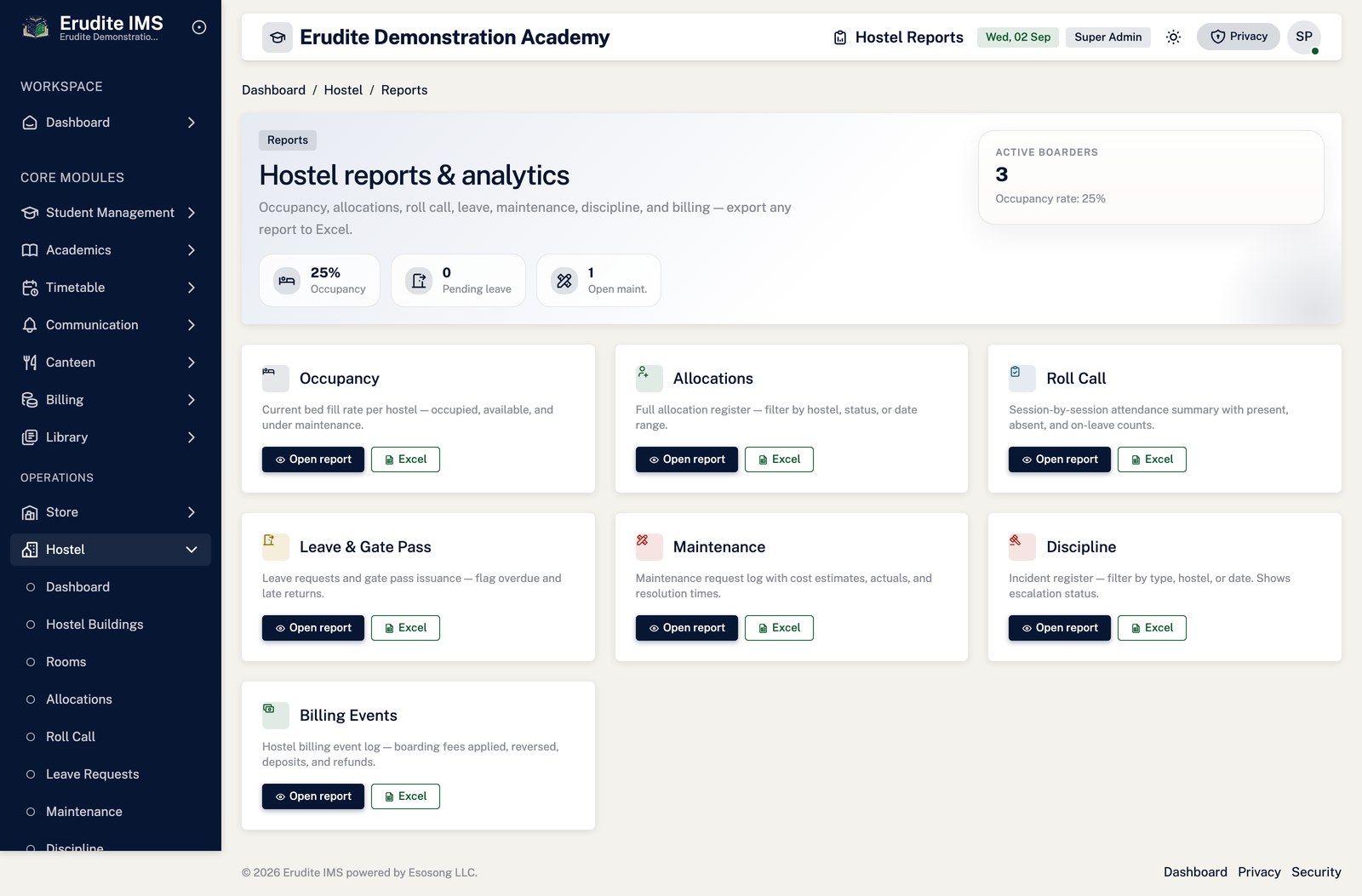
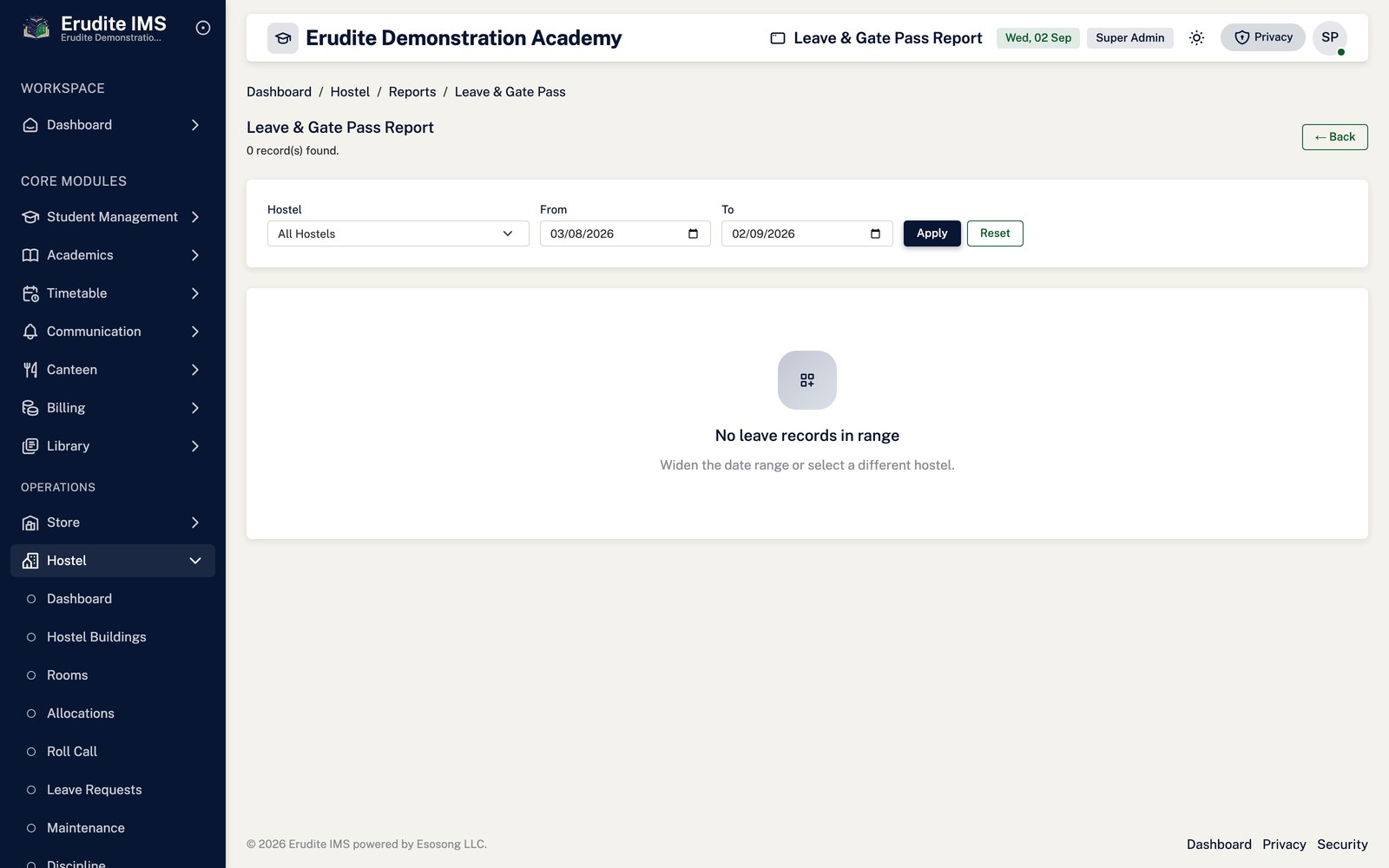
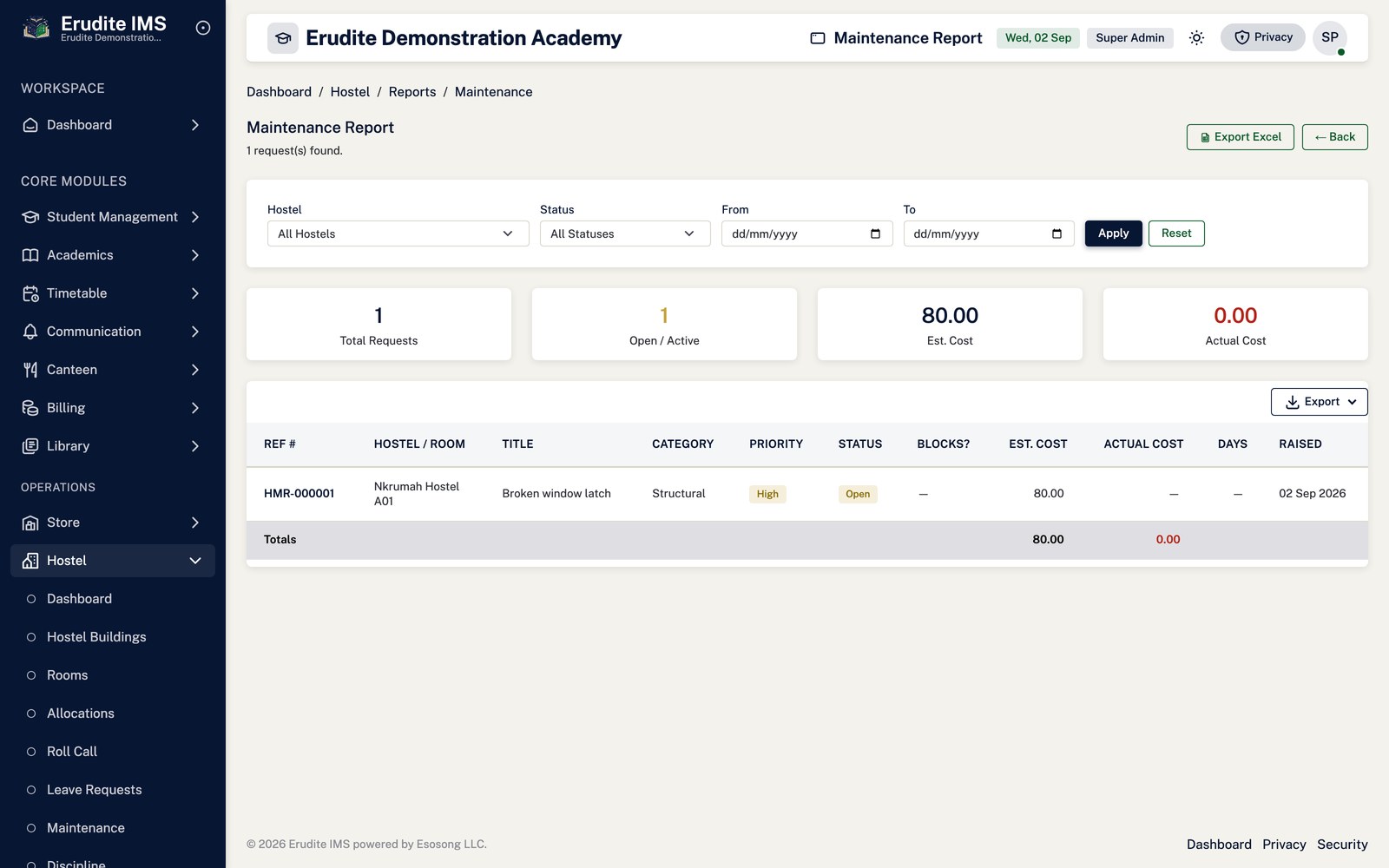
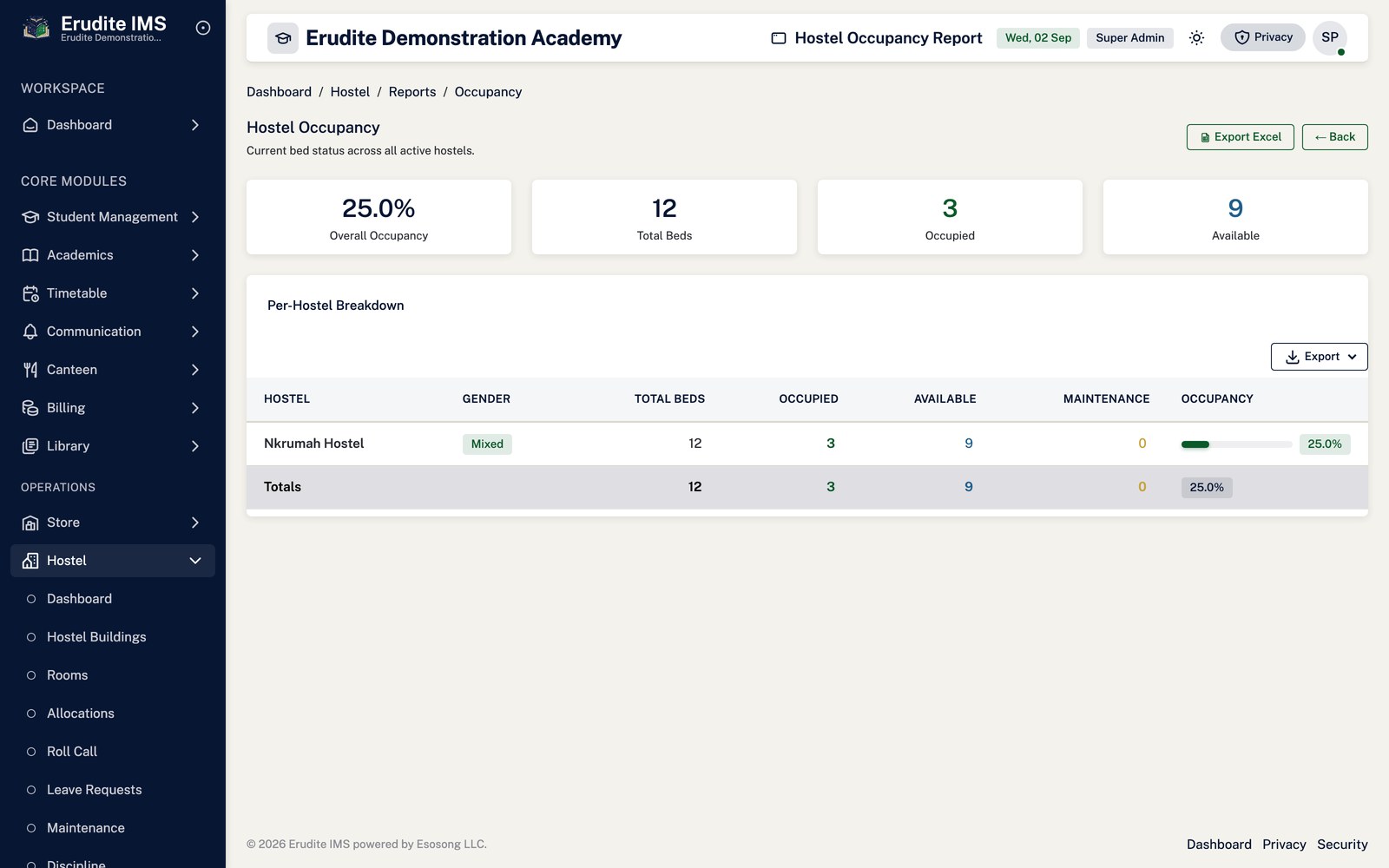
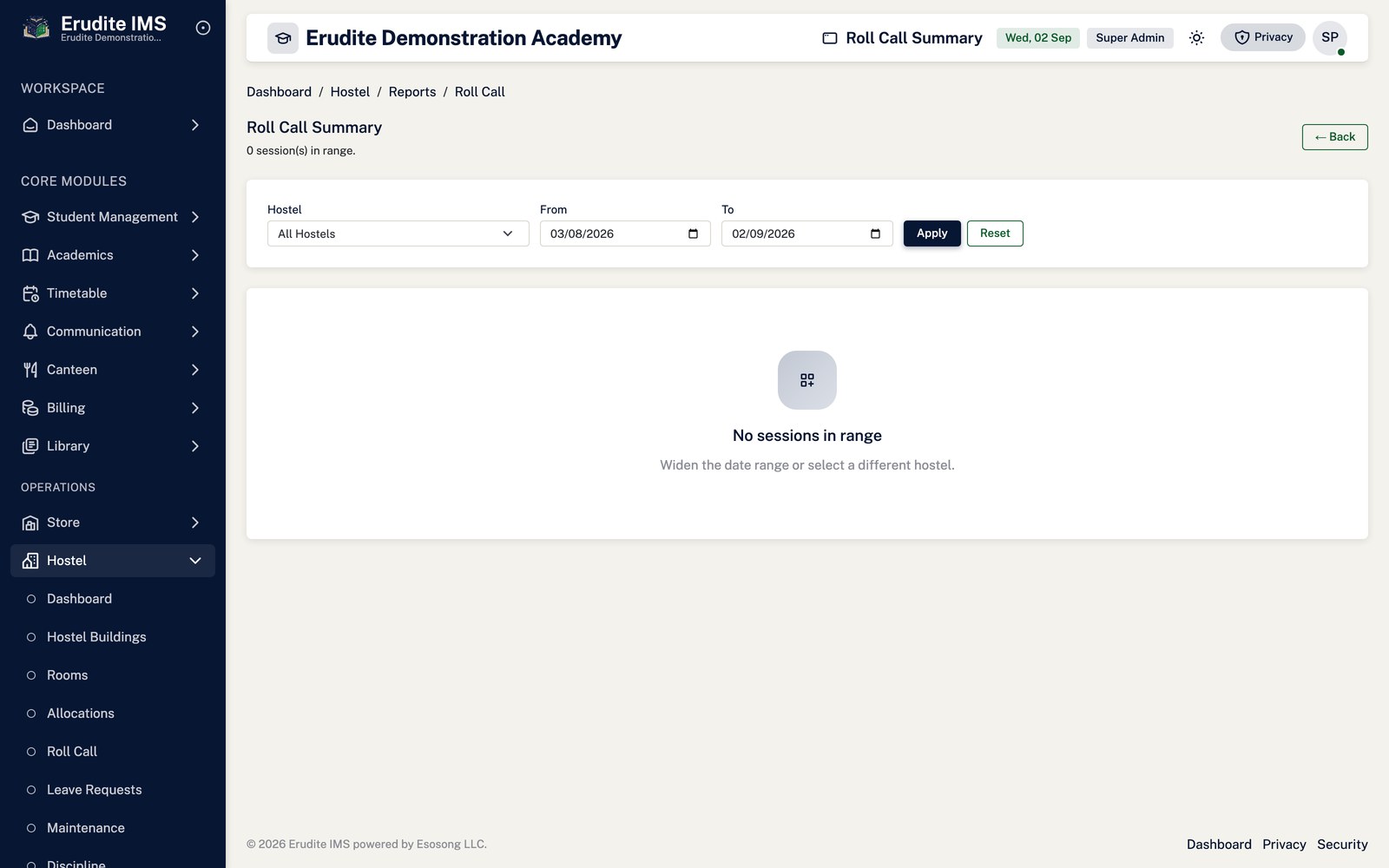
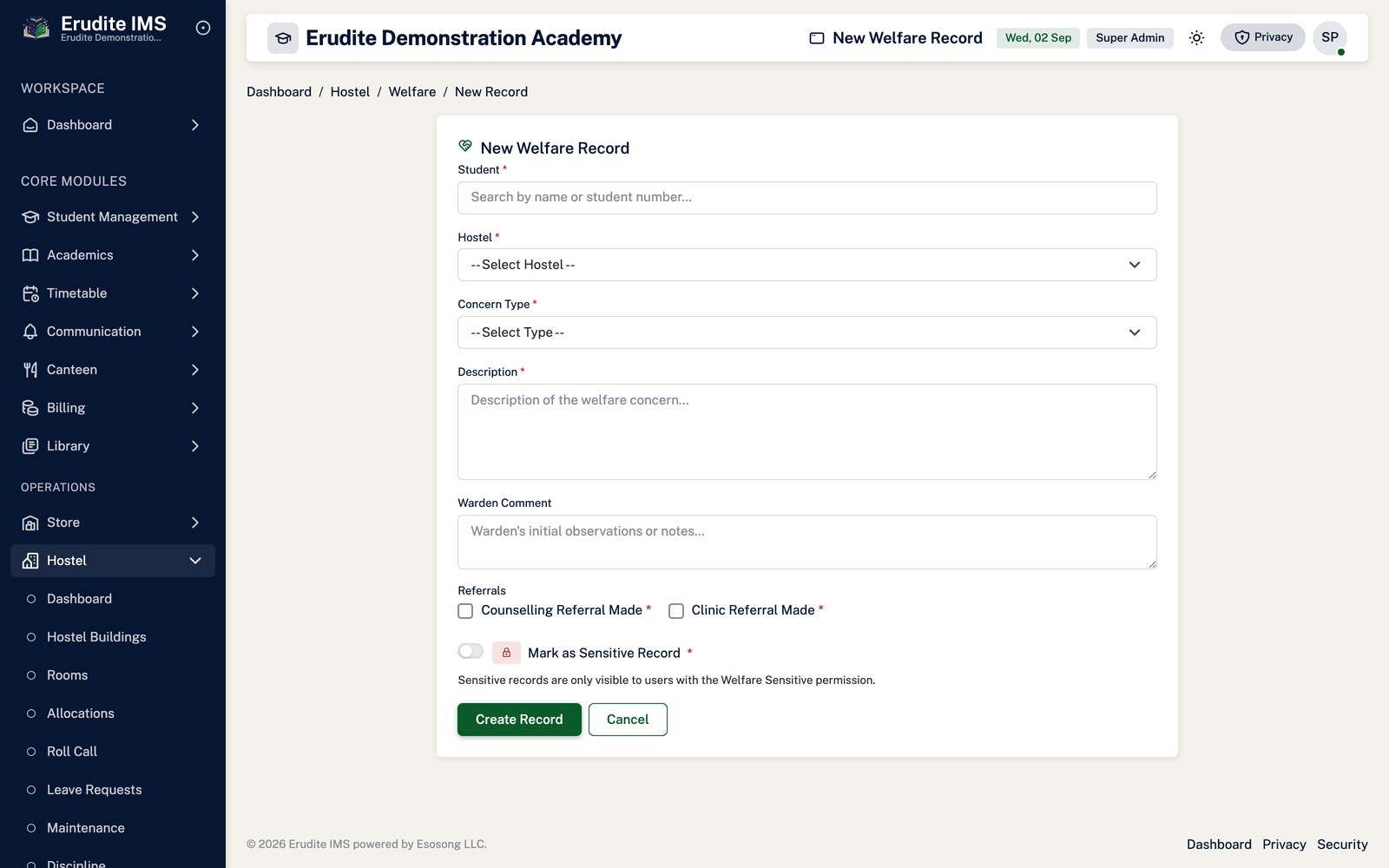
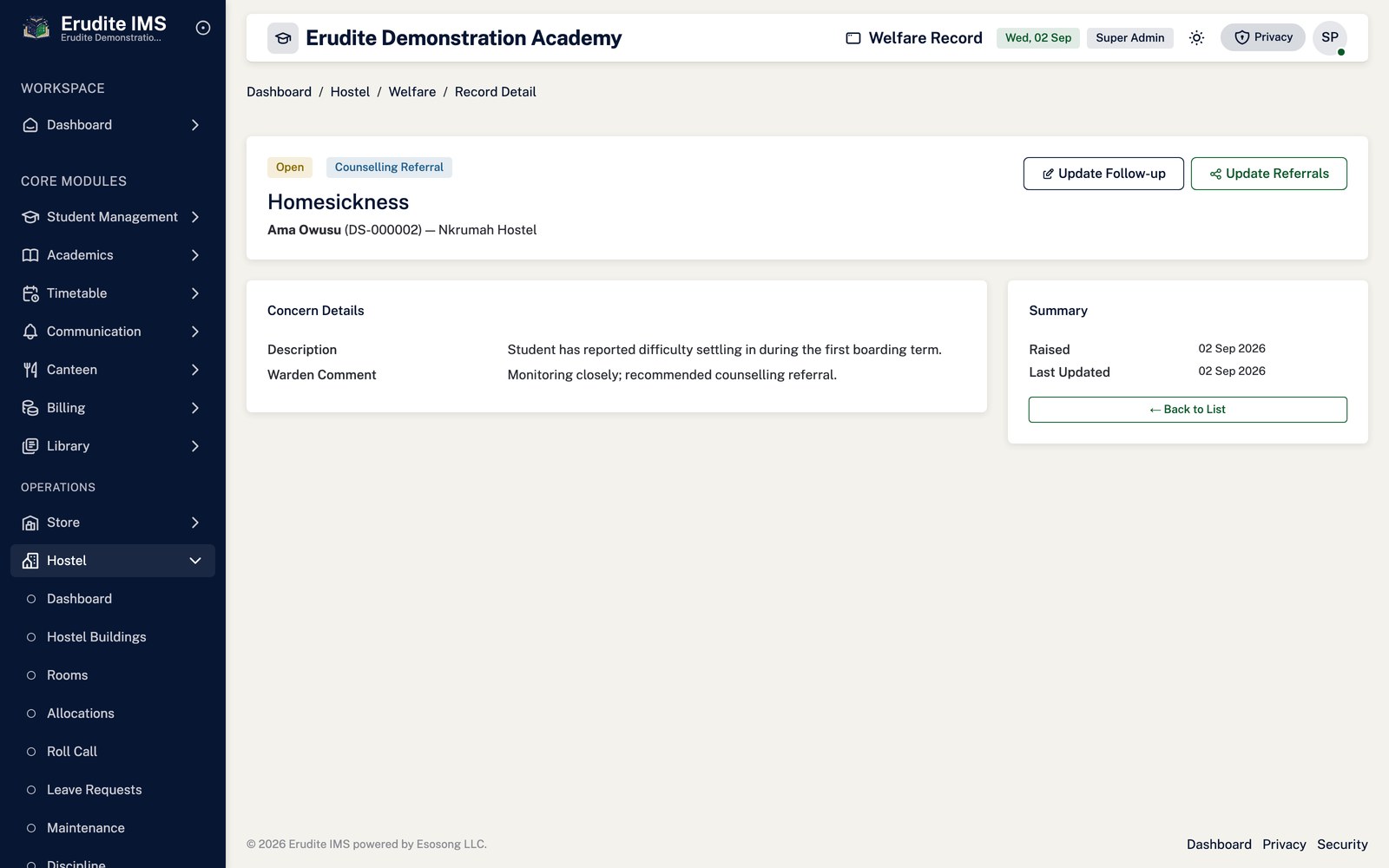
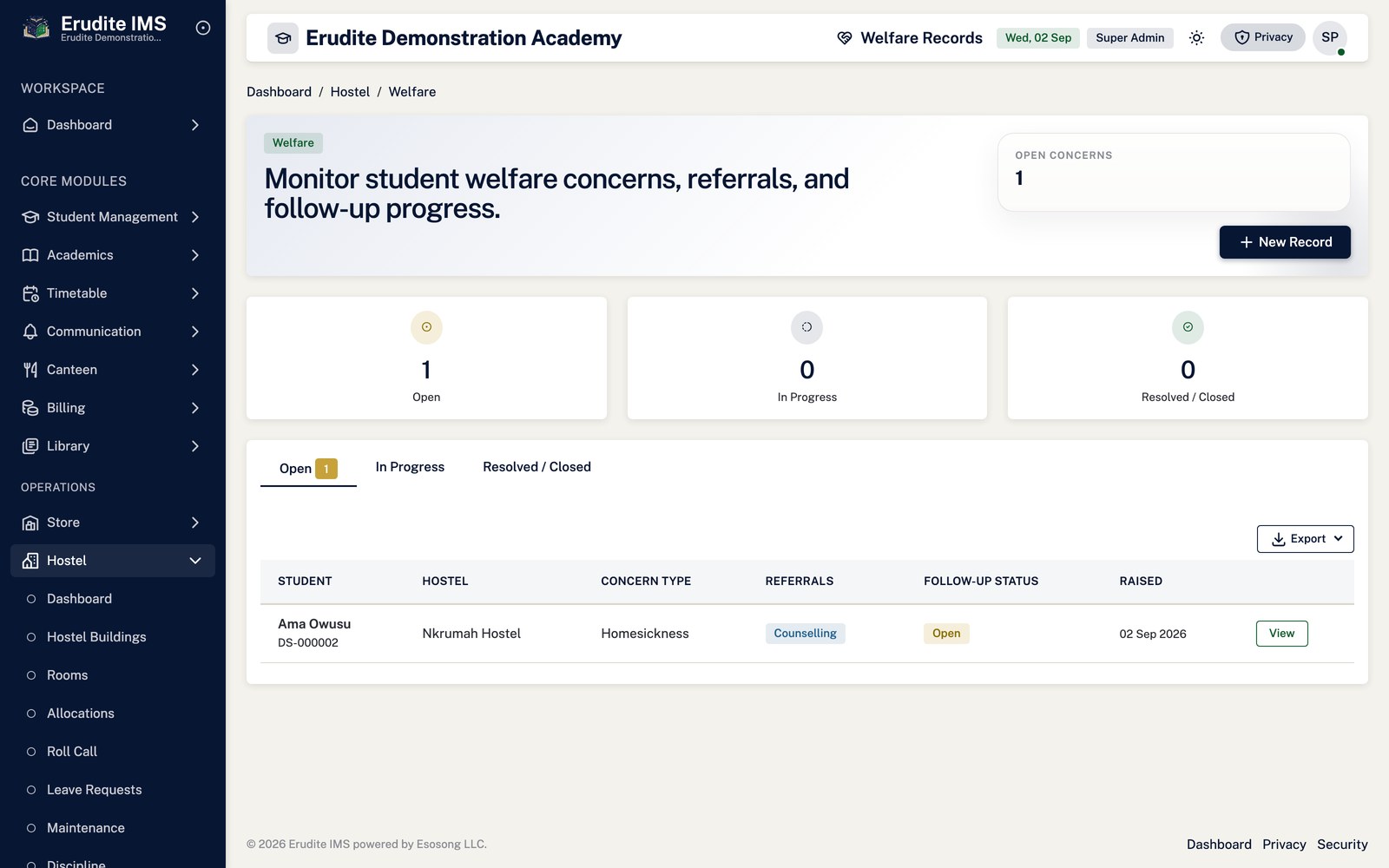
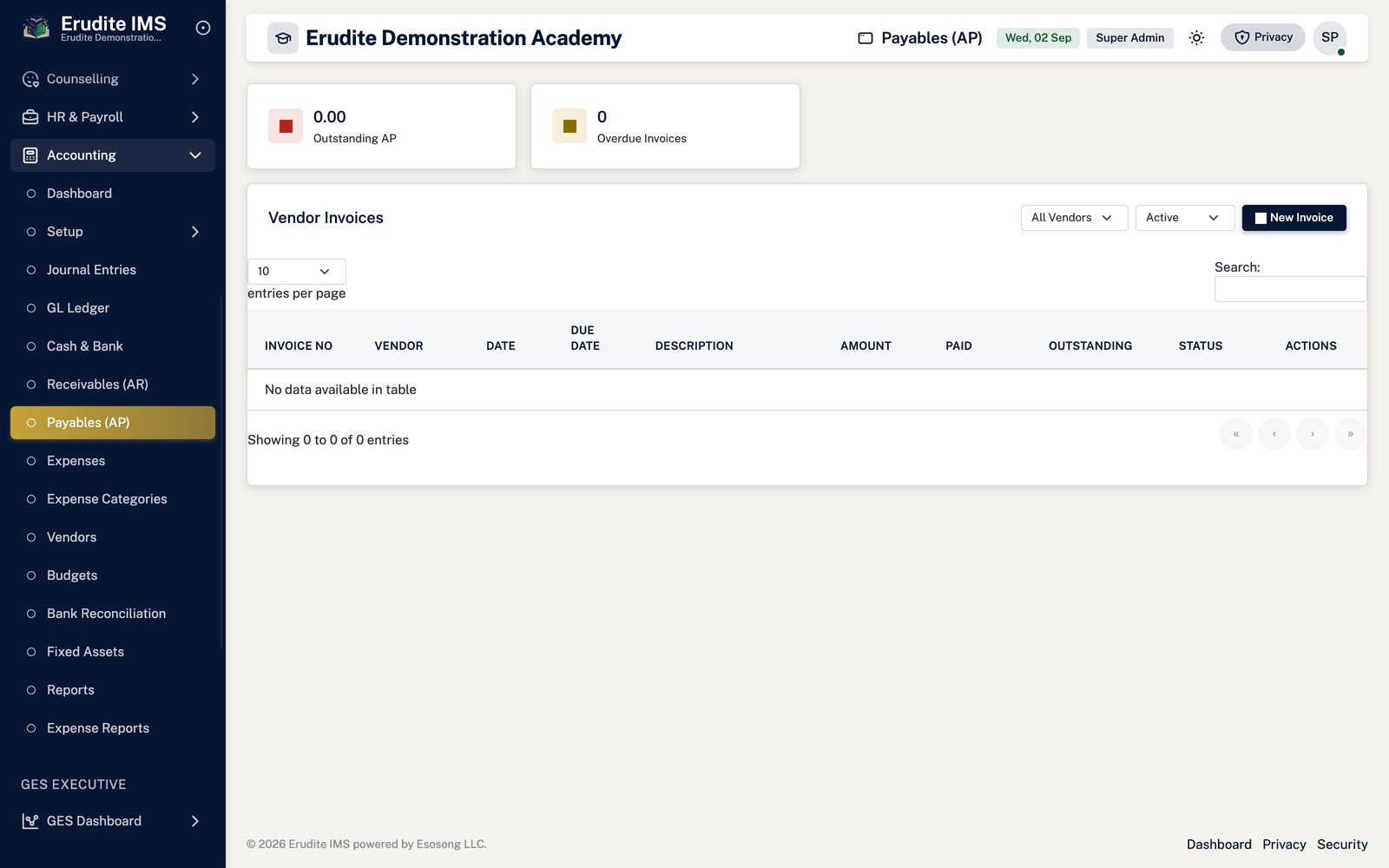
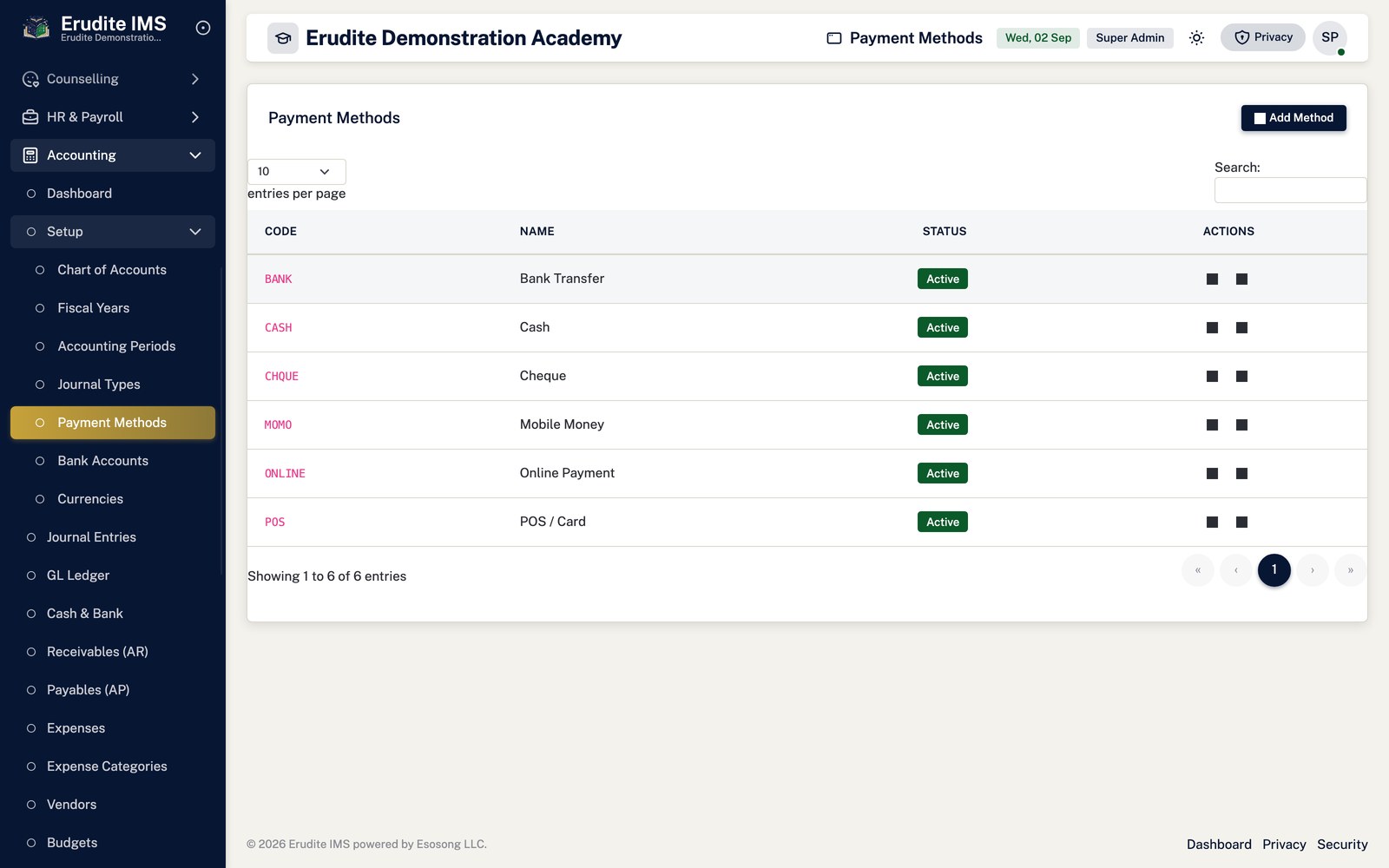
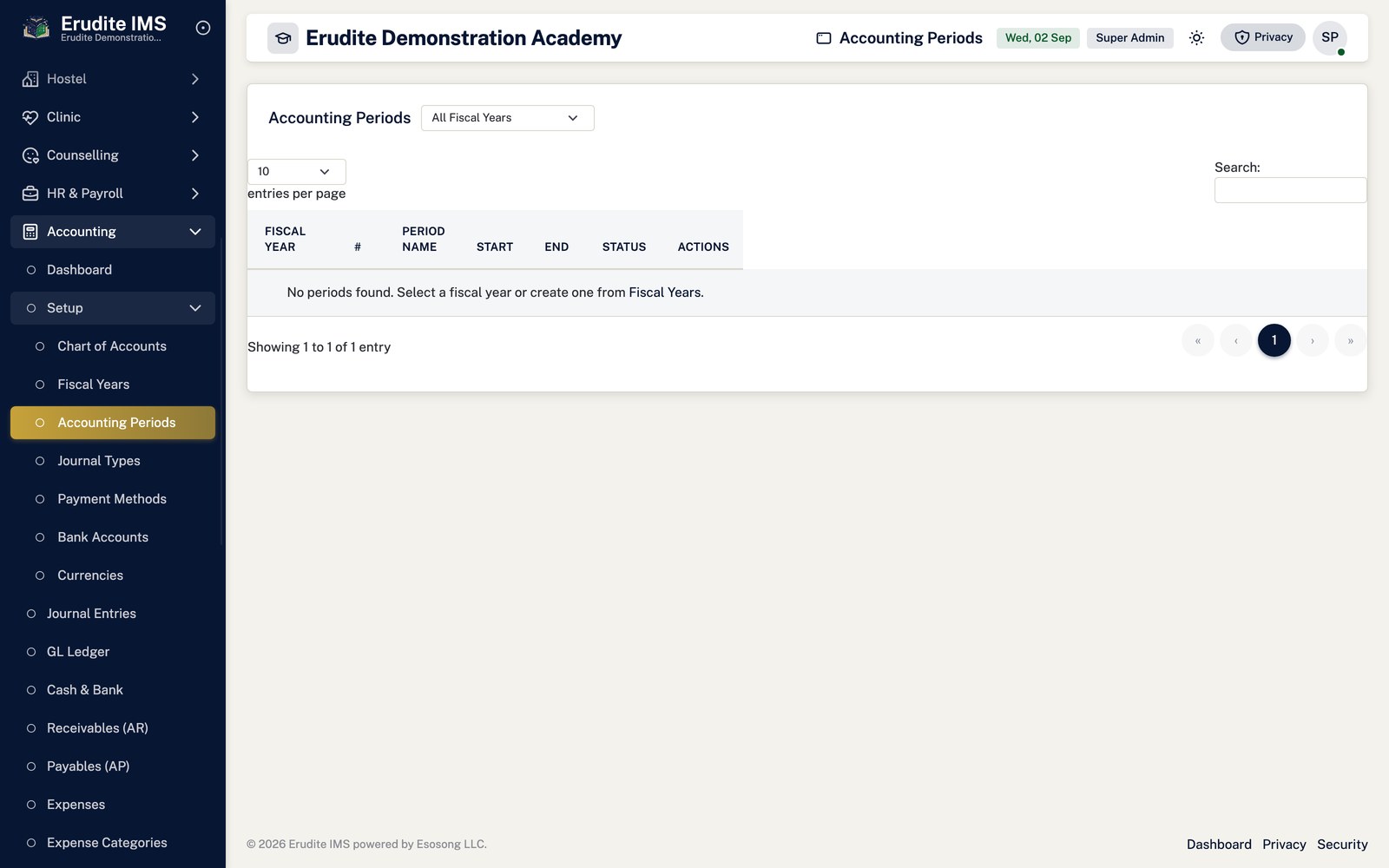
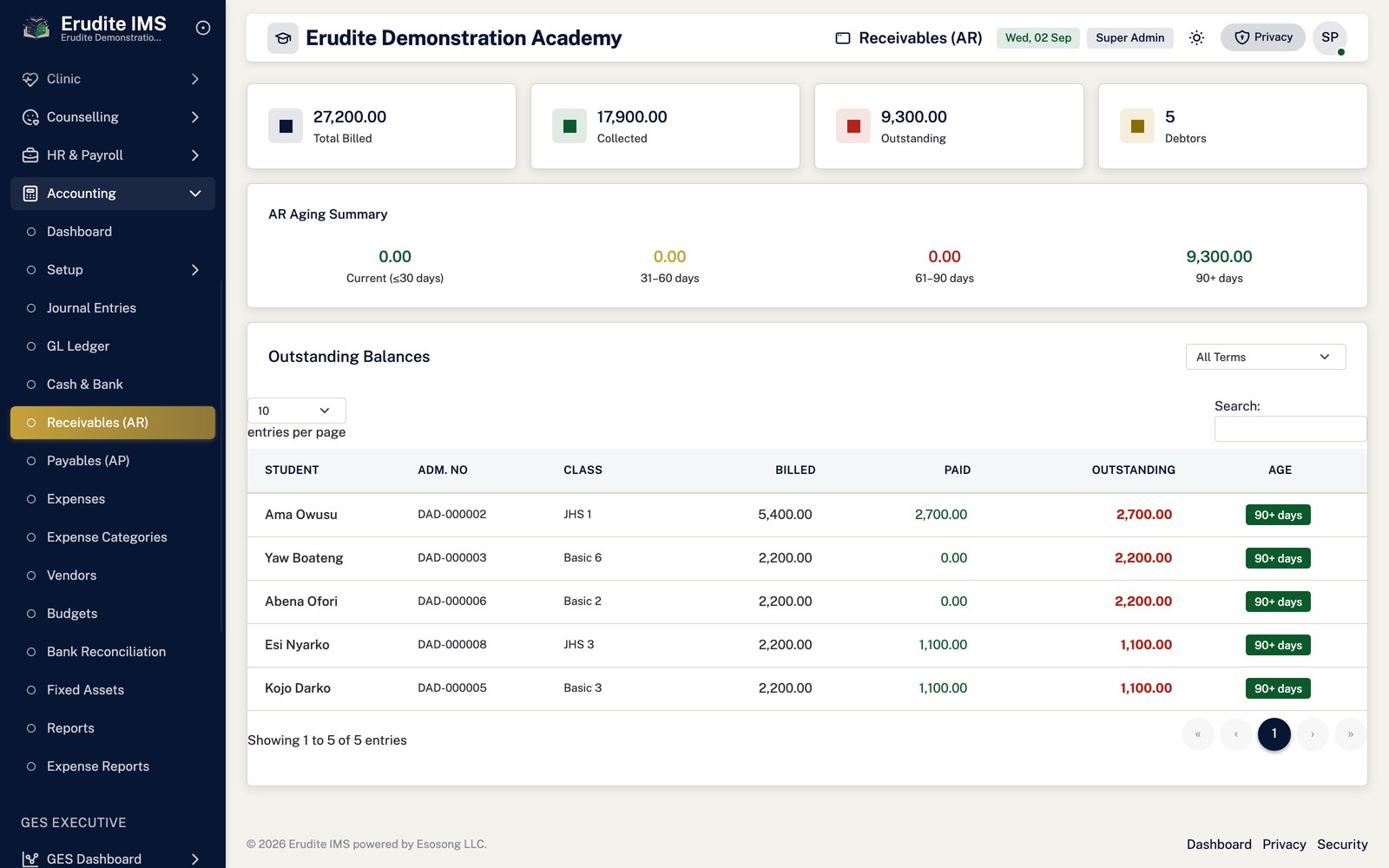
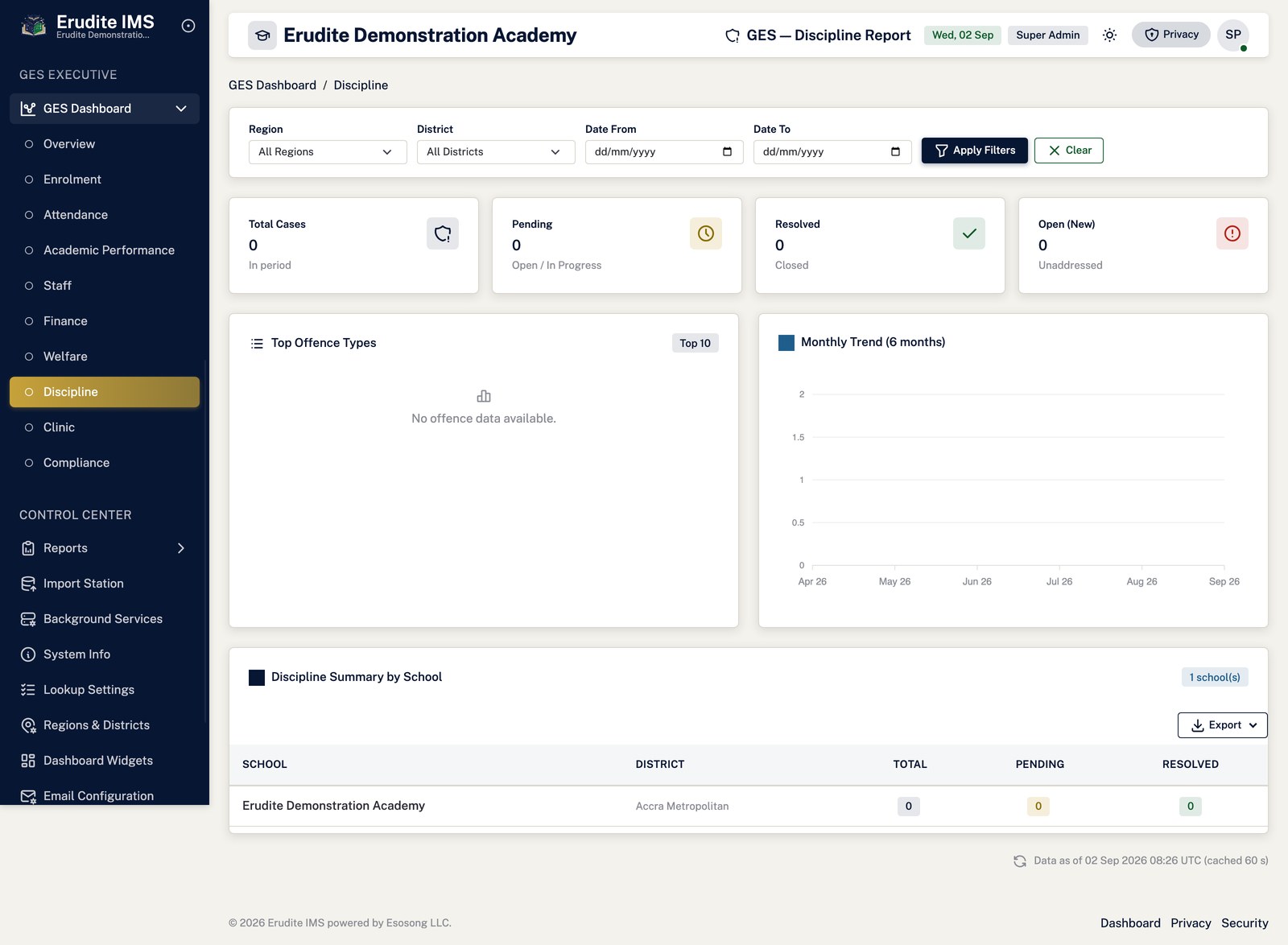
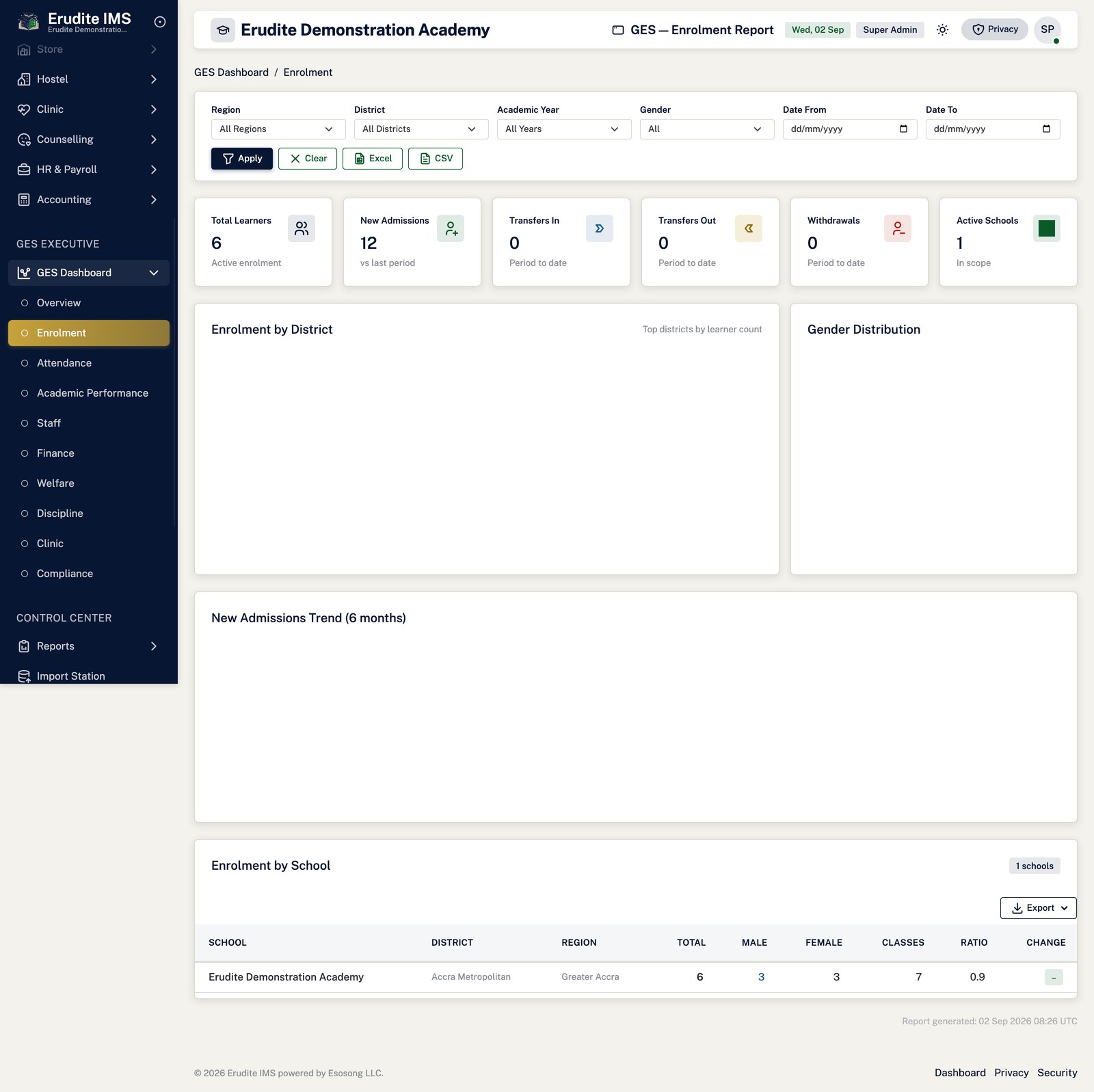
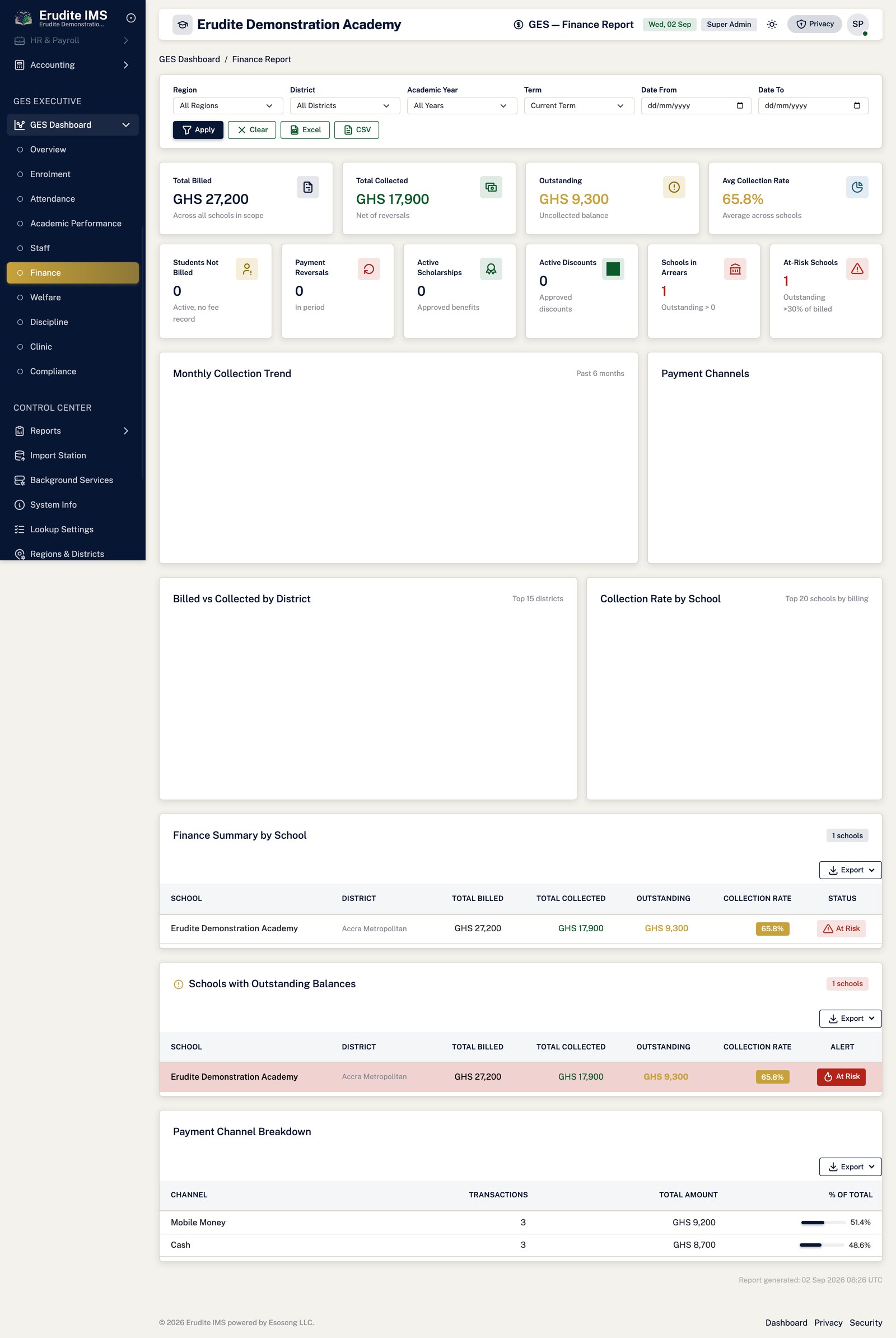
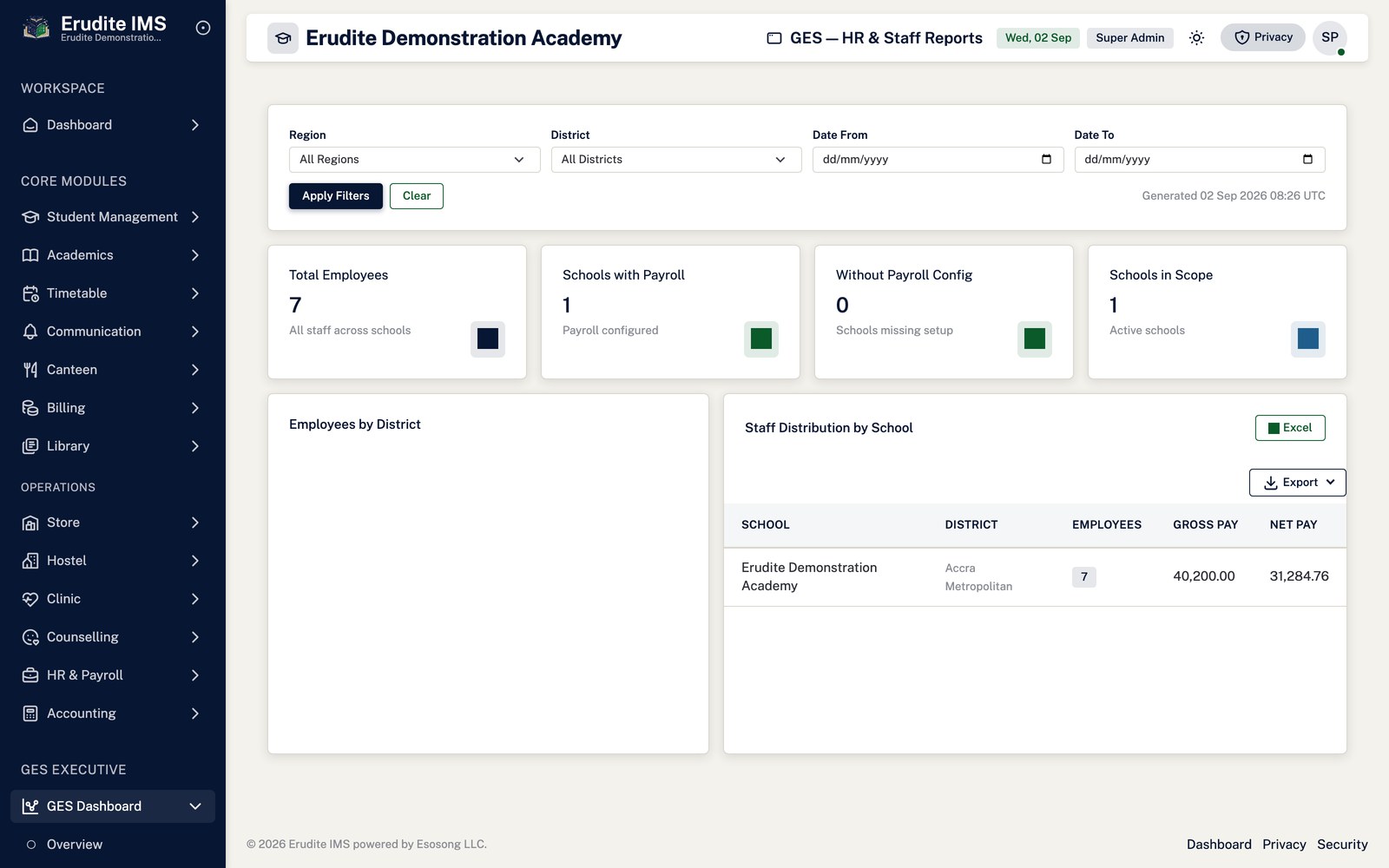
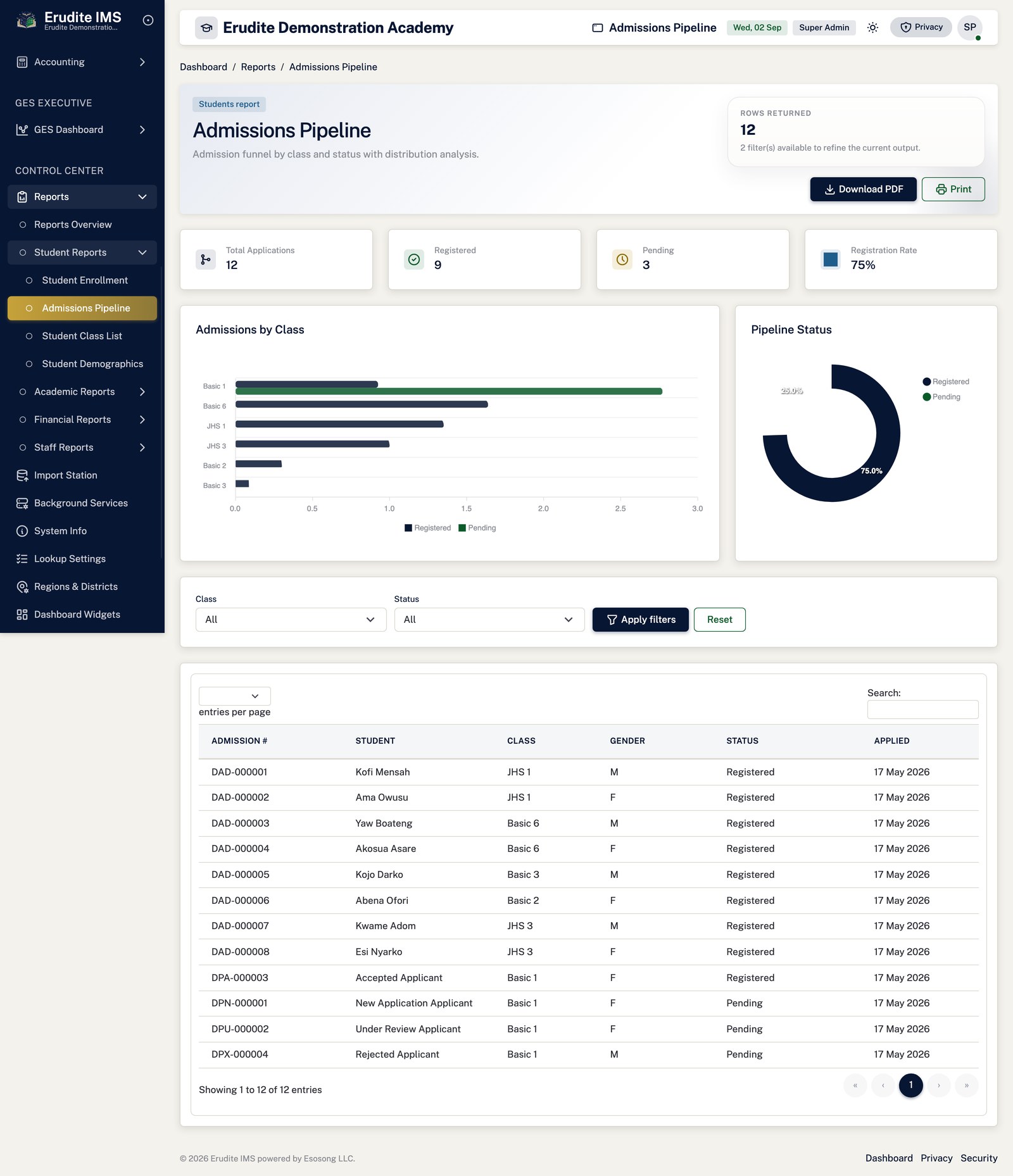
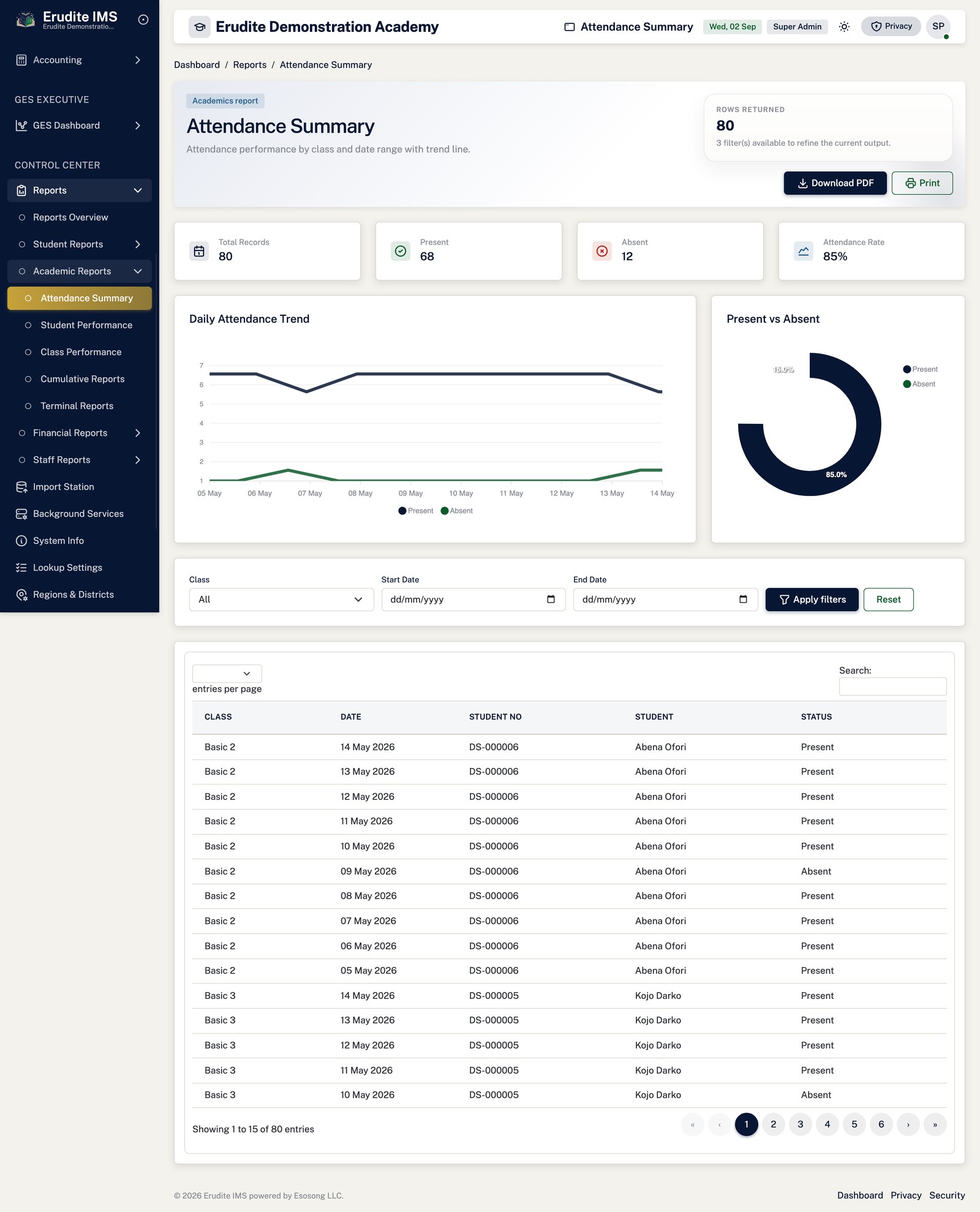
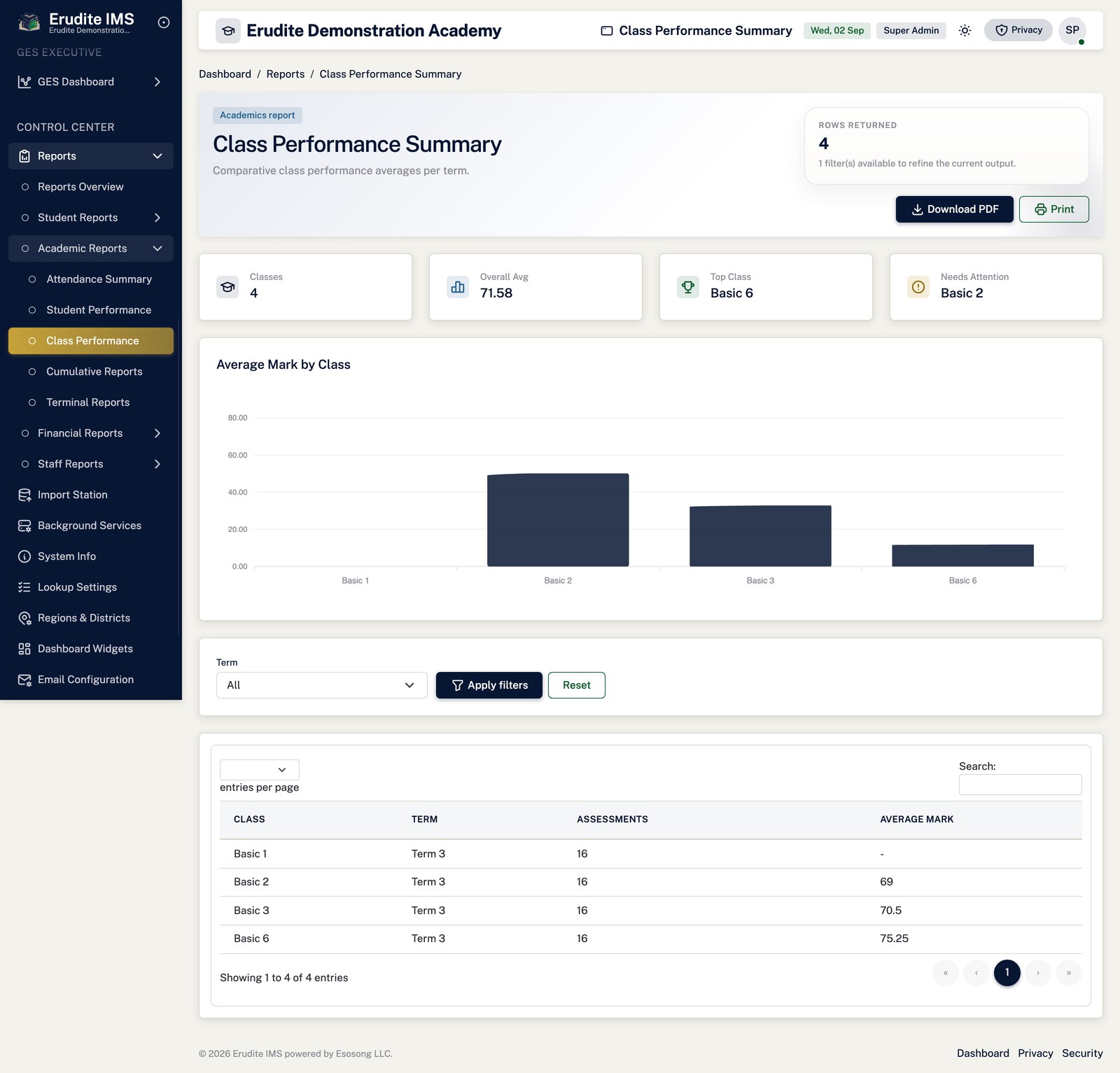
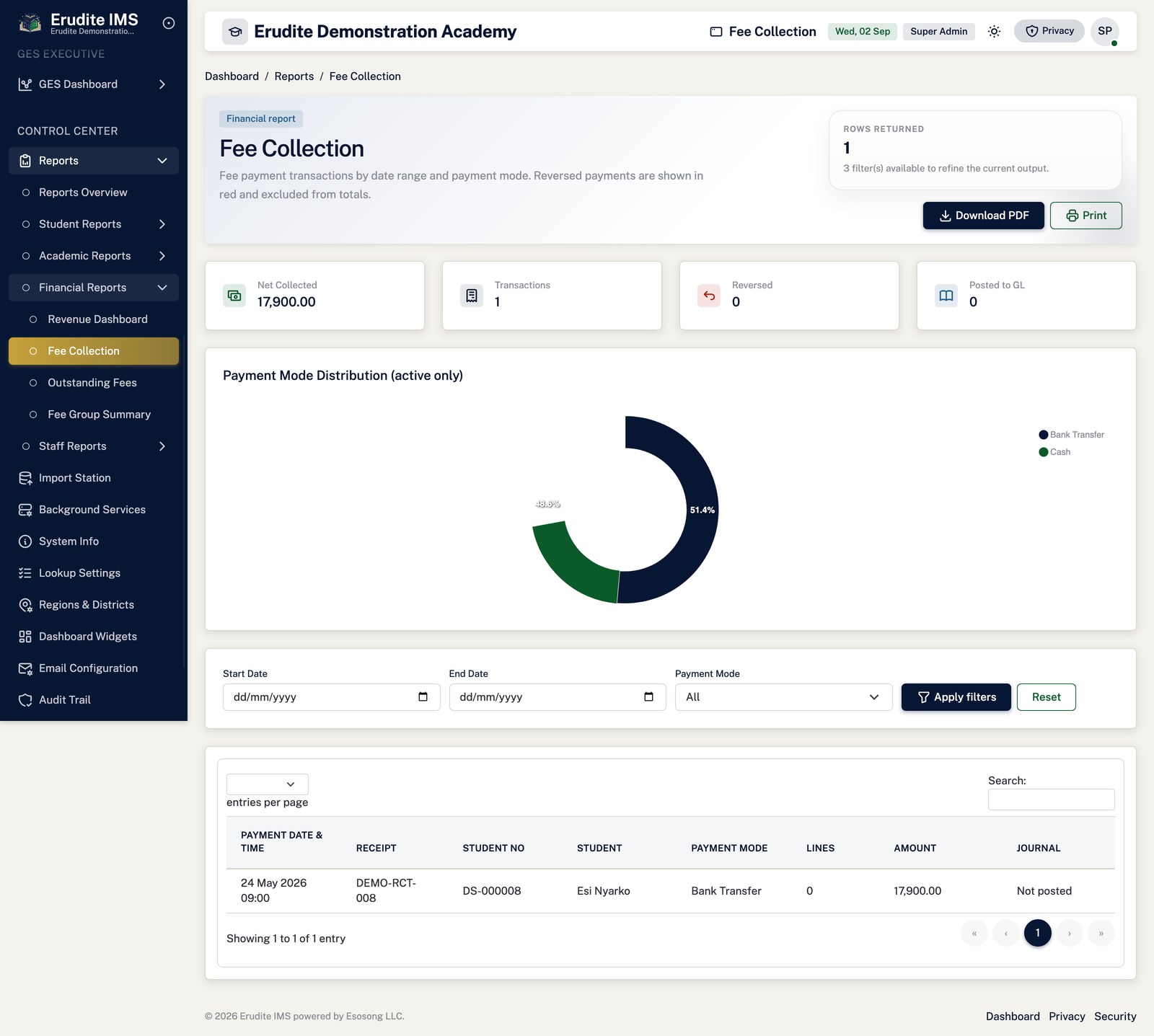
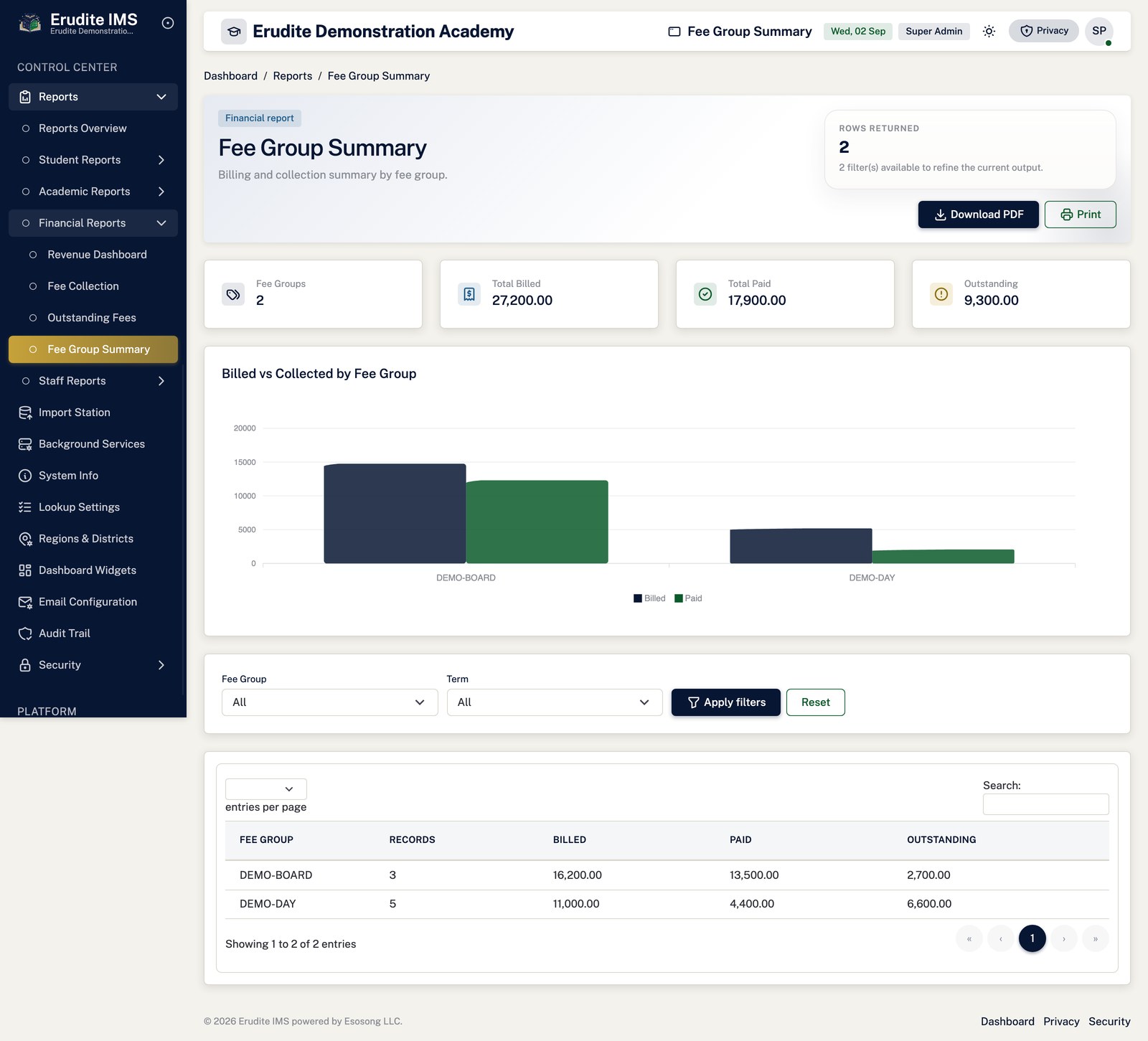
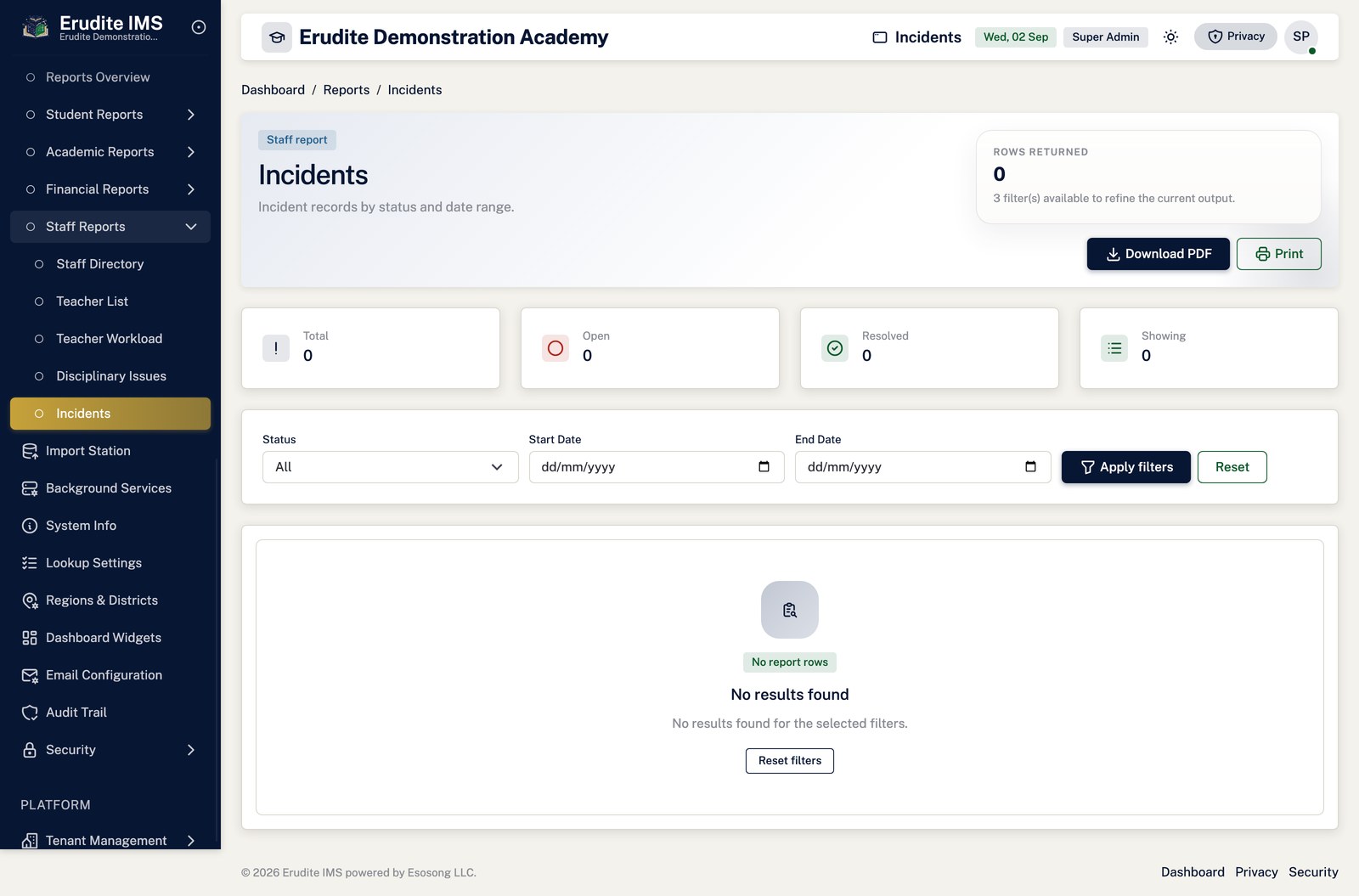
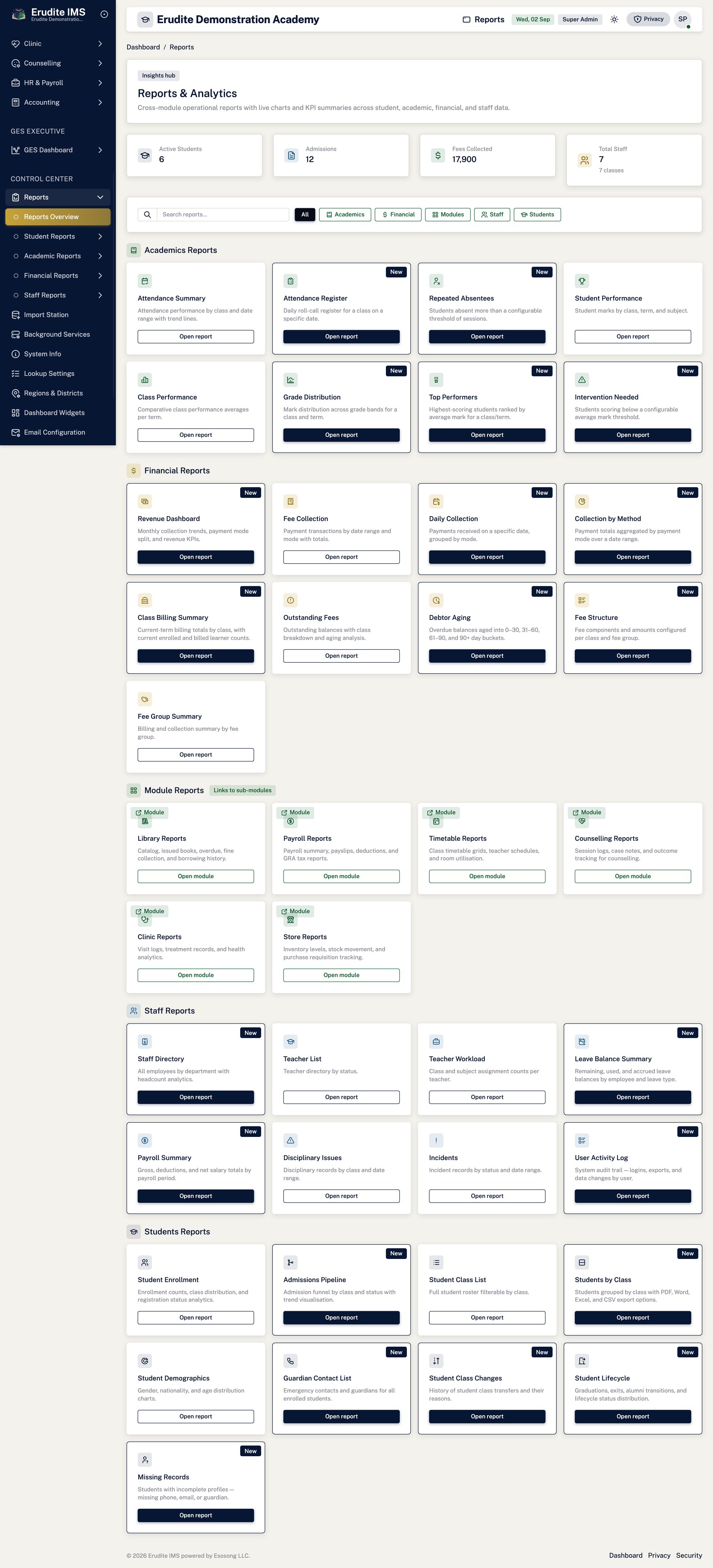
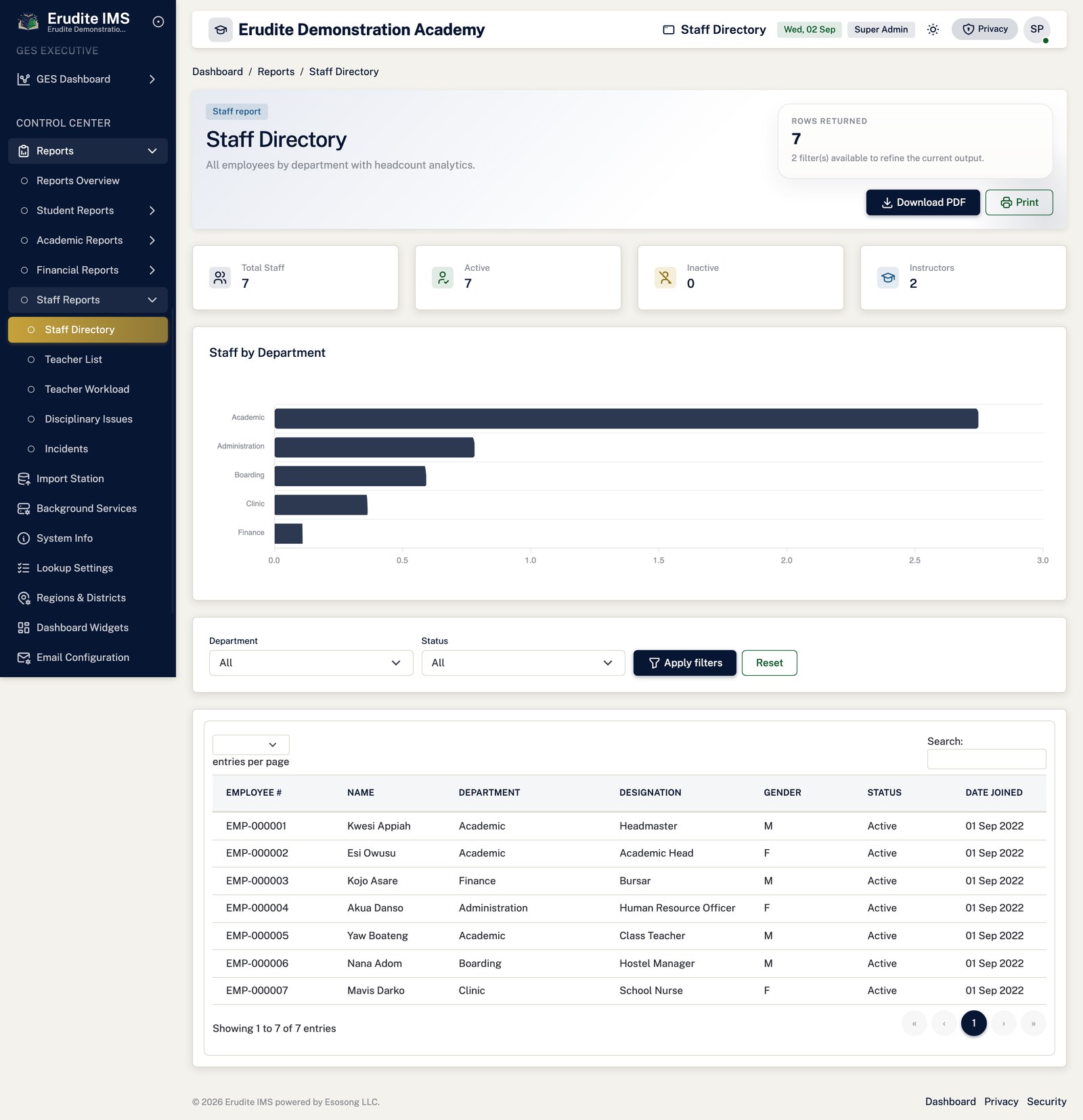
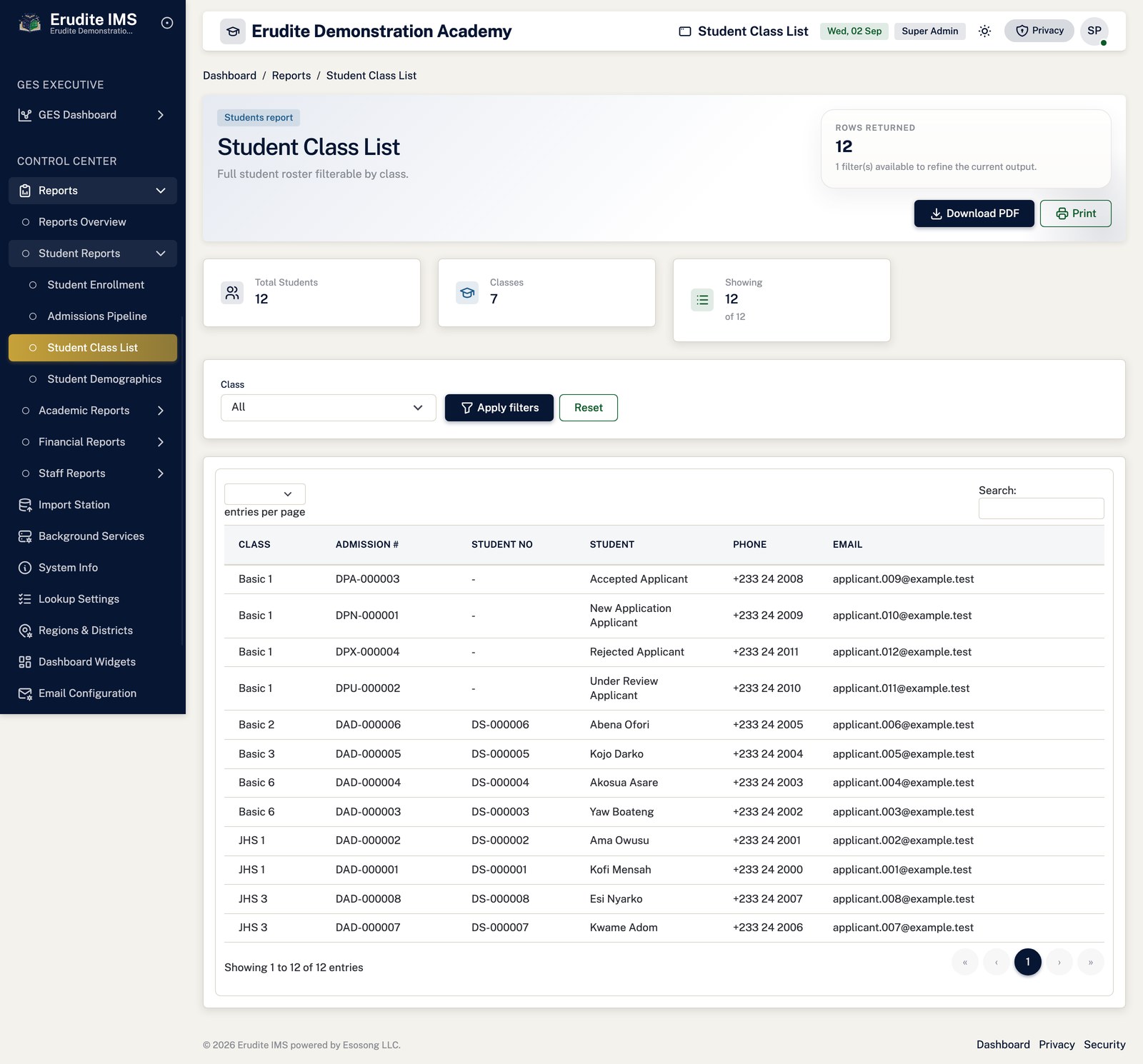
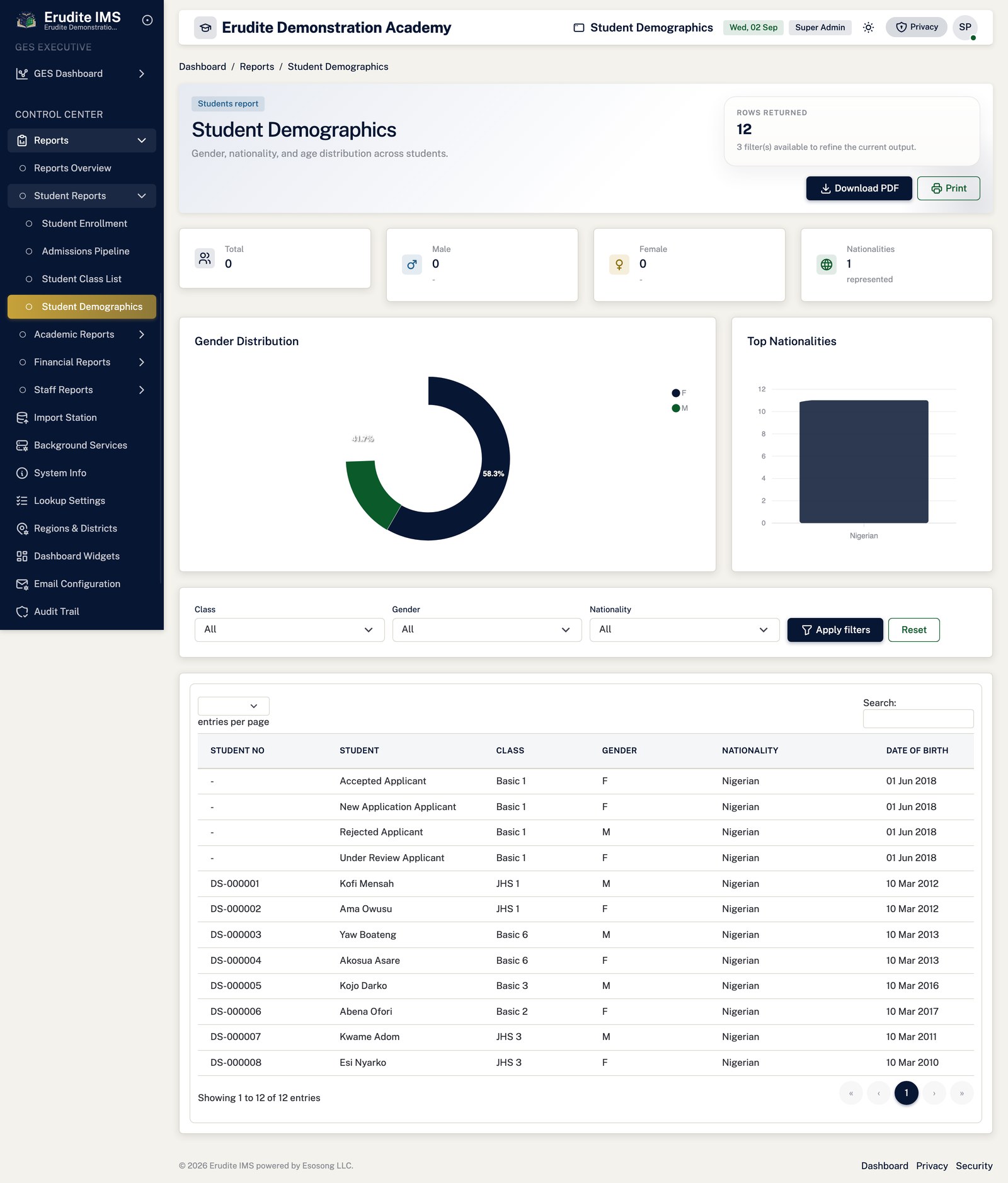
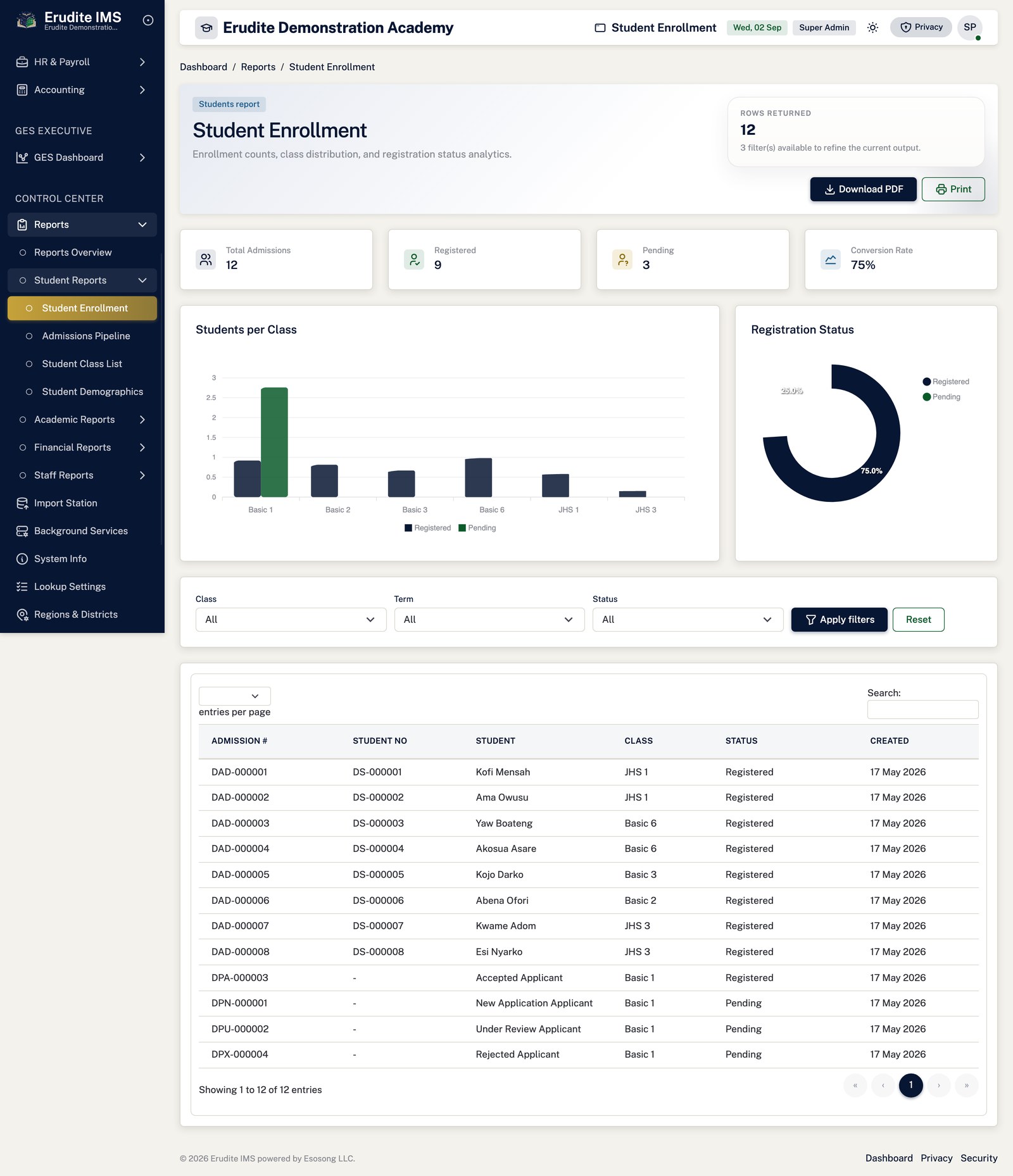
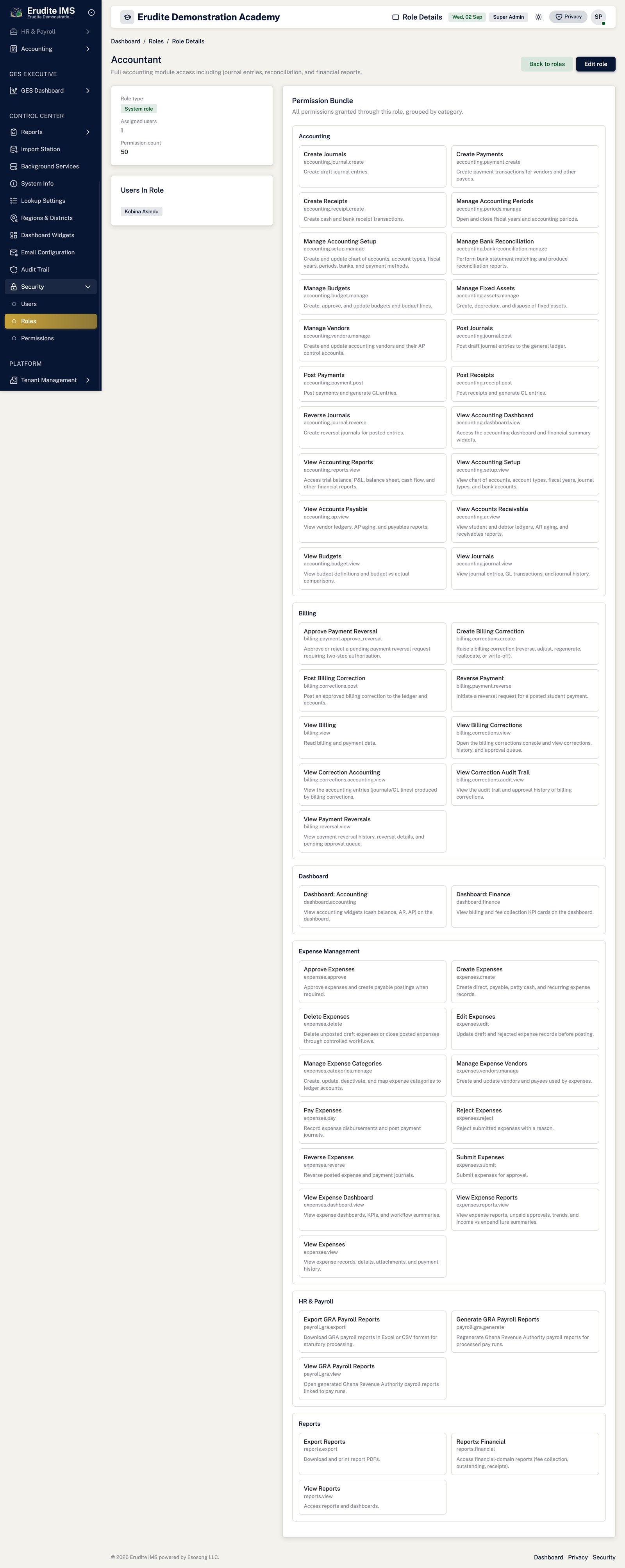
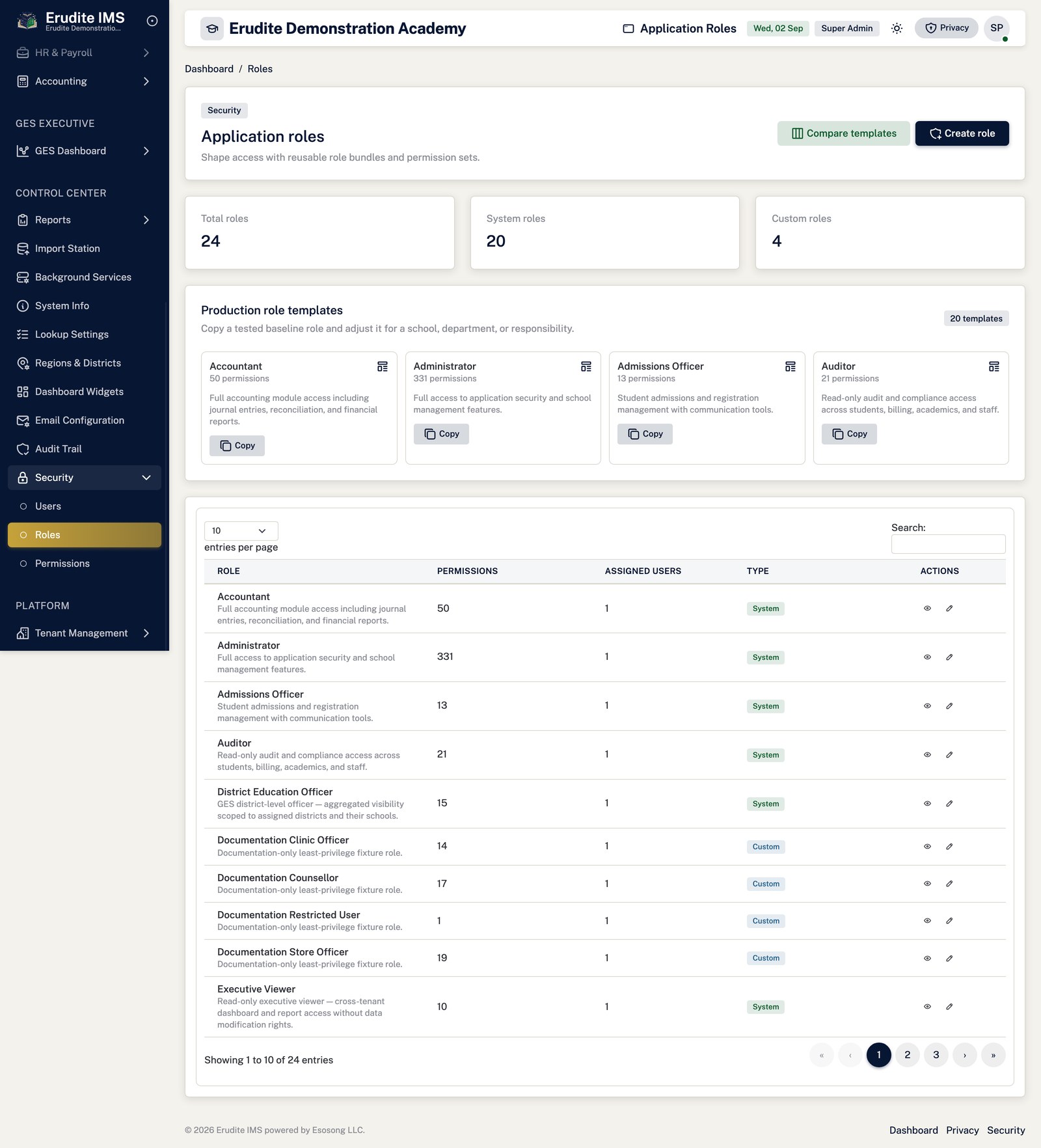
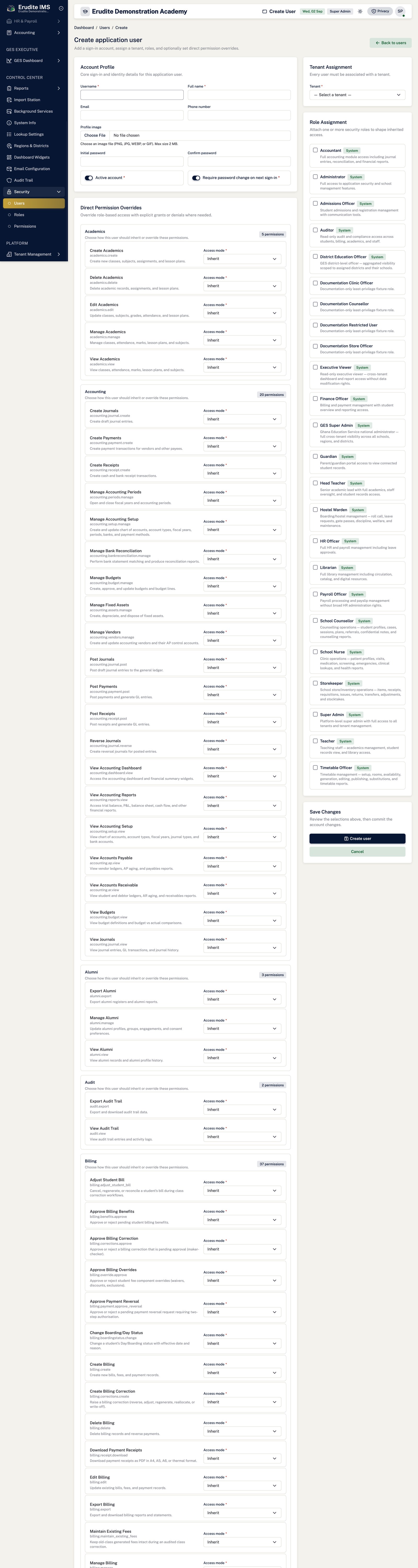
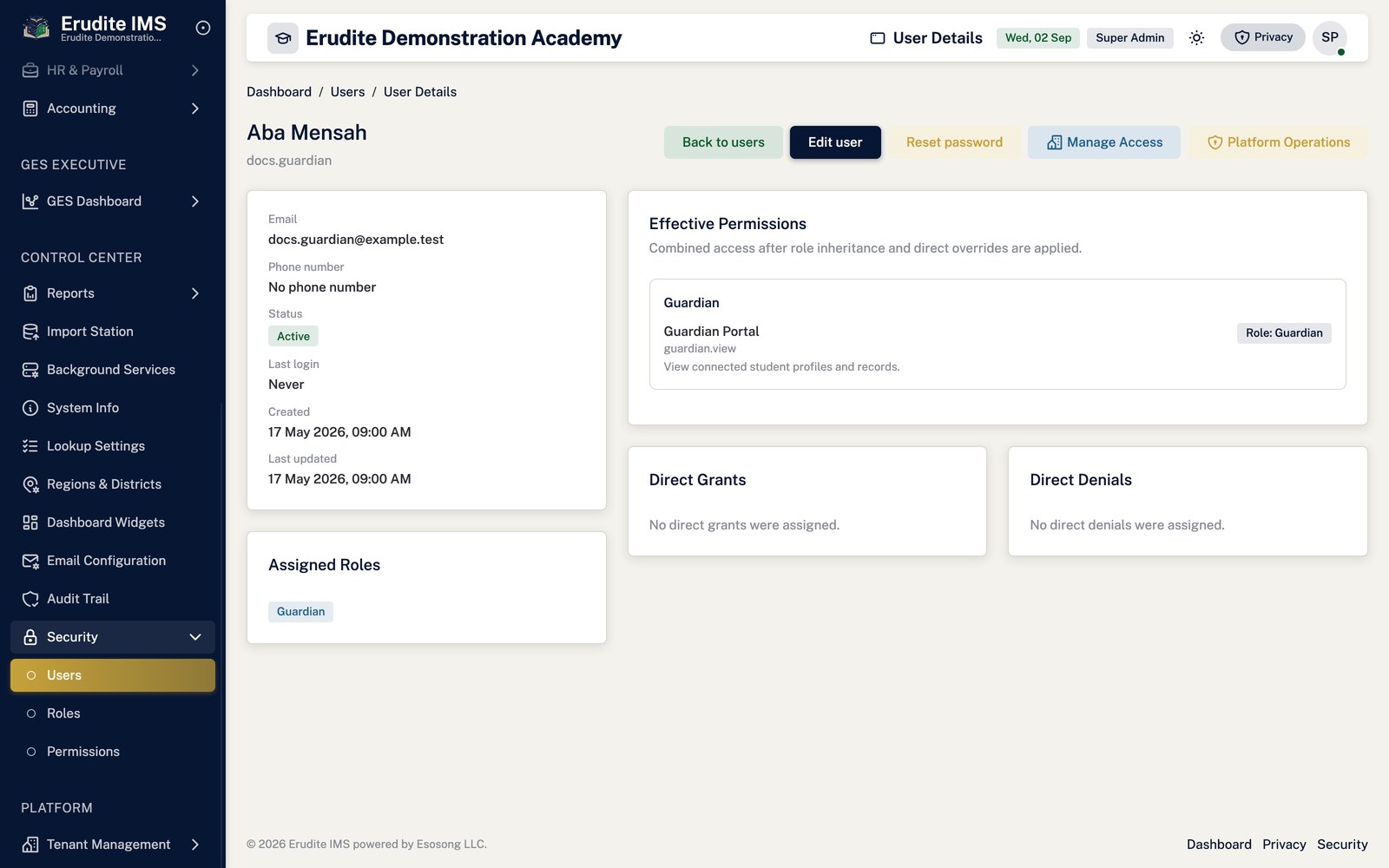
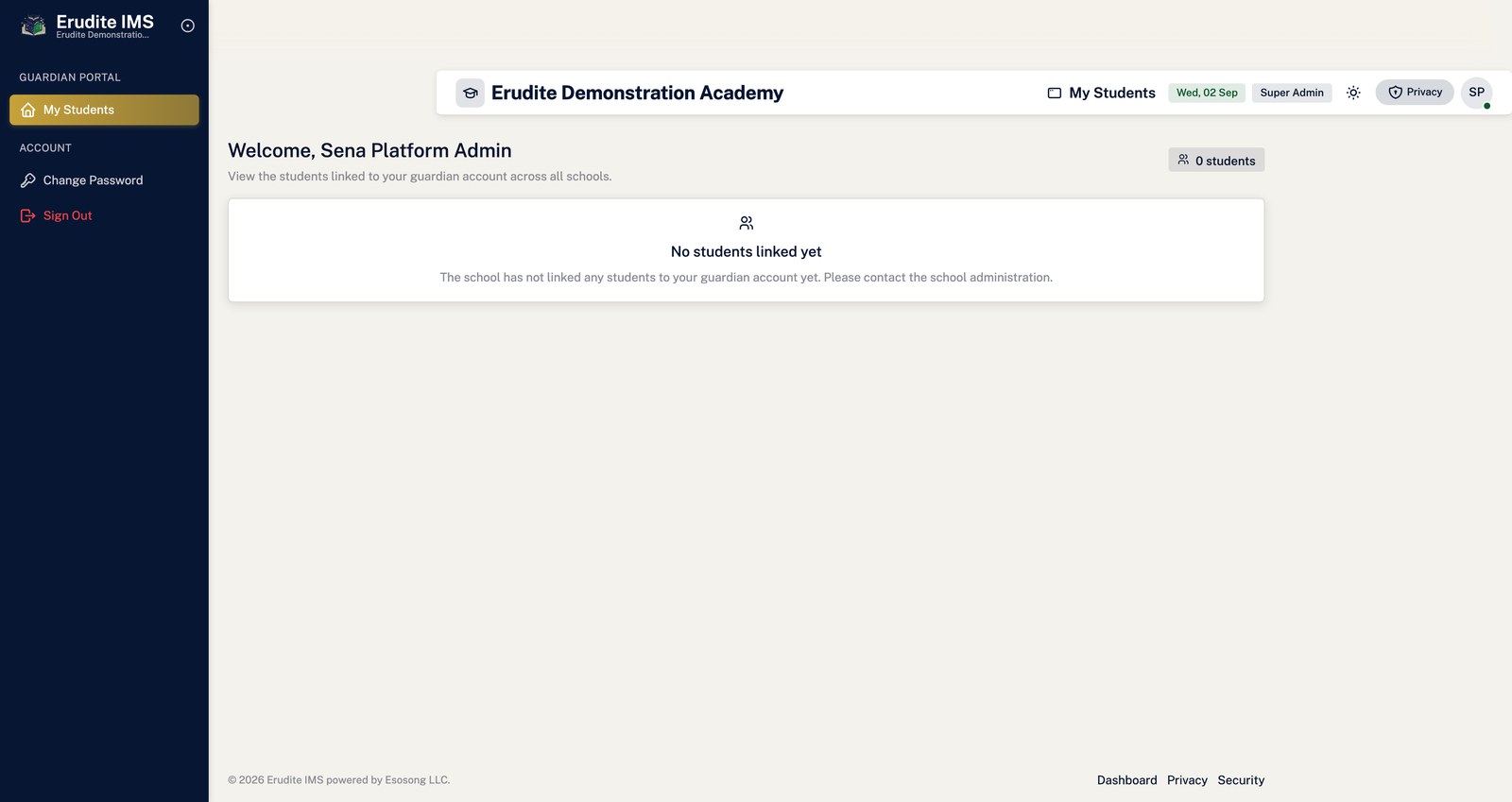
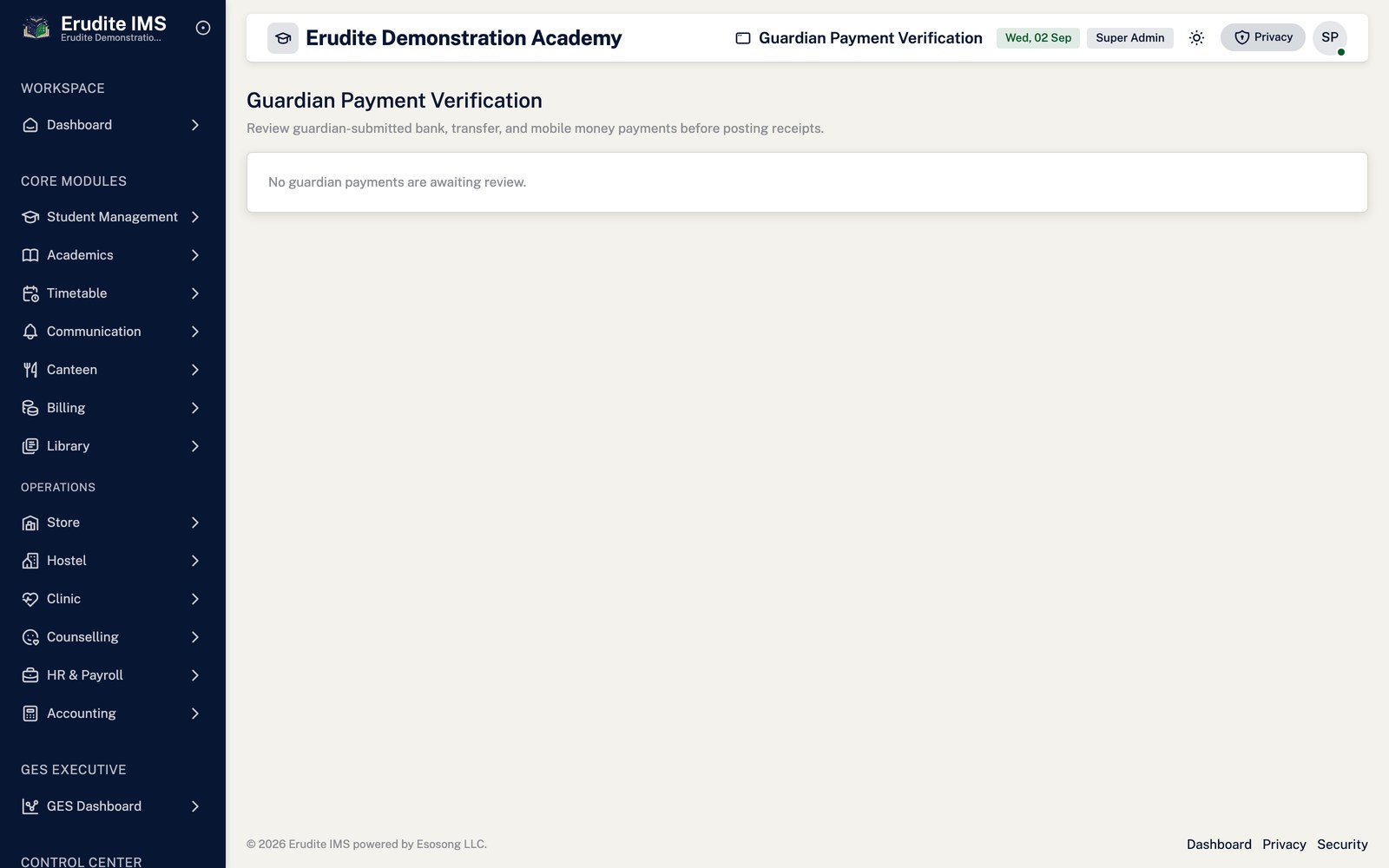
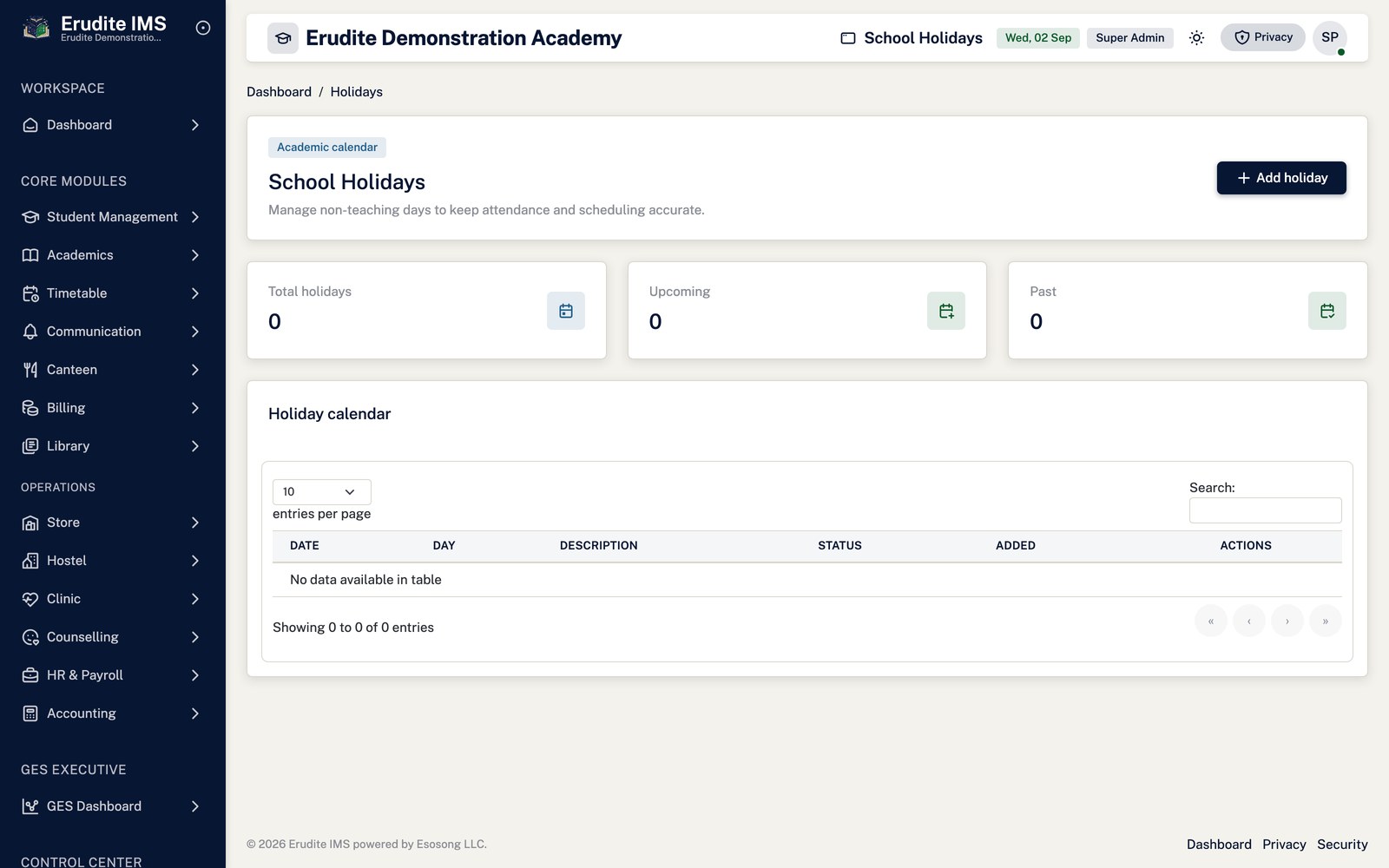
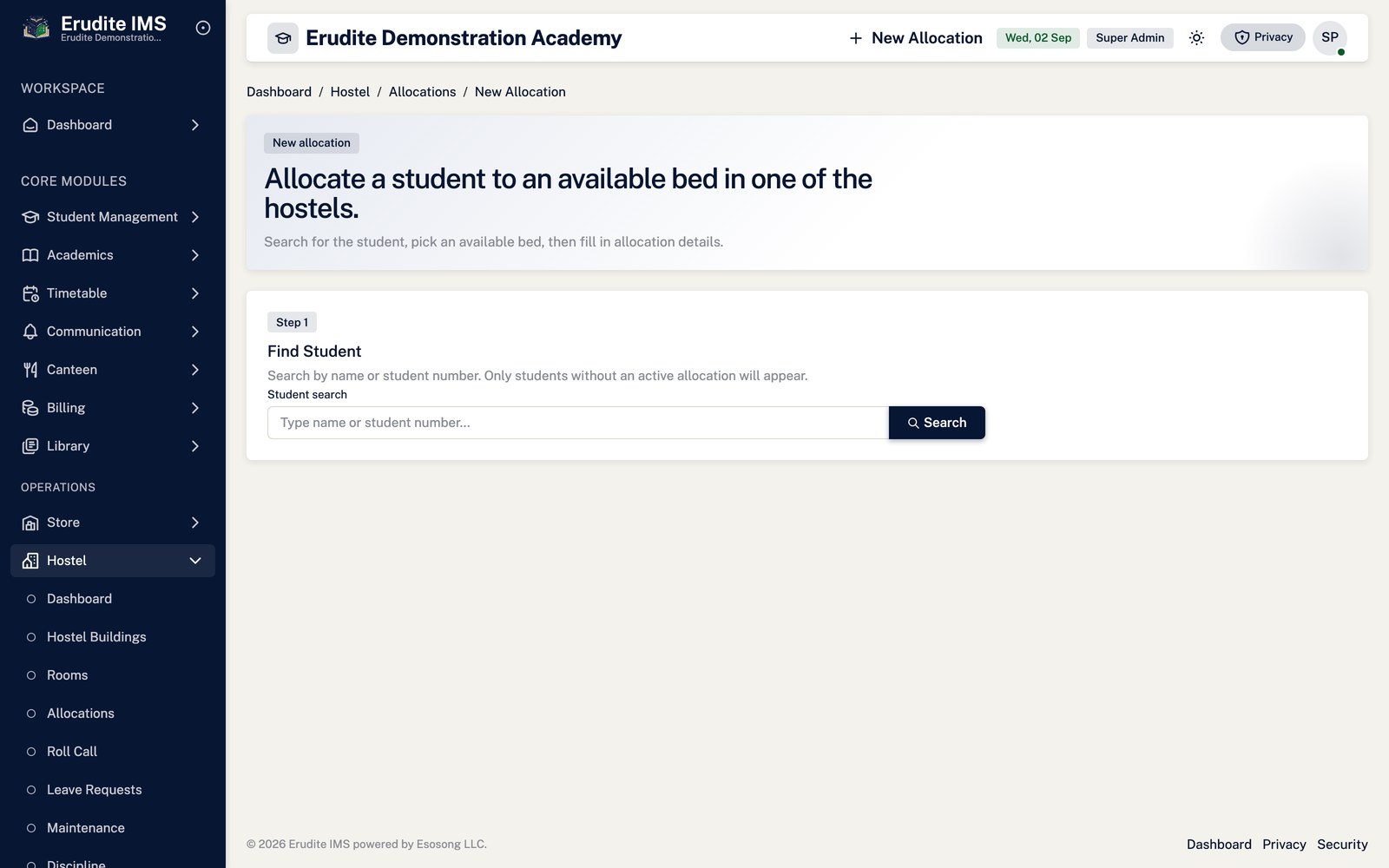
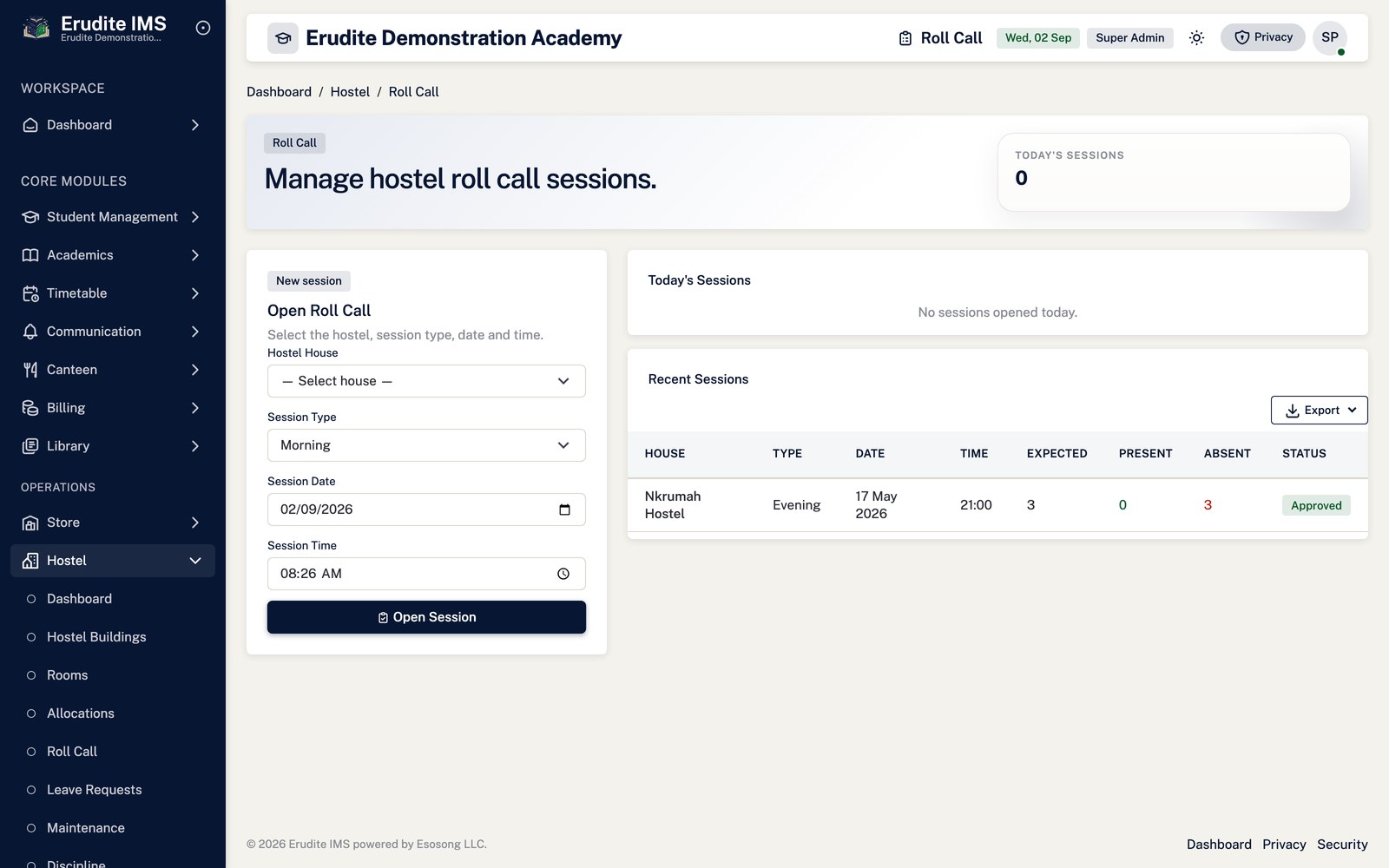
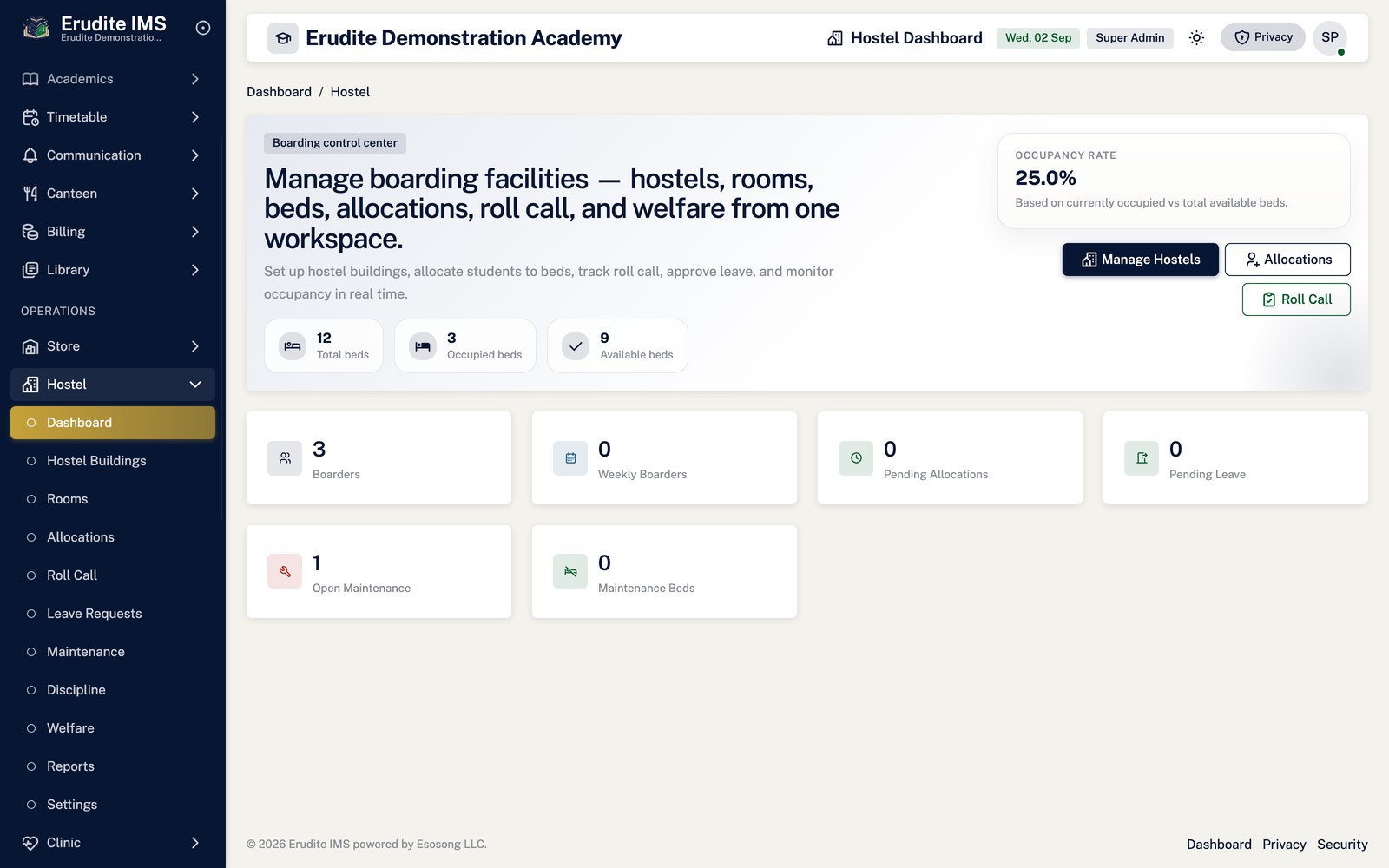
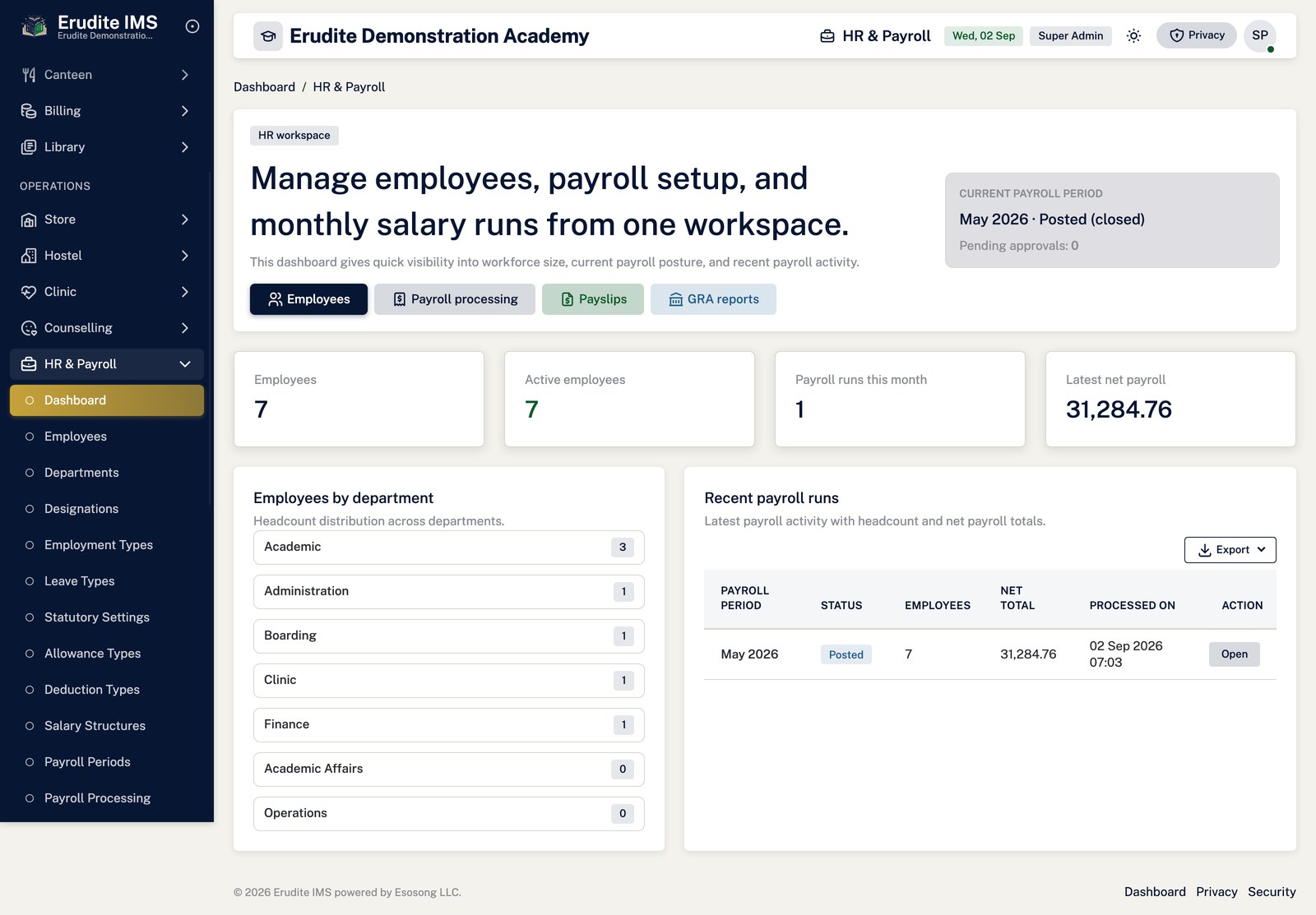
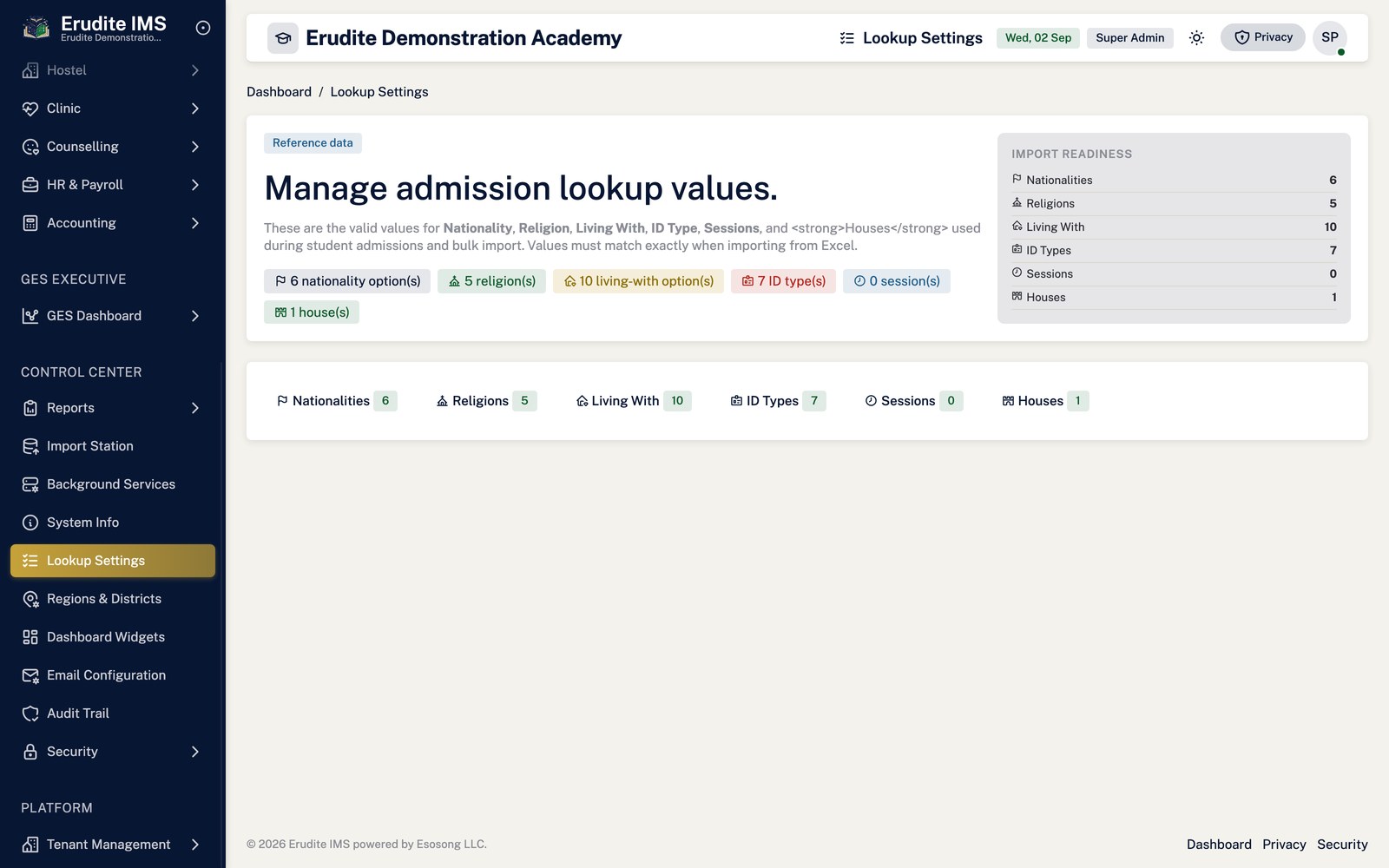
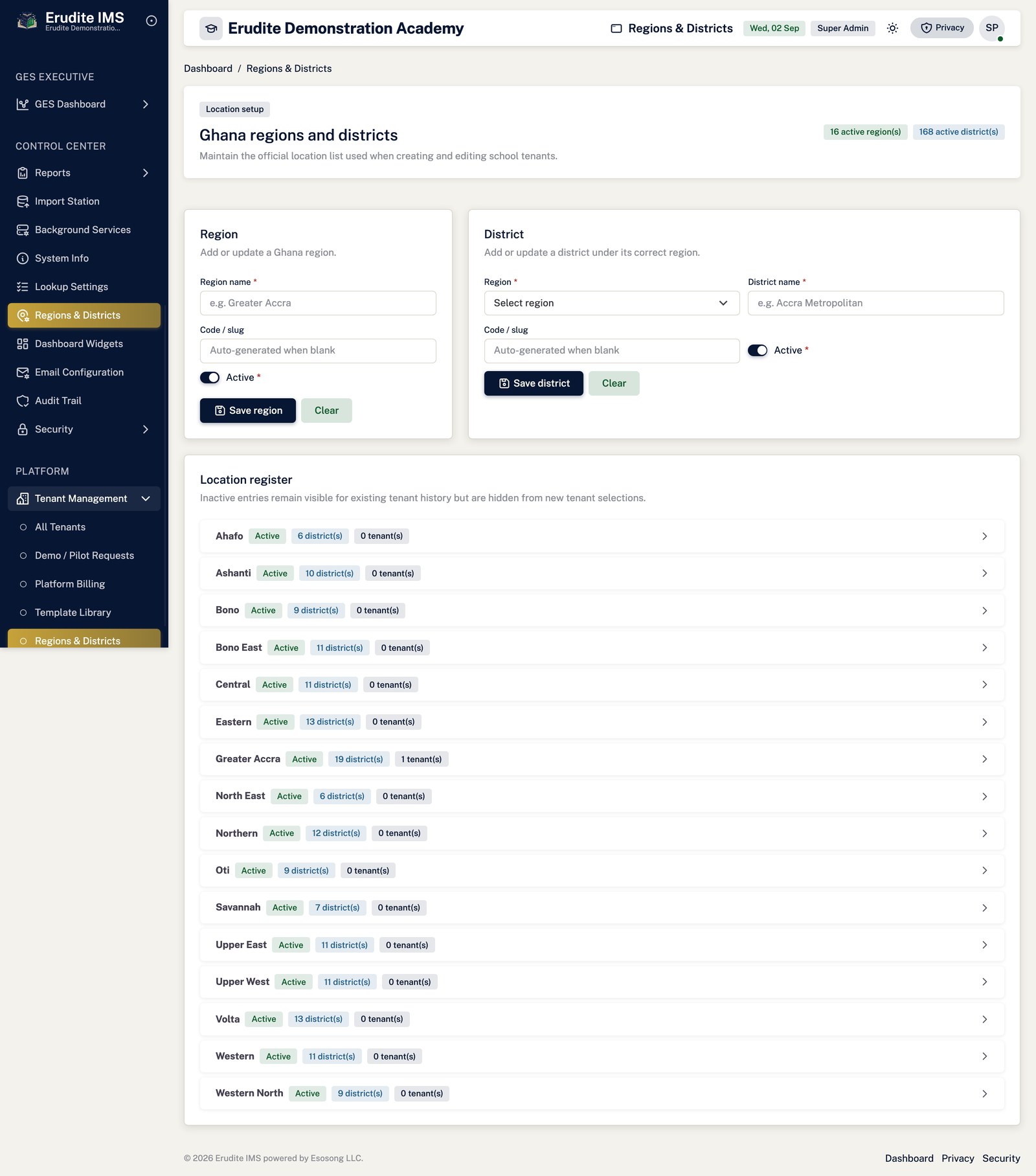
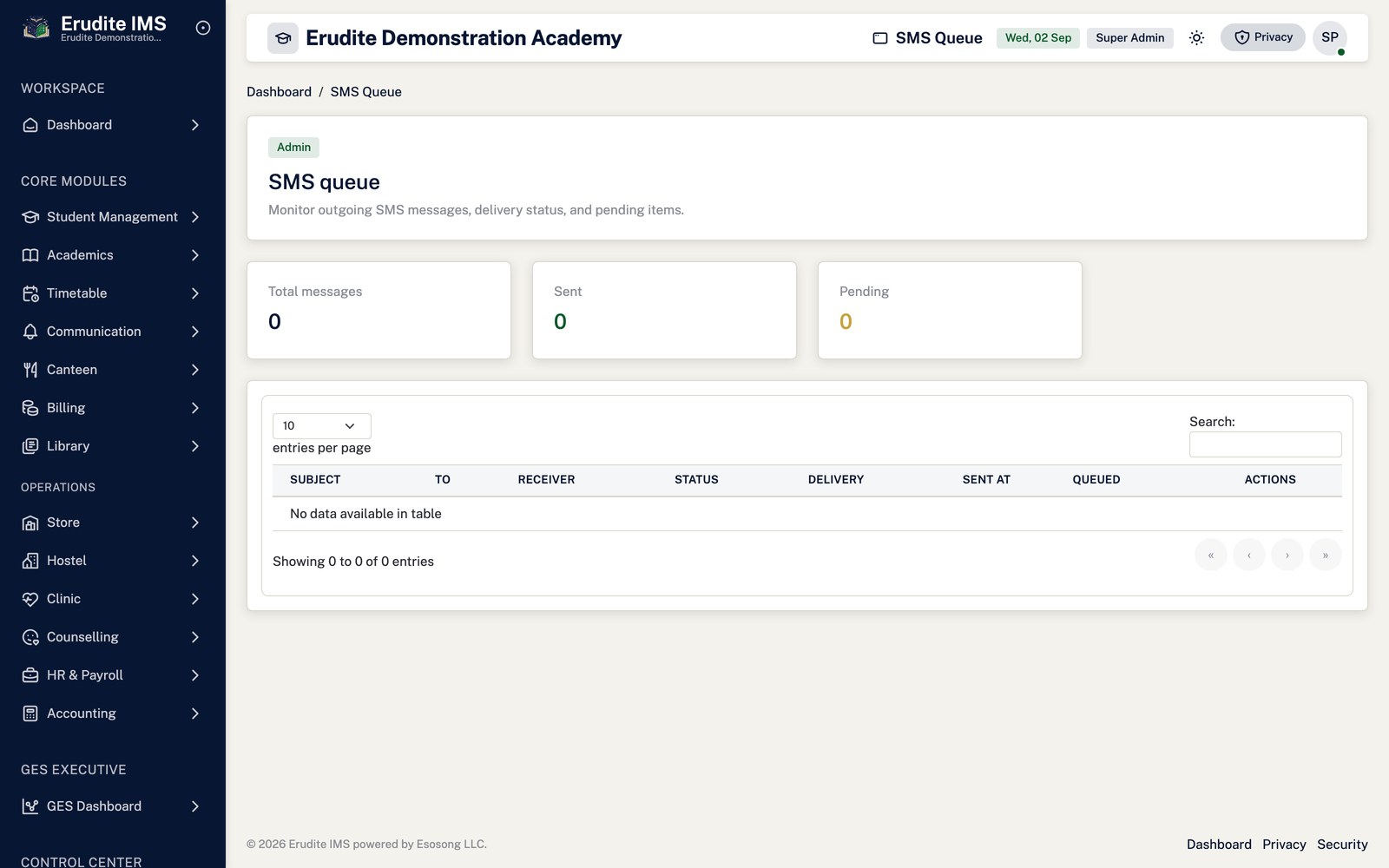
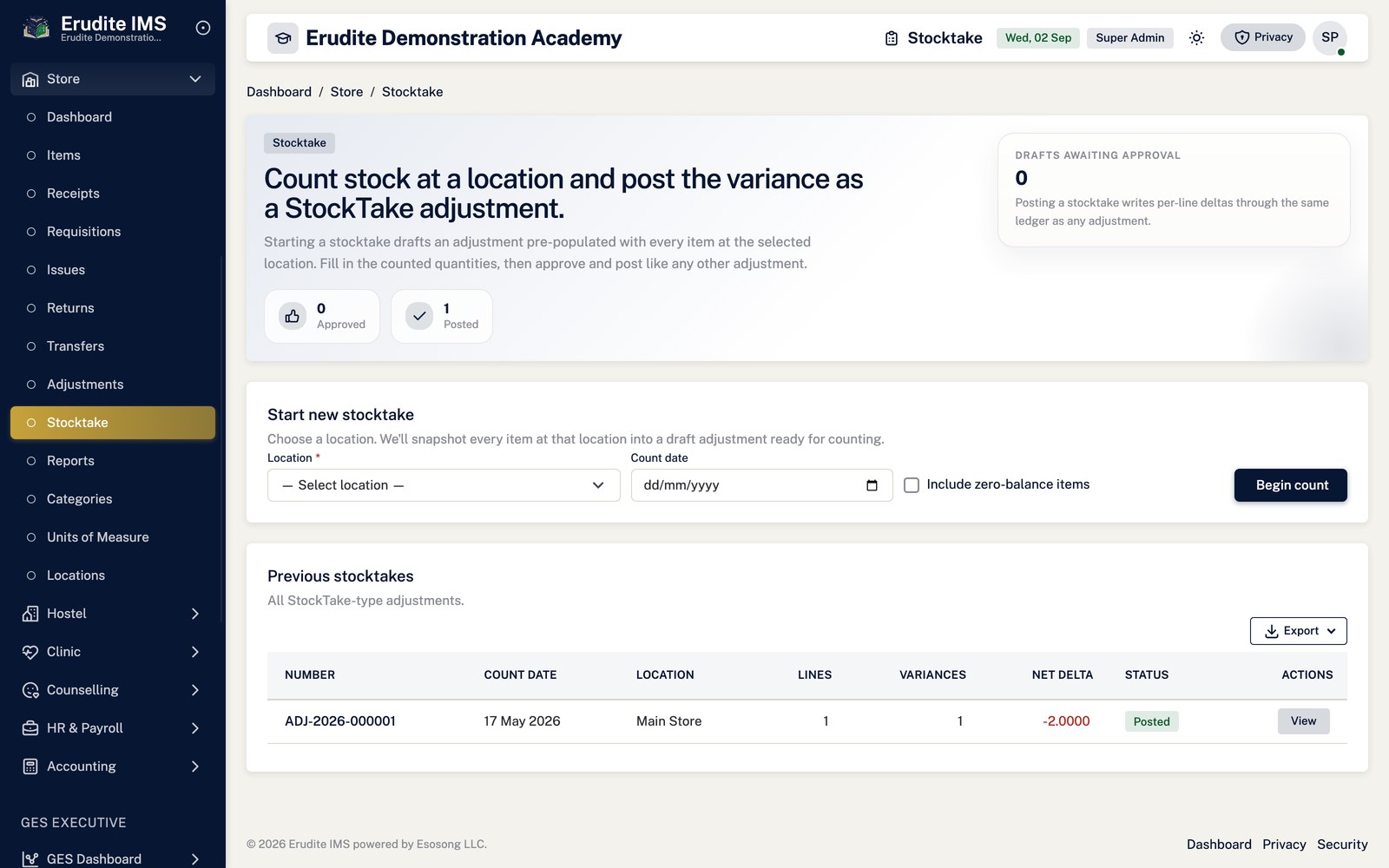
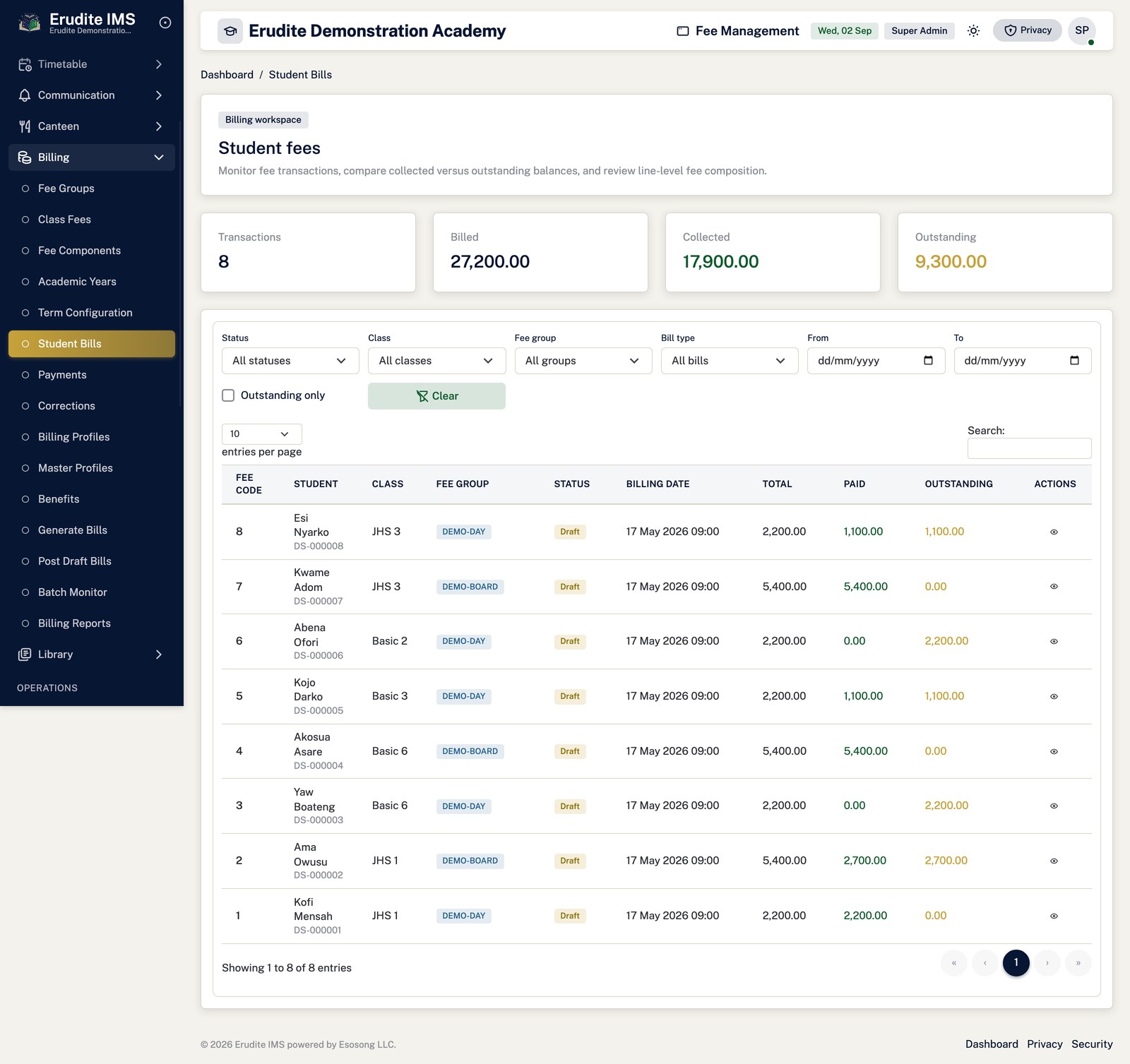
Generated 2 September 2026 from the running application
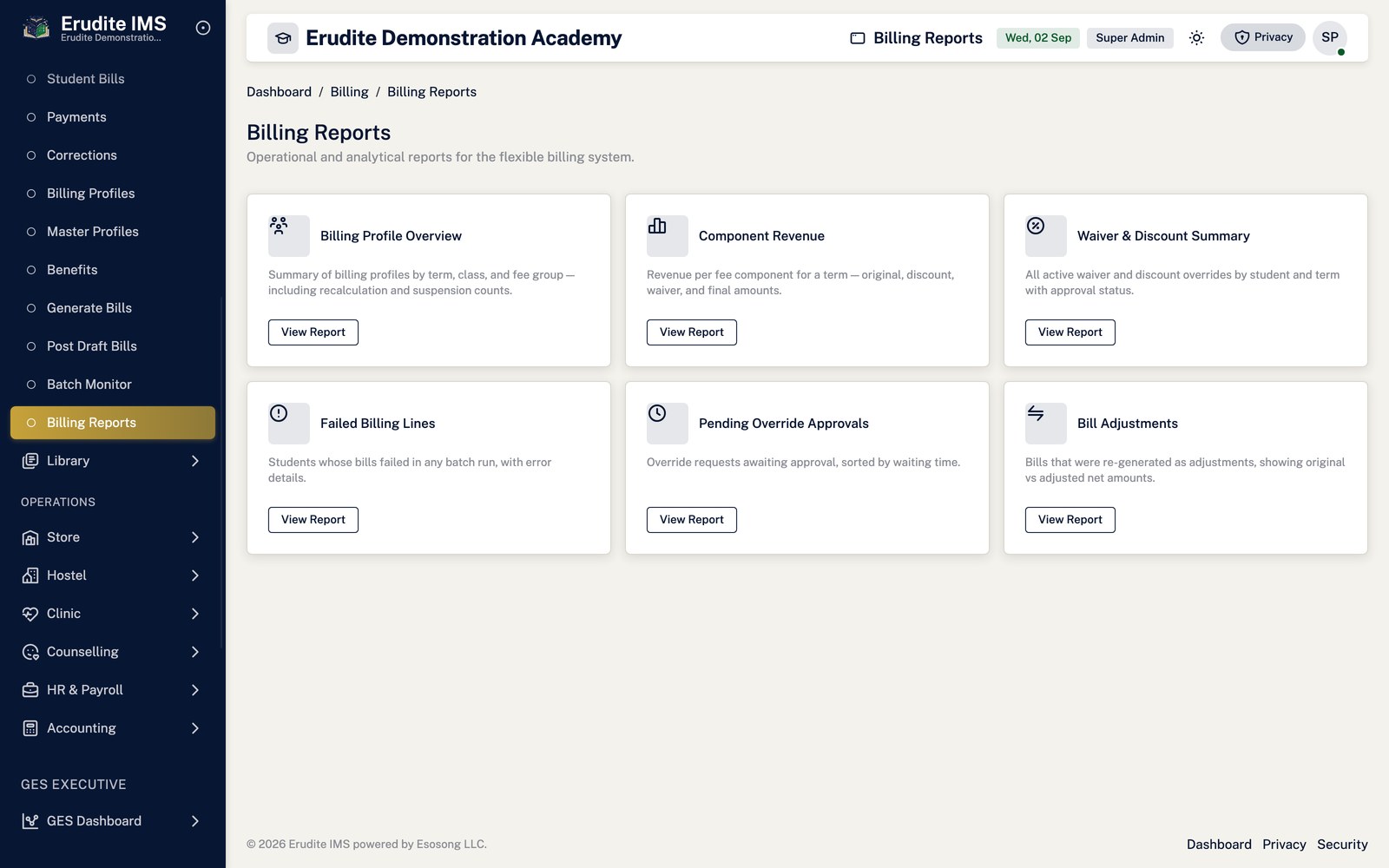
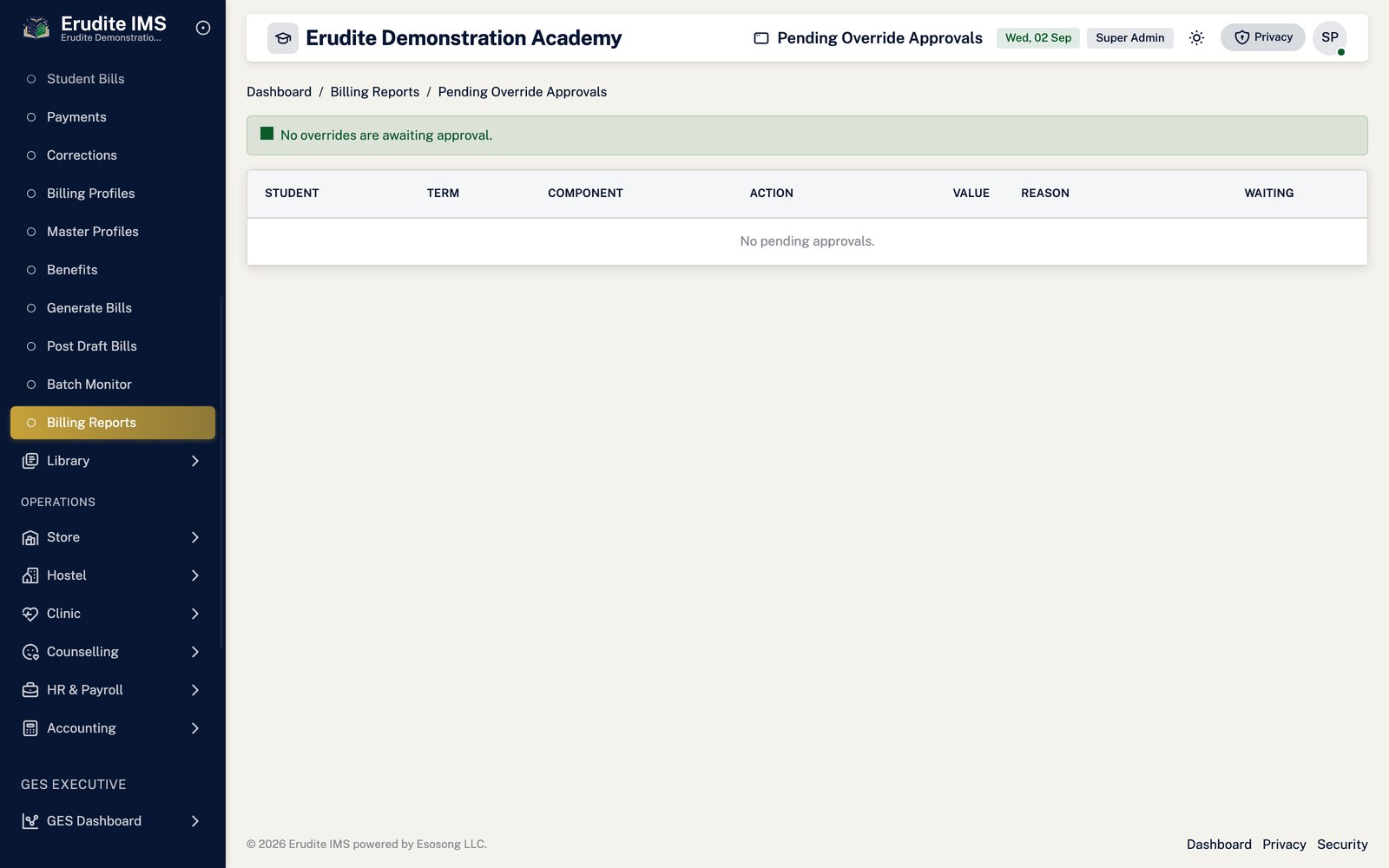
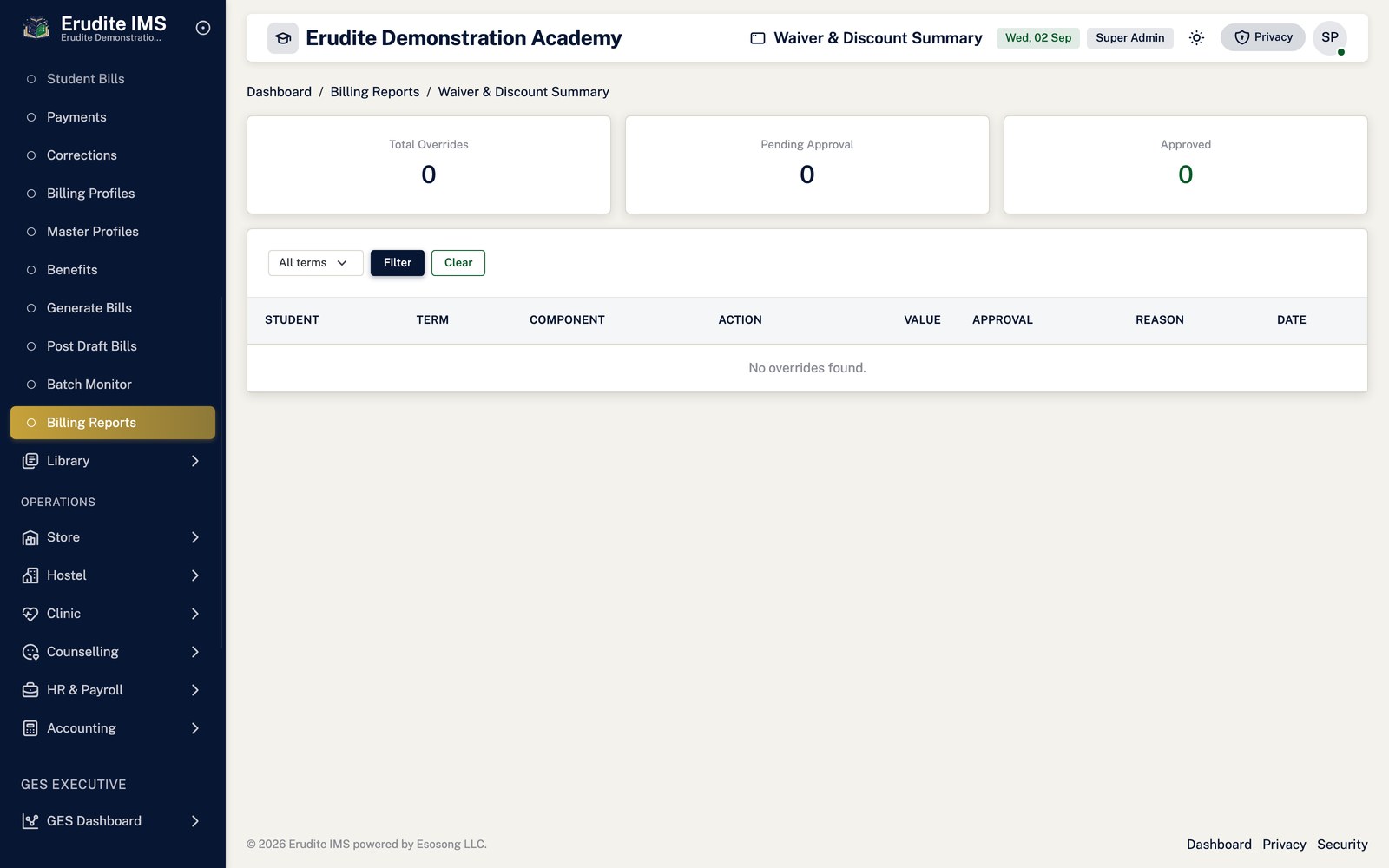
493pages documented
331screenshots captured
15functional modules
How this manual was produced. Every page listed here was read from the application's own
view inventory, so nothing is omitted. Screenshots were captured from a real browser session against an
isolated documentation environment seeded with synthetic data — no live school data appears anywhere
in this document.
Where a screenshot is missing, the page says why rather than leaving a gap. Most such
screens open against a specific record and are reached from their module's list page.
Getting started
Signing in
Open the application address in a browser. You land on /Account/Login.
Enter your username or email and your password. The field accepts either.
Select Sign in. Sessions last eight hours and extend while you keep working.
If your account was created for you, or an administrator reset it, you are redirected to
/Account/ChangePassword and must set a new password before anything else opens.
This is enforced by middleware — you cannot navigate around it.
Choosing a school (Super Admin only)
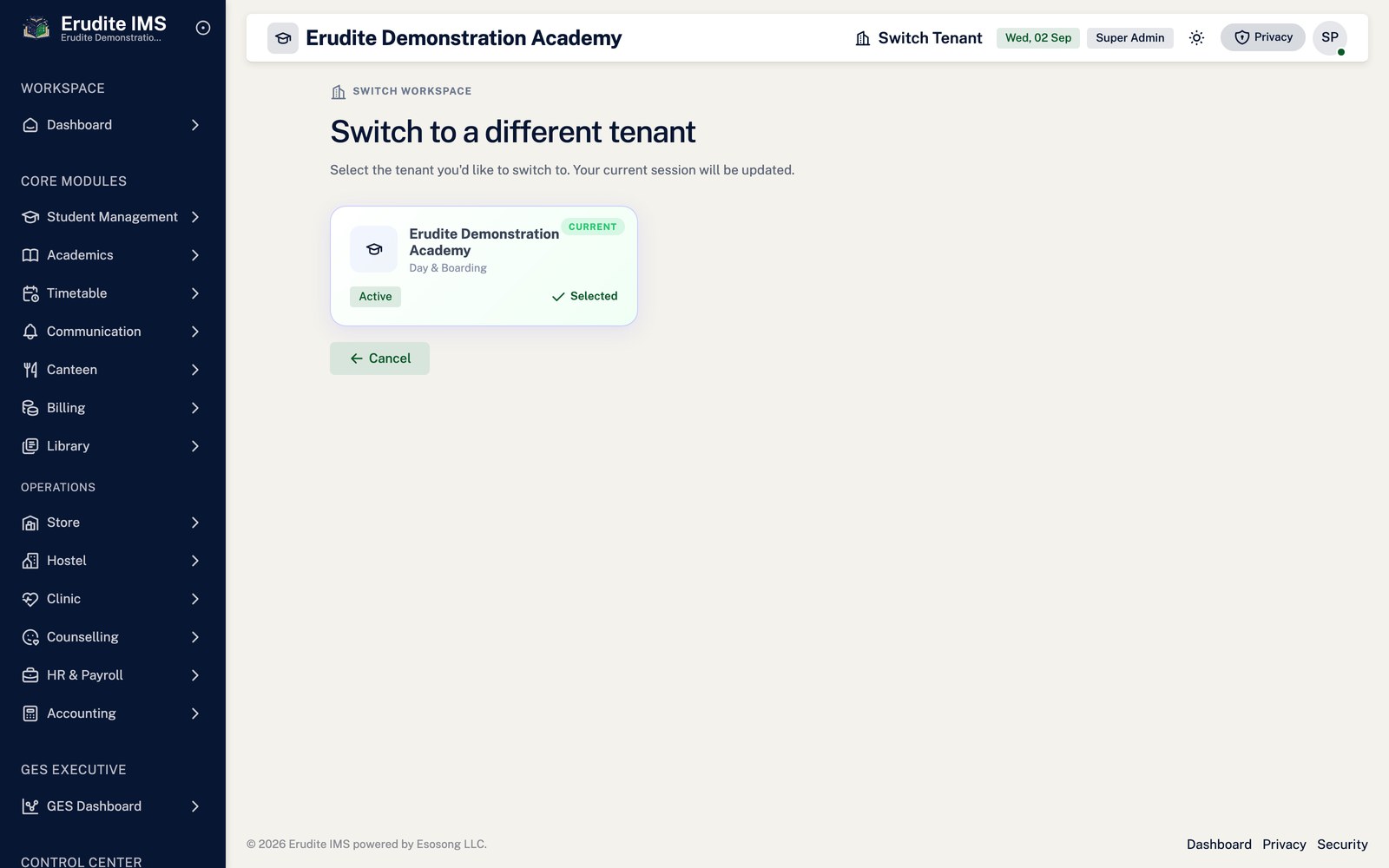
A Super Admin signs in above the level of any one school, so the next screen asks which tenant to work in.
Pick the school and select Continue. Every page you open afterwards is scoped to that
school until you switch.
Ordinary school staff never see this step — their account belongs to one school already.
Finding your way around
The left sidebar groups the system by function. What you see depends on your permissions: menu entries
you have no permission for are not rendered at all, rather than shown and refused.
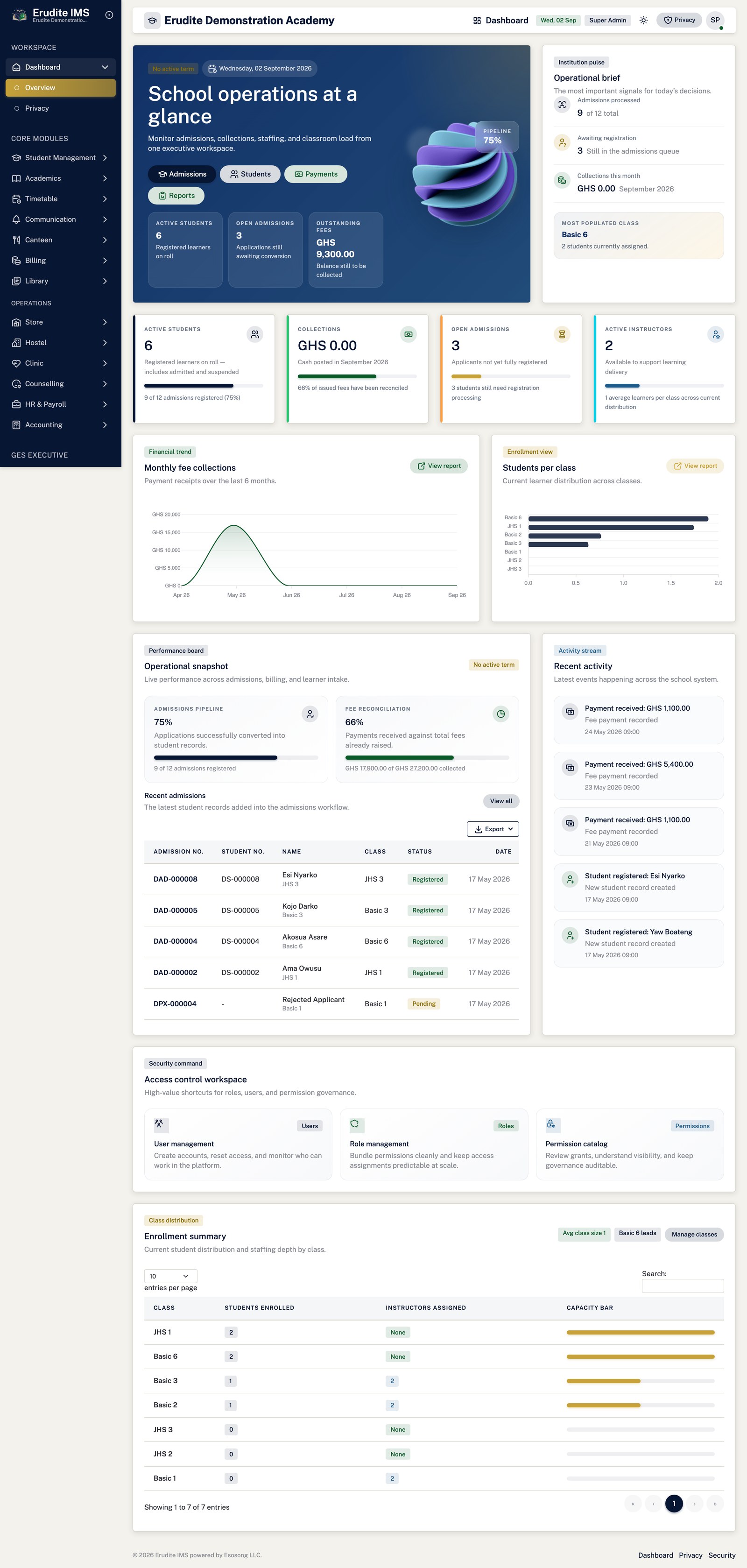
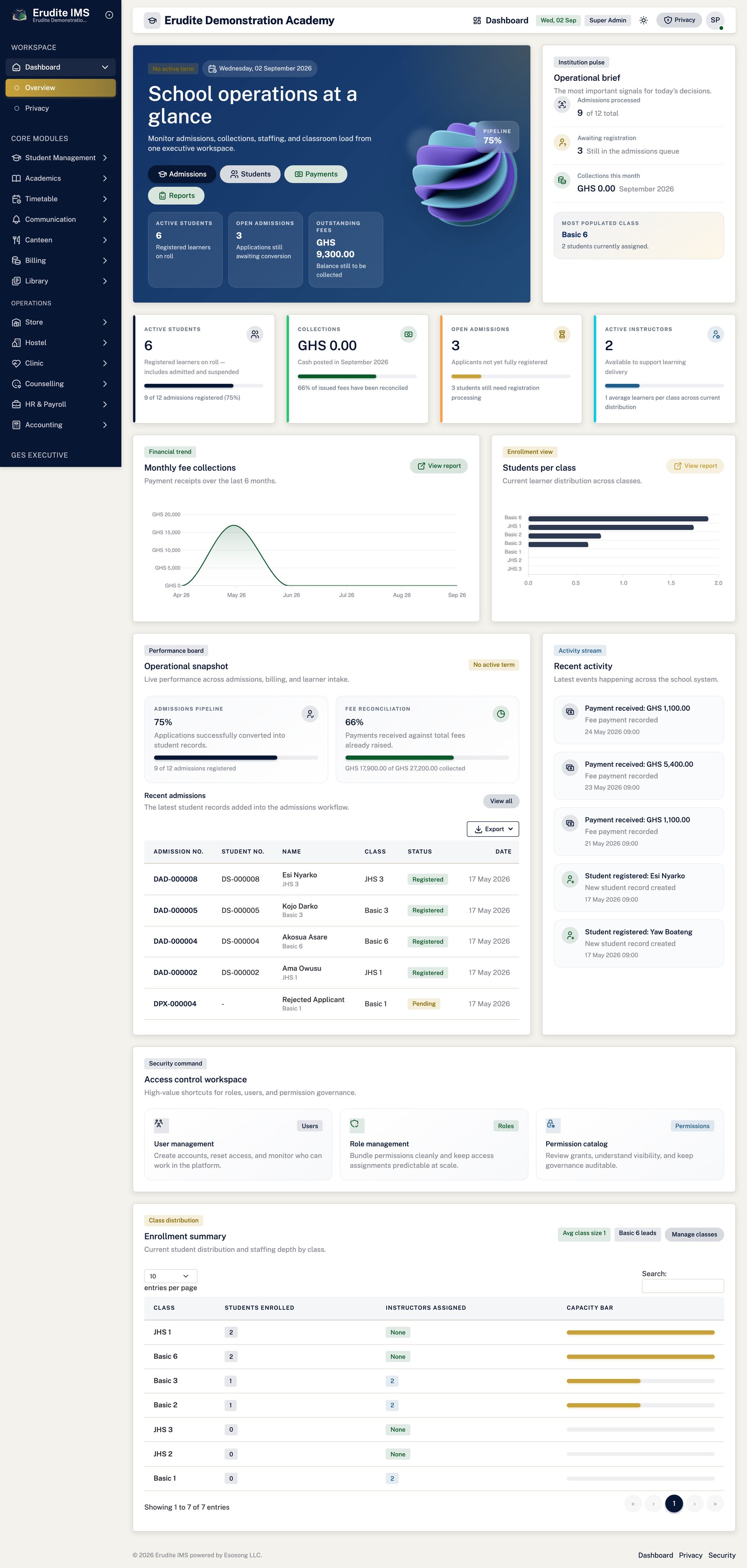
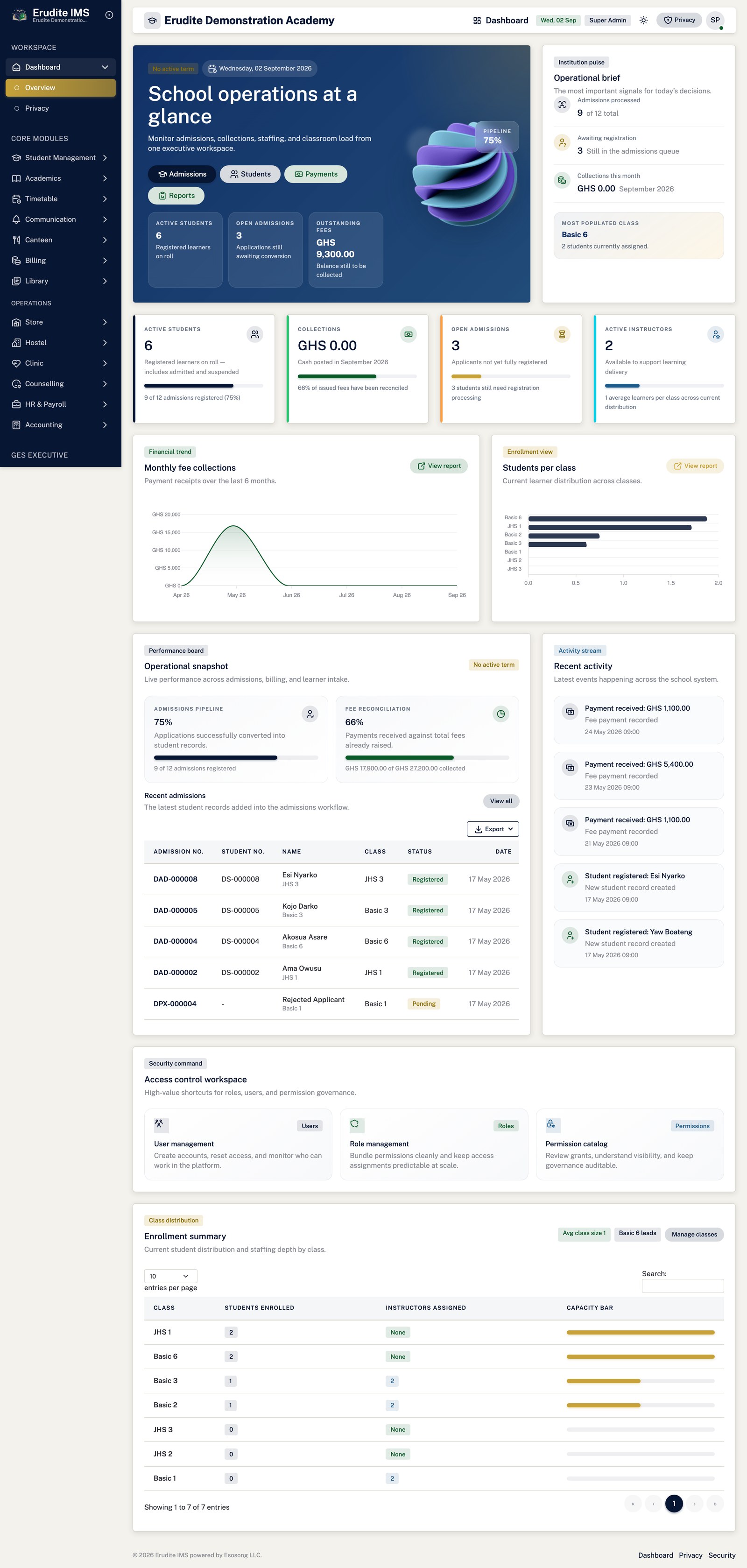
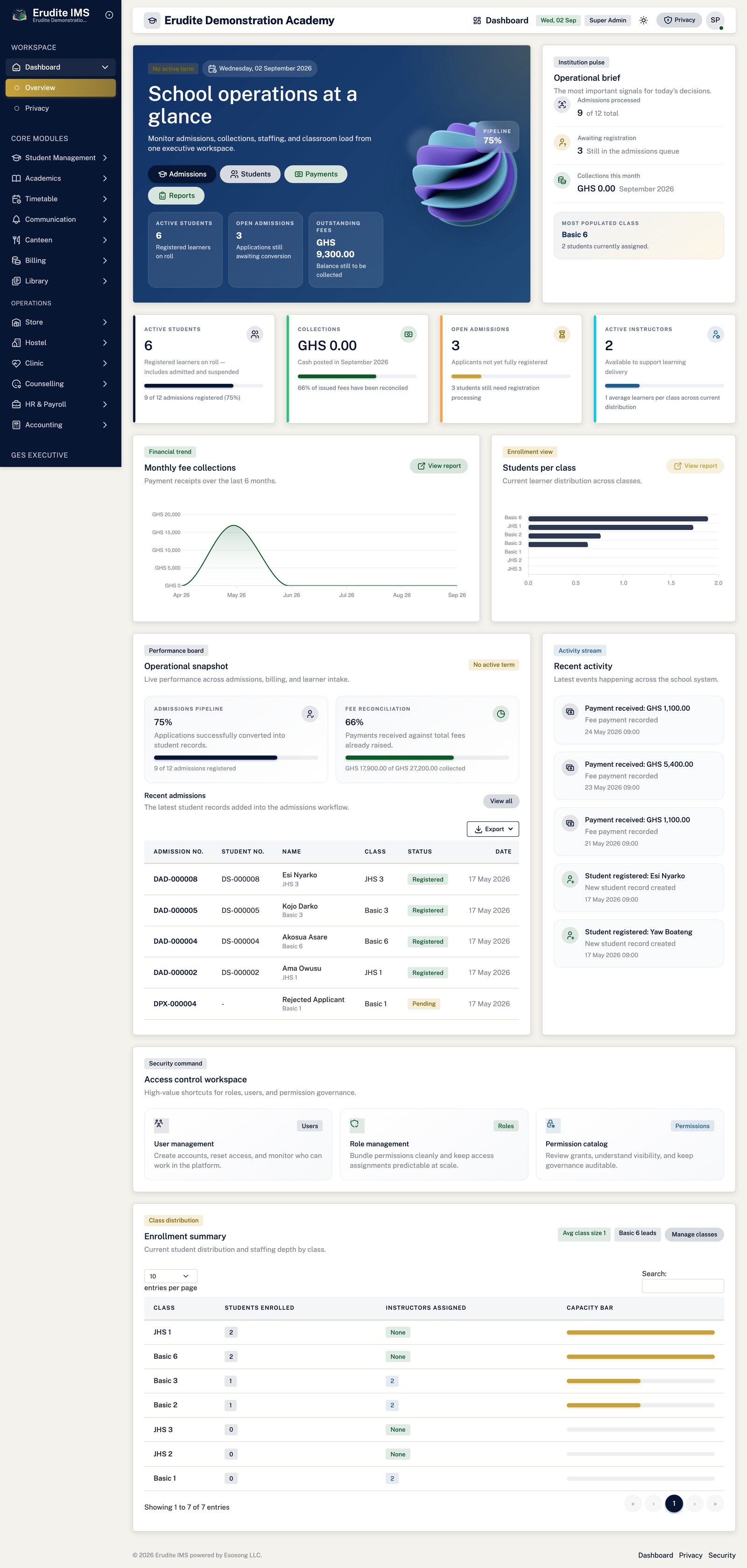
The dashboard is the landing page. It summarises admissions, collections, staffing and class load.
Active students on the dashboard means learners on roll — admitted, active or suspended,
counted once each, with a registered admission. Learners who have left, deferred learners and
unregistered applications are deliberately excluded, so this figure is normally lower than the raw
number of student records.
If a page refuses you. Access is permission-based, not role-based.
Being an administrator of one area does not grant another. Ask whoever manages users to grant the specific
permission for that screen — the Administration chapter shows where.
Account
Account — access denied
/Account/AccessDenied
This screen is permission-gated and was not reachable by the capture account.
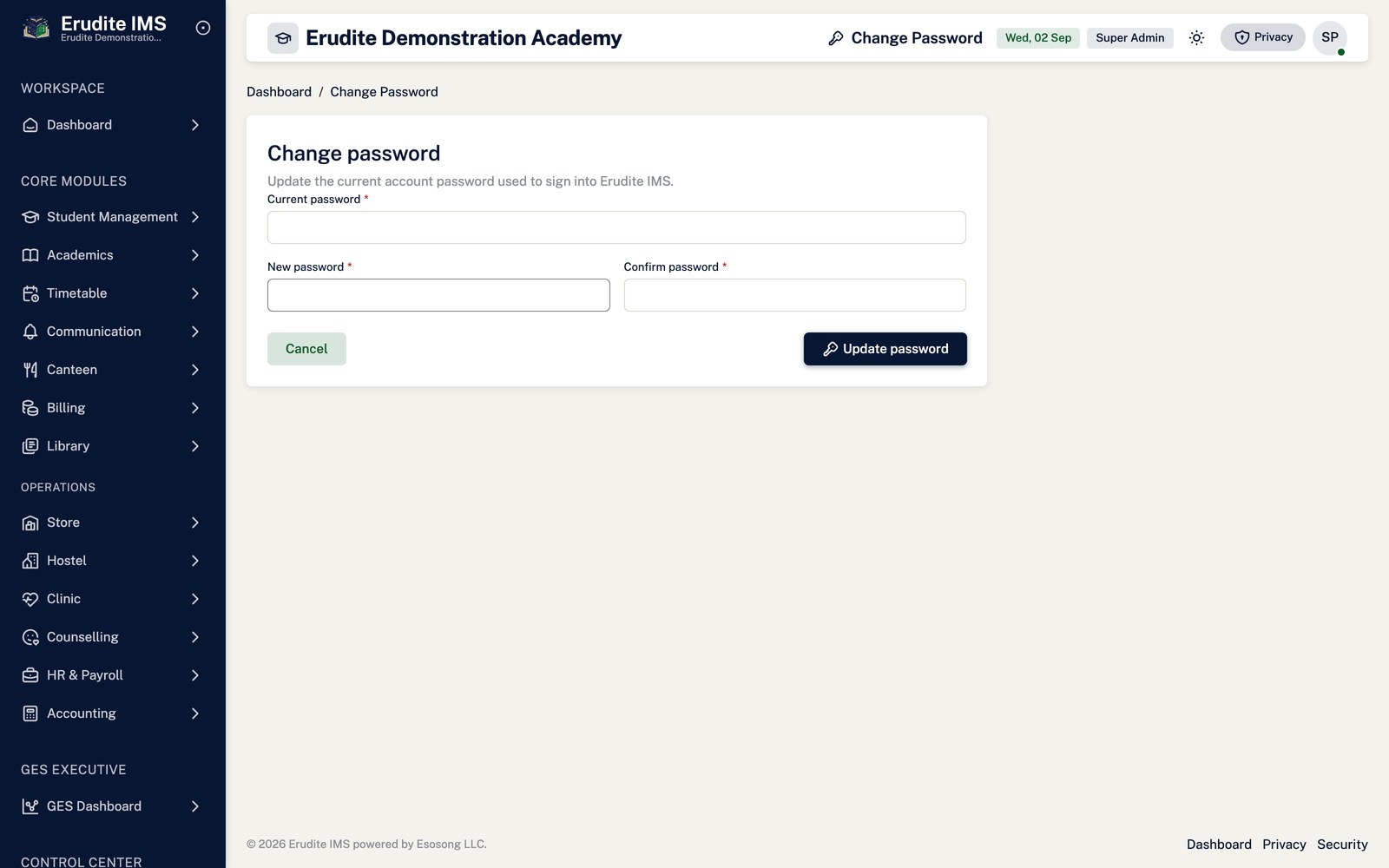
Account — change password
/Account/ChangePassword
/Account/ChangePassword
Account — confirm email result
/Account/ConfirmEmailResult
This screen opens against a specific record and cannot be reached by URL alone. Open it from the list page for this module.
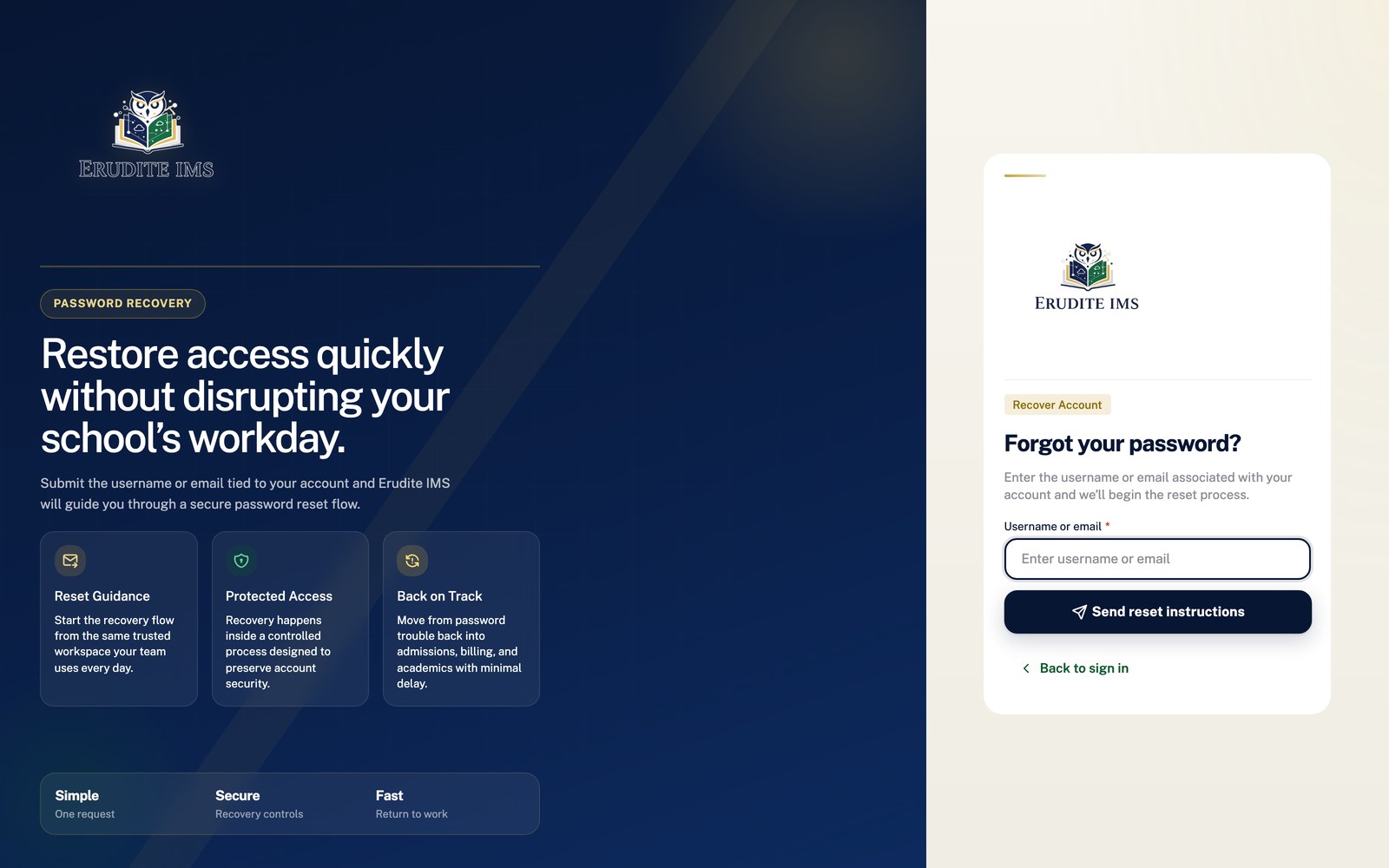
Account — forgot password
/Account/ForgotPassword
/Account/ForgotPassword
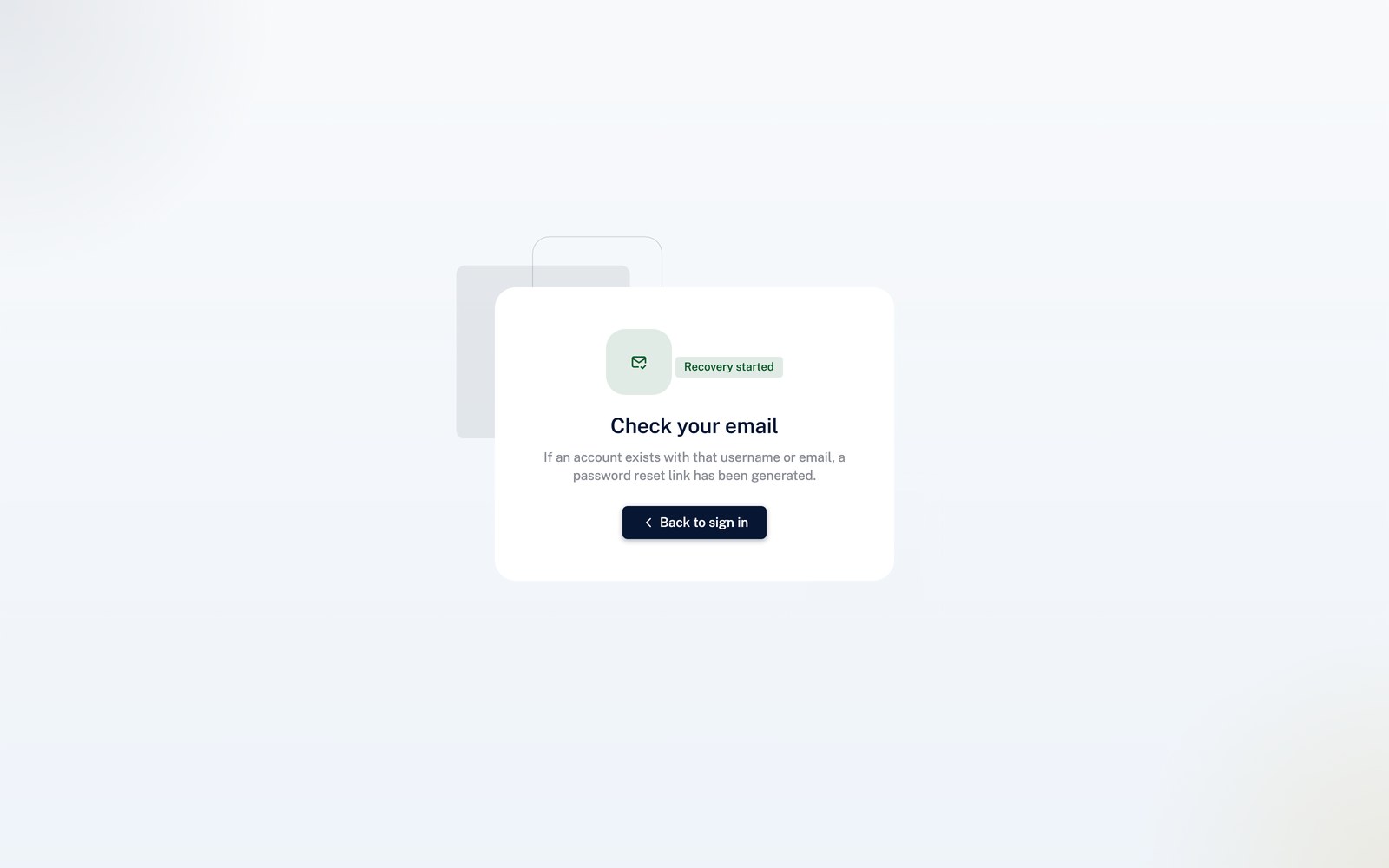
Account — forgot password confirmation
/Account/ForgotPasswordConfirmation
/Account/ForgotPasswordConfirmation
Account — login
/Account/Login
/Account/Login
Account — no tenant assigned
/Account/NoTenantAssigned
/Account/NoTenantAssigned
Account — notifications
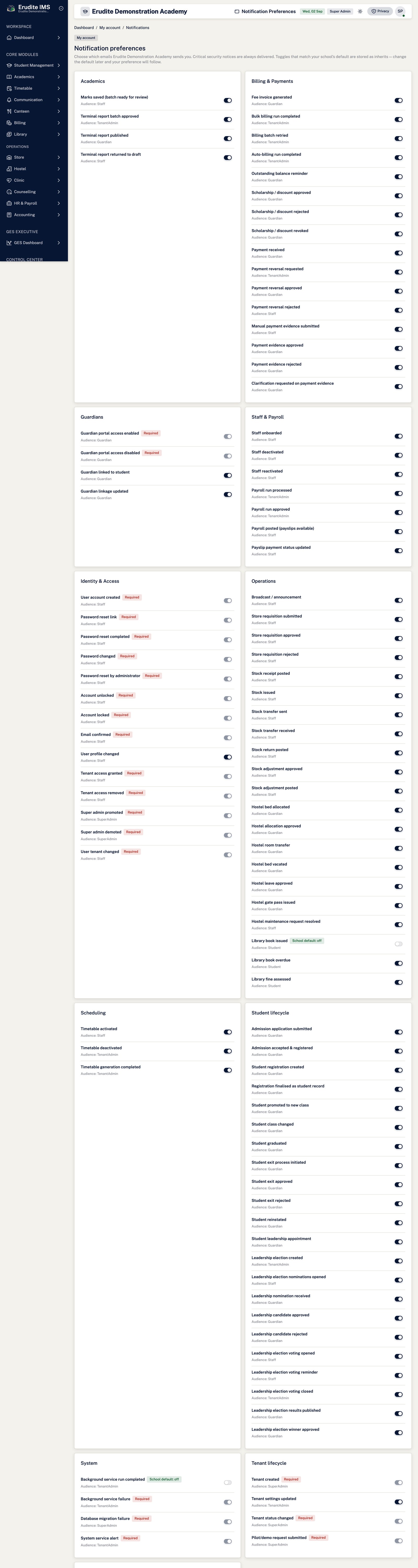
/Account/Notifications
/Account/Notifications
Account — profile
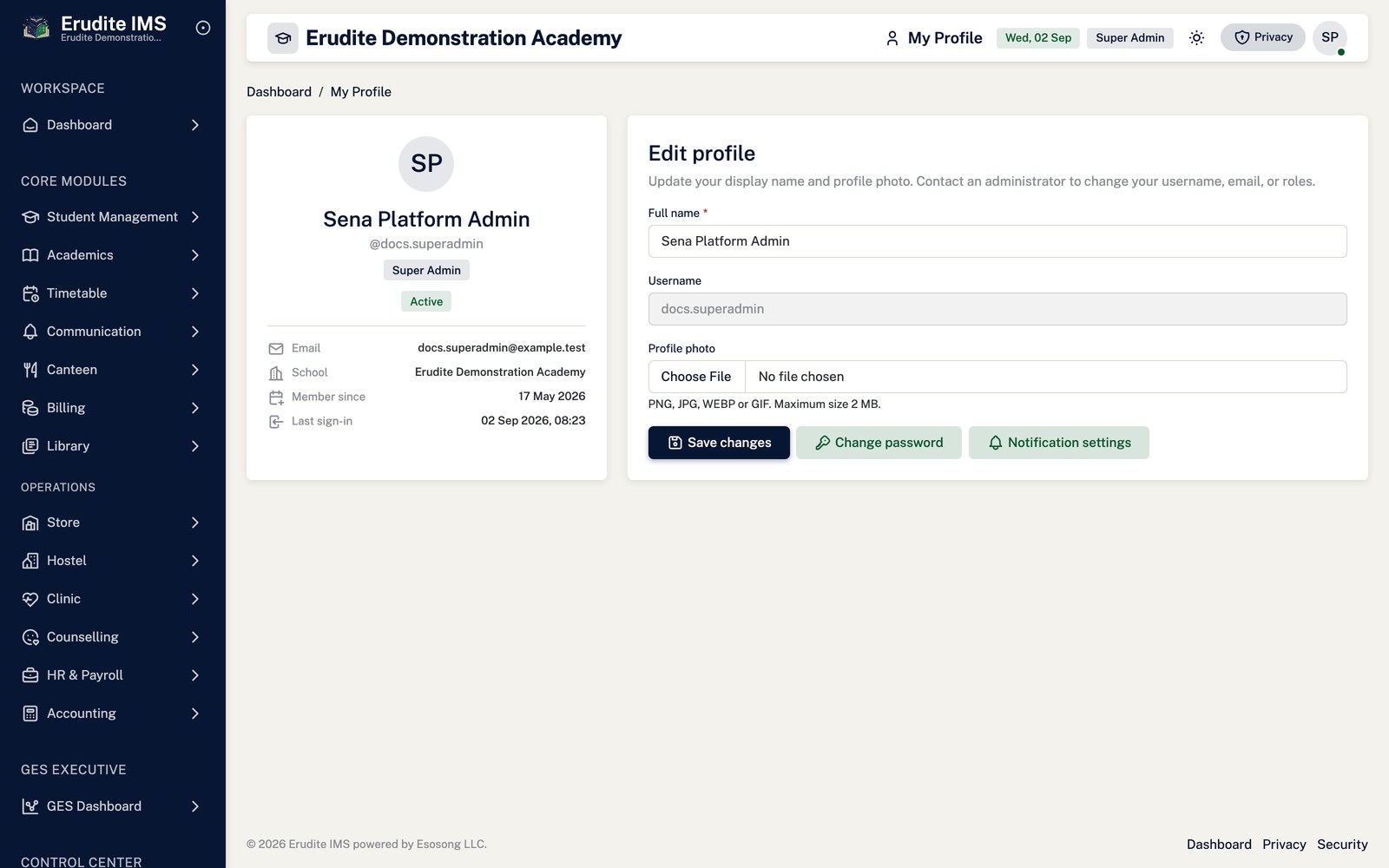
/Account/Profile
/Account/Profile
Account — reset password
/Account/ResetPassword
/Account/ResetPassword
Home
Home — list
/
/
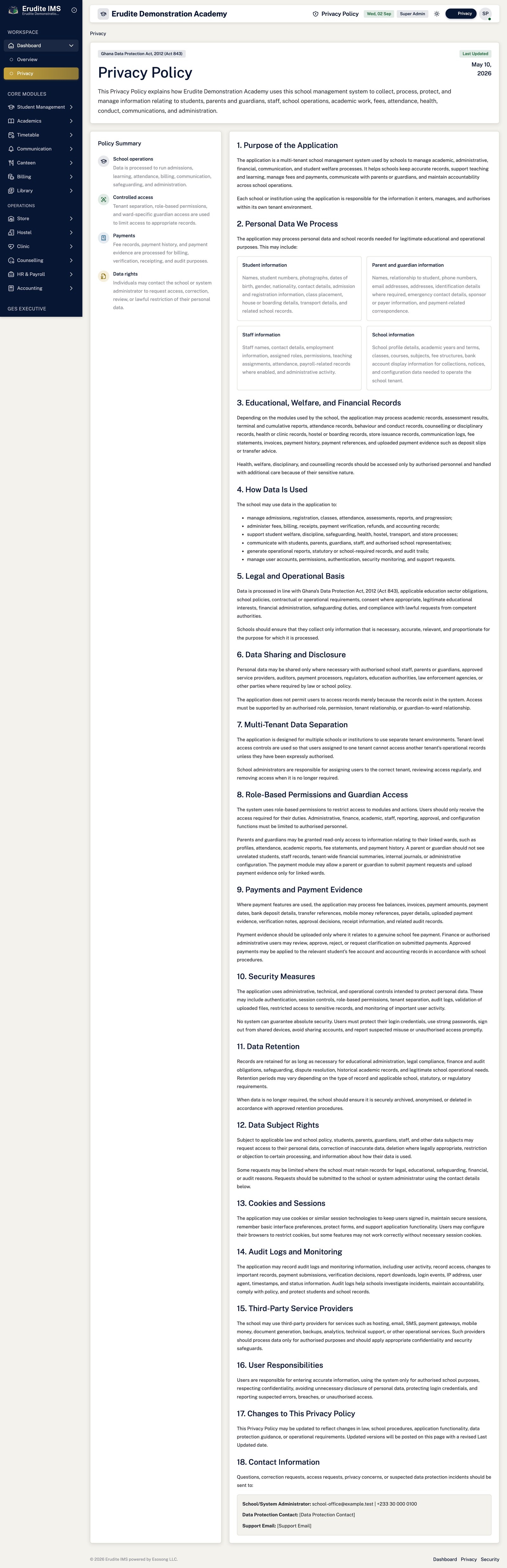
Home — privacy
/Home/Privacy
/Home/Privacy
Notifications
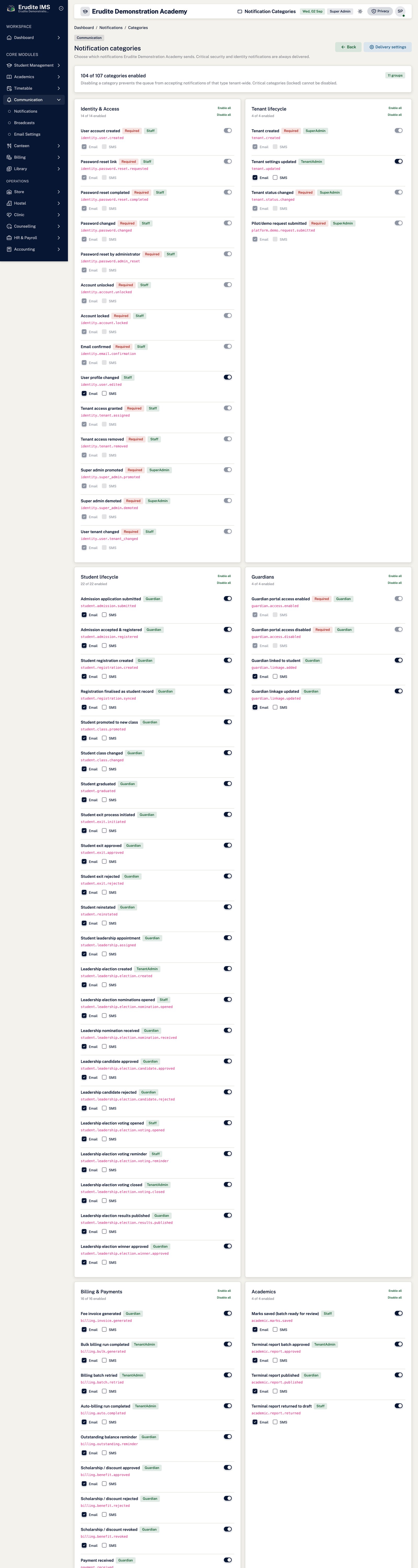
Notifications — categories
/Notifications/Categories
/Notifications/Categories
Notifications — record detail
/Notifications/Details
This screen opens against a specific record and cannot be reached by URL alone. Open it from the list page for this module.
Notifications — edit template
/Notifications/EditTemplate
This screen opens against a specific record and cannot be reached by URL alone. Open it from the list page for this module.
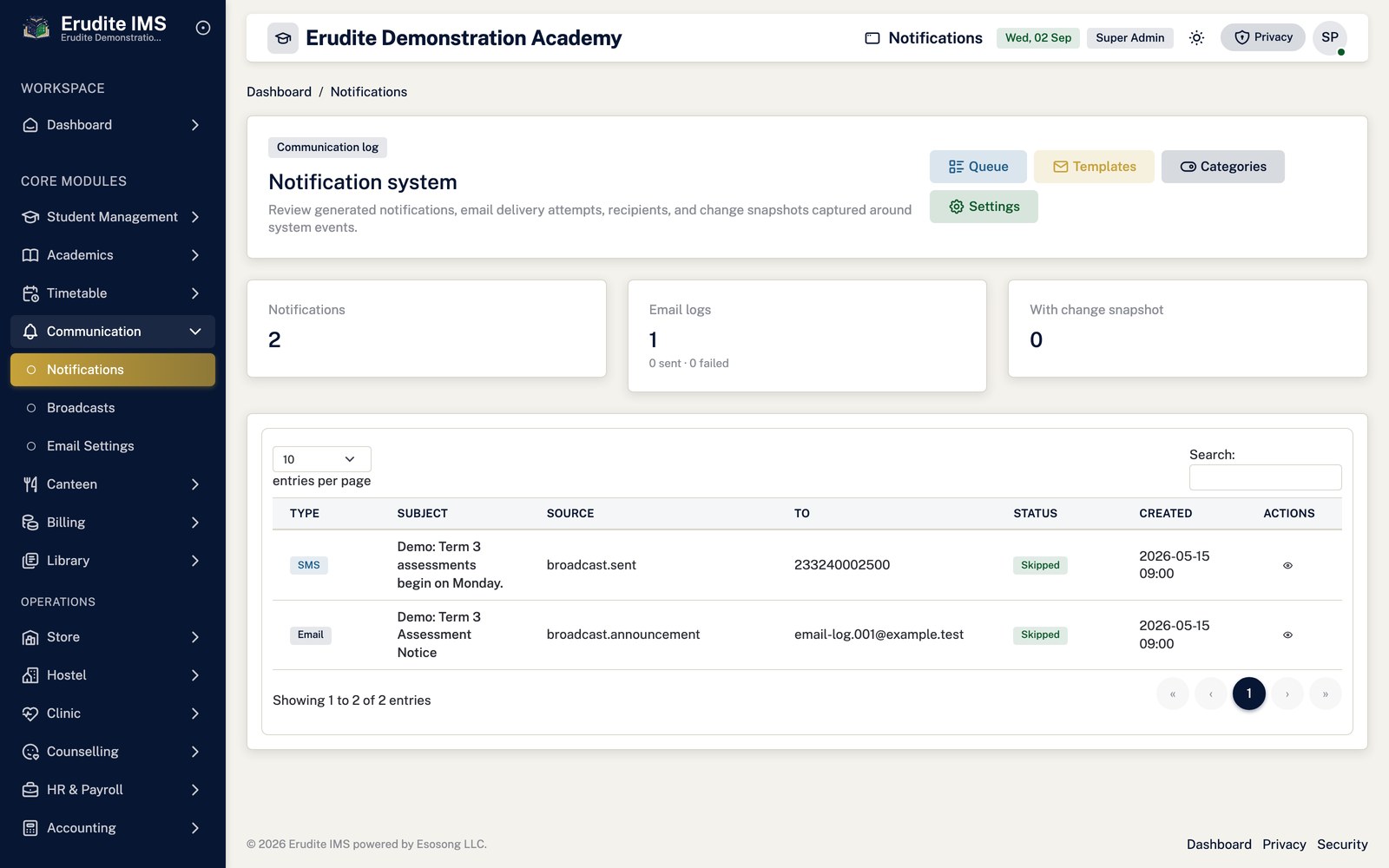
Notifications — list
/Notifications
/Notifications
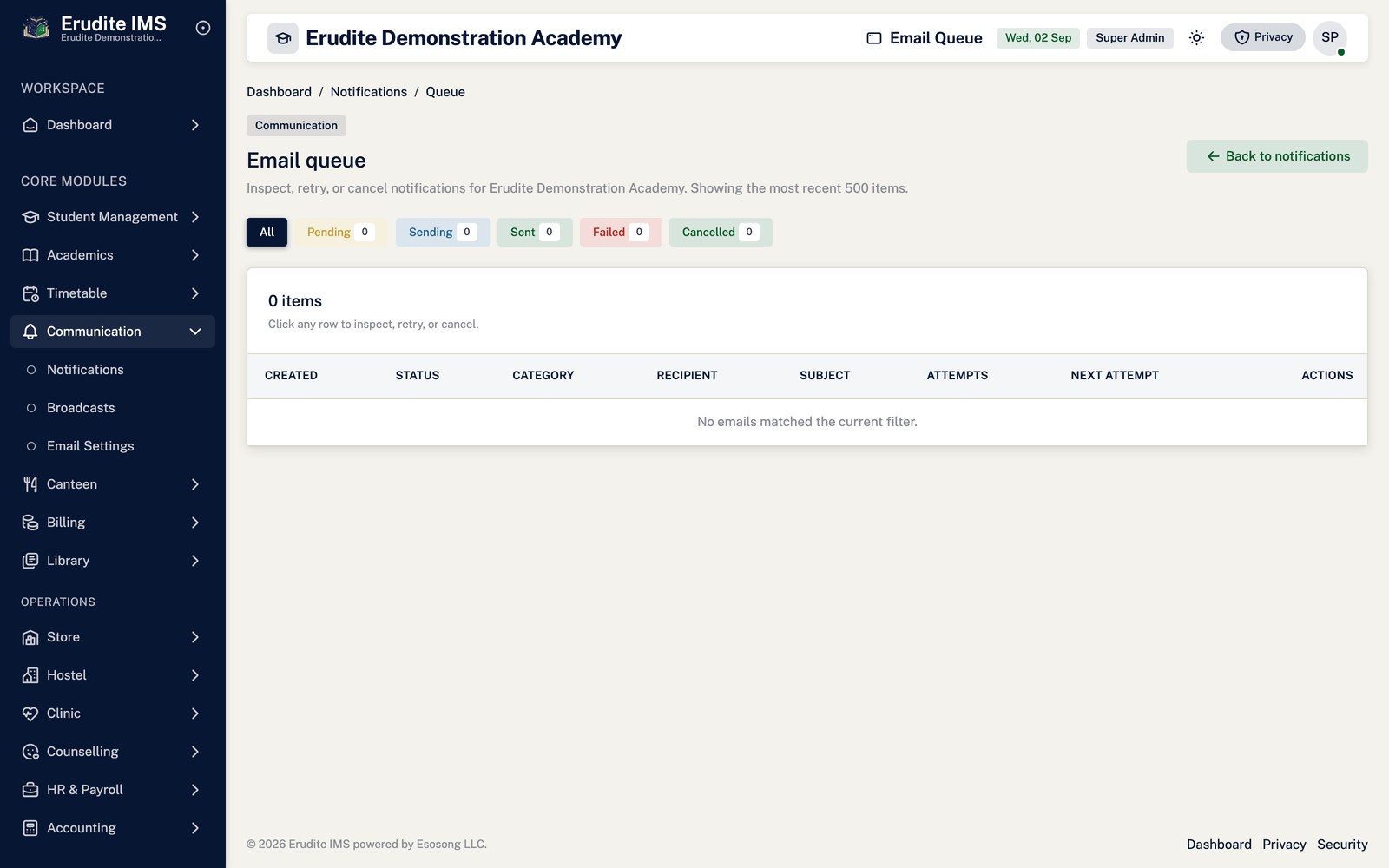
Notifications — queue
/Notifications/Queue
/Notifications/Queue
Notifications — queue details
/Notifications/QueueDetails
This screen opens against a specific record and cannot be reached by URL alone. Open it from the list page for this module.
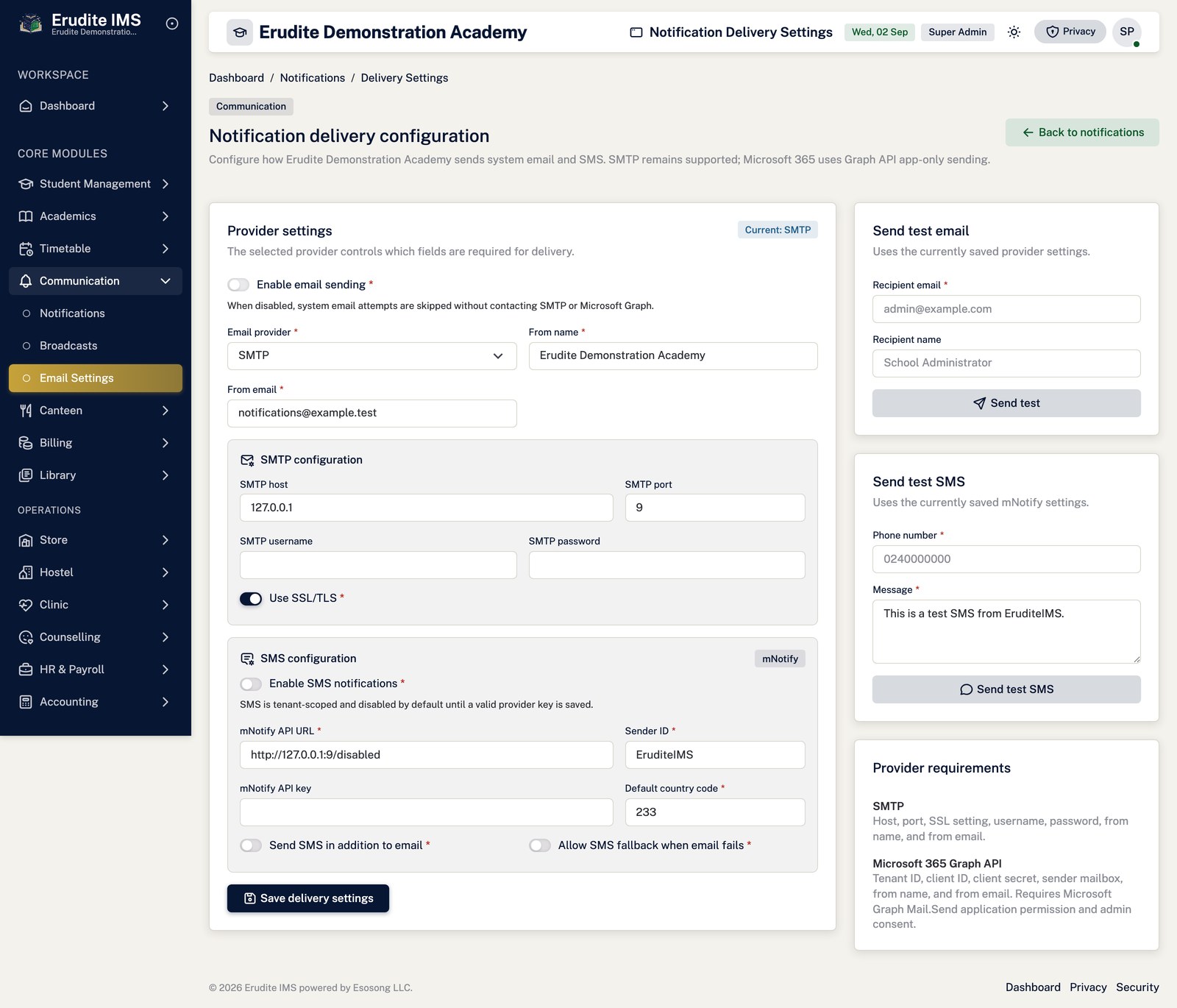
Notifications — settings
/Notifications/Settings
/Notifications/Settings
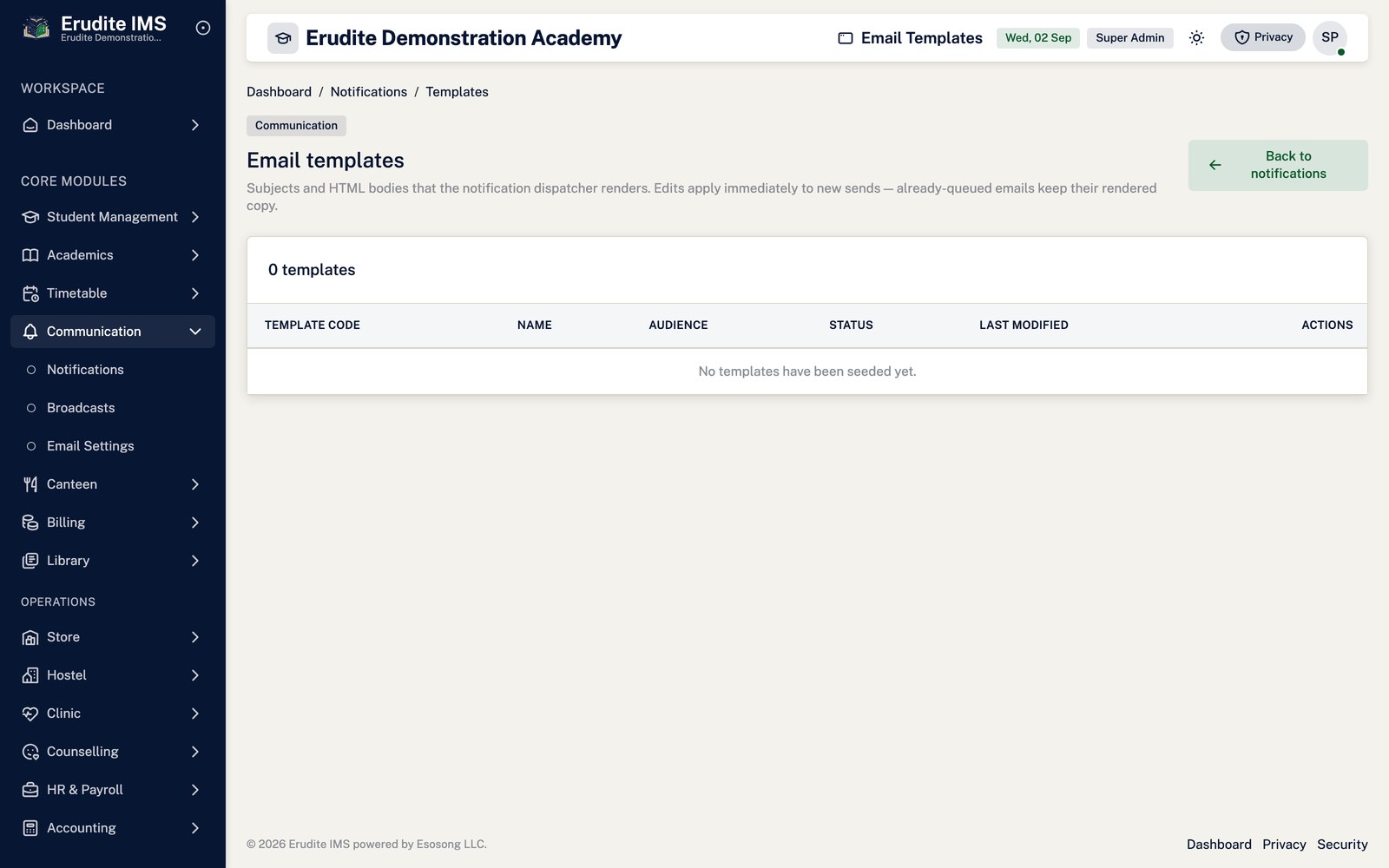
Notifications — templates
/Notifications/Templates
/Notifications/Templates
Admissions and enrolment
The learner lifecycle
A learner moves through three records, in order. Understanding them explains most of what the system does:
Admission — the application, carrying an admission number and the class applied for.
Registration — the admission accepted for a term. Only at this point does a
student record exist.
Student — the active learner, carrying a student number and a lifecycle status.
This is why an unregistered application appears in admissions counts but not in student
counts: the student record has not been created yet.
Admitting a learner
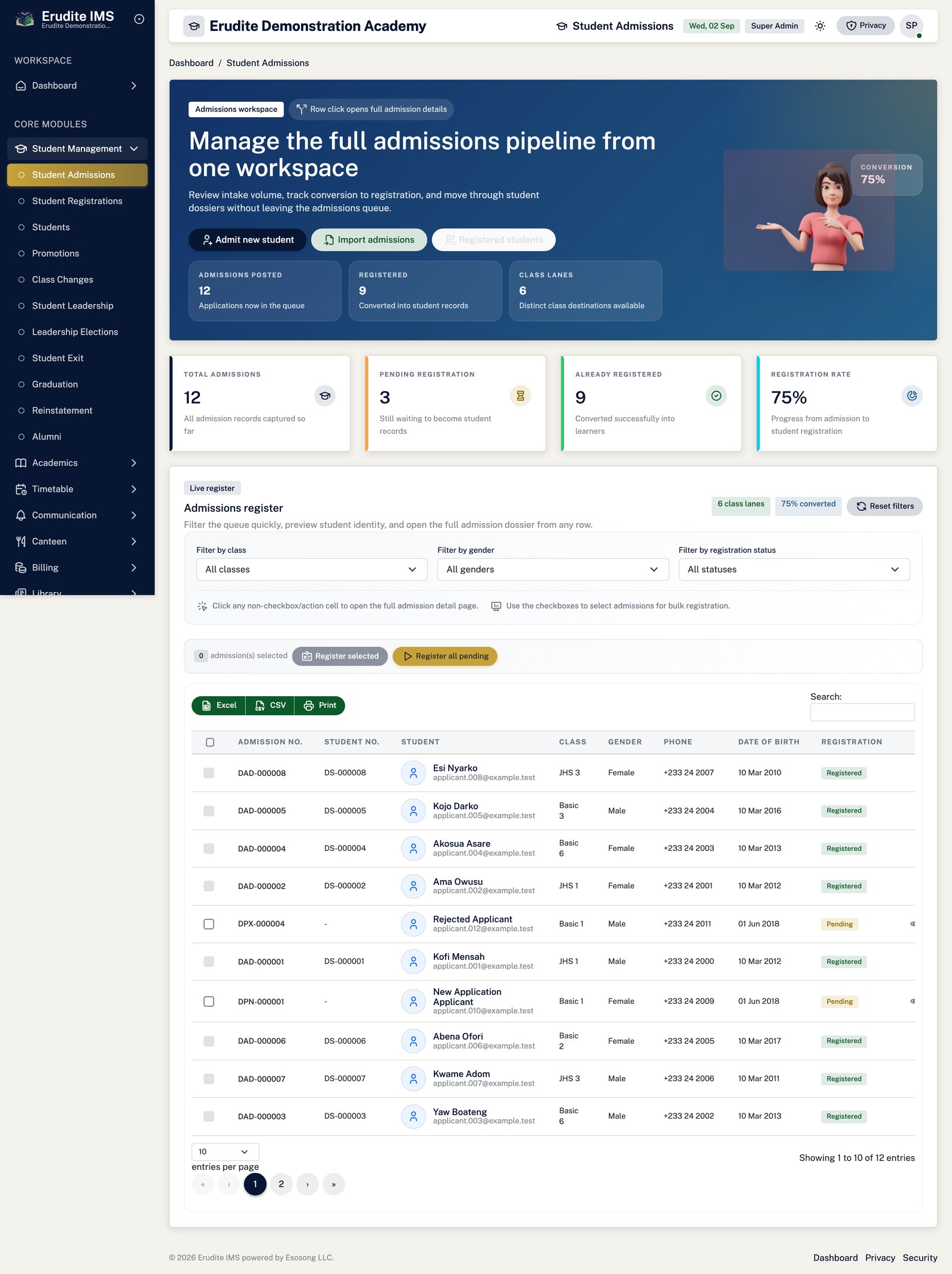
Open Admissions → Student Admissions and select New admission.
Complete the applicant's details and the class applied for. An admission number is assigned automatically.
Save. The application now appears in the admissions list as unregistered.
Registering an admission
Open Admissions → Student Registrations and start a registration for the term.
Select the admission and confirm. A student record and student number are created.
The learner now counts as on roll, appears on class registers and mark sheets, and becomes eligible for
billing.
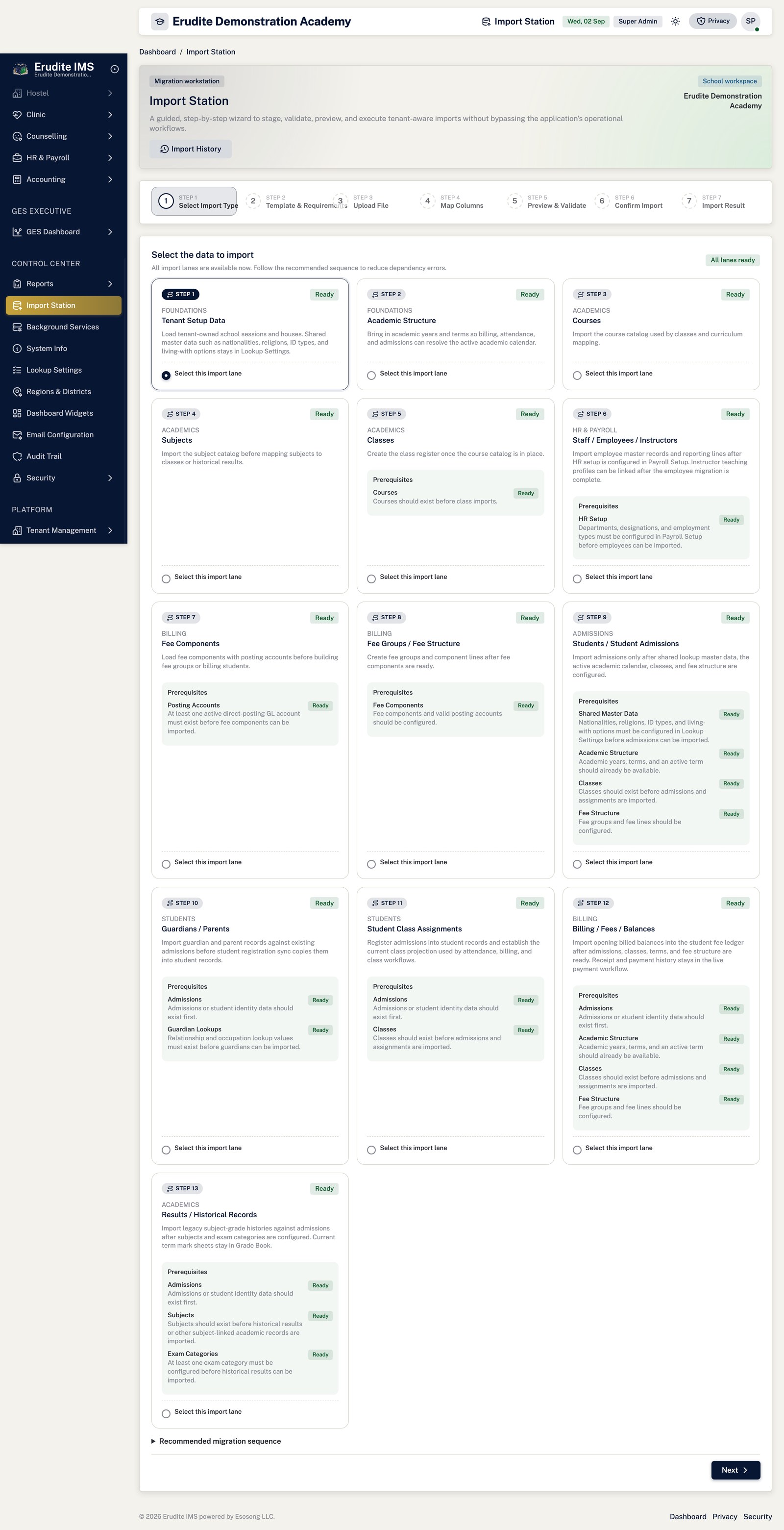
Bulk intake
Open Import Station and follow the seven-step wizard.
Download the template, fill it, upload, and review the validation results before committing.
Errors and results can be exported to Excel so they can be corrected offline and re-uploaded.
Moving, exiting and readmitting
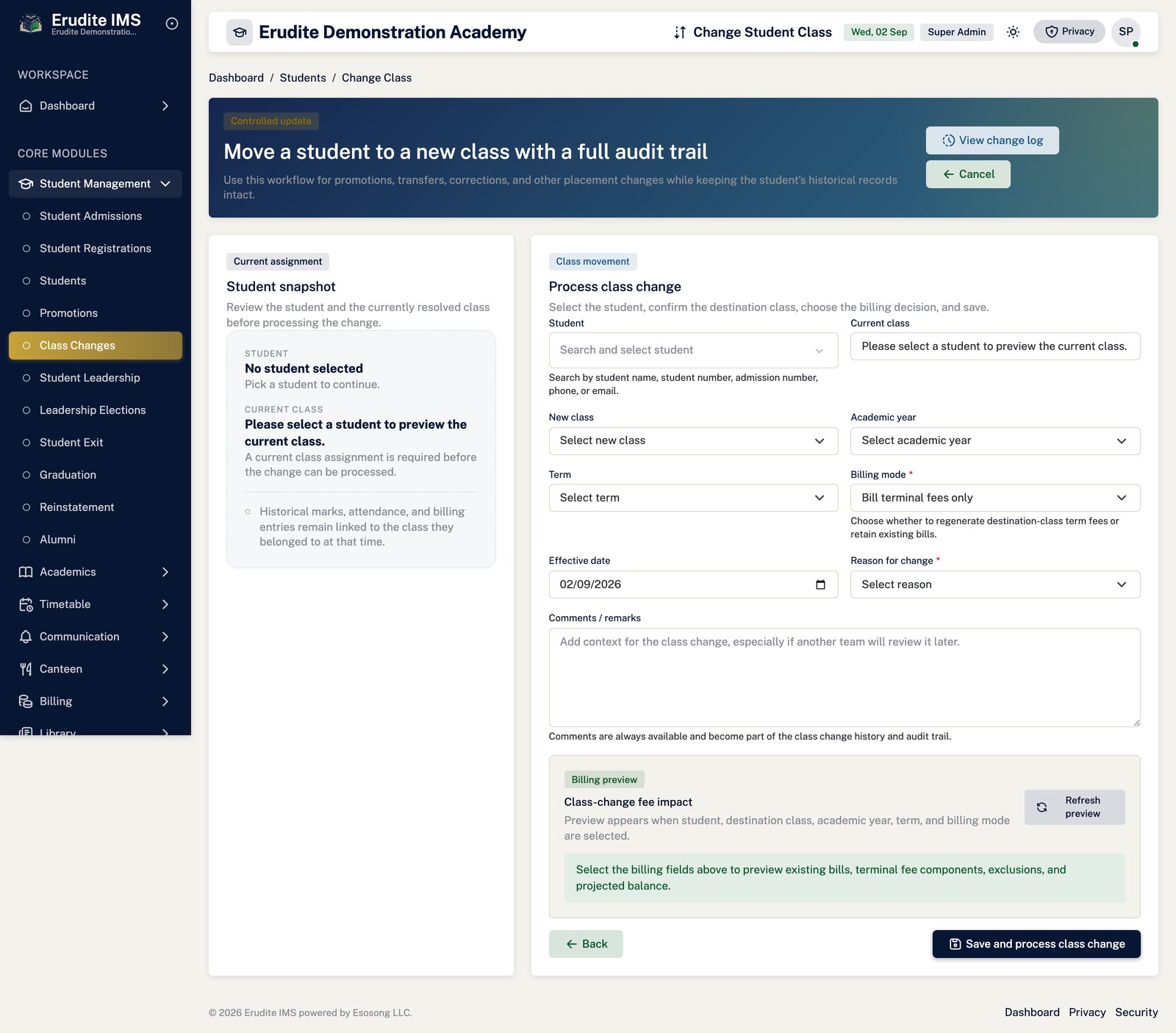
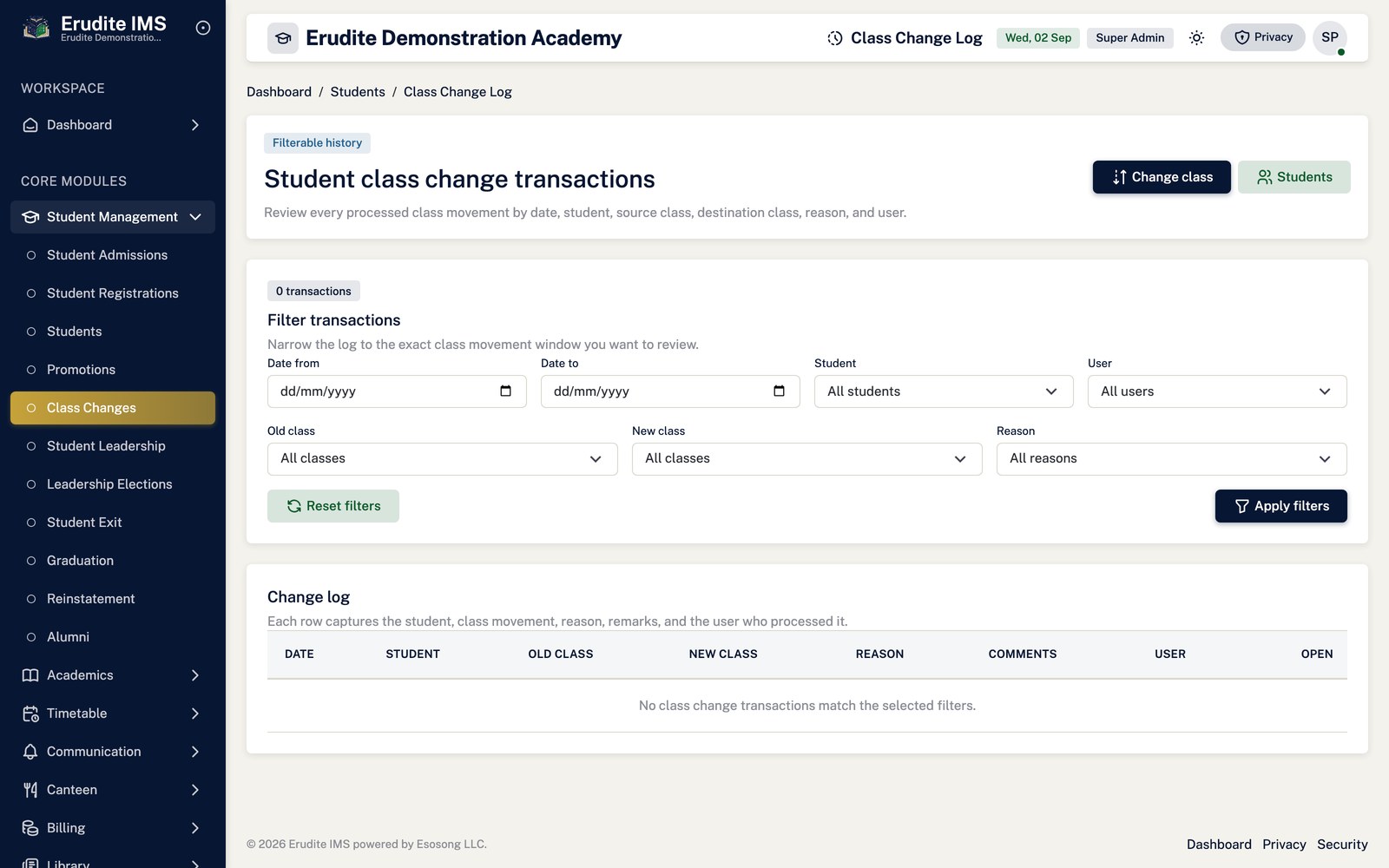
Class changes move a learner between classes mid-year. The learner immediately follows
to the new class for registers, marks and billing.
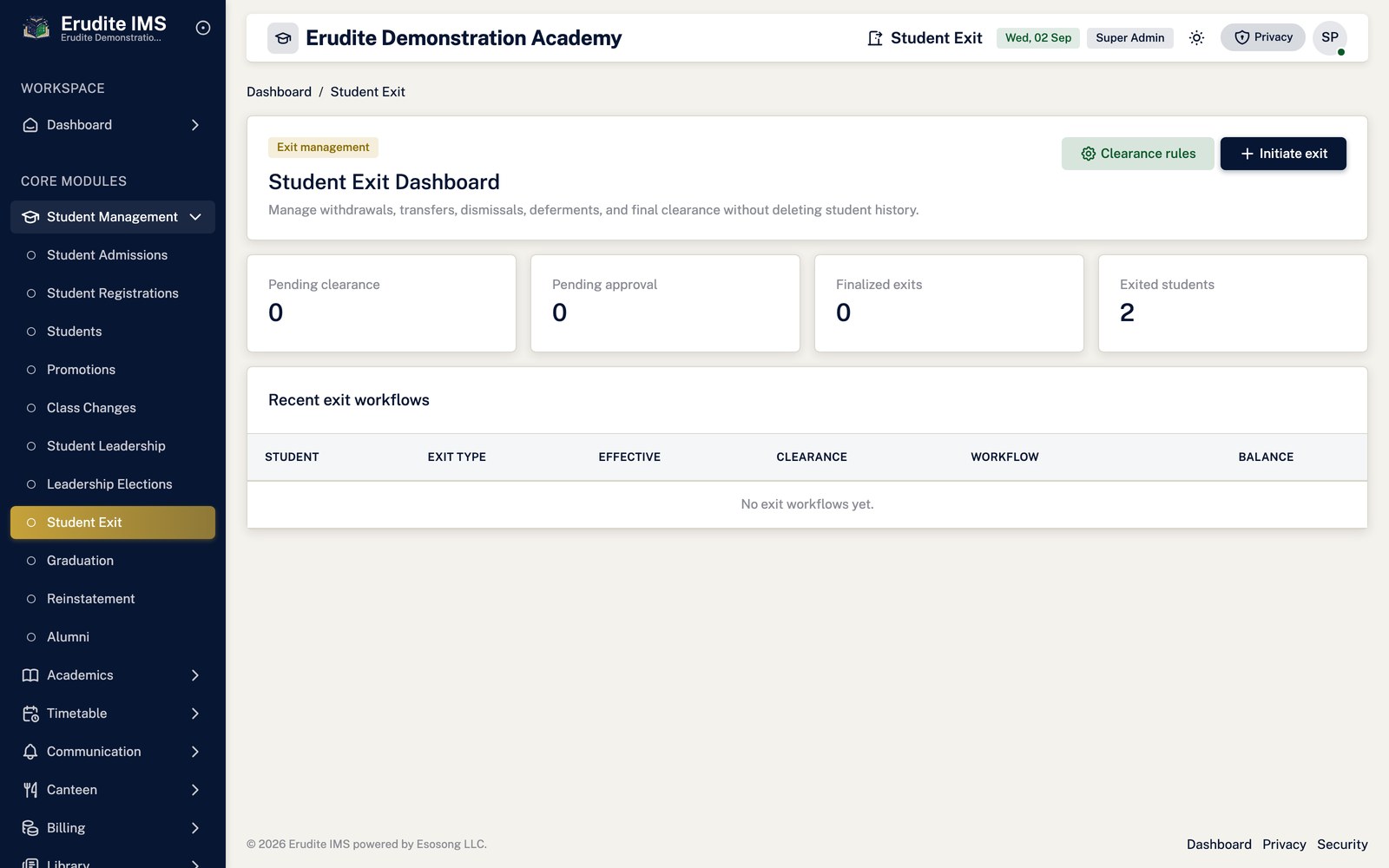
Student Exits records a withdrawal, transfer or other departure. Exited learners drop out
of on-roll counts, class rosters, mark sheets and billing selection.
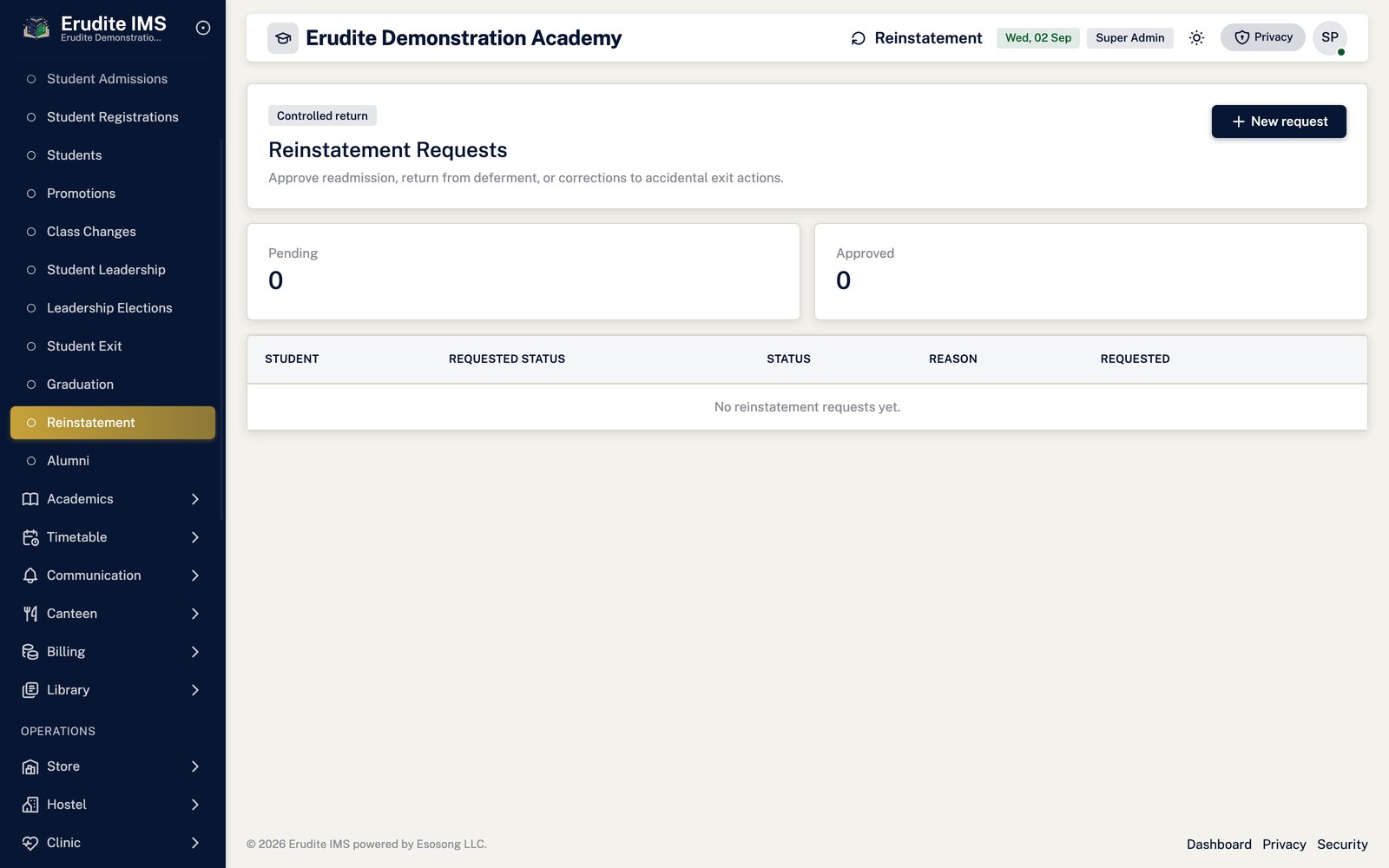
Reinstatement returns a previously exited or deferred learner to an active status.
Graduation moves a cohort to alumni at the end of their final year.
Lifecycle status decides visibility almost everywhere. Applicant,
Admitted, Active and Suspended learners are treated as on roll. Deferred learners are not on roll and are not
exited either — they simply leave the counts until reinstated. Graduated, transferred, withdrawn, dismissed,
deceased, alumni and archived learners are exited. Billing is narrower still: only Admitted, Active and
Suspended learners can be billed, so an applicant never receives a bill.
Alumni
Alumni — record detail
/Alumni/Details
This screen opens against a specific record and cannot be reached by URL alone. Open it from the list page for this module.
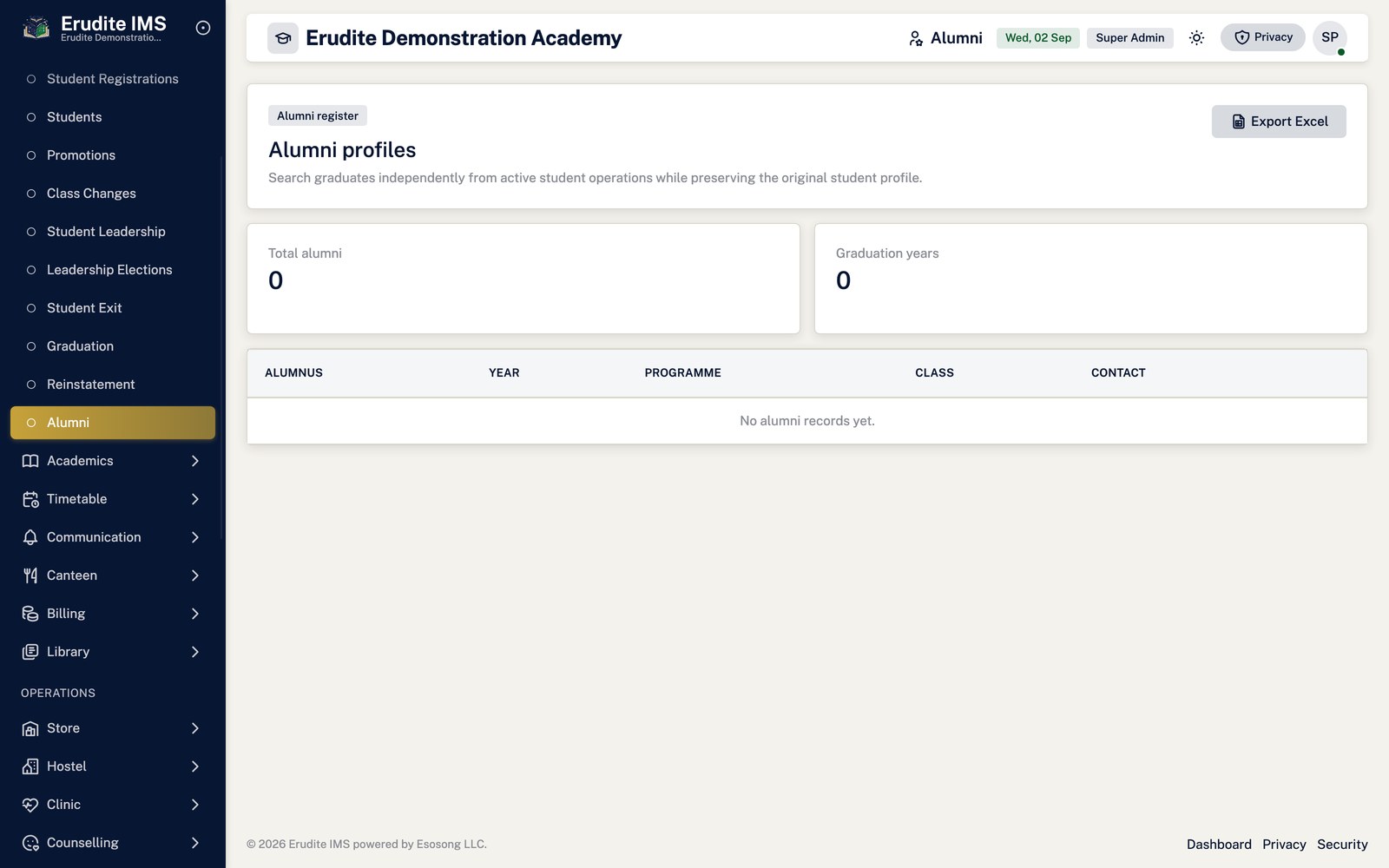
Alumni — list
/Alumni
/Alumni
Graduation
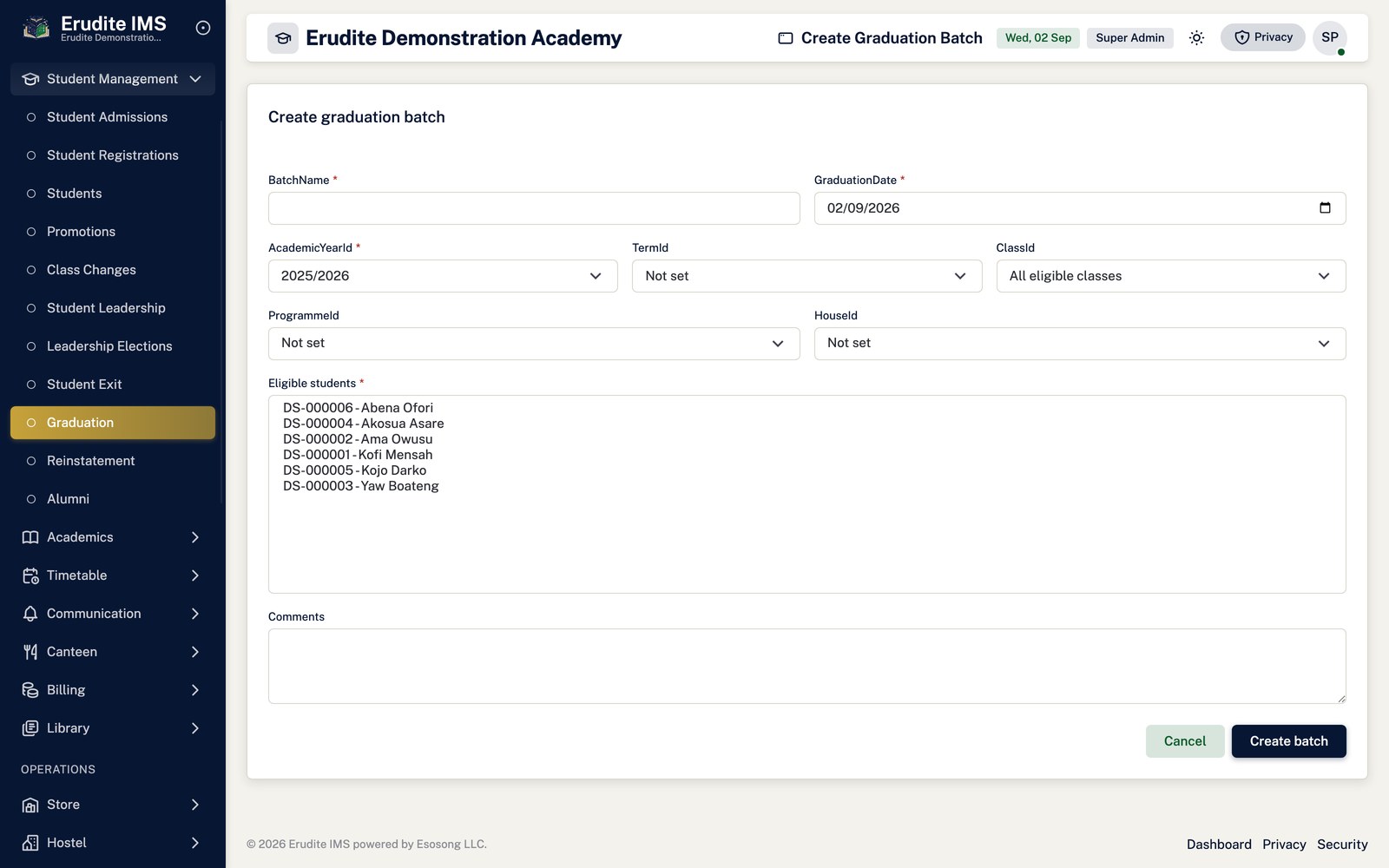
Graduation — create form
/Graduation/Create
/Graduation/Create
Graduation — record detail
/Graduation/Details
This screen opens against a specific record and cannot be reached by URL alone. Open it from the list page for this module.
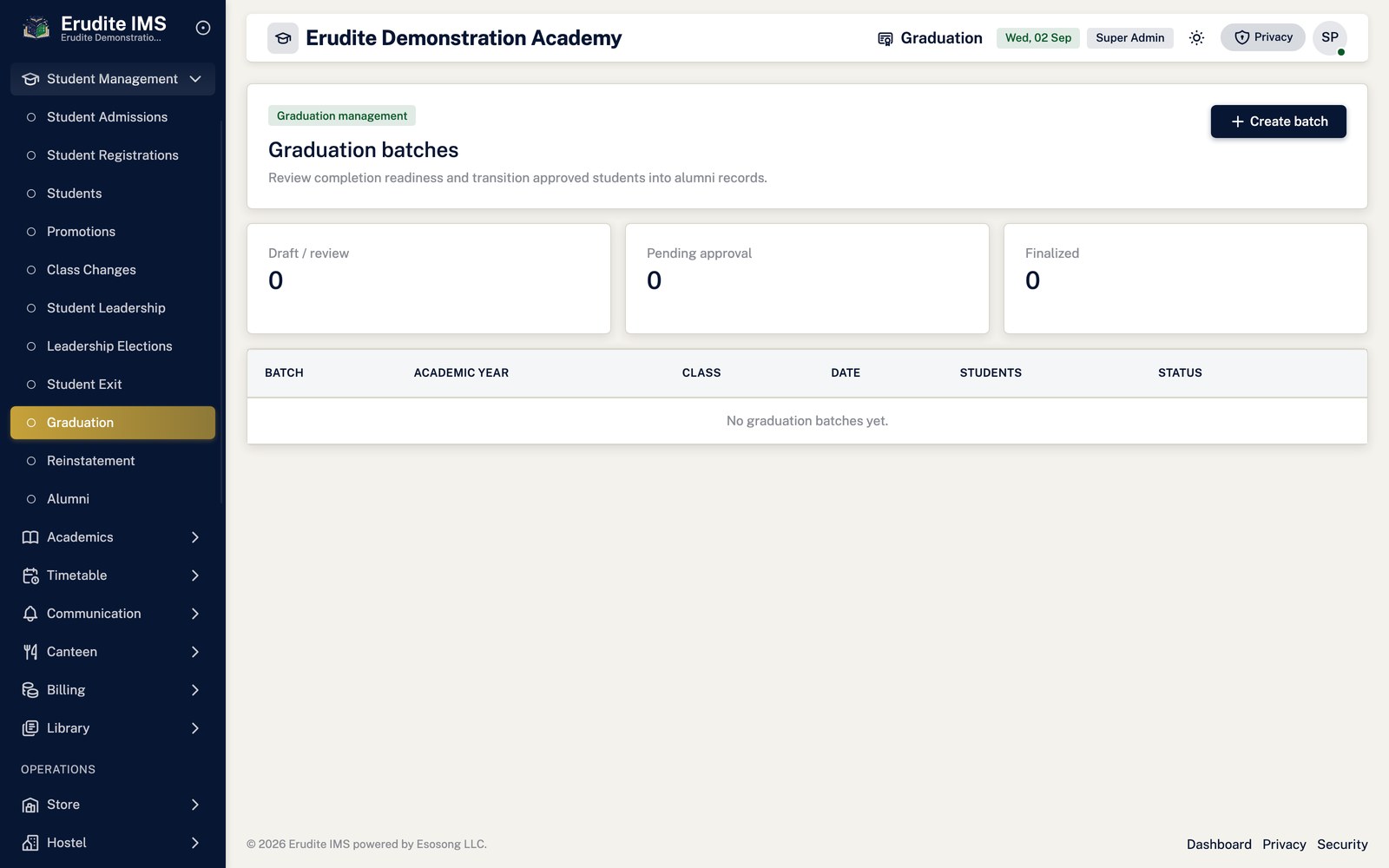
Graduation — list
/Graduation
/Graduation
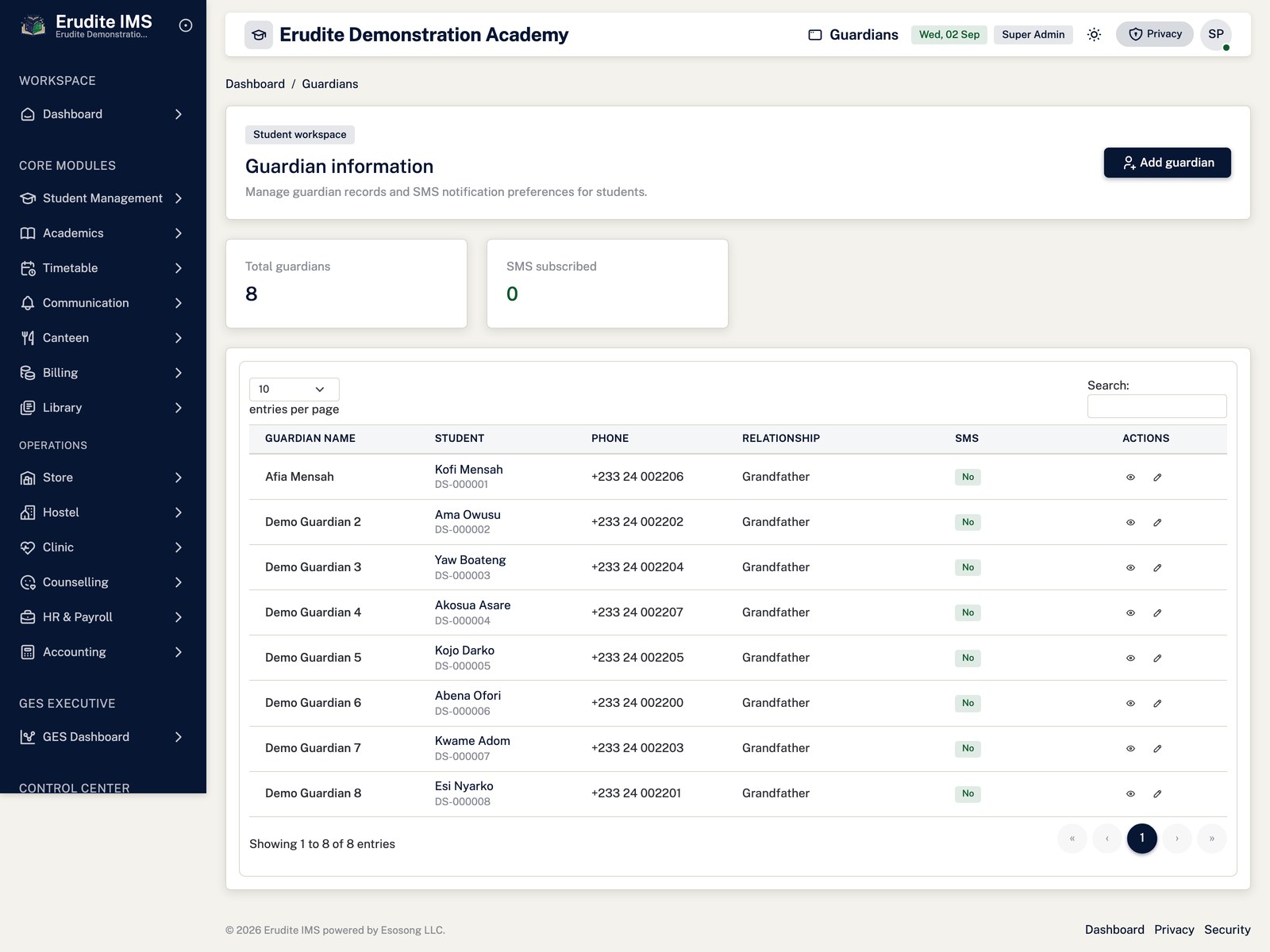
Guardian Informations
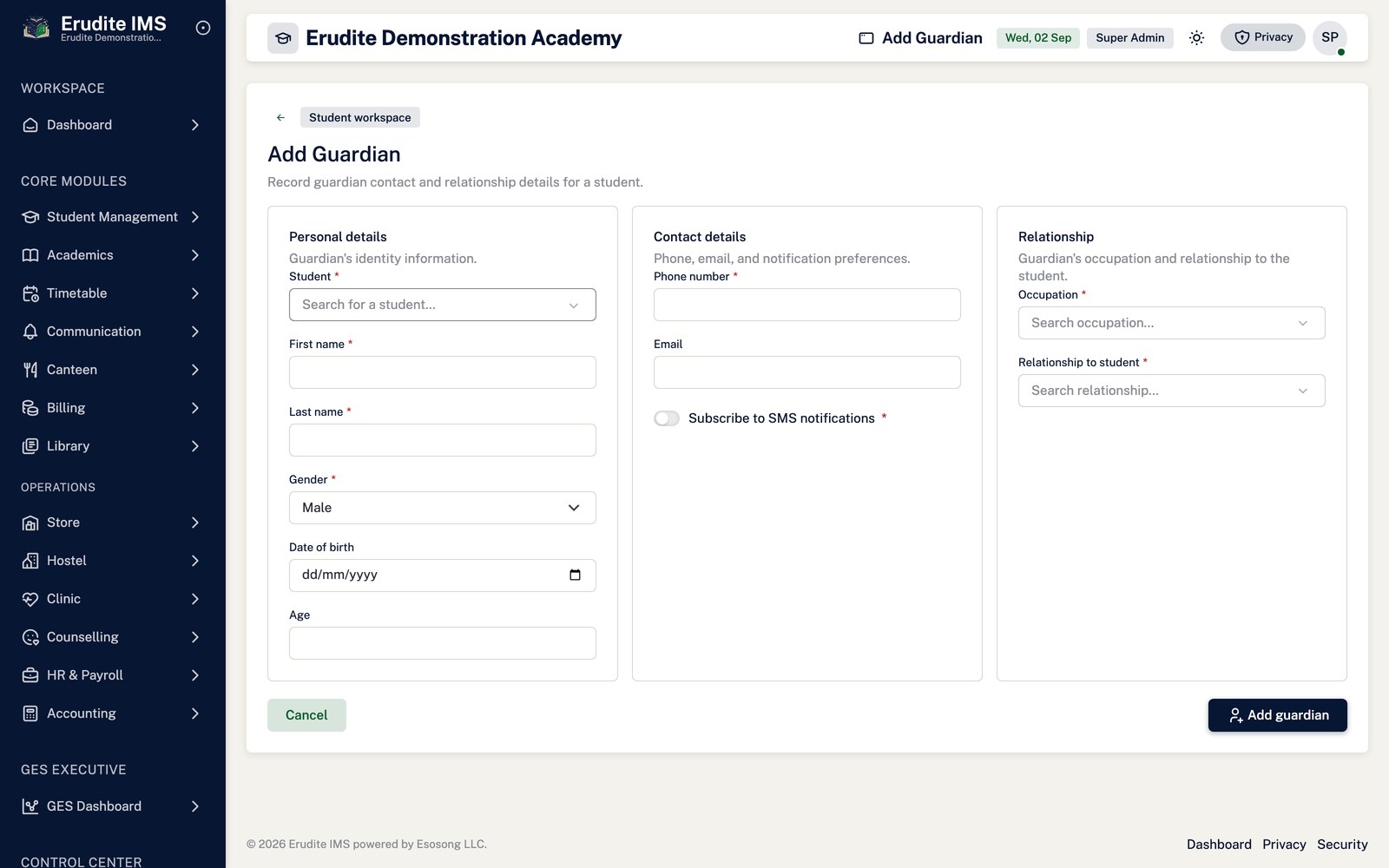
Guardian Informations — create form
/GuardianInformations/Create
/GuardianInformations/Create
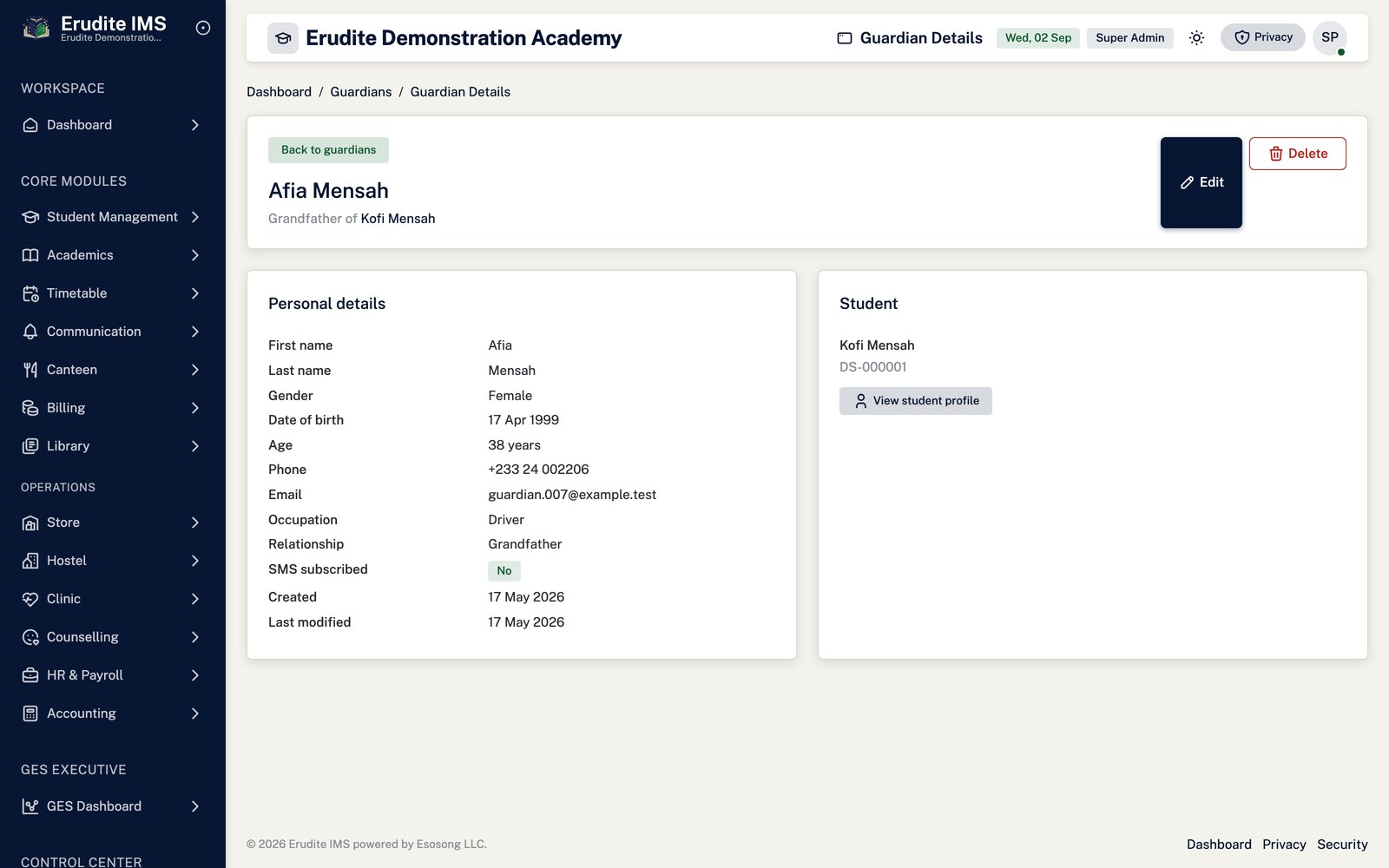
Guardian Informations — record detail
/GuardianInformations/Details
A record opened from the Guardian Informations list
Guardian Informations — edit form
/GuardianInformations/Edit
A record opened from the Guardian Informations list
Guardian Informations — list
/GuardianInformations
/GuardianInformations
Import Station
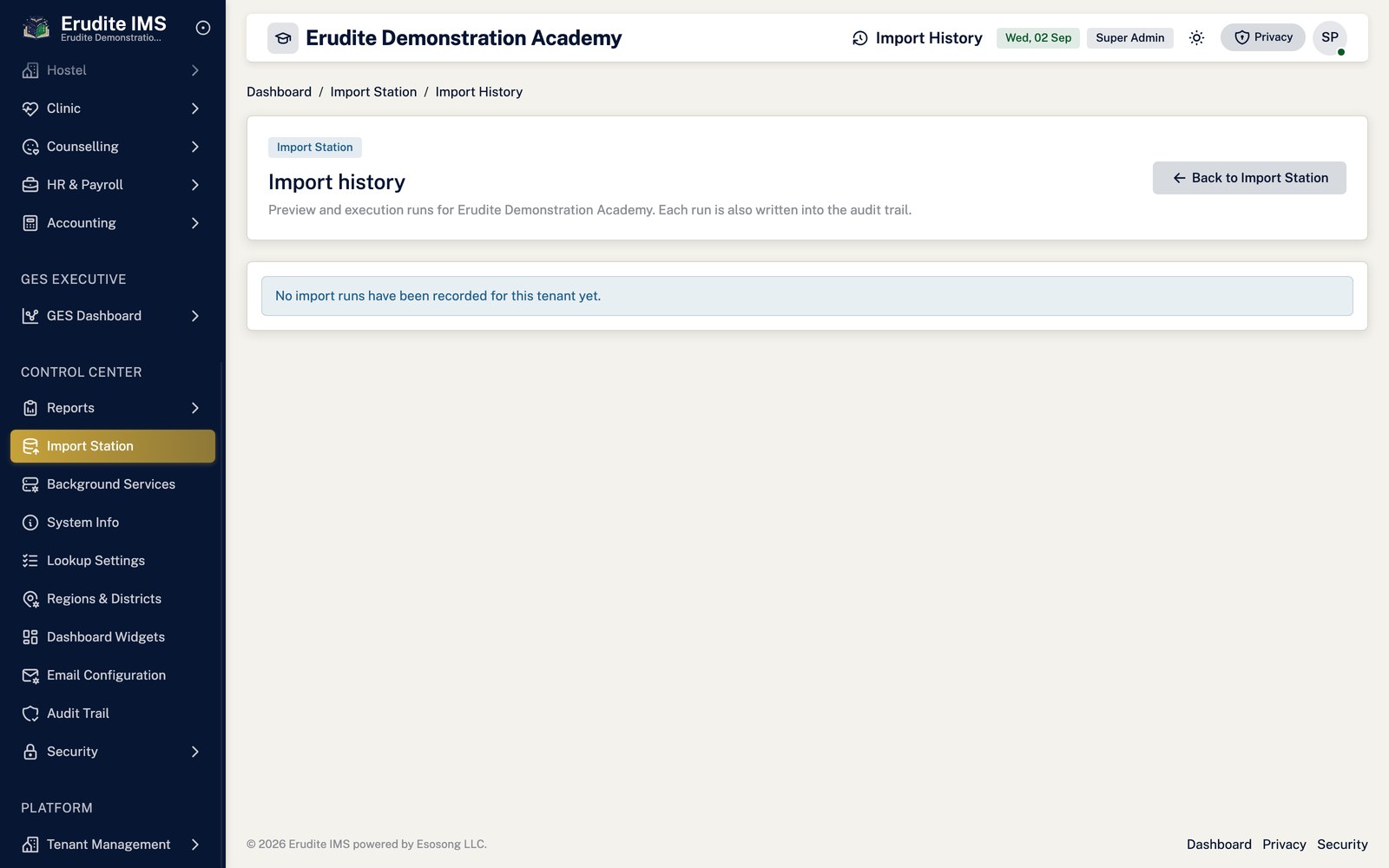
Import Station — history
/ImportStation/History
/ImportStation/History
Import Station — list
/ImportStation
/ImportStation
Promotions
Promotions — record detail
/Promotions/Details
/Promotions/Details
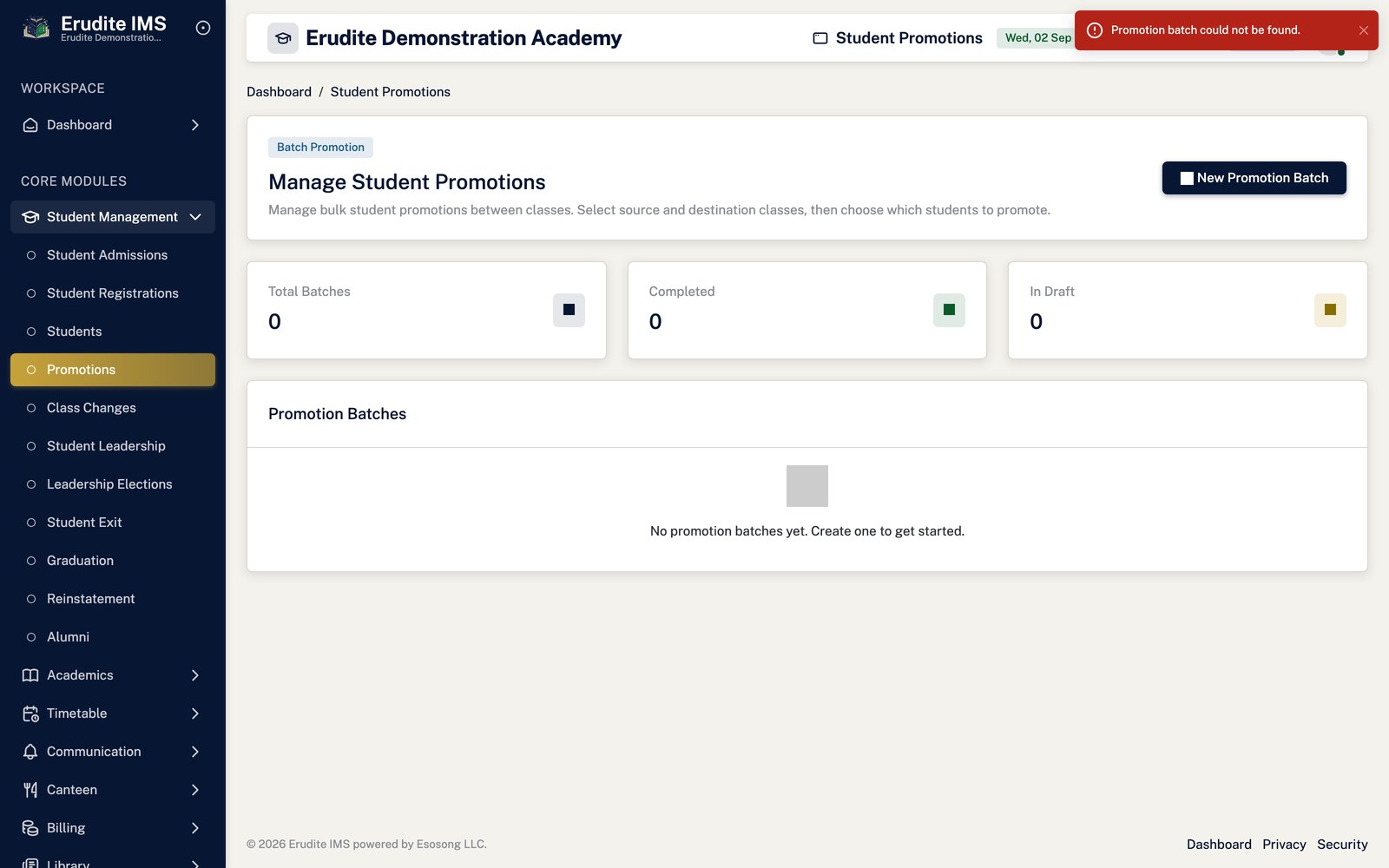
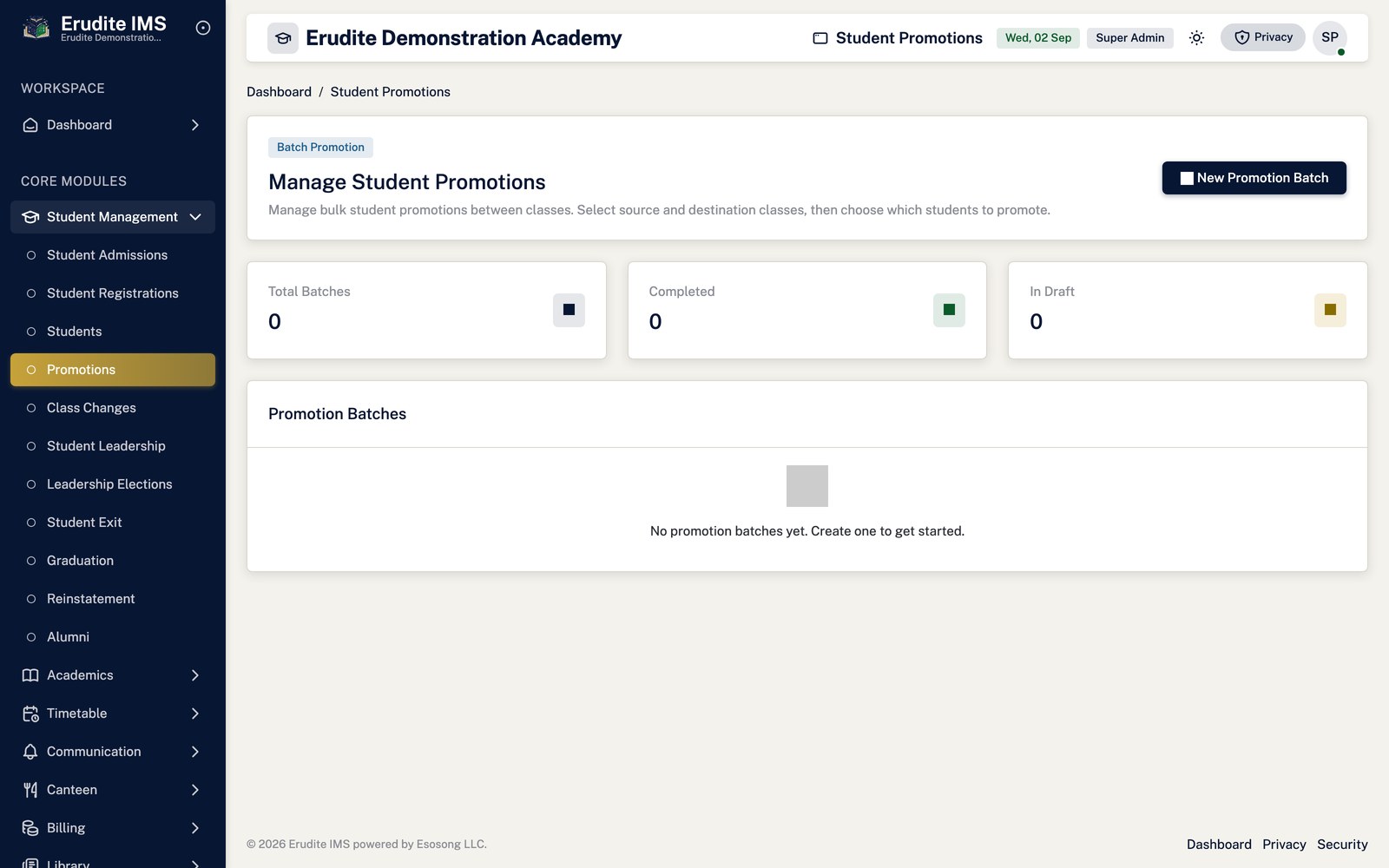
Promotions — list
/Promotions
/Promotions
Promotions — index_ old
/Promotions/Index_Old
This screen opens against a specific record and cannot be reached by URL alone. Open it from the list page for this module.
Promotions — process remaining
/Promotions/ProcessRemaining
/Promotions/ProcessRemaining
Promotions — select students
/Promotions/SelectStudents
/Promotions/SelectStudents
Reinstatement
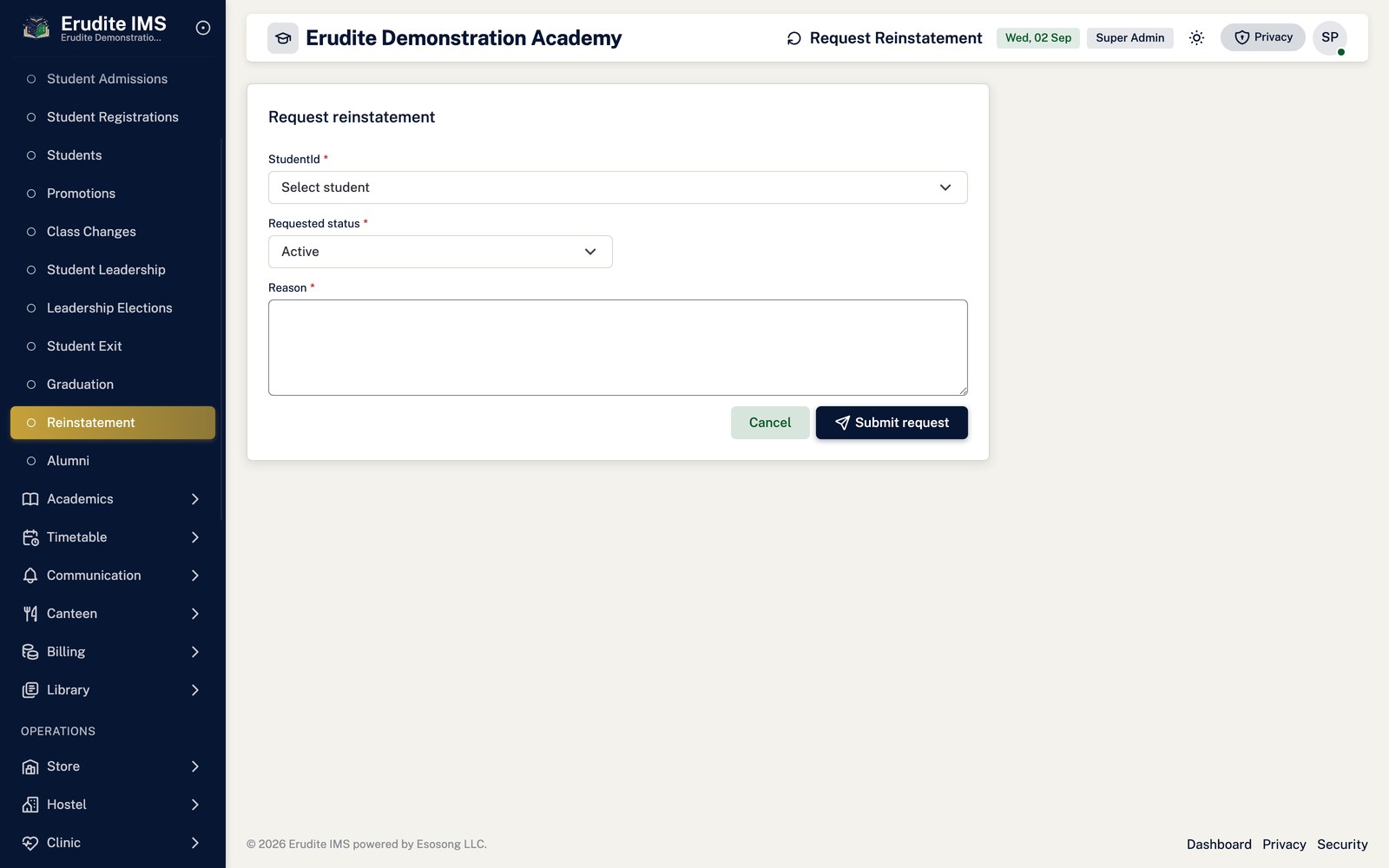
Reinstatement — create form
/Reinstatement/Create
/Reinstatement/Create
Reinstatement — list
/Reinstatement
/Reinstatement
Student Admissions
Student Admissions — add educational history
/StudentAdmissions/AddEducationalHistory
A record opened from the Student Admissions list
Student Admissions — add fee
/StudentAdmissions/AddFee
A record opened from the Student Admissions list
Student Admissions — add guardian
/StudentAdmissions/AddGuardian
A record opened from the Student Admissions list
Student Admissions — add payment
/StudentAdmissions/AddPayment
A record opened from the Student Admissions list
Student Admissions — add skill
/StudentAdmissions/AddSkill
A record opened from the Student Admissions list
Student Admissions — add spoken language
/StudentAdmissions/AddSpokenLanguage
A record opened from the Student Admissions list
Student Admissions — add supporting document
/StudentAdmissions/AddSupportingDocument
A record opened from the Student Admissions list
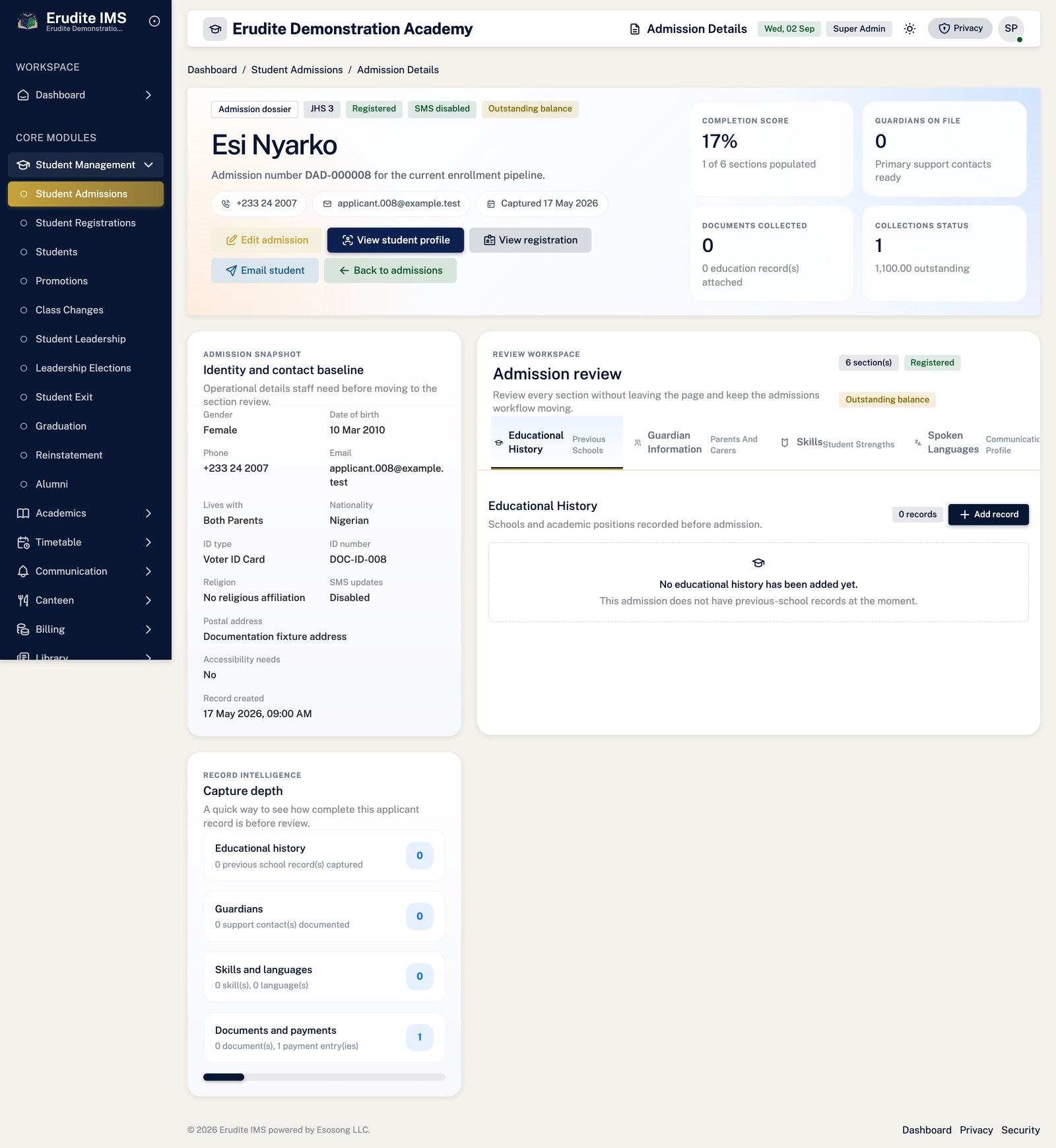
Student Admissions — record detail
/StudentAdmissions/Details
A record opened from the Student Admissions list
Student Admissions — list
/StudentAdmissions
/StudentAdmissions
Student Class Changes
Student Class Changes — create form
/StudentClassChanges/Create
/StudentClassChanges/Create
Student Class Changes — list
/StudentClassChanges
/StudentClassChanges
Student Exits
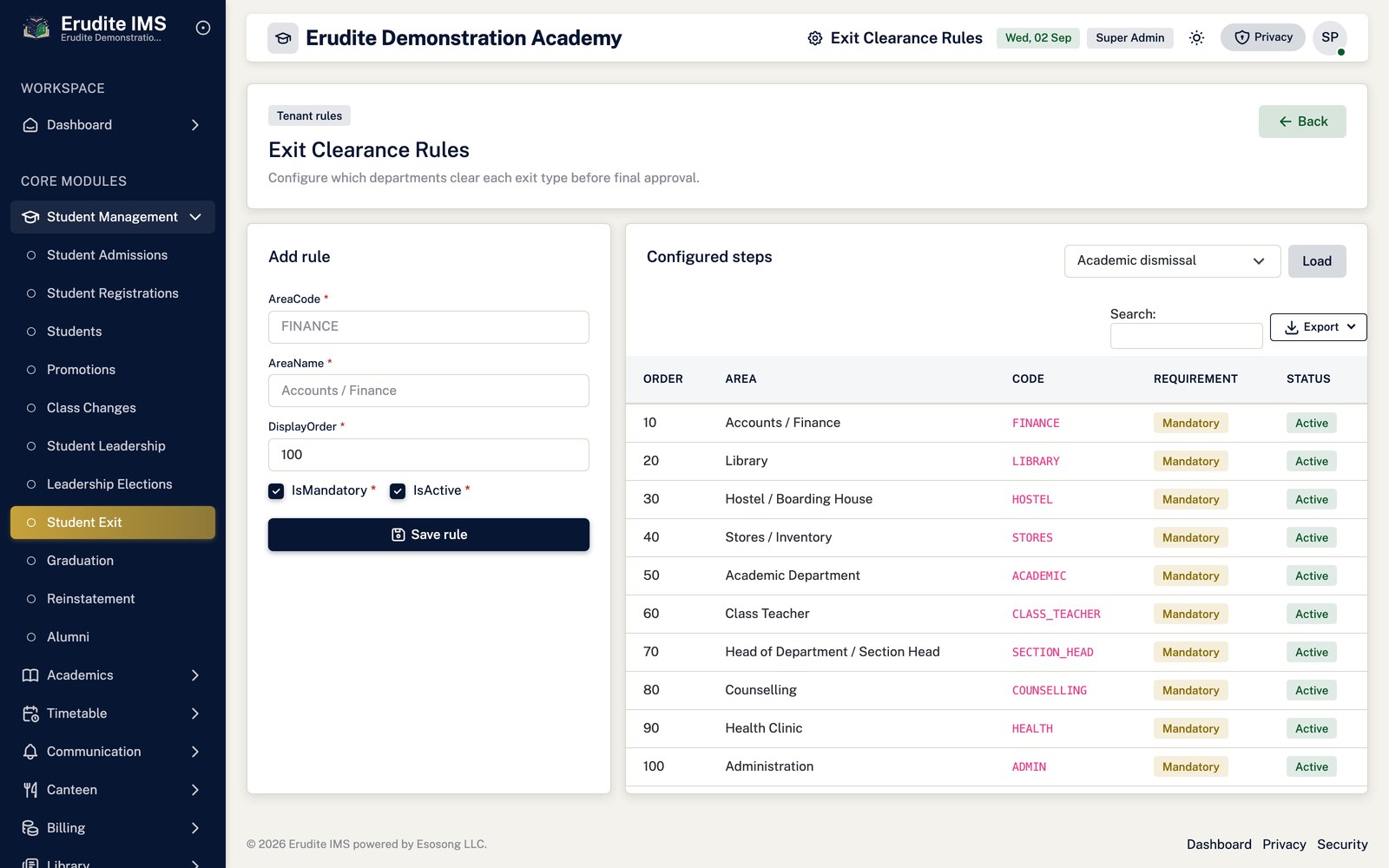
Student Exits — clearance settings
/StudentExits/ClearanceSettings
/StudentExits/ClearanceSettings
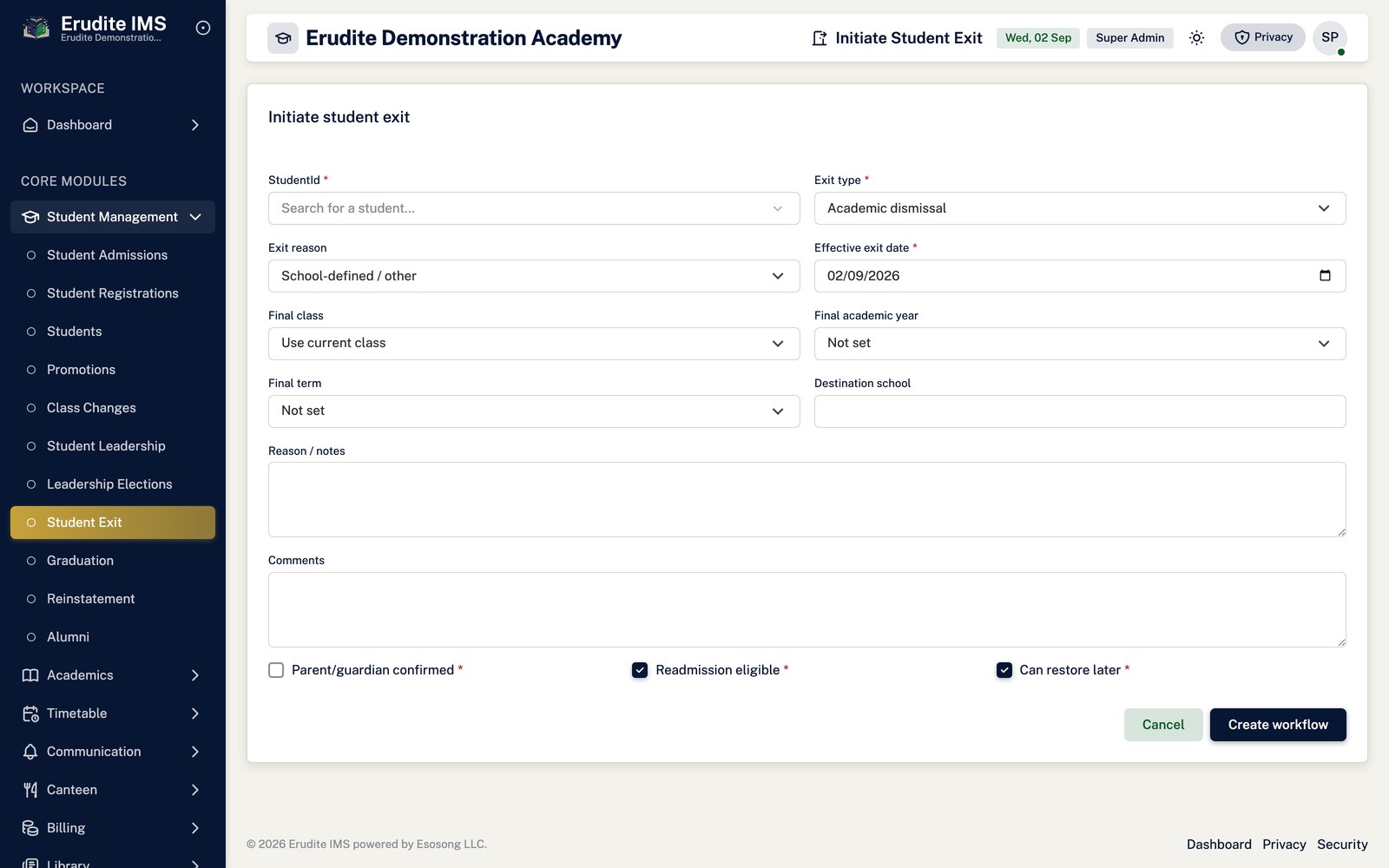
Student Exits — create form
/StudentExits/Create
/StudentExits/Create
Student Exits — record detail
/StudentExits/Details
This screen opens against a specific record and cannot be reached by URL alone. Open it from the list page for this module.
Student Exits — list
/StudentExits
/StudentExits
Student Registrations
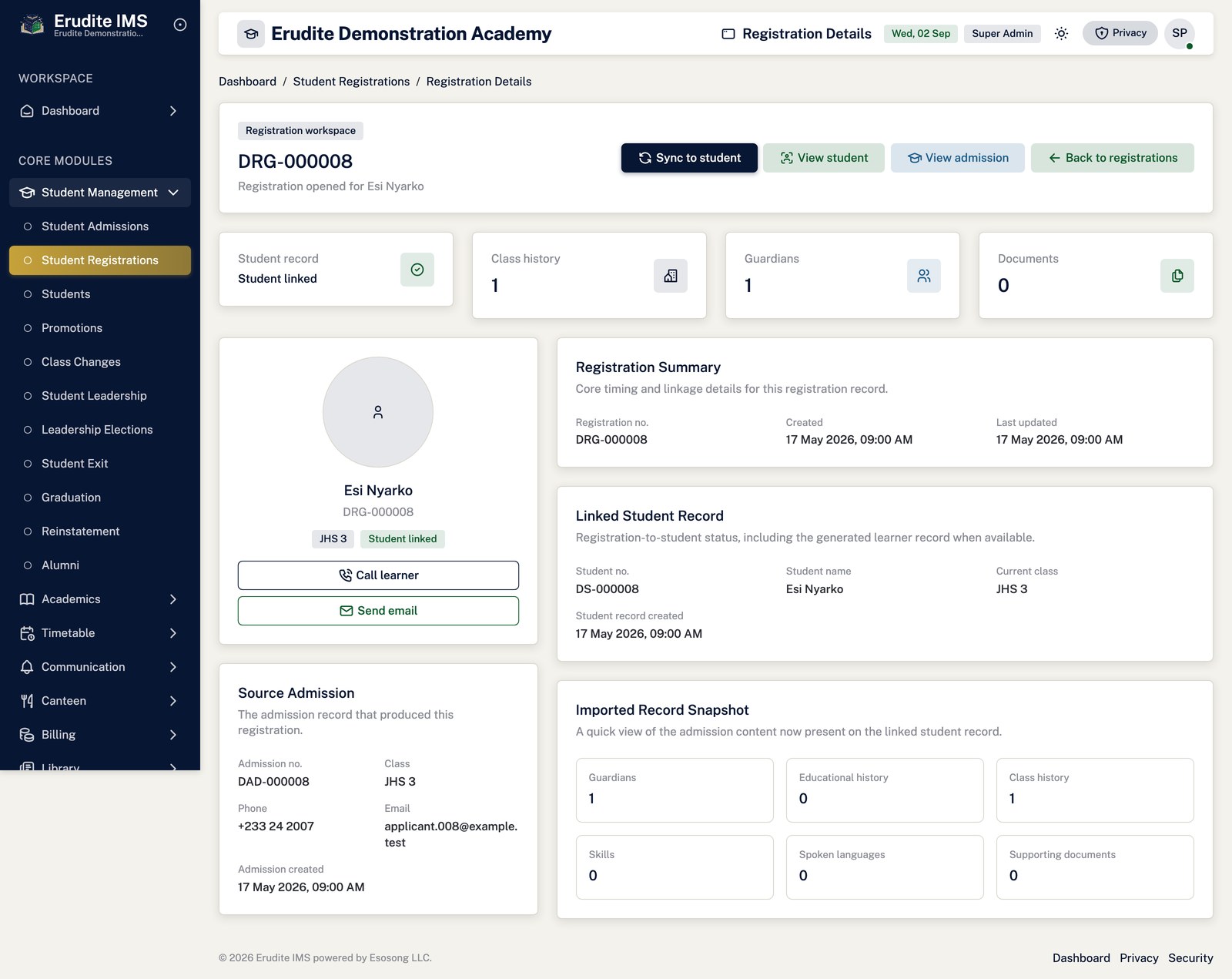
Student Registrations — record detail
/StudentRegistrations/Details
A record opened from the Student Registrations list
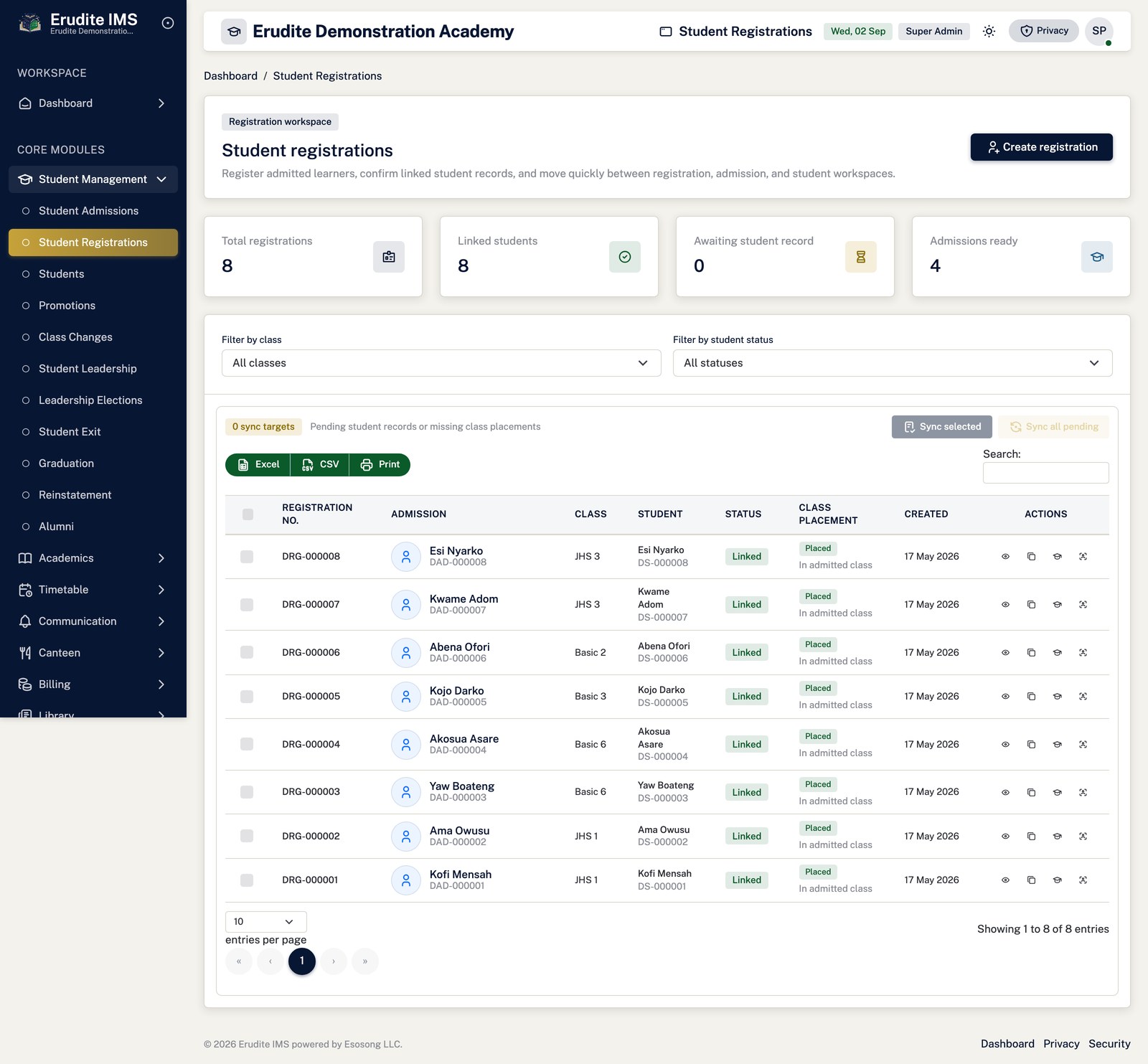
Student Registrations — list
/StudentRegistrations
/StudentRegistrations
Students
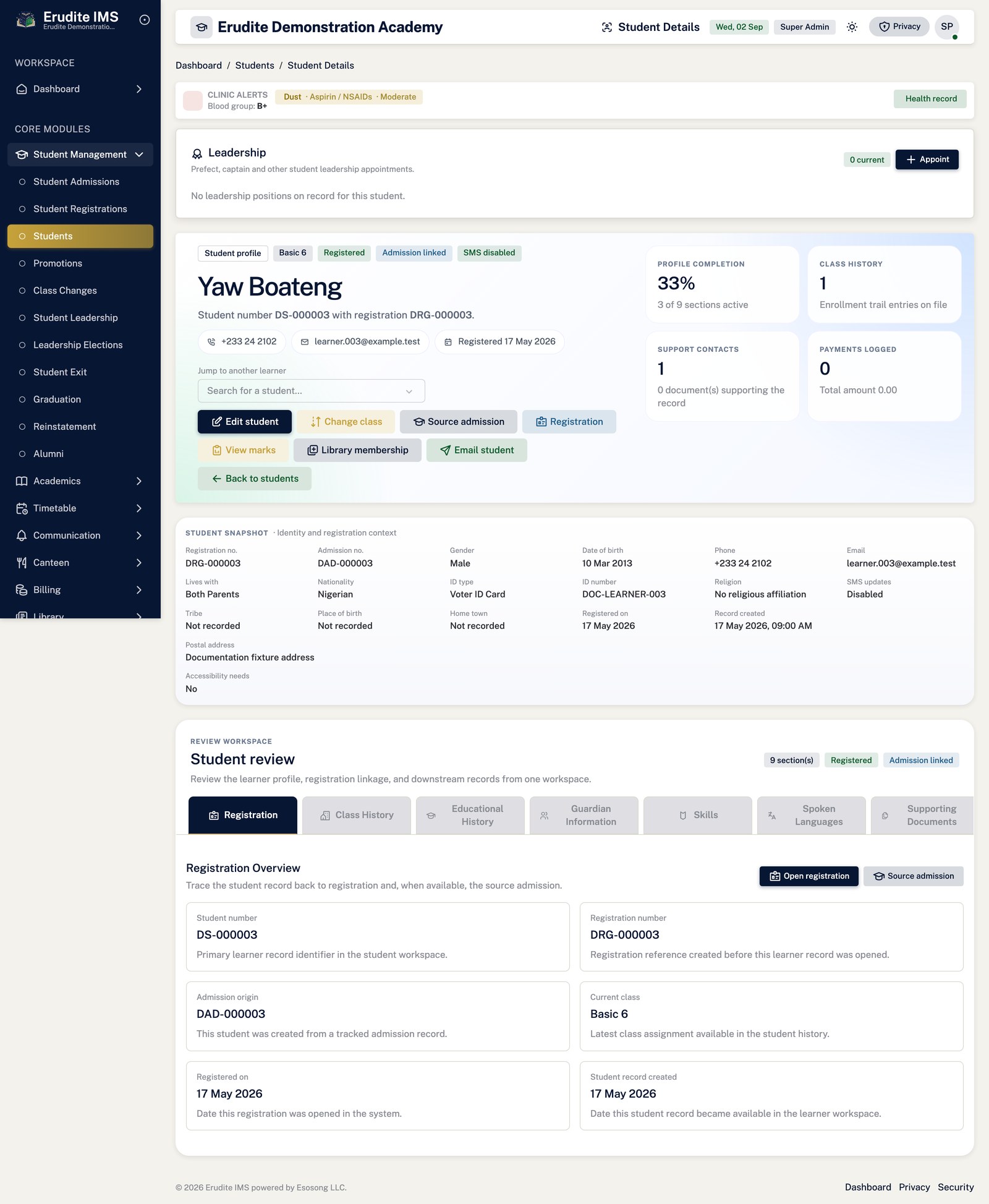
Students — record detail
/Students/Details
A record opened from the Students list
Students — entry form
/Students/Form
A record opened from the Students list
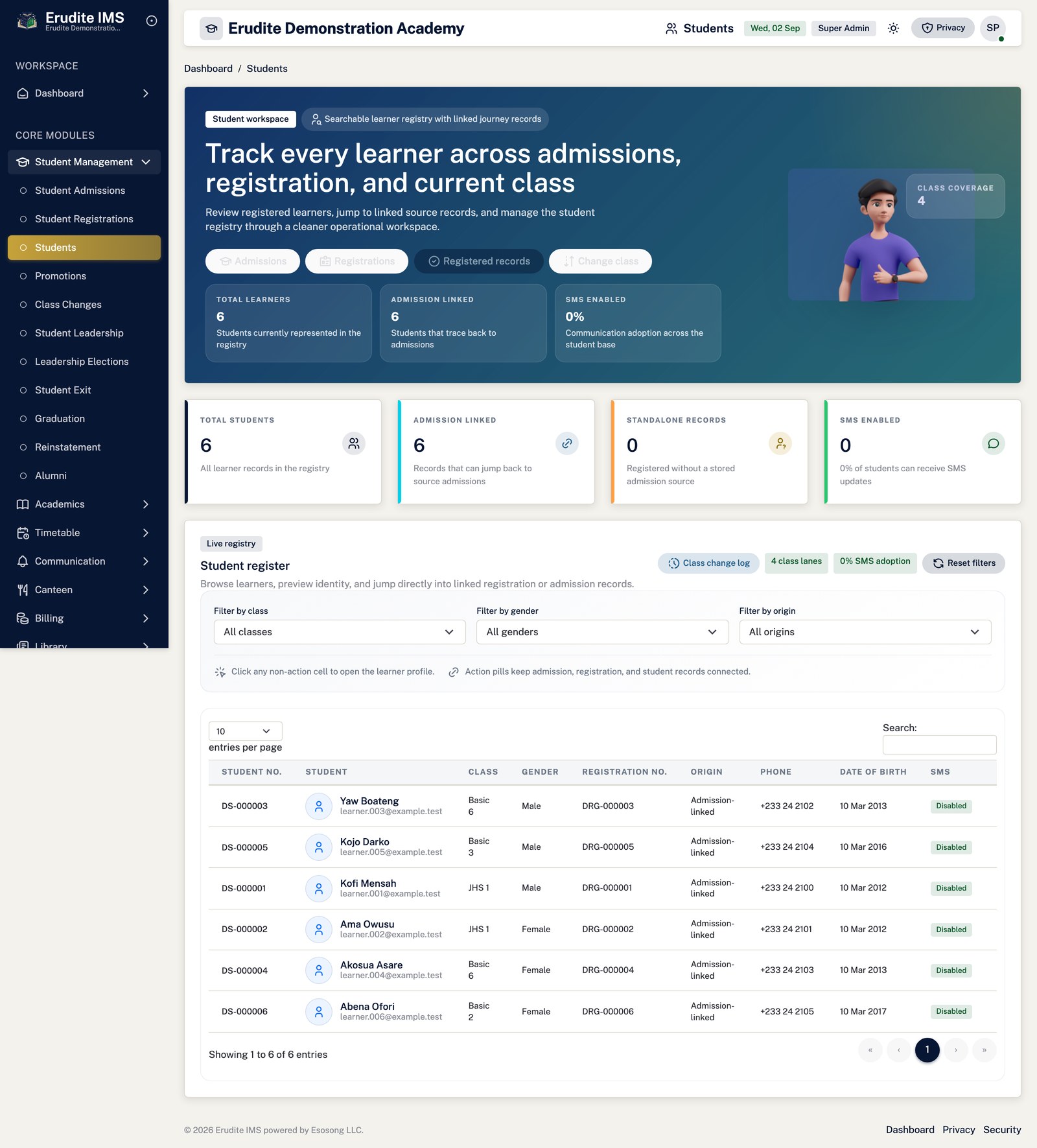
Students — list
/Students
/Students
Students — marks
/Students/Marks
A record opened from the Students list
Academics
Taking attendance
Open Academics → Attendance and choose the class and the date.
If no register exists for that date, a blank one is built from the class roster — the learners whose
effective class is that class, including a newly admitted learner who has not yet been assigned anywhere
else.
Mark each learner and save. Once a register exists for a date, reopening it shows the stored entries
rather than rebuilding the list, so previously recorded attendance is never silently altered.
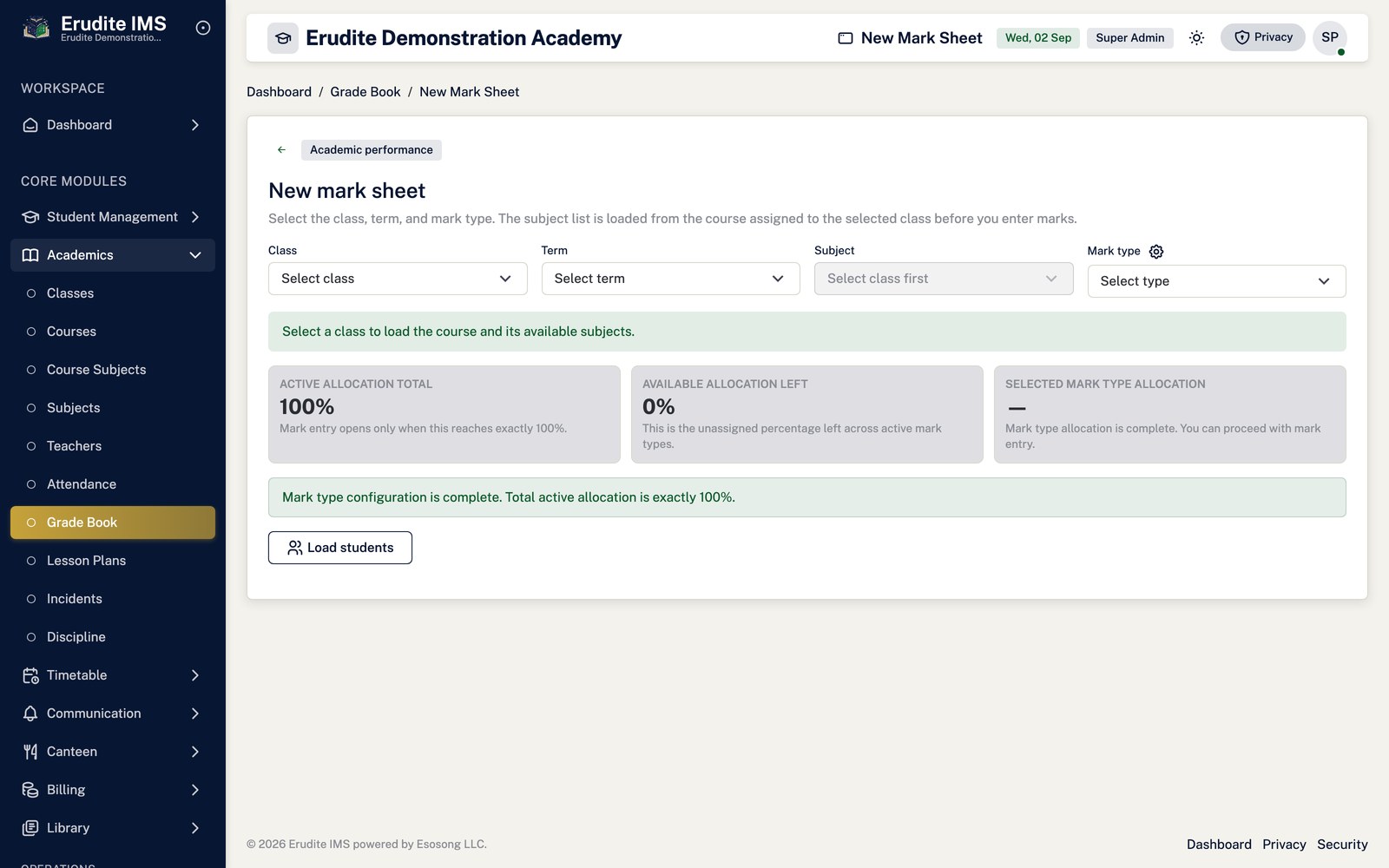
Entering marks
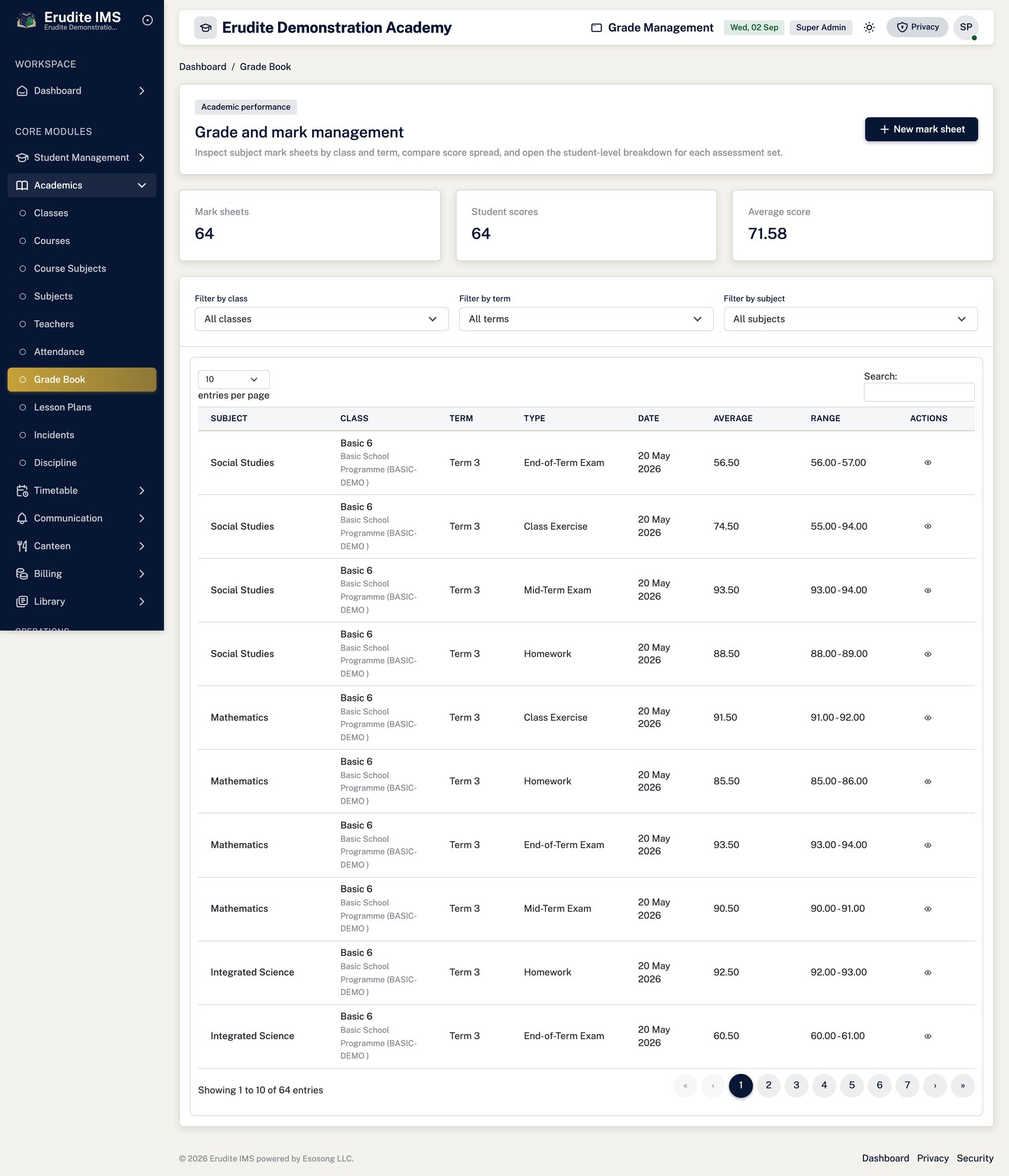
Open Academics → Grade Book (/StudentMarks) and select
New mark sheet.
Choose the class, term, subject and mark type. The learner list is the class roster.
Enter marks and save. The sheet saves as a whole.
To amend later, open the mark sheet and use Edit on the row.
If a learner is promoted or leaves between opening the sheet and saving it, the save still
succeeds — the write path deliberately accepts anyone affiliated with the class, so a roster change mid-entry
cannot discard a teacher's work. Saves that include such a learner are recorded in the audit trail.
Producing terminal reports
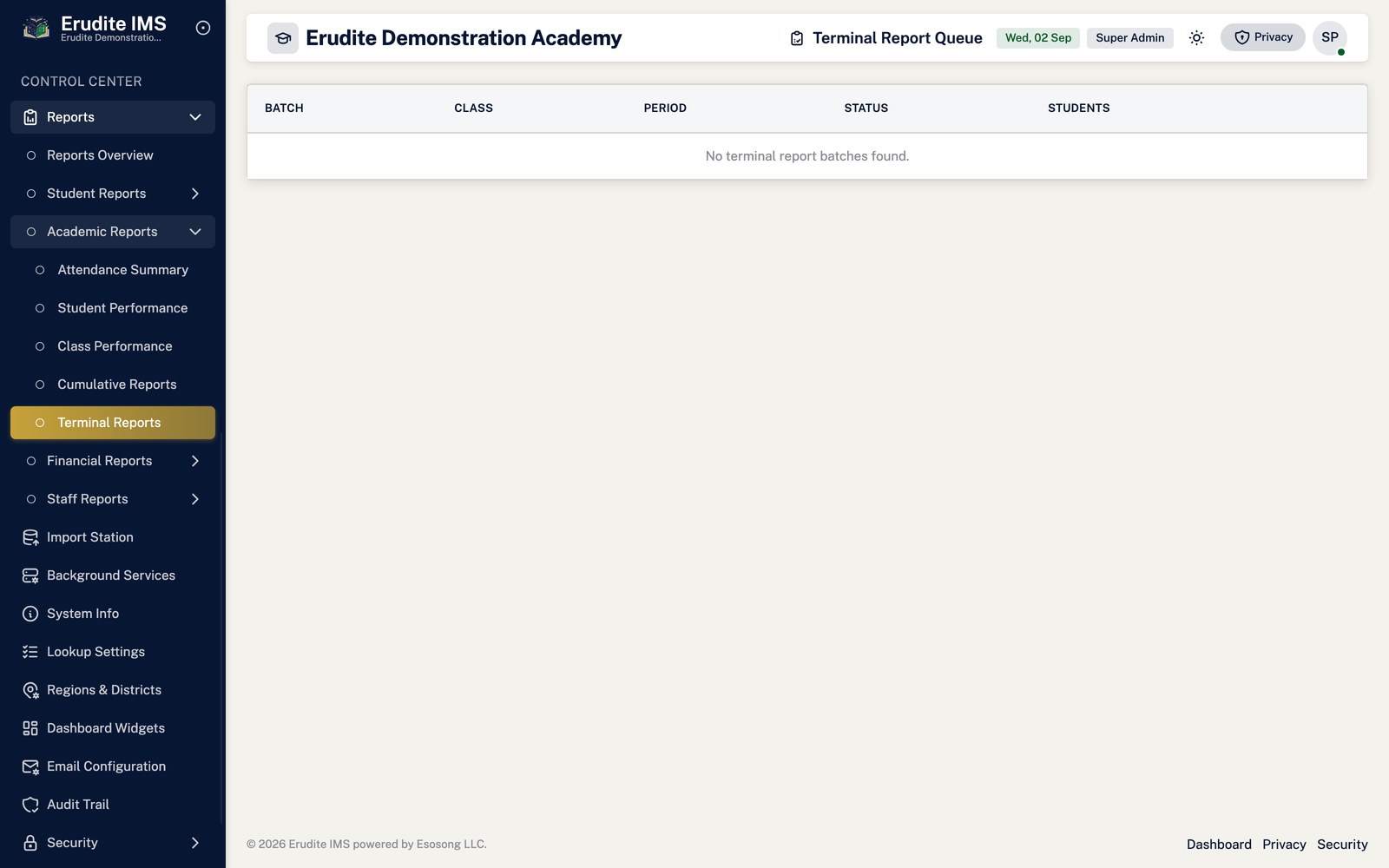
Open Academics → Terminal Reports and choose the class and term.
Enter class-teacher and head-teacher remarks and any traits. The head-teacher remark is permission-gated.
Generate the reports. Each learner's report renders on a single page as a PDF.
Report rosters follow current enrolment. Regenerating a past term's reports will therefore omit
a learner who has since left the school.
Promoting a class at year end
Open Promotions and create a promotion from the outgoing class to the receiving class.
Review the learner list, exclude anyone repeating, and confirm.
Each promoted learner's current class assignment moves to the new class. From that moment they appear on
the new class's registers, mark sheets and billing runs — and no longer on the old one's.
Academic Years
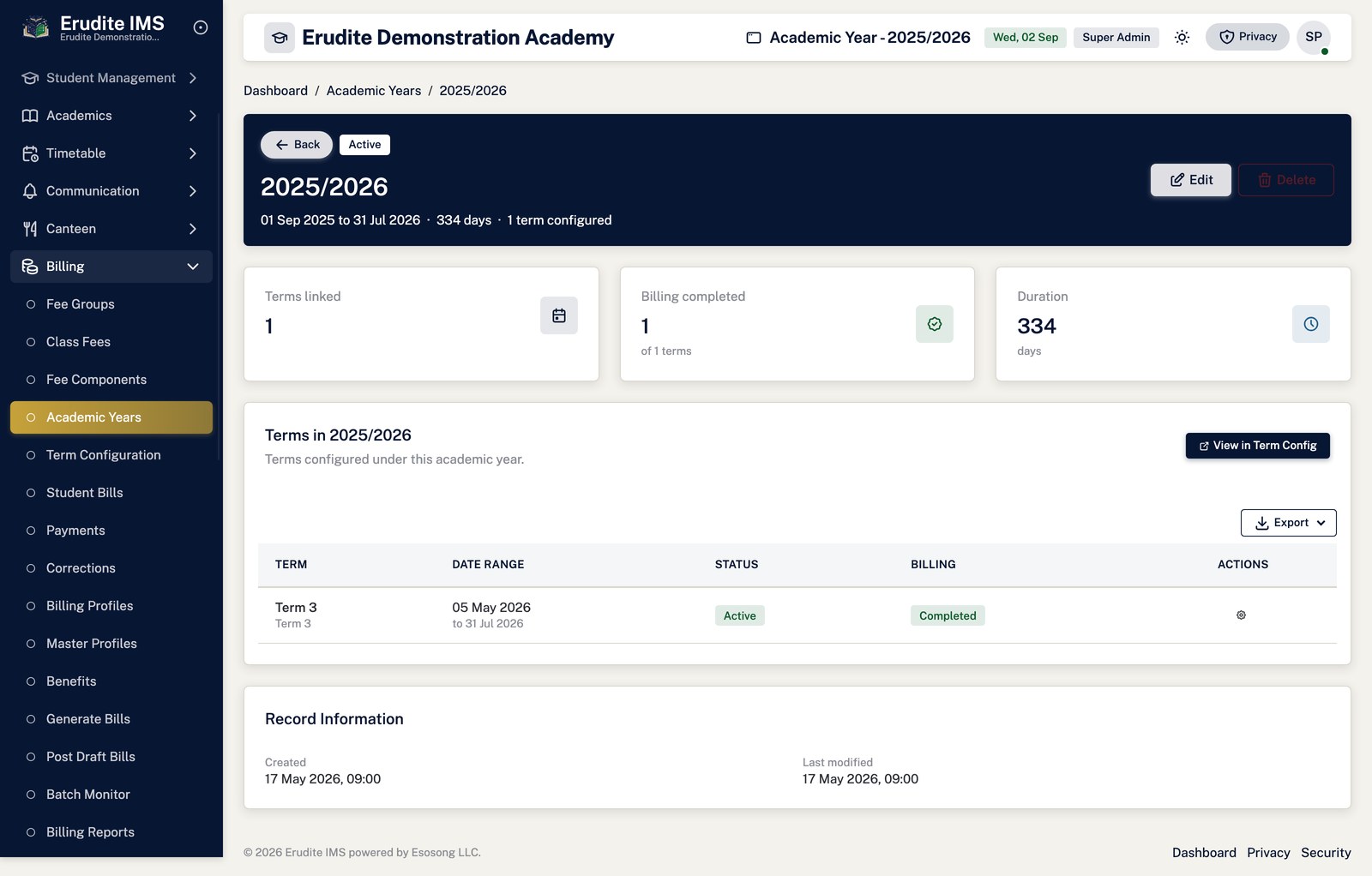
Academic Years — record detail
/AcademicYears/Details
A record opened from the Academic Years list
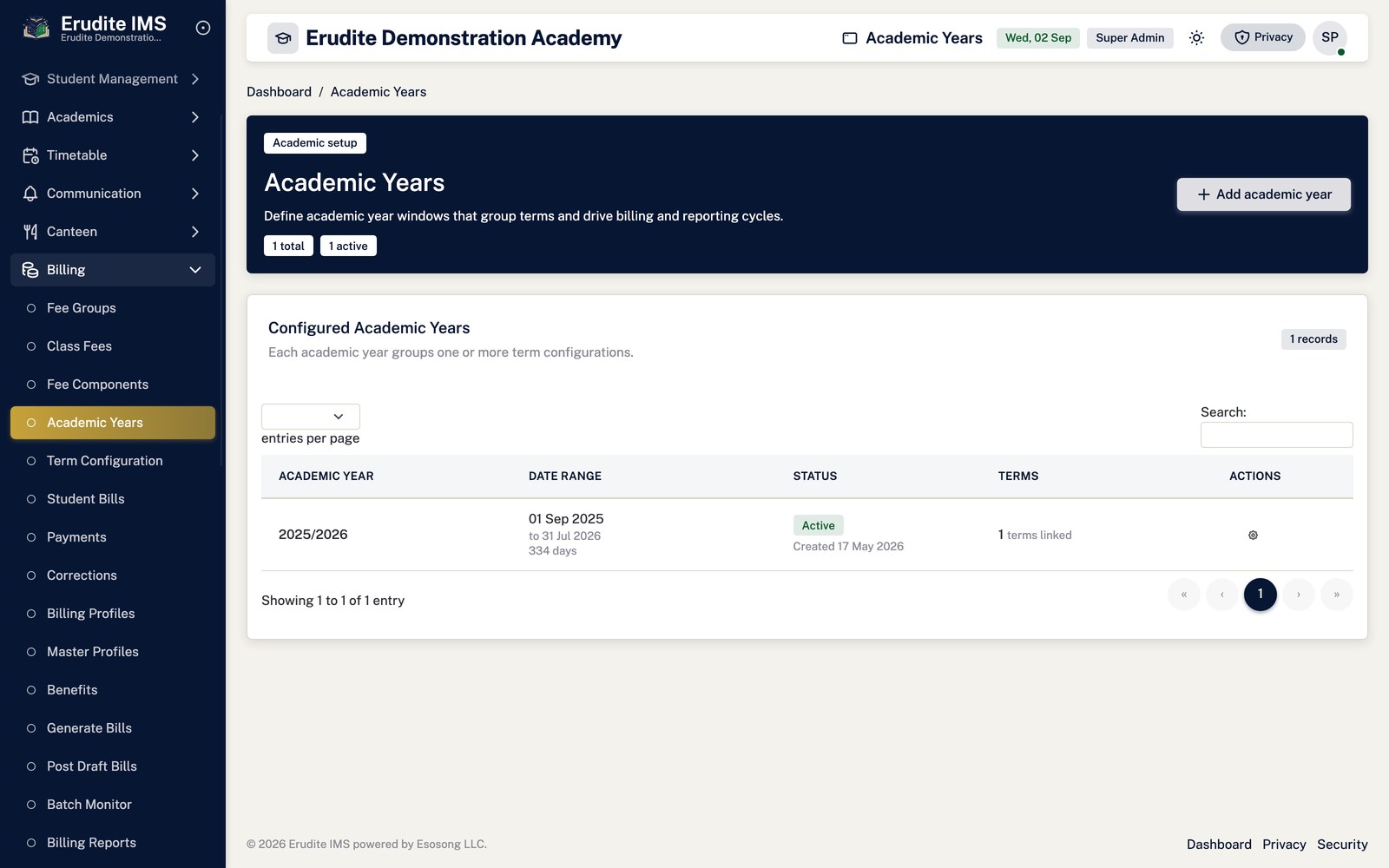
Academic Years — list
/AcademicYears
/AcademicYears
Attendances
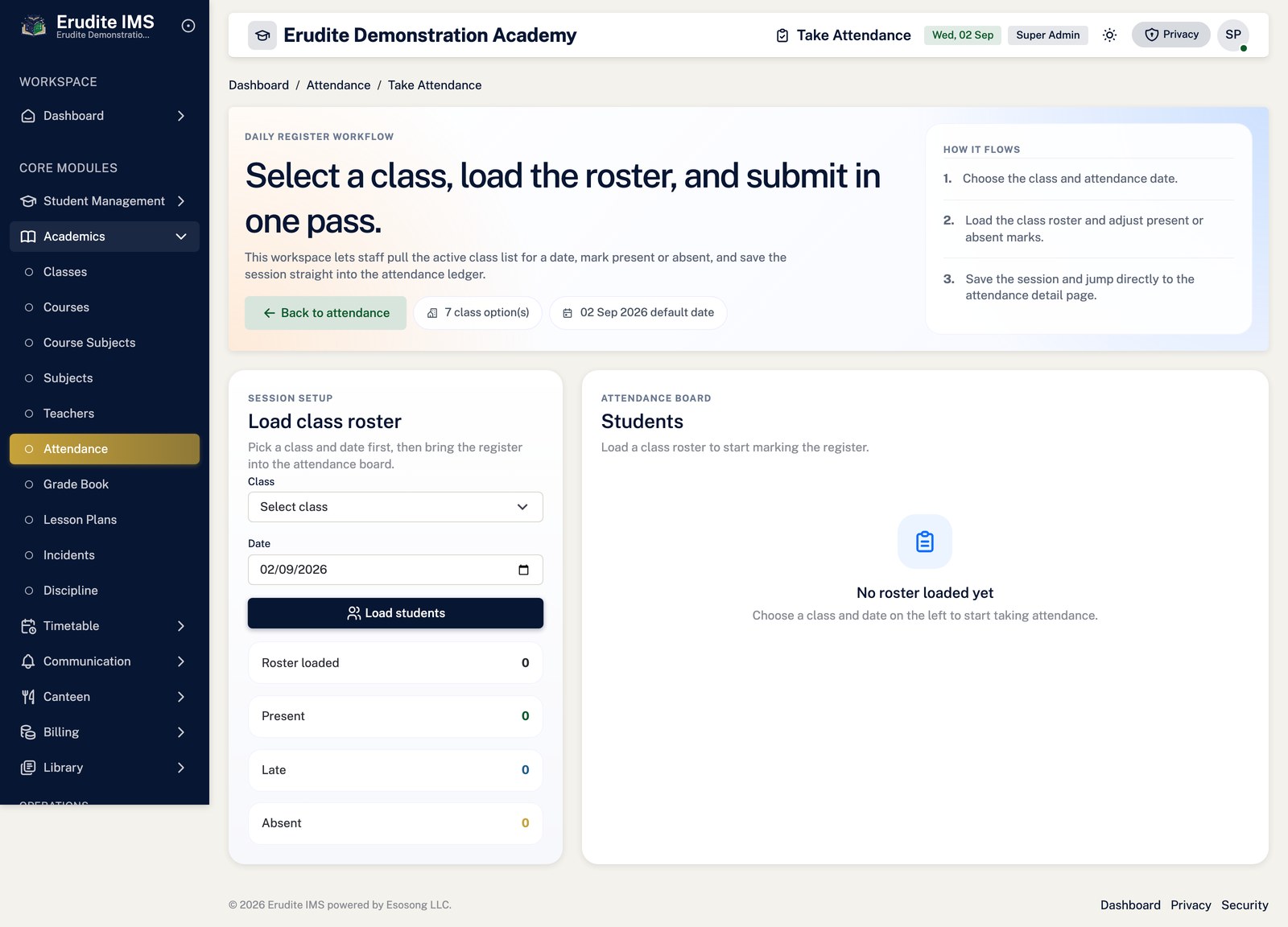
Attendances — create form
/Attendances/Create
/Attendances/Create
Attendances — record detail
/Attendances/Details
This screen opens against a specific record and cannot be reached by URL alone. Open it from the list page for this module.
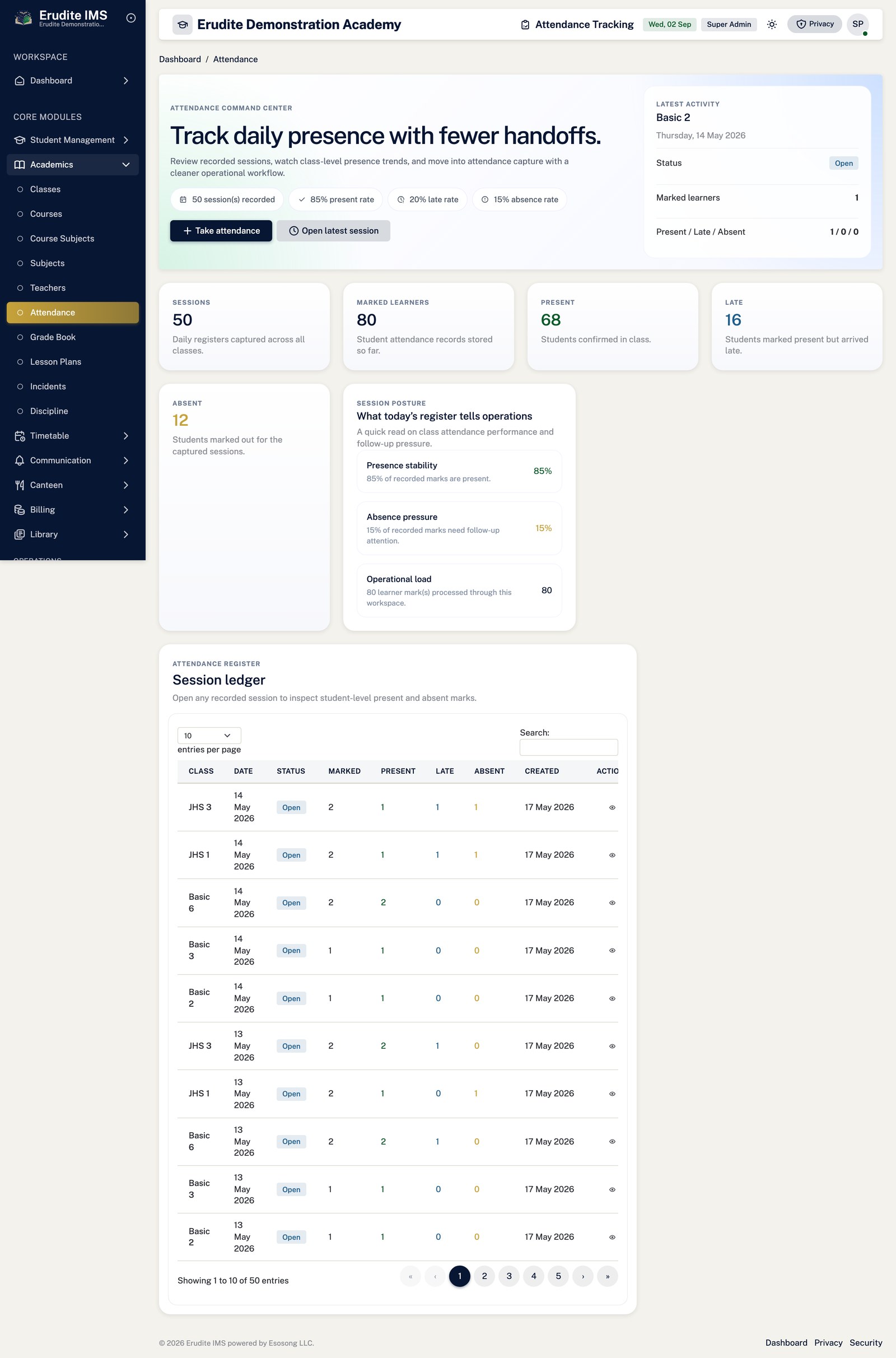
Attendances — list
/Attendances
/Attendances
Classes
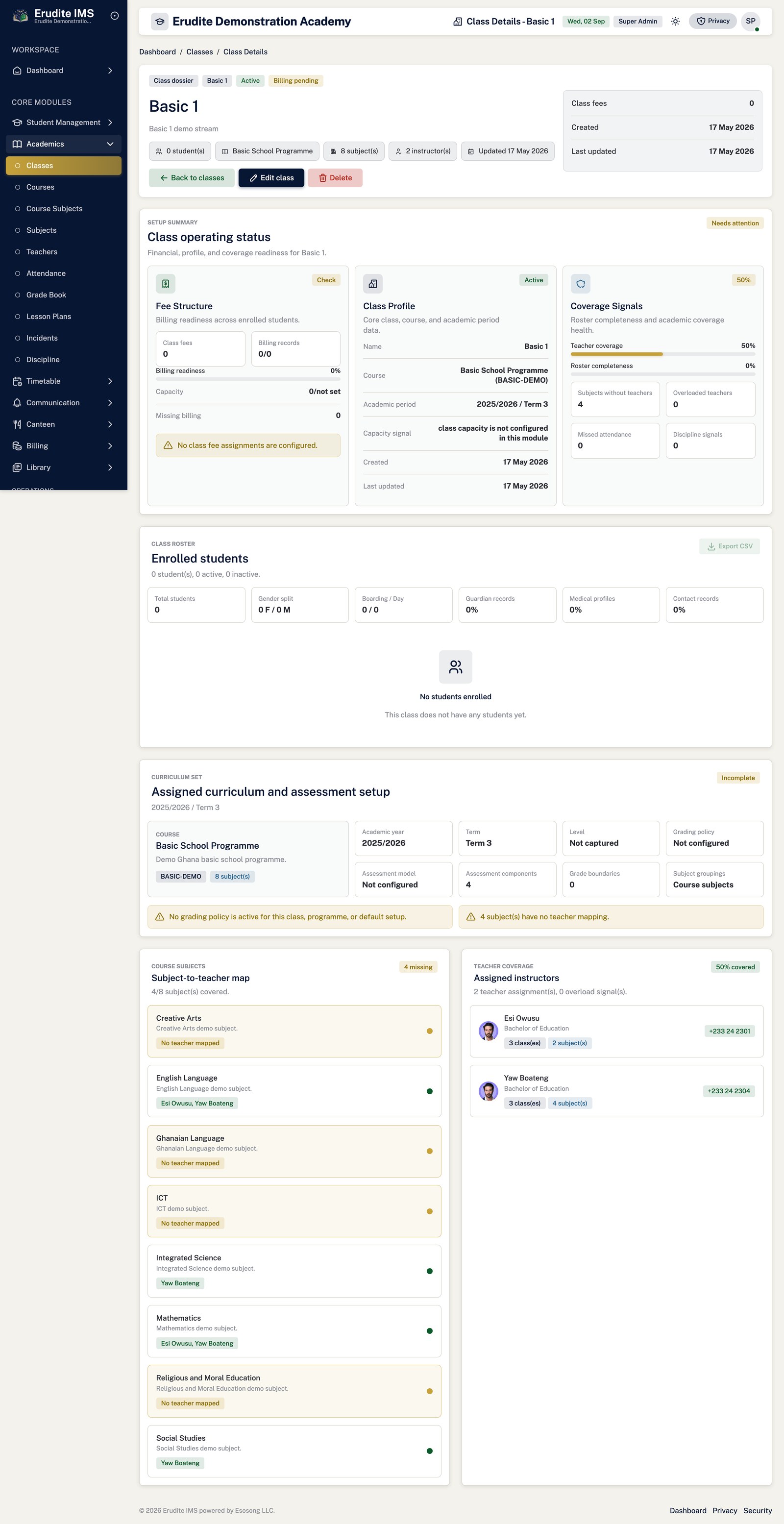
Classes — record detail
/Classes/Details
A record opened from the Classes list
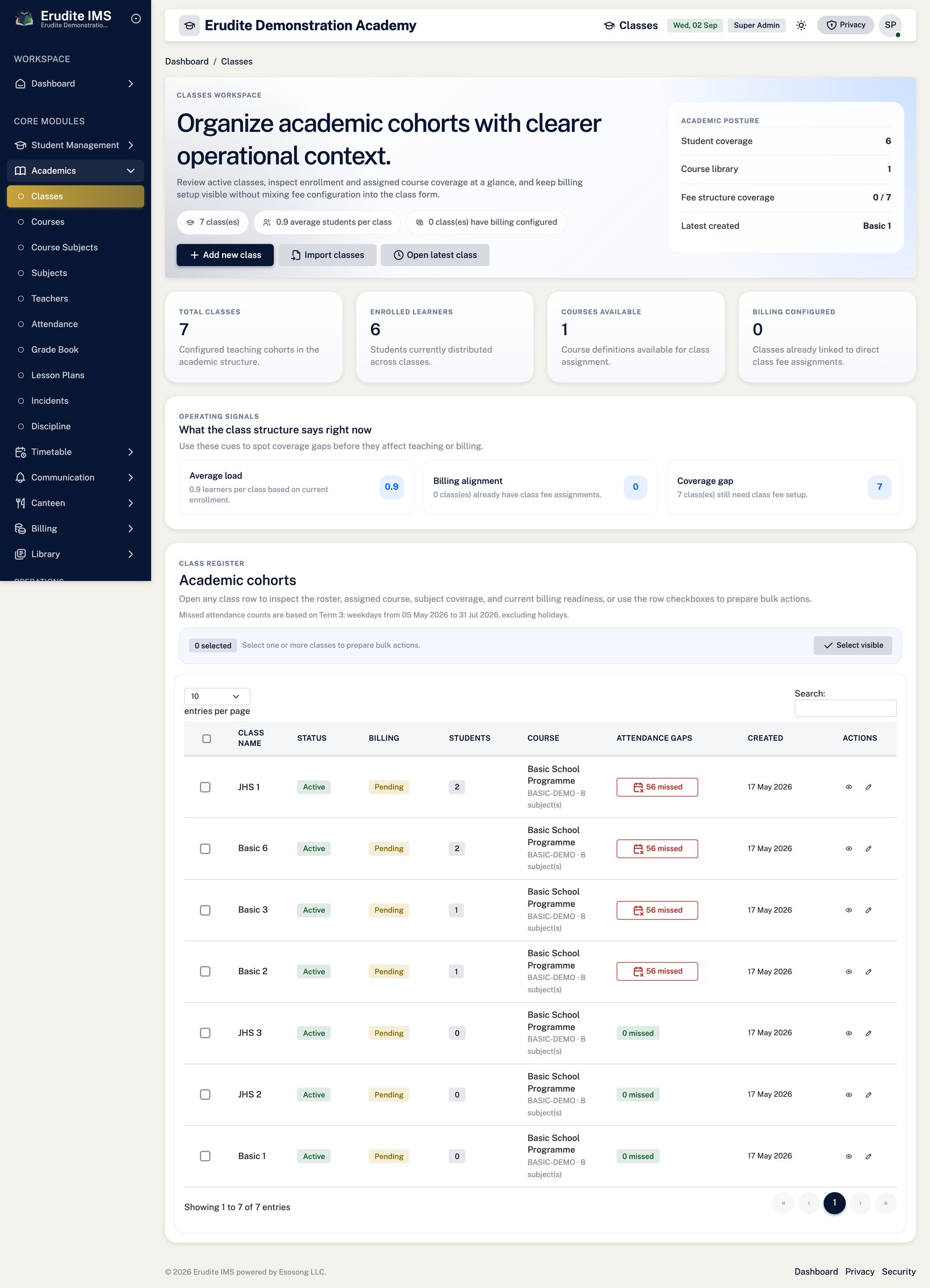
Classes — list
/Classes
/Classes
Course Subjects
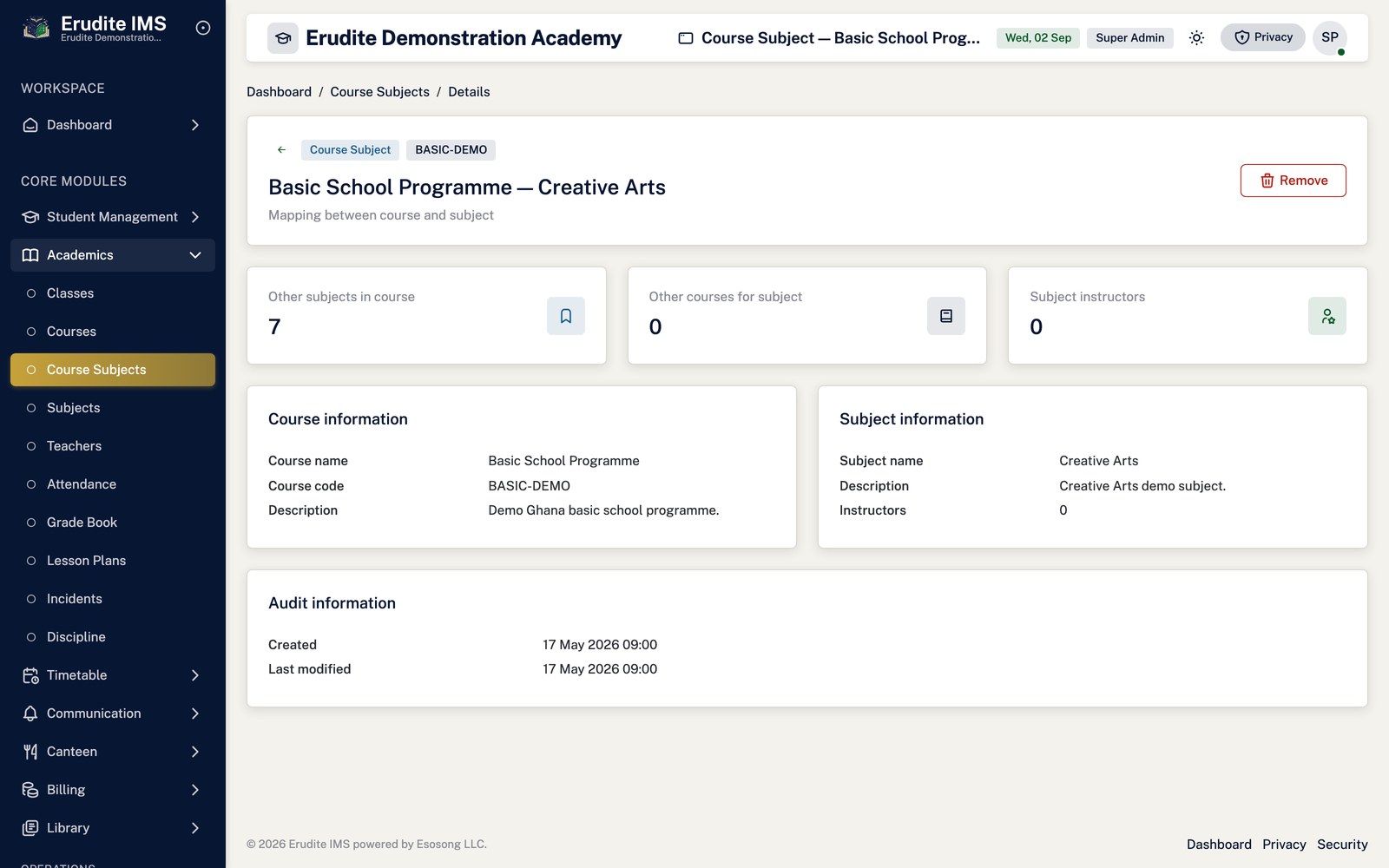
Course Subjects — record detail
/CourseSubjects/Details
A record opened from the Course Subjects list
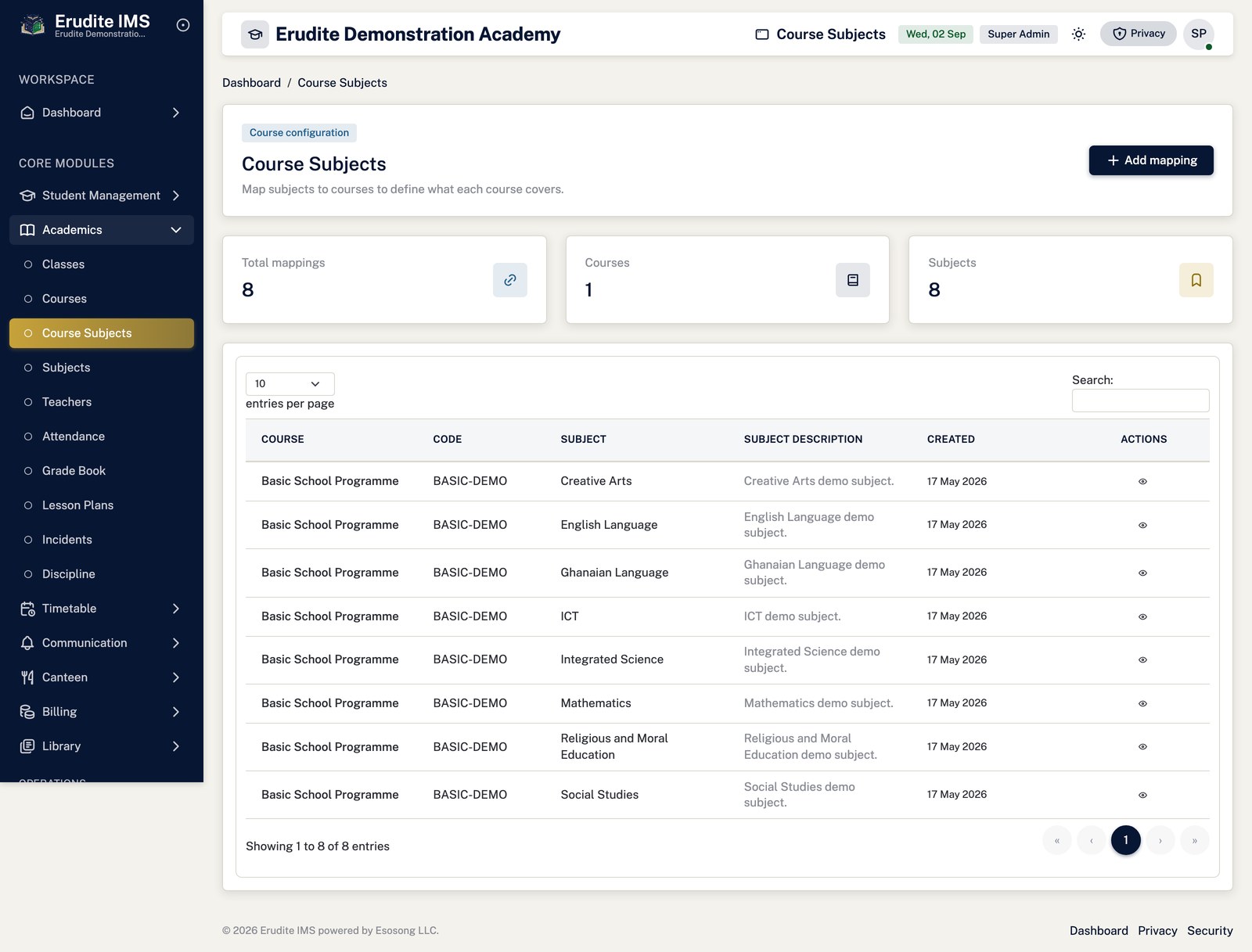
Course Subjects — list
/CourseSubjects
/CourseSubjects
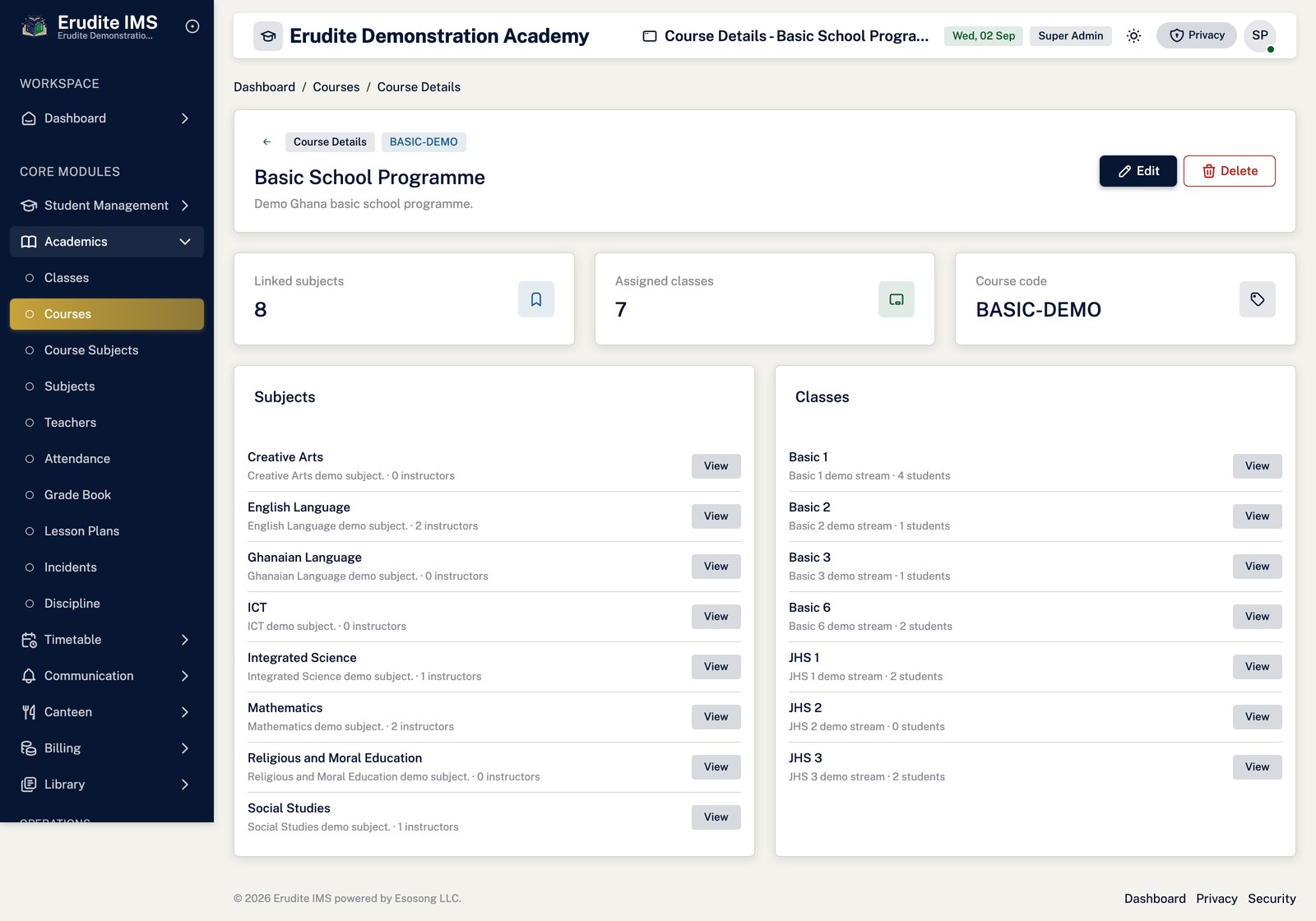
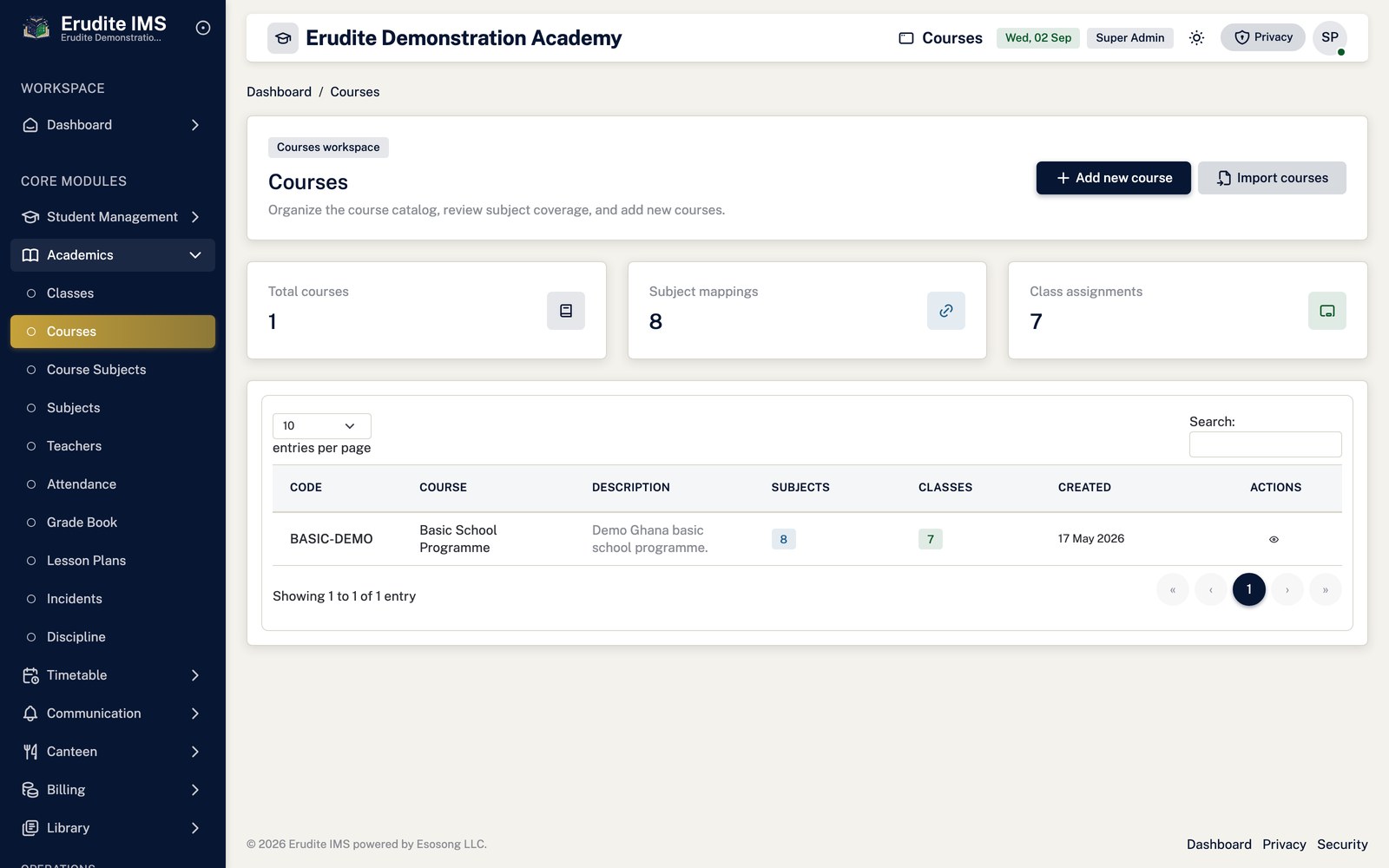
Courses
Courses — record detail
/Courses/Details
A record opened from the Courses list
Courses — list
/Courses
/Courses
Cumulative Reports
Cumulative Reports — approval queue
/CumulativeReports/ApprovalQueue
/CumulativeReports/ApprovalQueue
Cumulative Reports — class preview
/CumulativeReports/ClassPreview
This screen opens against a specific record and cannot be reached by URL alone. Open it from the list page for this module.
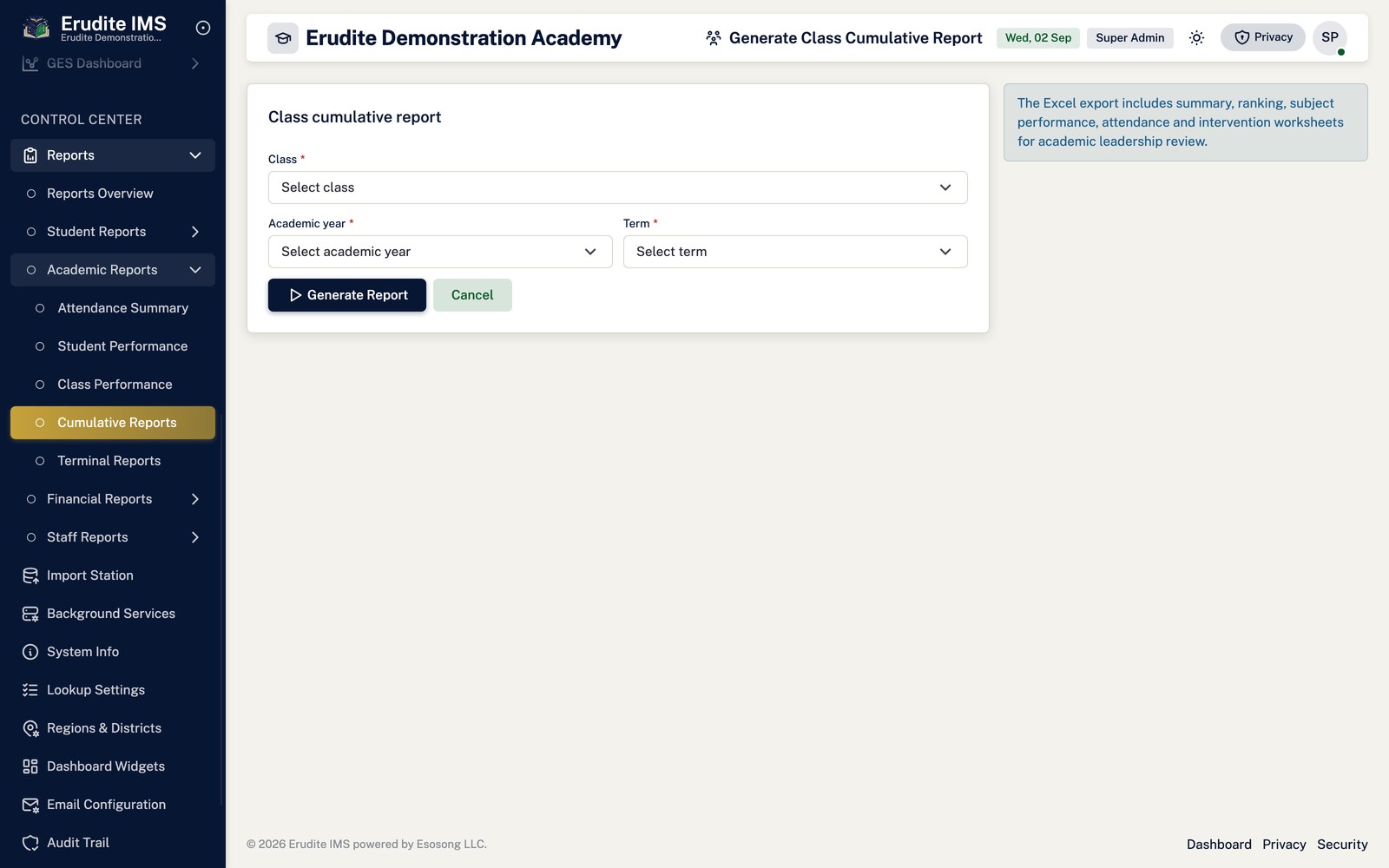
Cumulative Reports — generate class
/CumulativeReports/GenerateClass
/CumulativeReports/GenerateClass
Cumulative Reports — generate student
/CumulativeReports/GenerateStudent
/CumulativeReports/GenerateStudent
Cumulative Reports — list
/CumulativeReports
/CumulativeReports
Cumulative Reports — settings
/CumulativeReports/Settings
/CumulativeReports/Settings
Cumulative Reports — student preview
/CumulativeReports/StudentPreview
This screen opens against a specific record and cannot be reached by URL alone. Open it from the list page for this module.
Exam Categories
Exam Categories — create form
/ExamCategories/Create
/ExamCategories/Create
Exam Categories — record detail
/ExamCategories/Details
A record opened from the Exam Categories list
Exam Categories — edit form
/ExamCategories/Edit
A record opened from the Exam Categories list
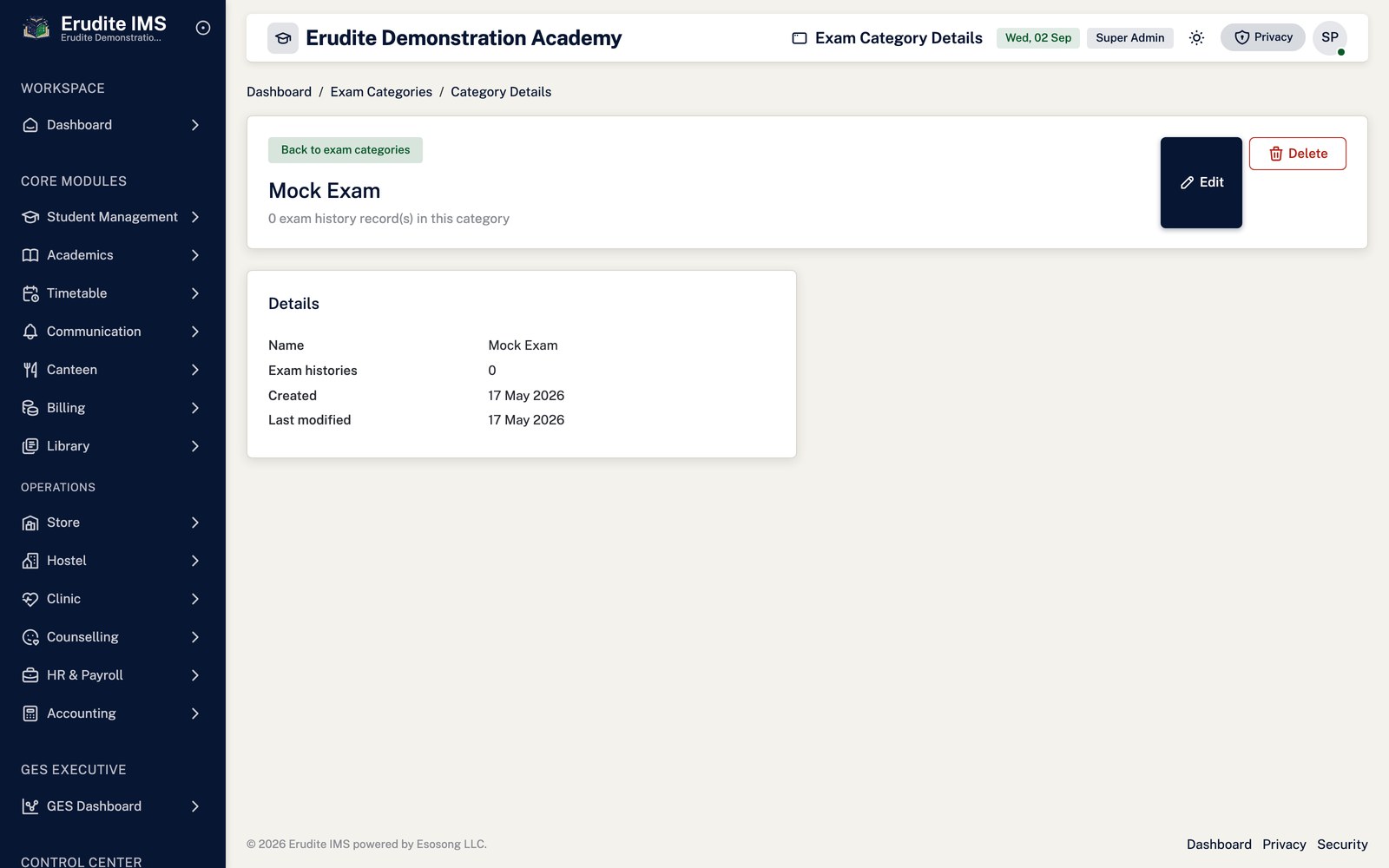
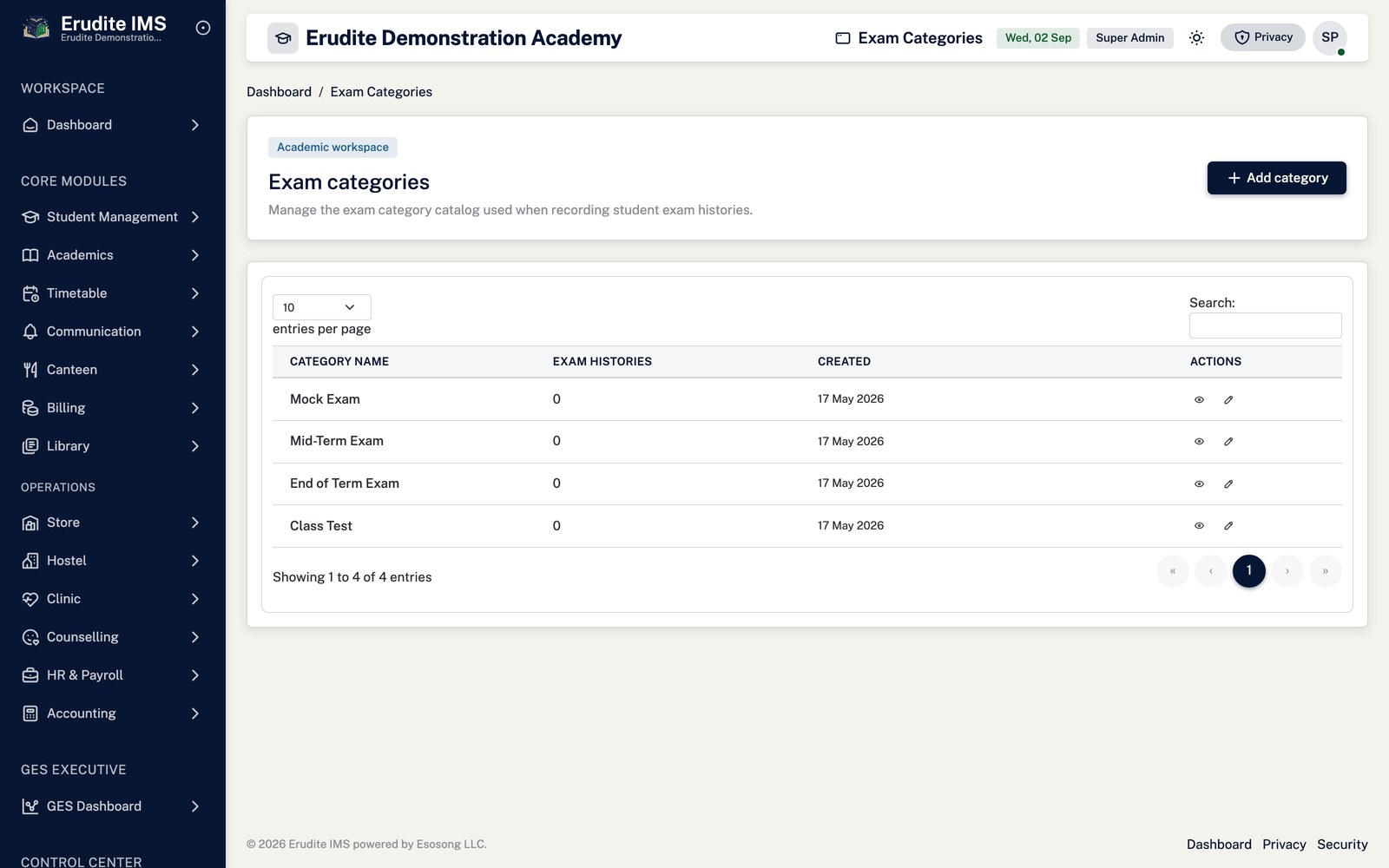
Exam Categories — list
/ExamCategories
/ExamCategories
Instructors
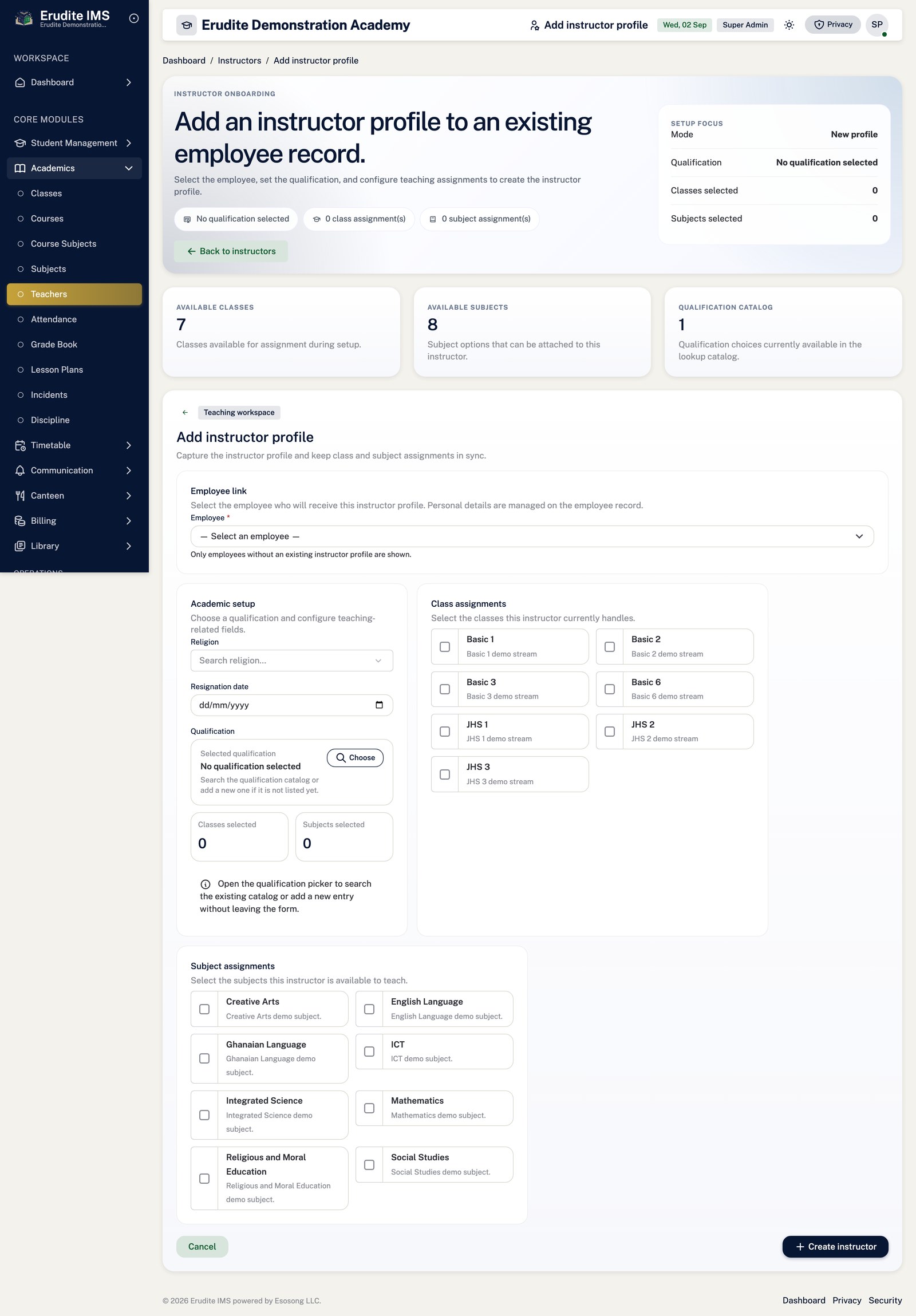
Instructors — create form
/Instructors/Create
/Instructors/Create
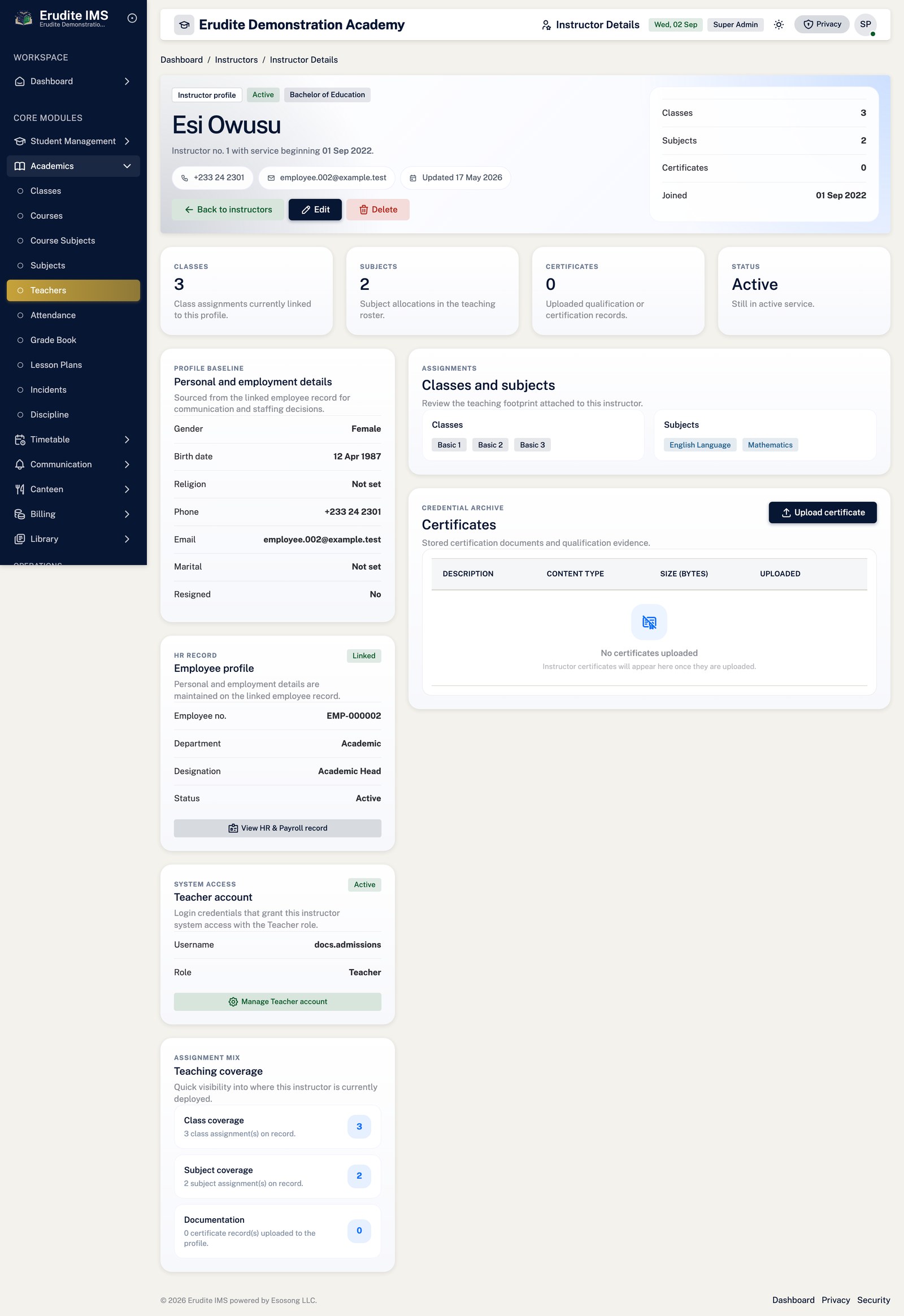
Instructors — record detail
/Instructors/Details
A record opened from the Instructors list
Instructors — edit form
/Instructors/Edit
A record opened from the Instructors list
Instructors — grant teacher access
/Instructors/GrantTeacherAccess
A record opened from the Instructors list
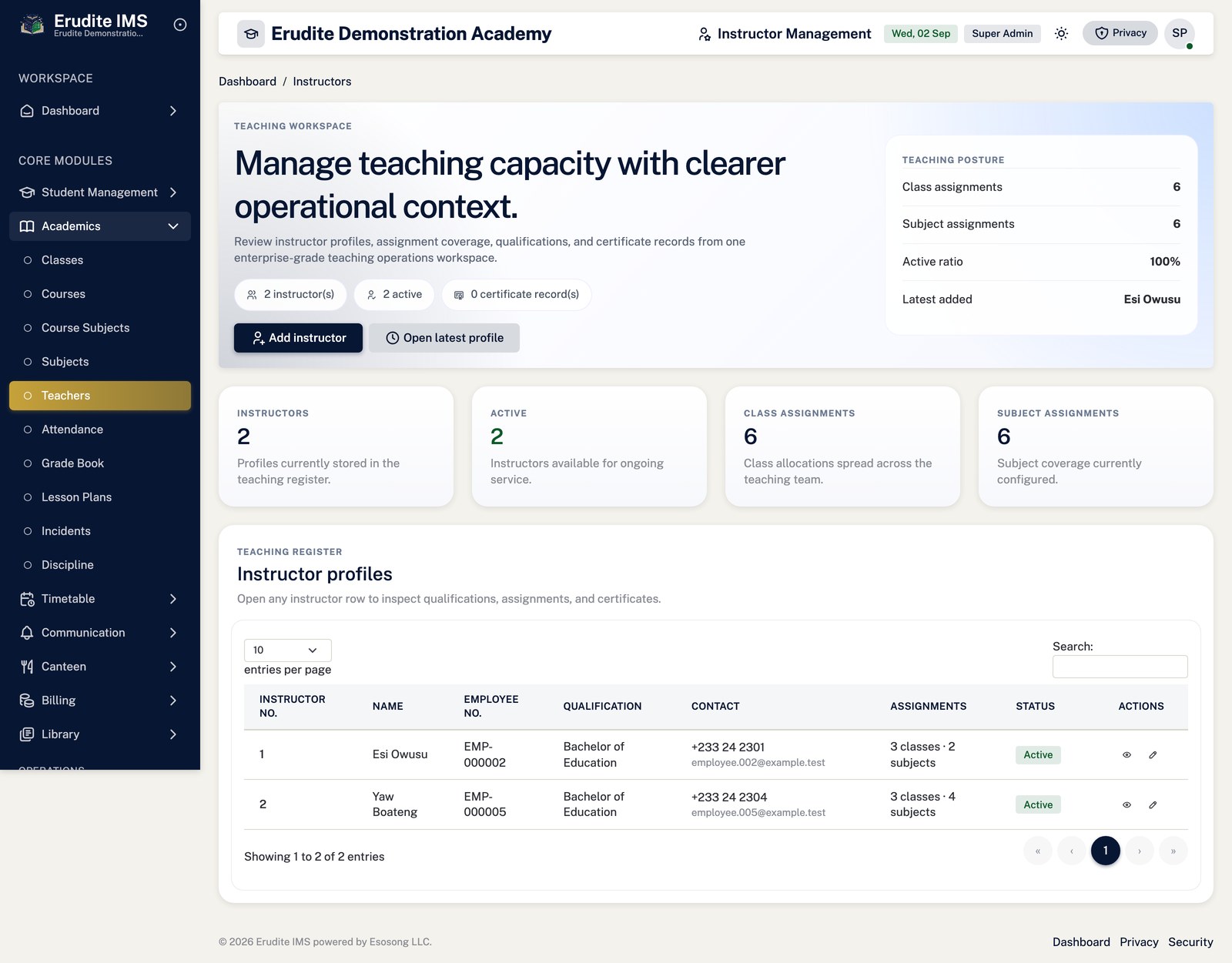
Instructors — list
/Instructors
/Instructors
Lesson Notes
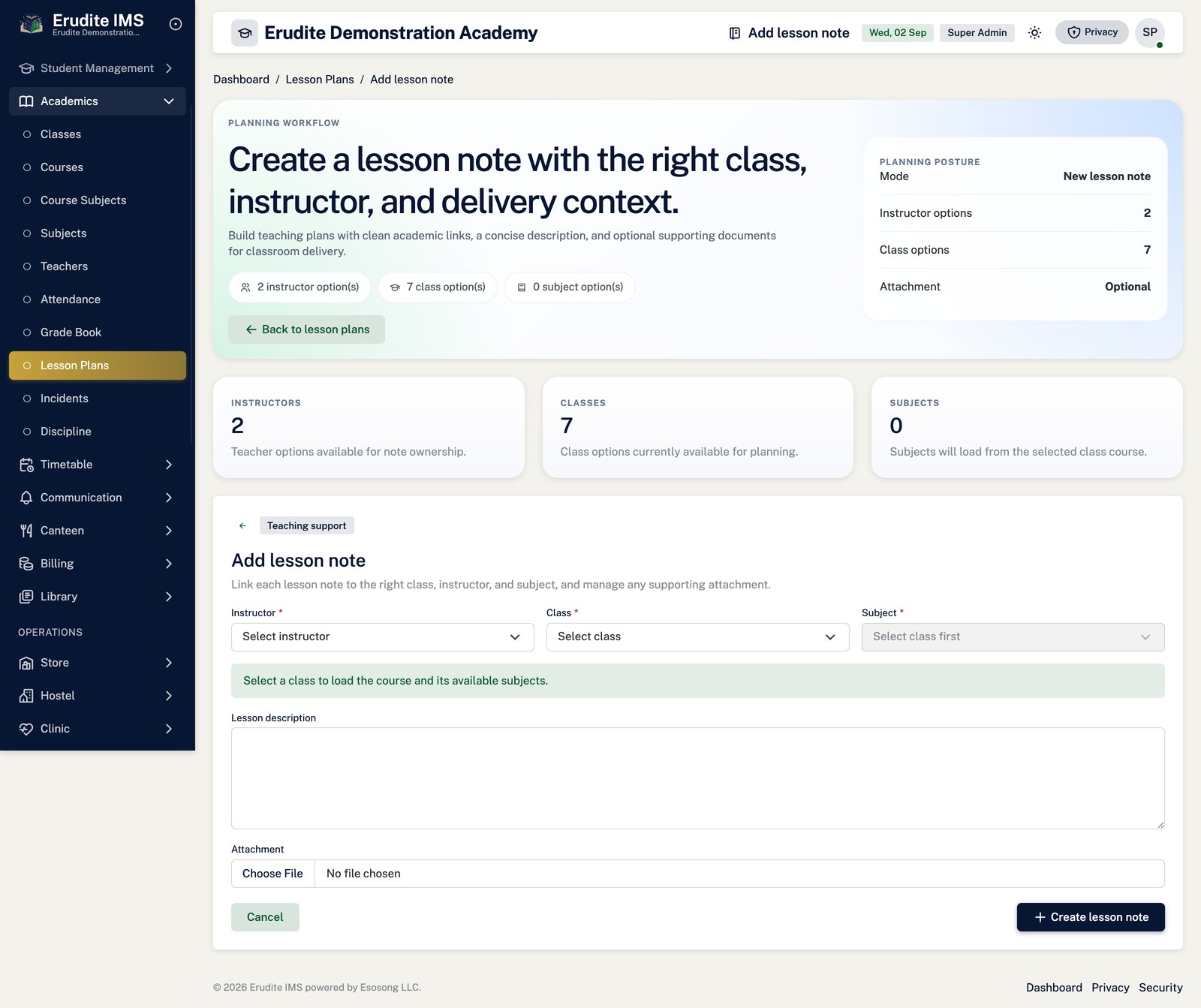
Lesson Notes — create form
/LessonNotes/Create
/LessonNotes/Create
Lesson Notes — record detail
/LessonNotes/Details
This screen opens against a specific record and cannot be reached by URL alone. Open it from the list page for this module.
Lesson Notes — edit form
/LessonNotes/Edit
This screen opens against a specific record and cannot be reached by URL alone. Open it from the list page for this module.
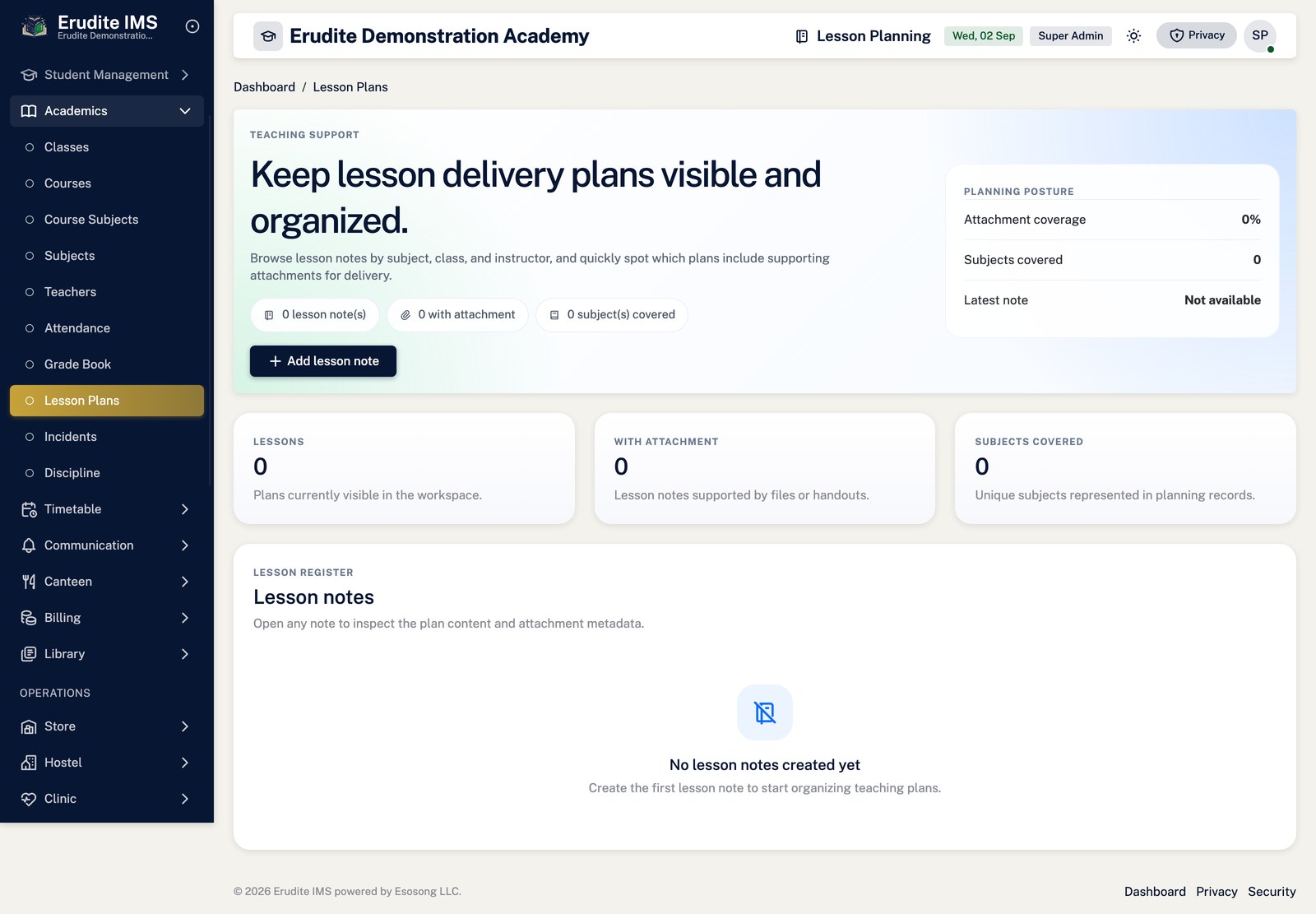
Lesson Notes — list
/LessonNotes
/LessonNotes
Student Marks
Student Marks — create form
/StudentMarks/Create
/StudentMarks/Create
Student Marks — record detail
/StudentMarks/Details
This screen opens against a specific record and cannot be reached by URL alone. Open it from the list page for this module.
Student Marks — list
/StudentMarks
/StudentMarks
Subjects
Subjects — record detail
/Subjects/Details
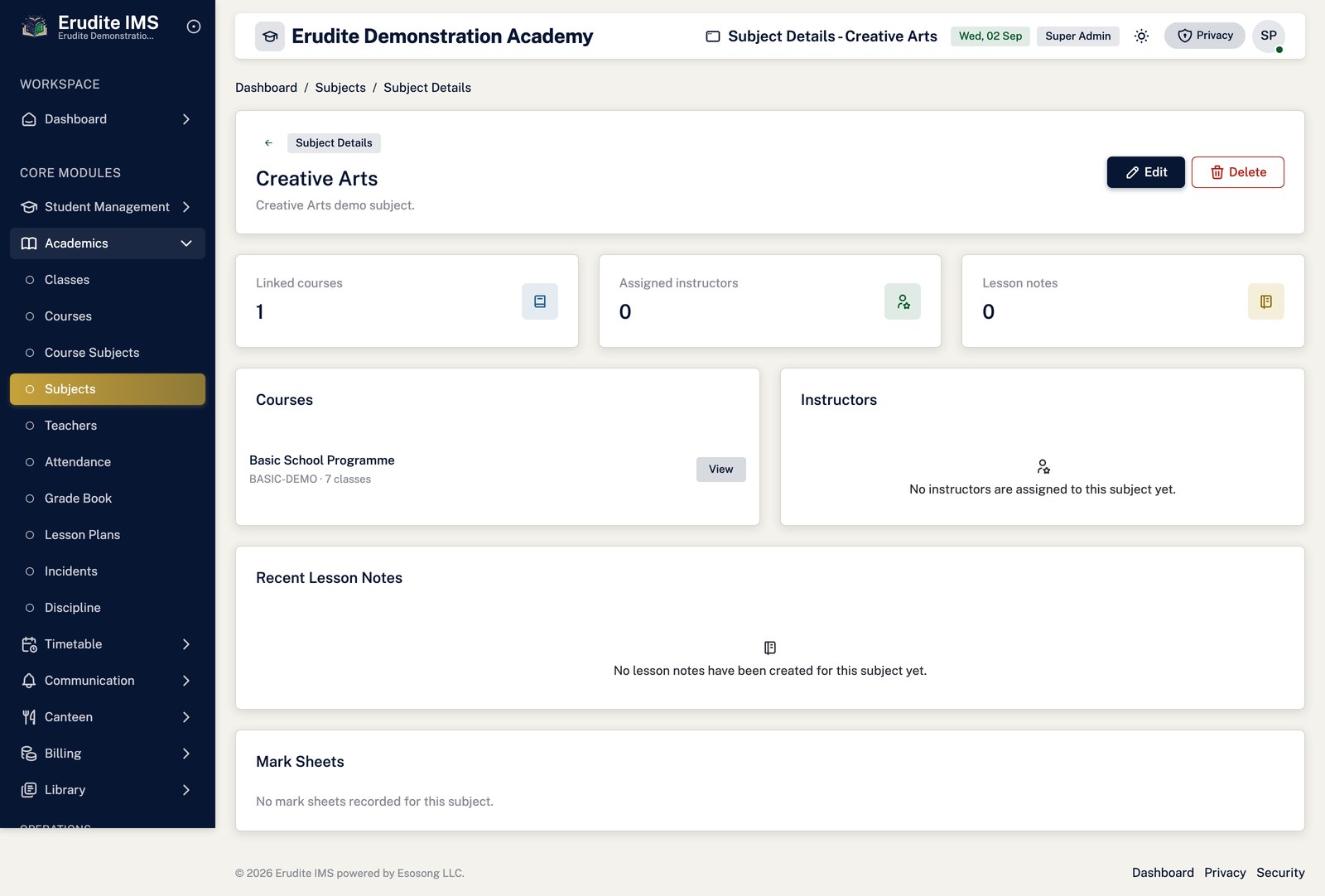
A record opened from the Subjects list
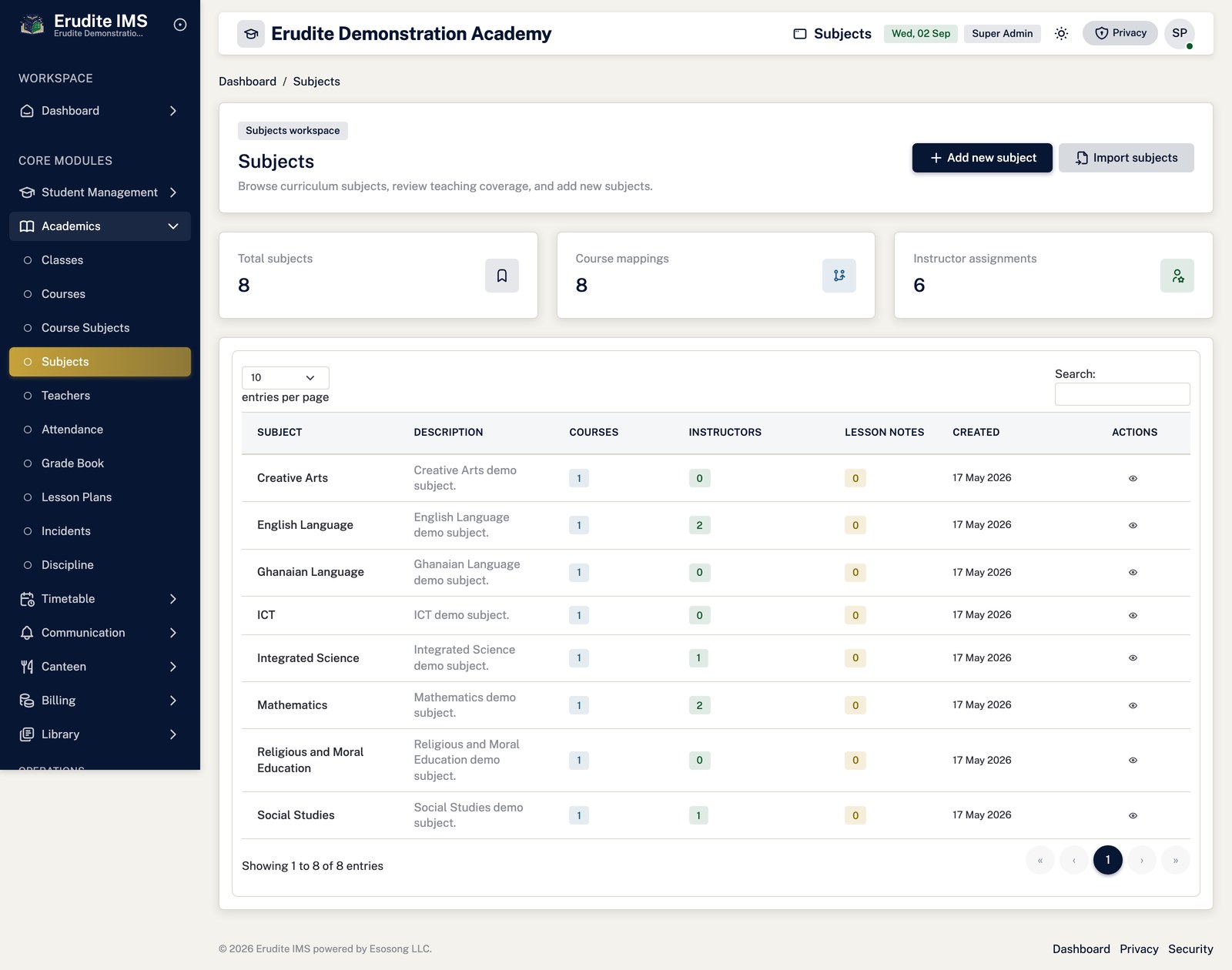
Subjects — list
/Subjects
/Subjects
Terminal Reports
Terminal Reports — approval queue
/TerminalReports/ApprovalQueue
/TerminalReports/ApprovalQueue
Terminal Reports — batch
/TerminalReports/Batch
This screen opens against a specific record and cannot be reached by URL alone. Open it from the list page for this module.
Terminal Reports — bulk remarks
/TerminalReports/BulkRemarks
This screen opens against a specific record and cannot be reached by URL alone. Open it from the list page for this module.
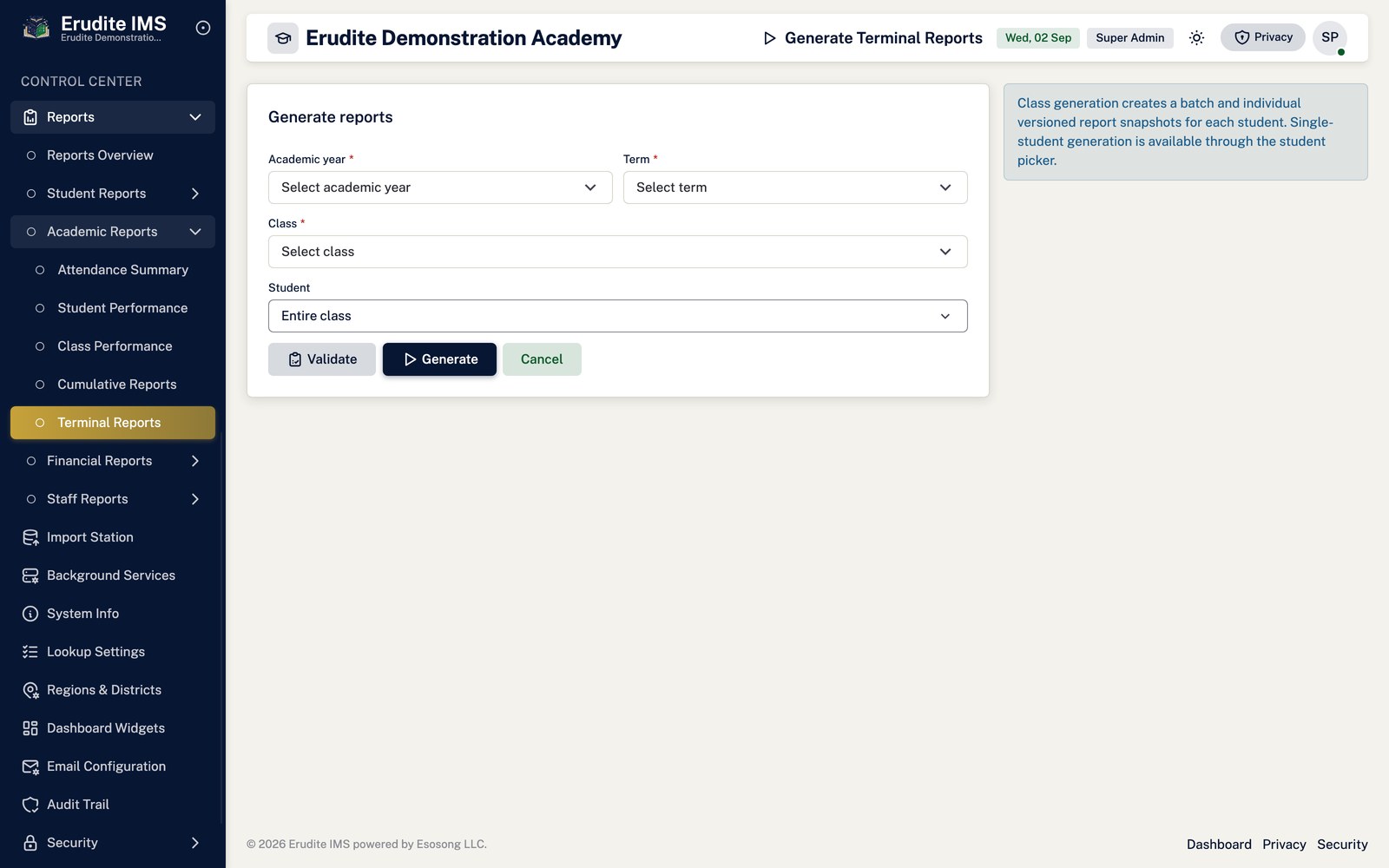
Terminal Reports — generate
/TerminalReports/Generate
/TerminalReports/Generate
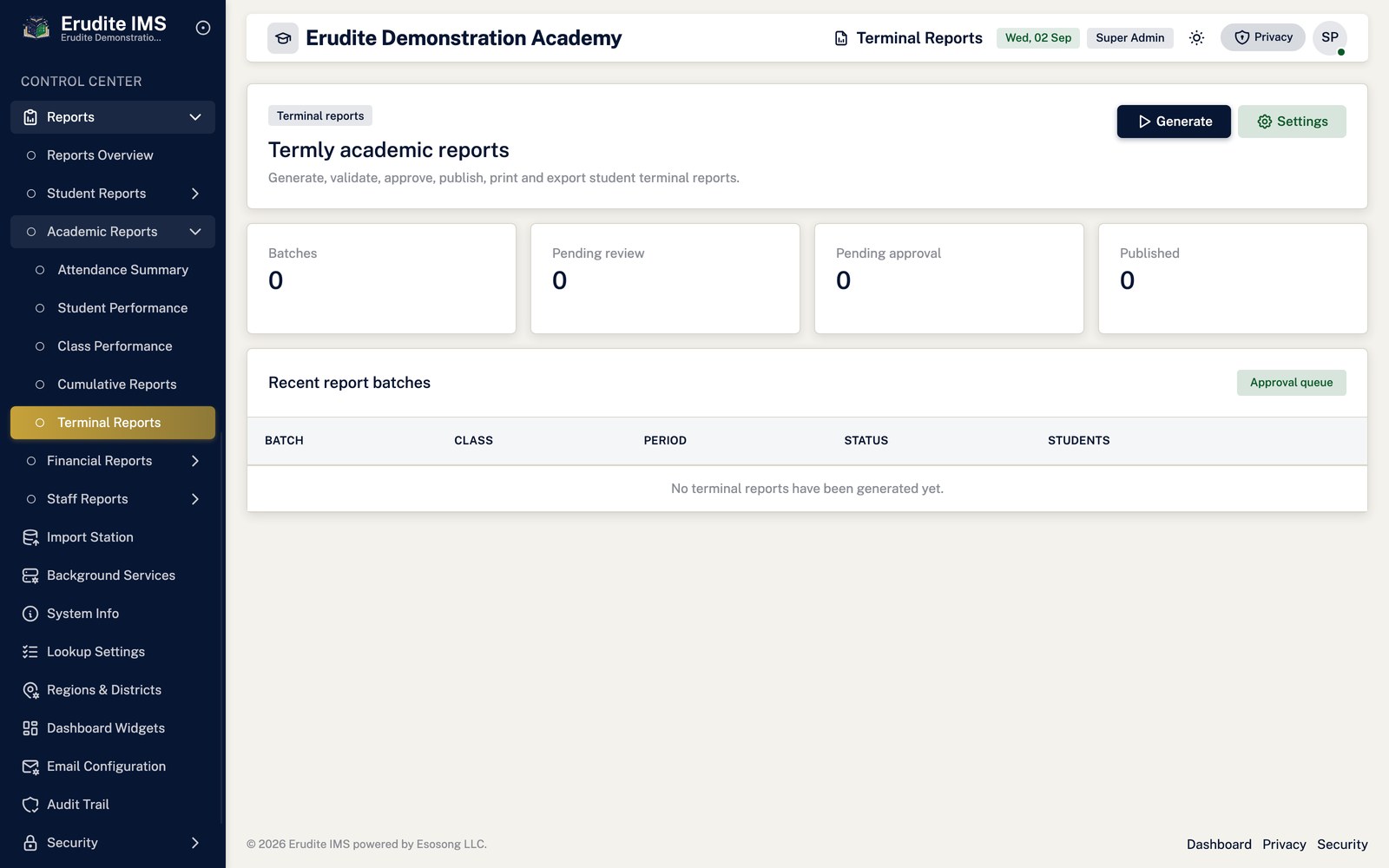
Terminal Reports — list
/TerminalReports
/TerminalReports
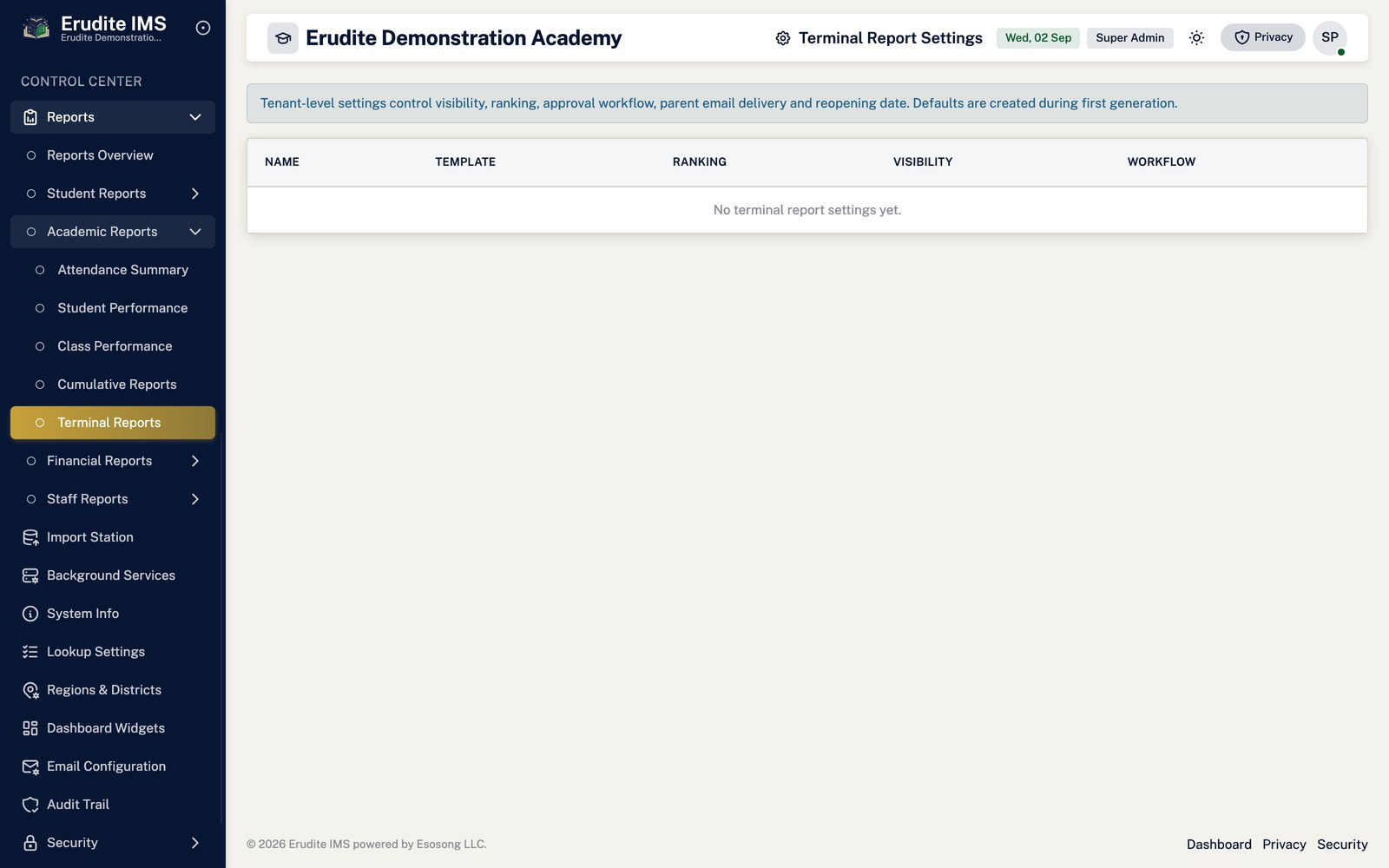
Terminal Reports — settings
/TerminalReports/Settings
/TerminalReports/Settings
Terminal Reports — student
/TerminalReports/Student
This screen opens against a specific record and cannot be reached by URL alone. Open it from the list page for this module.
Terms
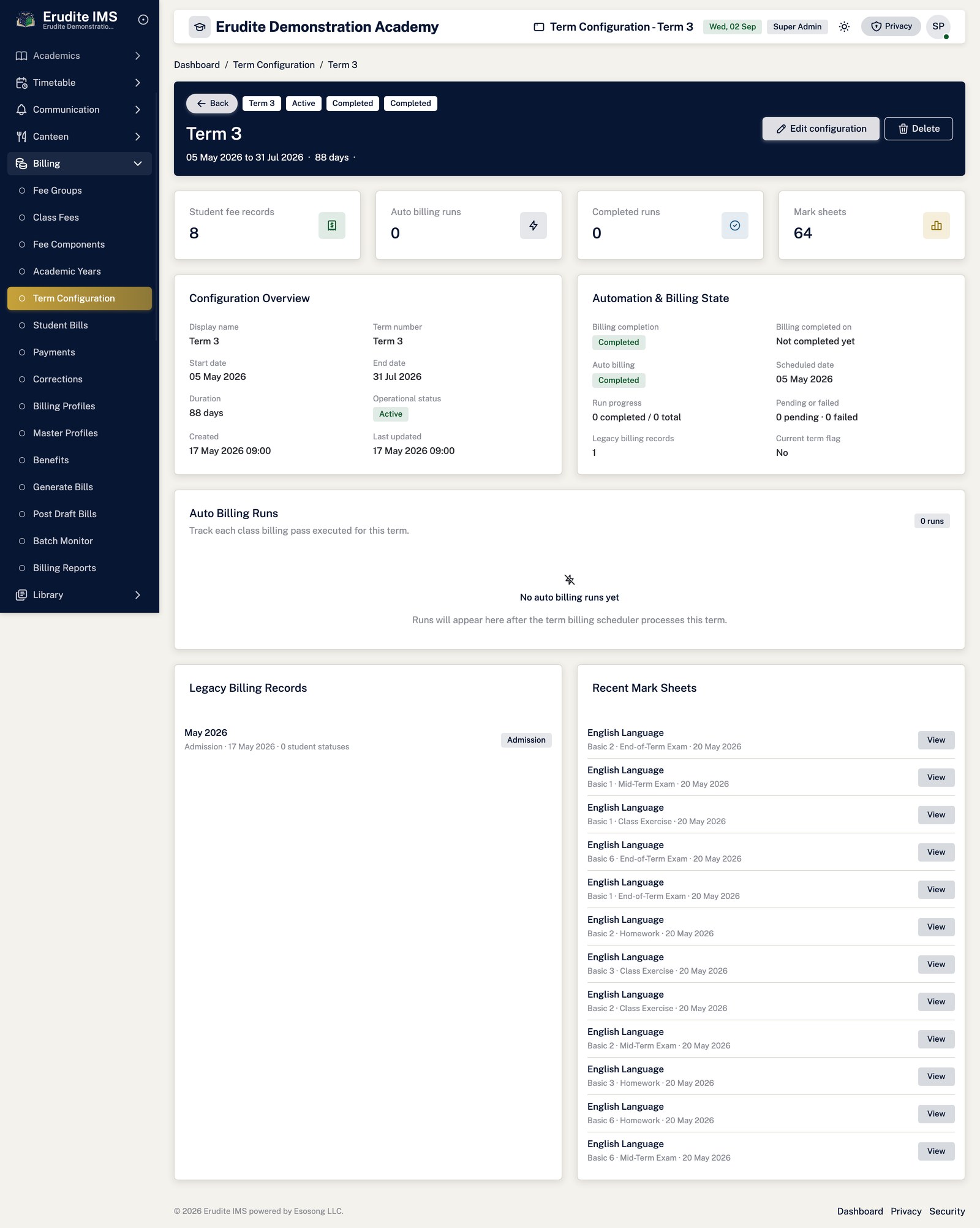
Terms — record detail
/Terms/Details
A record opened from the Terms list
Terms — list
/Terms
/Terms
Student life
Recording an incident and escalating it
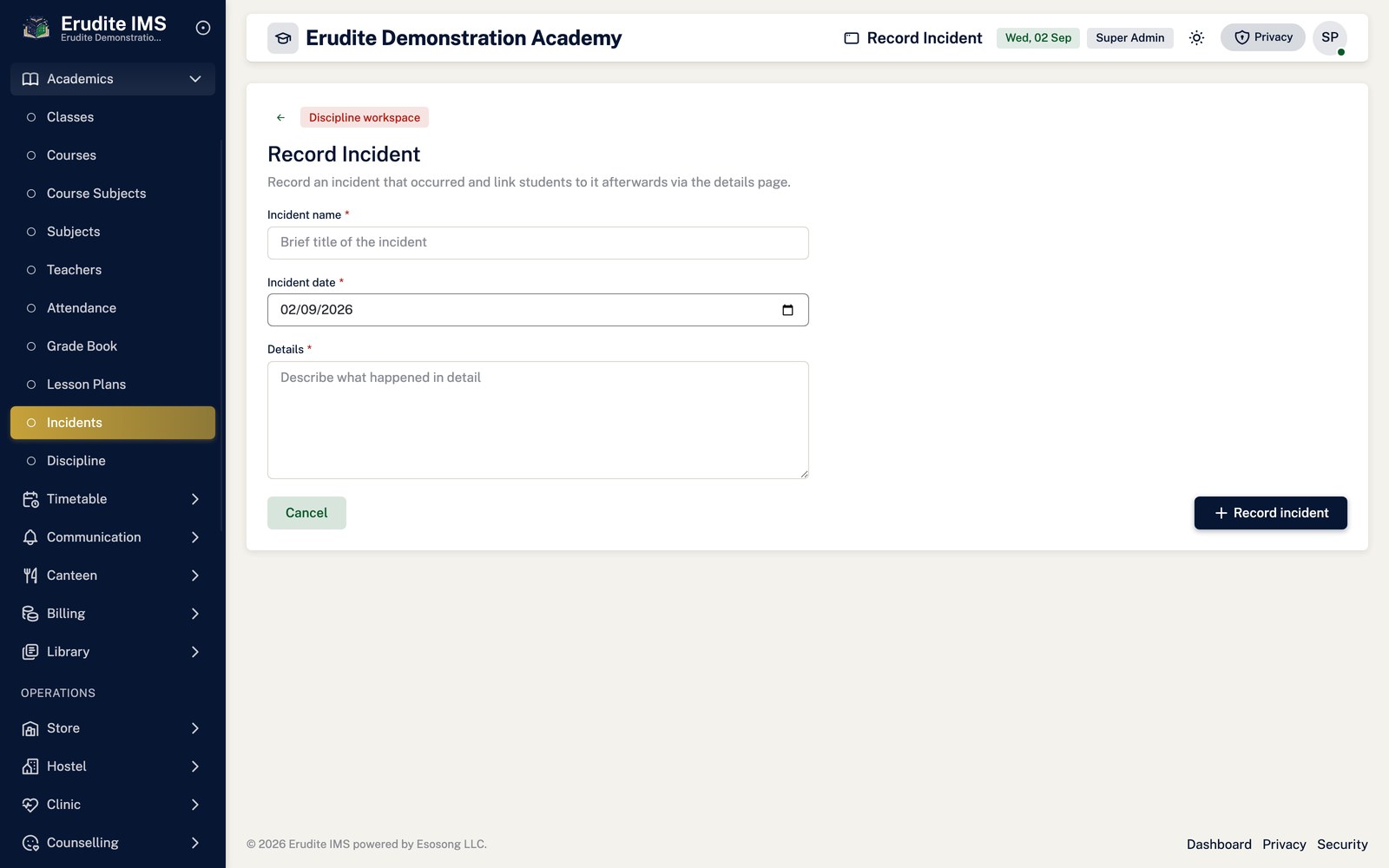
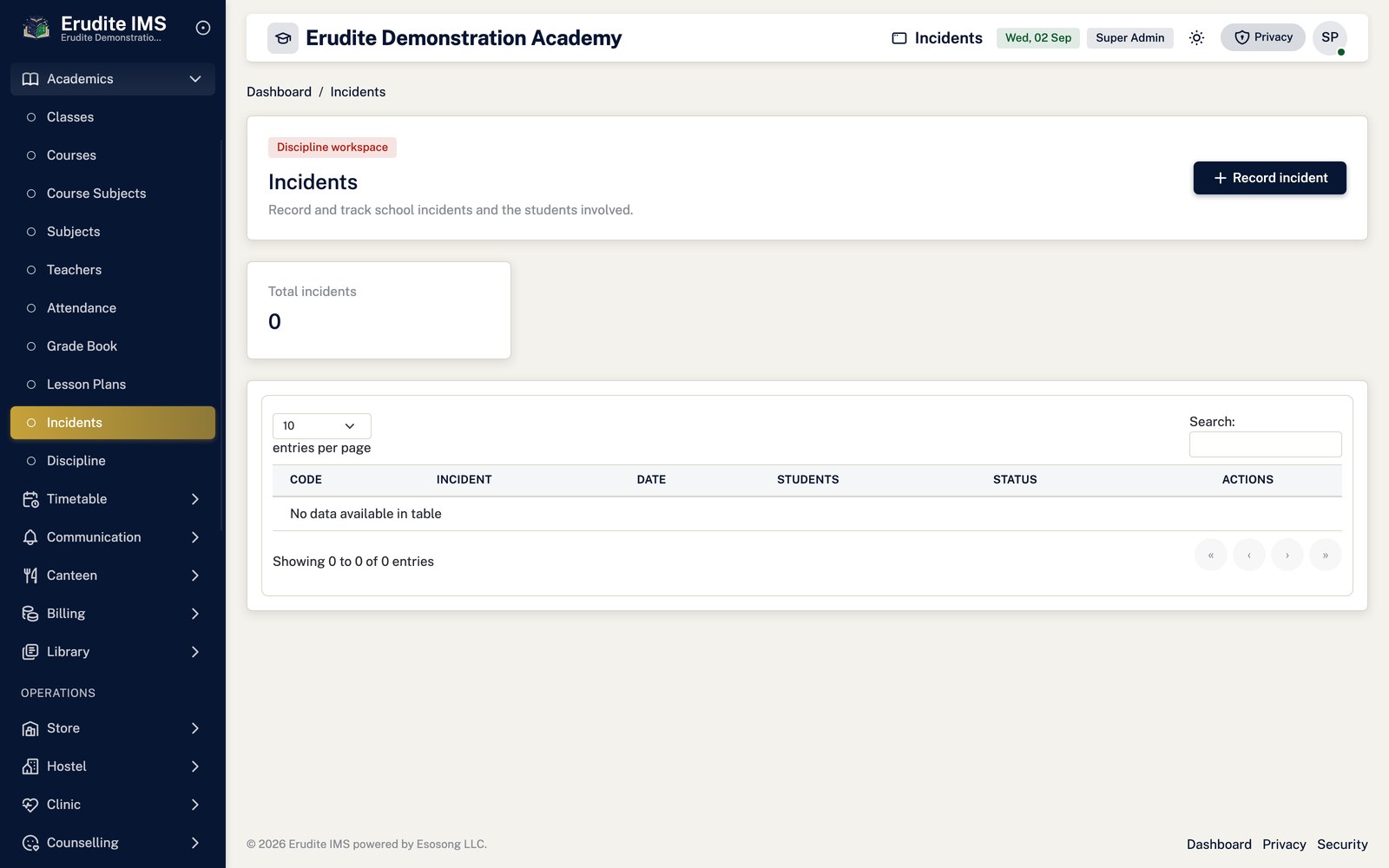
Open Student Life → Incidents and select New incident (requires the
Staff Manage permission; viewing the list only needs Staff View).
Enter the incident details and date, then save. The incident starts in Open status.
Use Add student on the incident's detail page to link each learner involved, together with
the action taken for that learner.
To take it further, select Escalate and choose the learner. This creates a new
Disciplinary Issue pre-filled with the incident's date and description, and moves the
incident itself to Escalated status automatically.
Status options on both incidents and disciplinary issues are Open, Under Investigation/In
Progress, Escalated, Resolved and Closed. Resolving a disciplinary issue that came from an escalated incident
automatically resolves the parent incident too, unless the incident is already Resolved or Closed.
Appointing a student leader
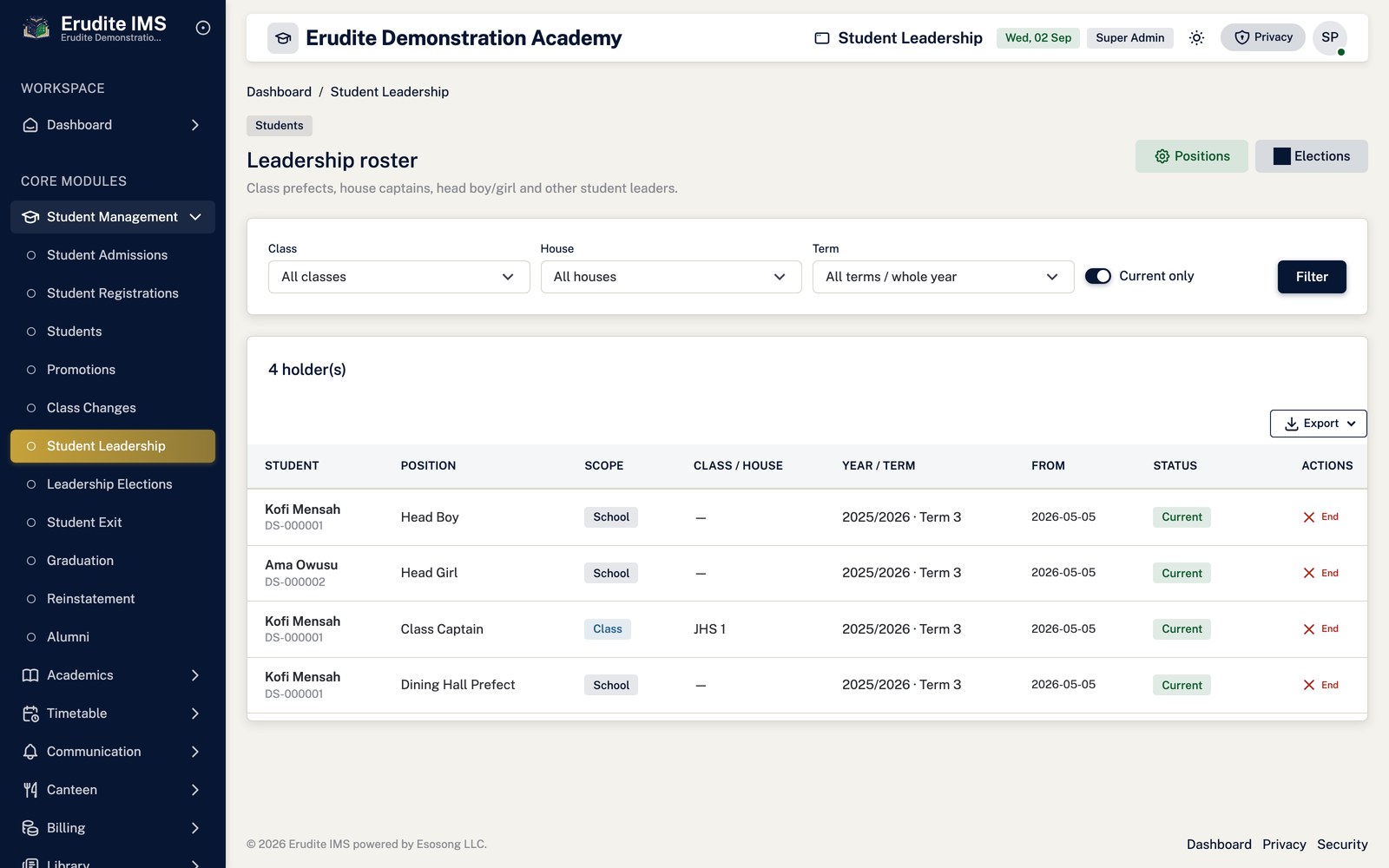
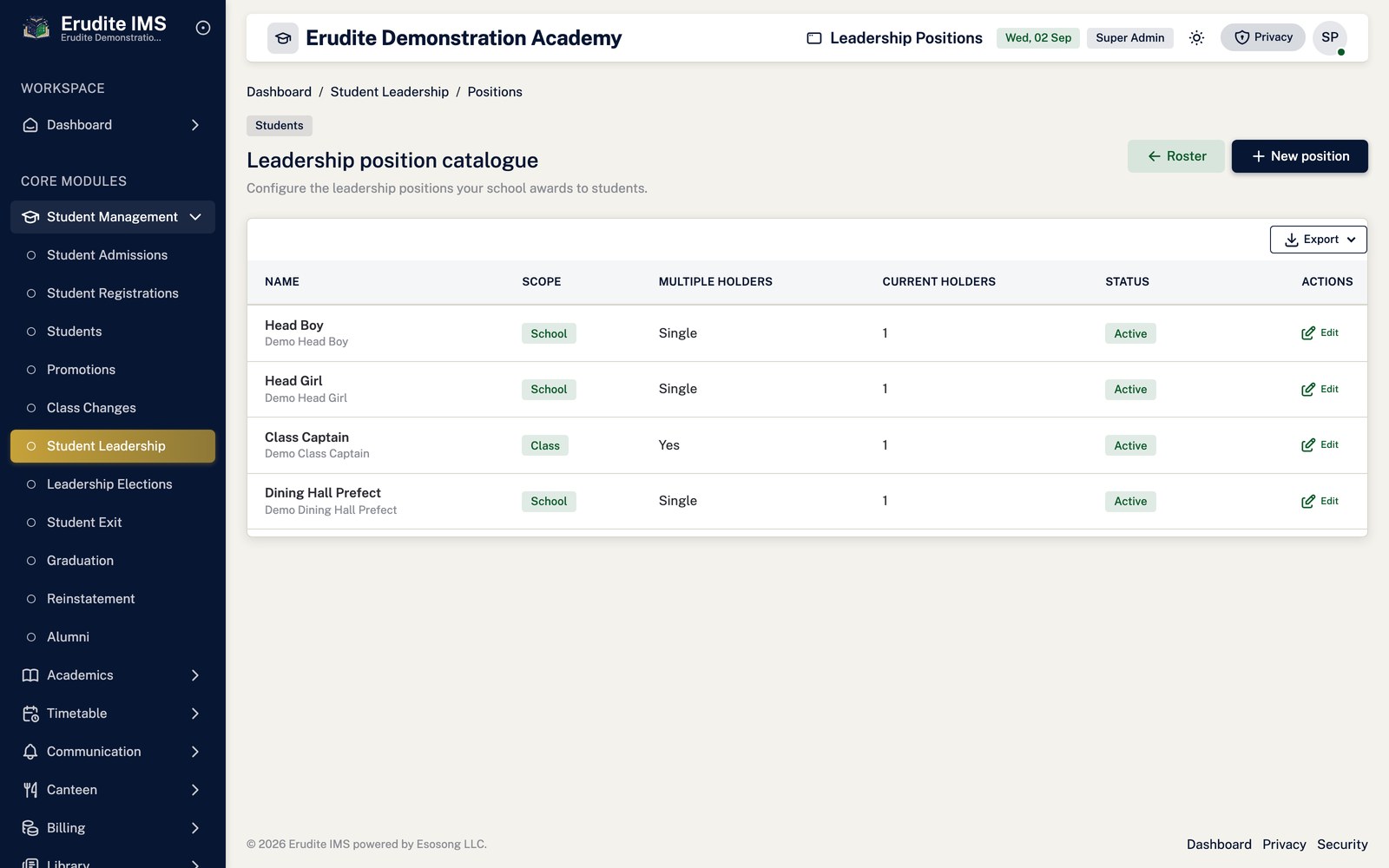
Open Student Life → Student Leadership and use Positions to define or
edit the roles available (prefect, house captain, and so on) — this needs the Leadership Manage permission.
From a learner's record, or from the leadership list, select Assign. Choose the position,
the academic year, optionally a term, and a start date.
Saving the assignment sends the appointment notice automatically; there is no separate "notify" step.
Use End on an active assignment to close it out with today's date once the learner's term
in the role finishes.
Running a student leadership election
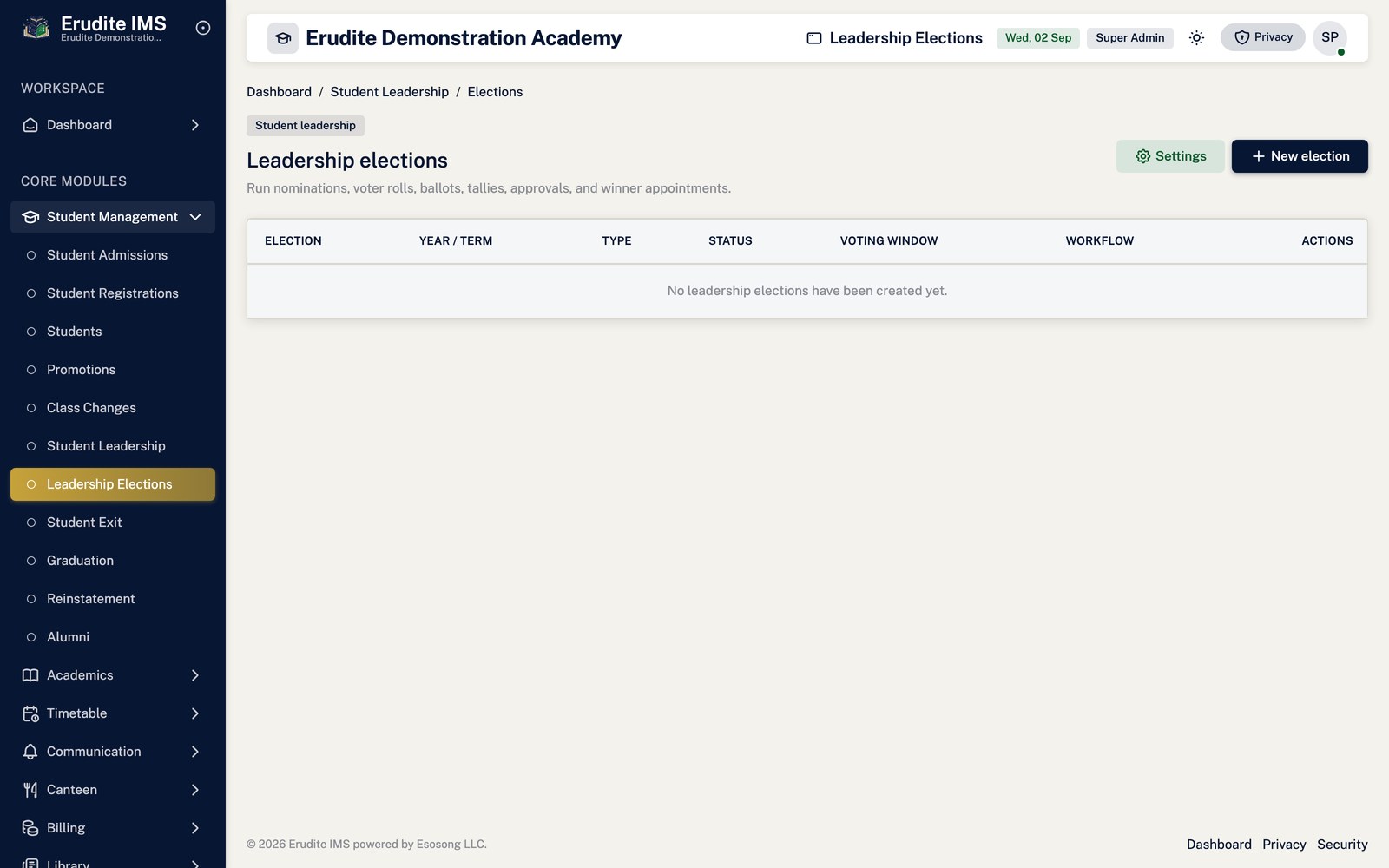
Open Student Life → Student Leadership Elections and select New election.
Set the nomination window and the voting window — voting cannot start before nominations close.
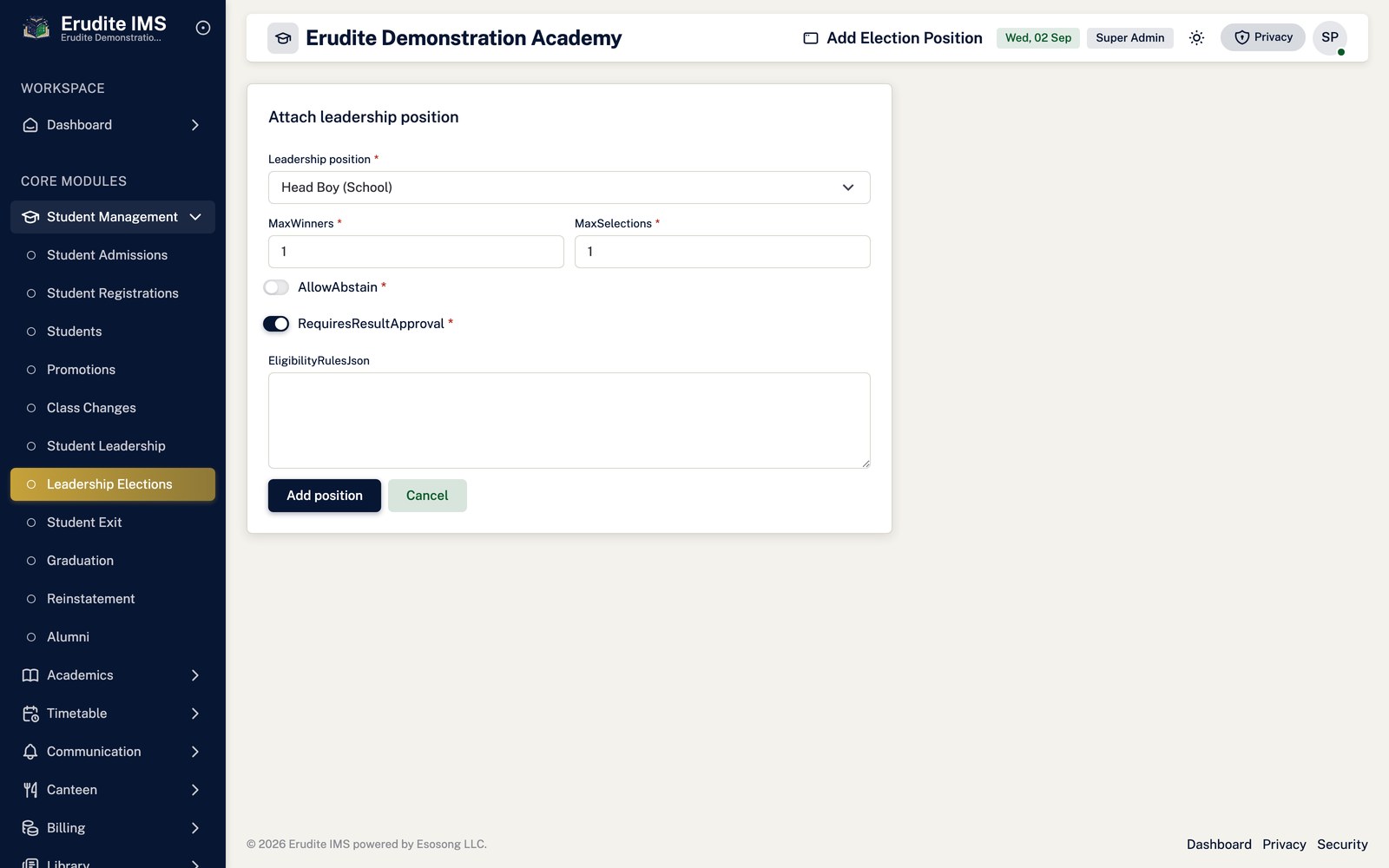
While the election is still in Draft, use Add position to attach the
seats being contested. Positions can only be changed in Draft; once you move past it they are locked.
Move the election through its stages with Change status: Draft → Nomination Open →
Nomination Closed → Candidate Approval → Voting Scheduled → Voting Open → Voting Closed → Results Pending
Approval → Results Published → Completed (or Cancelled at any point).
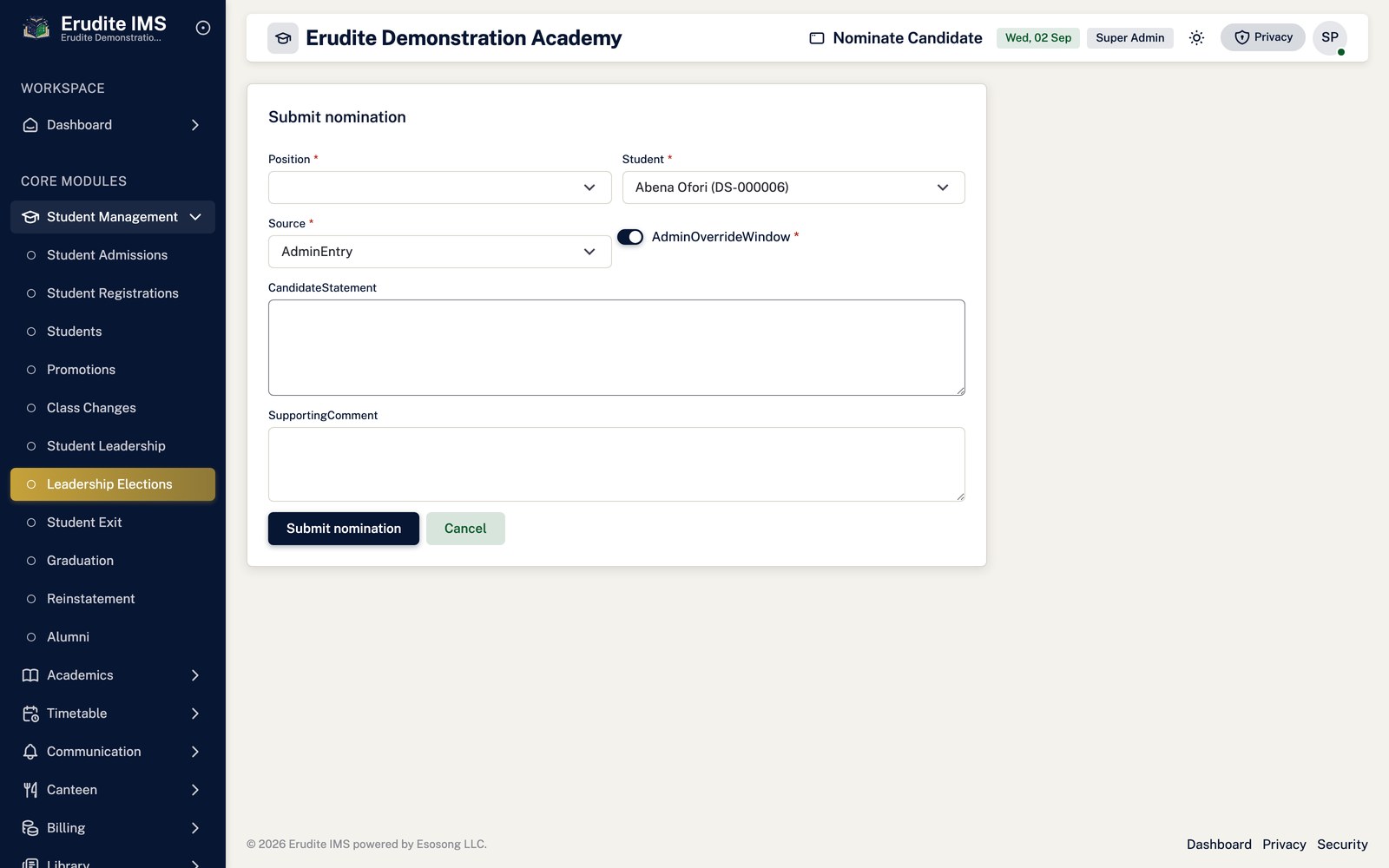
During Nomination Open, candidates are added with Nominate and approved individually with
Approve — only a Pending nomination can be approved.
Before voting, select Generate voter roll. Voting itself only accepts votes while the
election status is exactly Voting Open; a staff member can cast a vote on a learner's behalf from
Staff Vote.
After voting closes, select Tally to calculate turnout and results, Approve
result per contested seat, then Publish and Appoint winner — the
last step creates the actual leadership assignment and dispatches the appointment notice.
The election is a strict state machine. Each action checks the election's
current status and the record's own status before acting — you cannot approve a nomination that is not Pending,
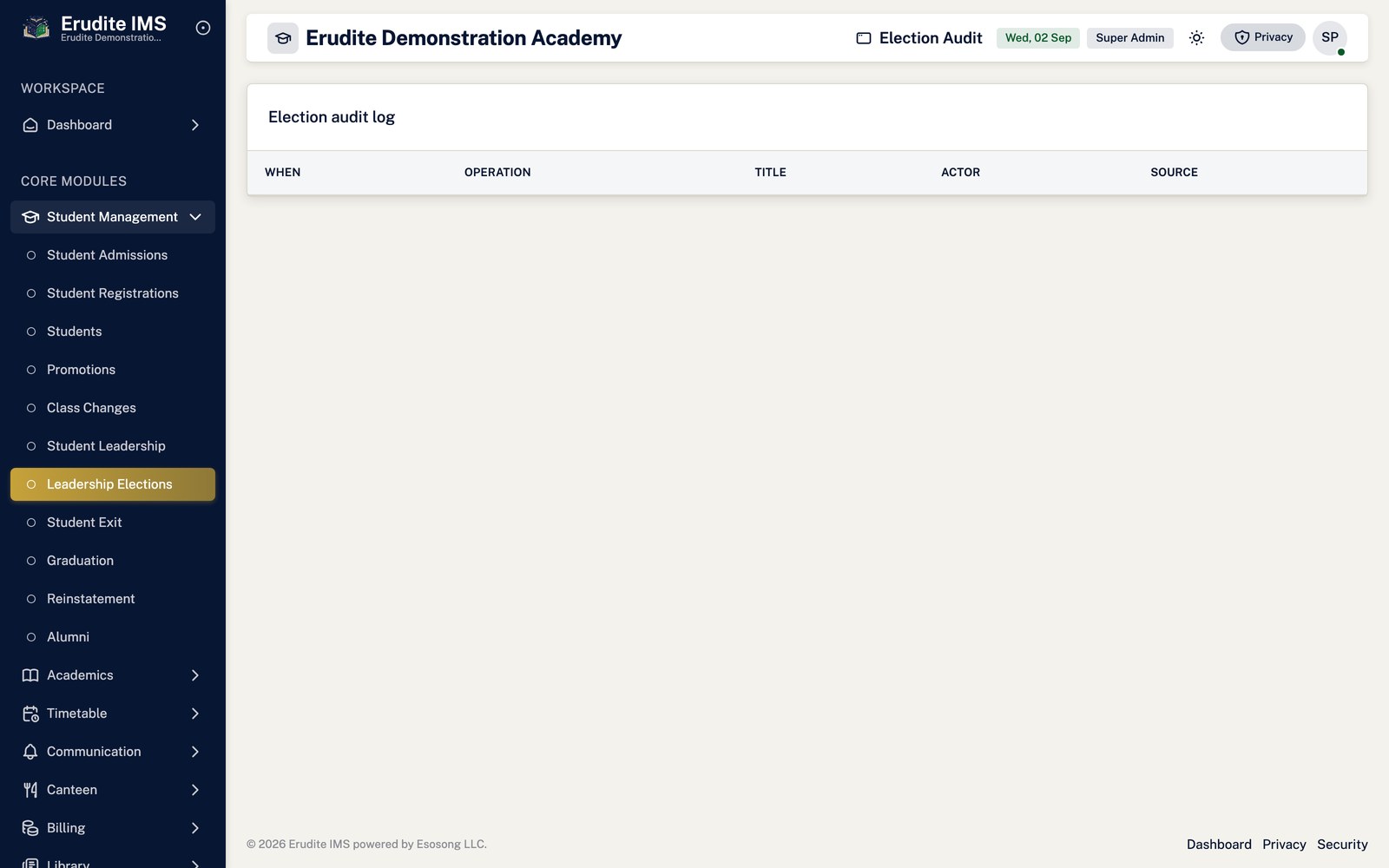
cannot vote outside Voting Open, and cannot re-order the stages. The Audit tab lists every
status change and action against the election for later scrutiny.
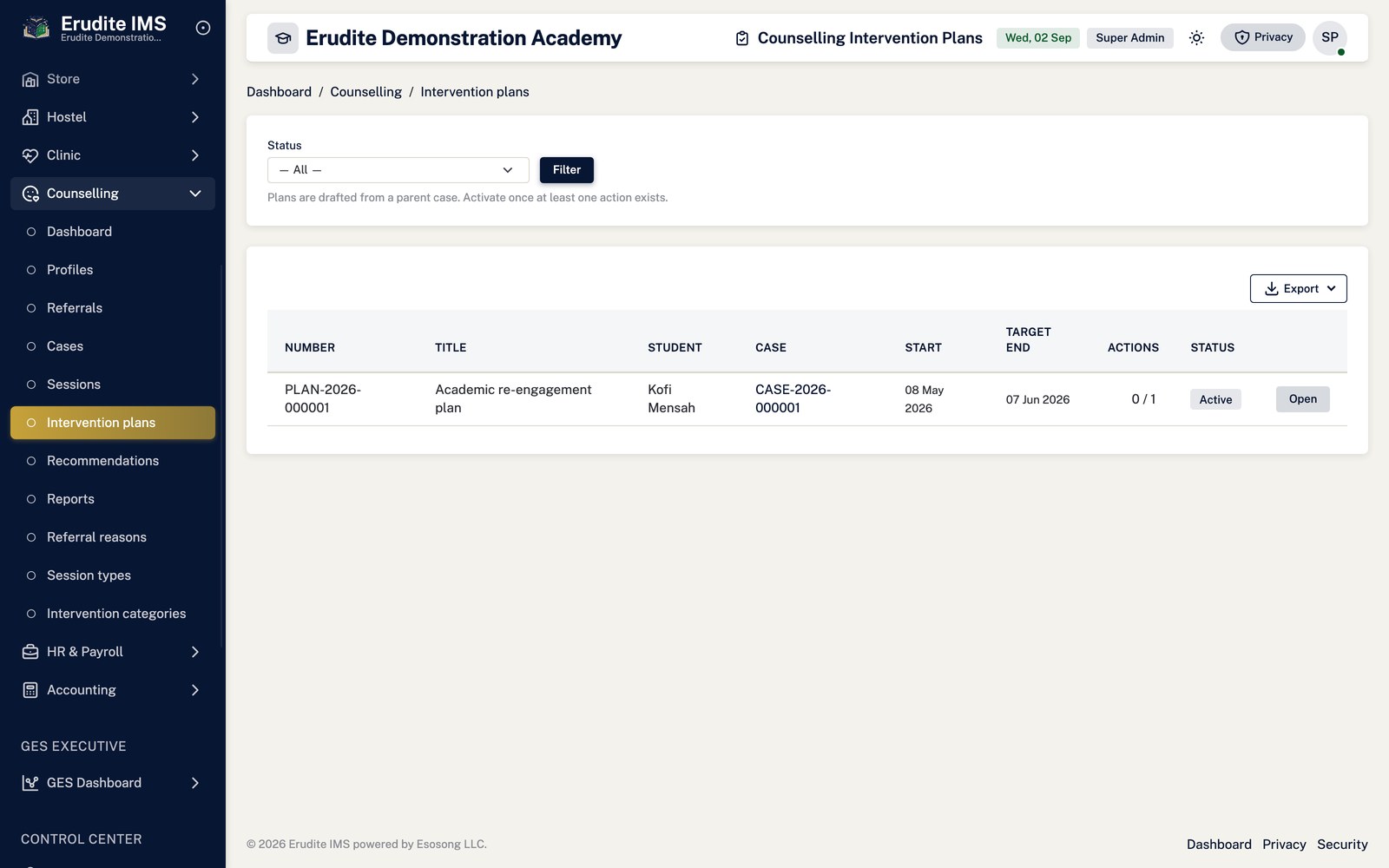
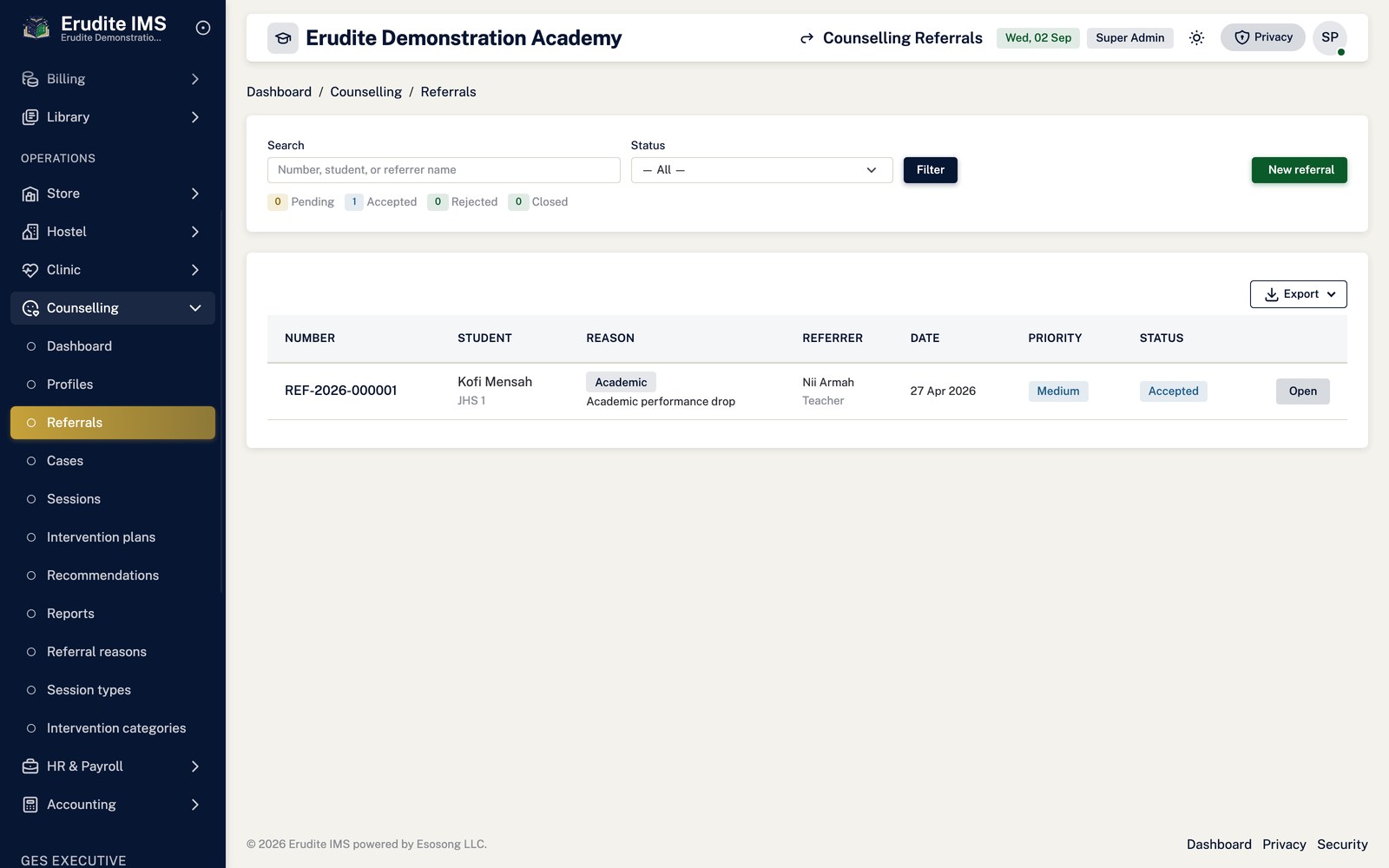
Handling a counselling referral through to a closed case
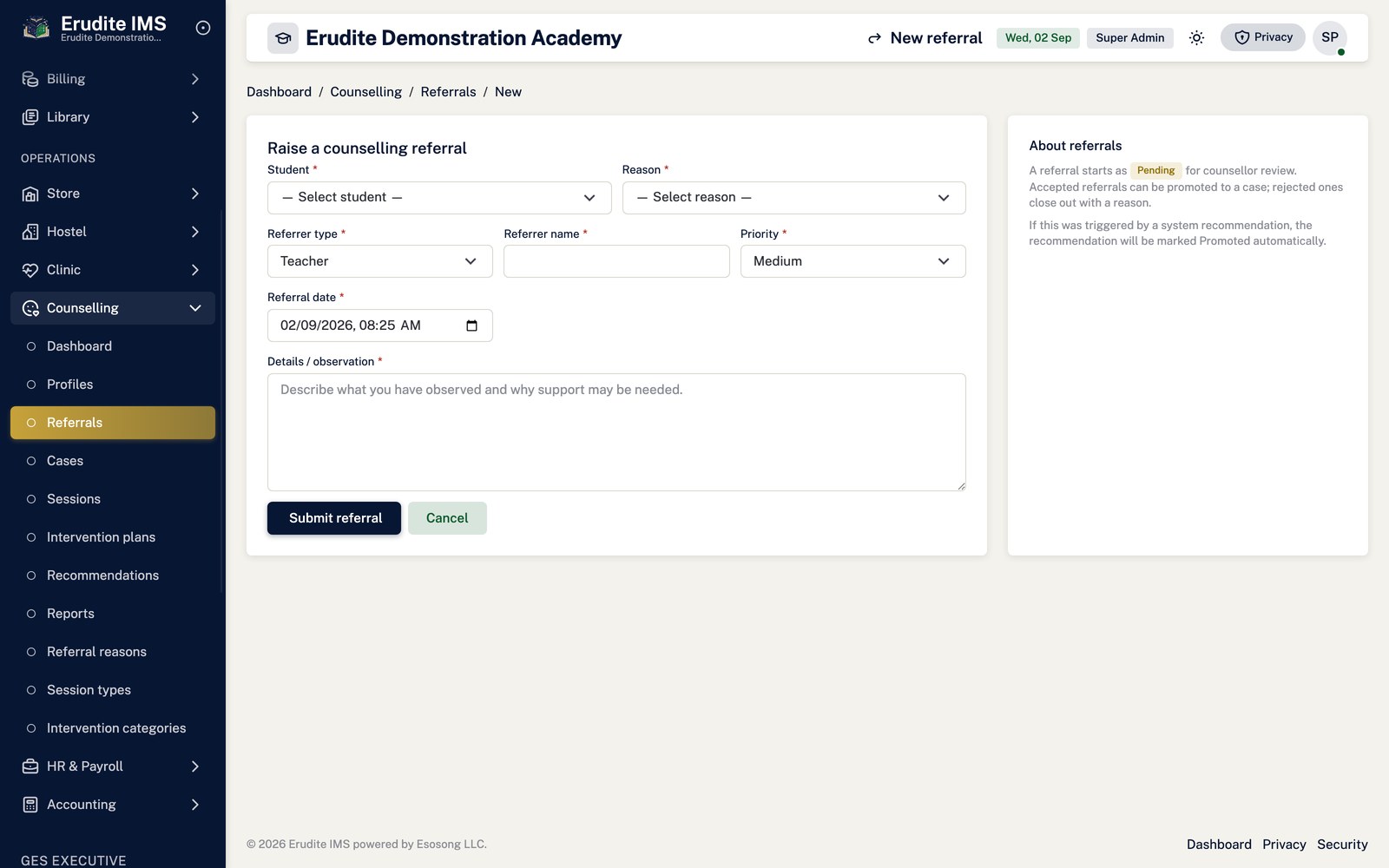
A referral is raised from Counselling → Referrals with New referral,
starting in Pending status.
The counselling office Accepts or Rejects it — only a Pending referral
can be accepted; a Pending or Accepted referral can be rejected, but rejecting requires a reason. Once
Rejected or Closed, a referral cannot be reopened.
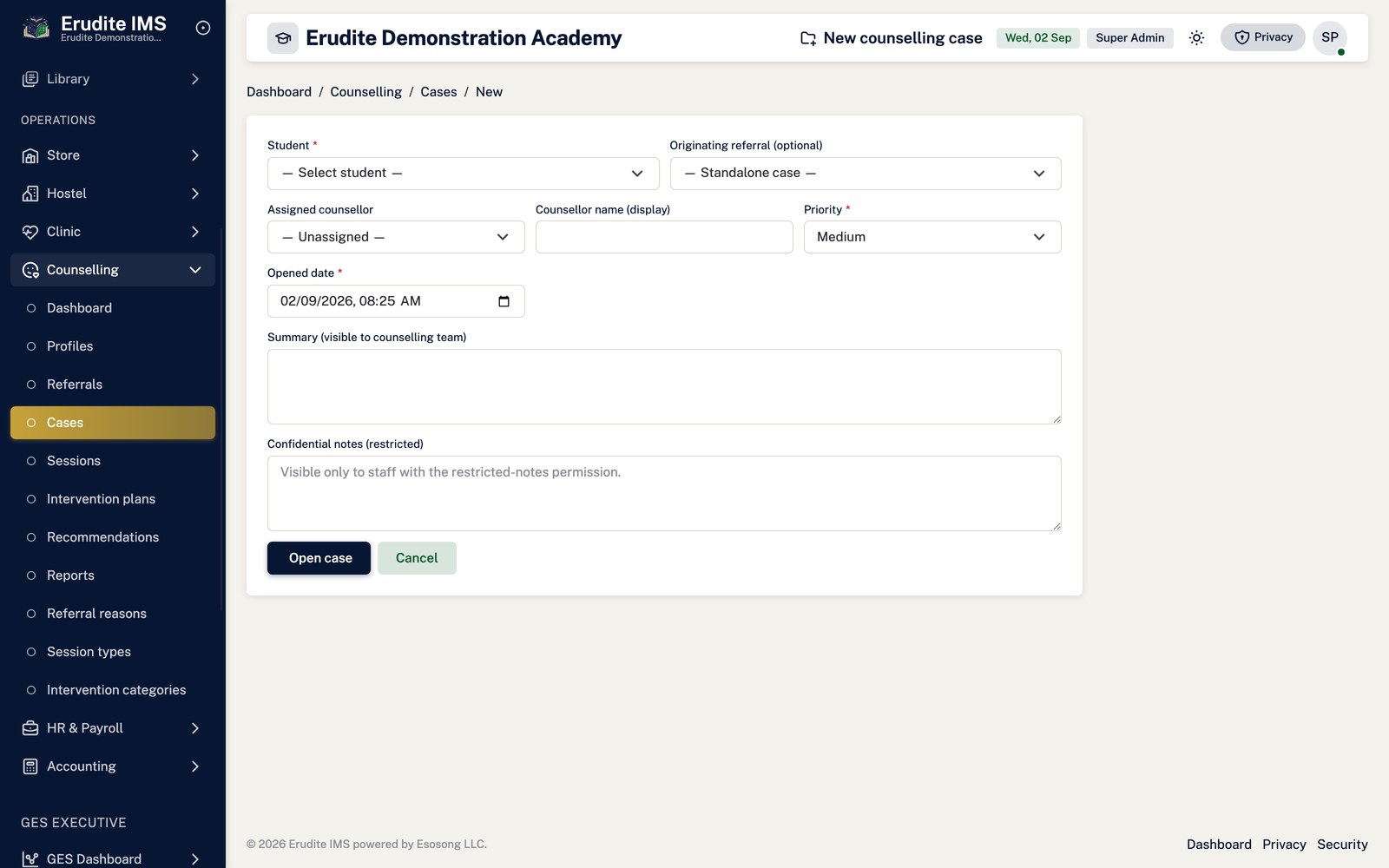
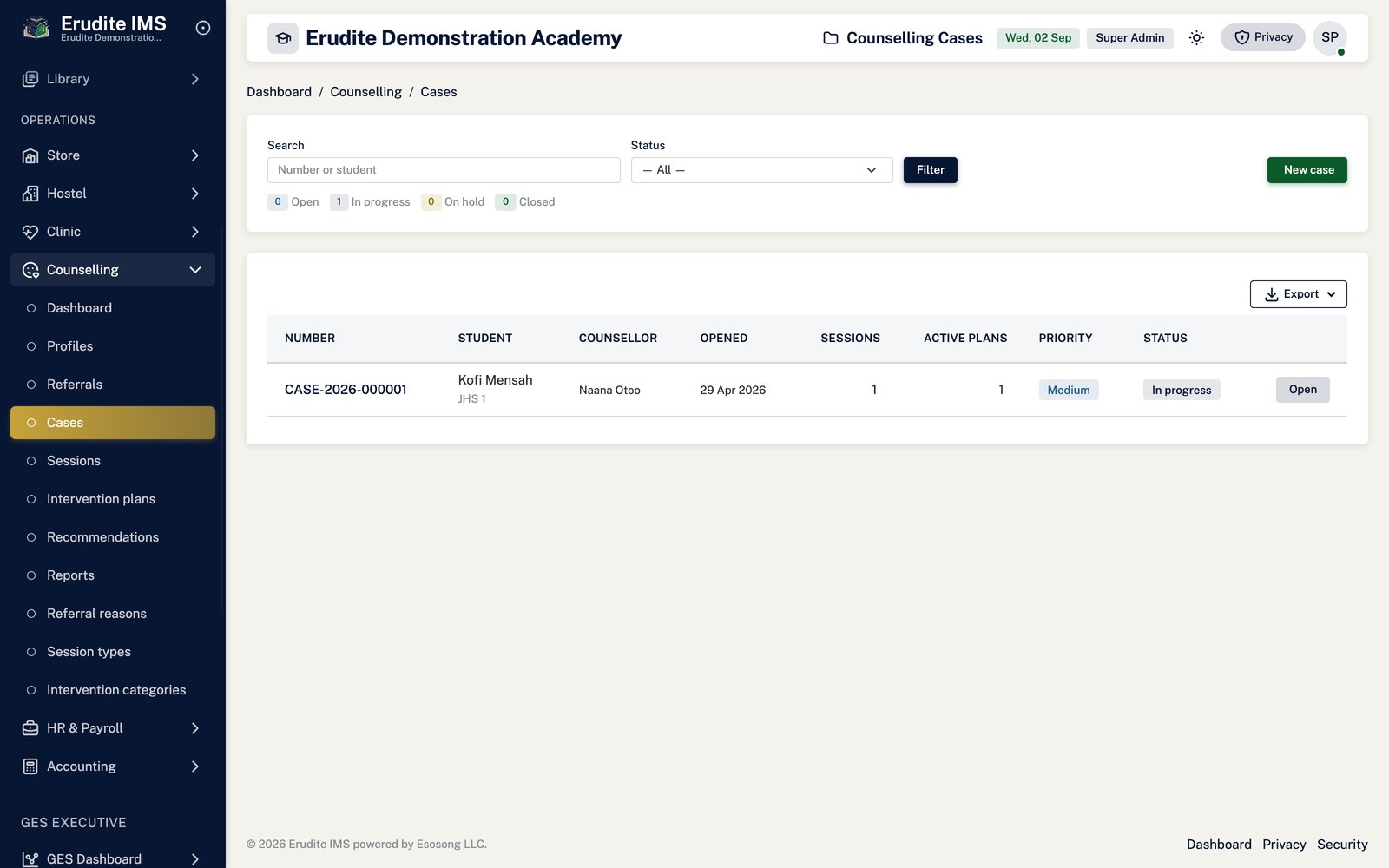
An accepted referral becomes a Case (Counselling → Cases → New case, optionally
pre-filled from the referral). Sessions are logged against the case with Add session, and
intervention plans with Add plan.
A case can be put On Hold (only from Open/In Progress) and later Resumed
(only from On Hold, which returns it to In Progress).
Close the case with an outcome summary once the matter is settled. Closing a case
automatically cancels any of its intervention plans that are still in Draft.
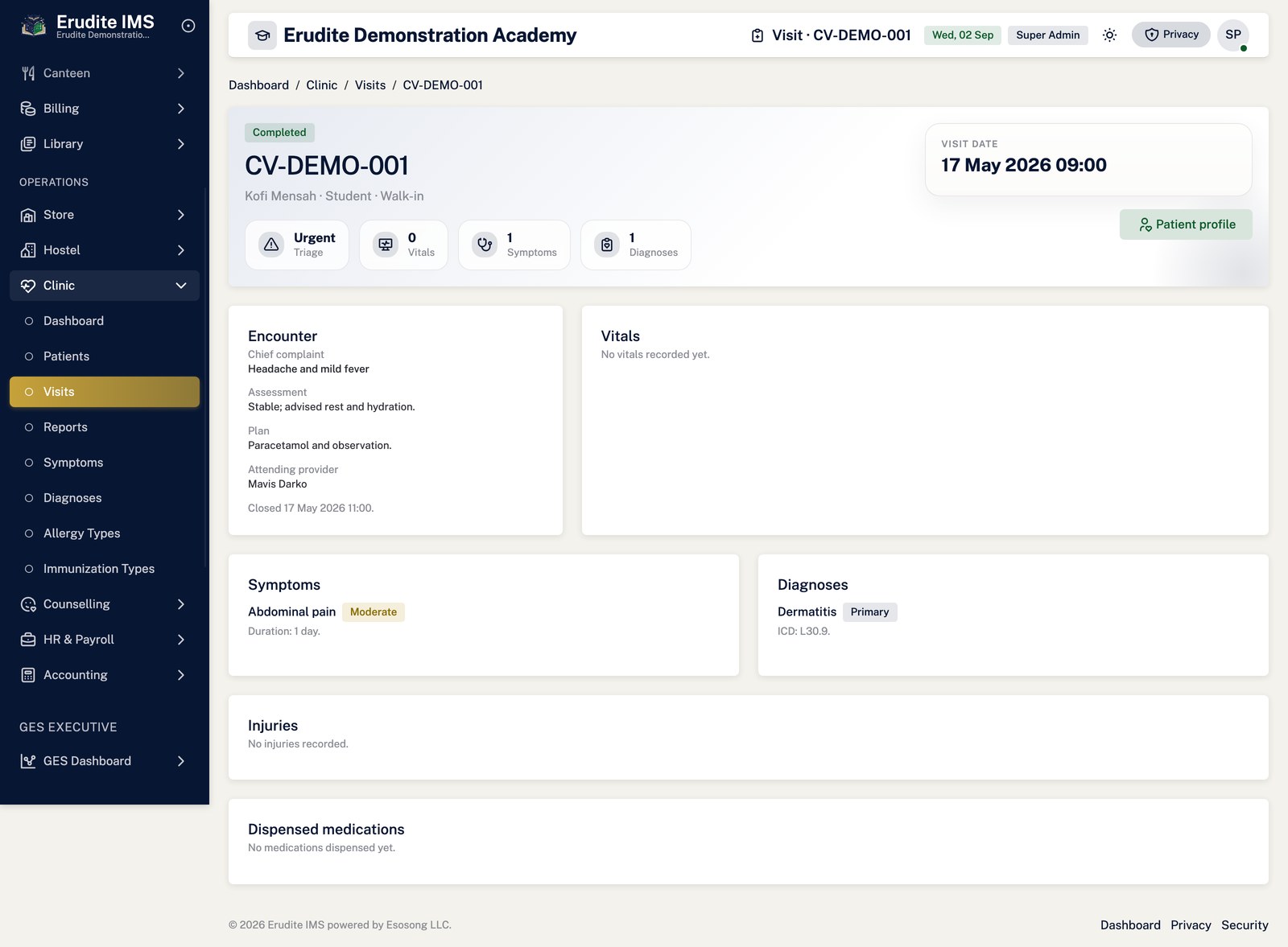
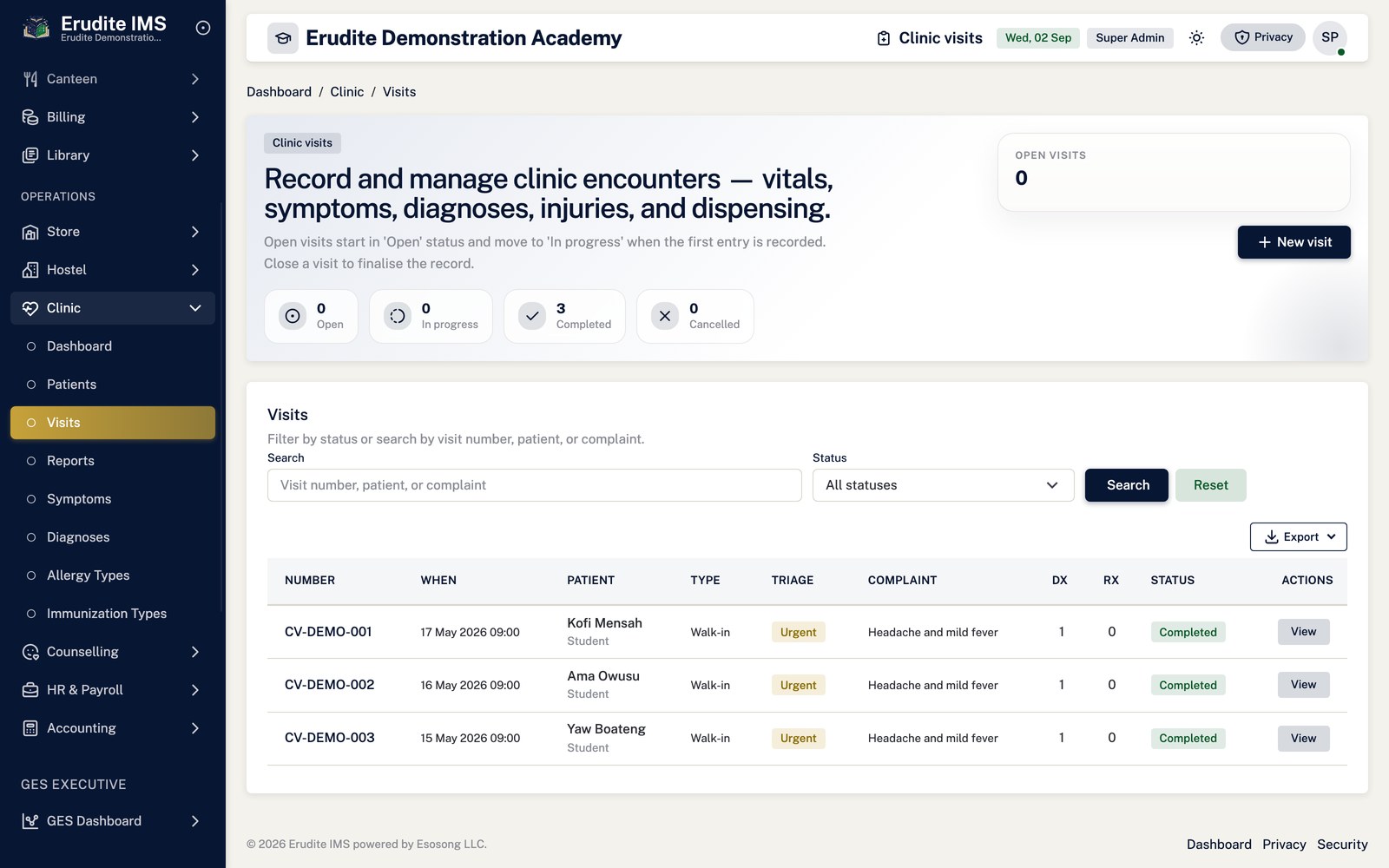
Logging a clinic visit
Open Clinic → Visits → New visit, find the patient profile (a learner or staff member
already registered in Clinic → Patients), and save to open the visit record.
On the visit's Details page, add vitals, symptoms and diagnoses as they are recorded.
To dispense medication, Add dispense — this only stages the item against the visit and
does not touch stock. Select Post dispensing separately to actually decrement store
stock; only staged dispenses can be removed before posting.
Close the visit once treatment is complete, or Cancel it if it should not
stand. Both are final — a visit that is already Completed or Cancelled cannot be reopened, and closing one
sends a courtesy notice to the learner's guardians where they are registered.
Vitals, symptoms, diagnoses and dispensing can only be added while a visit is open or in
progress — the controller checks the visit's own status before accepting any of them.
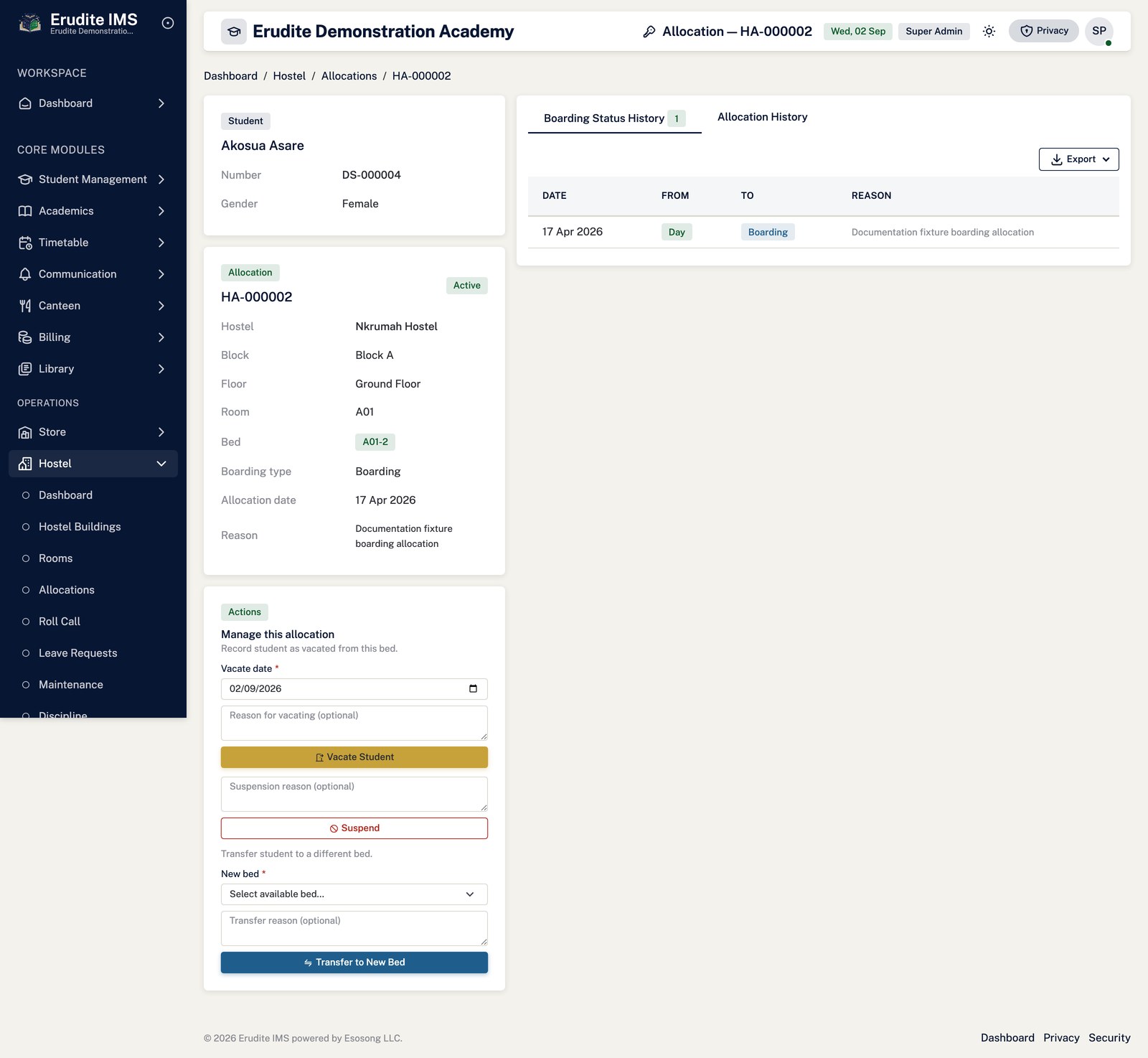
Allocating and managing hostel accommodation
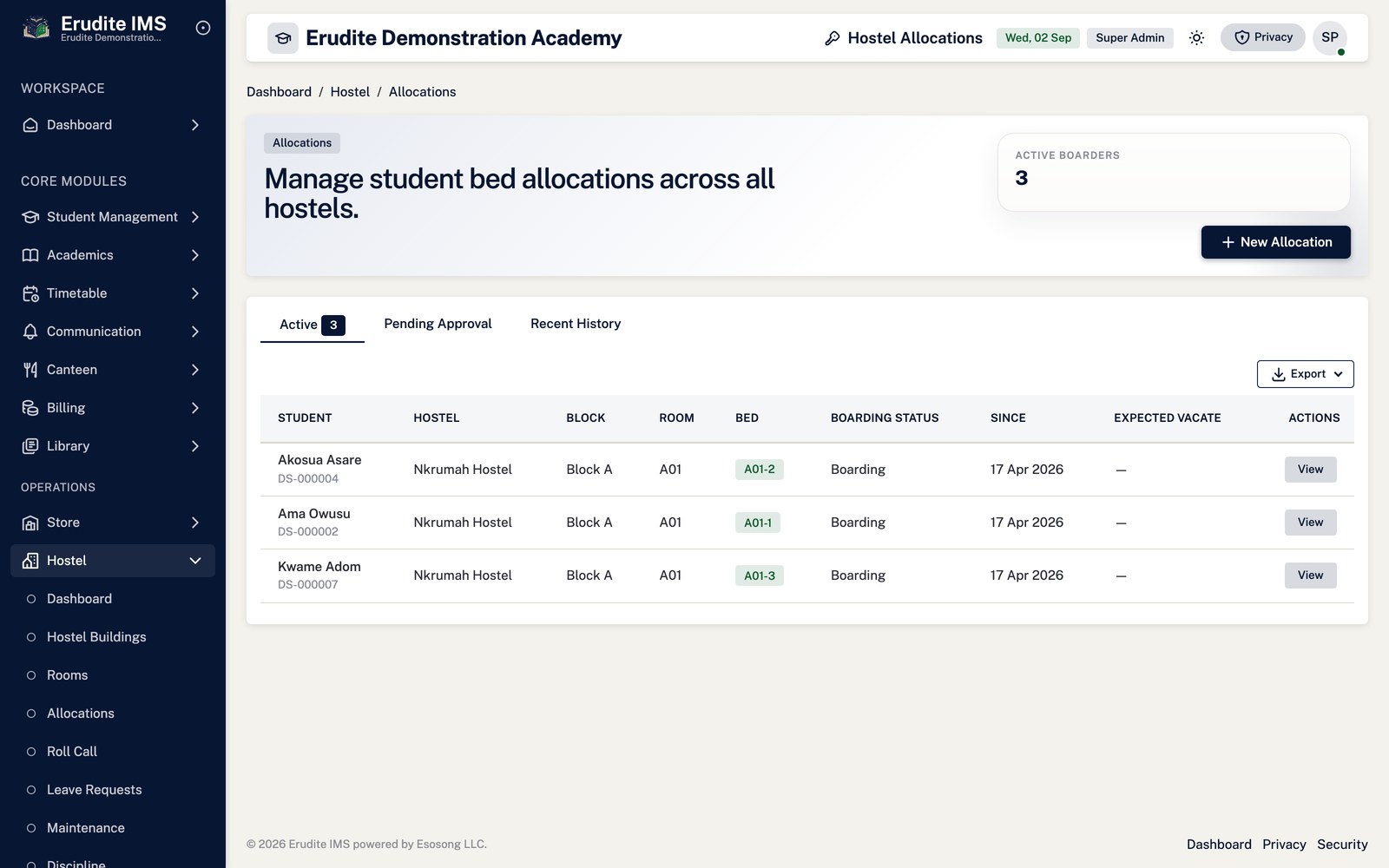
Open Hostel → Allocations → Allocate, search for the student, then pick from the beds
the system reports as available for the chosen house and boarding status.
Saving raises the allocation — if it lands in the pending state it needs Approve (a
separate permission from creating one) before it counts as active; approving or an allocation that is
auto-approved on save both trigger hostel billing for that student.
From an active allocation's Detail page you can Transfer the student to another bed,
Suspend and later Reinstate them, or Vacate the bed —
each action is only offered when the allocation is in the matching status (the page hides the buttons that
do not apply).
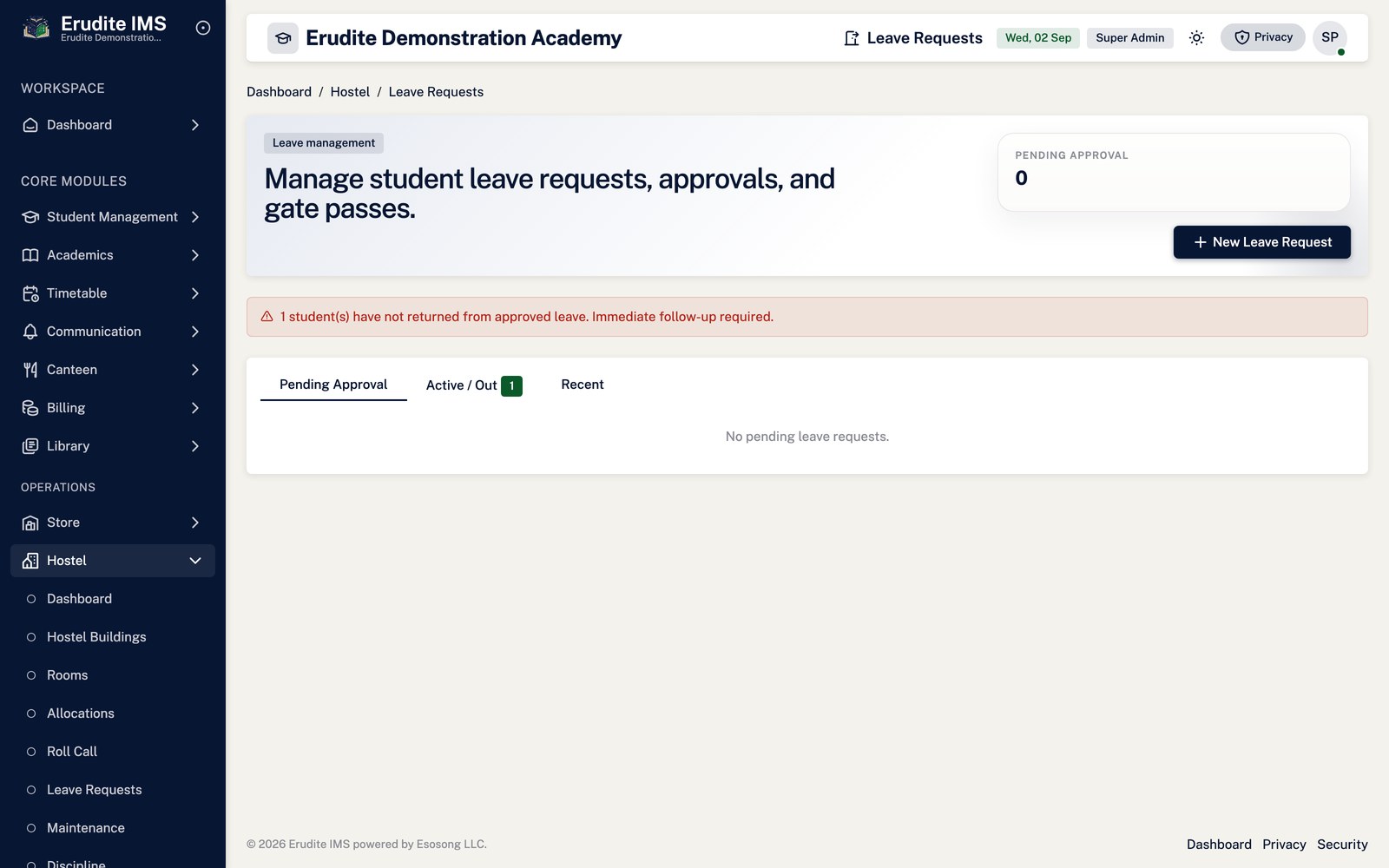
For overnight or weekend absence, raise a Hostel Leave Request; it needs
Approve before a Gate pass can be issued, and Record
return closes the loop when the learner is back.
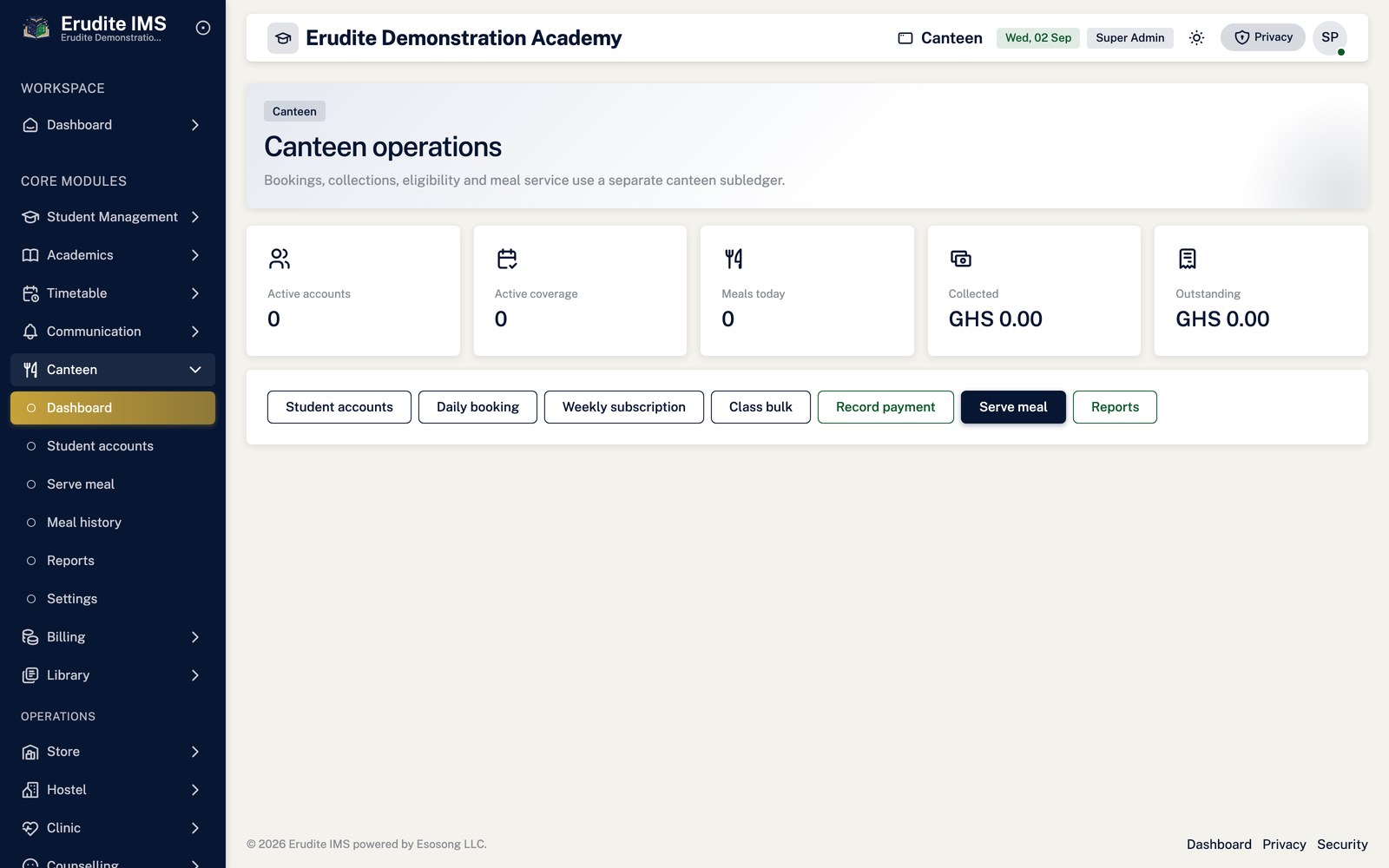
Running canteen enrolment and meal service
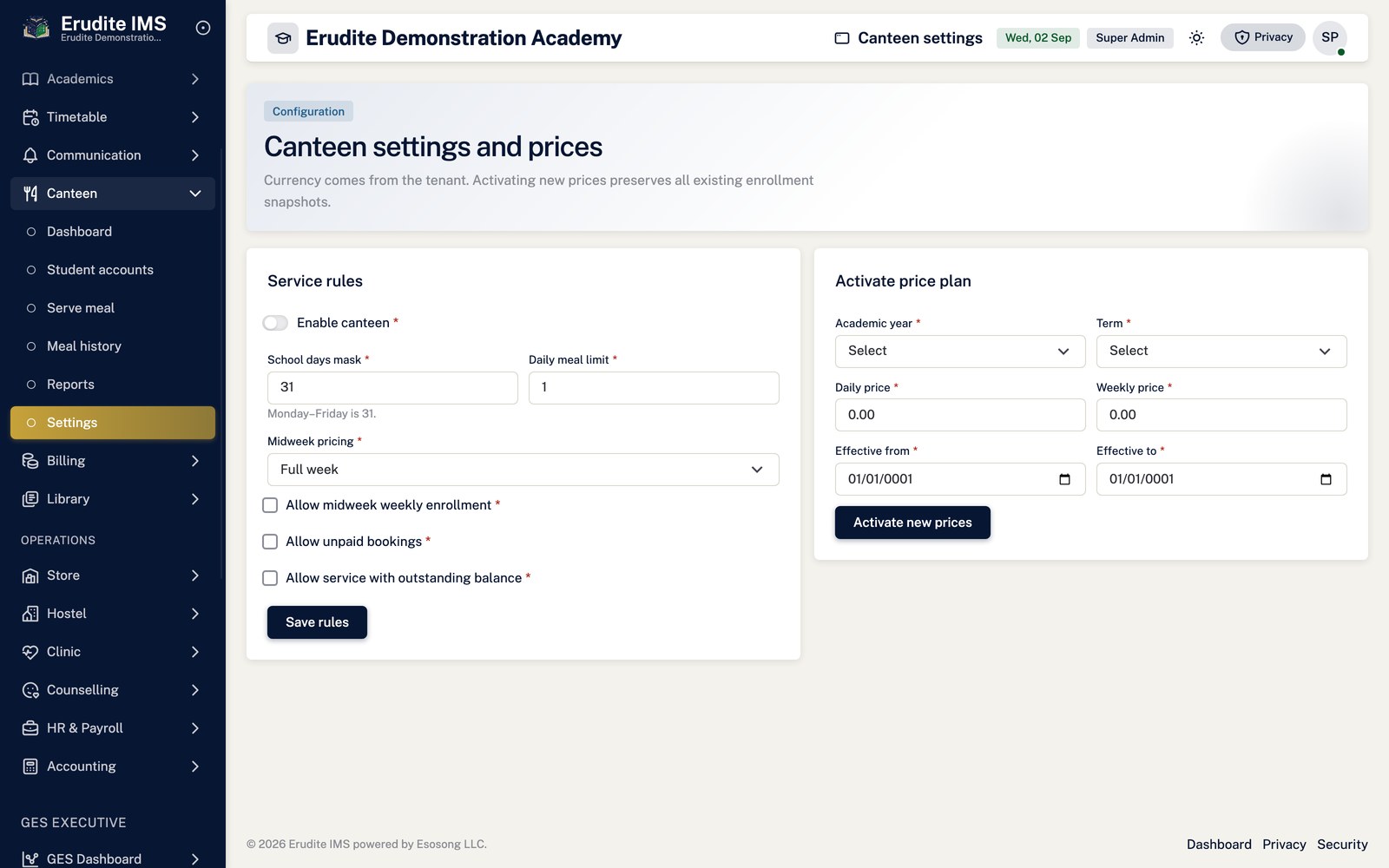
Set the daily and weekly price plan and the school-day pattern once, under Canteen →
Settings. A new price plan takes effect from the date you give it; earlier prices remain in
history rather than being overwritten.
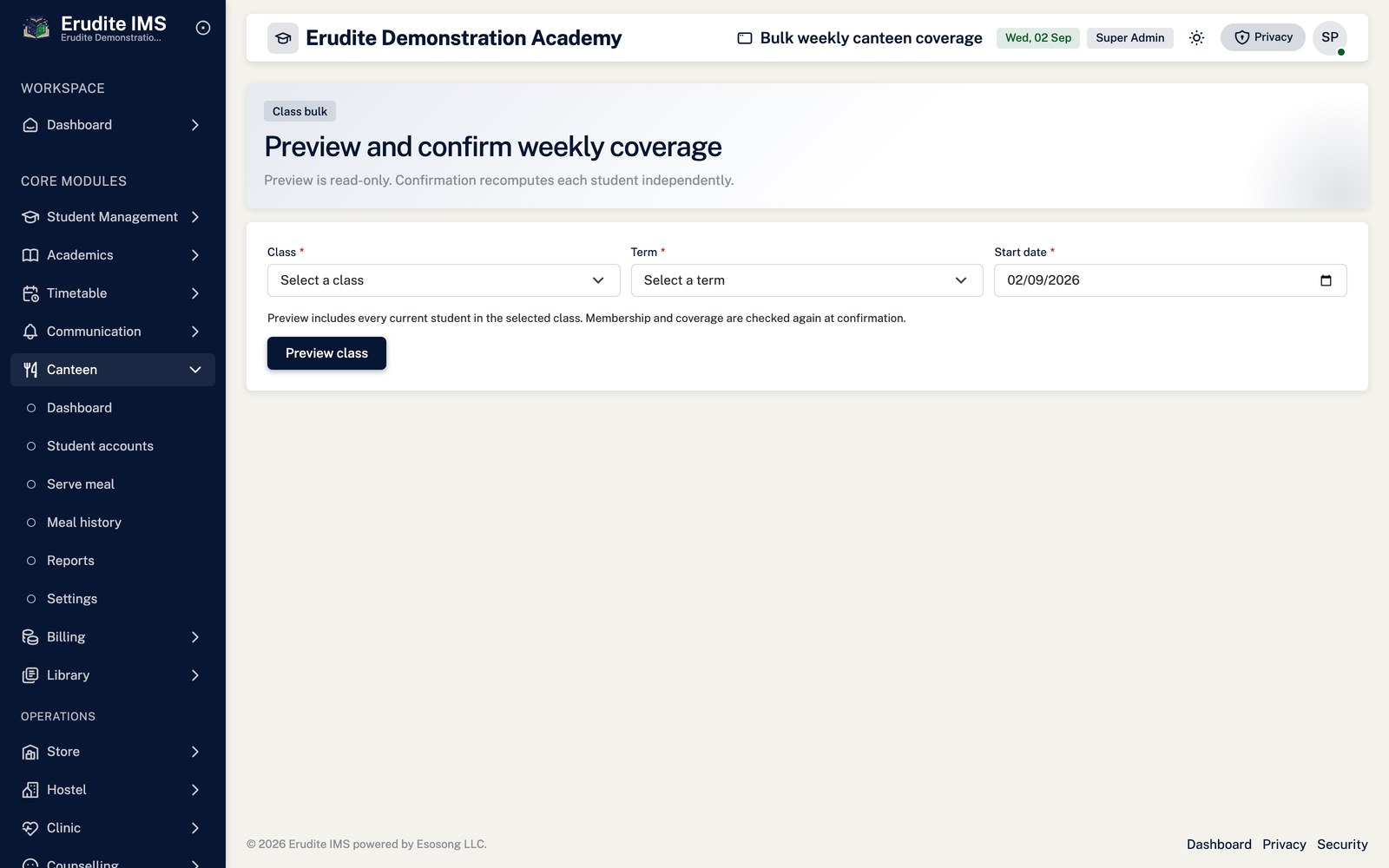
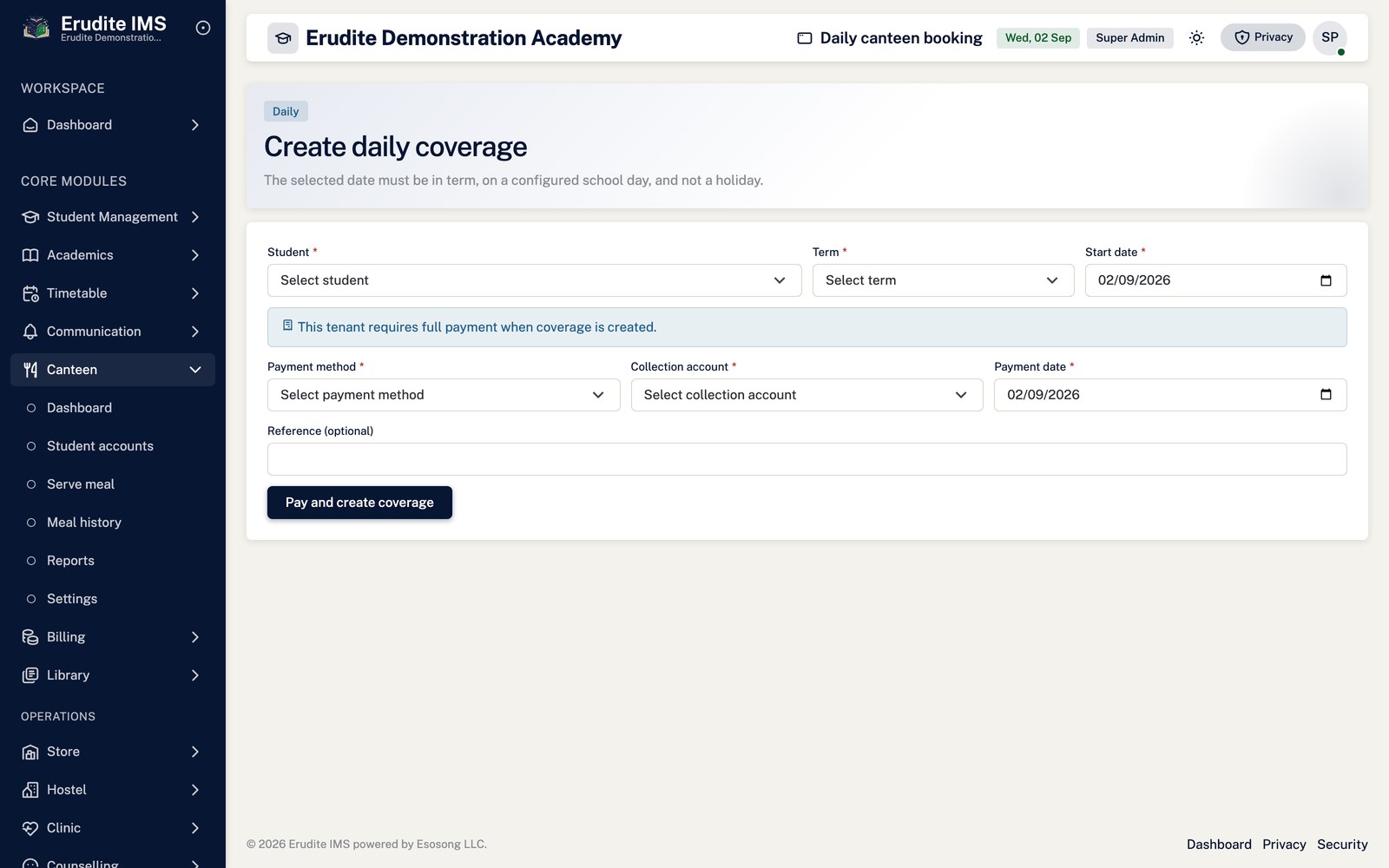
Enrol a learner with Daily Booking or Weekly Subscription, or use
Bulk Weekly to preview and confirm a whole class or group at once.
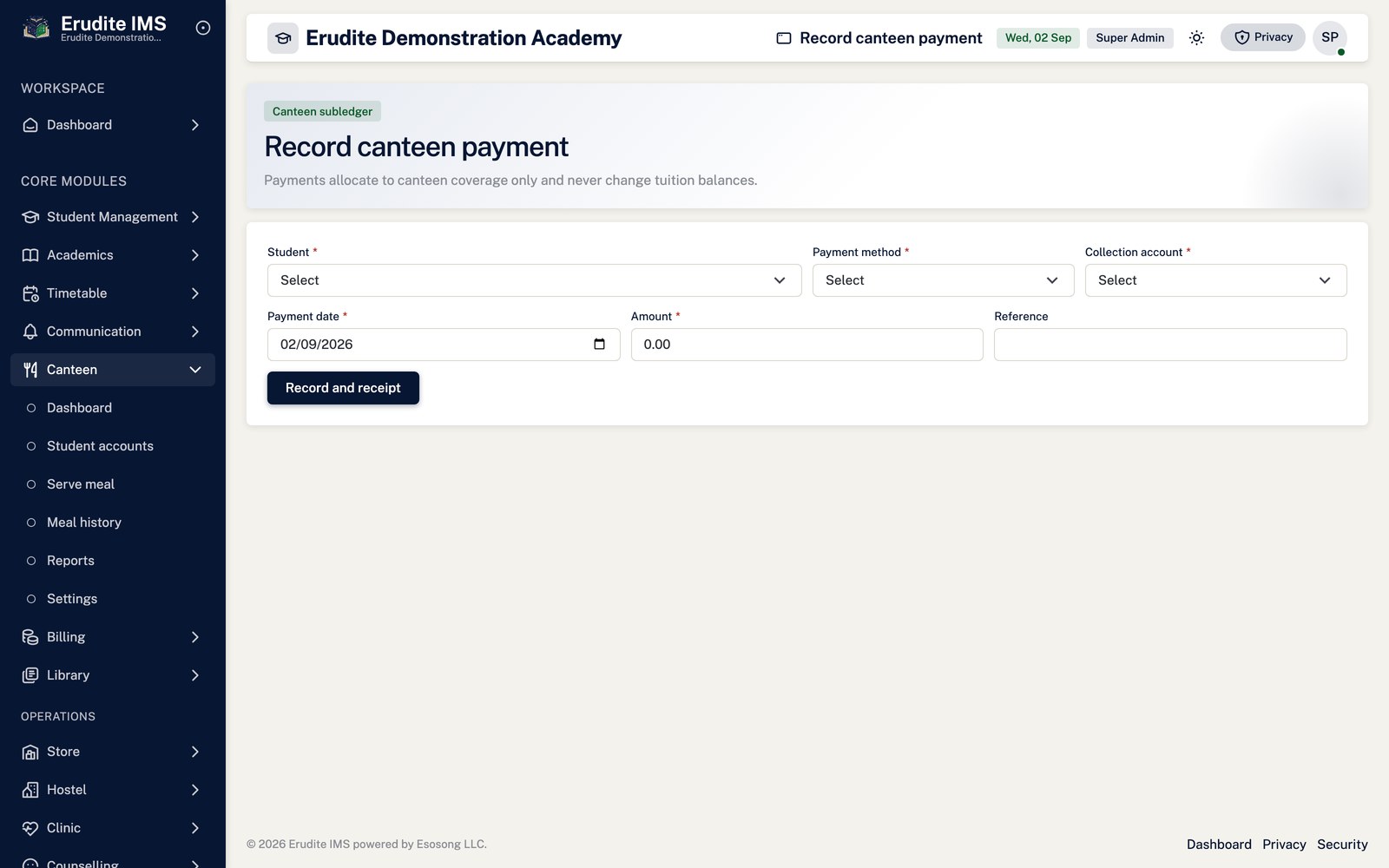
Record payments from Payment; a receipt PDF is produced immediately. Whether an account
with an outstanding balance can still book a meal is controlled by the
Allow service with outstanding balance setting.
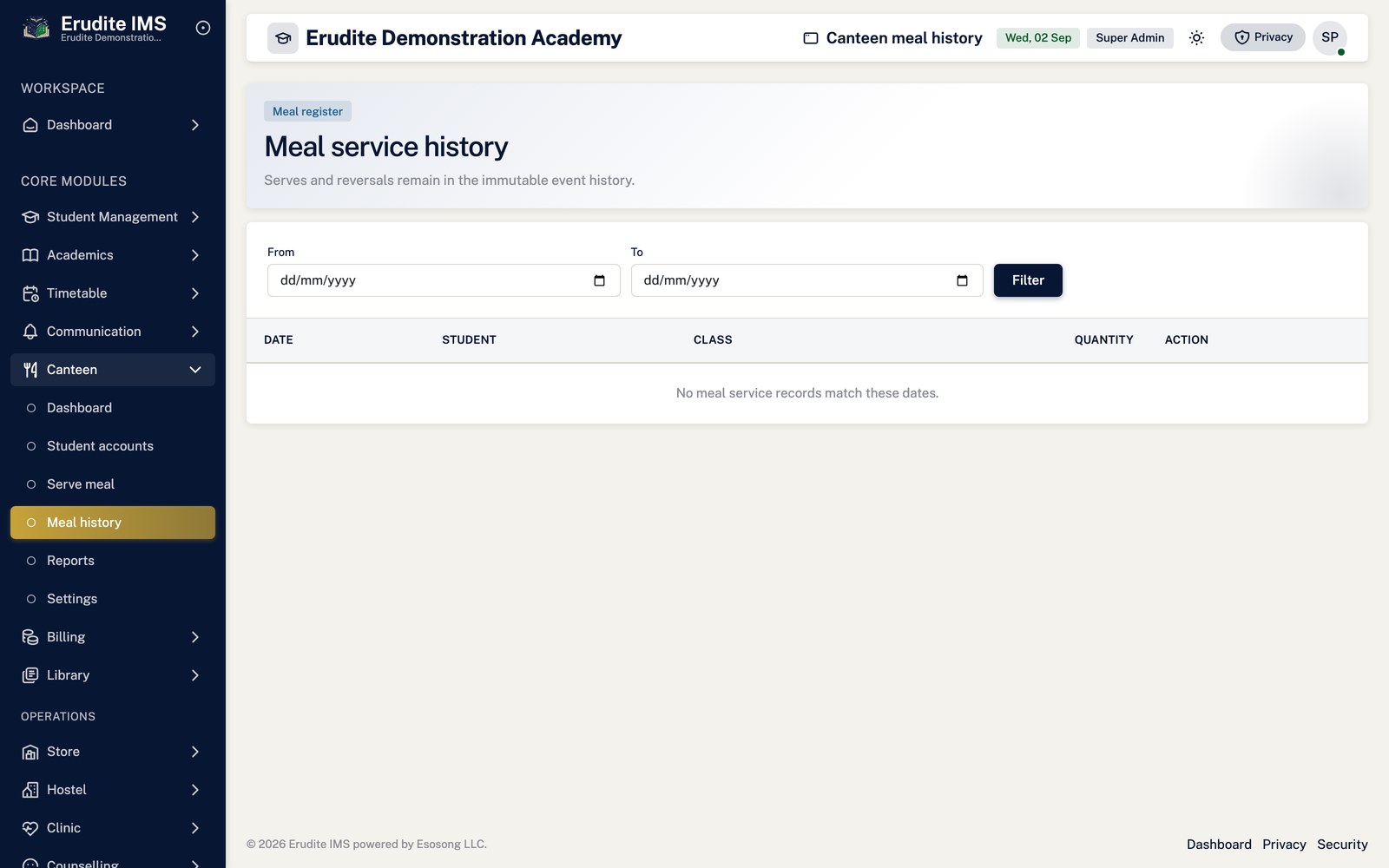
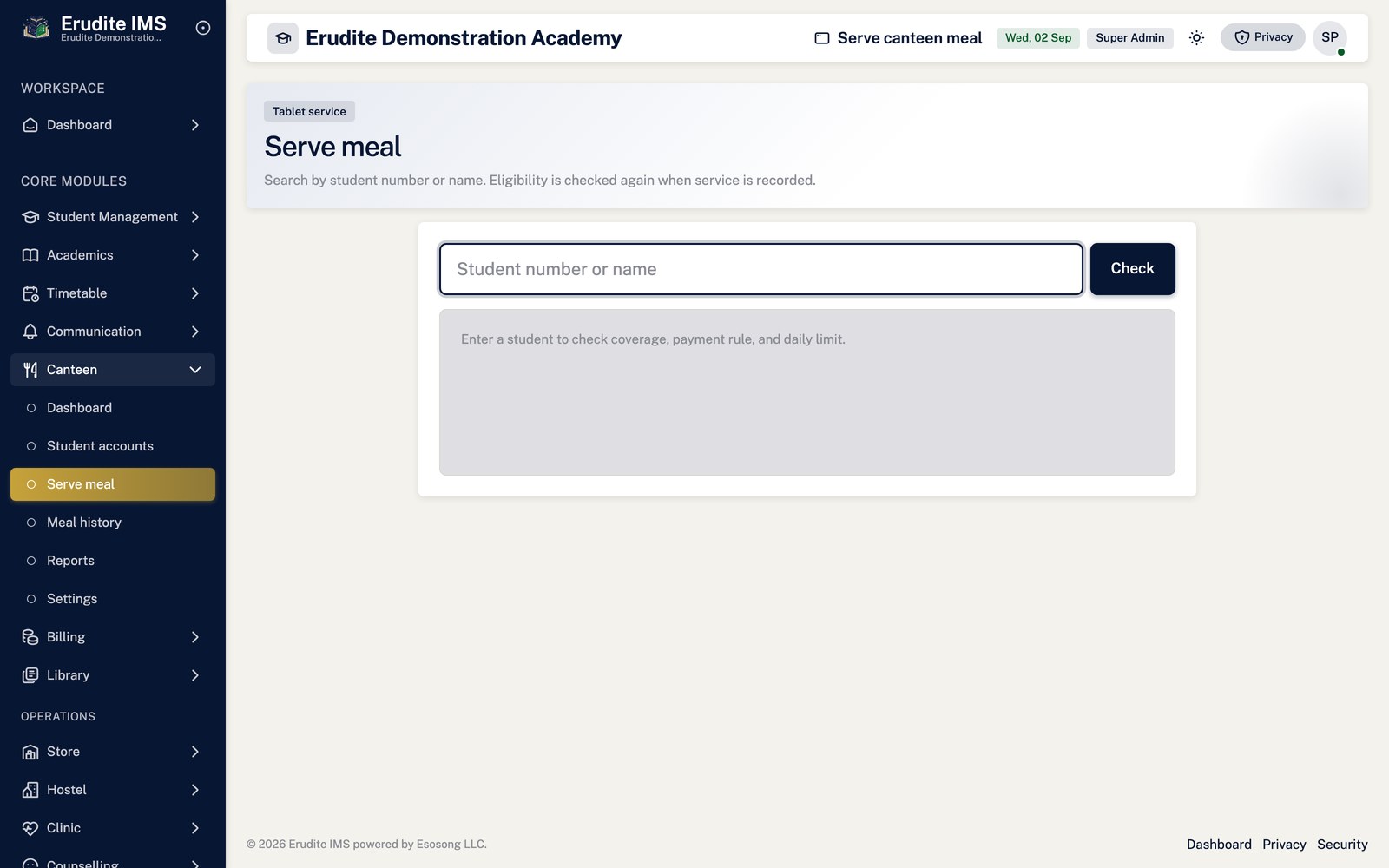
At mealtime, use Serve to look up the learner by name or student number; the page checks
same-day eligibility before the meal can be marked served. A wrongly served meal is undone with
Reverse rather than deleted.
Canteen
Canteen — bulk weekly
/Canteen/BulkWeekly
/Canteen/BulkWeekly
Canteen — daily booking
/Canteen/DailyBooking
/Canteen/DailyBooking
Canteen — list
/Canteen
/Canteen
Canteen — meal history
/Canteen/MealHistory
/Canteen/MealHistory
Canteen — payment
/Canteen/Payment
/Canteen/Payment
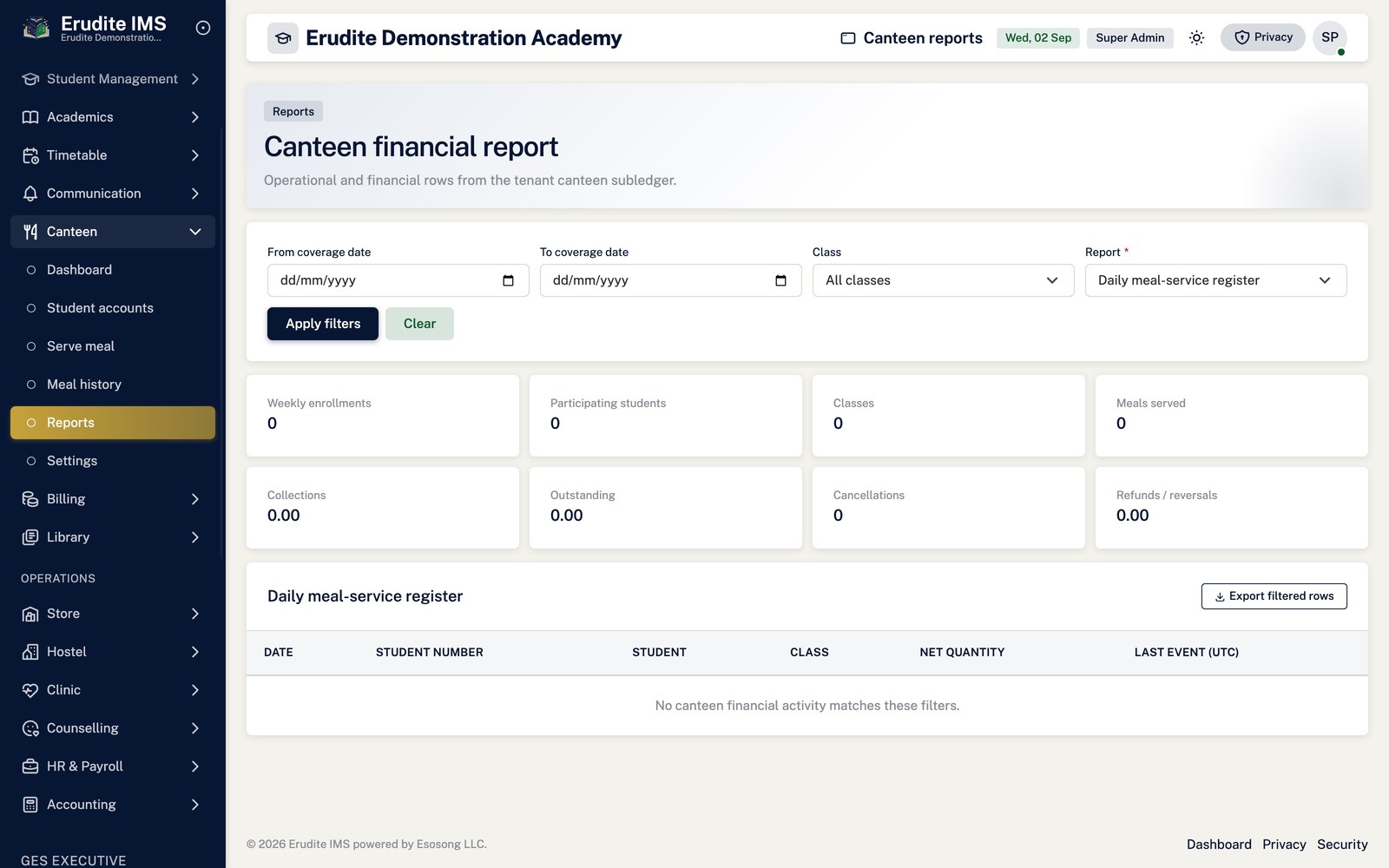
Canteen — reports
/Canteen/Reports
/Canteen/Reports
Canteen — serve
/Canteen/Serve
/Canteen/Serve
Canteen — settings
/Canteen/Settings
/Canteen/Settings
Canteen — student details
/Canteen/StudentDetails
This screen opens against a specific record and cannot be reached by URL alone. Open it from the list page for this module.
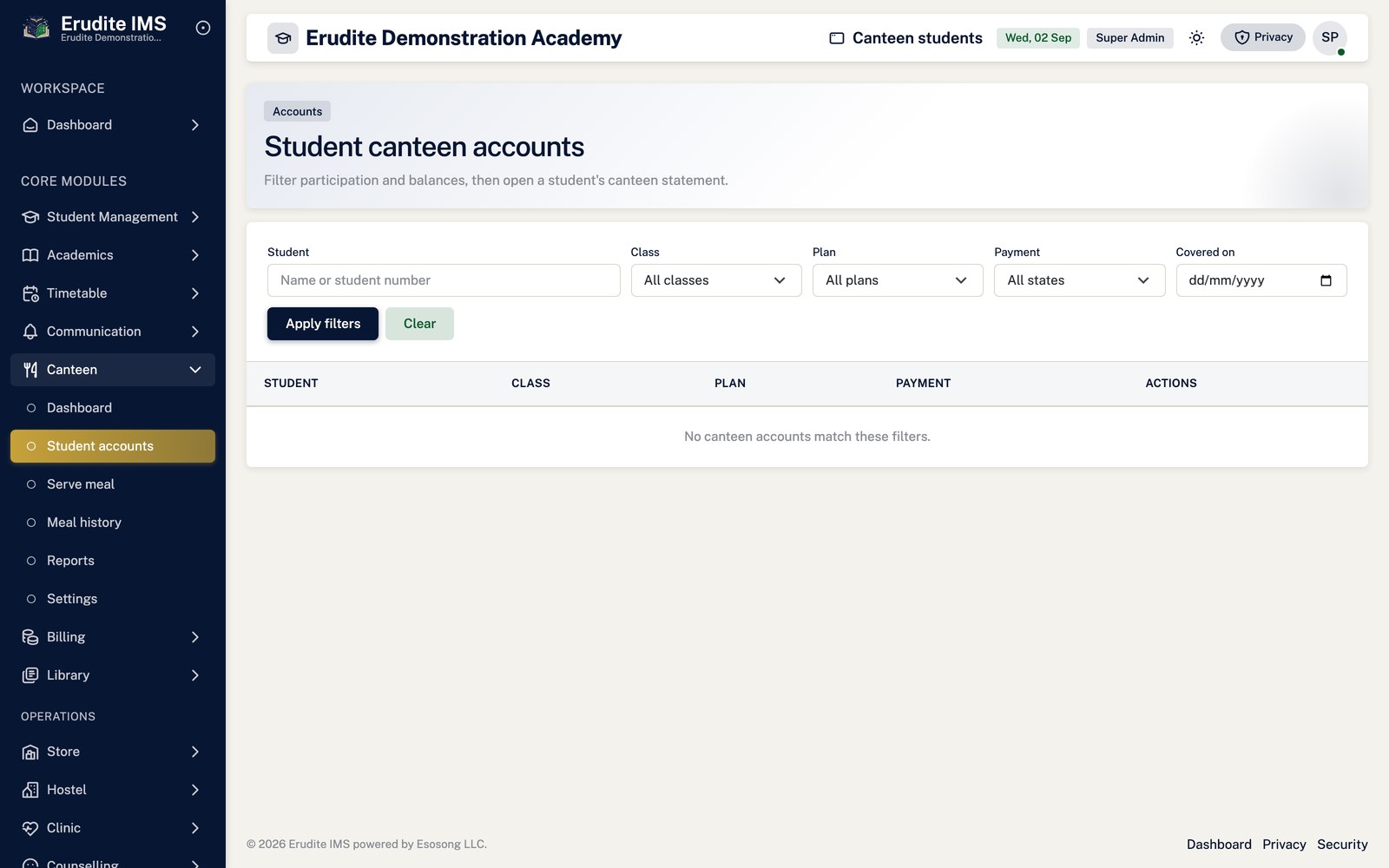
Canteen — students
/Canteen/Students
/Canteen/Students
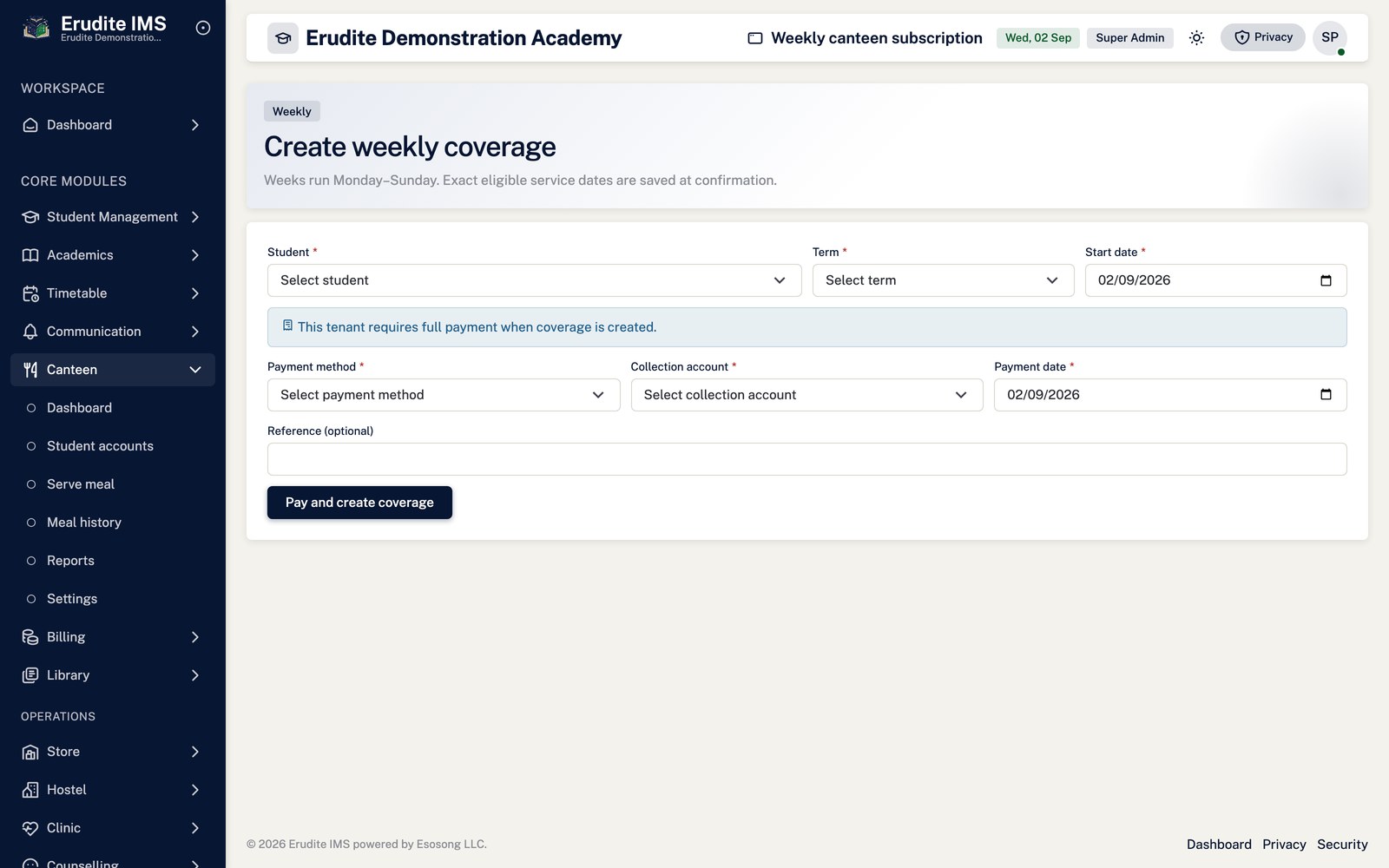
Canteen — weekly subscription
/Canteen/WeeklySubscription
/Canteen/WeeklySubscription
Clinic
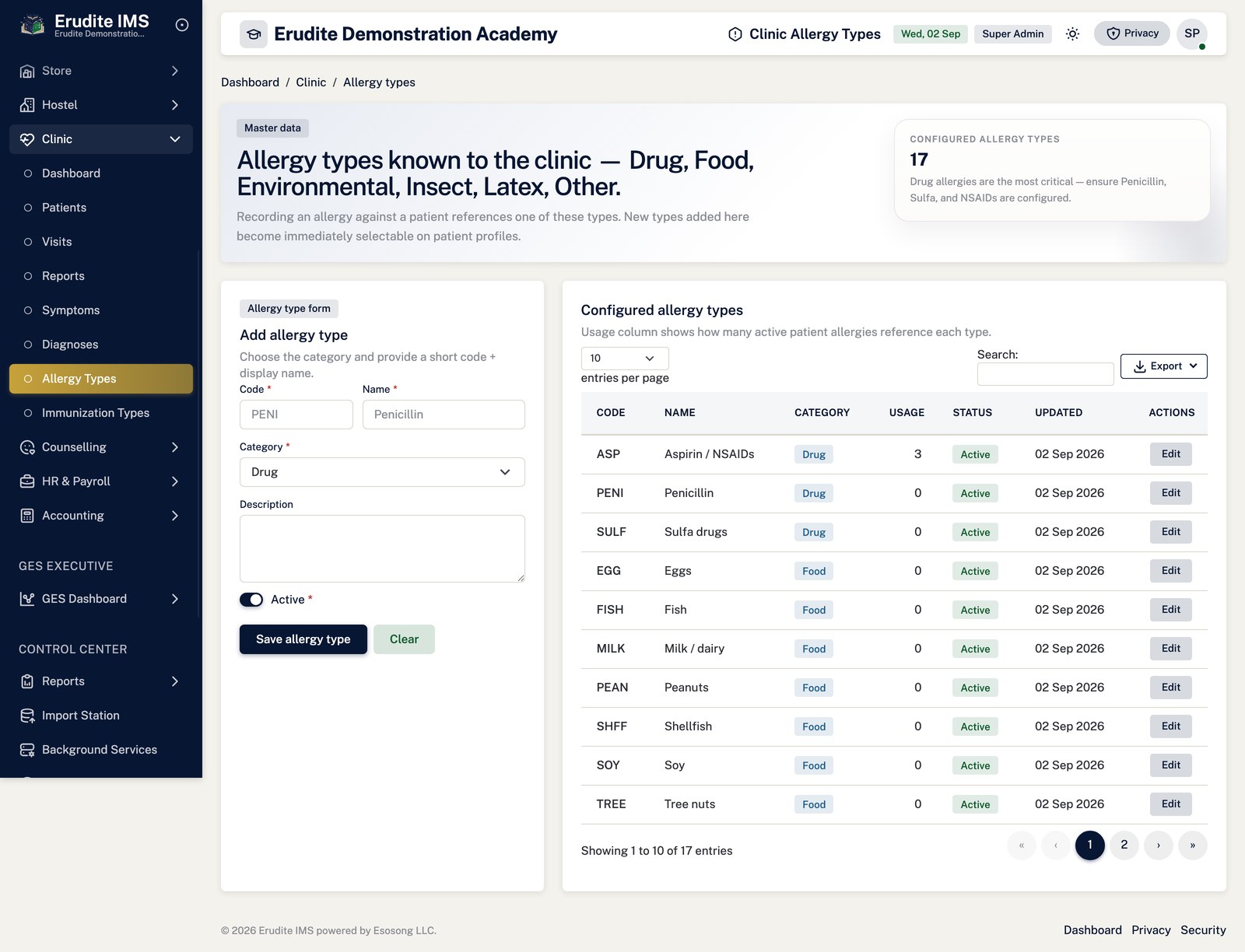
Clinic — allergy types
/Clinic/AllergyTypes
/Clinic/AllergyTypes
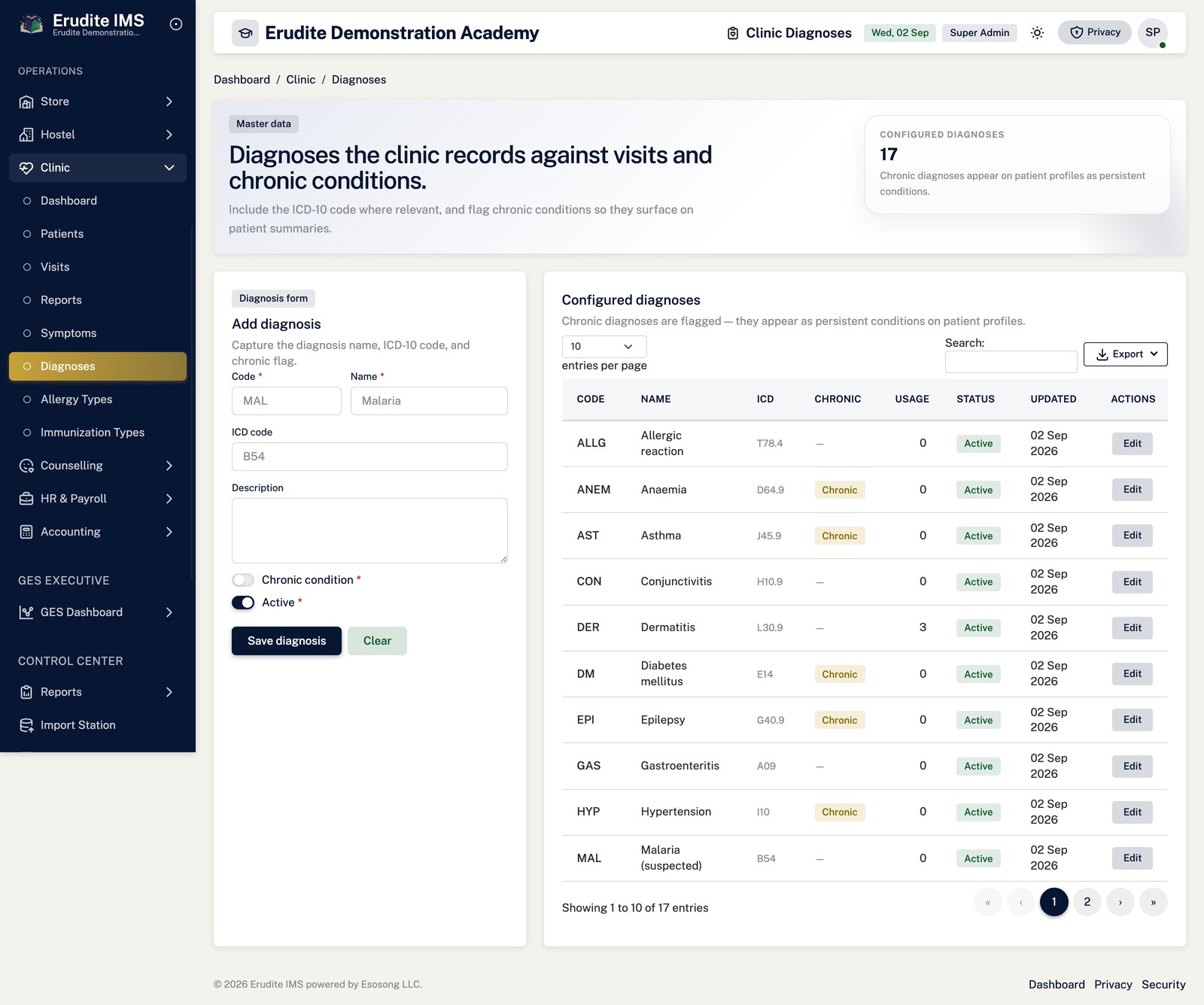
Clinic — diagnoses
/Clinic/Diagnoses
/Clinic/Diagnoses
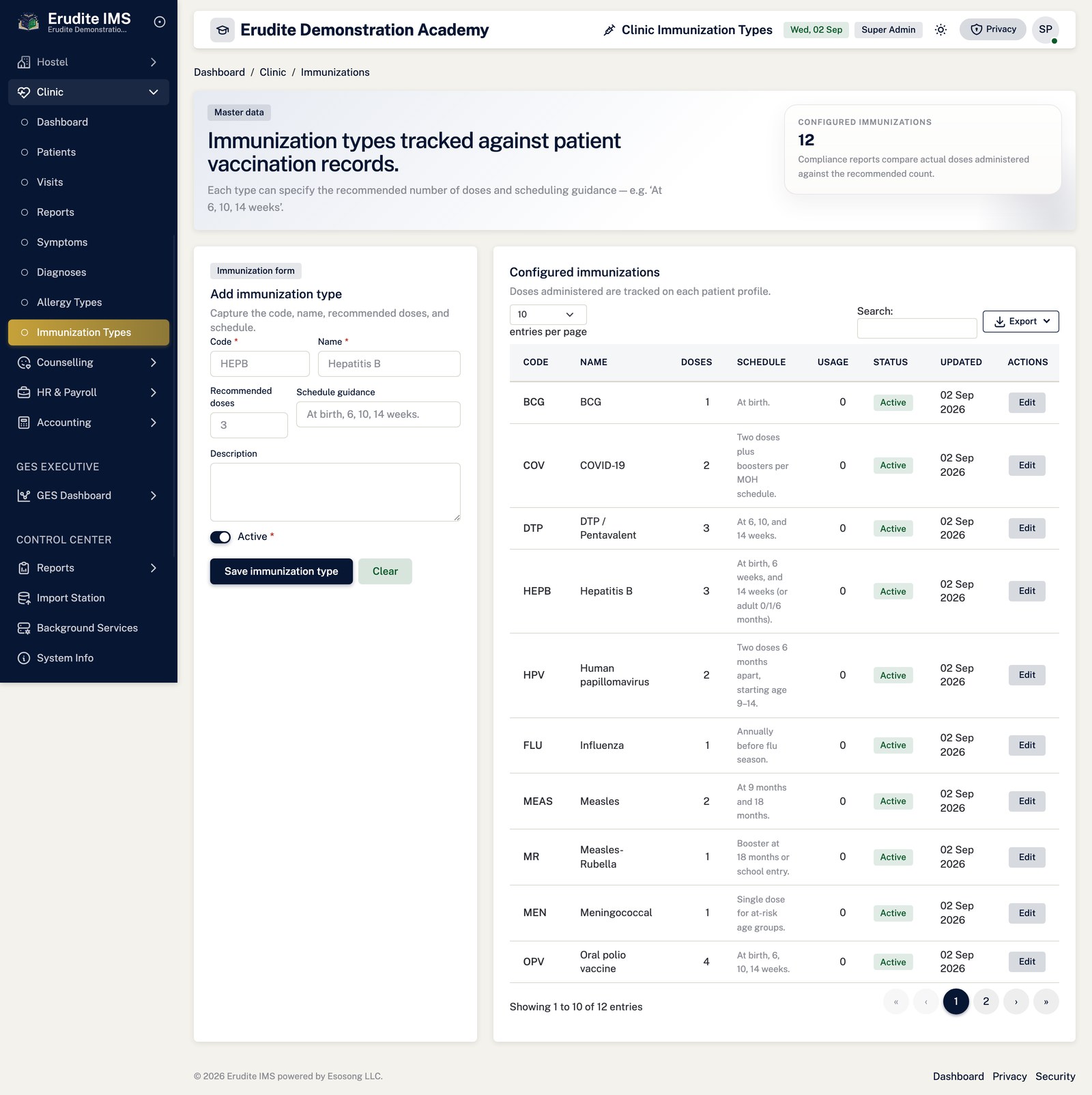
Clinic — immunization types
/Clinic/ImmunizationTypes
/Clinic/ImmunizationTypes
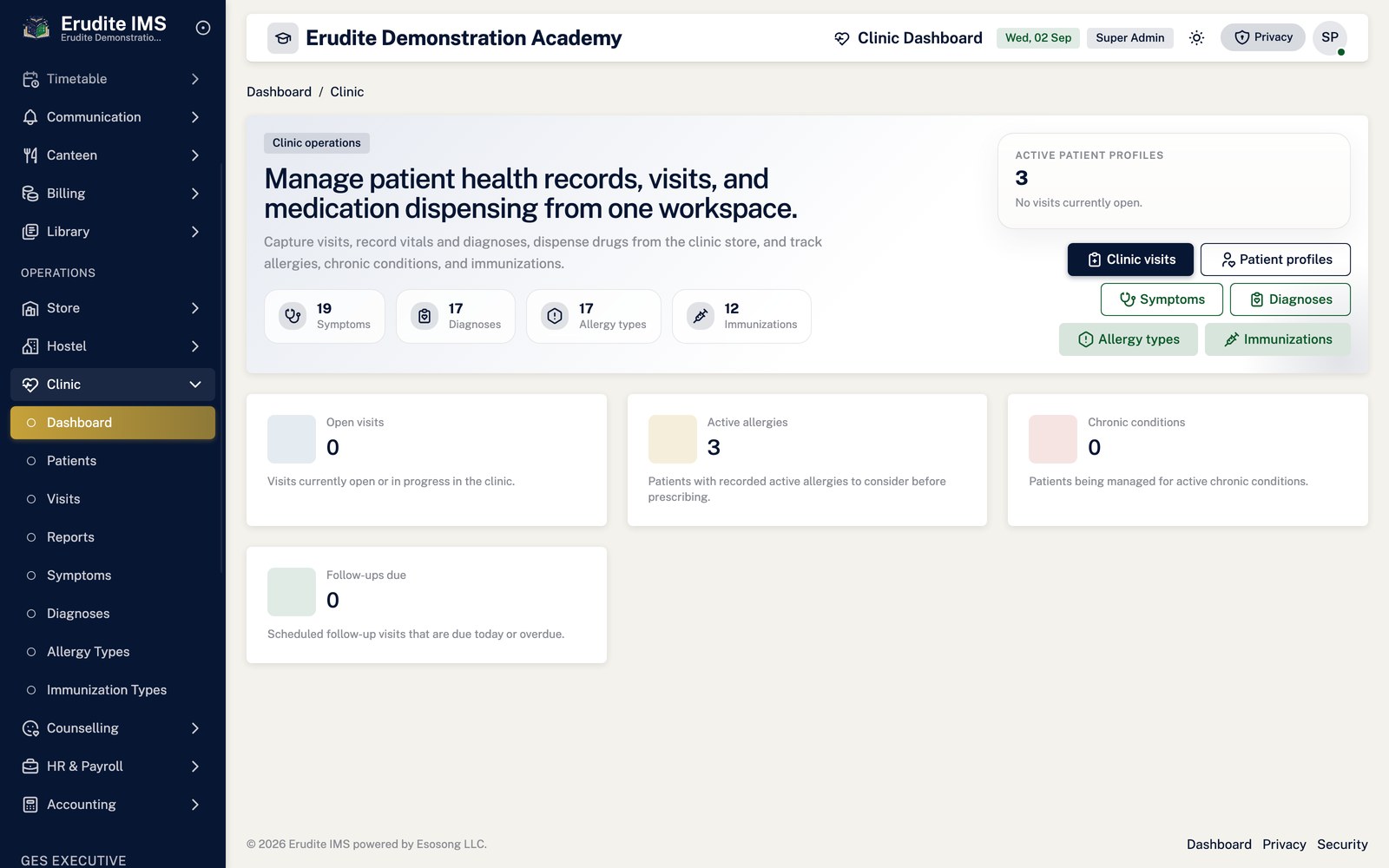
Clinic — list
/Clinic
/Clinic
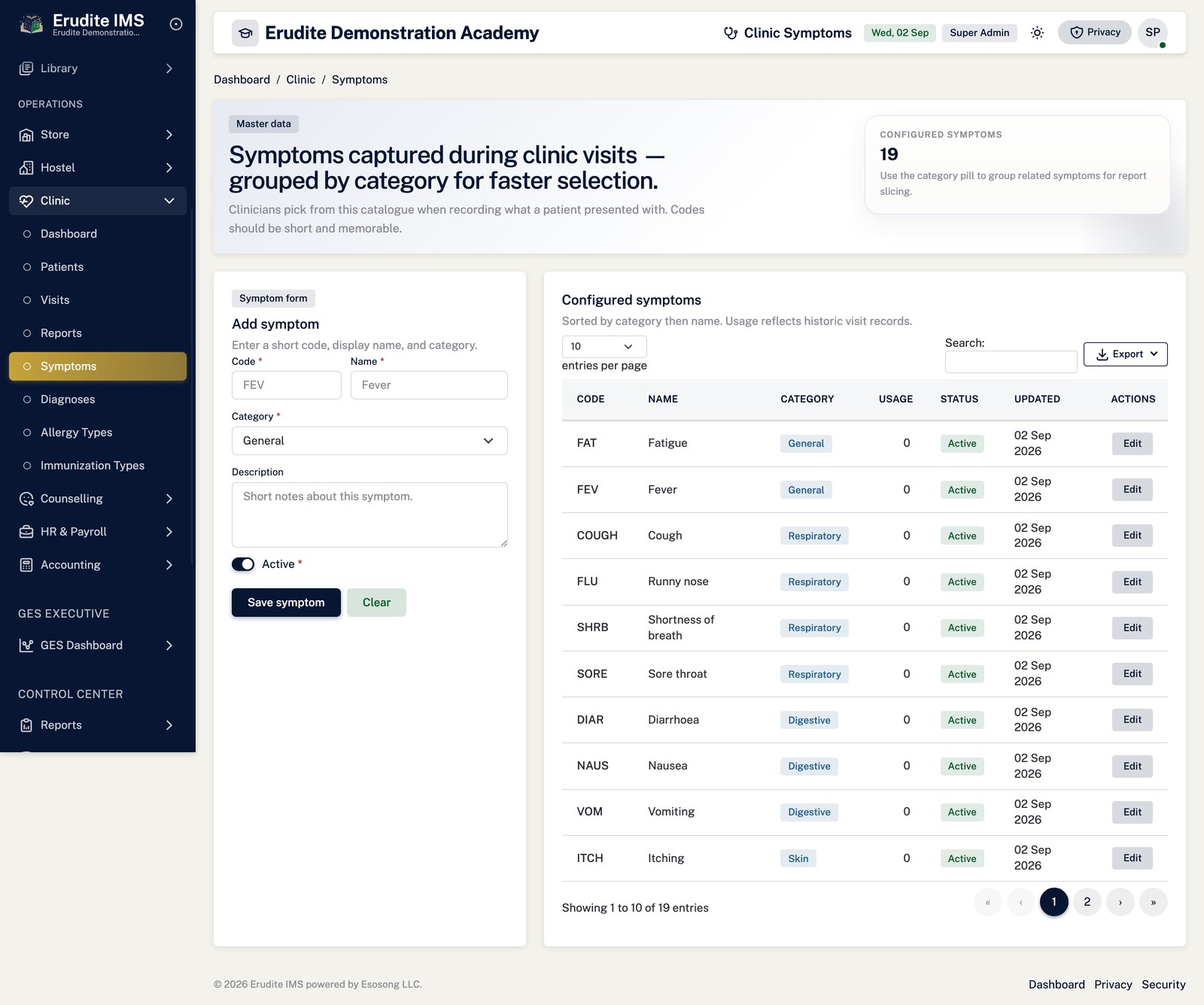
Clinic — symptoms
/Clinic/Symptoms
/Clinic/Symptoms
Clinic Reports
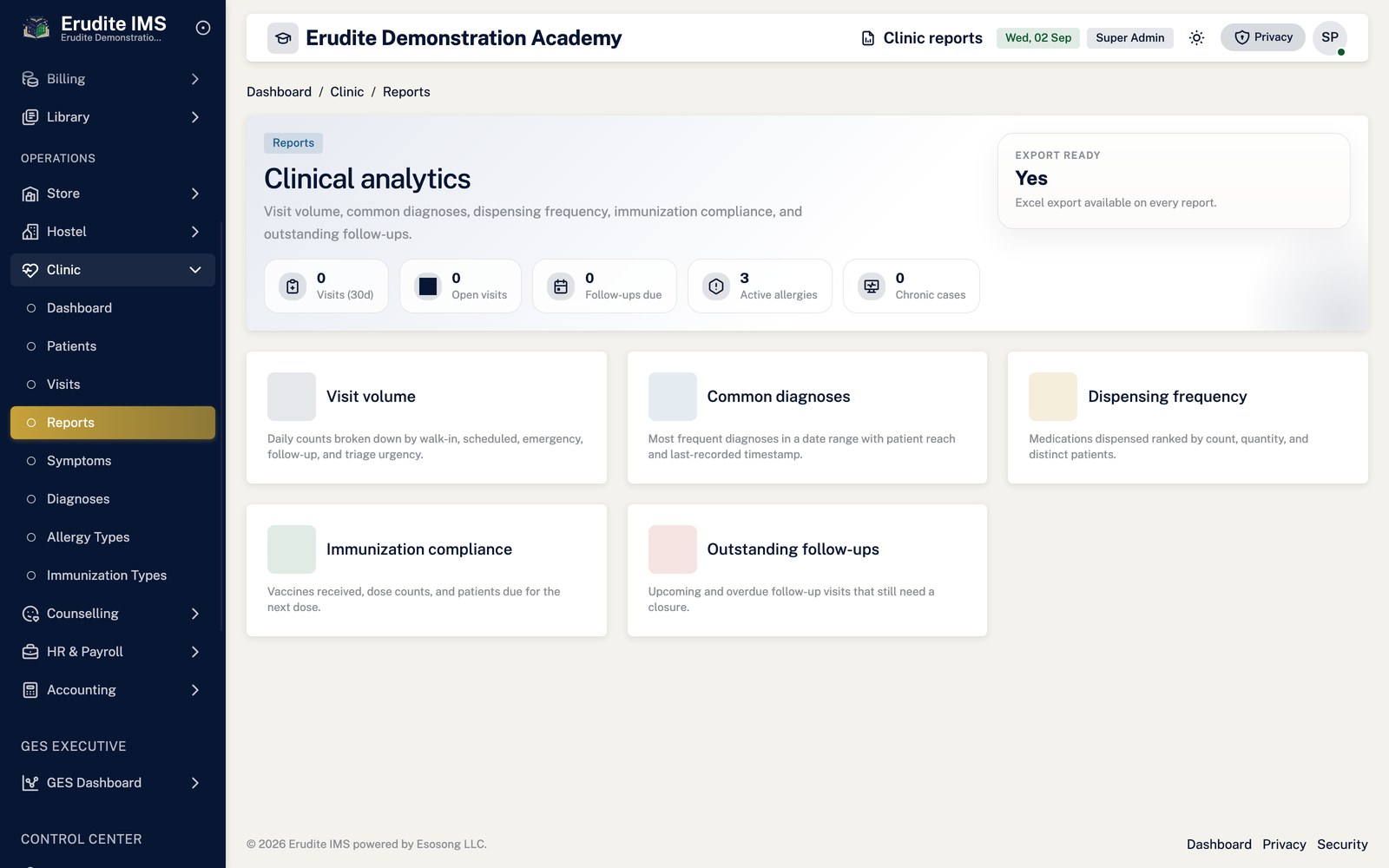
Clinic Reports — common diagnoses
/ClinicReports/CommonDiagnoses
/ClinicReports/CommonDiagnoses
Clinic Reports — dispensing
/ClinicReports/Dispensing
/ClinicReports/Dispensing
Clinic Reports — follow ups
/ClinicReports/FollowUps
/ClinicReports/FollowUps
Clinic Reports — immunization compliance
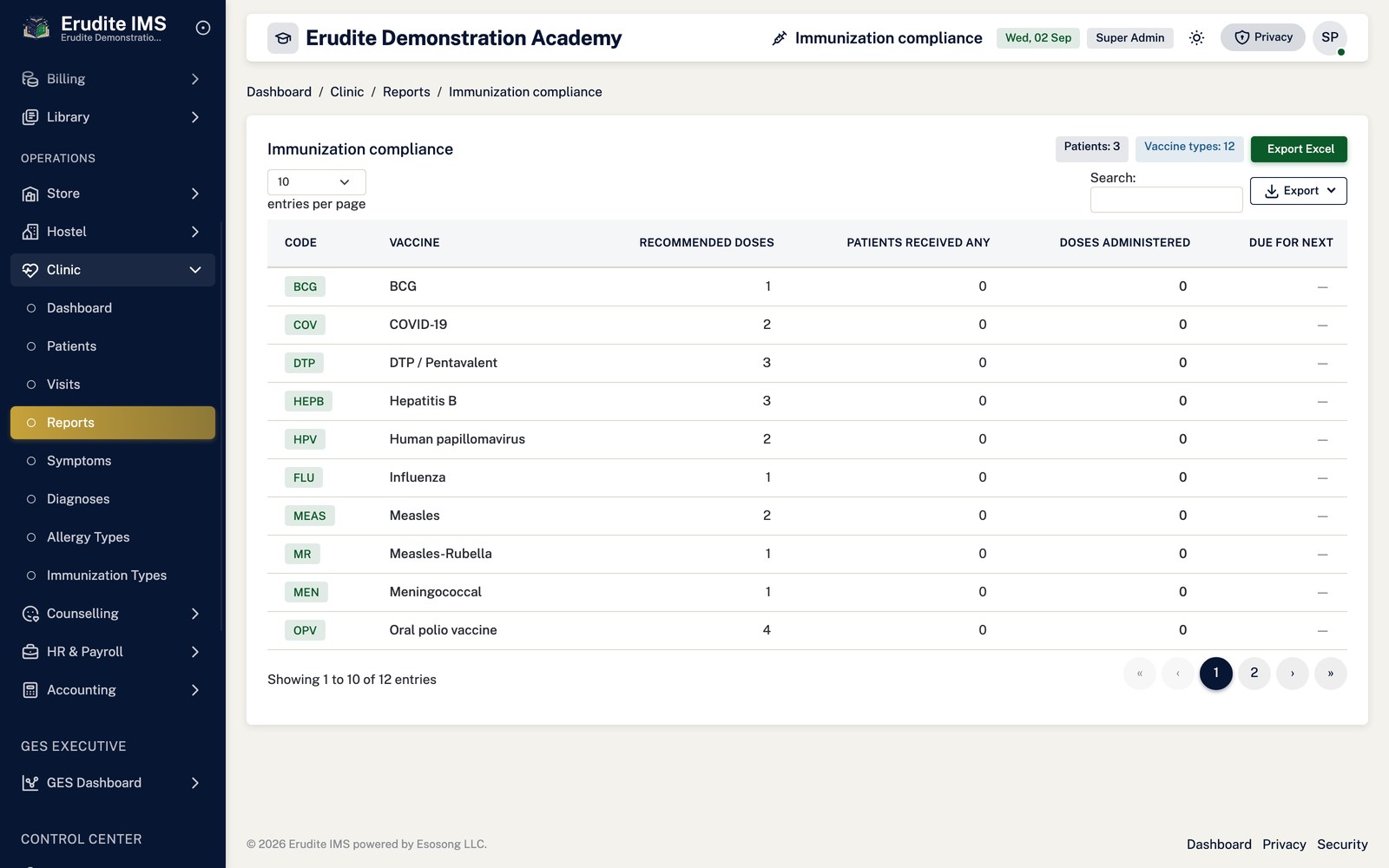
/ClinicReports/ImmunizationCompliance
/ClinicReports/ImmunizationCompliance
Clinic Reports — list
/ClinicReports
/ClinicReports
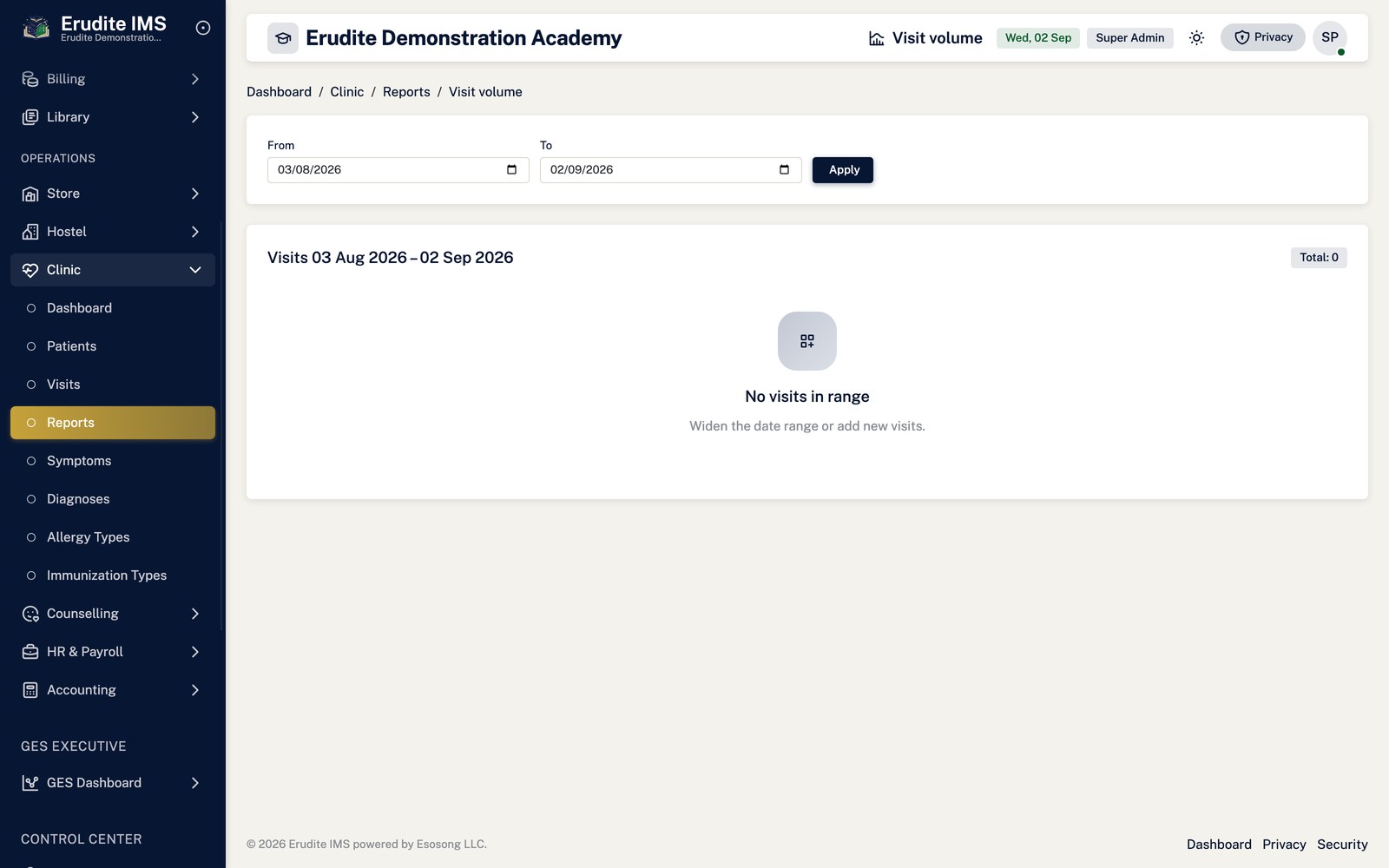
Clinic Reports — visit volume
/ClinicReports/VisitVolume
/ClinicReports/VisitVolume
Counselling
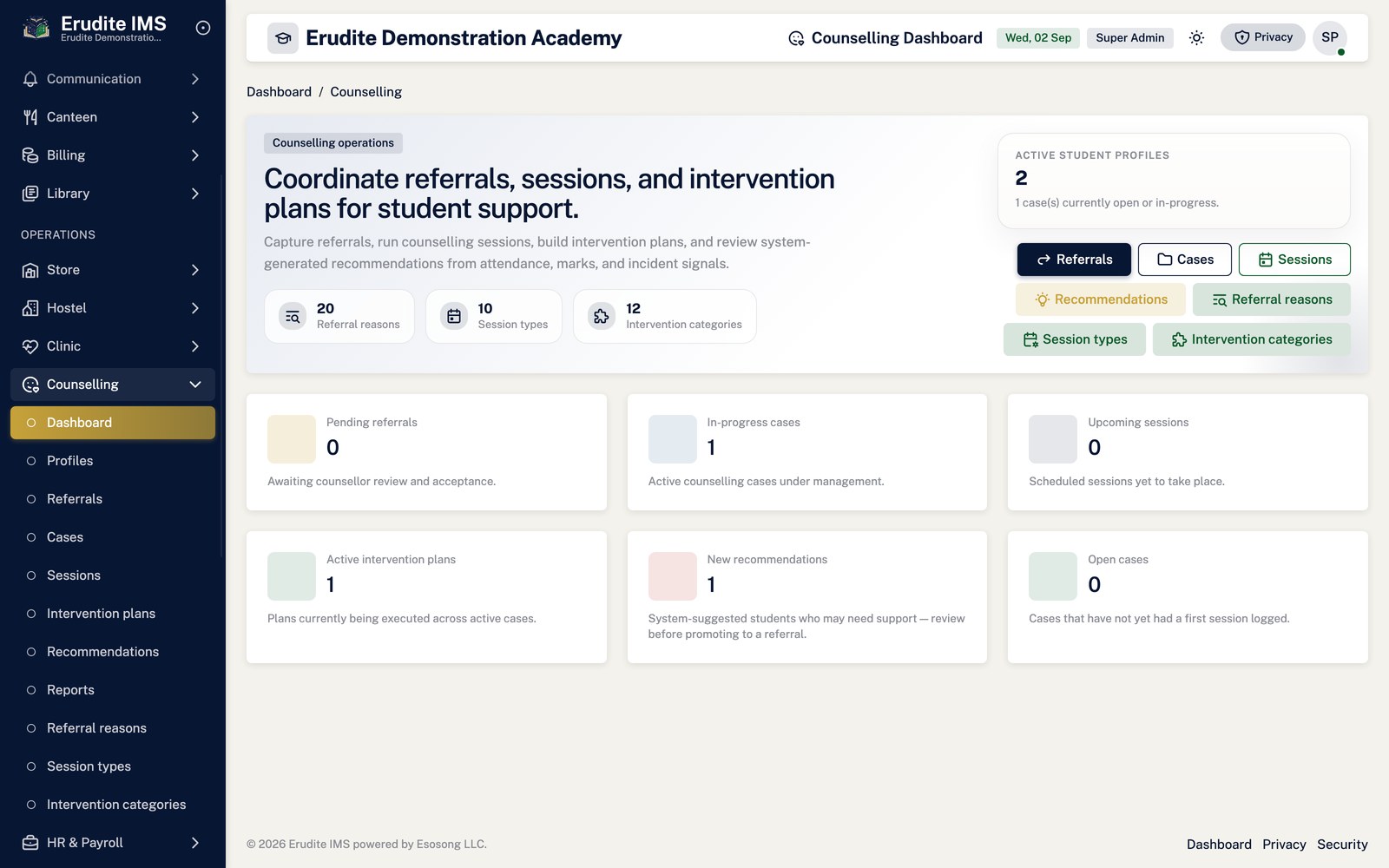
Counselling — list
/Counselling
/Counselling
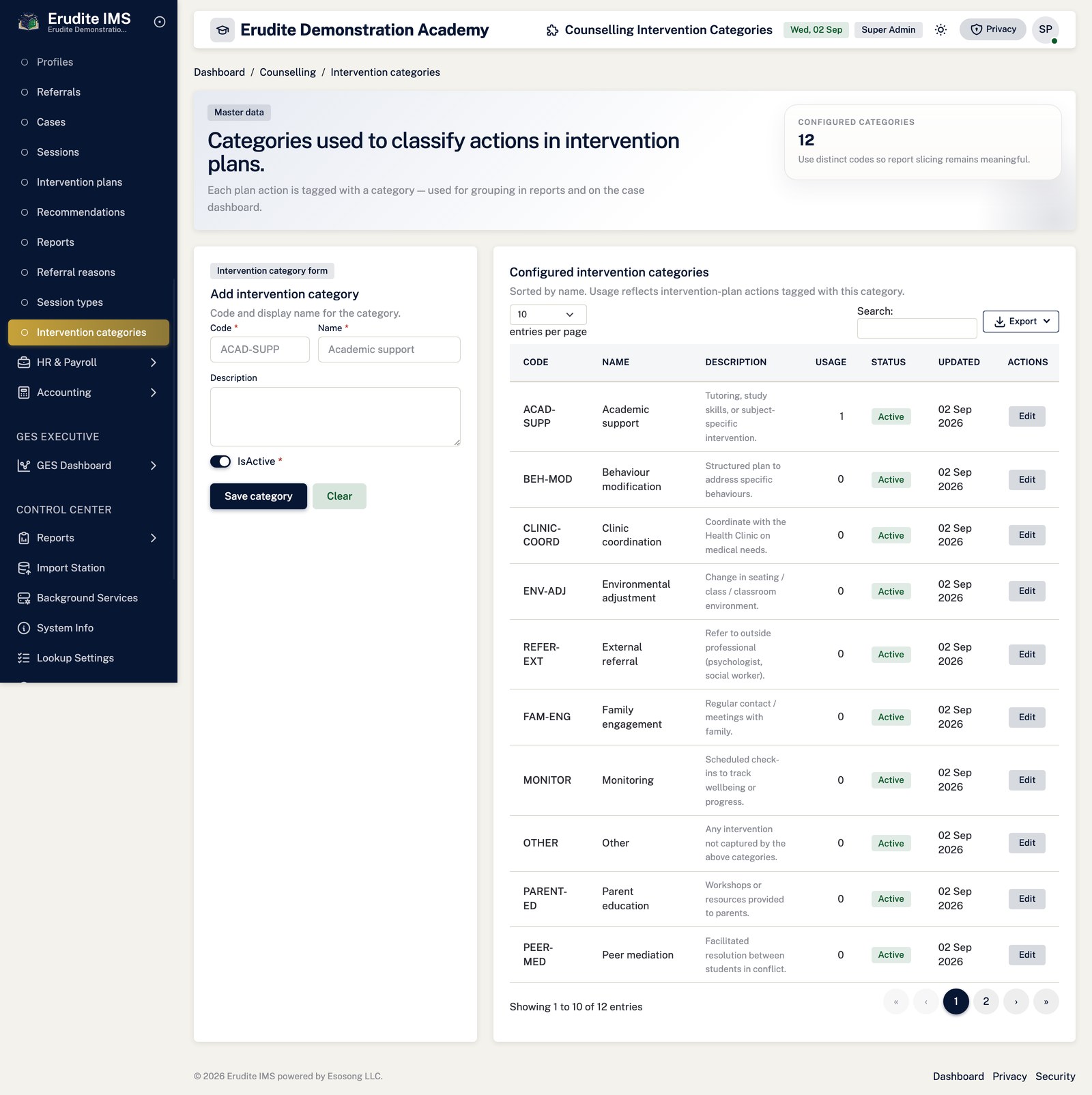
Counselling — intervention categories
/Counselling/InterventionCategories
/Counselling/InterventionCategories
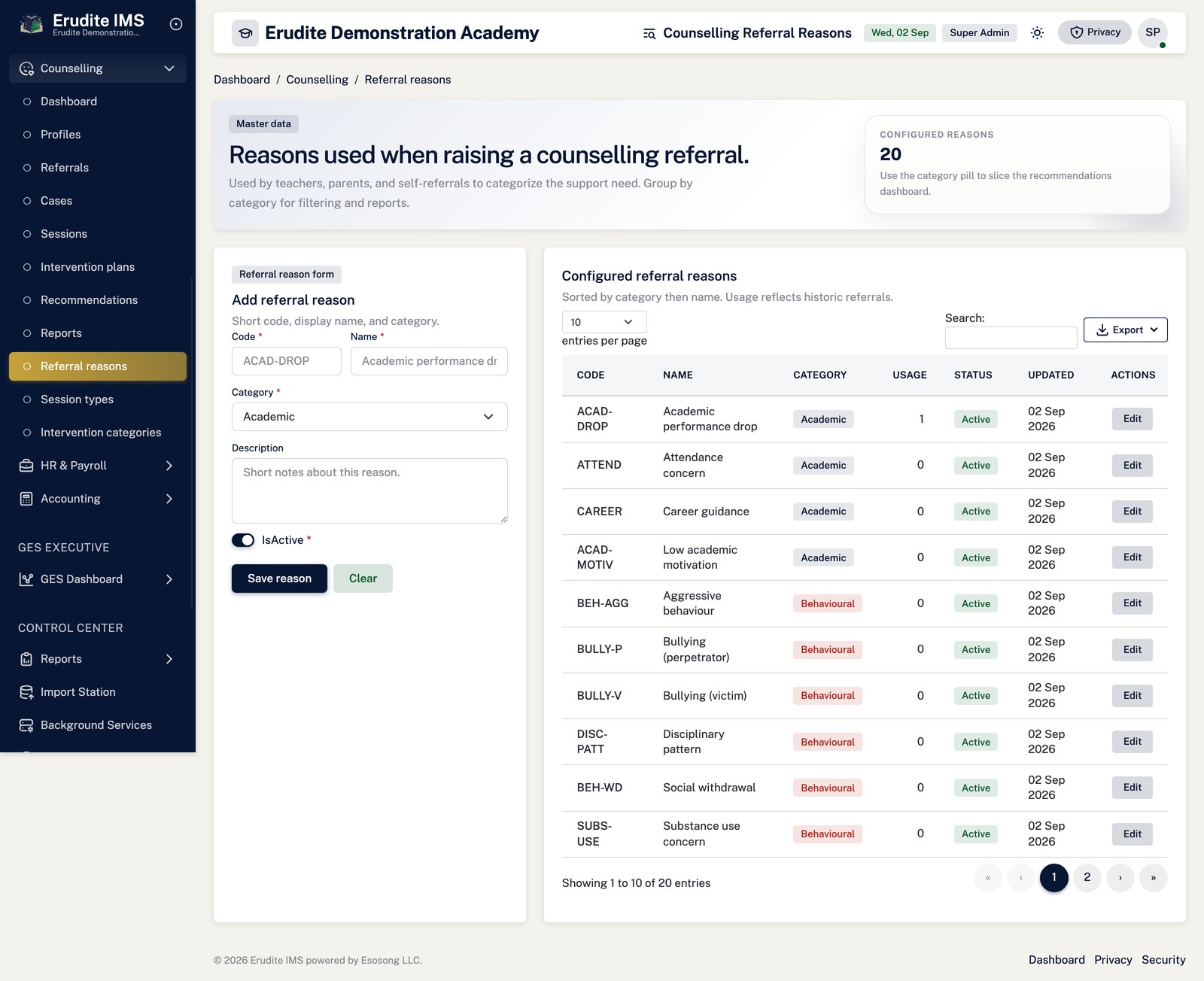
Counselling — referral reasons
/Counselling/ReferralReasons
/Counselling/ReferralReasons
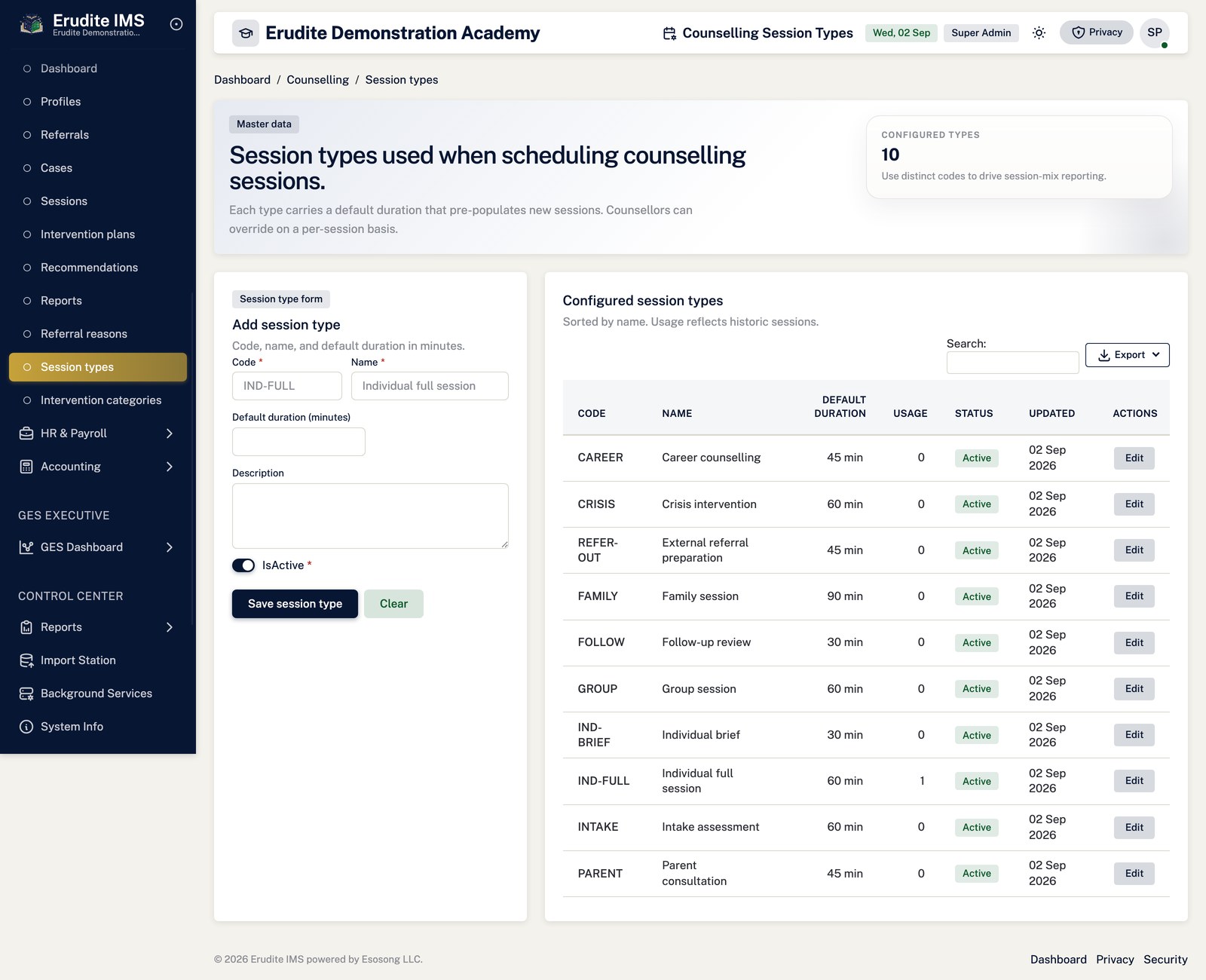
Counselling — session types
/Counselling/SessionTypes
/Counselling/SessionTypes
Counselling Reports
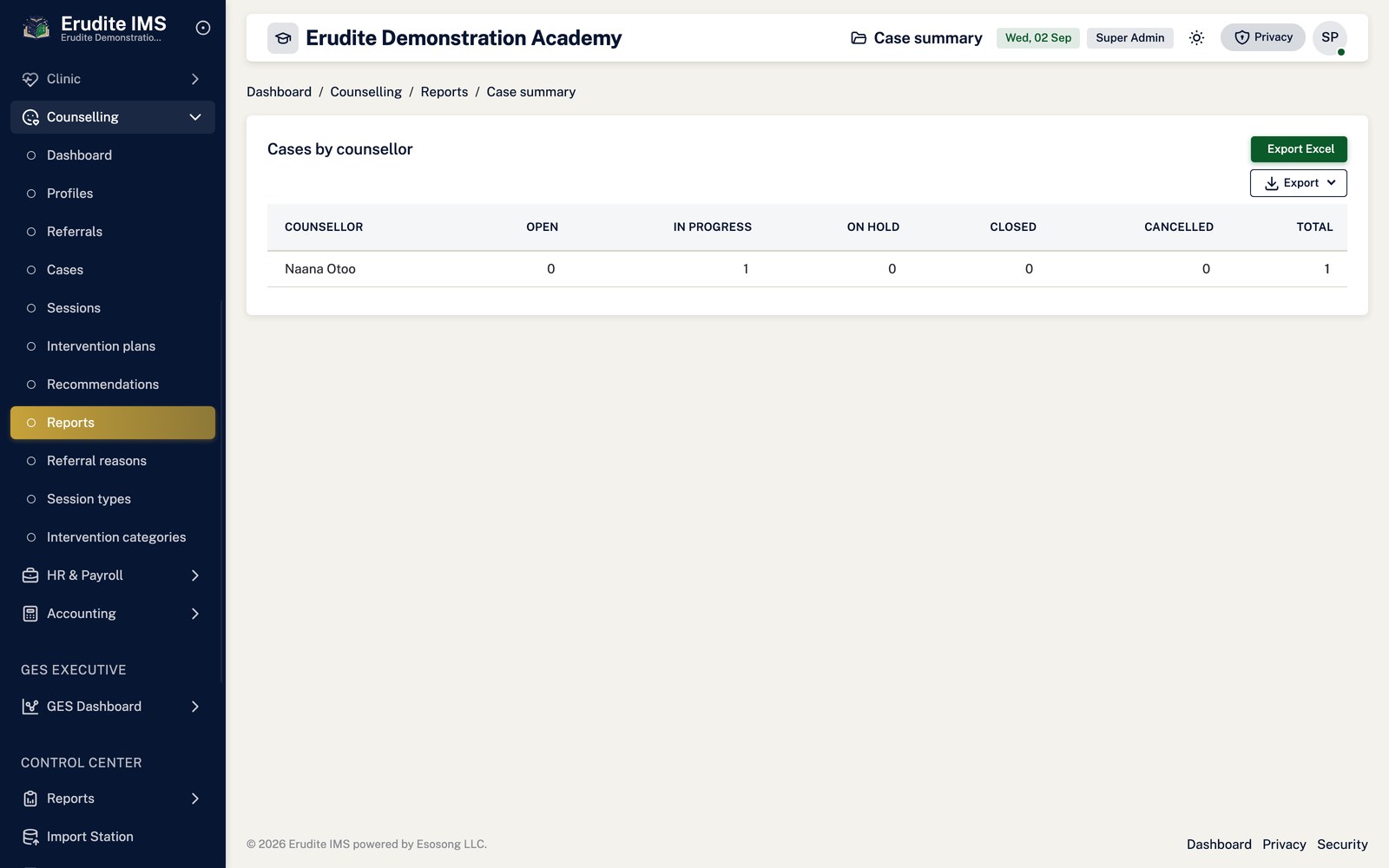
Counselling Reports — case summary
/CounsellingReports/CaseSummary
/CounsellingReports/CaseSummary
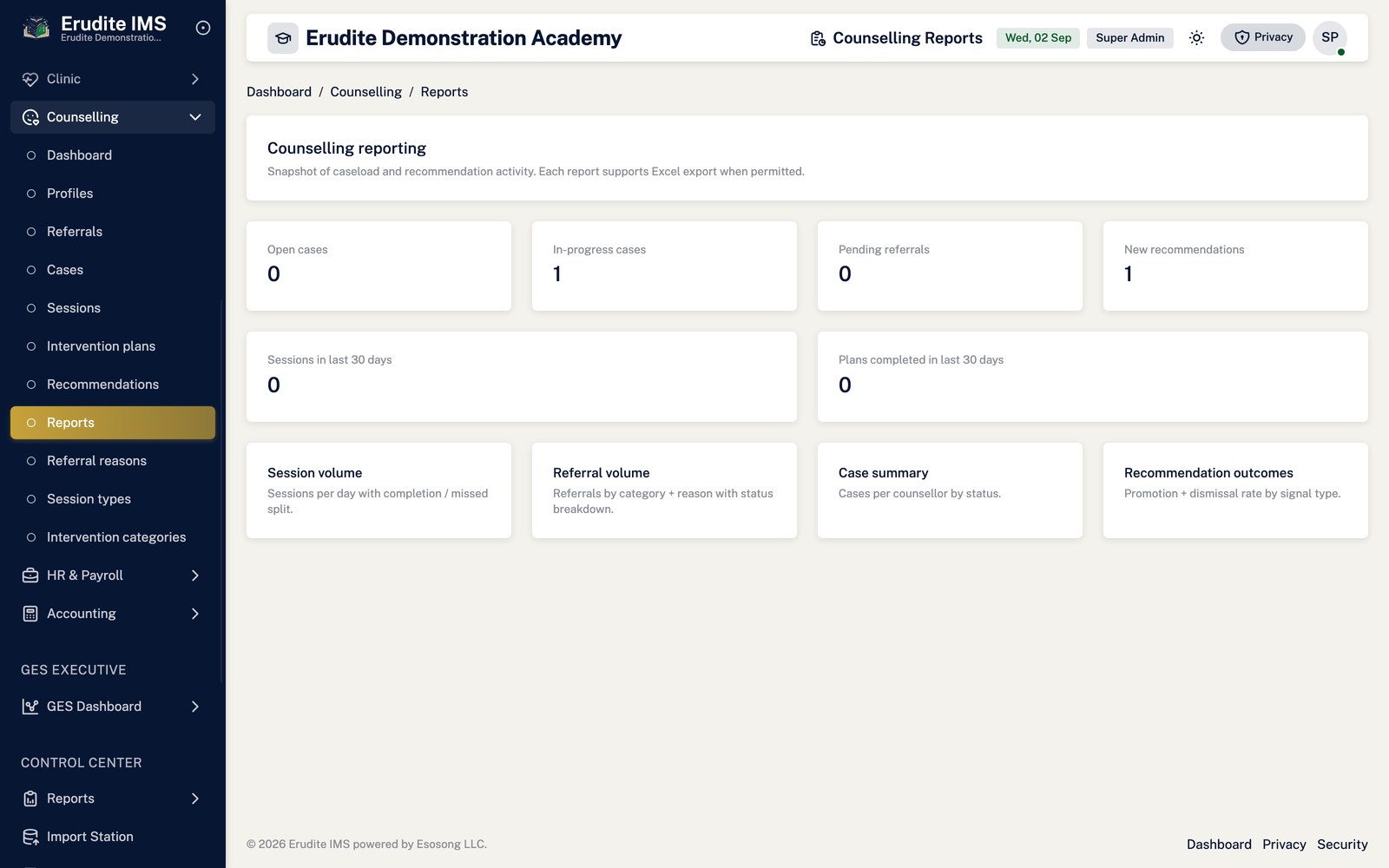
Counselling Reports — list
/CounsellingReports
/CounsellingReports
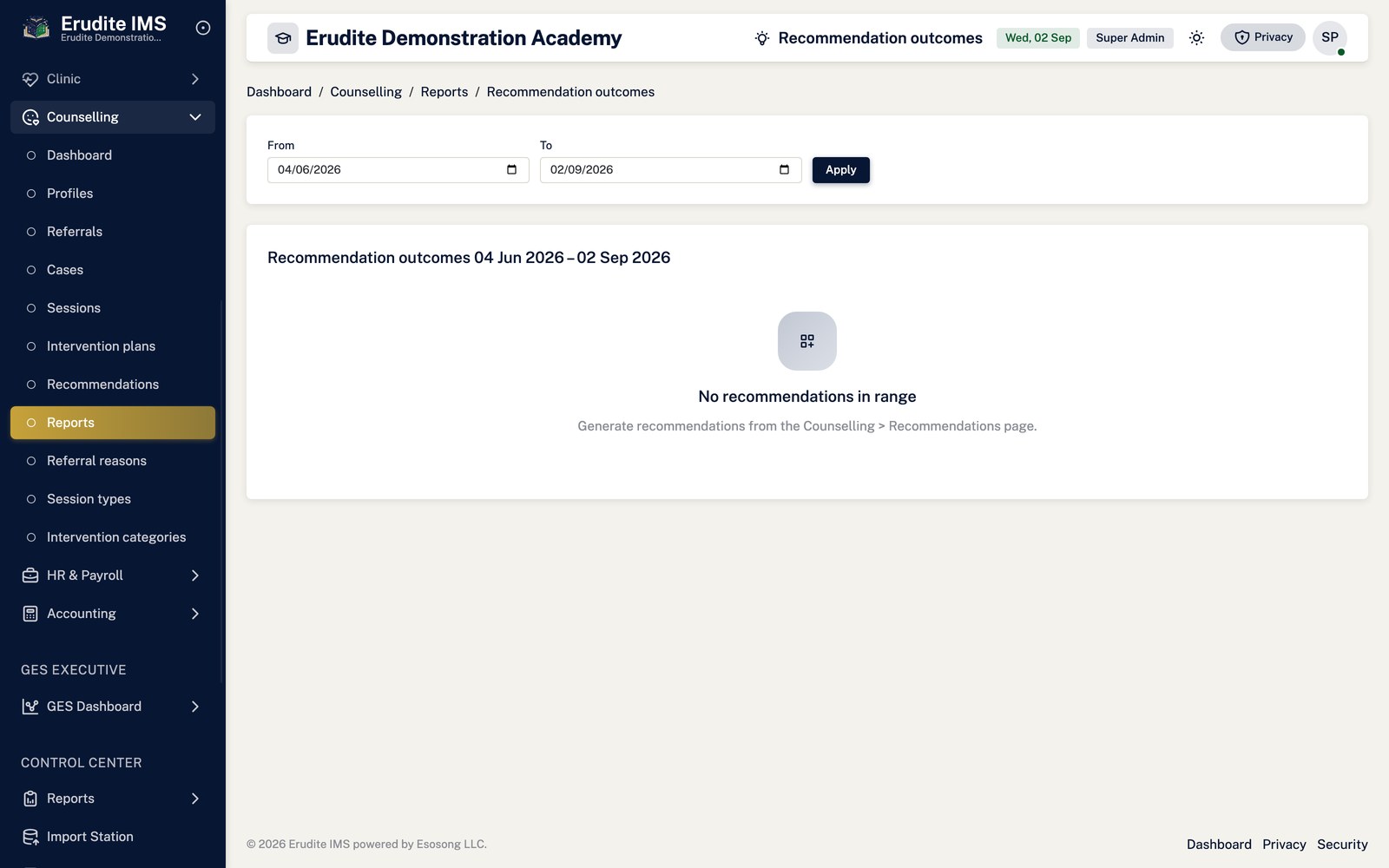
Counselling Reports — recommendation outcomes
/CounsellingReports/RecommendationOutcomes
/CounsellingReports/RecommendationOutcomes
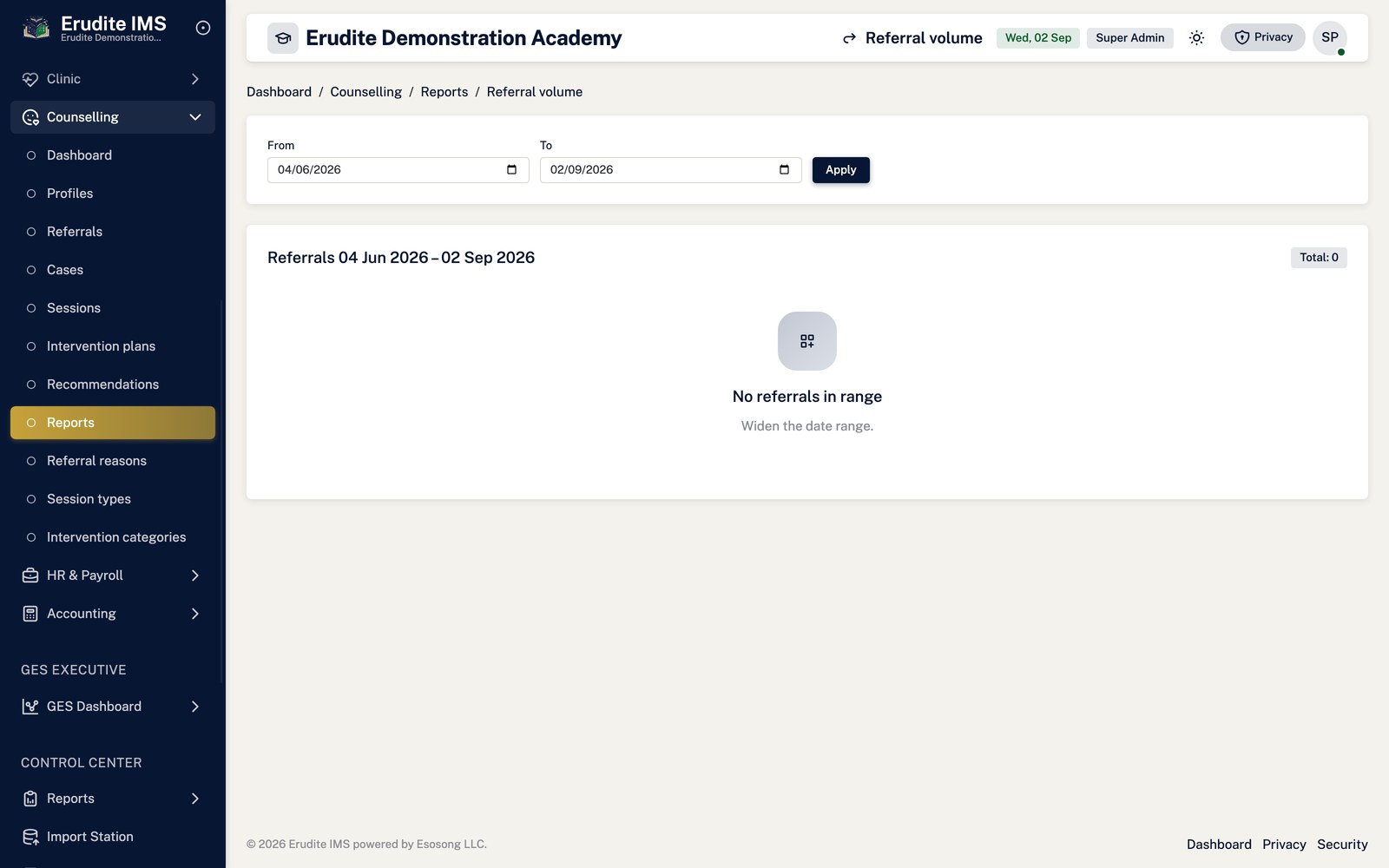
Counselling Reports — referral volume
/CounsellingReports/ReferralVolume
/CounsellingReports/ReferralVolume
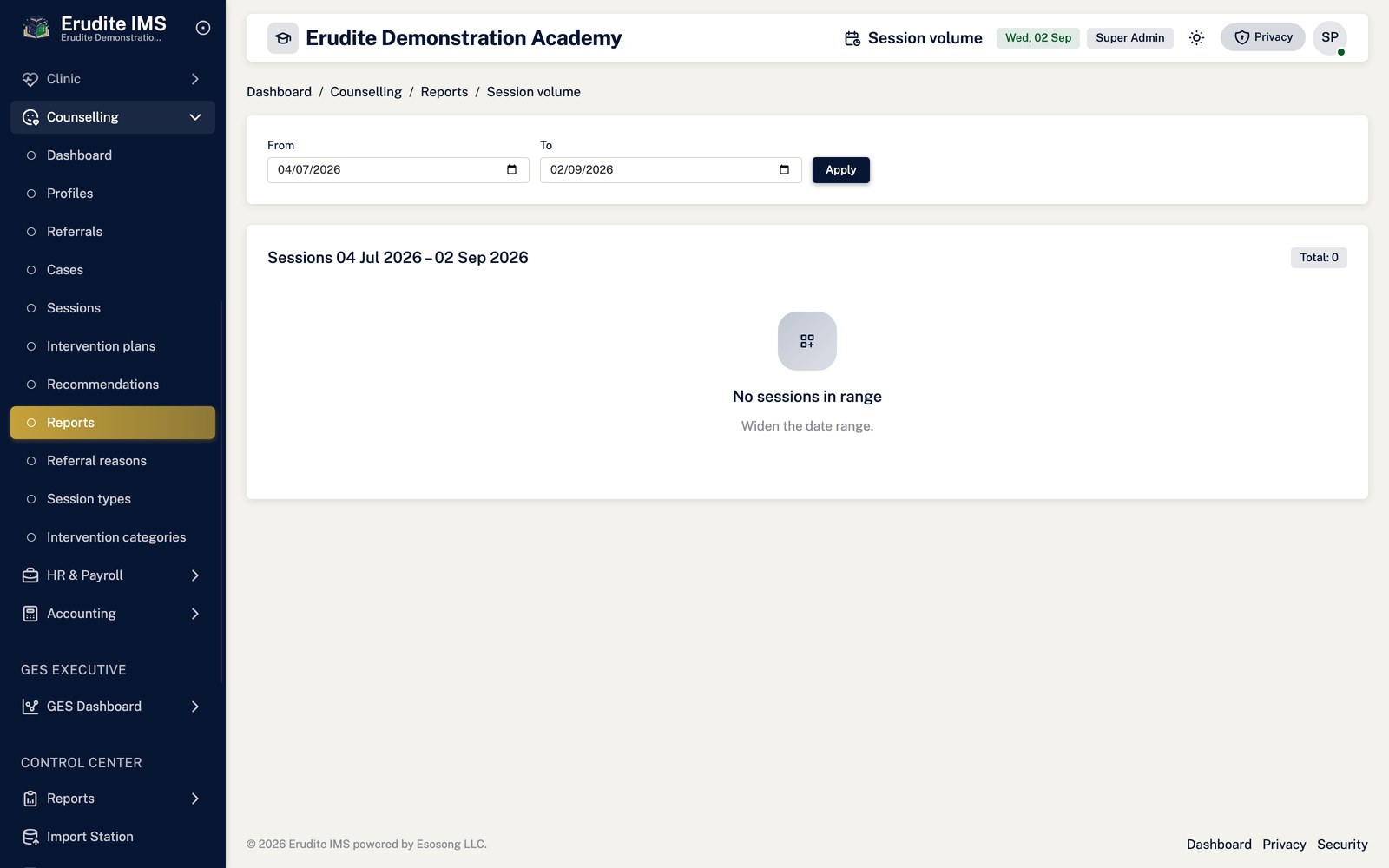
Counselling Reports — session volume
/CounsellingReports/SessionVolume
/CounsellingReports/SessionVolume
Disciplinary Issues
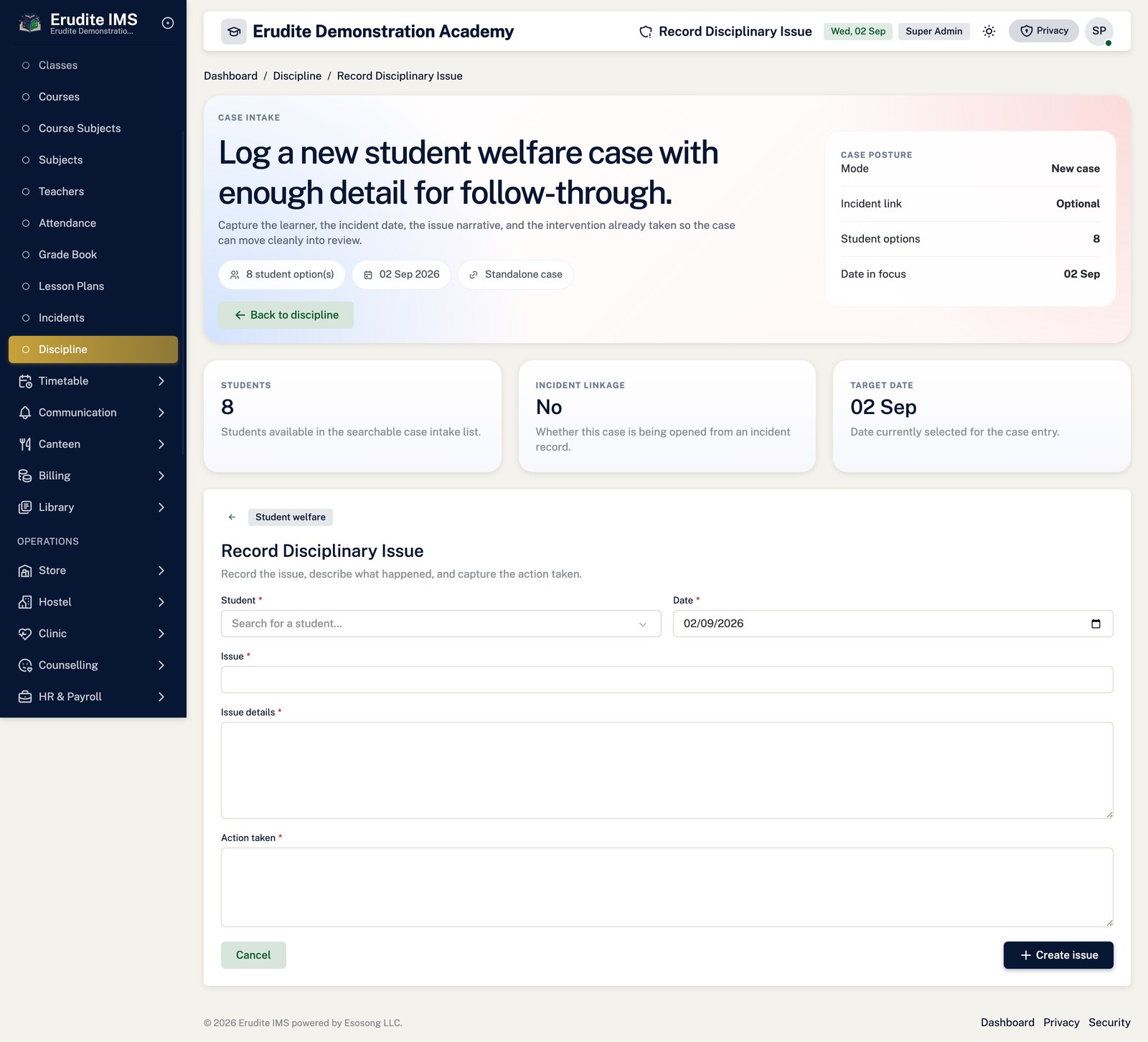
Disciplinary Issues — create form
/DisciplinaryIssues/Create
/DisciplinaryIssues/Create
Disciplinary Issues — record detail
/DisciplinaryIssues/Details
This screen opens against a specific record and cannot be reached by URL alone. Open it from the list page for this module.
Disciplinary Issues — edit form
/DisciplinaryIssues/Edit
This screen opens against a specific record and cannot be reached by URL alone. Open it from the list page for this module.
Disciplinary Issues — list
/DisciplinaryIssues
/DisciplinaryIssues
Hostel
Hostel — bed types
/Hostel/BedTypes
/Hostel/BedTypes
Hostel — blocks
/Hostel/Blocks
This screen opens against a specific record and cannot be reached by URL alone. Open it from the list page for this module.
Hostel — floors
/Hostel/Floors
This screen opens against a specific record and cannot be reached by URL alone. Open it from the list page for this module.
Hostel — hostels
/Hostel/Hostels
/Hostel/Hostels
Hostel — list
/Hostel
/Hostel
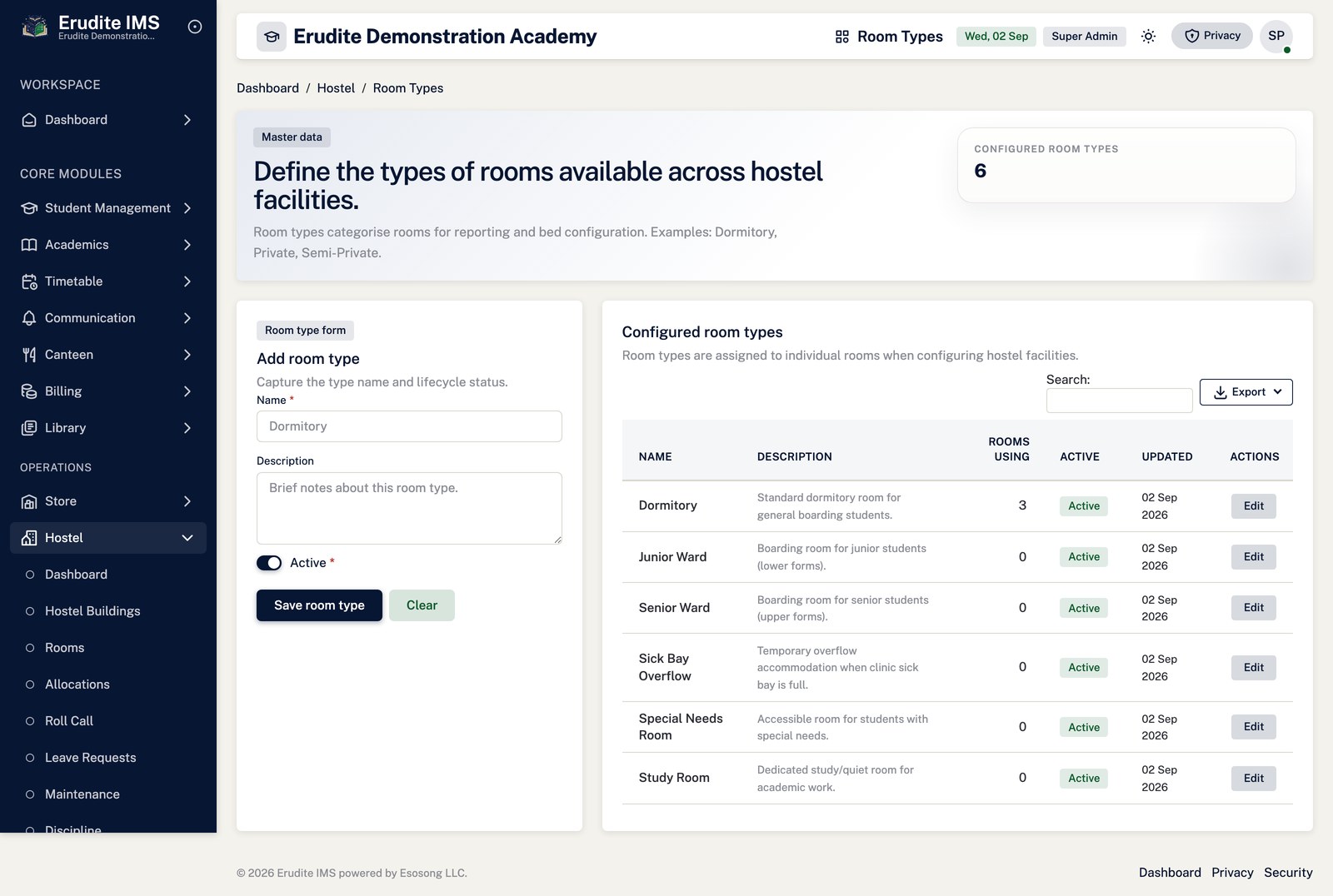
Hostel — room types
/Hostel/RoomTypes
/Hostel/RoomTypes
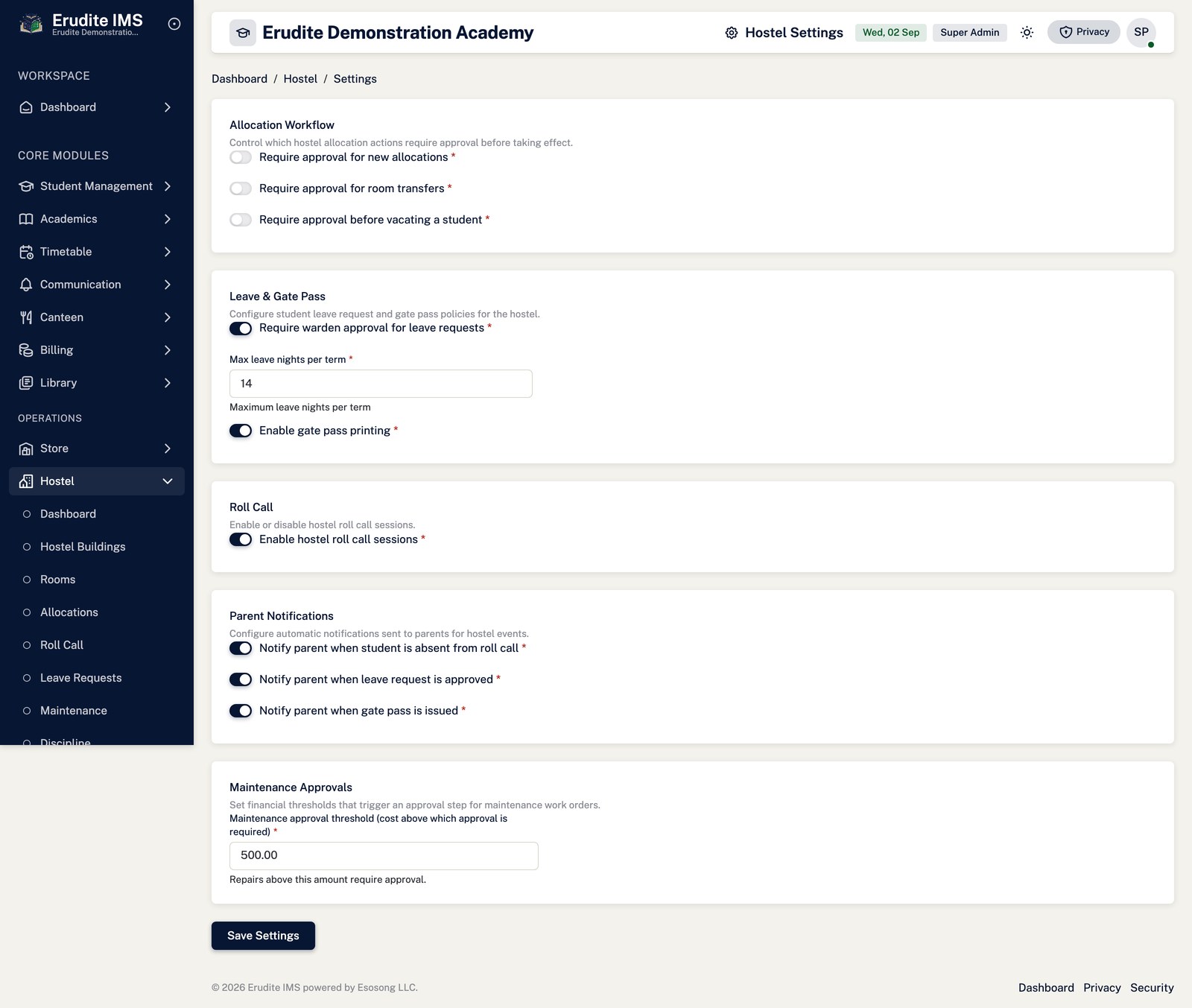
Hostel — settings
/Hostel/Settings
/Hostel/Settings
Hostel Leave Requests
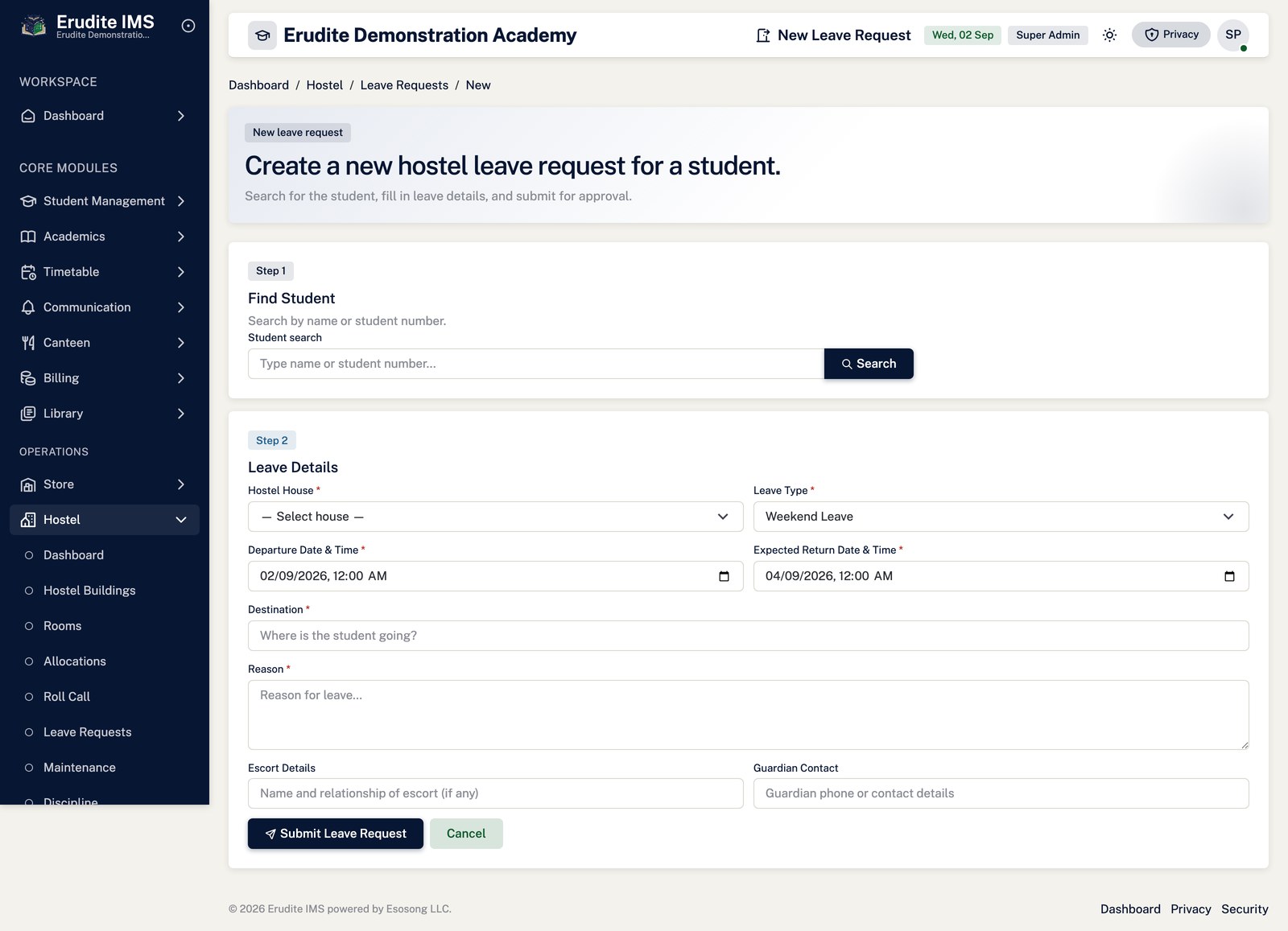
Hostel Leave Requests — create form
/HostelLeaveRequests/Create
/HostelLeaveRequests/Create
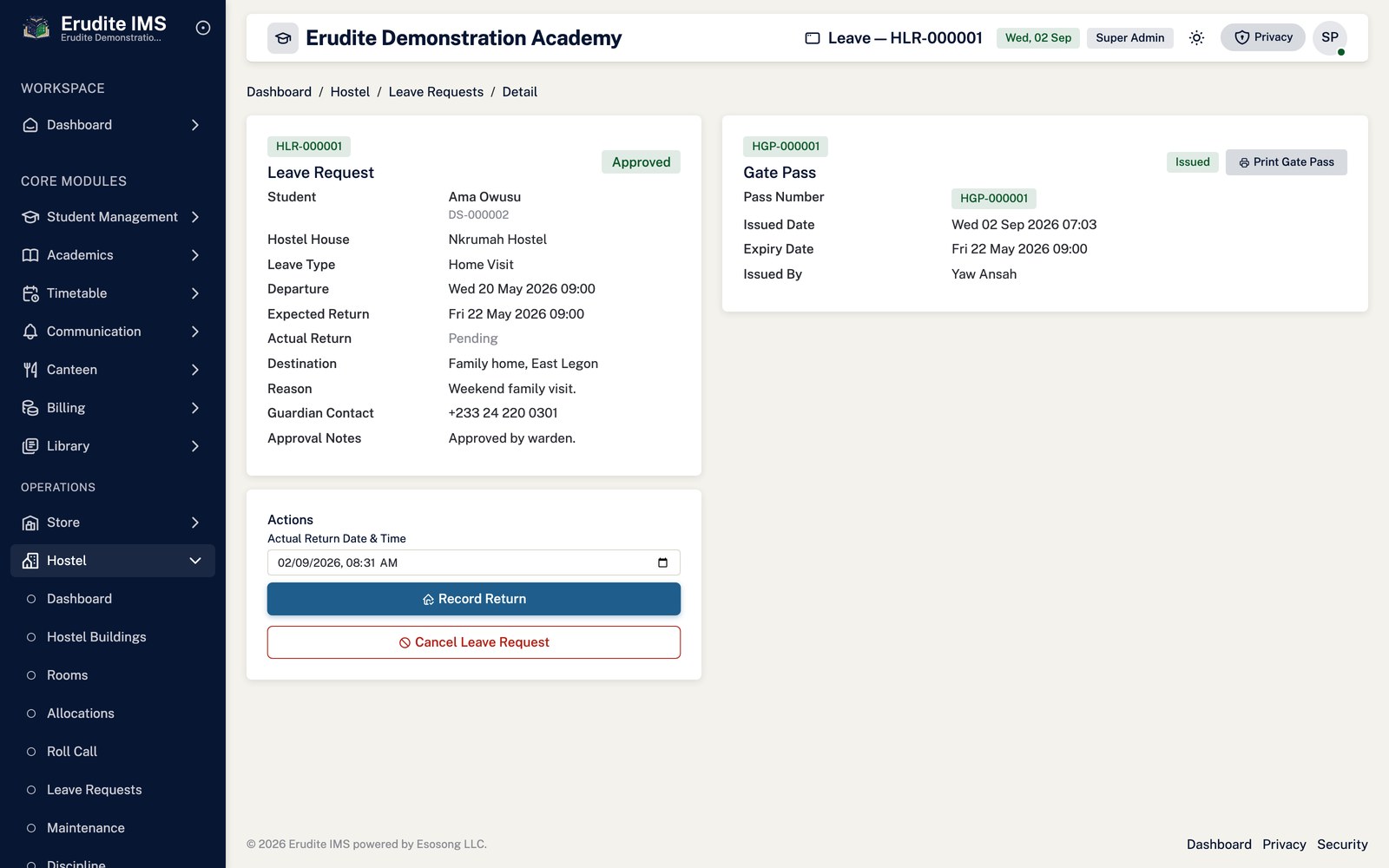
Hostel Leave Requests — record detail
/HostelLeaveRequests/Detail
A record opened from the Hostel Leave Requests list
Hostel Leave Requests — gate pass
/HostelLeaveRequests/GatePass
A record opened from the Hostel Leave Requests list
Hostel Leave Requests — list
/HostelLeaveRequests
/HostelLeaveRequests
Hostel Reports
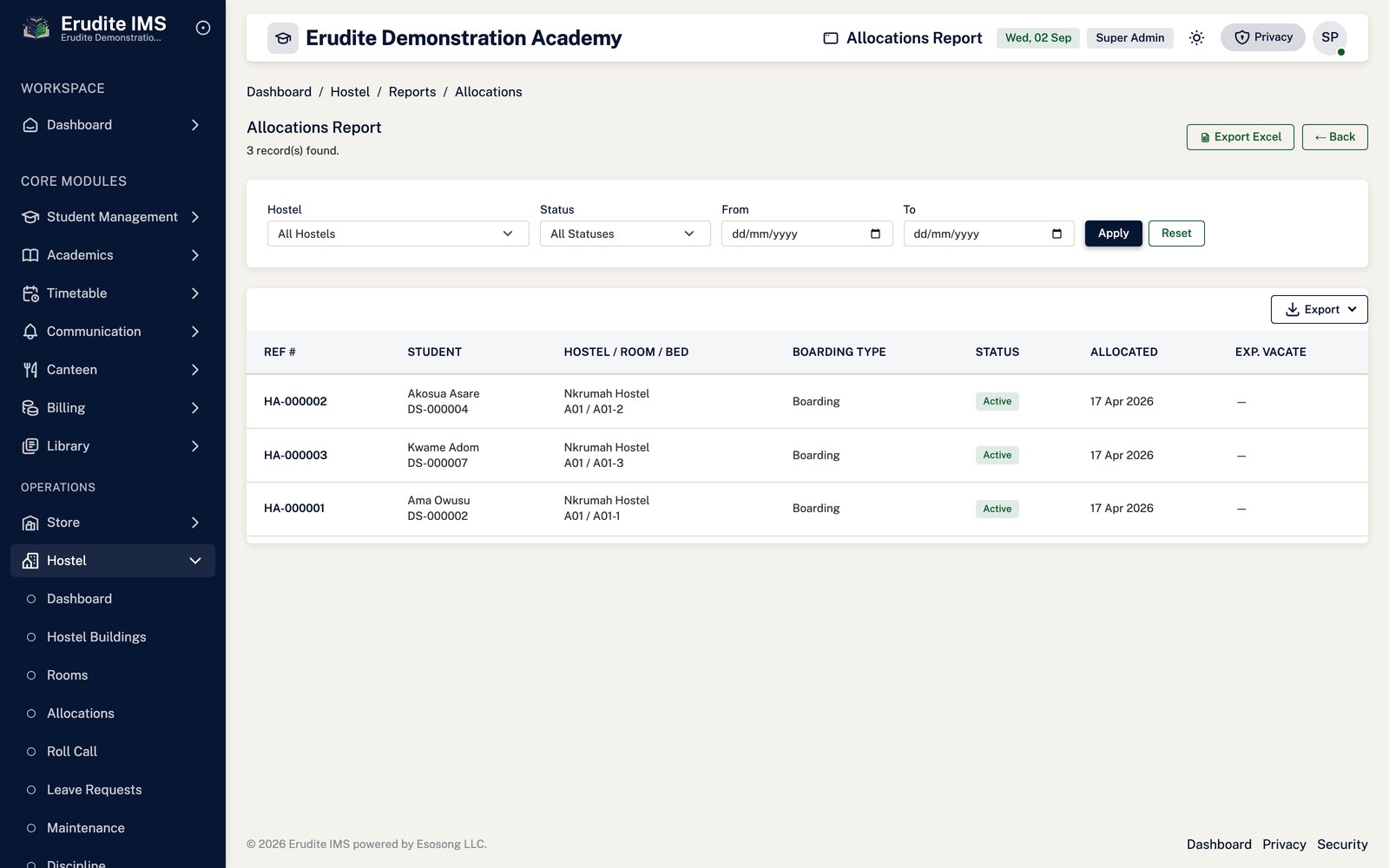
Hostel Reports — allocations
/HostelReports/Allocations
/HostelReports/Allocations
Hostel Reports — billing
/HostelReports/Billing
/HostelReports/Billing
Hostel Reports — discipline
/HostelReports/Discipline
/HostelReports/Discipline
Hostel Reports — list
/HostelReports
/HostelReports
Hostel Reports — leave
/HostelReports/Leave
/HostelReports/Leave
Hostel Reports — maintenance
/HostelReports/Maintenance
/HostelReports/Maintenance
Hostel Reports — occupancy
/HostelReports/Occupancy
/HostelReports/Occupancy
Hostel Reports — roll call
/HostelReports/RollCall
/HostelReports/RollCall
Hostel Welfare
Hostel Welfare — create form
/HostelWelfare/Create
/HostelWelfare/Create
Hostel Welfare — record detail
/HostelWelfare/Detail
A record opened from the Hostel Welfare list
Hostel Welfare — list
/HostelWelfare
/HostelWelfare
Incidents
Incidents — create form
/Incidents/Create
/Incidents/Create
Incidents — record detail
/Incidents/Details
This screen opens against a specific record and cannot be reached by URL alone. Open it from the list page for this module.
Incidents — edit form
/Incidents/Edit
This screen opens against a specific record and cannot be reached by URL alone. Open it from the list page for this module.
Incidents — list
/Incidents
/Incidents
Student Leadership
Student Leadership — assign
/StudentLeadership/Assign
This screen opens against a specific record and cannot be reached by URL alone. Open it from the list page for this module.
Student Leadership — edit position
/StudentLeadership/EditPosition
This screen opens against a specific record and cannot be reached by URL alone. Open it from the list page for this module.
Student Leadership — list
/StudentLeadership
/StudentLeadership
Student Leadership — positions
/StudentLeadership/Positions
/StudentLeadership/Positions
Student Leadership Elections
Student Leadership Elections — add position
/StudentLeadershipElections/AddPosition
/StudentLeadershipElections/AddPosition
Student Leadership Elections — audit
/StudentLeadershipElections/Audit
/StudentLeadershipElections/Audit
Student Leadership Elections — record detail
/StudentLeadershipElections/Details
This screen opens against a specific record and cannot be reached by URL alone. Open it from the list page for this module.
Student Leadership Elections — edit form
/StudentLeadershipElections/Edit
This screen opens against a specific record and cannot be reached by URL alone. Open it from the list page for this module.
Student Leadership Elections — list
/StudentLeadershipElections
/StudentLeadershipElections
Student Leadership Elections — nominate
/StudentLeadershipElections/Nominate
/StudentLeadershipElections/Nominate
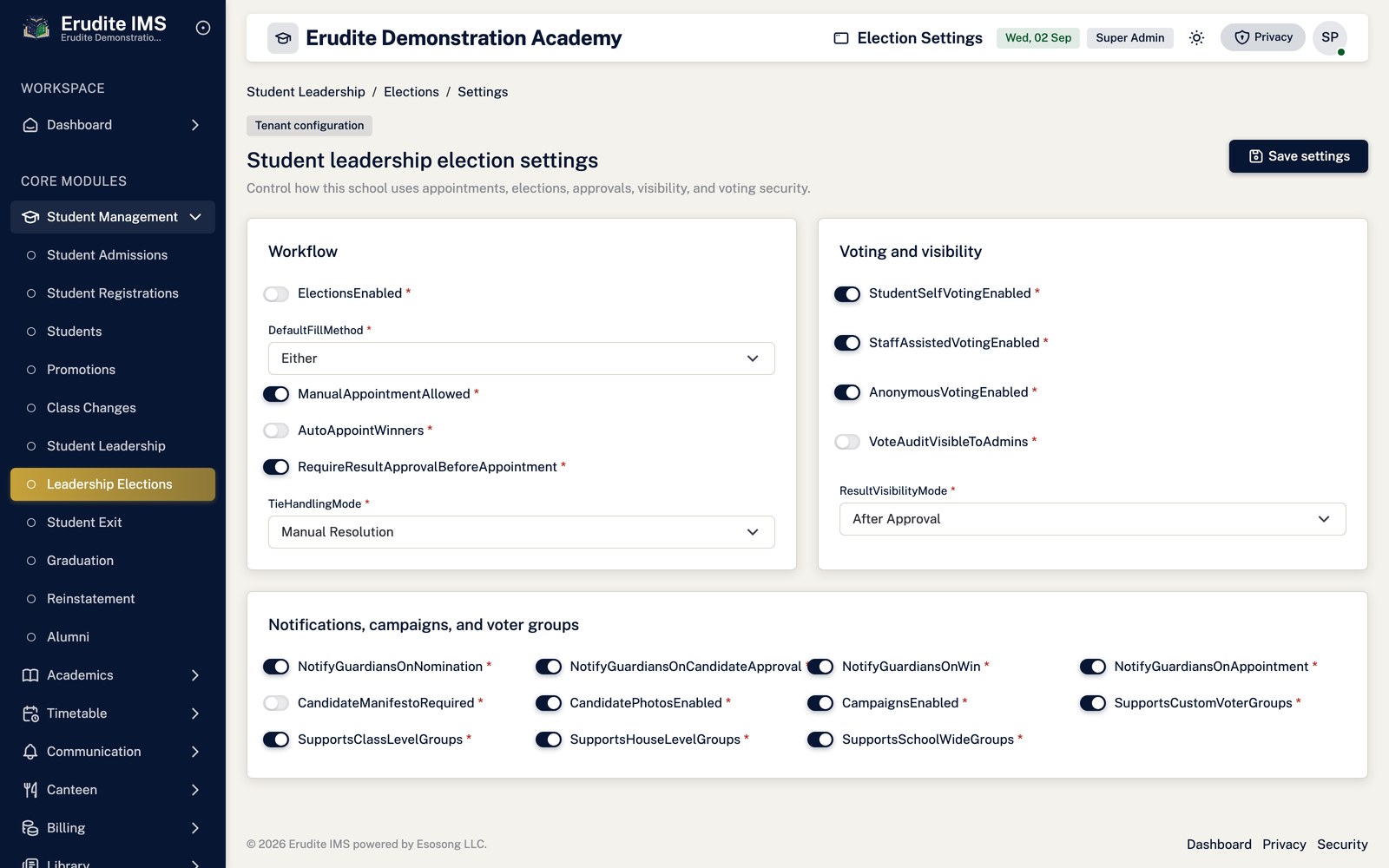
Student Leadership Elections — settings
/StudentLeadershipElections/Settings
/StudentLeadershipElections/Settings
Student Leadership Elections — vote
/StudentLeadershipElections/Vote
This screen opens against a specific record and cannot be reached by URL alone. Open it from the list page for this module.
Billing and payments
Generating bills for a class
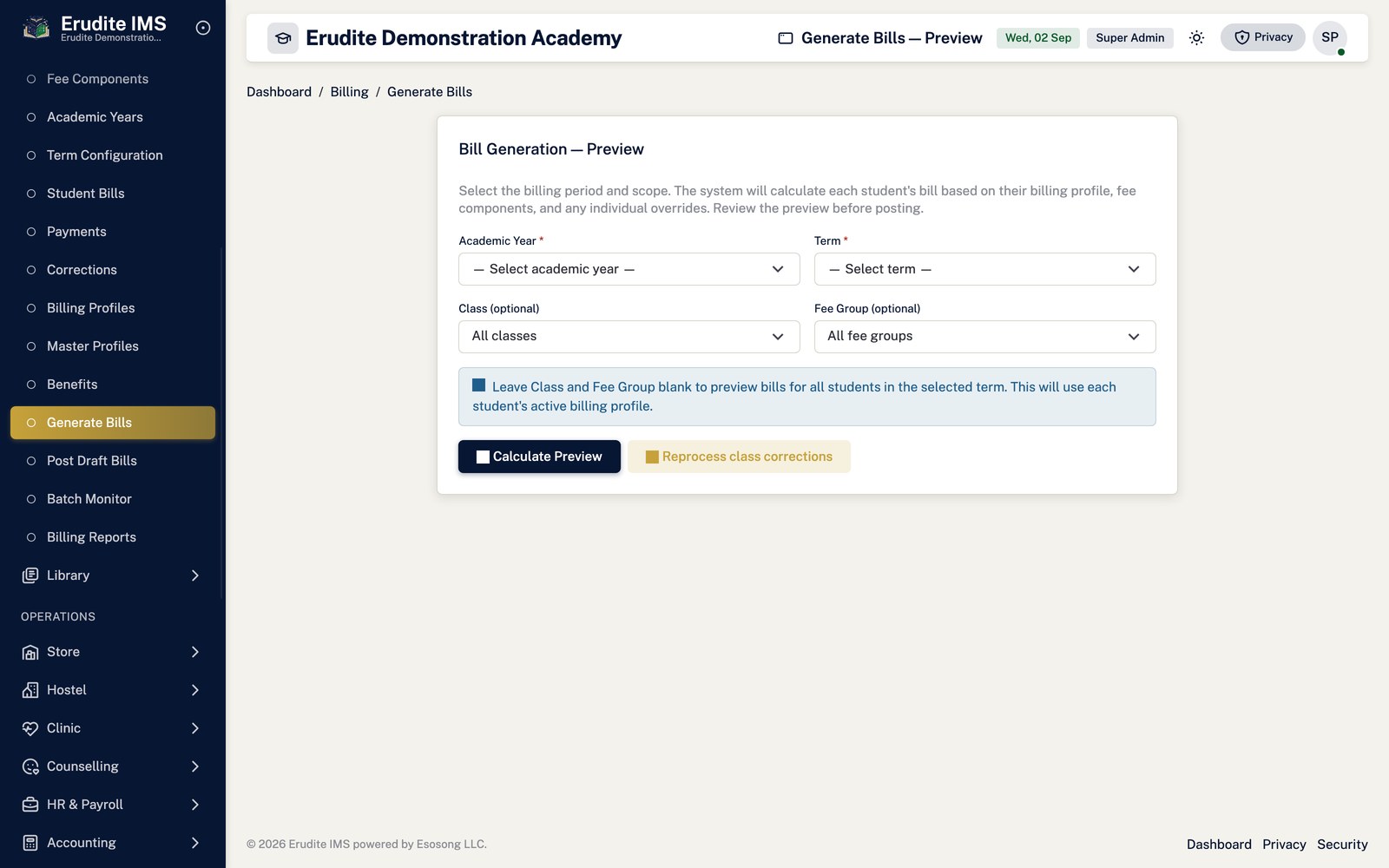
Open Billing → Generate Bills (/BillingGeneration).
Choose the academic year and term, then optionally a class or a fee group. Leaving the class blank bills
every class.
Select Preview. The preview lists each learner with gross, discount, waiver and net, and
the totals across the top.
Check the Class column. Every row should show the class you filtered on. Learners are
selected by their effective class — their current class assignment, or the most recent class
history entry, or failing both their admission class — which is the same rule that decides the class a
bill is priced under.
Choose Save as Draft or Post, then select
Generate n Bill(s).
Running the same class twice does not double-bill. A learner who already has a bill for that
term is reported as skipped and left untouched.
Finding out why a learner was not billed
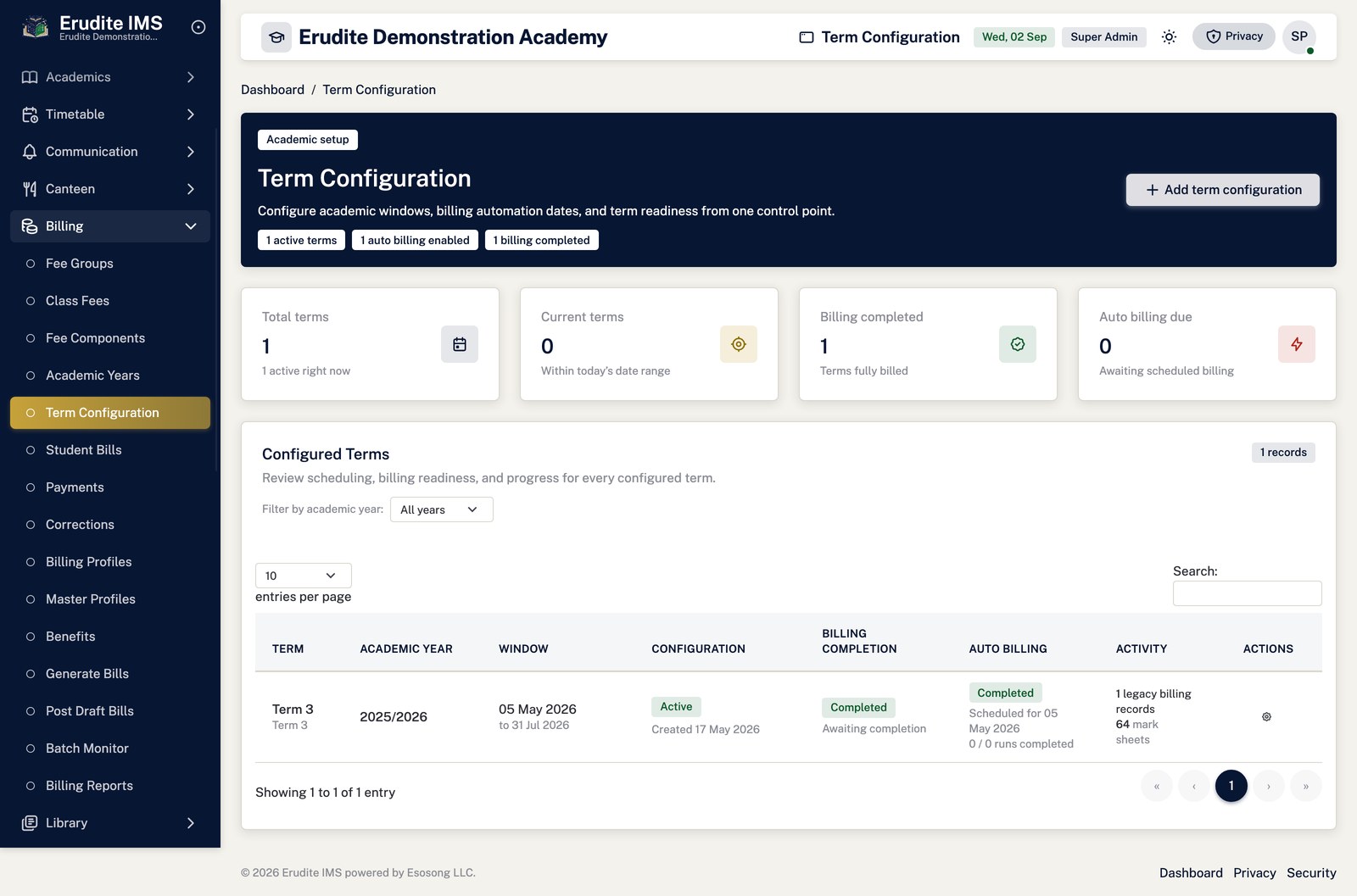
Open Reports → Class Billing Summary, or Terms → Details and look at
the Auto Billing Runs table.
Compare Enrolled with Billed Students. Billed Students can never exceed
Enrolled — both are counted over the same roster — so any difference is a genuine coverage gap.
Select Coverage on the class row. The coverage page lists every learner attached to that
class for the term and says, for each one, whether they were billed and if not, why.
Read the reason. A failed billing attempt shows the error the run actually recorded, word for word. A
lifecycle exclusion names the learner's real status. If nothing can be determined the page says
"reason not recorded" and gives you the batch reference to chase, rather than guessing.
Reading the Class Billing Summary
The report defaults to the current term. Use the Term filter to change it, or choose
All terms for the cumulative picture.
Enrolled counts learners currently in the class. Billed Students counts
how many of them have an active bill this term.
Amount Billed, Collected and Outstanding are attributed
to the class the bill was priced under. A learner billed before changing class therefore
contributes money to their former class and headcount to their current one.
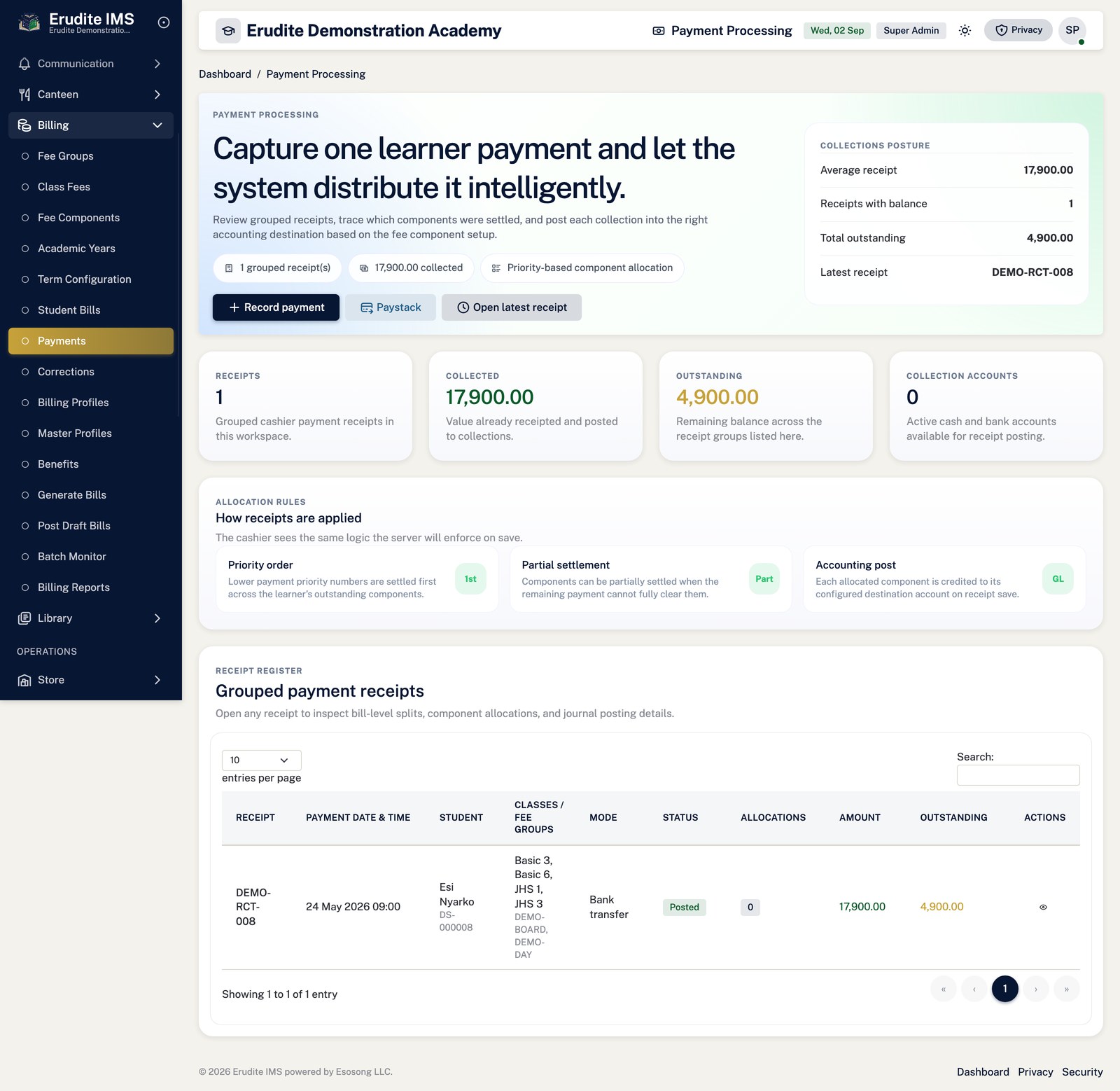
Recording a payment
Open Billing → Student Payments and select New payment.
Find the learner, then enter the collection account, payment mode and amount received.
Save. The payment reduces the outstanding balance on the learner's bill and appears in collection
reports and on the dashboard's monthly collections figure.
Corrections, not deletions. A posted bill is part of the ledger. Use
Billing Corrections to adjust one; that records who changed what and why, and keeps the
accounting entries consistent. Editing figures directly in the database breaks the ledger.
Billing Batches
Billing Batches — record detail
/BillingBatches/Details
This screen opens against a specific record and cannot be reached by URL alone. Open it from the list page for this module.
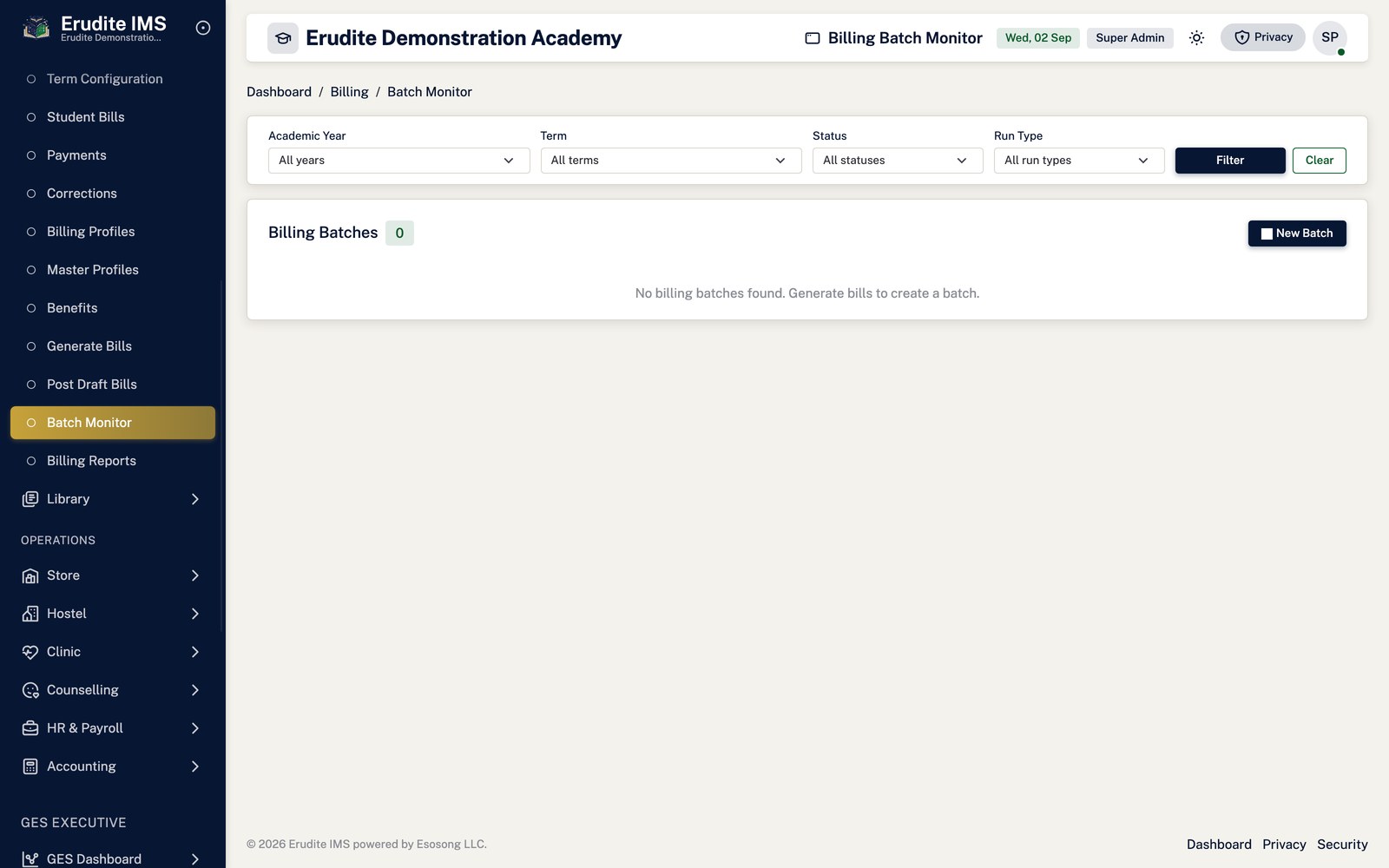
Billing Batches — list
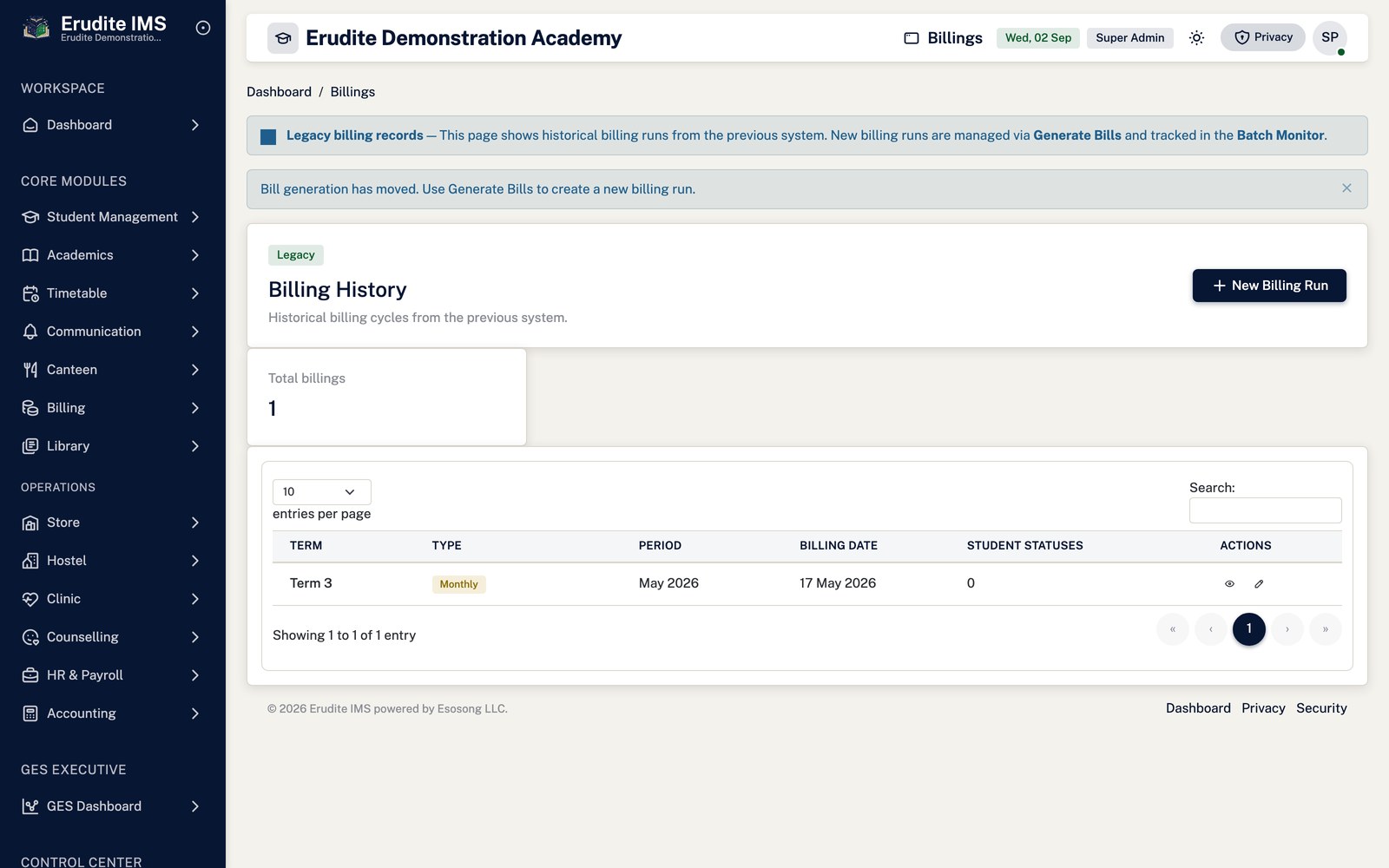
/BillingBatches
/BillingBatches
Billing Corrections
Billing Corrections — create form
/BillingCorrections/Create
/BillingCorrections/Create
Billing Corrections — record detail
/BillingCorrections/Details
This screen opens against a specific record and cannot be reached by URL alone. Open it from the list page for this module.
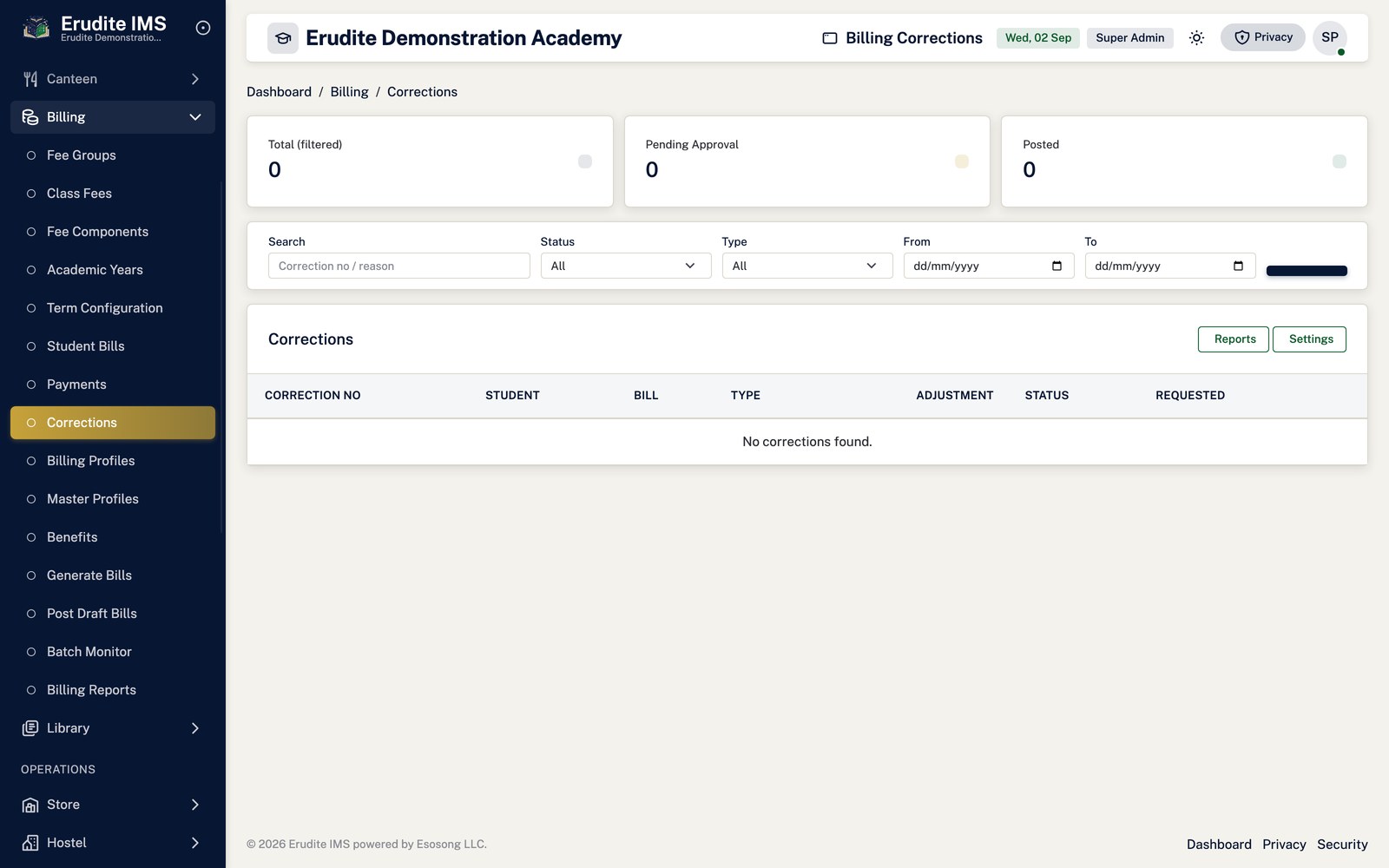
Billing Corrections — list
/BillingCorrections
/BillingCorrections
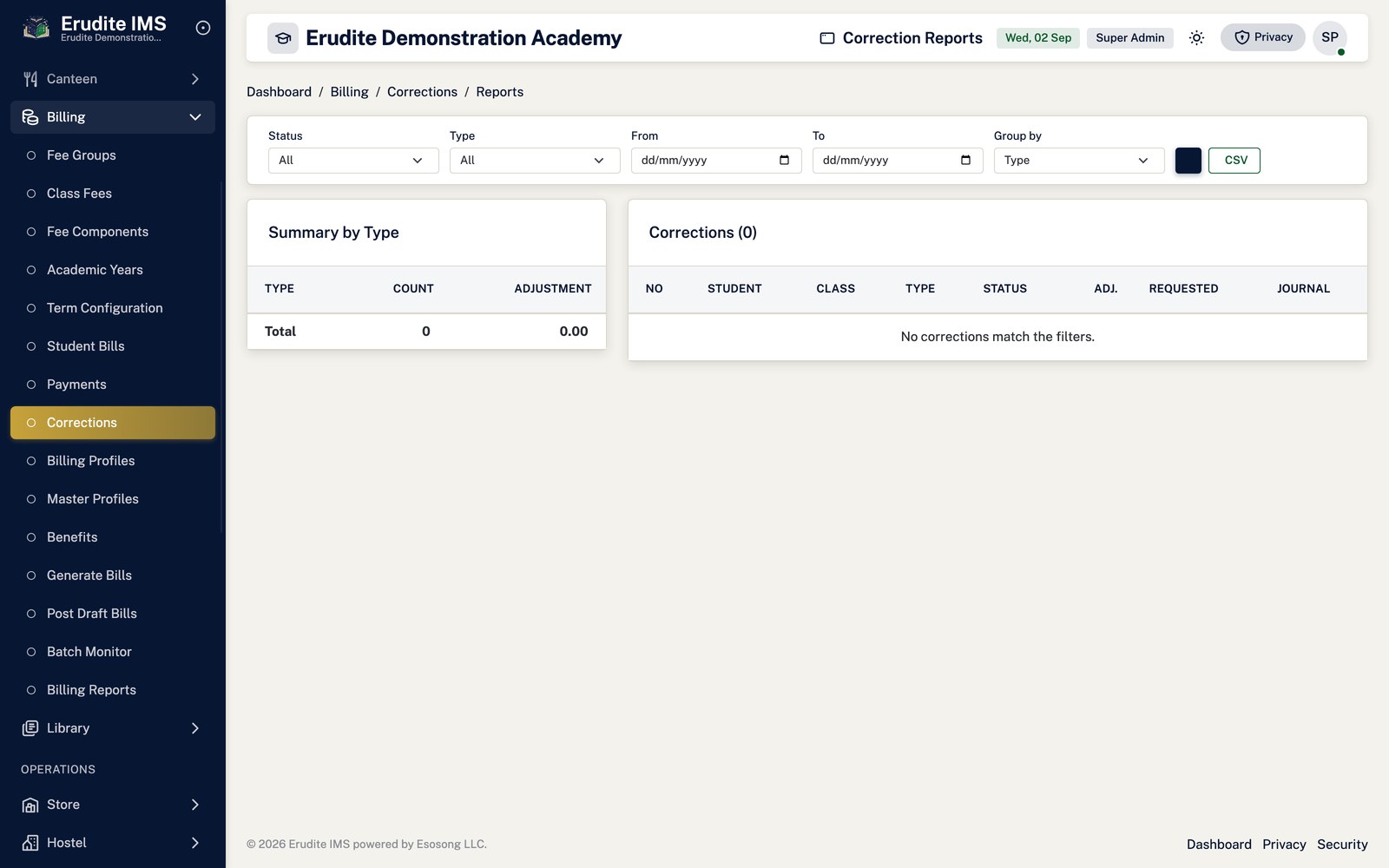
Billing Corrections — reports
/BillingCorrections/Reports
/BillingCorrections/Reports
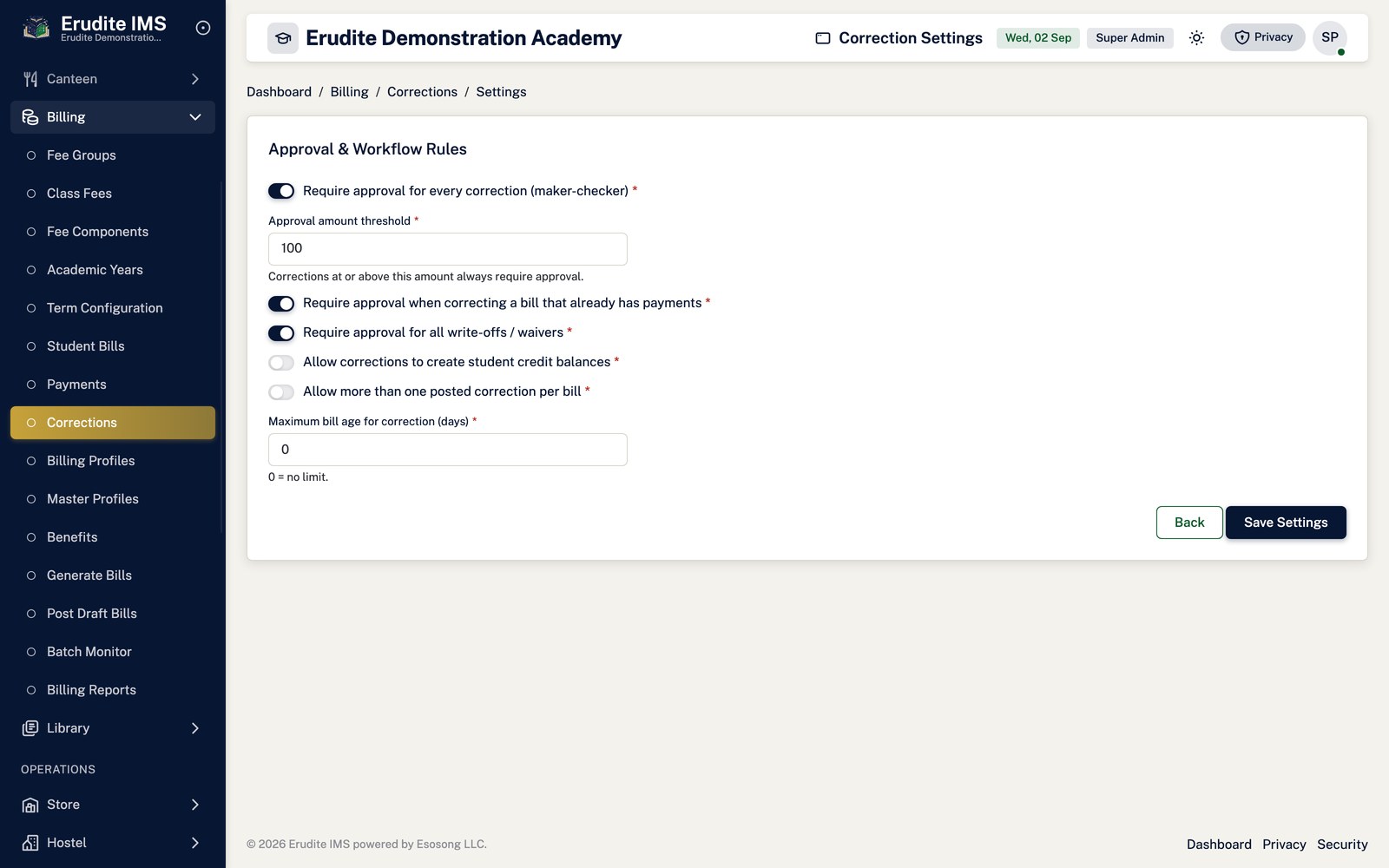
Billing Corrections — settings
/BillingCorrections/Settings
/BillingCorrections/Settings
Billing Generation
Billing Generation — generate result
/BillingGeneration/GenerateResult
This screen opens against a specific record and cannot be reached by URL alone. Open it from the list page for this module.
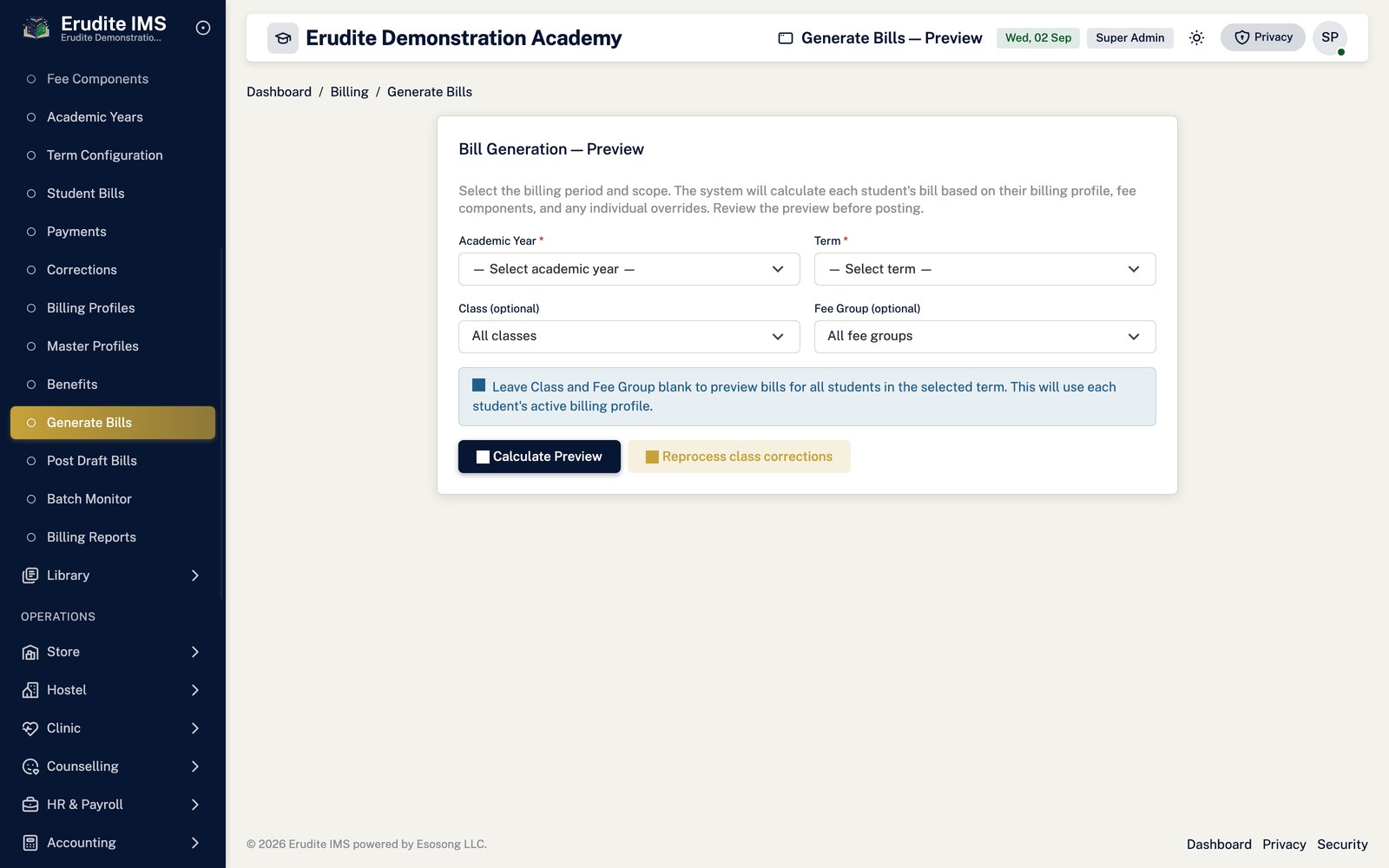
Billing Generation — preview
/BillingGeneration/Preview
/BillingGeneration/Preview
Billing Generation — preview result
/BillingGeneration/PreviewResult
This screen opens against a specific record and cannot be reached by URL alone. Open it from the list page for this module.
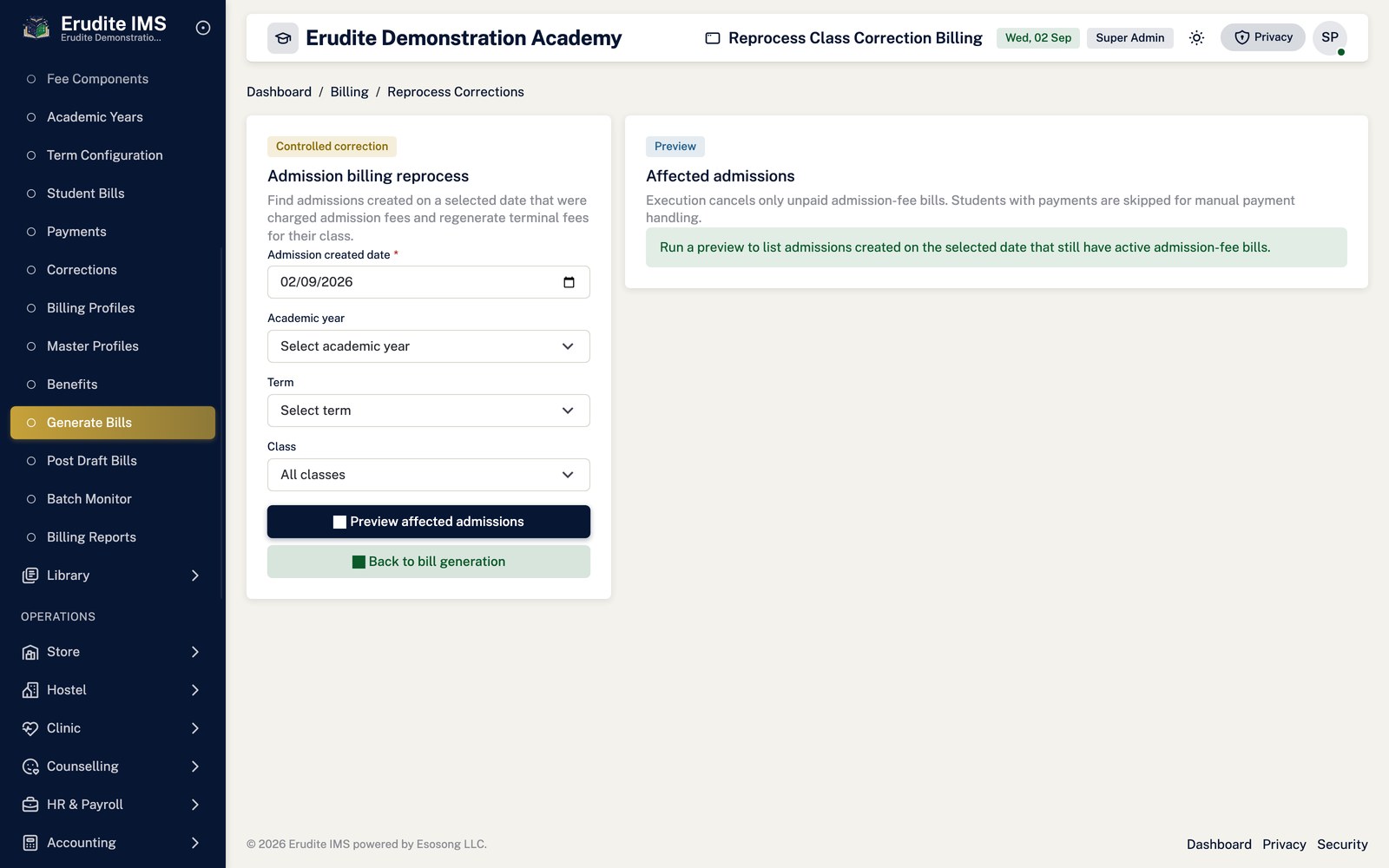
Billing Generation — reprocess admission class corrections
This screen opens against a specific record and cannot be reached by URL alone. Open it from the list page for this module.
Class Fees
Class Fees — record detail
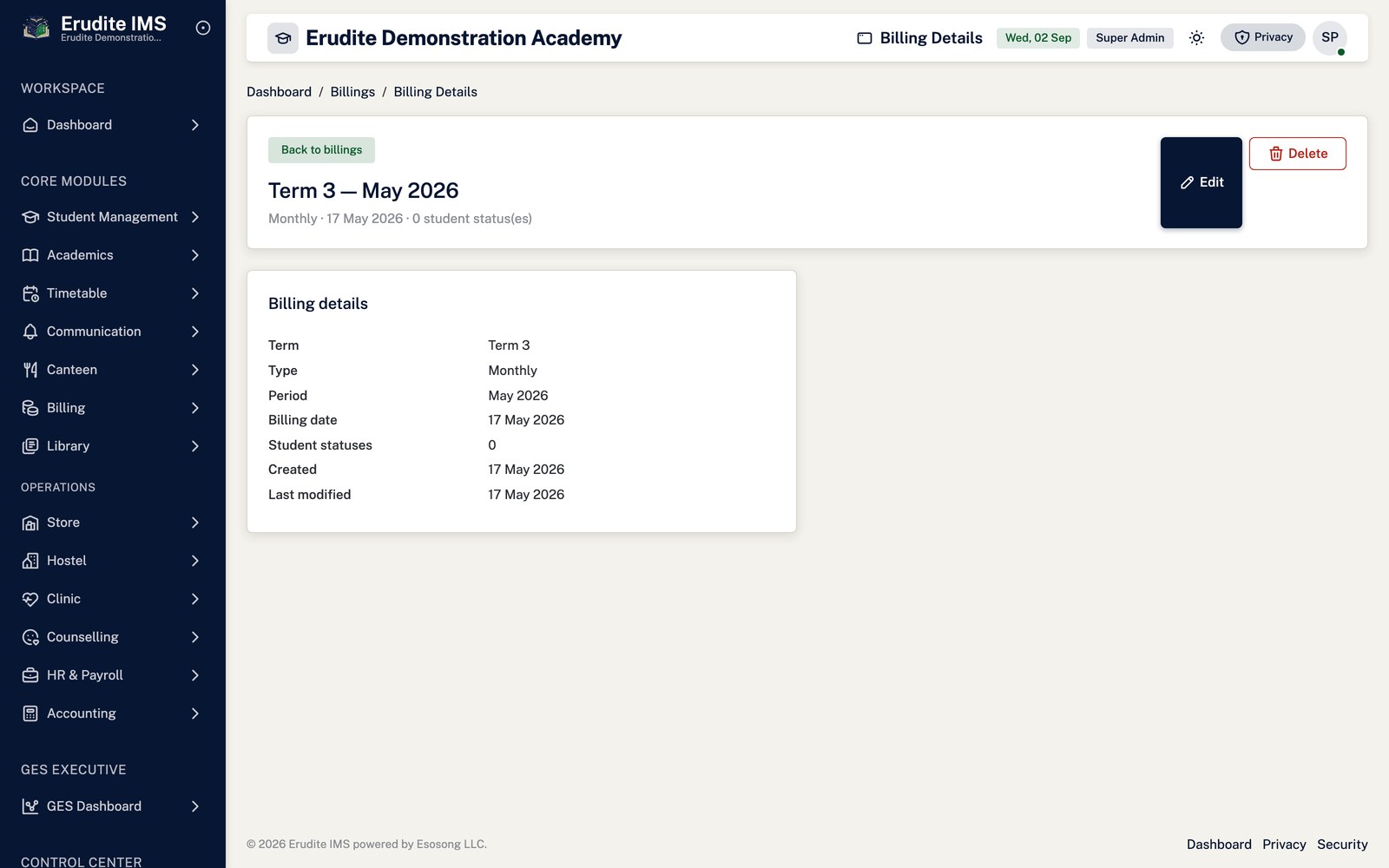
/ClassFees/Details
This screen opens against a specific record and cannot be reached by URL alone. Open it from the list page for this module.
Class Fees — list
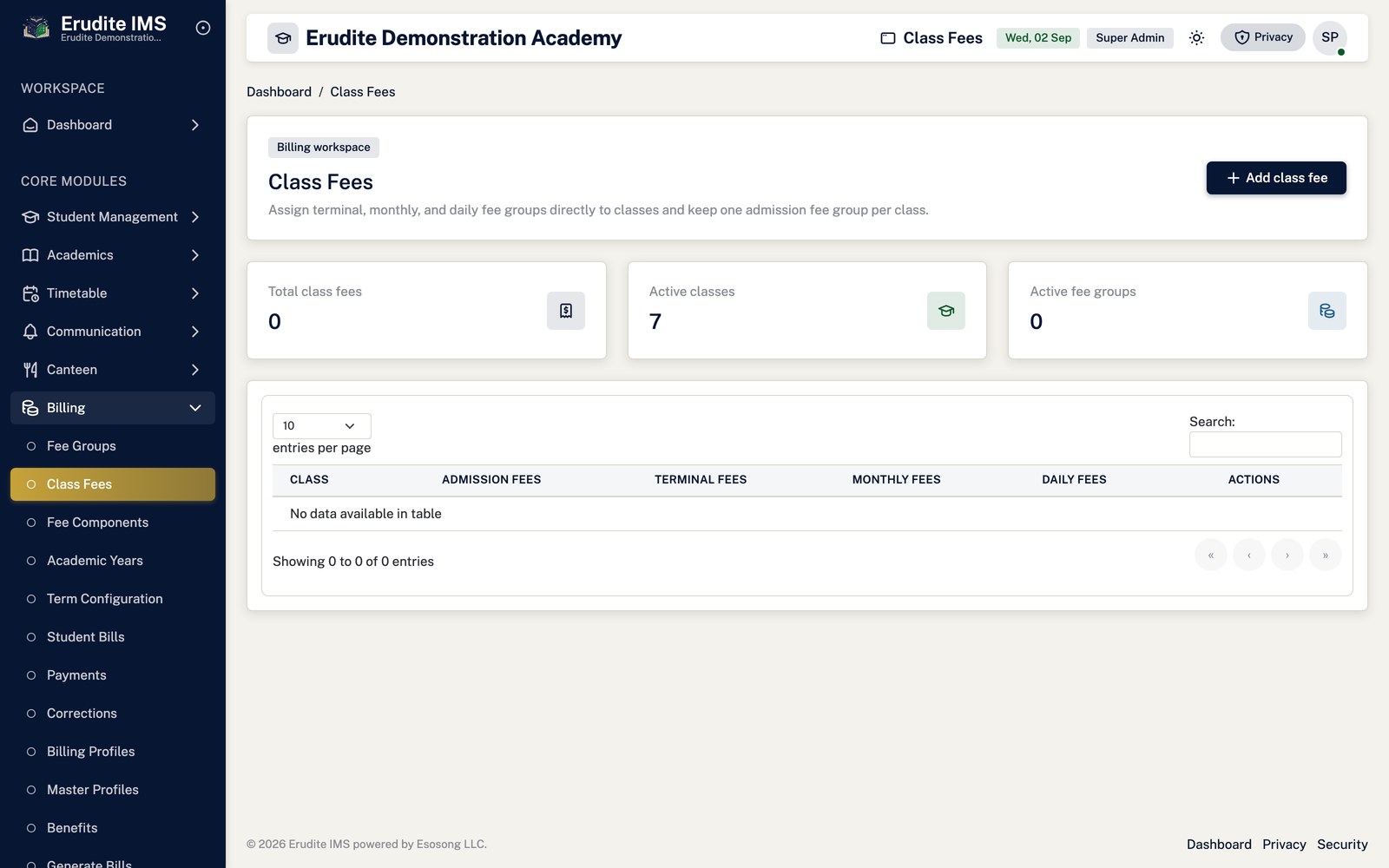
/ClassFees
/ClassFees
Fee Components
Fee Components — create form
/FeeComponents/Create
/FeeComponents/Create
Fee Components — record detail
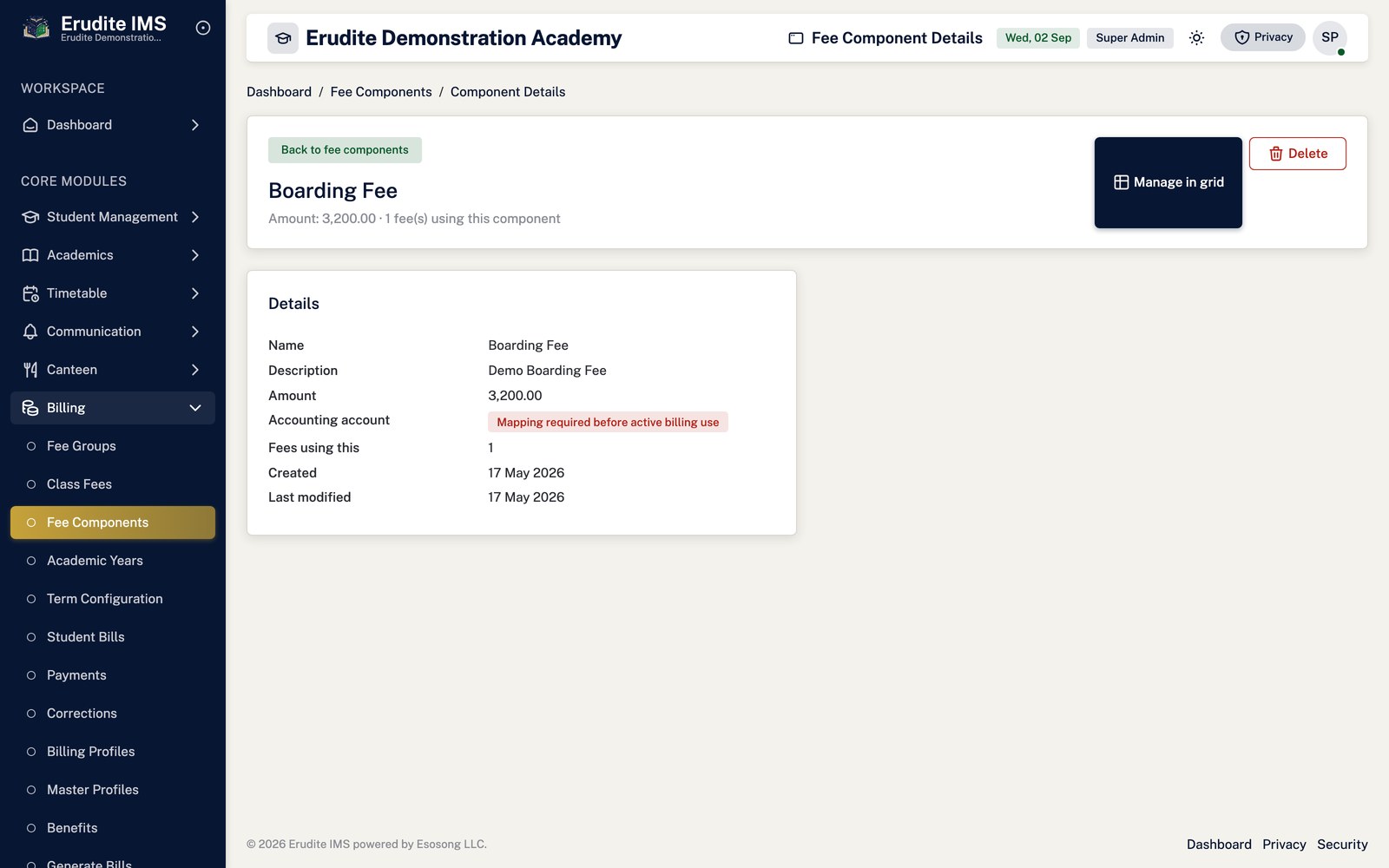
/FeeComponents/Details
A record opened from the Fee Components list
Fee Components — edit form
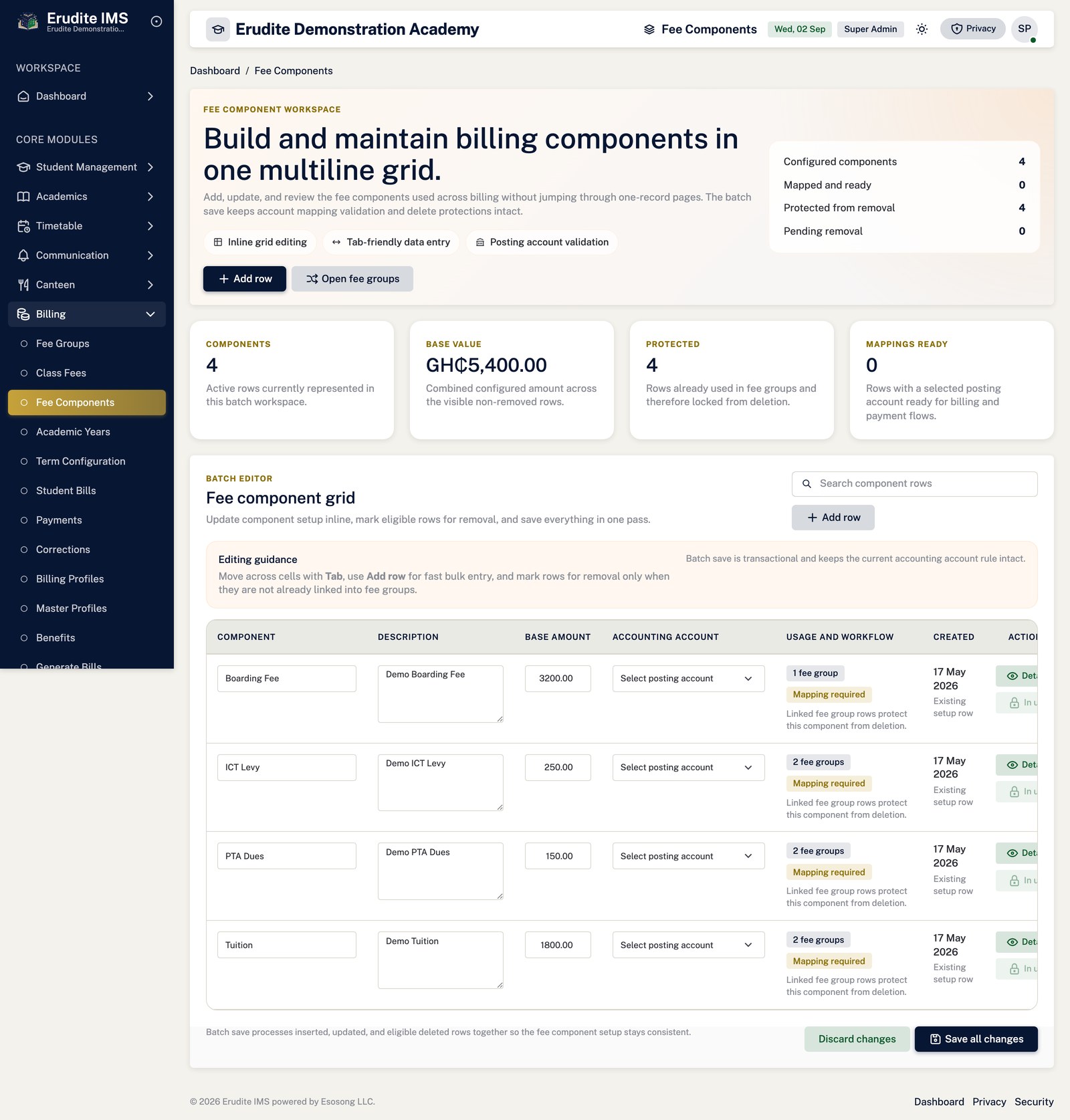
/FeeComponents/Edit
/FeeComponents/Edit
Fee Components — list
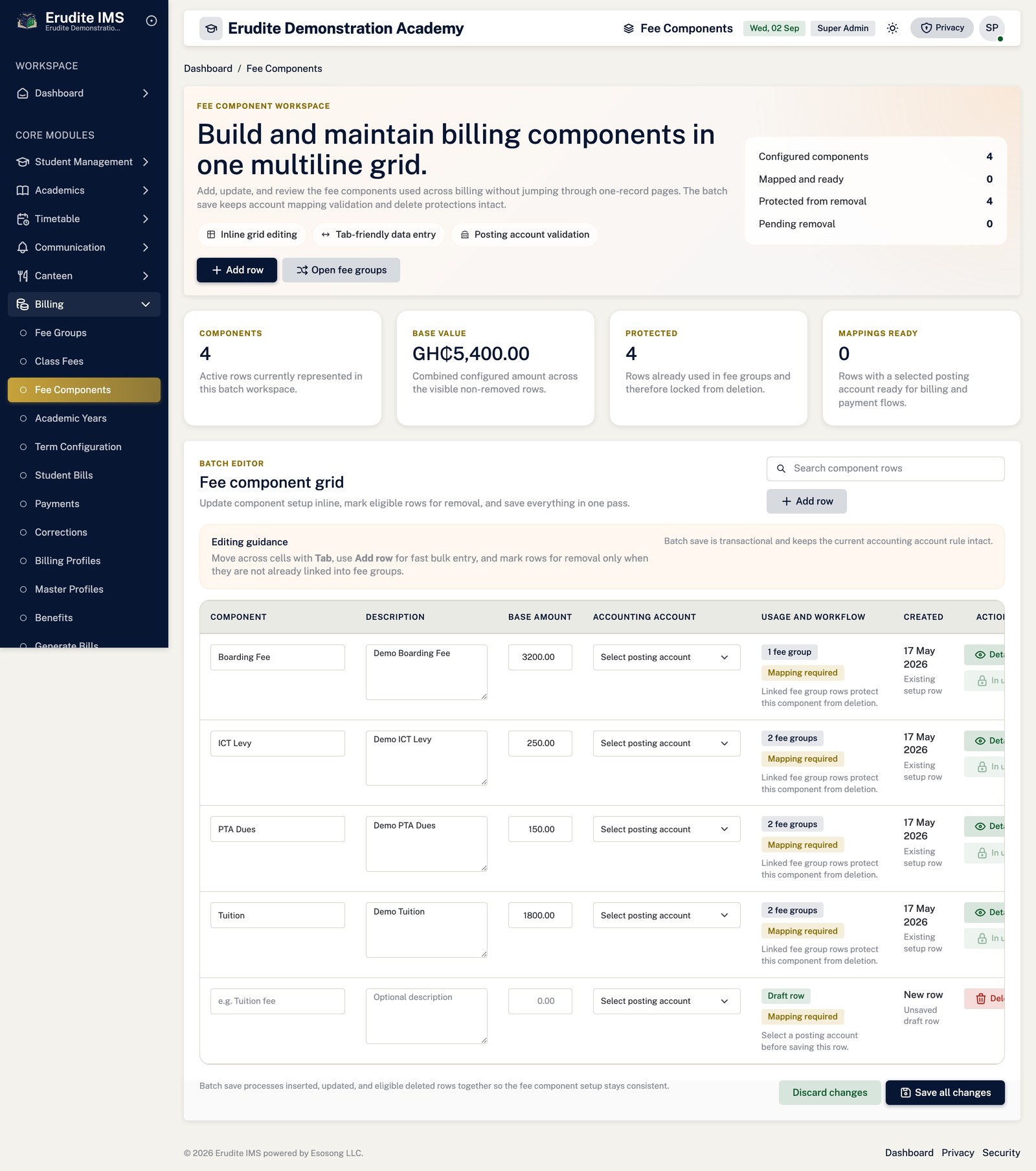
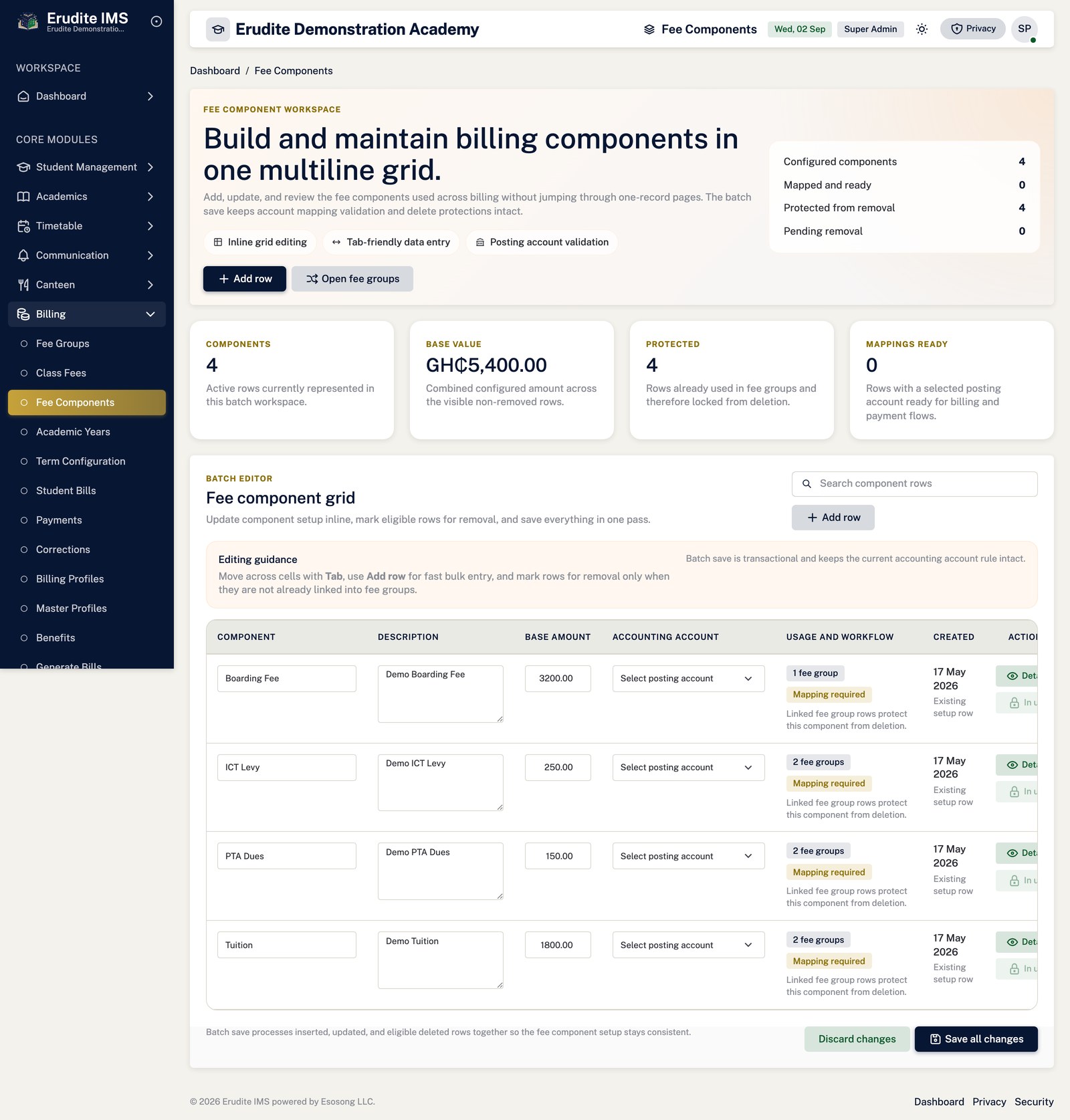
/FeeComponents
/FeeComponents
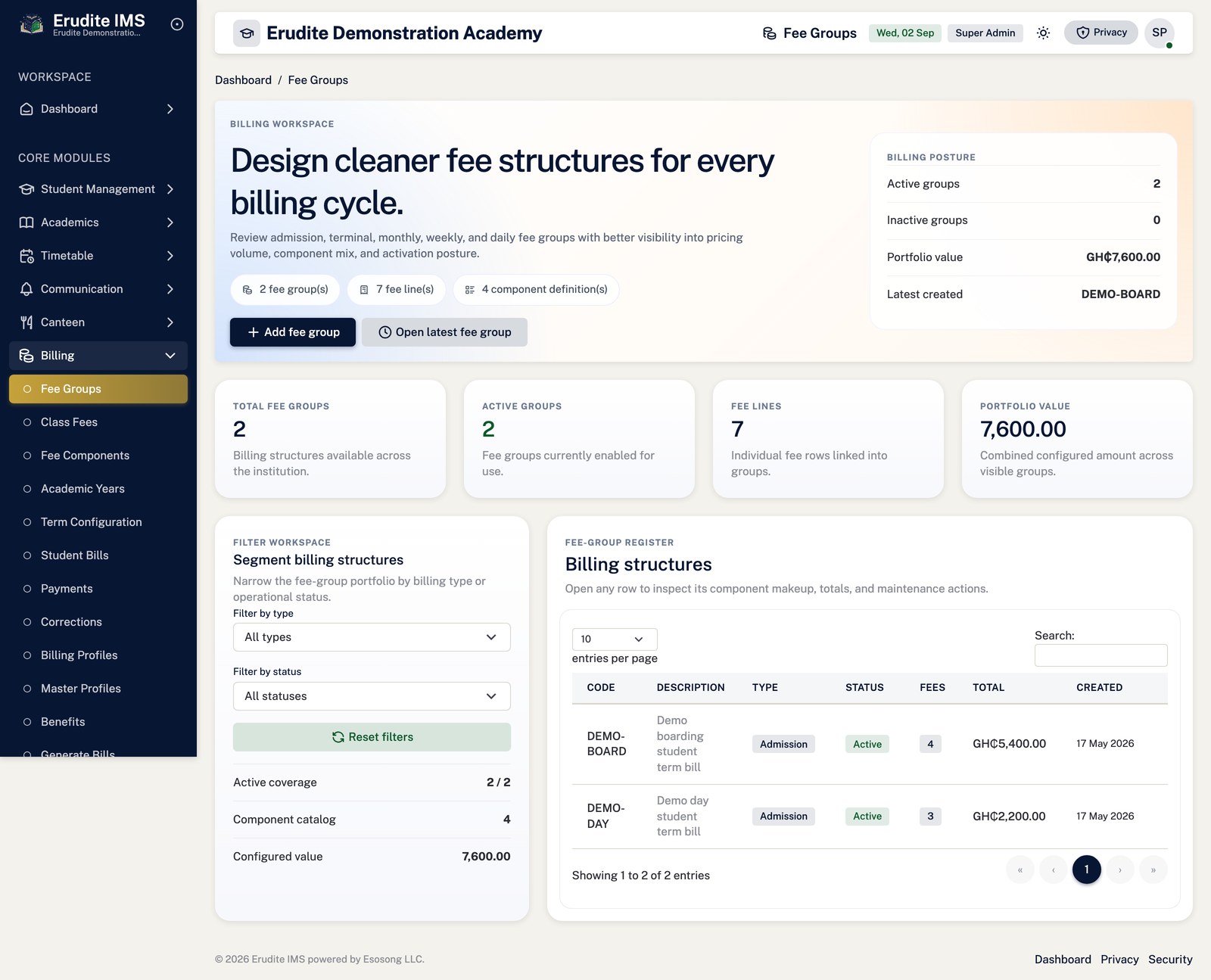
Fee Groups
Fee Groups — record detail
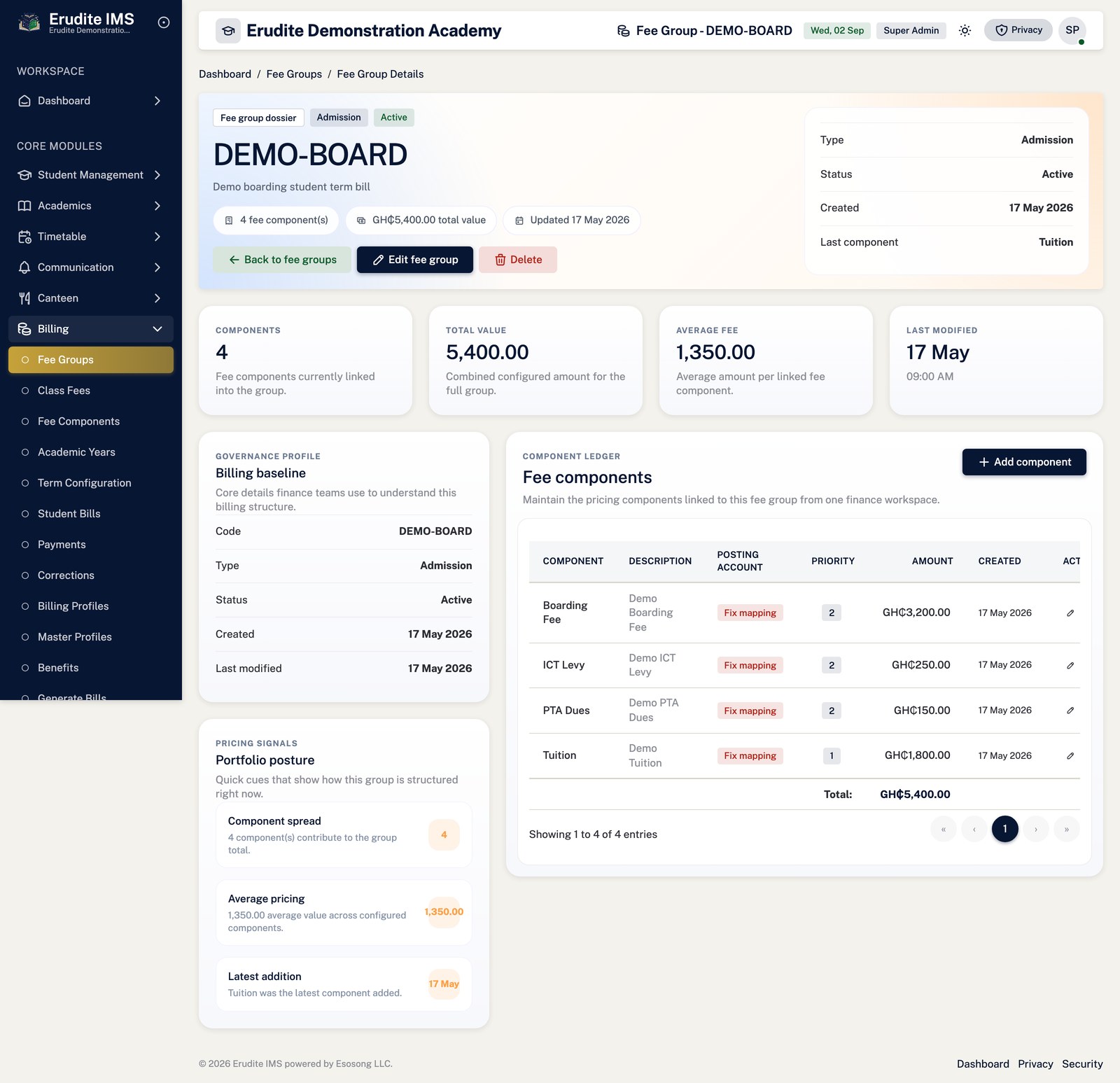
/FeeGroups/Details
A record opened from the Fee Groups list
Fee Groups — list
/FeeGroups
/FeeGroups
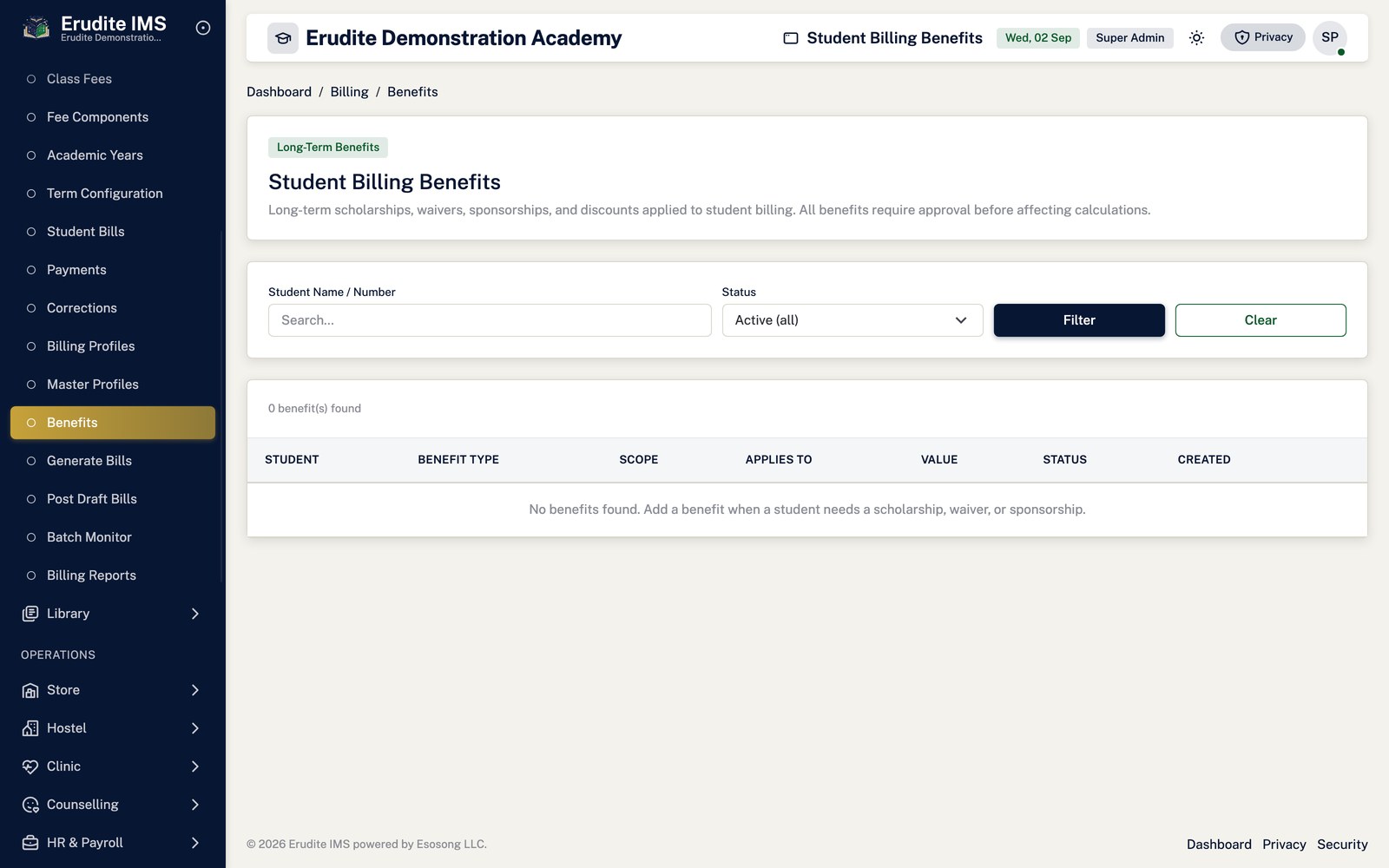
Student Billing Benefits
Student Billing Benefits — approve
/StudentBillingBenefits/Approve
This screen opens against a specific record and cannot be reached by URL alone. Open it from the list page for this module.
Student Billing Benefits — create form
/StudentBillingBenefits/Create
This screen opens against a specific record and cannot be reached by URL alone. Open it from the list page for this module.
Student Billing Benefits — record detail
/StudentBillingBenefits/Details
This screen opens against a specific record and cannot be reached by URL alone. Open it from the list page for this module.
Student Billing Benefits — list
/StudentBillingBenefits
/StudentBillingBenefits
Student Billing Benefits — revoke
/StudentBillingBenefits/Revoke
This screen opens against a specific record and cannot be reached by URL alone. Open it from the list page for this module.
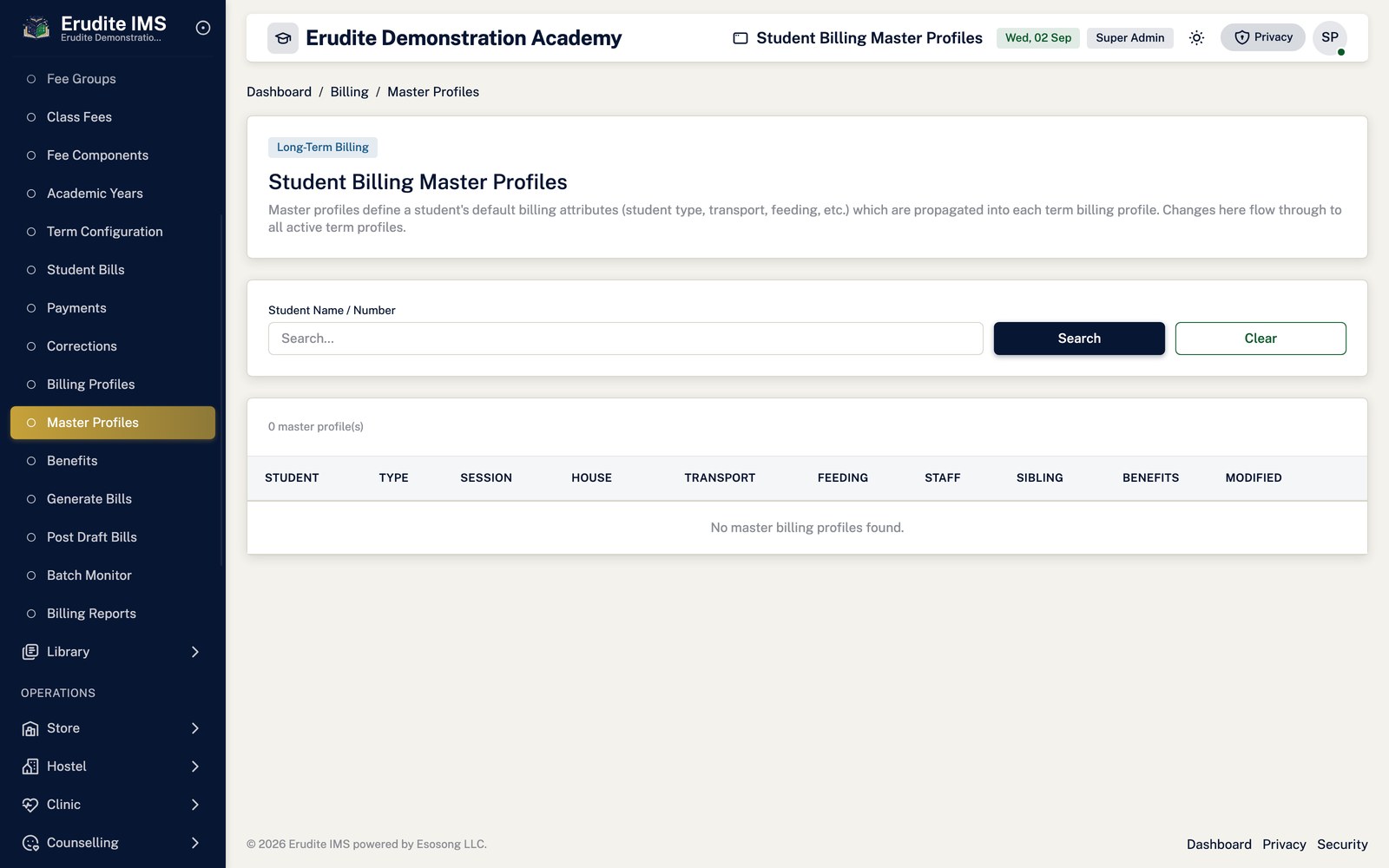
Student Billing Master Profiles
Student Billing Master Profiles — create form
/StudentBillingMasterProfiles/Create
This screen opens against a specific record and cannot be reached by URL alone. Open it from the list page for this module.
Student Billing Master Profiles — record detail
/StudentBillingMasterProfiles/Details
This screen opens against a specific record and cannot be reached by URL alone. Open it from the list page for this module.
Student Billing Master Profiles — edit form
/StudentBillingMasterProfiles/Edit
This screen opens against a specific record and cannot be reached by URL alone. Open it from the list page for this module.
Student Billing Master Profiles — list
/StudentBillingMasterProfiles
/StudentBillingMasterProfiles
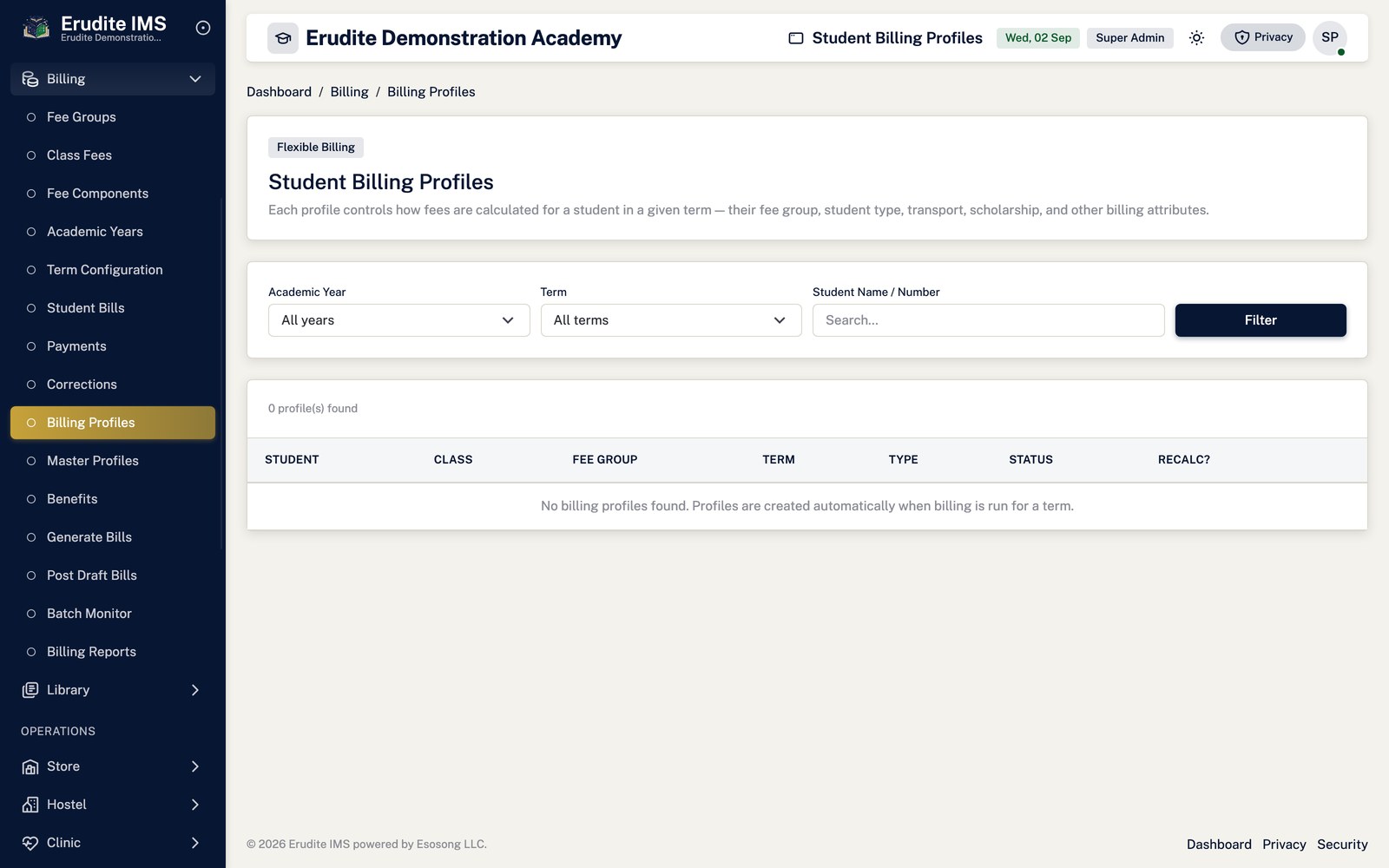
Student Billing Profiles
Student Billing Profiles — add override
/StudentBillingProfiles/AddOverride
This screen opens against a specific record and cannot be reached by URL alone. Open it from the list page for this module.
Student Billing Profiles — record detail
/StudentBillingProfiles/Details
This screen opens against a specific record and cannot be reached by URL alone. Open it from the list page for this module.
Student Billing Profiles — edit form
/StudentBillingProfiles/Edit
This screen opens against a specific record and cannot be reached by URL alone. Open it from the list page for this module.
Student Billing Profiles — list
/StudentBillingProfiles
/StudentBillingProfiles
Student Payments
Student Payments — record detail
/StudentPayments/Details
This screen opens against a specific record and cannot be reached by URL alone. Open it from the list page for this module.
Student Payments — list
/StudentPayments
/StudentPayments
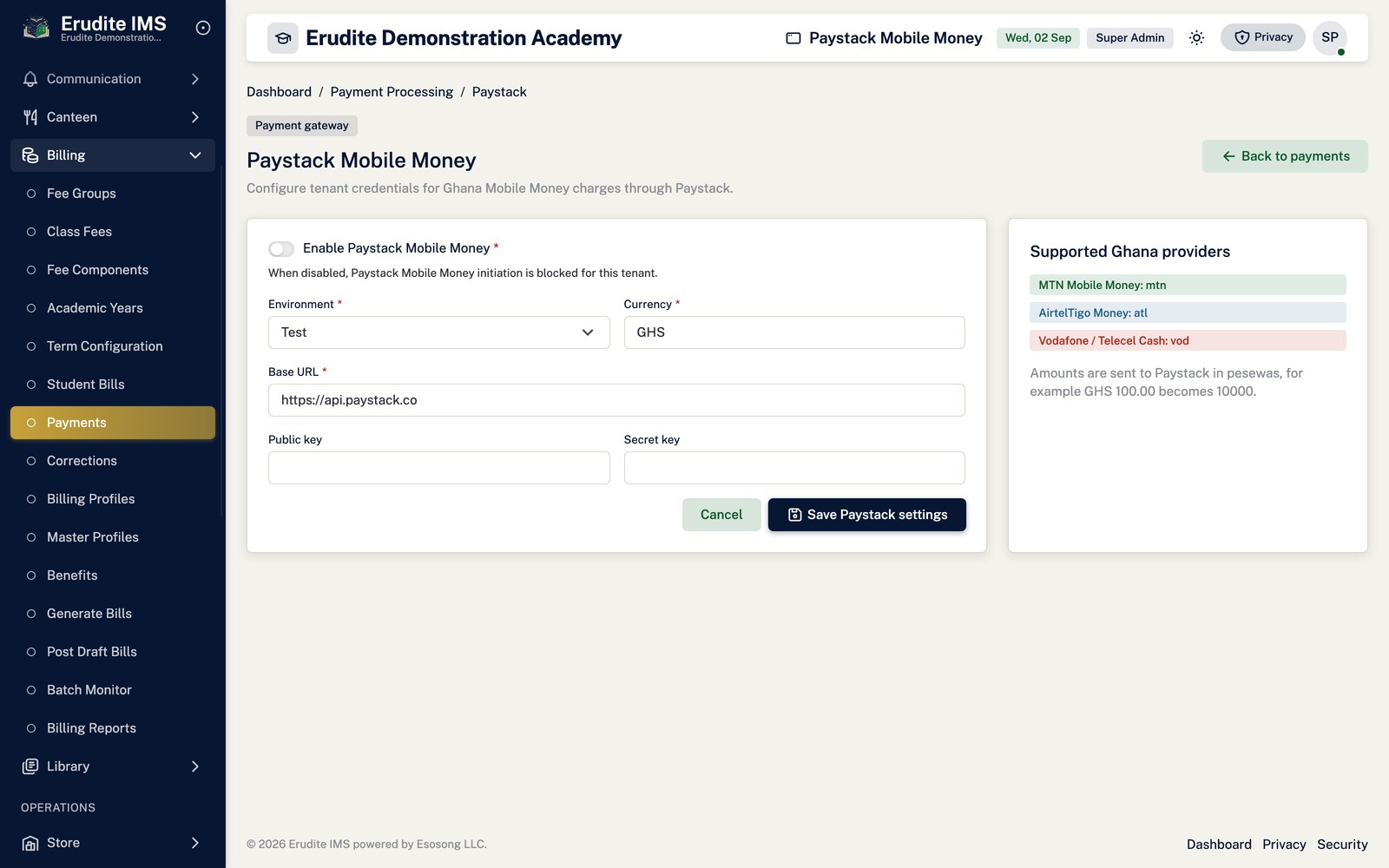
Student Payments — paystack settings
/StudentPayments/PaystackSettings
/StudentPayments/PaystackSettings
Student Payments — pending reversals
/StudentPayments/PendingReversals
/StudentPayments/PendingReversals
Student Payments — receipt print
/StudentPayments/ReceiptPrint
This screen opens against a specific record and cannot be reached by URL alone. Open it from the list page for this module.
Student Subscriptions
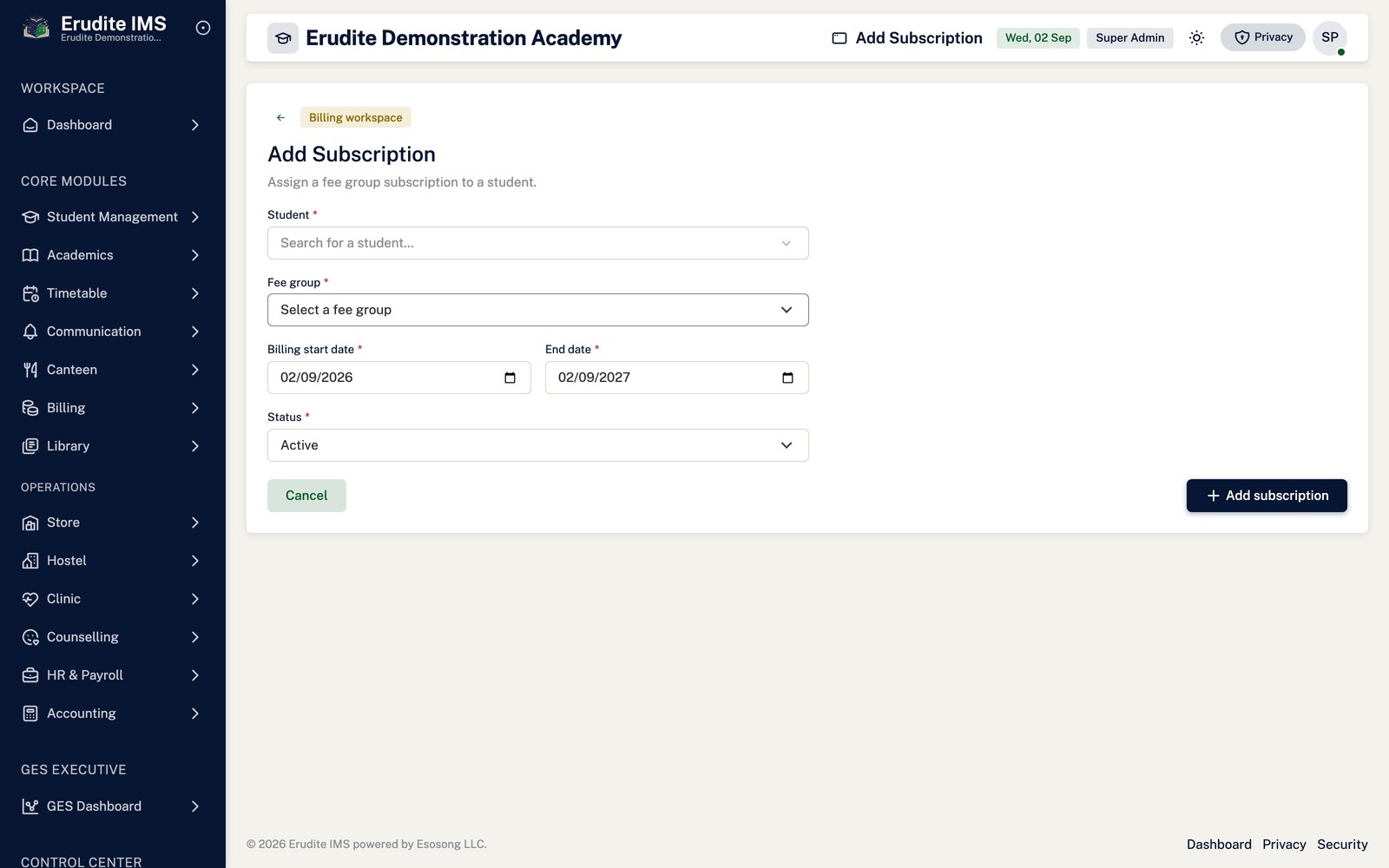
Student Subscriptions — create form
/StudentSubscriptions/Create
/StudentSubscriptions/Create
Student Subscriptions — record detail
/StudentSubscriptions/Details
This screen opens against a specific record and cannot be reached by URL alone. Open it from the list page for this module.
Student Subscriptions — edit form
/StudentSubscriptions/Edit
This screen opens against a specific record and cannot be reached by URL alone. Open it from the list page for this module.
Student Subscriptions — list
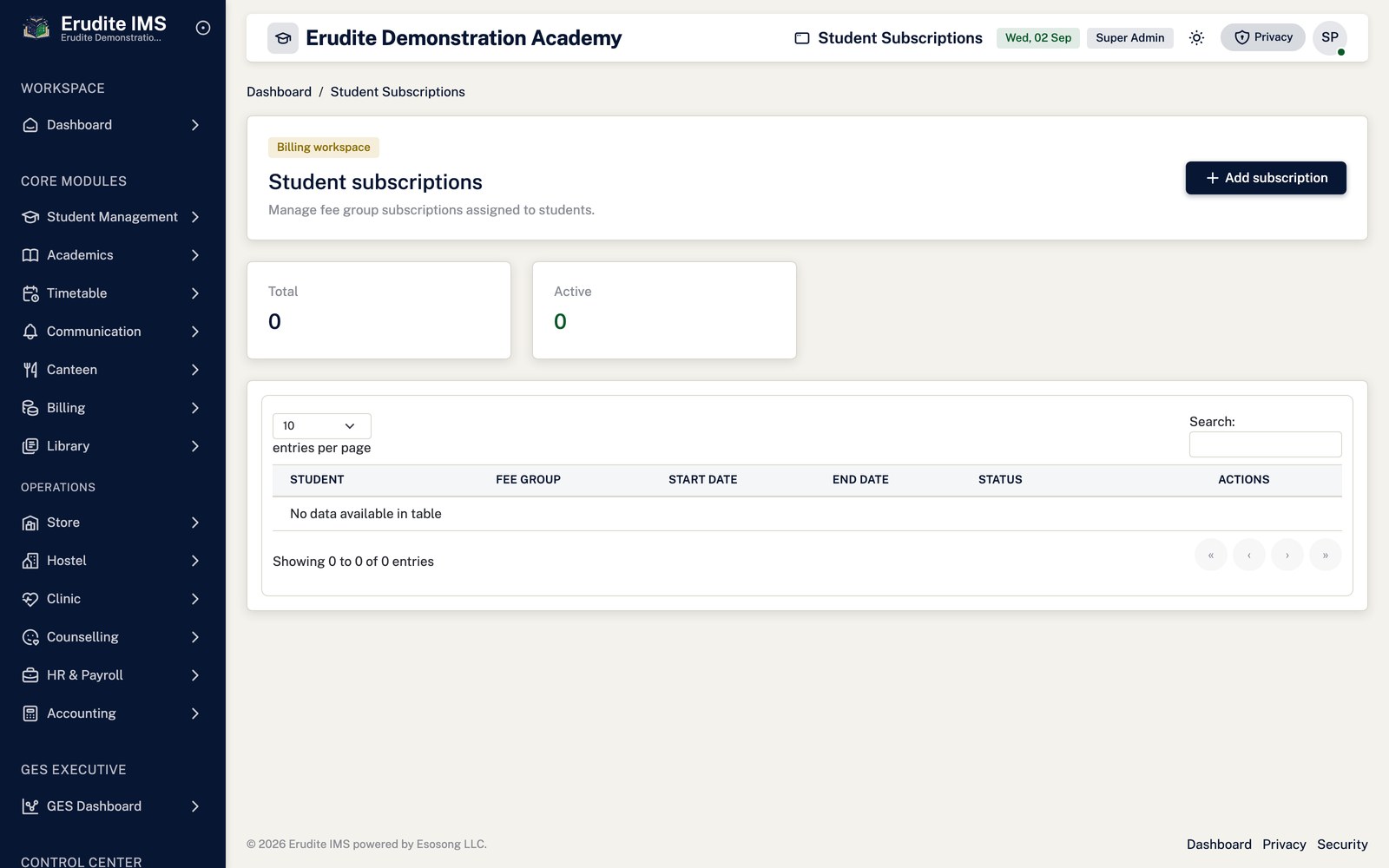
/StudentSubscriptions
/StudentSubscriptions
Accounting
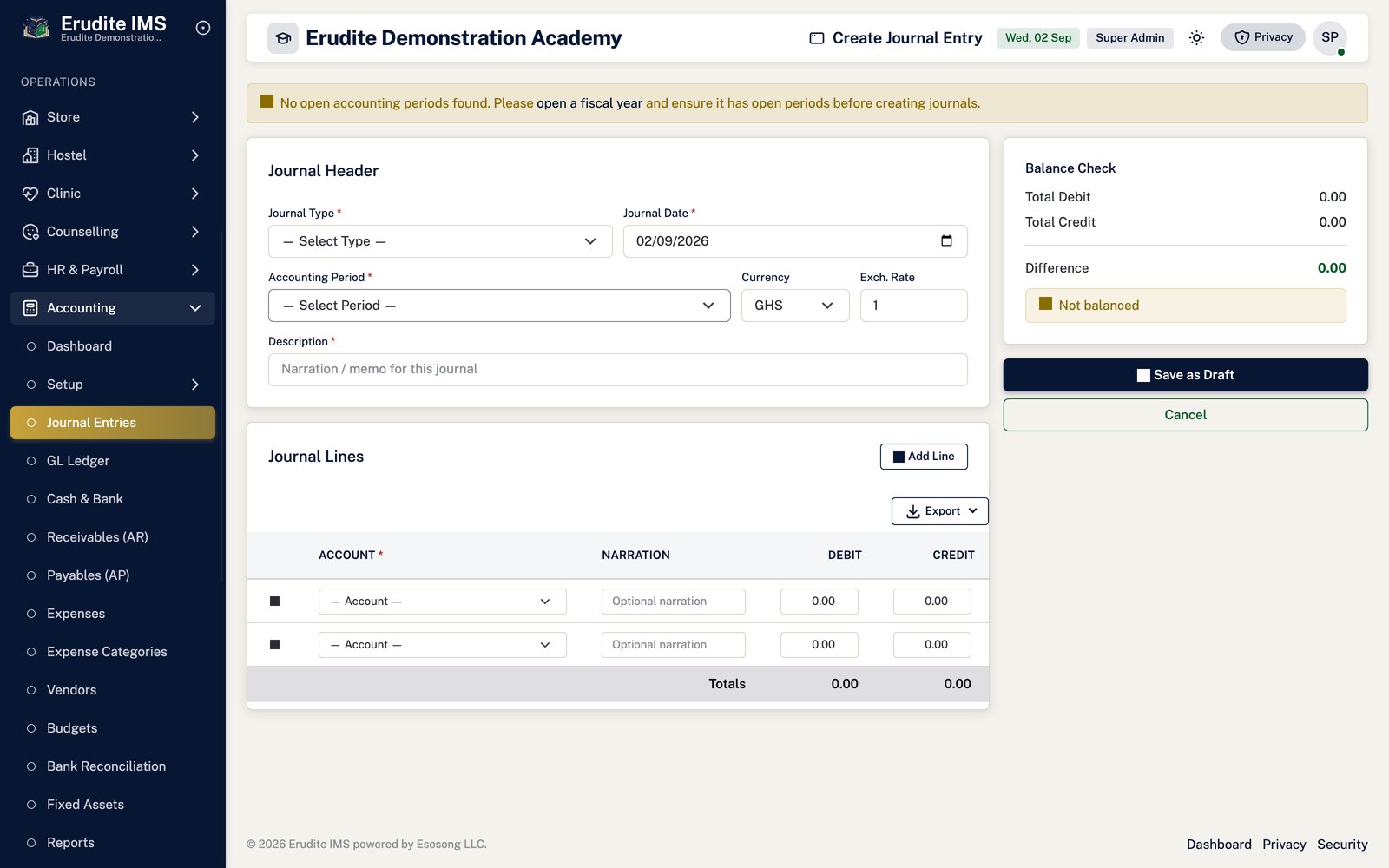
Creating and posting a general journal
Open Accounting → Journals → New journal and choose the journal type, date and period,
then add lines with an account, a description and either a debit or a credit.
Save. The journal is created as a Draft and does not affect any balance yet.
Open the journal and select Post. Posting is refused, with the reason shown, if the
journal is not still a Draft, if its accounting period or fiscal year is not open, or if total debits do
not equal total credits.
A posted journal cannot be edited or deleted. To undo one, use Reverse and choose an open
period to reverse it into — this creates a new, opposite journal linked back to the original rather than
altering it.
Draft-only editing. The Delete action on a journal only works while it is
still a Draft, for the same reason posting is gated: once a journal is posted it is part of the ledger, and the
only way to remove its effect is a reversal, which itself needs an open period.
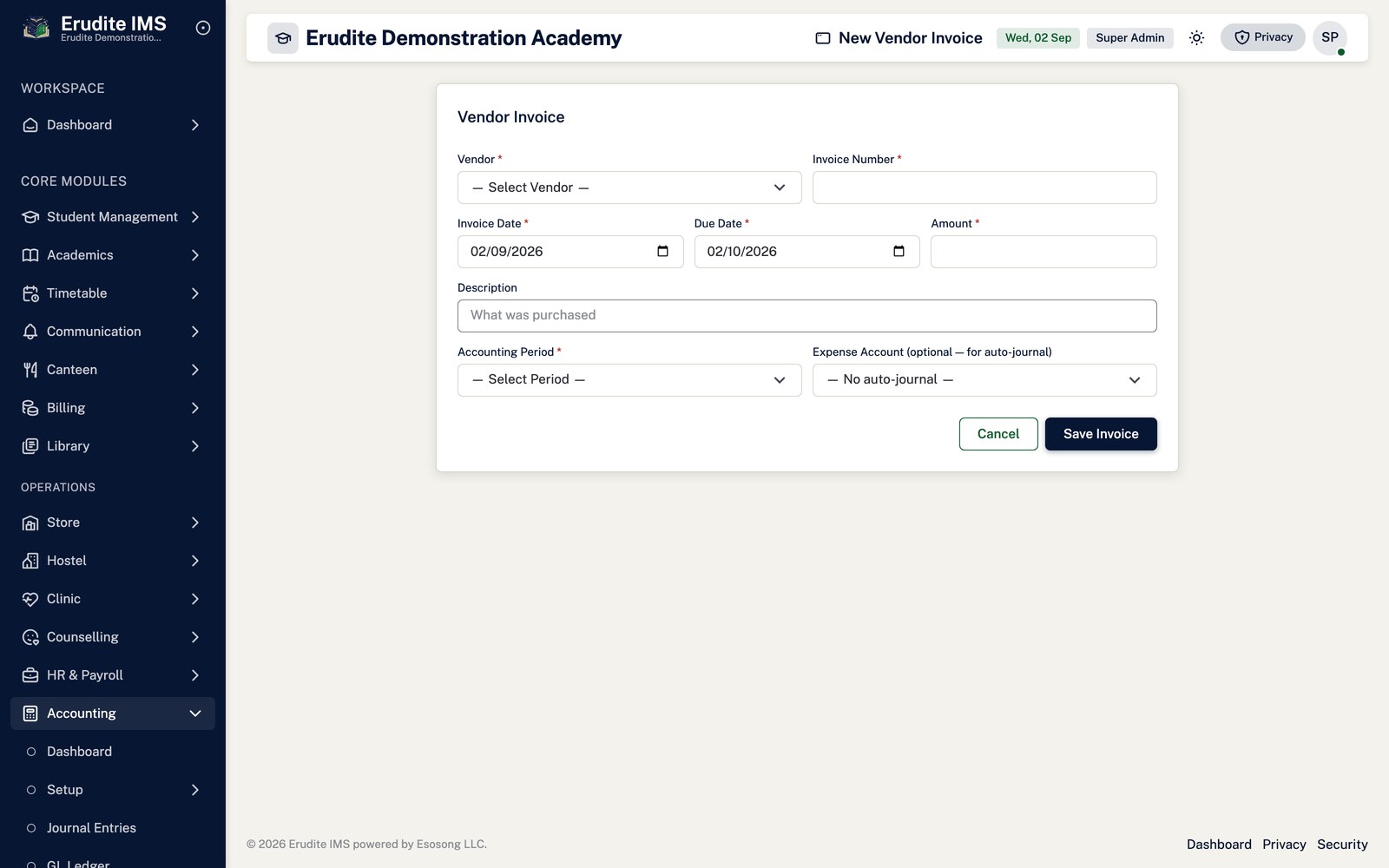
Recording and paying a vendor invoice
Open Accounting → Accounts Payable → Payables and select New vendor
invoice. Choose the vendor, date, period and line items.
Saving creates the invoice as a Draft together with its own draft journal. Select Post to
move both the invoice and its journal to Posted — only a Draft invoice can be posted.
To settle it, use Pay: choose the bank account, payment date, period and amount. The
amount cannot exceed the invoice's outstanding balance (total minus what has already been paid), the
period must be open, and a Draft or Cancelled invoice cannot be paid at all.
A payment posts its own journal crediting the bank/cash side and debiting accounts payable (or the
vendor's own GL account where one is configured).
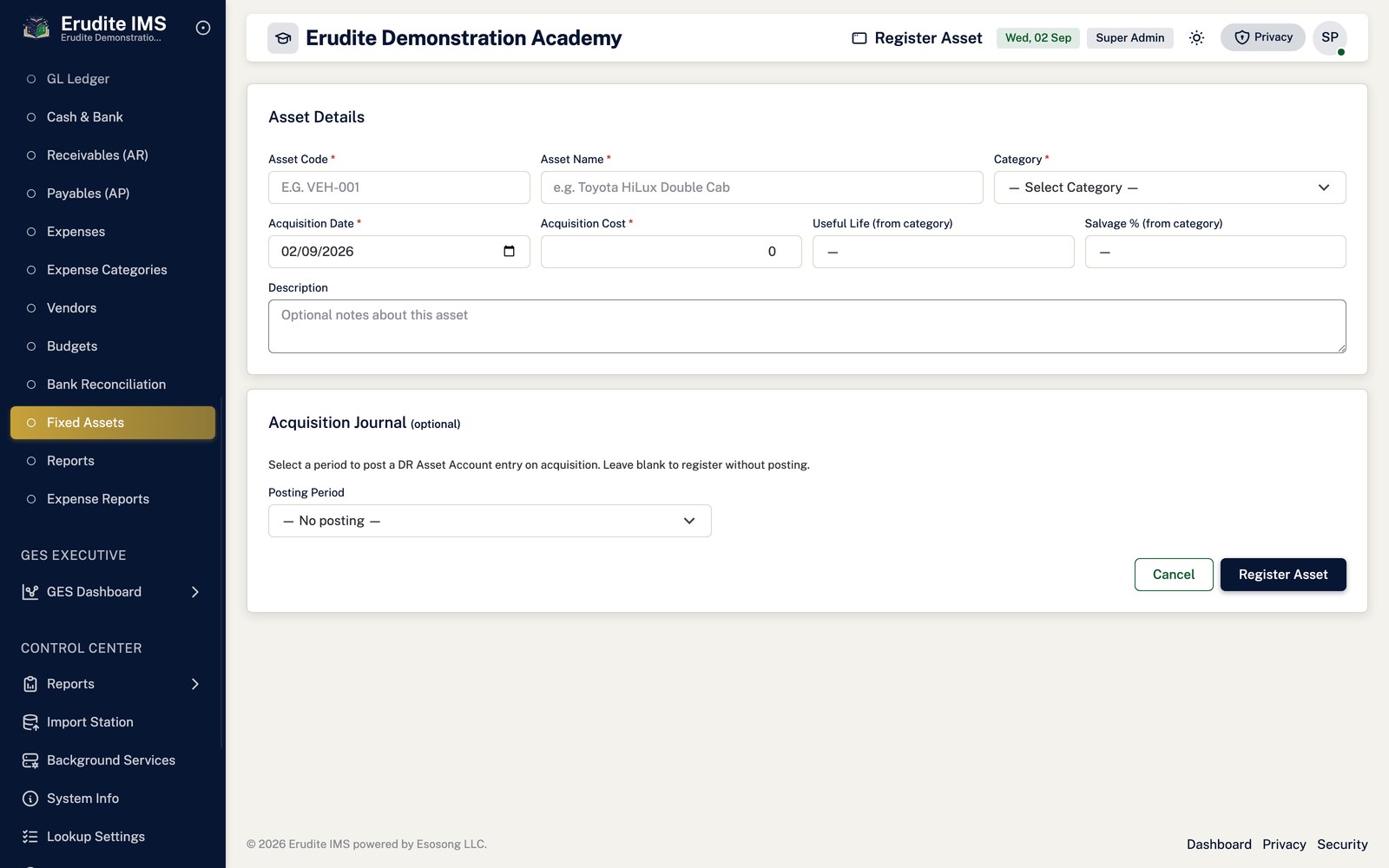
Running fixed-asset depreciation
Register the asset under Accounting → Assets → Fixed Assets → New asset, giving its
acquisition cost, salvage value and useful life in months.
From the asset's Details page, select Run depreciation and choose the period. The system
calculates straight-line monthly depreciation and will not let you run the same asset twice for the same
period.
Where the asset's category has depreciation and accumulated-depreciation GL accounts configured, the run
also posts a balanced journal automatically; if the category has no GL accounts set up, the depreciation
entry is recorded without a journal.
When the accumulated depreciation brings the book value down to the salvage value, the asset is marked
Fully Depreciated automatically. Depreciation can only be run against a currently
Active asset.
Use Dispose asset when the item is sold, scrapped or written off.
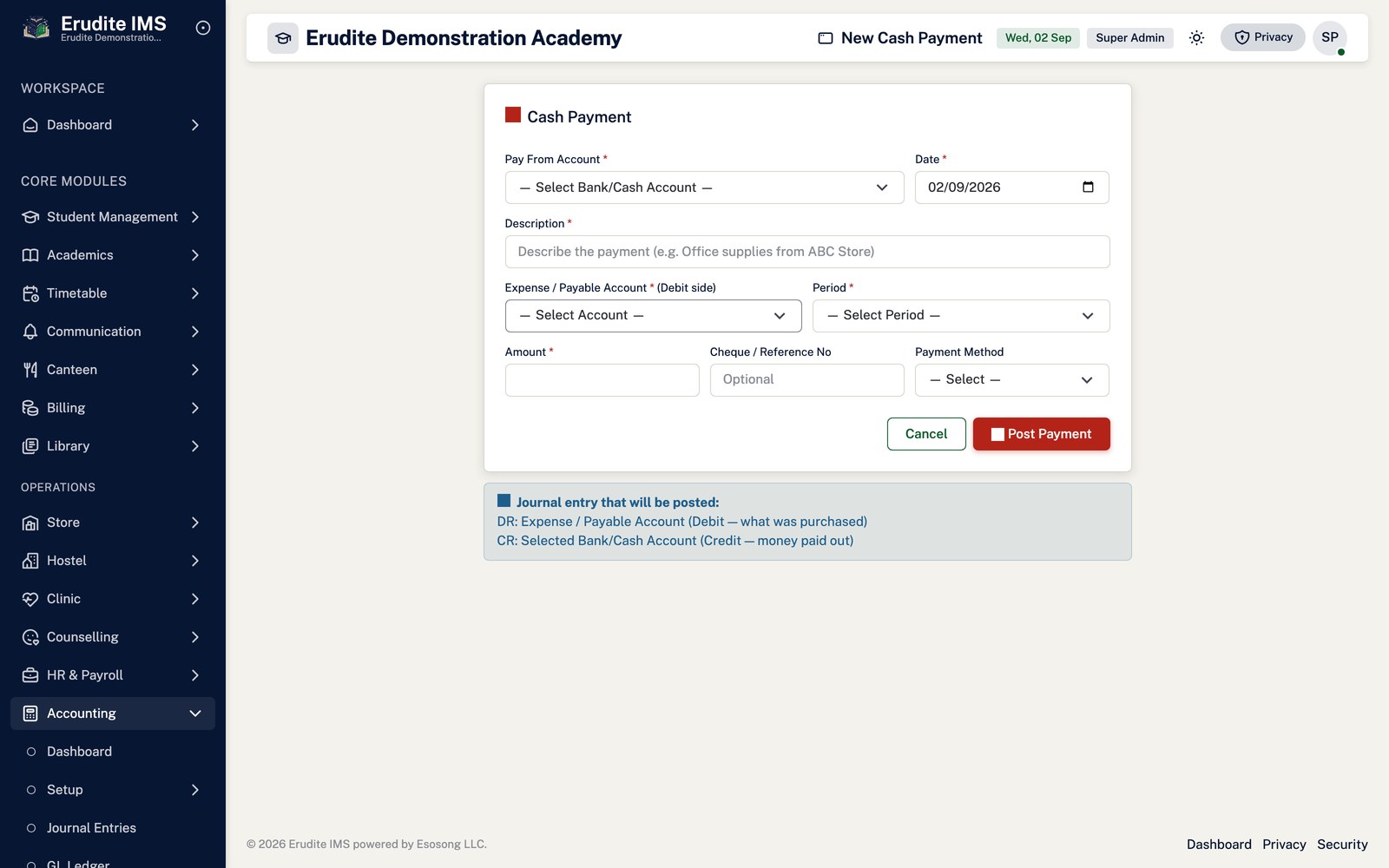
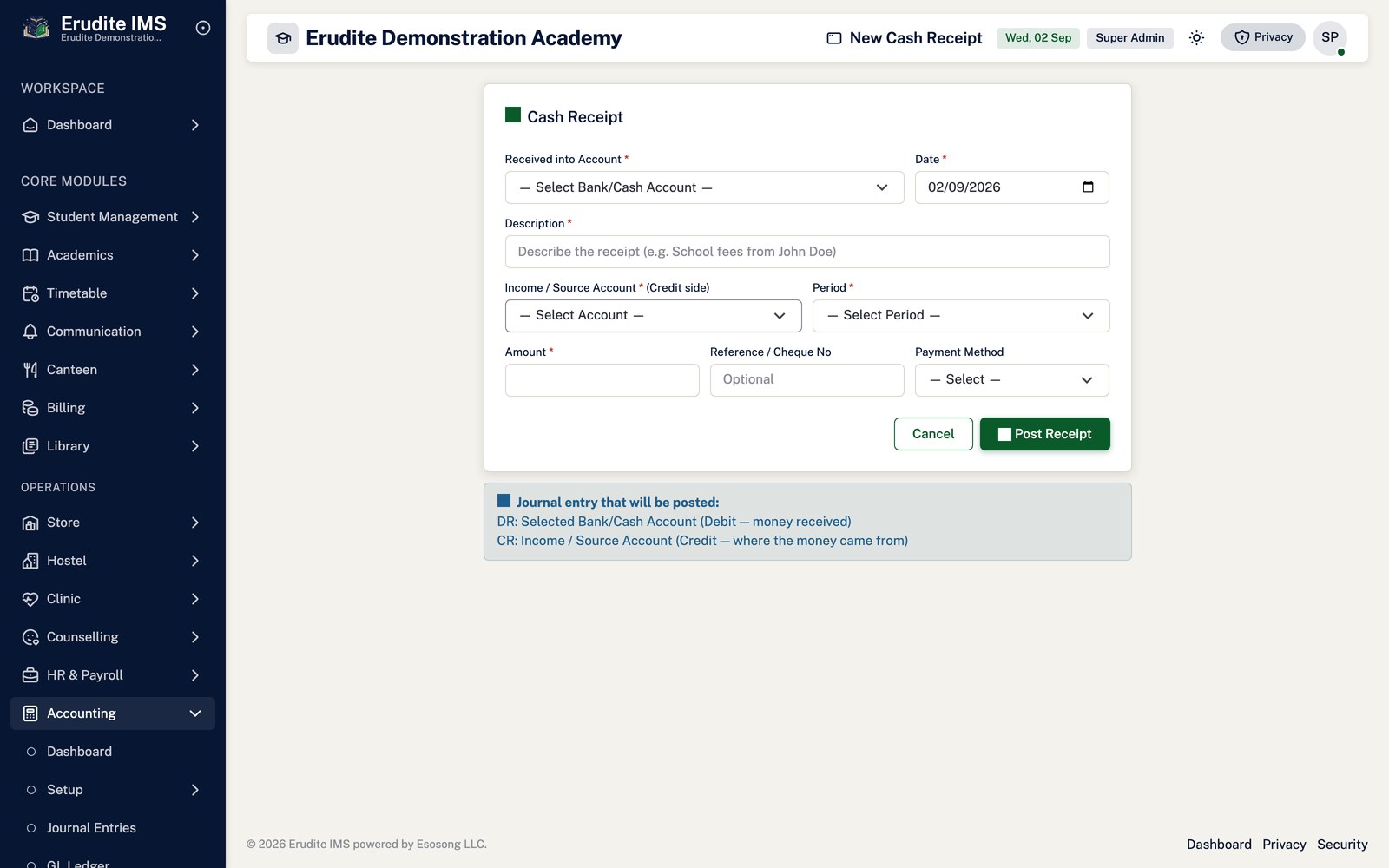
Recording a cash receipt or payment
Open Accounting → Cash Book, choose the bank account, then select New
receipt or New payment.
Give the date, period, amount and the account on the other side of the entry, then save. Each posts its
own journal against the selected bank account.
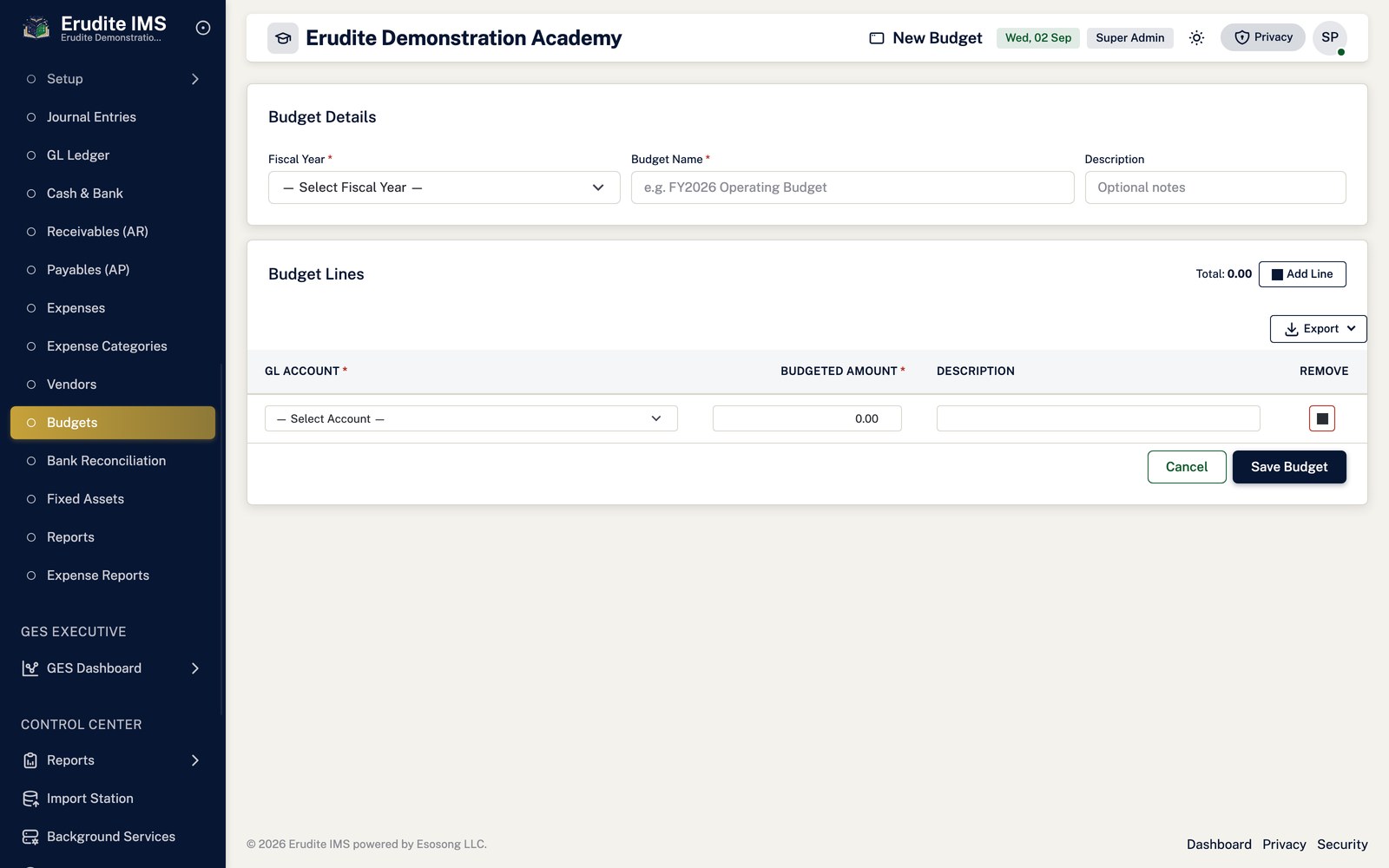
Building and approving a budget
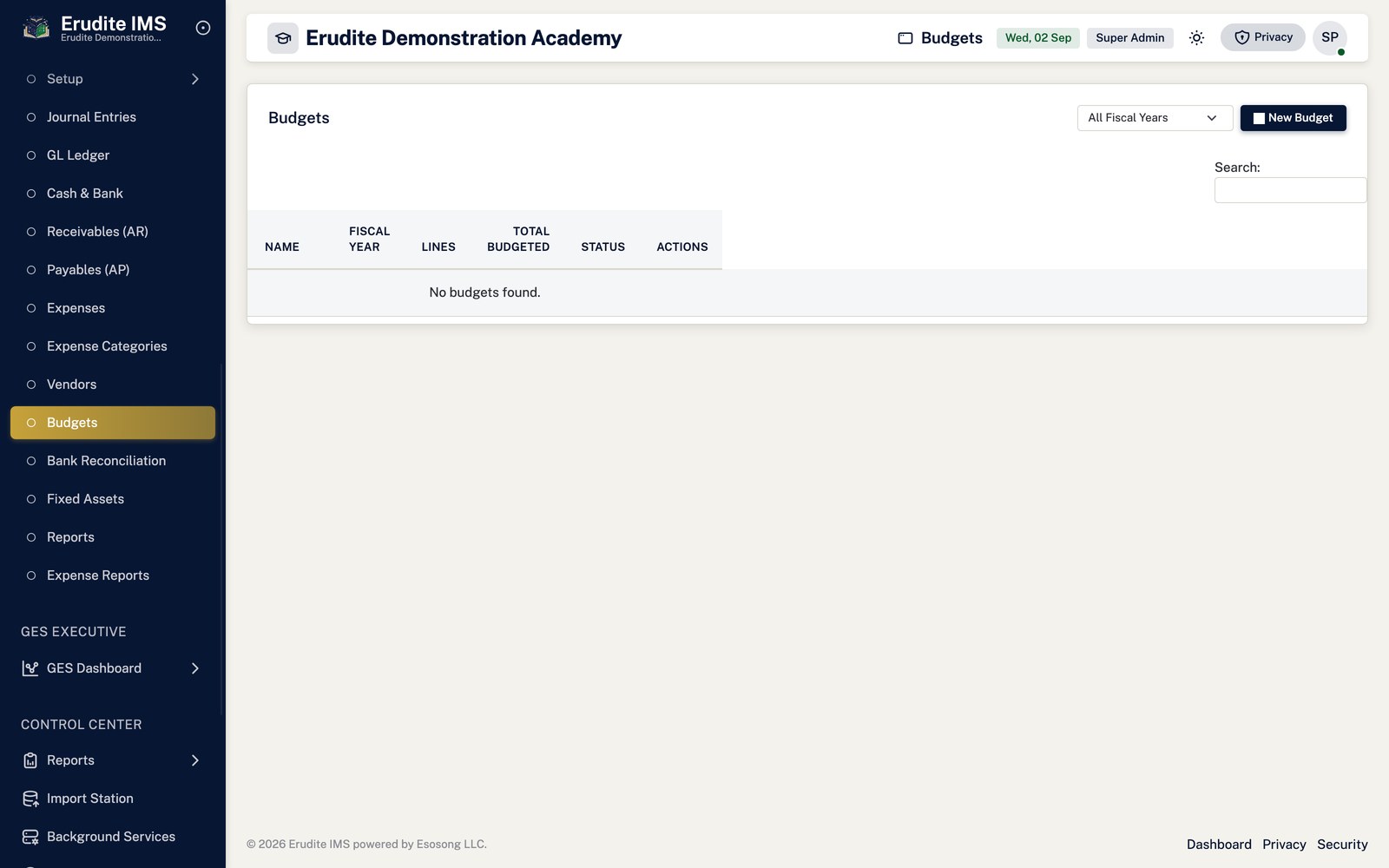
Open Accounting → Budgets → New budget, choose the fiscal year and enter the line-by-line
allocations.
Saving creates the budget for review. Select Approve on the Budget Details page once it
is ready to be worked against.
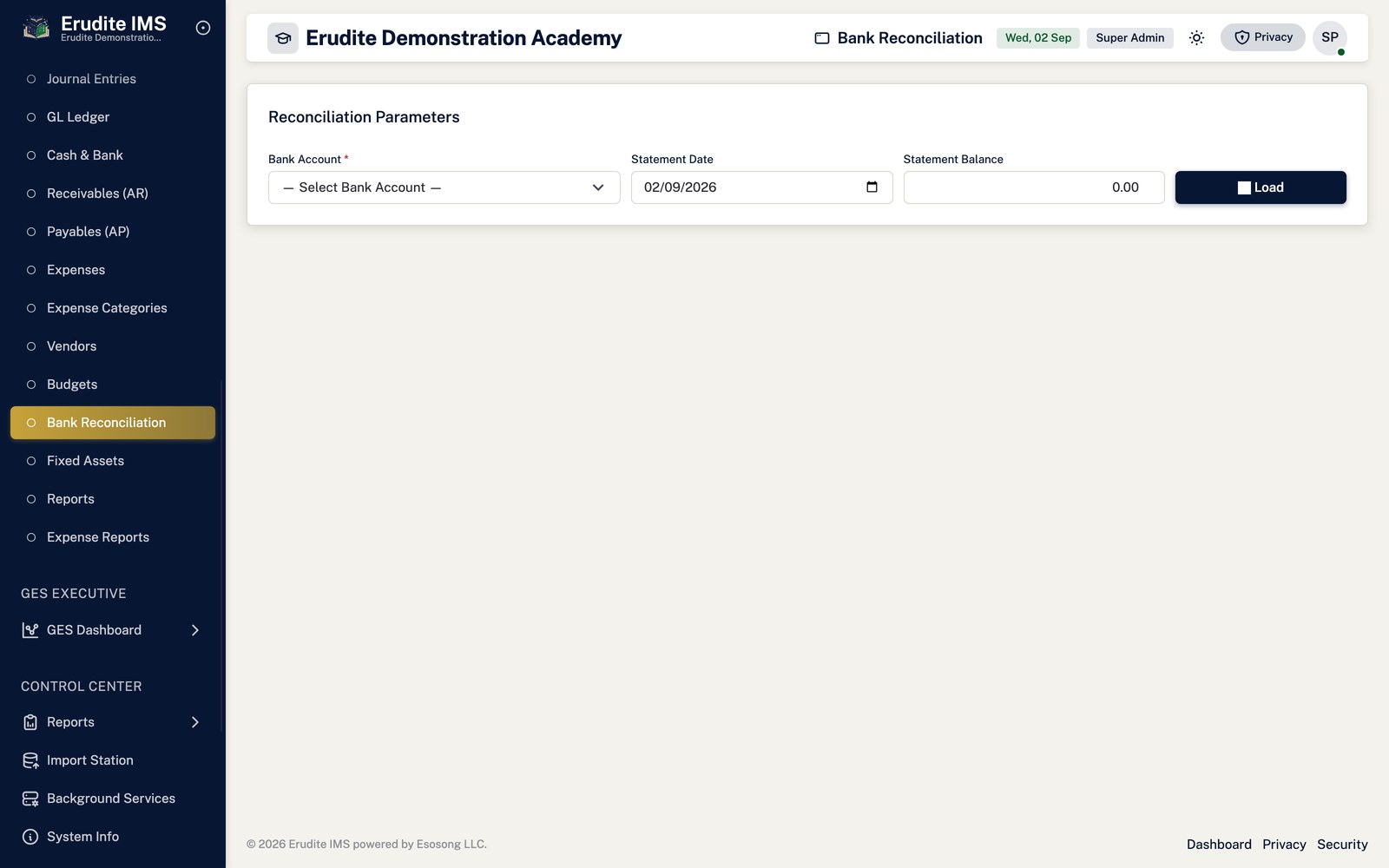
Bank Reconciliation, under the same area, is where a bank statement is matched against
the cash book entries for a bank account.
Reading the Receivables view
Accounting → Receivables is a read-only, permission-gated summary of
outstanding student balances by term — it does not post anything itself. Student-level billing and payment
recording live in the Billing and Payments chapter; this view exists to give the accounting side of the house
the same figures without duplicating the billing ledger.
Submitting and paying a staff expense claim
Open Accounting → Expenses → New expense, choose the category, amount and date, and
attach supporting documents if needed.
Select Submit to send the claim for approval. An approver uses Approve
or Reject from the Details page; every action is written to the expense's own approval
history with its remarks.
An approved expense is settled with Pay — bank account, payment method, period and
reference are required, and the payment posts its own journal.
Cancel is available before payment; Reverse is the equivalent action
after payment, and both require a reason and a target date/period rather than simply deleting the claim.
Categories and vendors used across expenses and accounts payable are maintained from
Expenses → Categories and Expenses → Vendors respectively.
Accounting
Accounting — asset categories
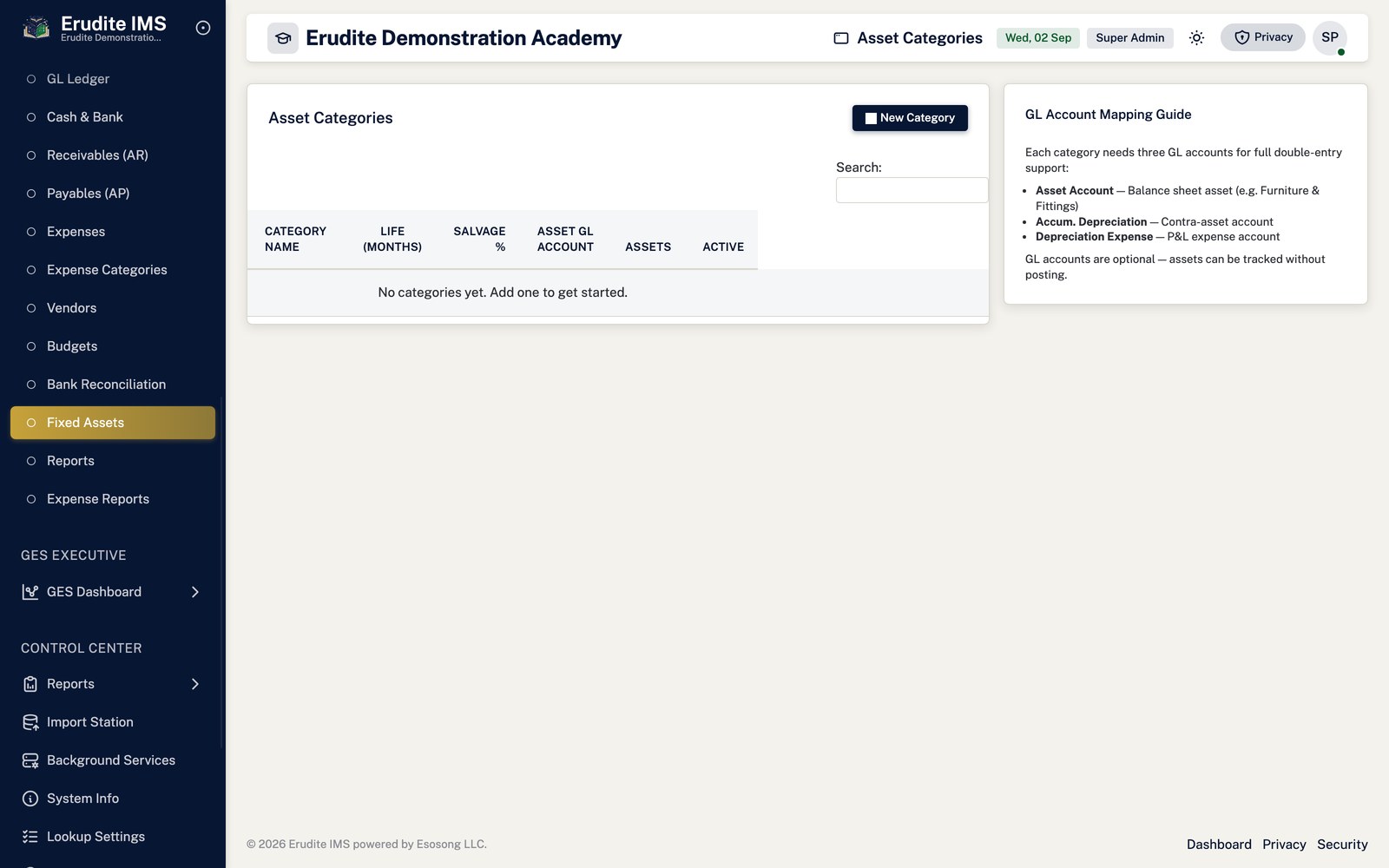
/Accounting/AssetCategories
/Accounting/AssetCategories
Accounting — balance sheet
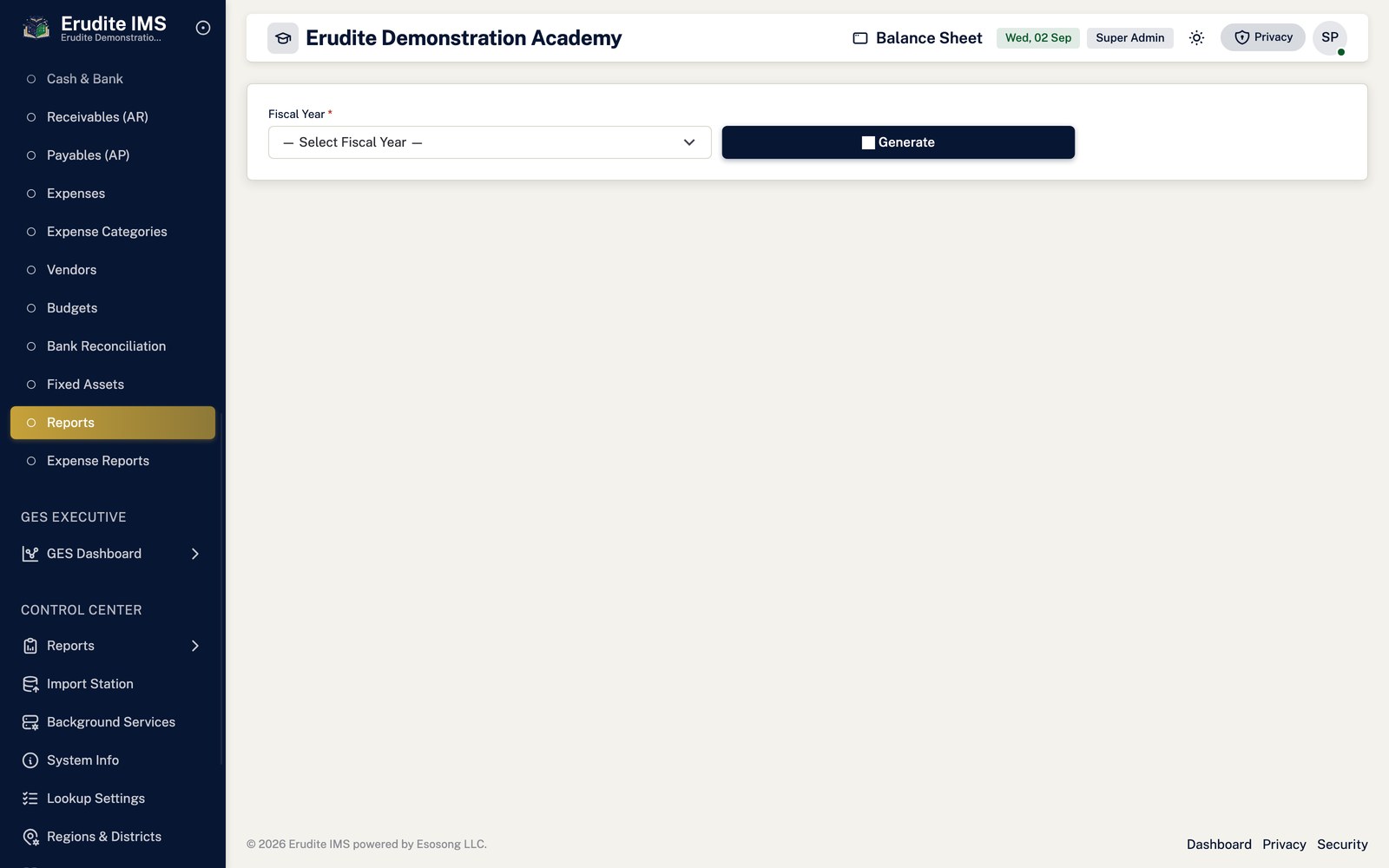
/Accounting/BalanceSheet
/Accounting/BalanceSheet
Accounting — bank accounts
/Accounting/BankAccounts
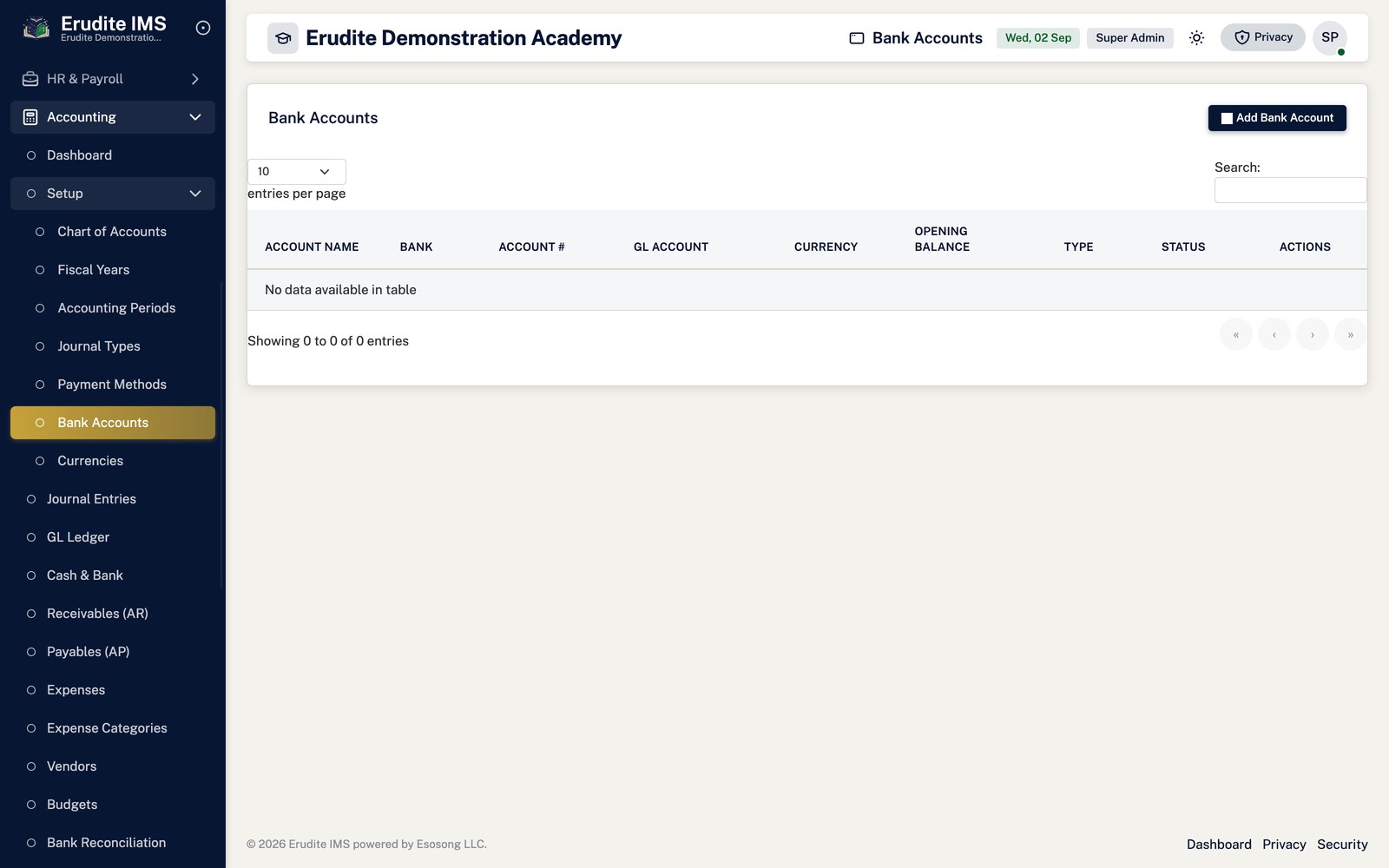
/Accounting/BankAccounts
Accounting — bank reconciliation
/Accounting/BankReconciliation
/Accounting/BankReconciliation
Accounting — budget details
/Accounting/BudgetDetails
This screen opens against a specific record and cannot be reached by URL alone. Open it from the list page for this module.
Accounting — budgets
/Accounting/Budgets
/Accounting/Budgets
Accounting — cash book
/Accounting/CashBook
/Accounting/CashBook
Accounting — cash flow
/Accounting/CashFlow
/Accounting/CashFlow
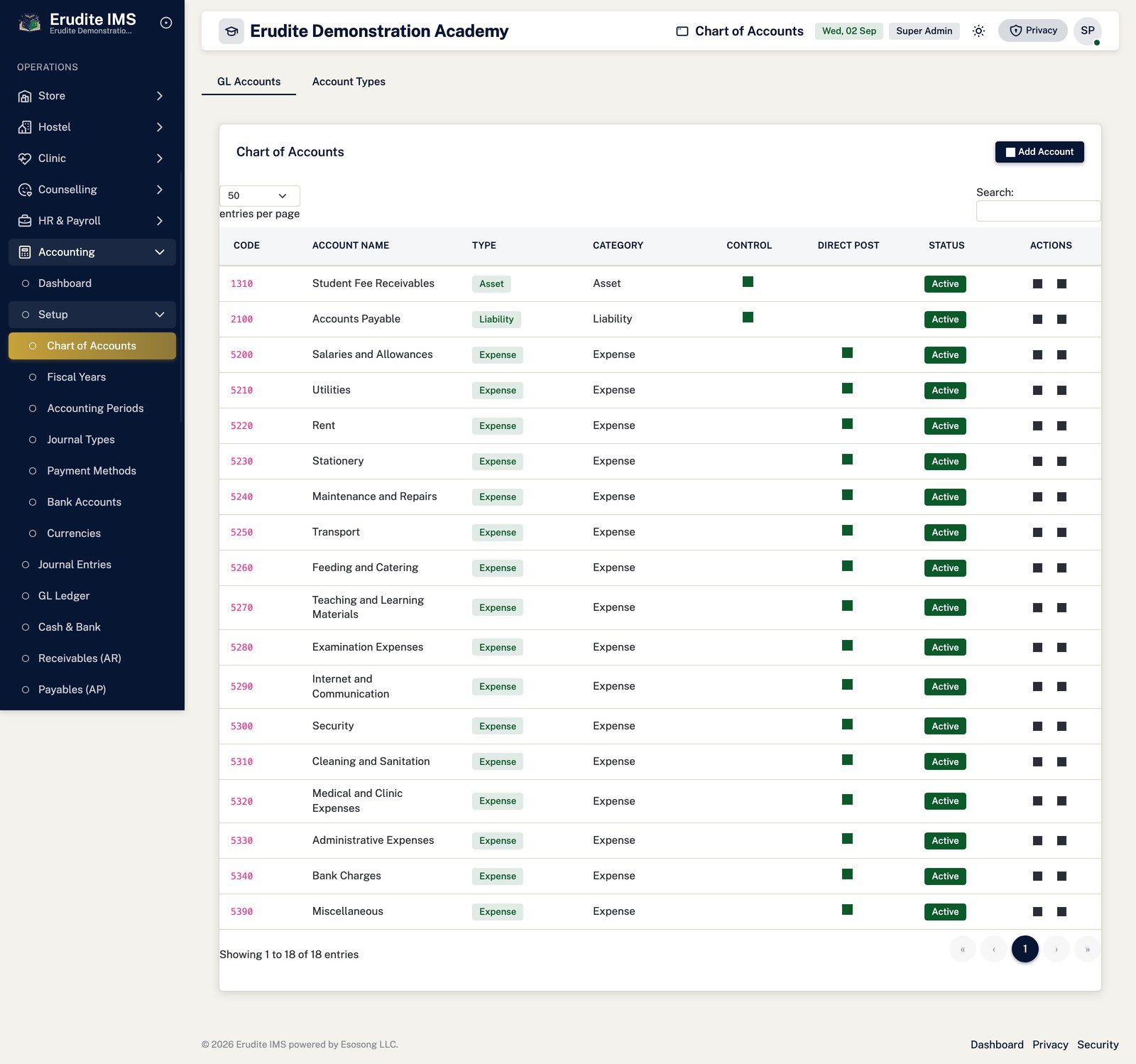
Accounting — chart of accounts
/Accounting/ChartOfAccounts
/Accounting/ChartOfAccounts
Accounting — create budget
/Accounting/CreateBudget
/Accounting/CreateBudget
Accounting — create fixed asset
/Accounting/CreateFixedAsset
/Accounting/CreateFixedAsset
Accounting — create journal
/Accounting/CreateJournal
/Accounting/CreateJournal
Accounting — create payment
/Accounting/CreatePayment
/Accounting/CreatePayment
Accounting — create receipt
/Accounting/CreateReceipt
/Accounting/CreateReceipt
Accounting — create vendor invoice
/Accounting/CreateVendorInvoice
/Accounting/CreateVendorInvoice
Accounting — currencies
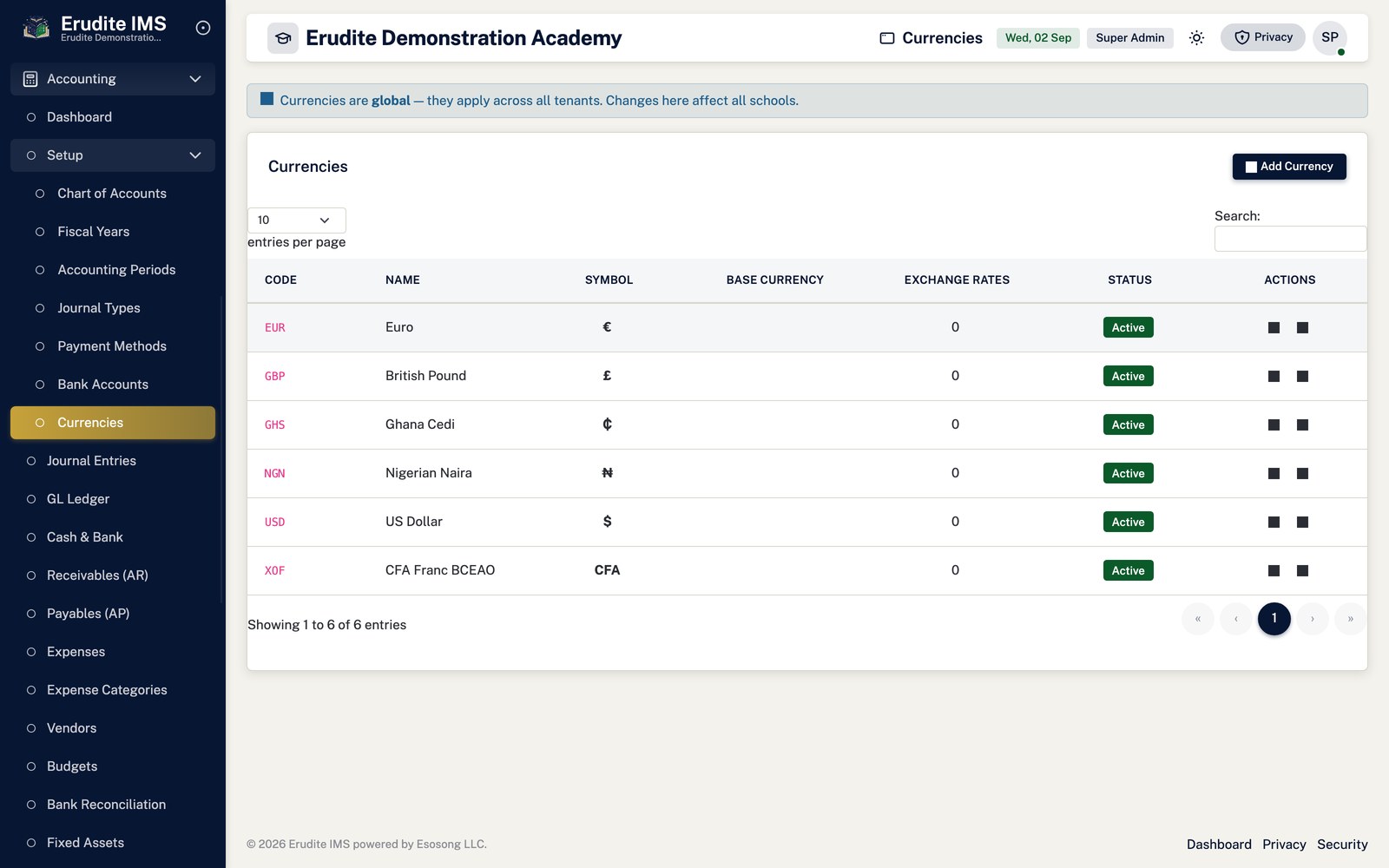
/Accounting/Currencies
/Accounting/Currencies
Accounting — fiscal year details
/Accounting/FiscalYearDetails
This screen opens against a specific record and cannot be reached by URL alone. Open it from the list page for this module.
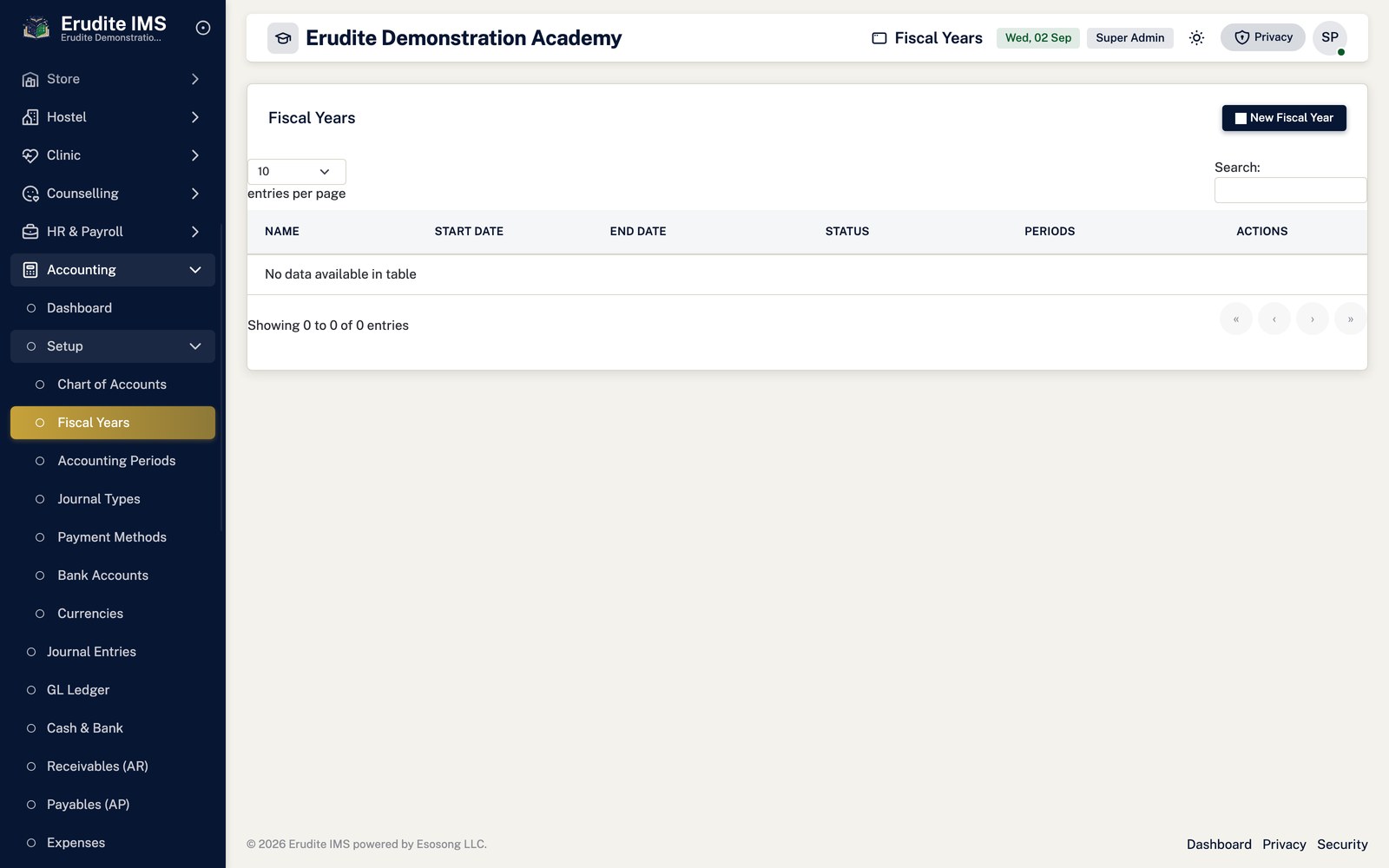
Accounting — fiscal years
/Accounting/FiscalYears
/Accounting/FiscalYears
Accounting — fixed asset details
/Accounting/FixedAssetDetails
This screen opens against a specific record and cannot be reached by URL alone. Open it from the list page for this module.
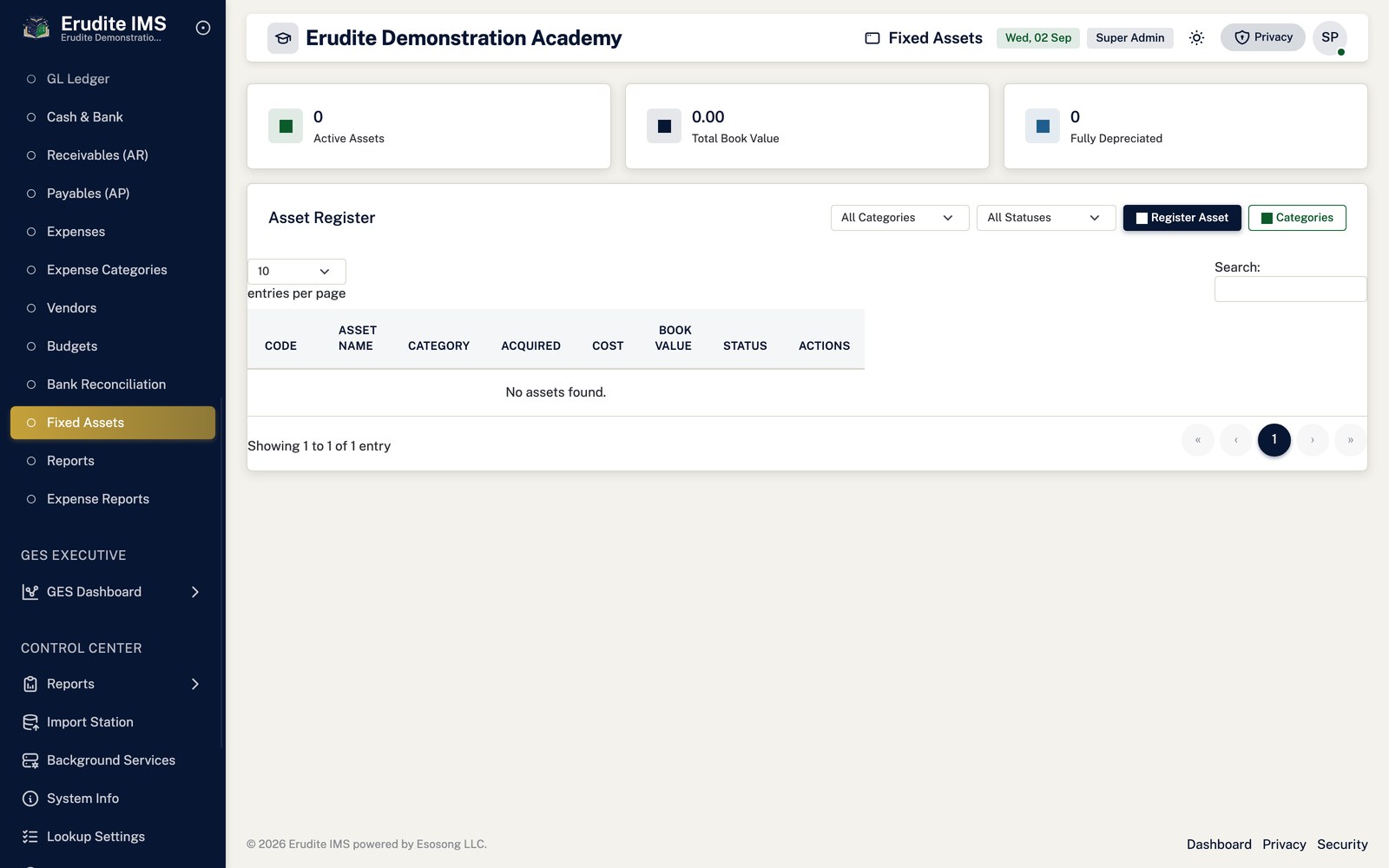
Accounting — fixed assets
/Accounting/FixedAssets
/Accounting/FixedAssets
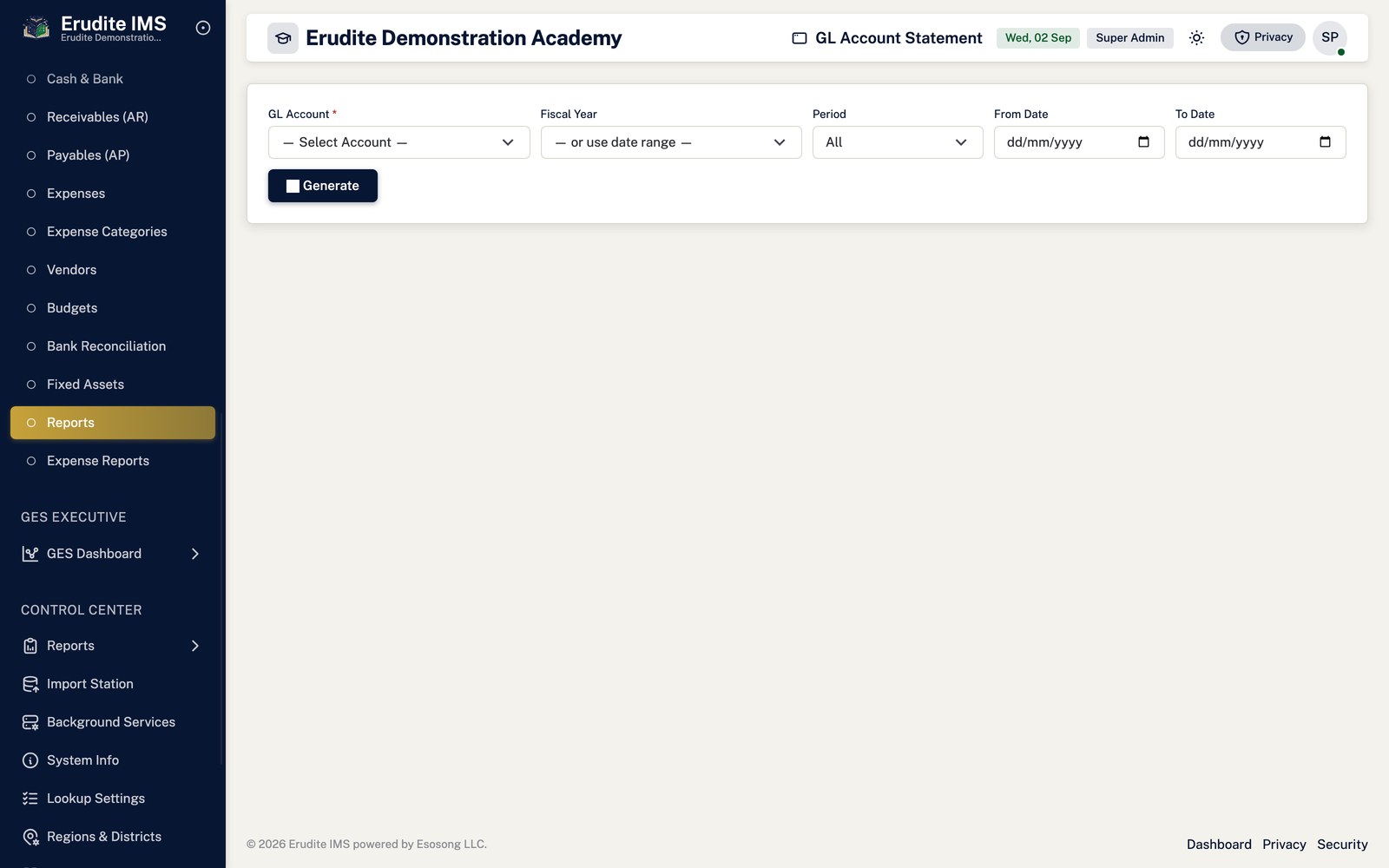
Accounting — gl account statement
/Accounting/GlAccountStatement
/Accounting/GlAccountStatement
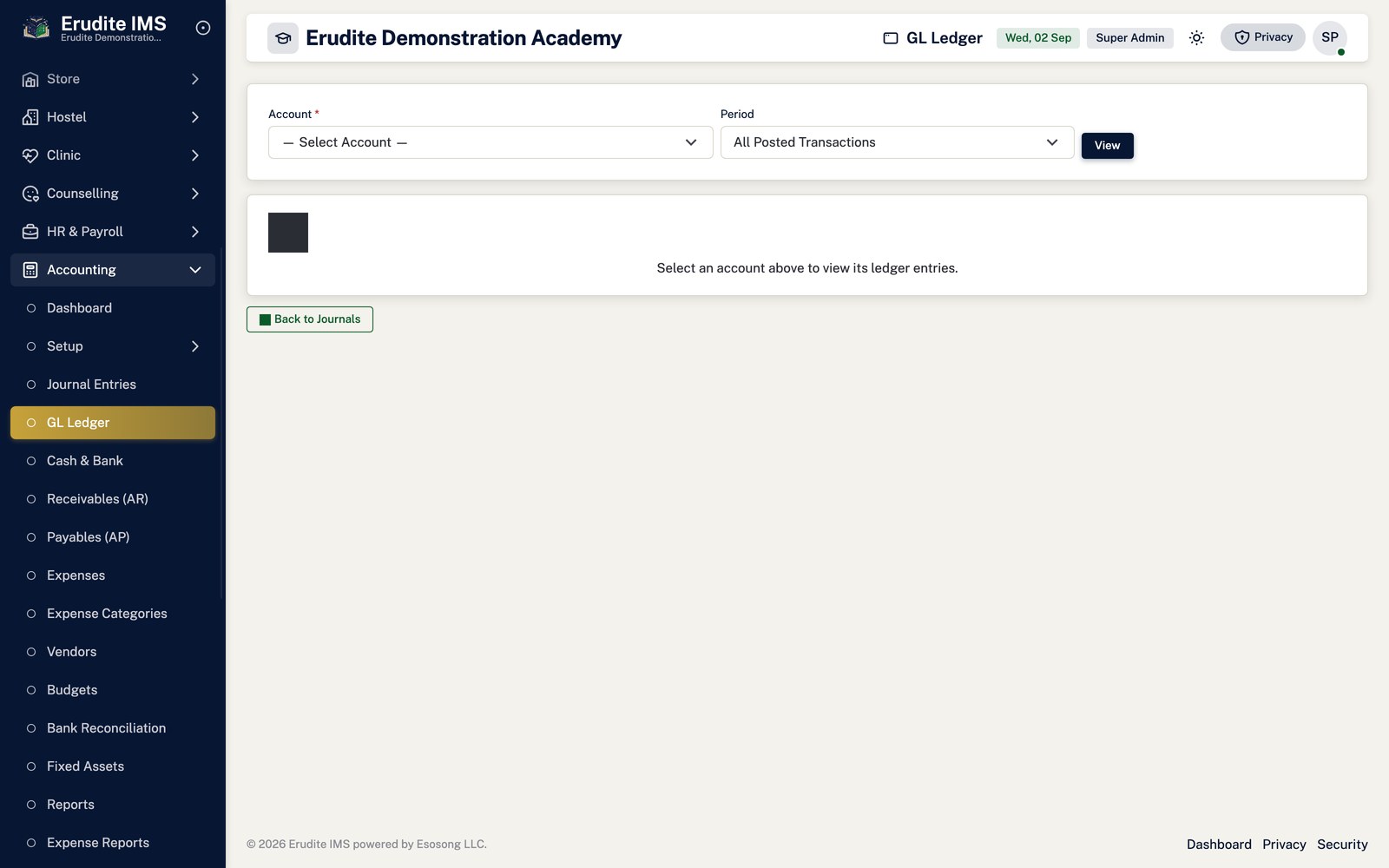
Accounting — gl ledger
/Accounting/GlLedger
/Accounting/GlLedger
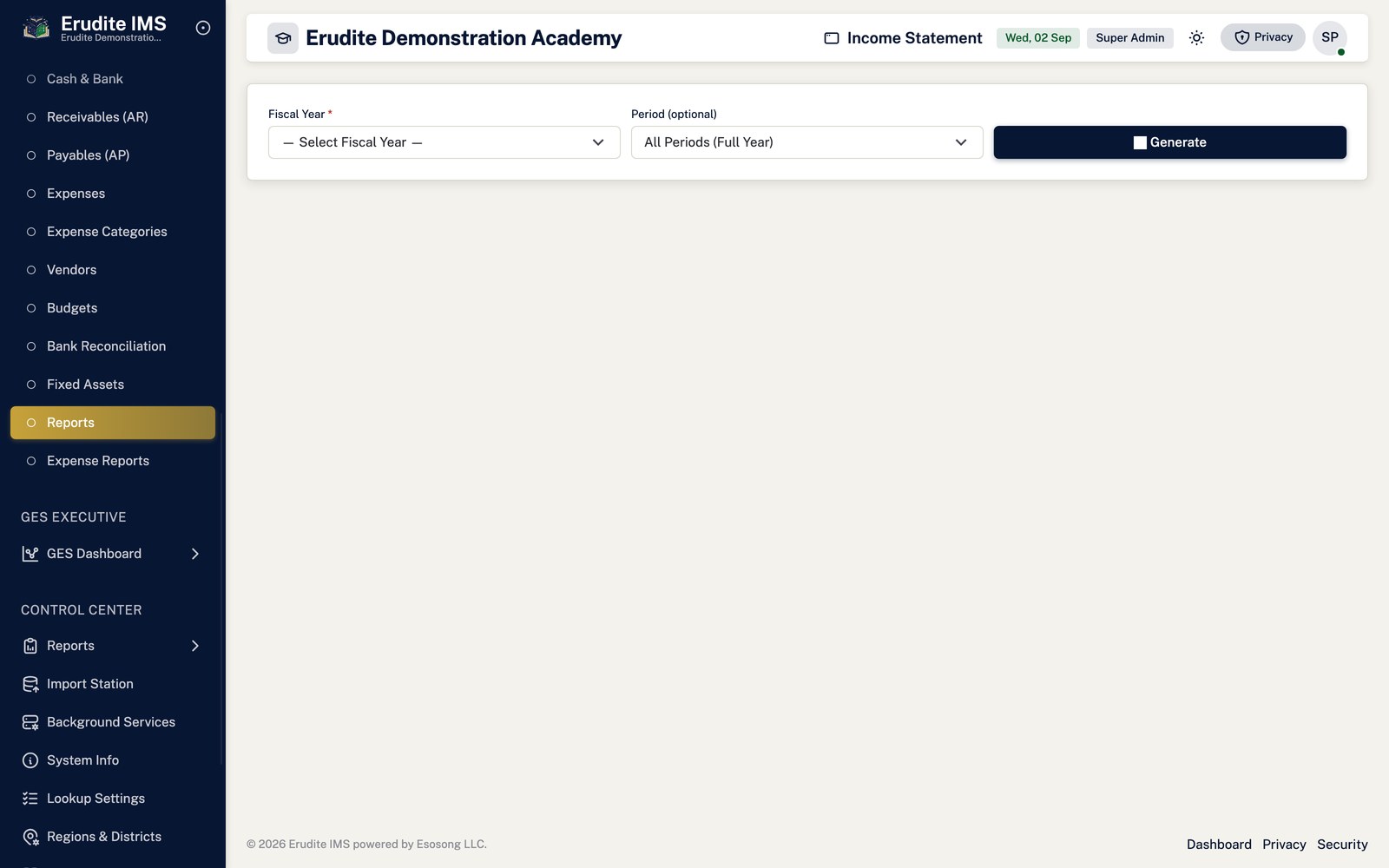
Accounting — income statement
/Accounting/IncomeStatement
/Accounting/IncomeStatement
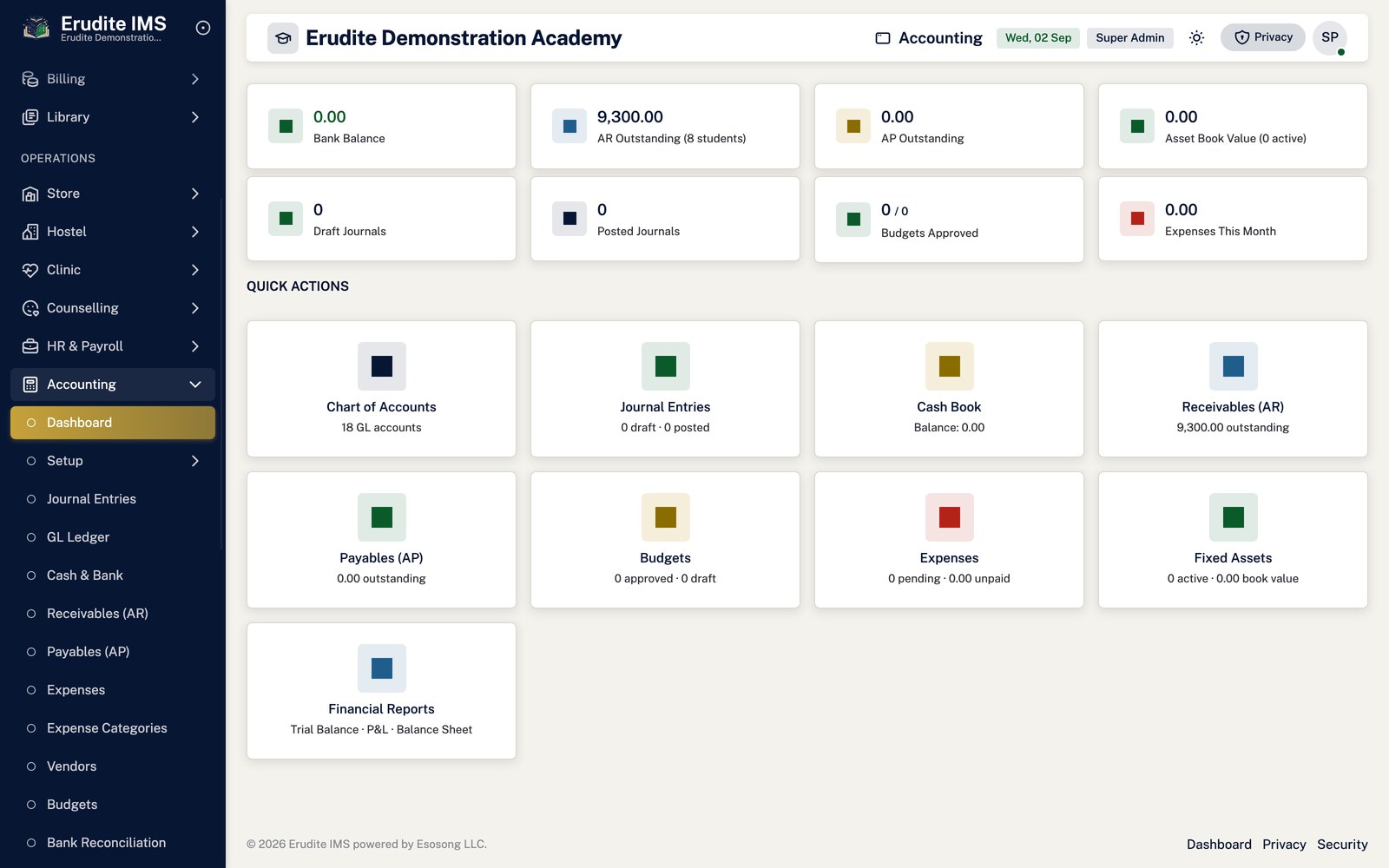
Accounting — list
/Accounting
/Accounting
Accounting — journal details
/Accounting/JournalDetails
This screen opens against a specific record and cannot be reached by URL alone. Open it from the list page for this module.
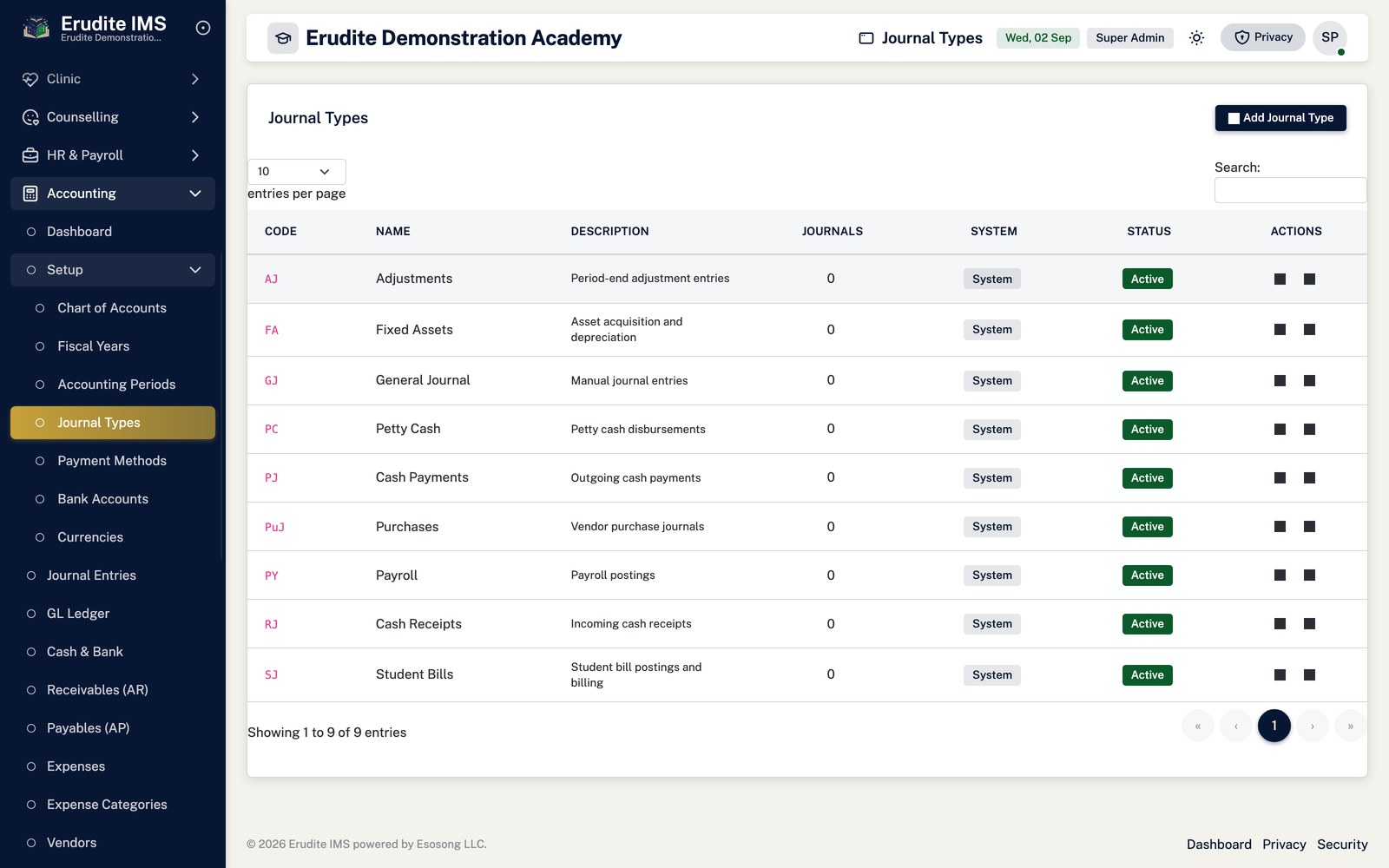
Accounting — journal types
/Accounting/JournalTypes
/Accounting/JournalTypes
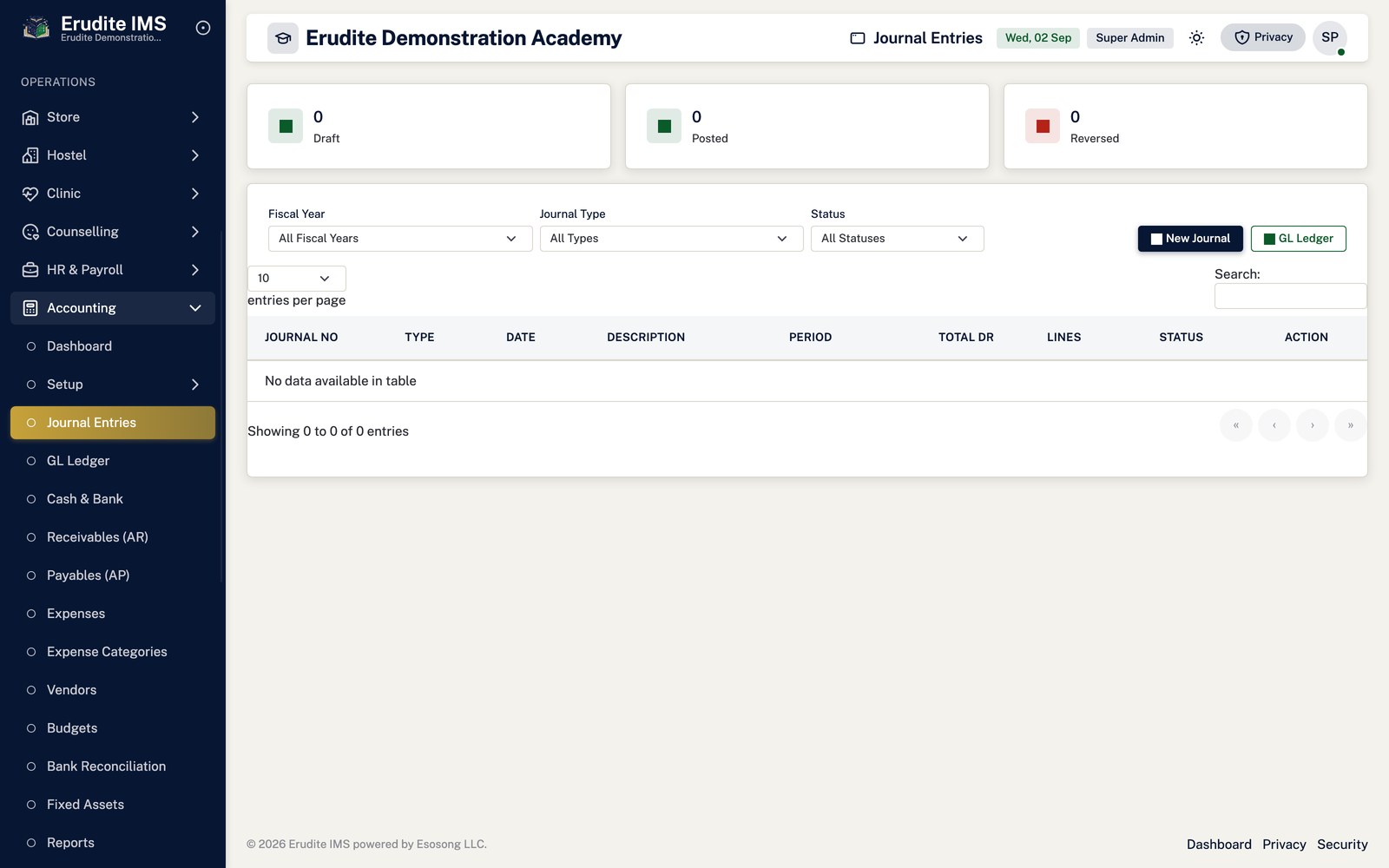
Accounting — journals
/Accounting/Journals
/Accounting/Journals
Accounting — payables
/Accounting/Payables
/Accounting/Payables
Accounting — payment methods
/Accounting/PaymentMethods
/Accounting/PaymentMethods
Accounting — periods
/Accounting/Periods
/Accounting/Periods
Accounting — receivables
/Accounting/Receivables
/Accounting/Receivables
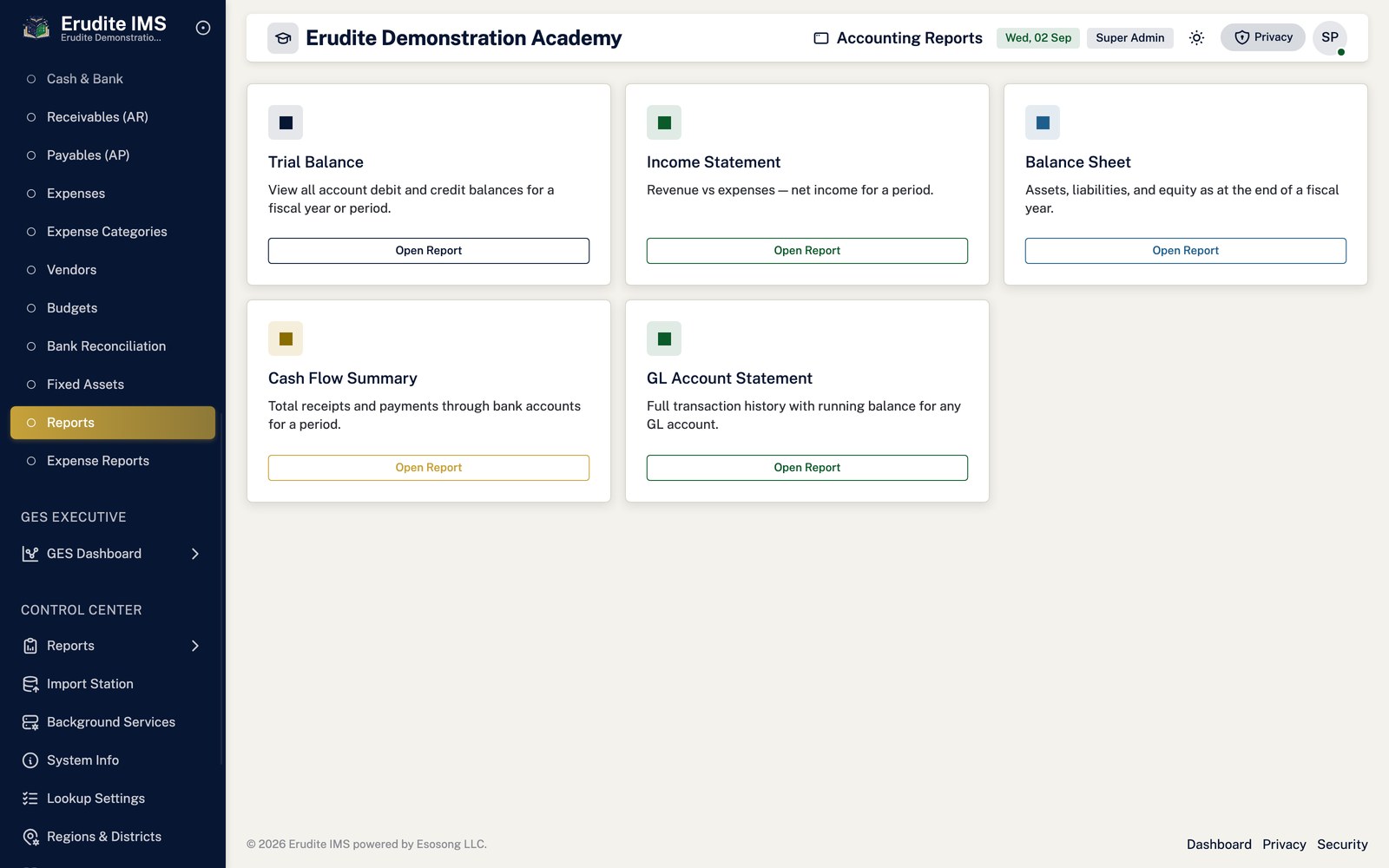
Accounting — reports
/Accounting/Reports
/Accounting/Reports
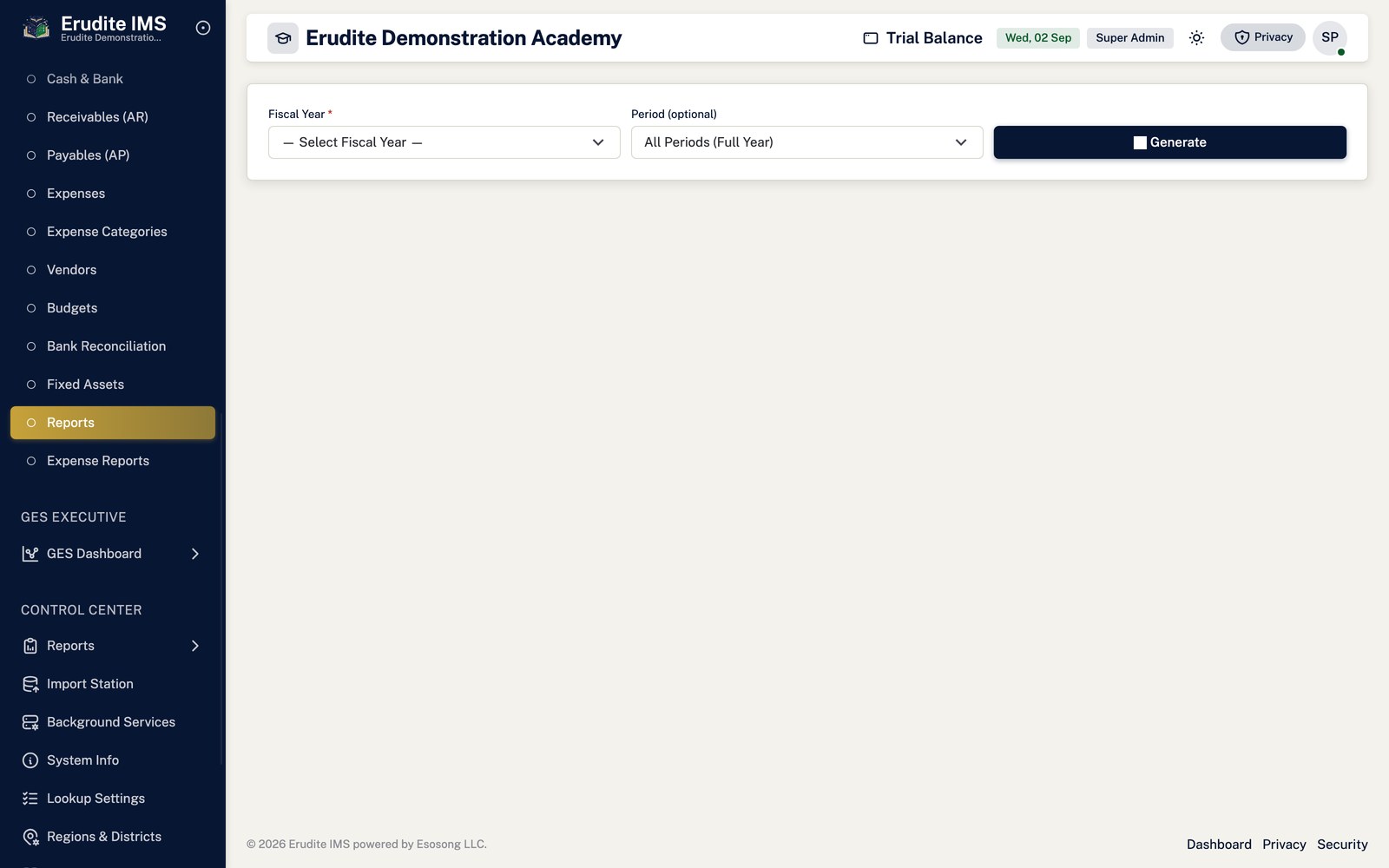
Accounting — trial balance
/Accounting/TrialBalance
/Accounting/TrialBalance
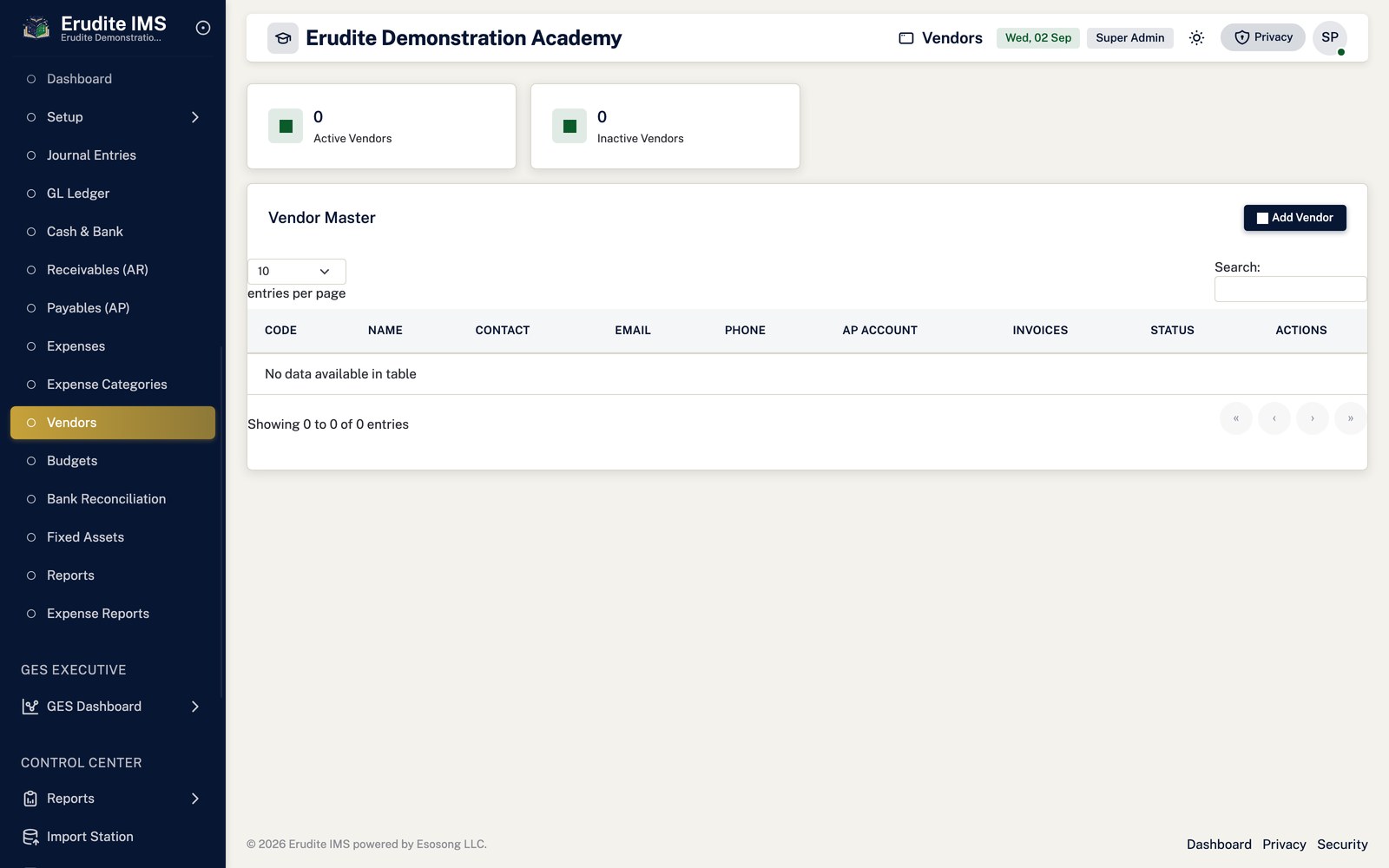
Accounting — vendors
/Accounting/Vendors
/Accounting/Vendors
Expenses
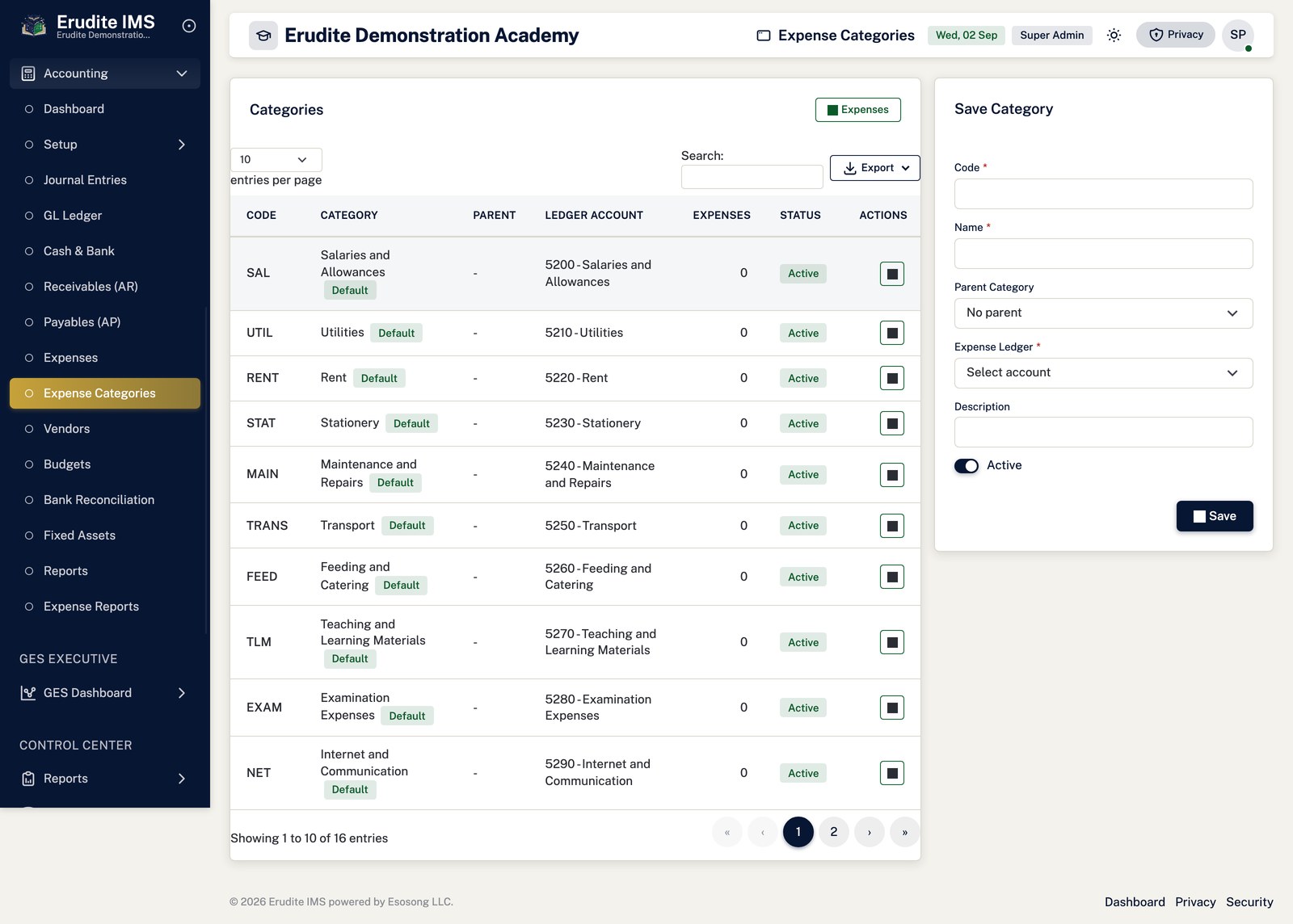
Expenses — categories
/Expenses/Categories
/Expenses/Categories
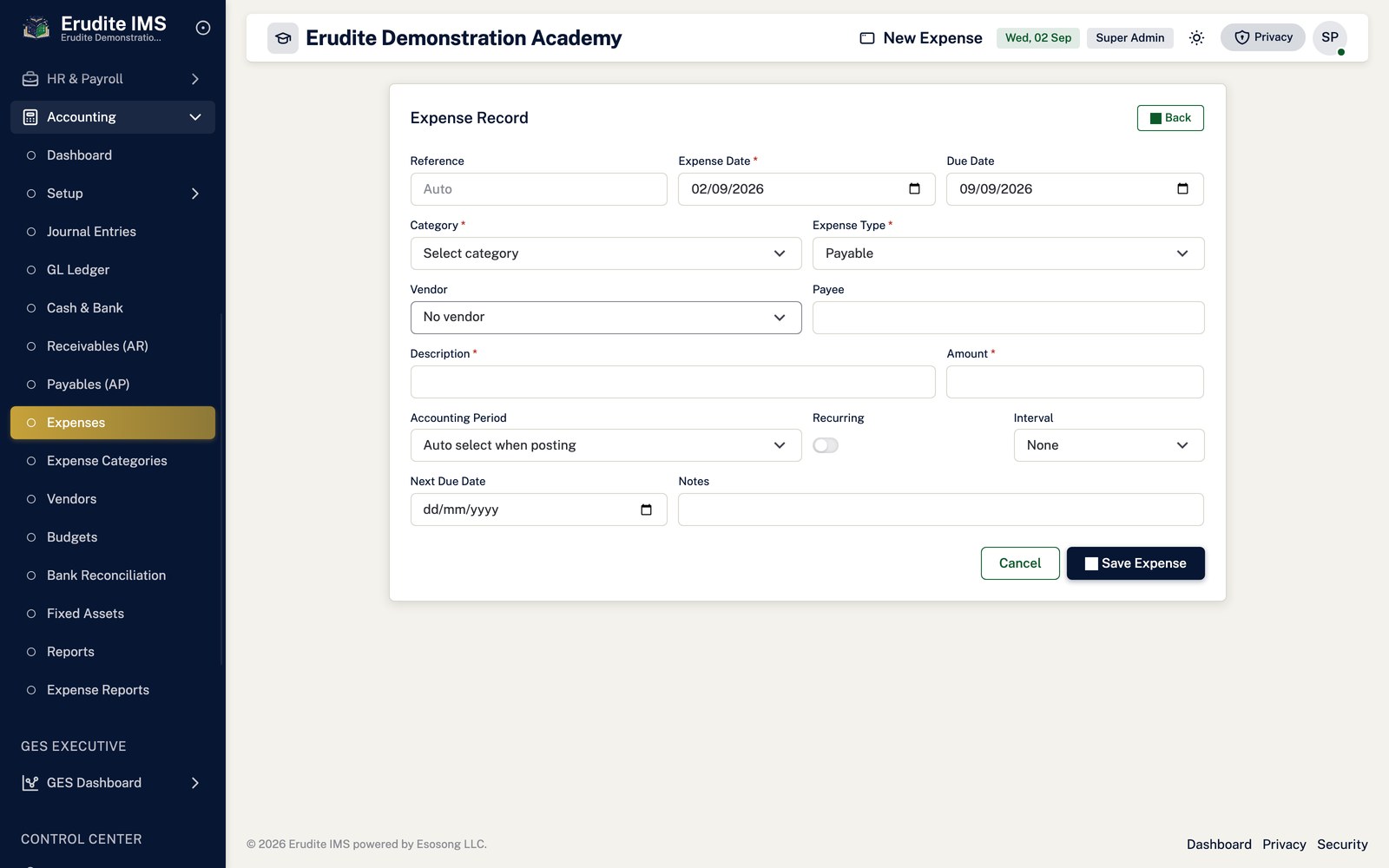
Expenses — create form
/Expenses/Create
/Expenses/Create
Expenses — record detail
/Expenses/Details
This screen opens against a specific record and cannot be reached by URL alone. Open it from the list page for this module.
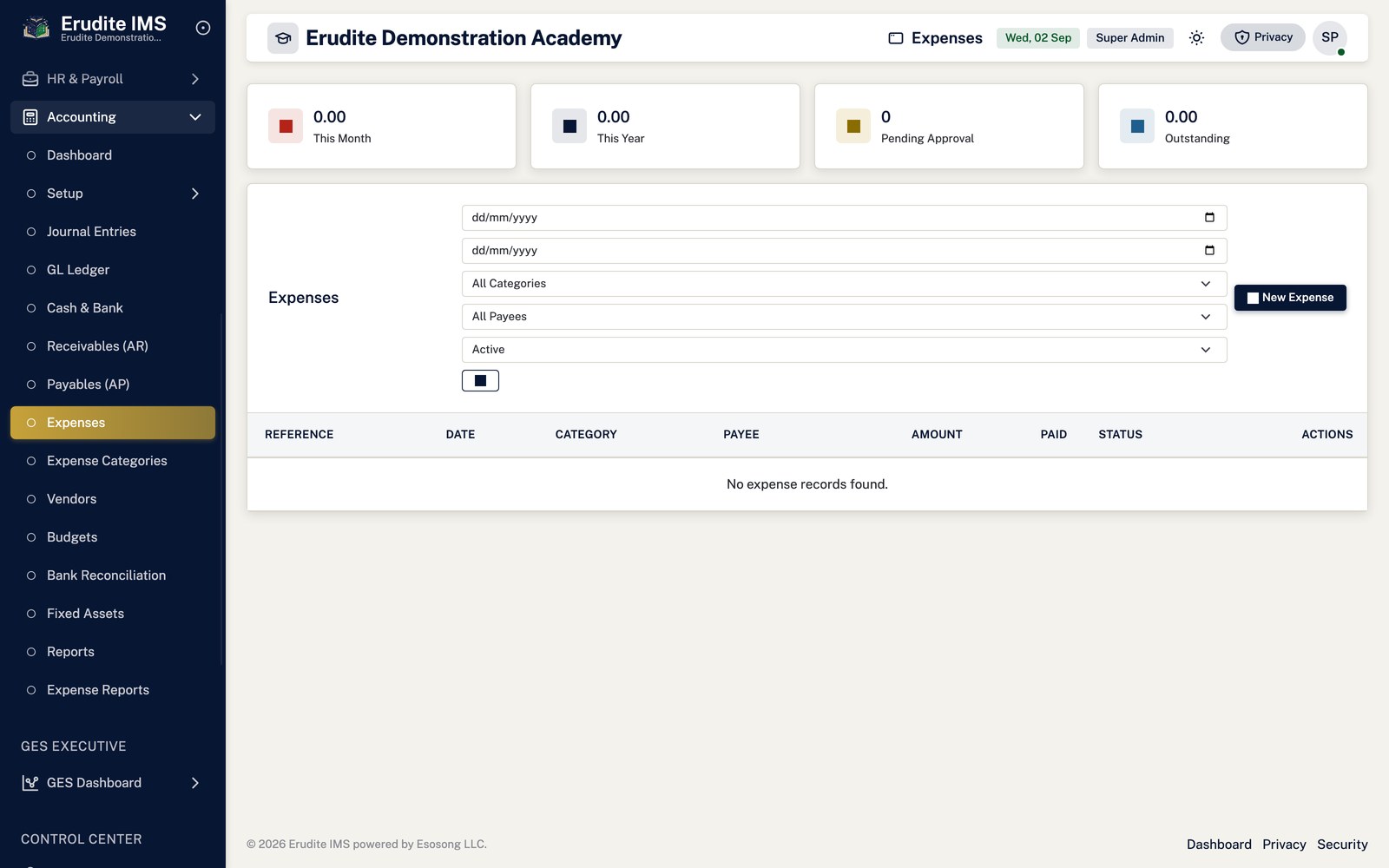
Expenses — list
/Expenses
/Expenses
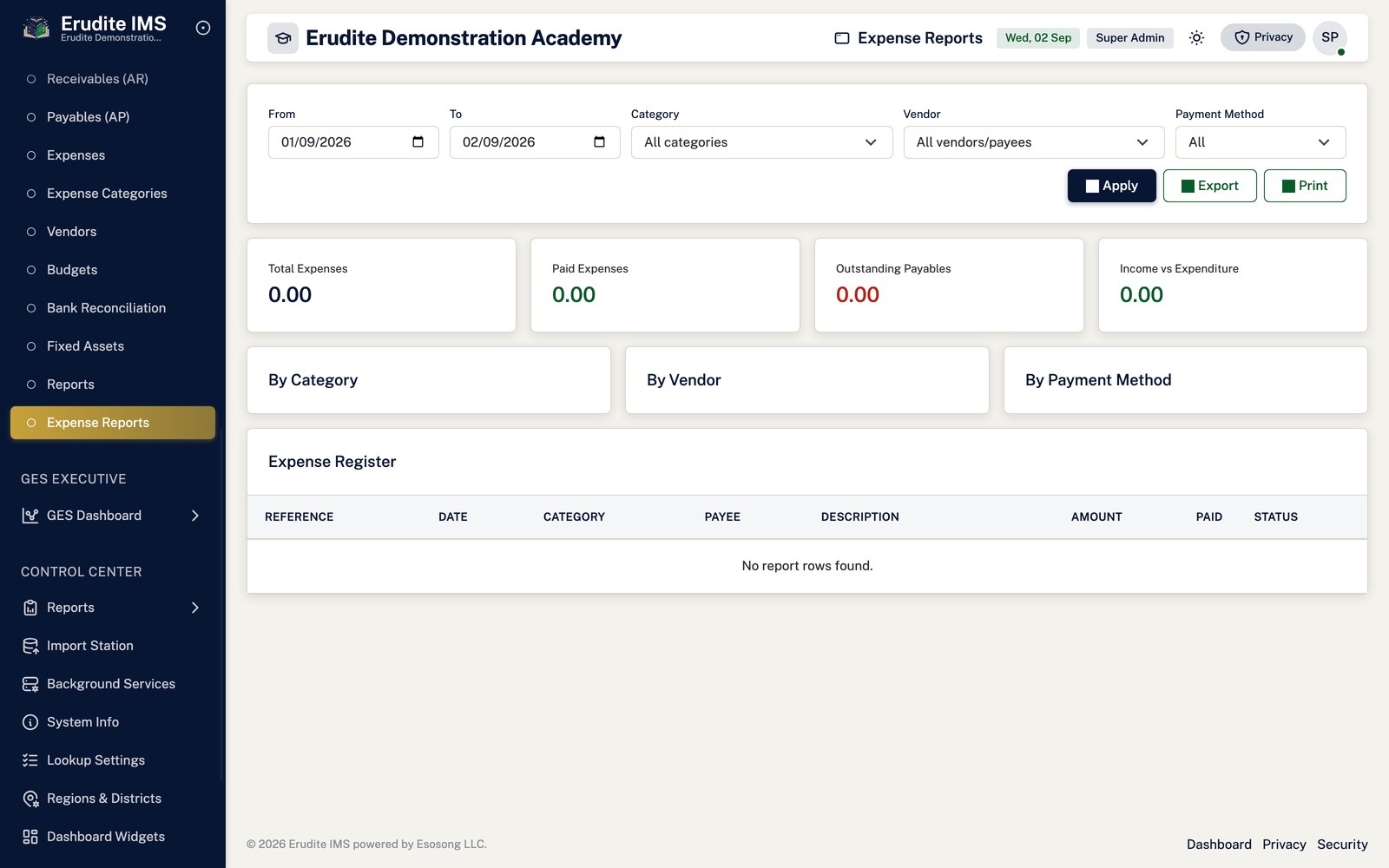
Expenses — reports
/Expenses/Reports
/Expenses/Reports
Human resources and payroll
Setting up an employee record
Open HR → Employees → New employee and complete personal, contact and employment
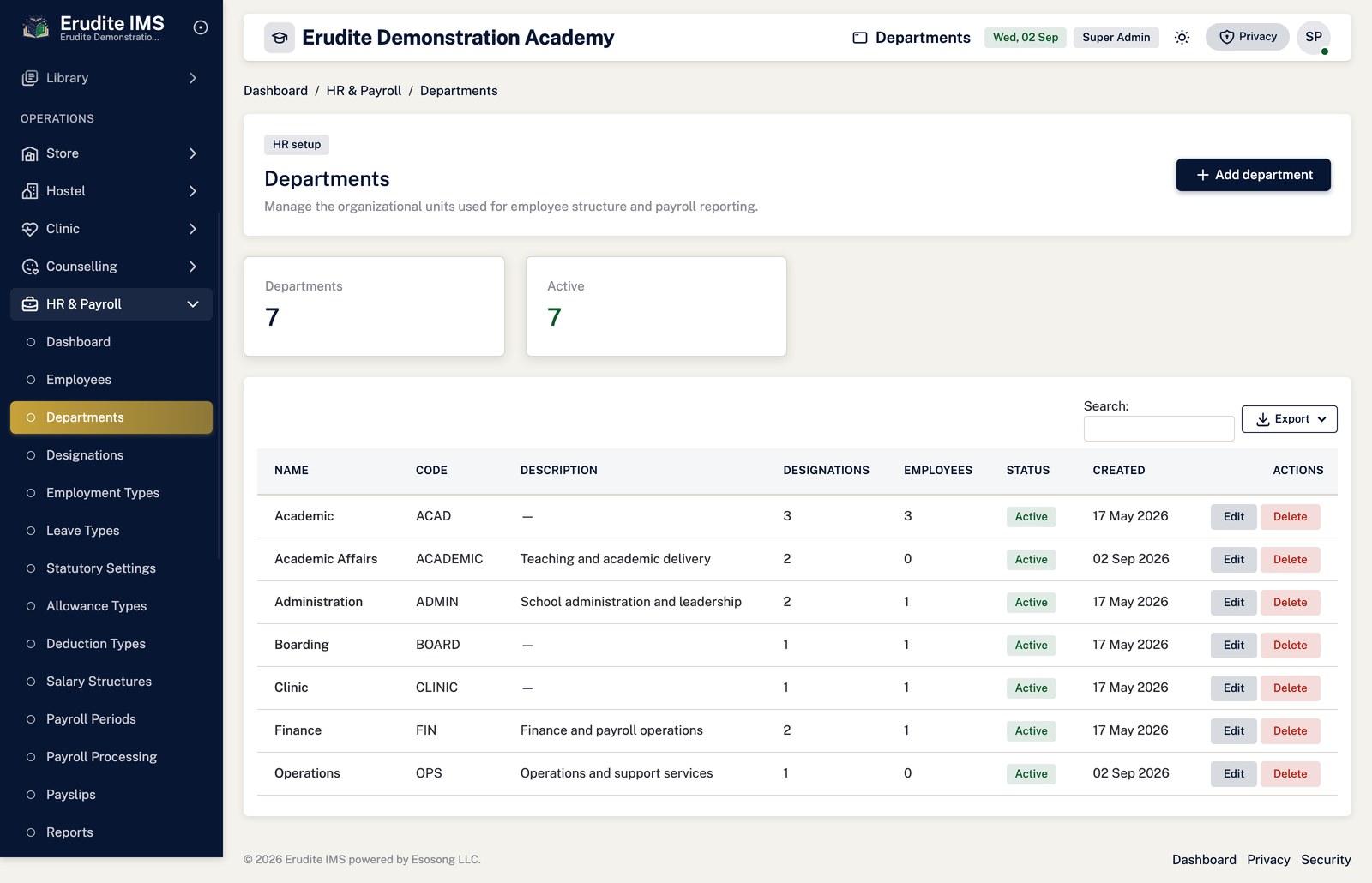
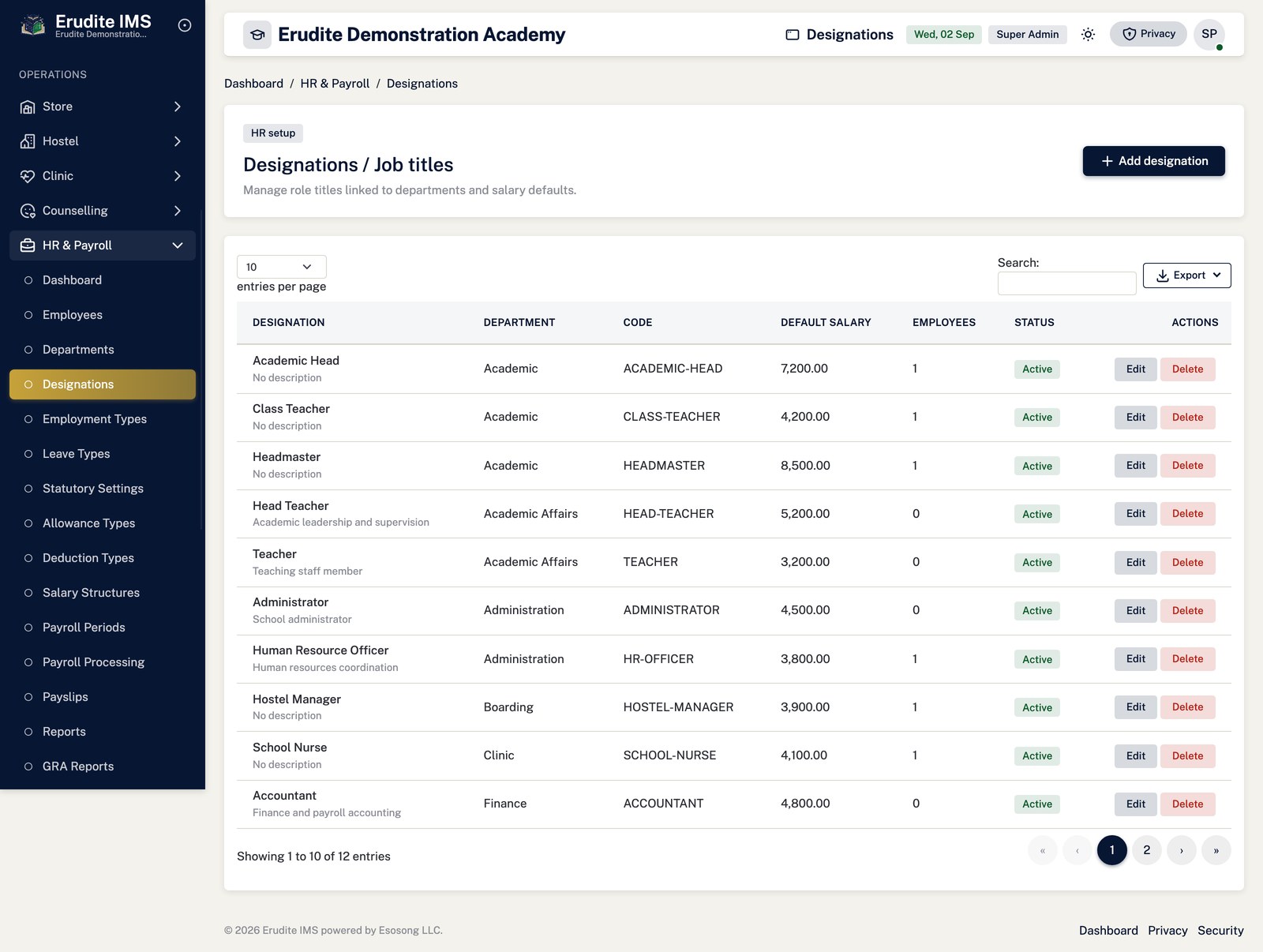
details. Department and designation come from Payroll Setup → Departments and
Designations; the designation list narrows to the ones that belong to the department you
pick.
From the employee's Details page, add Bank Detail (mark one Primary for
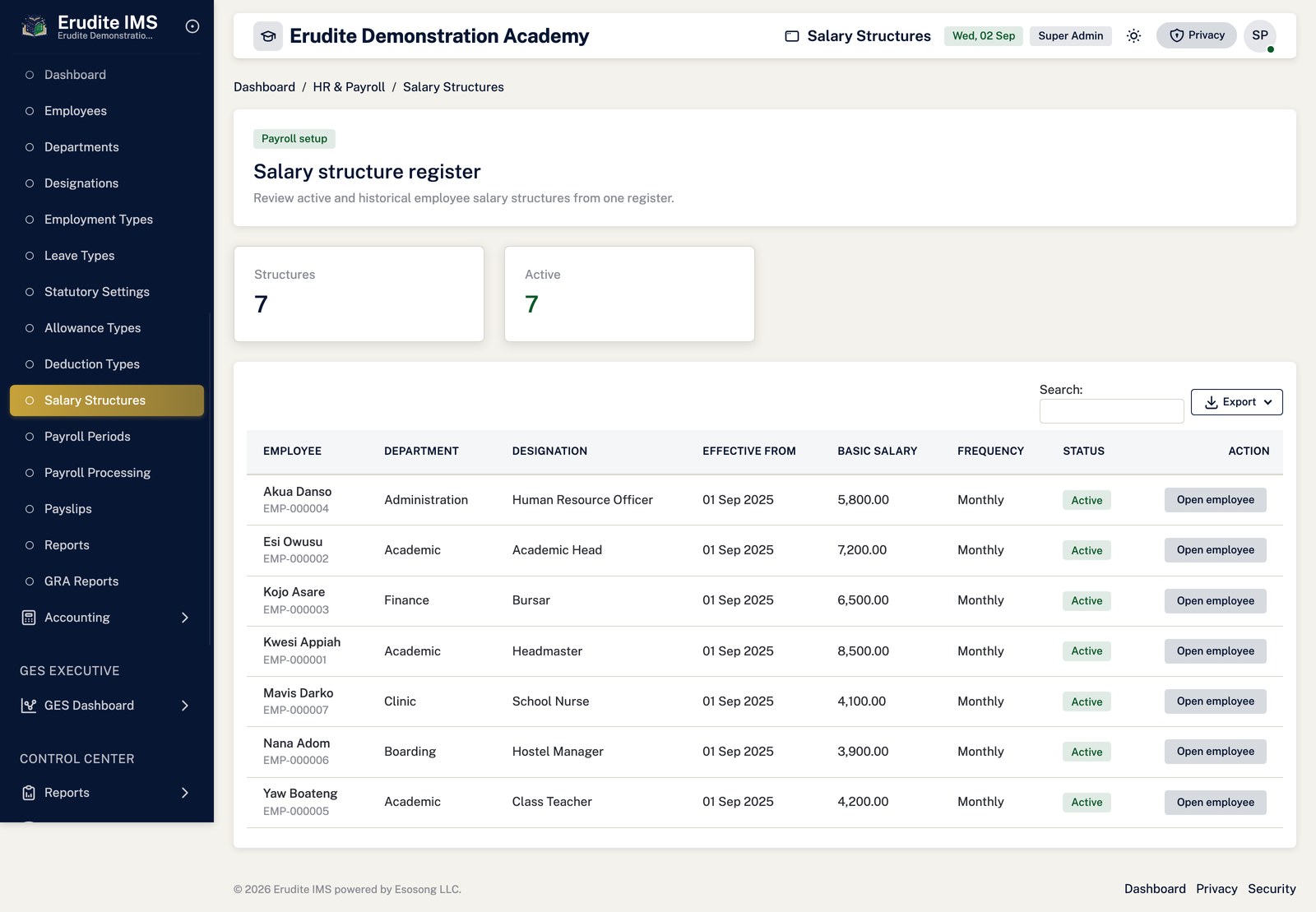
salary payment), Documents, and the employee's Salary Structure —
allowances and deductions are attached the same way, each from its own tab.
Use Deactivate to take a leaver off the active roster and Reactivate to
bring someone back; deactivating does not delete any of the employee's history.
Transfer moves the employee to a different department or designation from a given date,
keeping the change on record rather than silently overwriting the old one.
Requesting and approving staff leave
From the employee's Leave tab, select Add leave request, choose the
leave type and dates, and save.
Approve (Leave Manage permission) checks the employee's leave balance for that type and
year first — if the closing balance is less than the days requested, approval is refused with that reason
rather than going through anyway. Approving deducts the days from the balance immediately.
Reject records the remarks given and leaves the balance untouched.
Leave balances are opening balance plus accrued days minus used days, tracked per employee, per
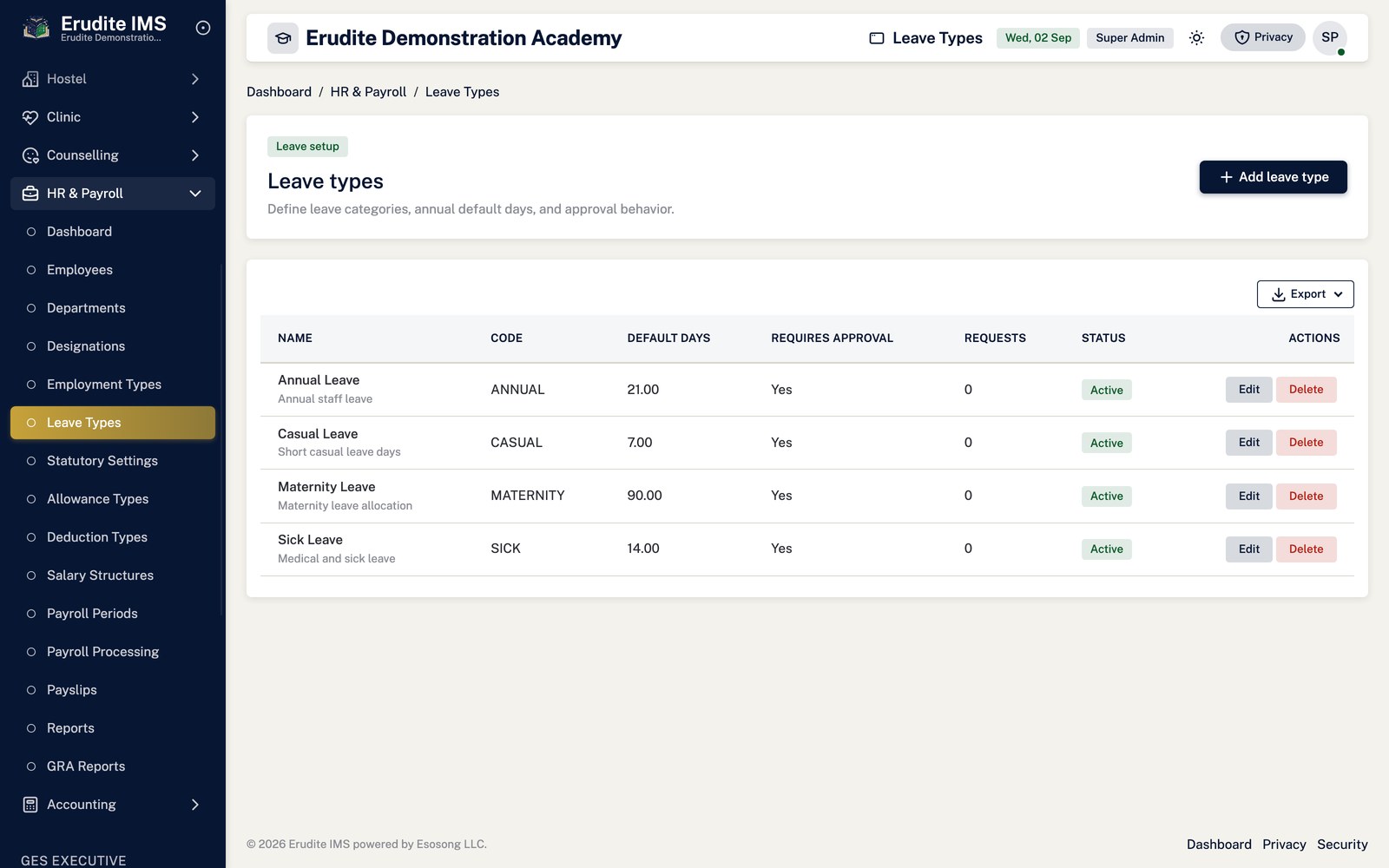
leave type, per year. Leave types themselves are configured in Payroll Setup → Leave Types.
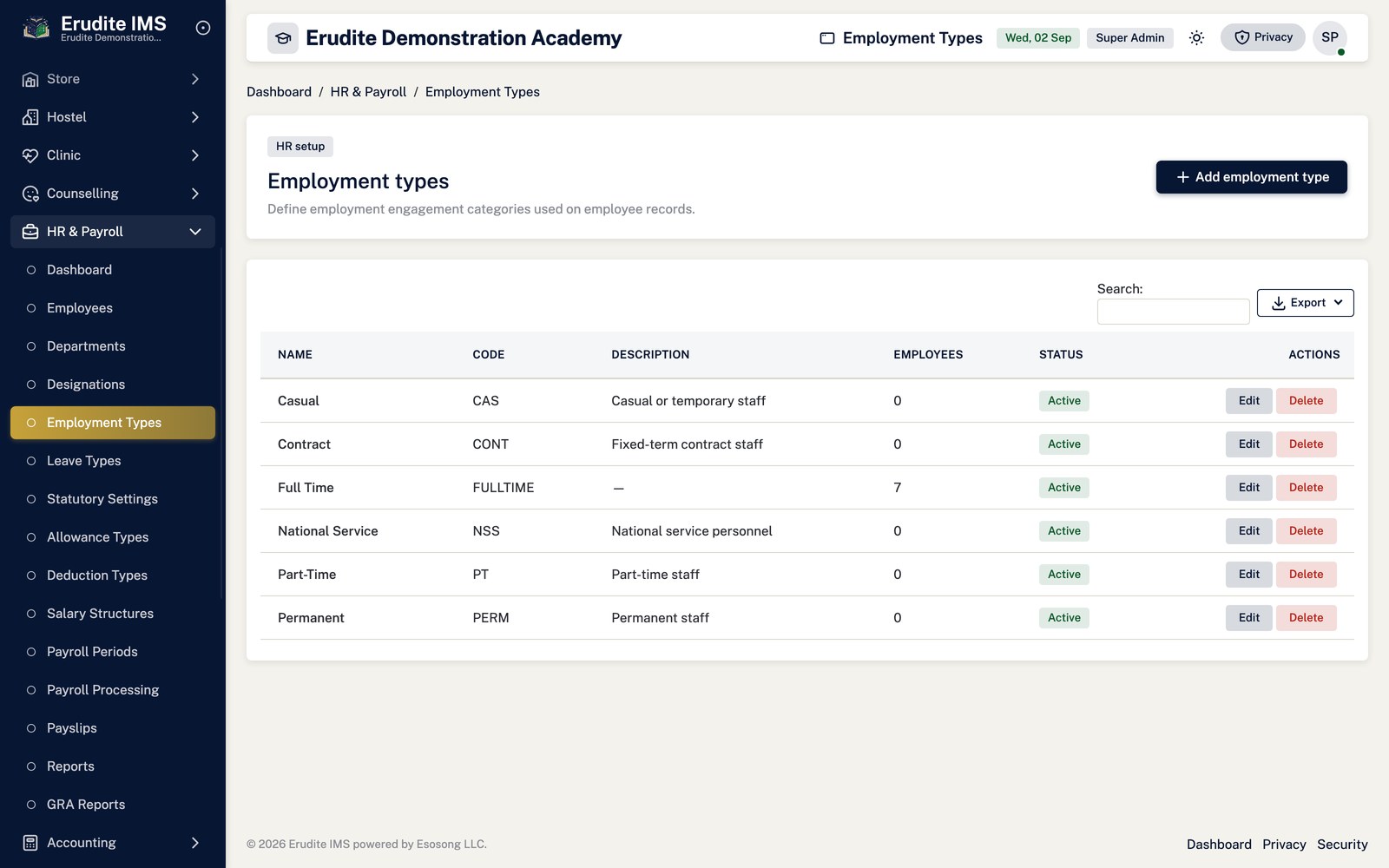
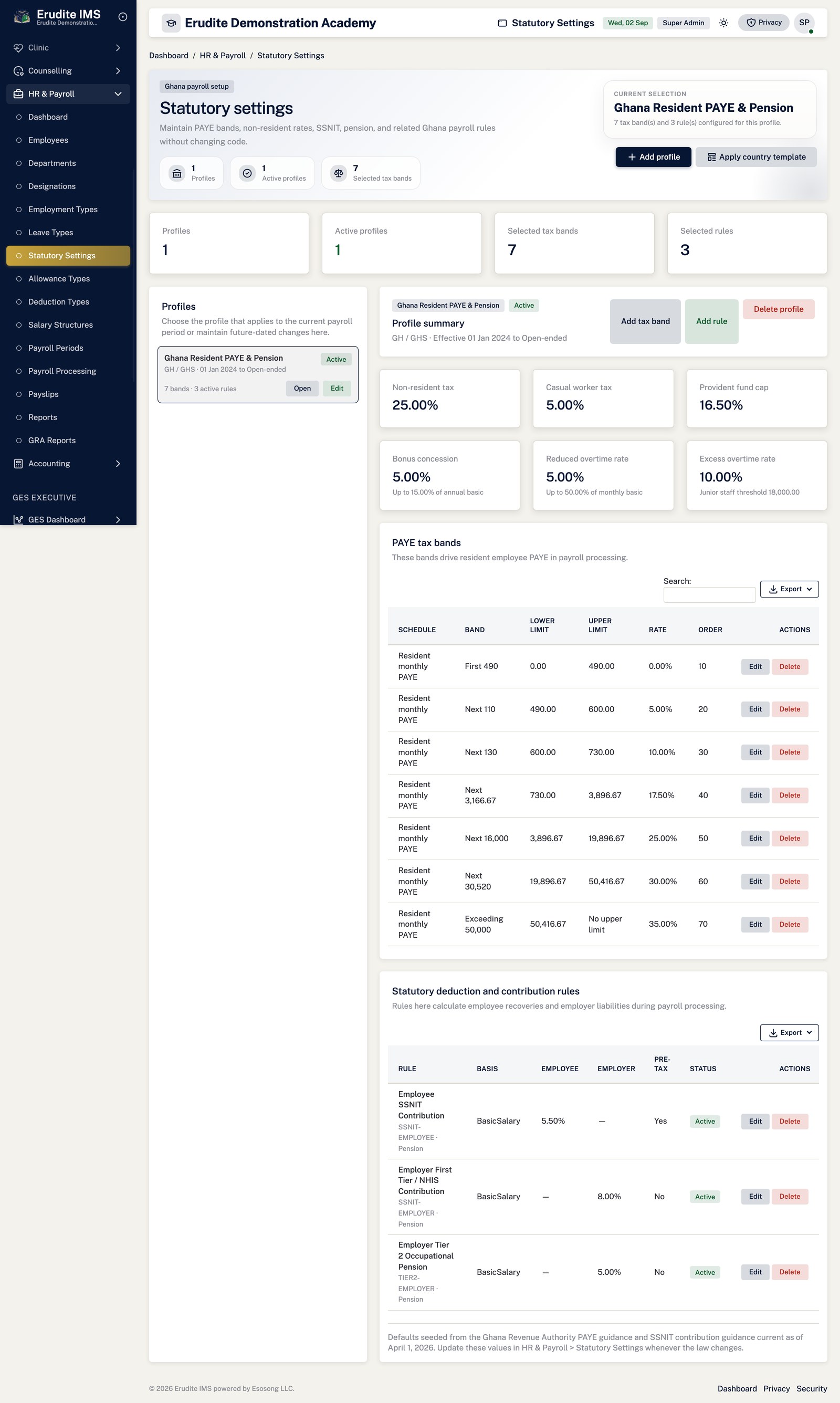
Configuring statutory settings before the first payroll run
Open Payroll Setup → Statutory Settings. Either apply a country statutory template with
Apply Template (Ghana's GH-STAT set, for example) or build a
Statutory Profile by hand with its own tax bands and rules.
Tax bands and rules are added and edited individually under the profile — each has its own
Create/Edit/Delete actions, so a rate change is a new band rather than an in-place edit of history.
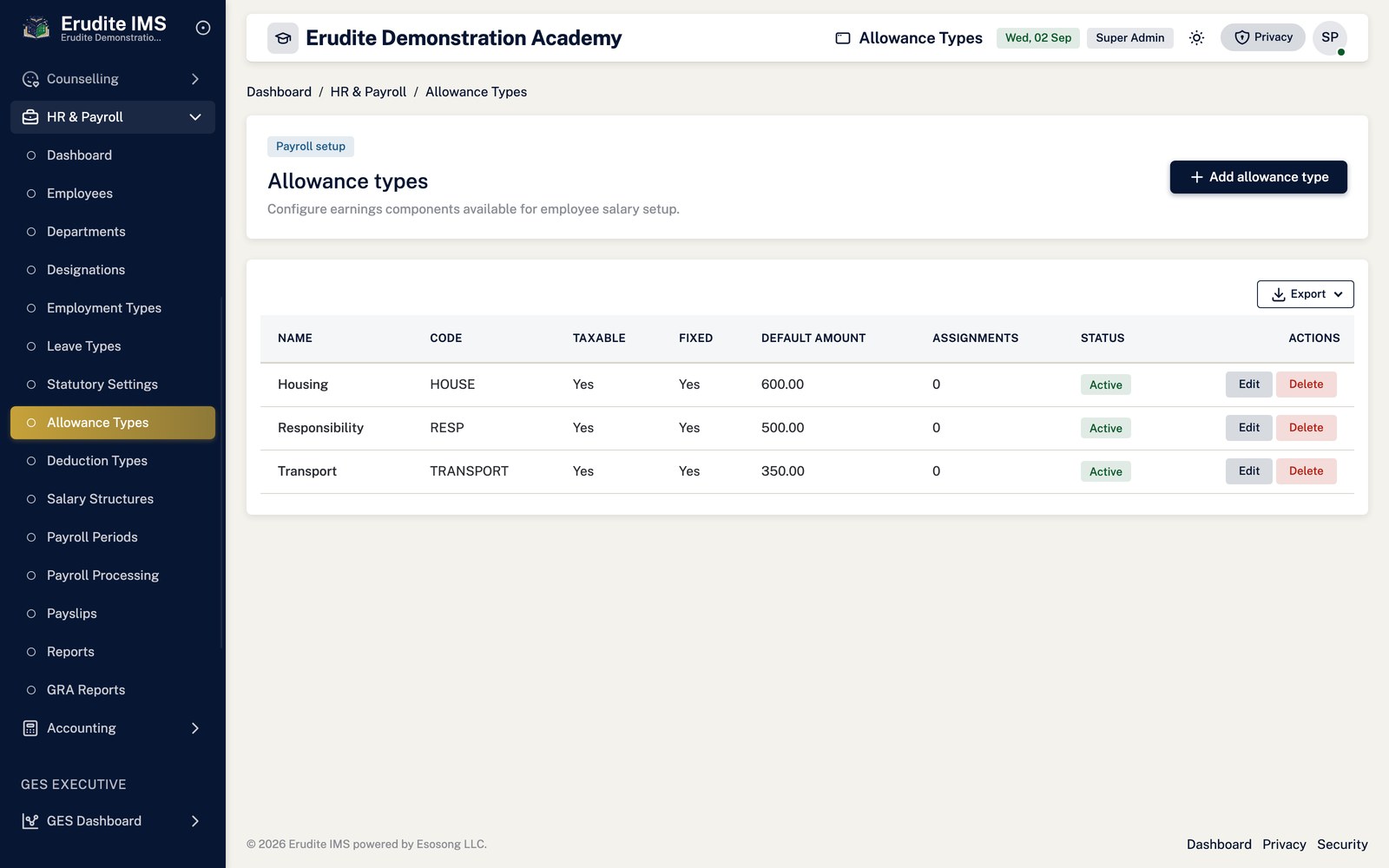
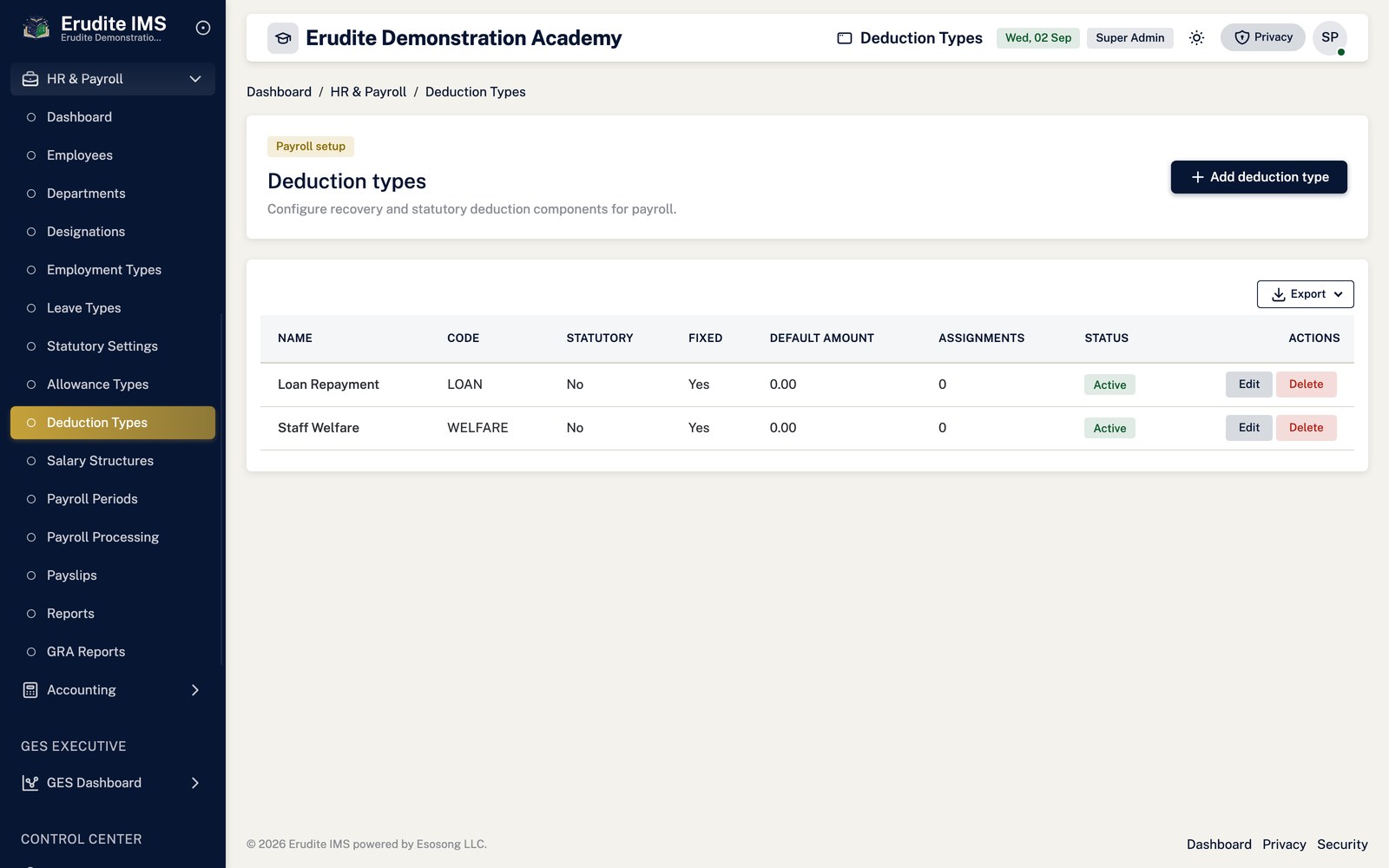
Allowance types, deduction types and employment types used across the module are all maintained from the
same Payroll Setup screen.
Running a payroll period
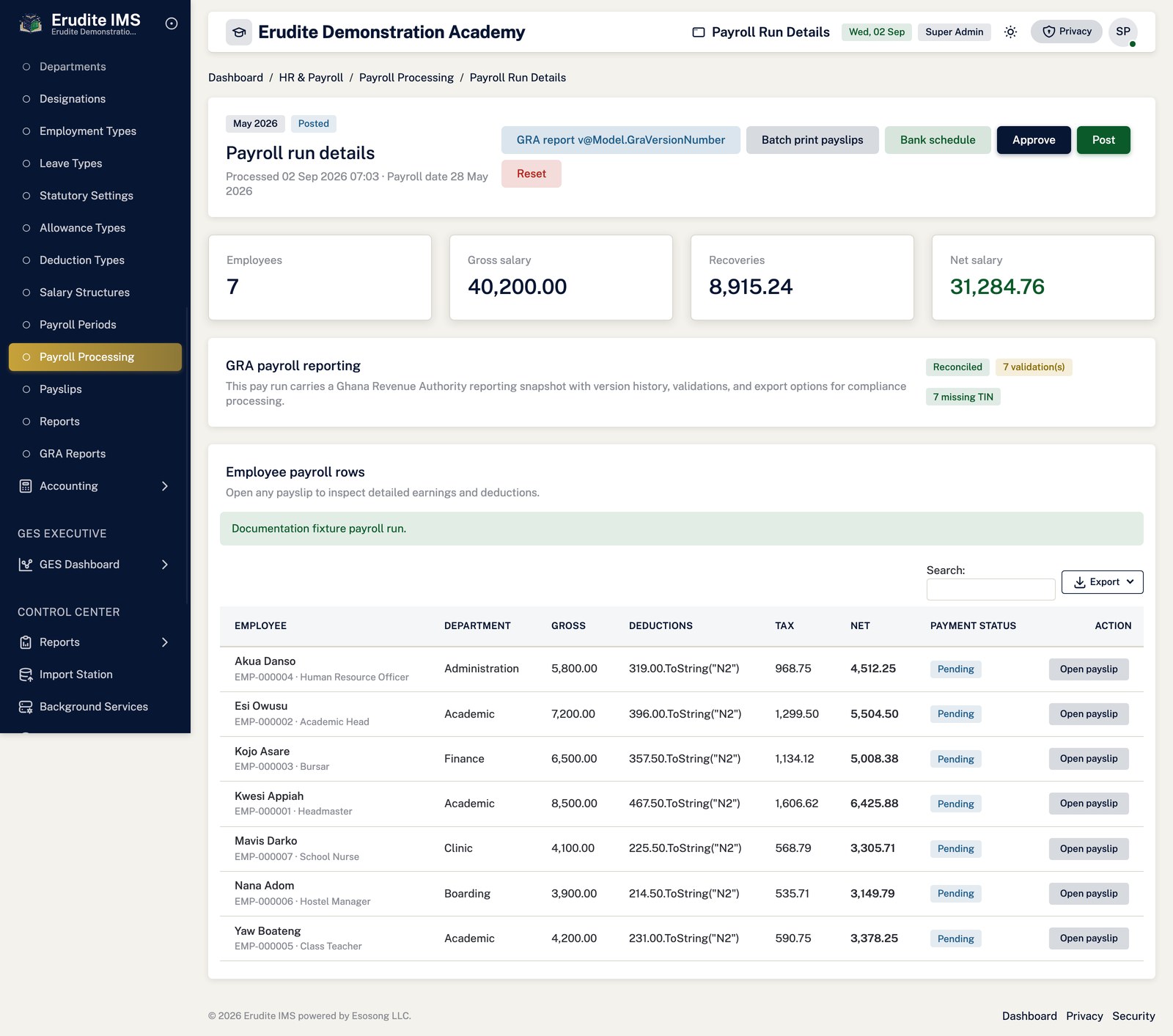
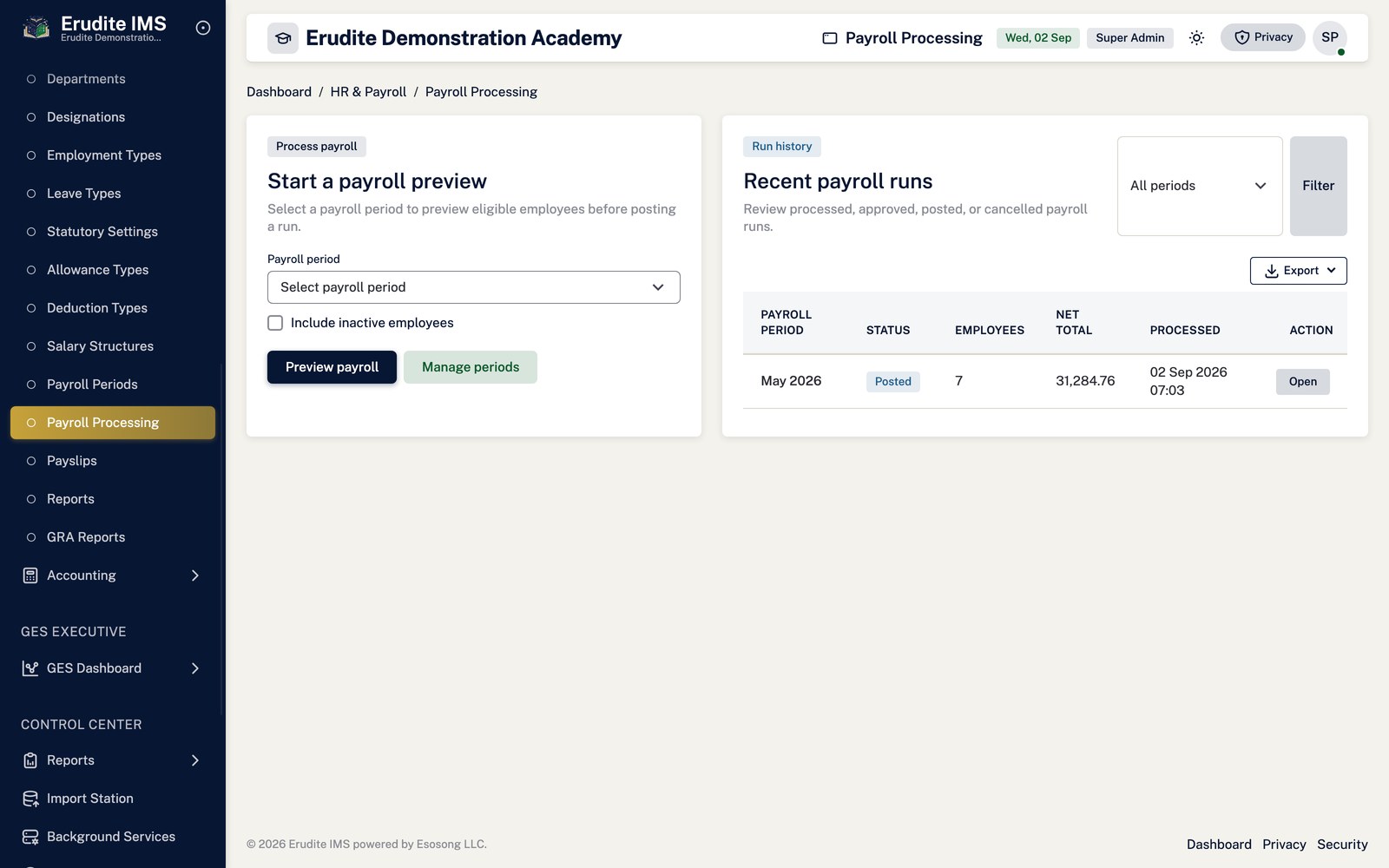
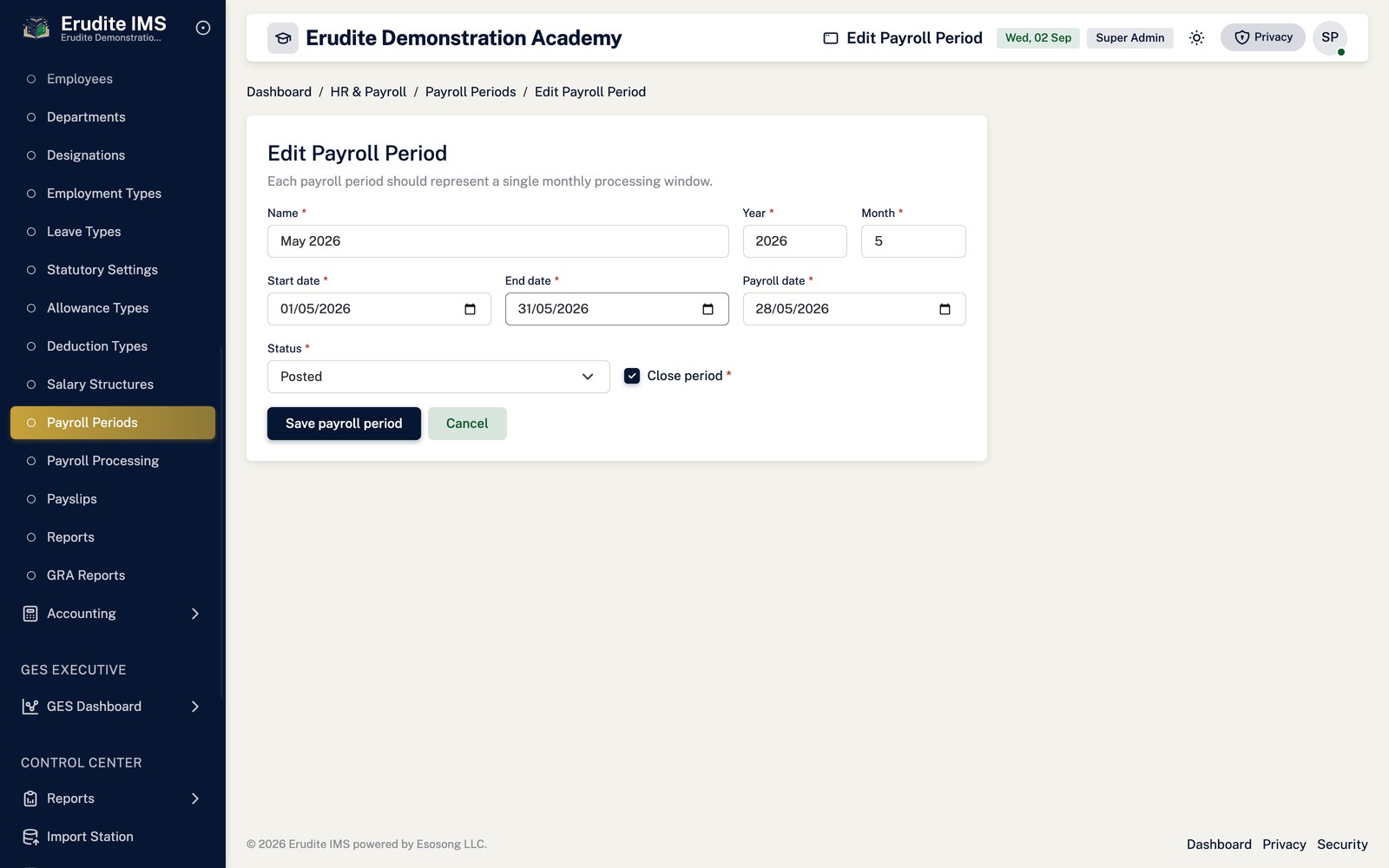
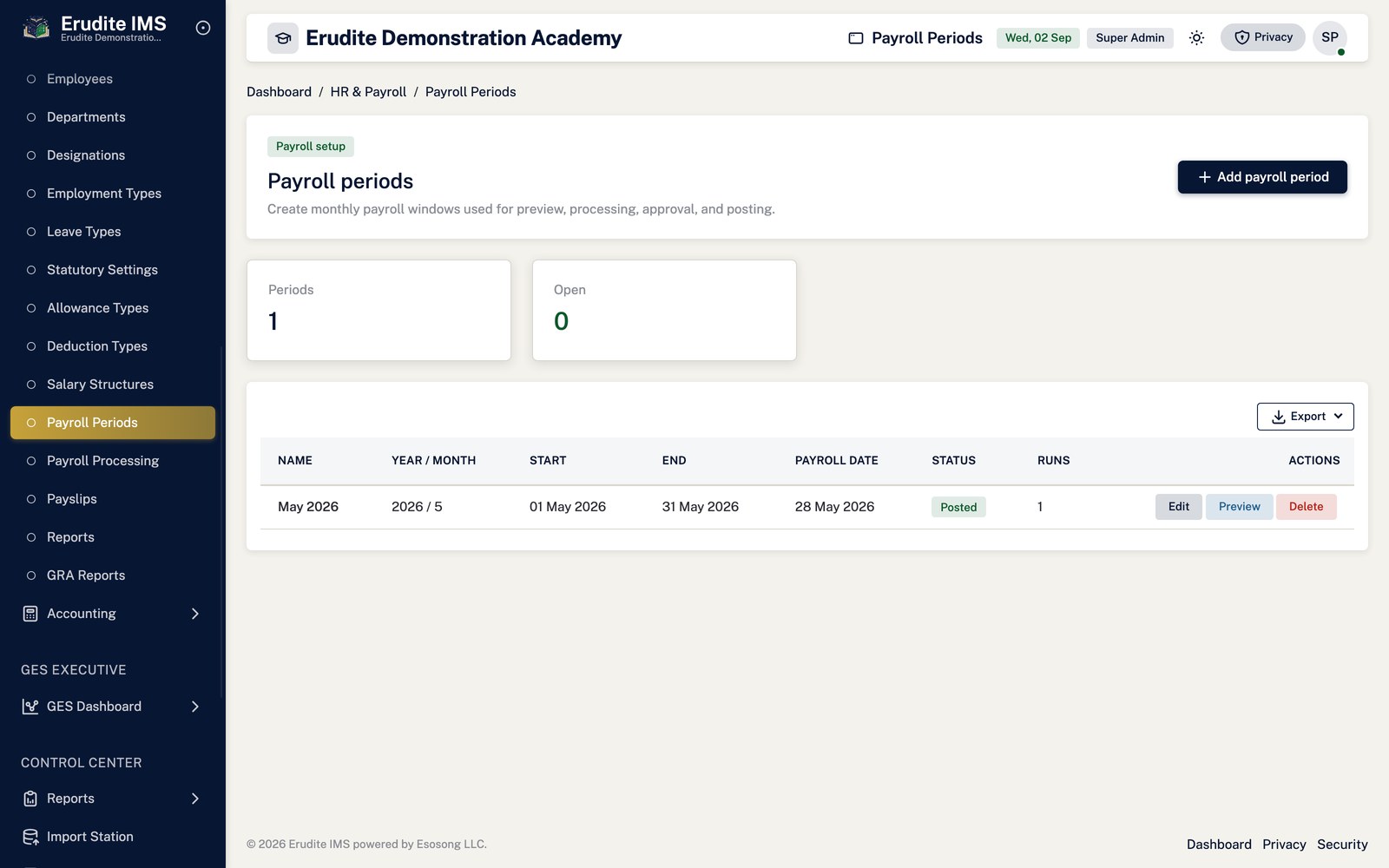
Open HR → Payroll Processing, choose the payroll period and select
Preview. The preview computes gross pay, allowances, deductions and tax for every active
employee (tick Include inactive to sweep in anyone deactivated mid-period) without
writing anything.
Select Process to commit the run. This creates the Payroll Run and its per-employee
figures.
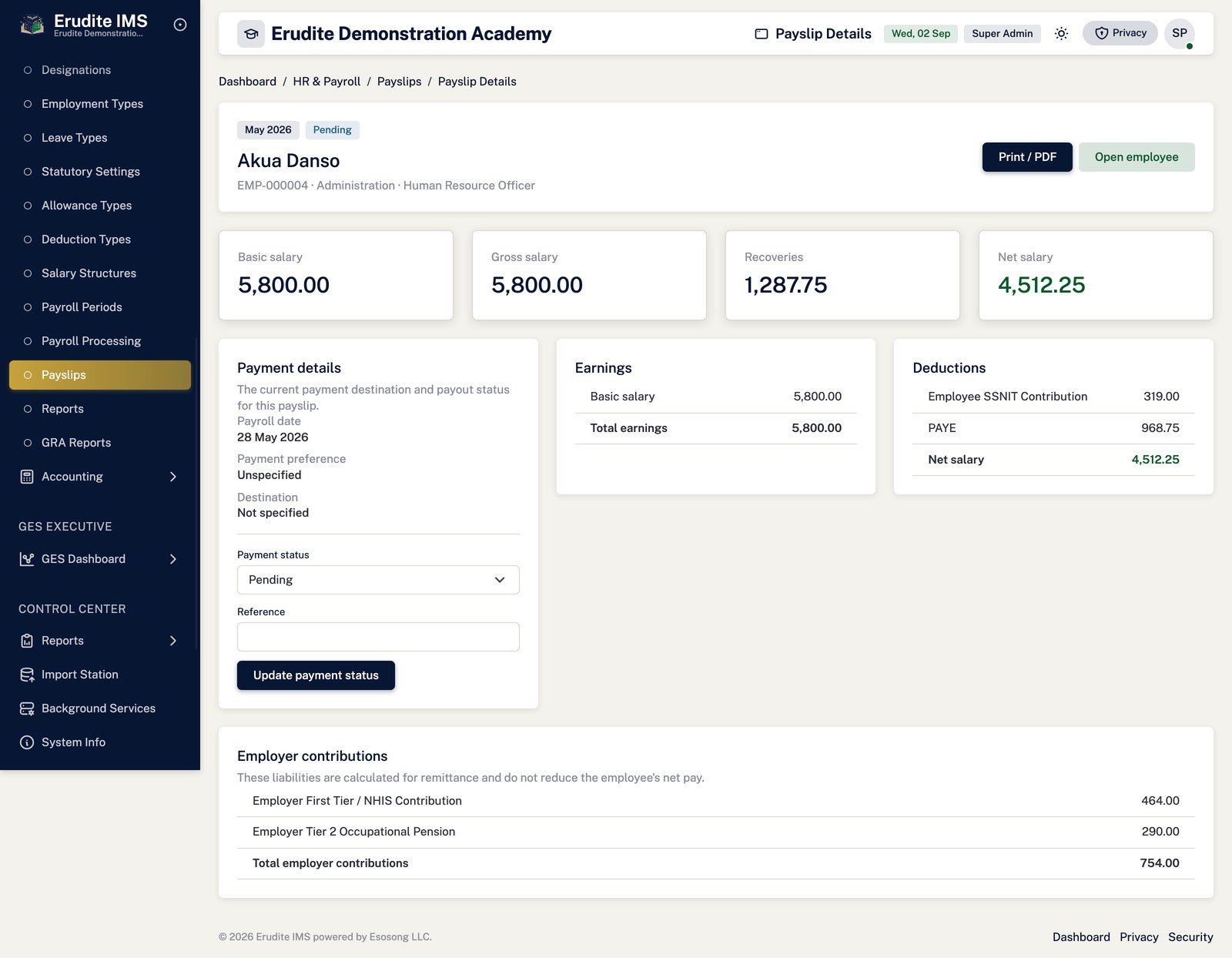
From the run's Details page, Approve moves both the run and its payroll period to
Approved. Post then moves it to Posted, closes the payroll period, and
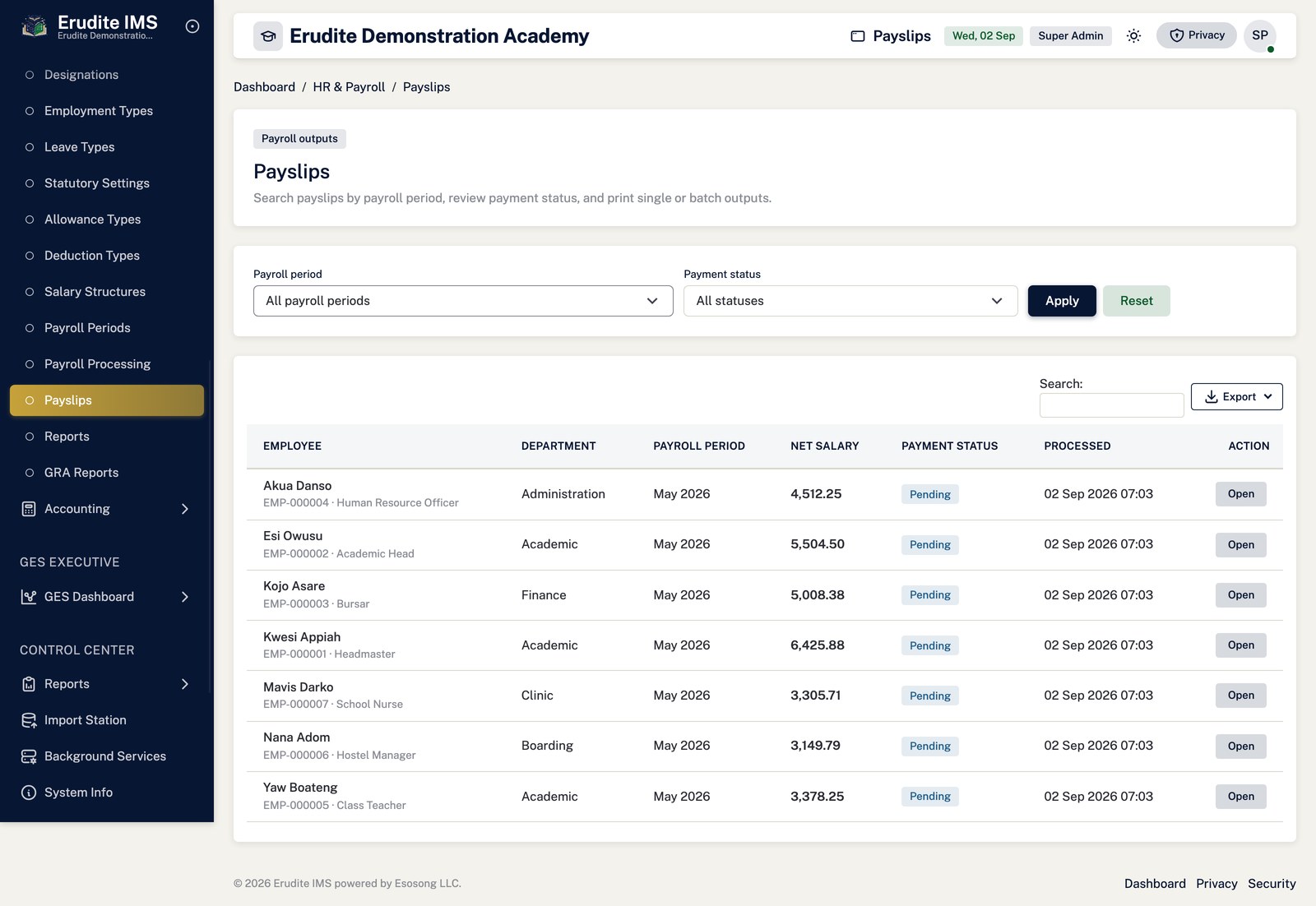
emails every employee with an address on file that their payslip is available.
Reset cancels a run and reopens it for reprocessing — but only before it has been
Posted. A Cancelled run cannot be approved or posted, and a Posted run cannot be reset.
Posting is the point of no return. Once a run is Posted its payroll period
is closed and the run itself can no longer be reset. Check the preview figures carefully — including whether
inactive staff should be swept in — before selecting Process, and again before Post.
Producing the GRA (statutory) report for a run
Open Payroll GRA Reports, find the payroll run, and open its report — one is generated
per posted run and flagged current.
The report lists validation issues and employees missing a TIN before you file, so these are worth
clearing first where possible.
Select Regenerate if figures on the underlying run change; this creates a new version
rather than editing the existing one, so earlier filings remain intact.
Export with Export CSV or Export Excel for submission.
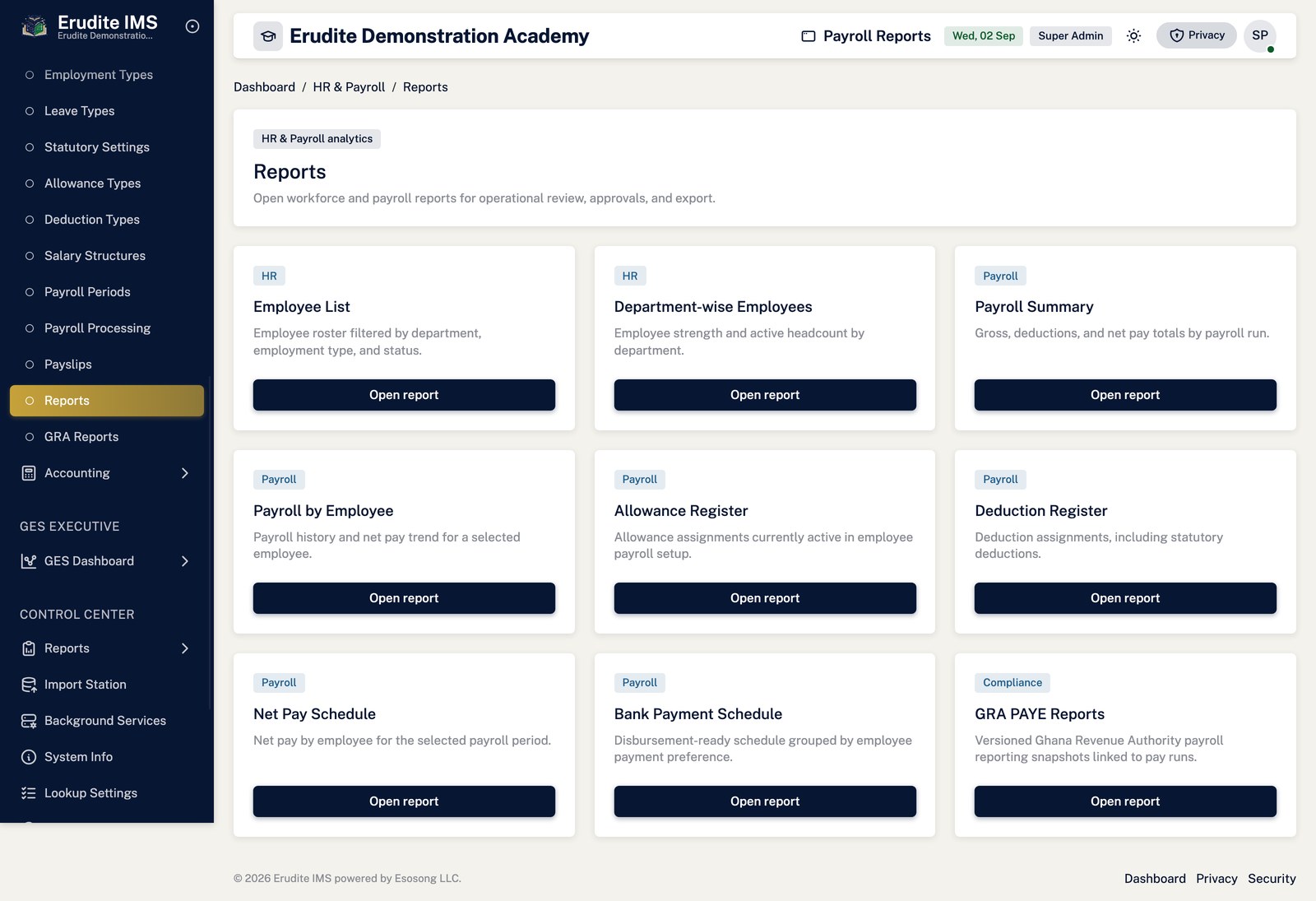
Payroll Reports (payslips, summaries and department/cost-centre breakdowns) and Payroll GRA
Reports are both read against posted runs; figures for a run still in Draft or Approved will not yet reflect
what was ultimately posted if it changes before posting.
Employees
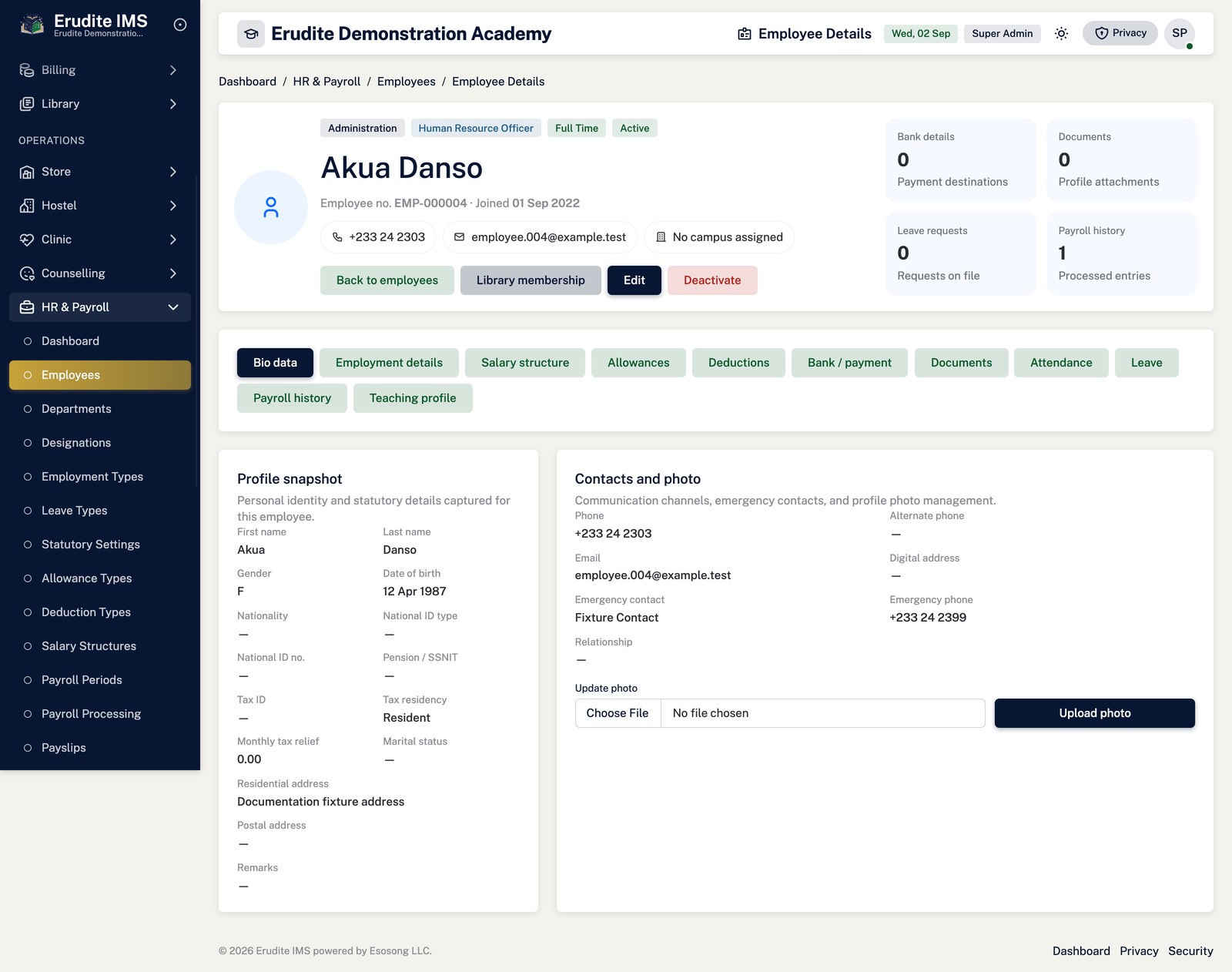
Employees — record detail
/Employees/Details
A record opened from the Employees list
Employees — entry form
/Employees/Form
A record opened from the Employees list
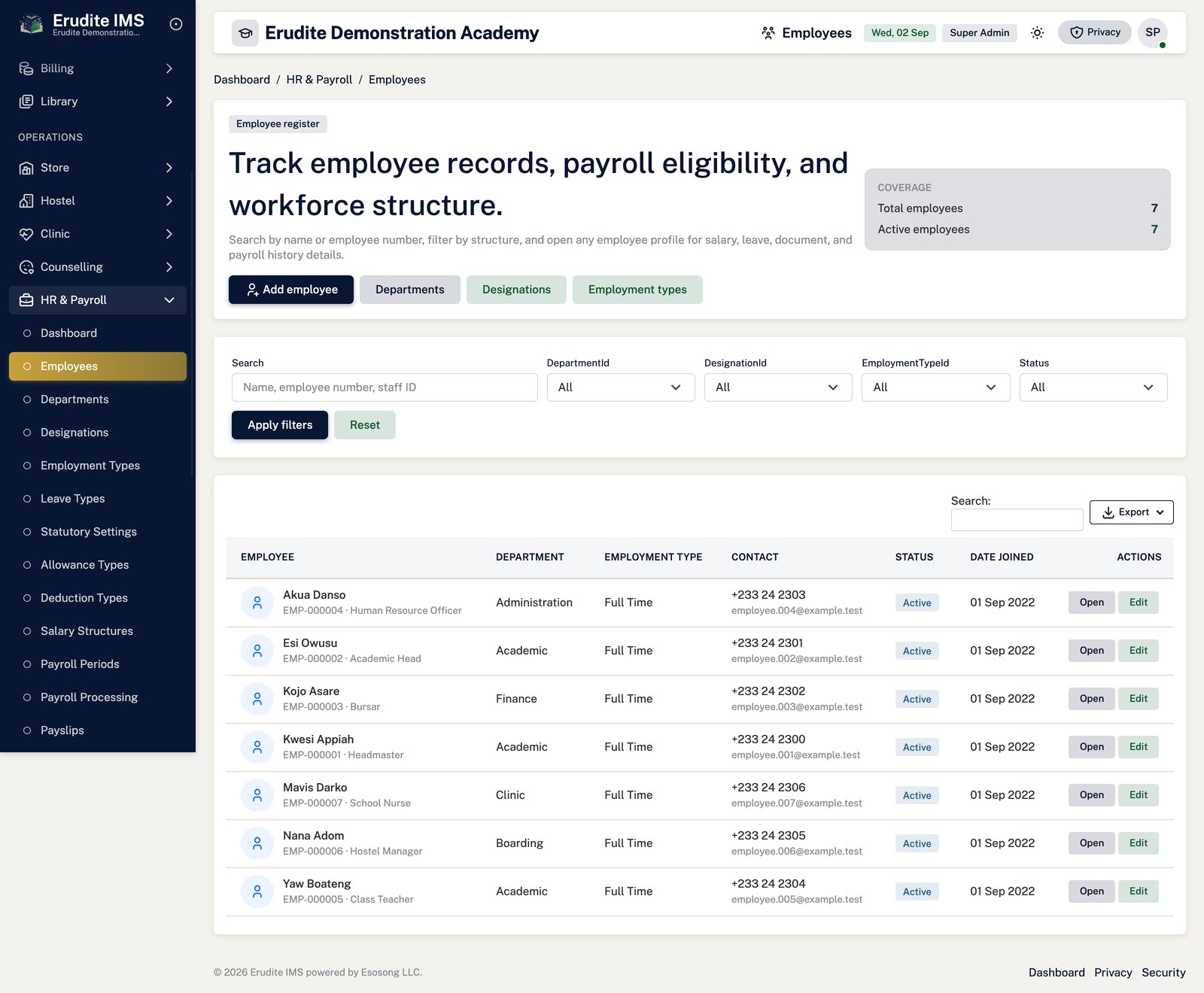
Employees — list
/Employees
/Employees
Payroll Gra Reports
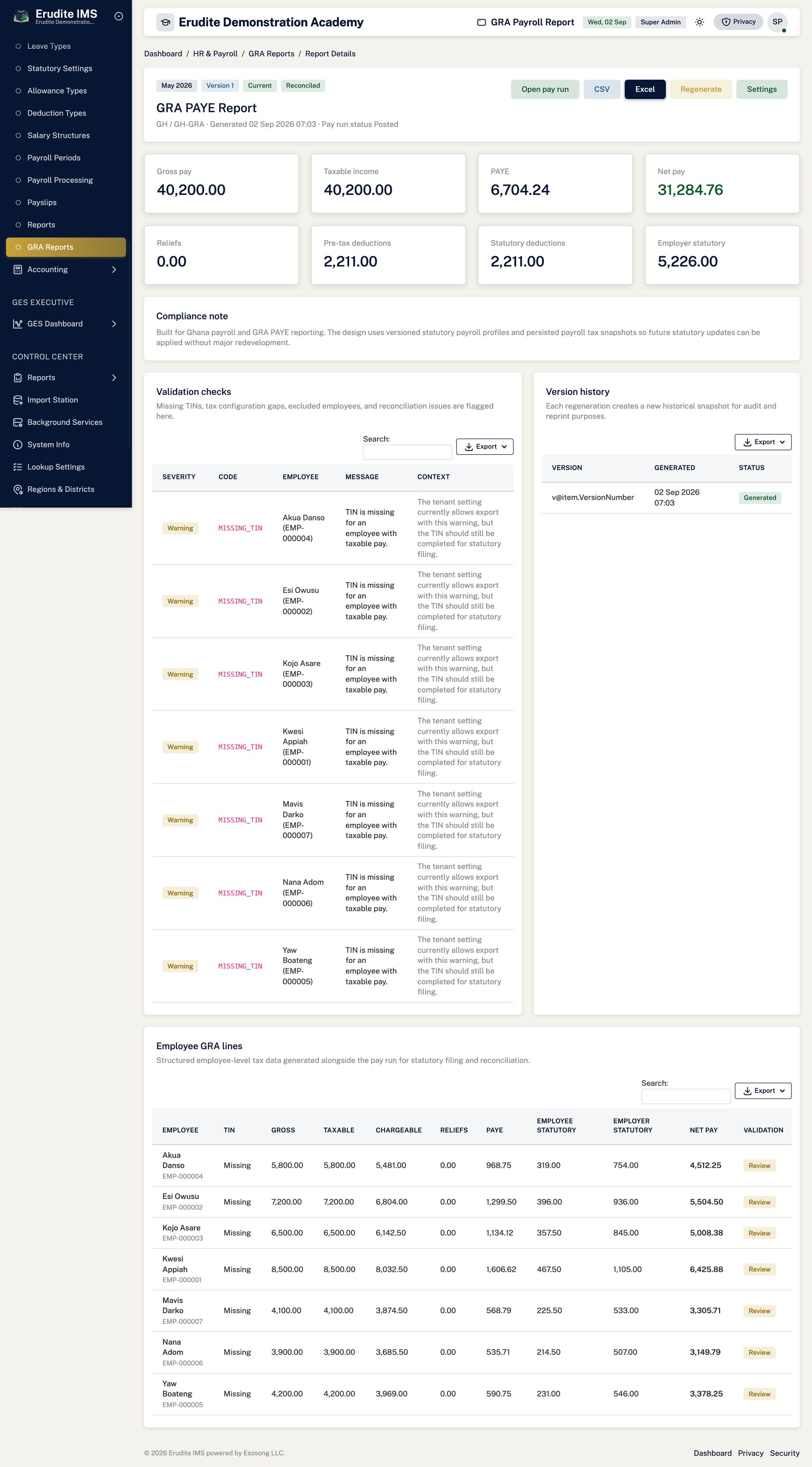
Payroll Gra Reports — record detail
/PayrollGraReports/Details
A record opened from the Payroll Gra Reports list
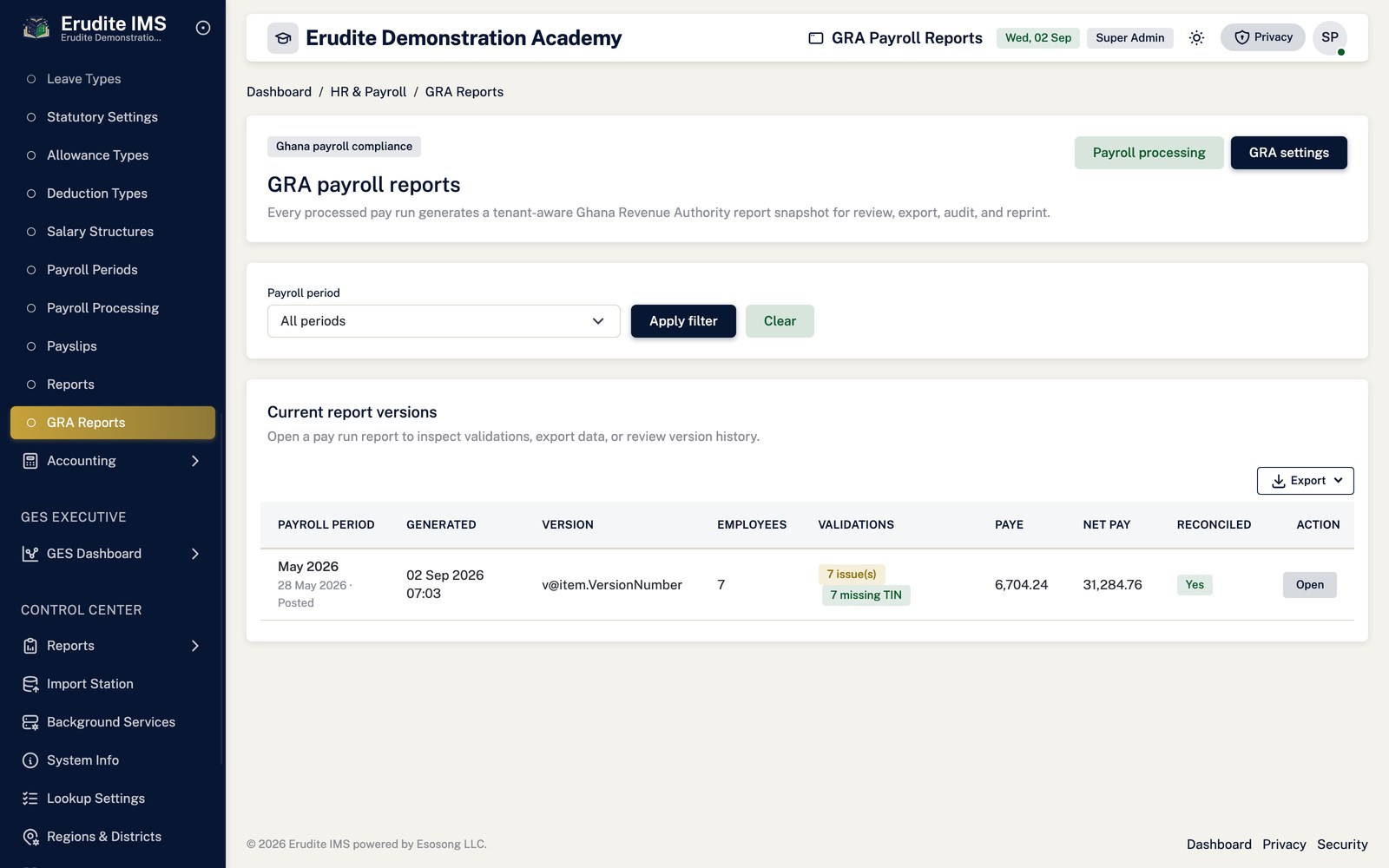
Payroll Gra Reports — list
/PayrollGraReports
/PayrollGraReports
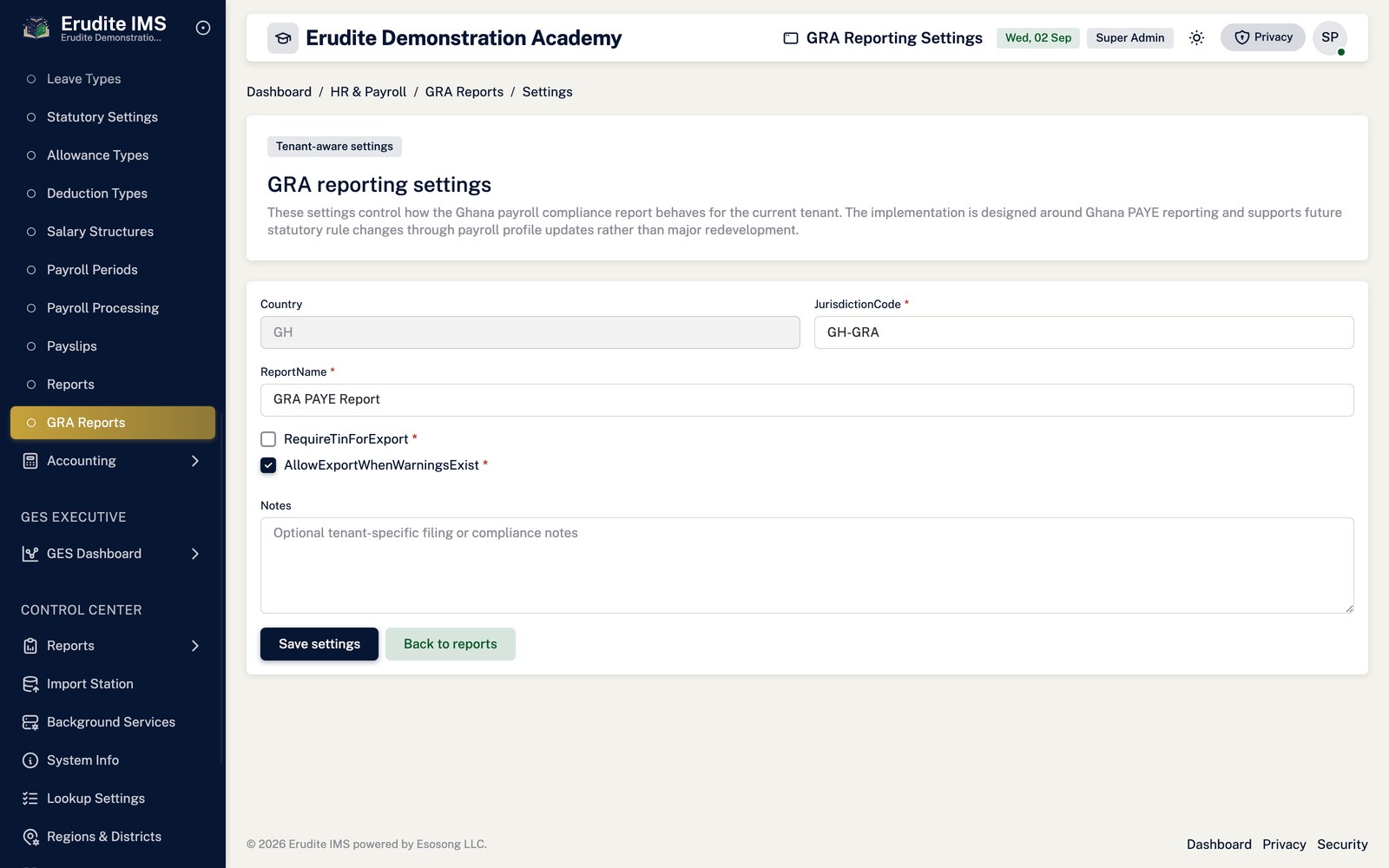
Payroll Gra Reports — settings
/PayrollGraReports/Settings
/PayrollGraReports/Settings
Payroll Processing
Payroll Processing — record detail
/PayrollProcessing/Details
A record opened from the Payroll Processing list
Payroll Processing — list
/PayrollProcessing
/PayrollProcessing
Payroll Processing — preview
/PayrollProcessing/Preview
/PayrollProcessing/Preview
Payroll Reports
Payroll Reports — list
/PayrollReports
/PayrollReports
Payroll Reports — report page
/PayrollReports/ReportPage
This screen opens against a specific record and cannot be reached by URL alone. Open it from the list page for this module.
Payroll Setup
Payroll Setup — allowance type form
/PayrollSetup/AllowanceTypeForm
This screen opens against a specific record and cannot be reached by URL alone. Open it from the list page for this module.
Payroll Setup — allowance types
/PayrollSetup/AllowanceTypes
/PayrollSetup/AllowanceTypes
Payroll Setup — deduction type form
/PayrollSetup/DeductionTypeForm
This screen opens against a specific record and cannot be reached by URL alone. Open it from the list page for this module.
Payroll Setup — deduction types
/PayrollSetup/DeductionTypes
/PayrollSetup/DeductionTypes
Payroll Setup — department form
/PayrollSetup/DepartmentForm
This screen opens against a specific record and cannot be reached by URL alone. Open it from the list page for this module.
Payroll Setup — departments
/PayrollSetup/Departments
/PayrollSetup/Departments
Payroll Setup — designation form
/PayrollSetup/DesignationForm
This screen opens against a specific record and cannot be reached by URL alone. Open it from the list page for this module.
Payroll Setup — designations
/PayrollSetup/Designations
/PayrollSetup/Designations
Payroll Setup — employment type form
/PayrollSetup/EmploymentTypeForm
This screen opens against a specific record and cannot be reached by URL alone. Open it from the list page for this module.
Payroll Setup — employment types
/PayrollSetup/EmploymentTypes
/PayrollSetup/EmploymentTypes
Payroll Setup — leave type form
/PayrollSetup/LeaveTypeForm
This screen opens against a specific record and cannot be reached by URL alone. Open it from the list page for this module.
Payroll Setup — leave types
/PayrollSetup/LeaveTypes
/PayrollSetup/LeaveTypes
Payroll Setup — salary structures
/PayrollSetup/SalaryStructures
/PayrollSetup/SalaryStructures
Payroll Setup — statutory profile form
/PayrollSetup/StatutoryProfileForm
This screen opens against a specific record and cannot be reached by URL alone. Open it from the list page for this module.
Payroll Setup — statutory rule form
/PayrollSetup/StatutoryRuleForm
This screen opens against a specific record and cannot be reached by URL alone. Open it from the list page for this module.
Payroll Setup — statutory settings
/PayrollSetup/StatutorySettings
/PayrollSetup/StatutorySettings
Payroll Setup — statutory tax band form
/PayrollSetup/StatutoryTaxBandForm
This screen opens against a specific record and cannot be reached by URL alone. Open it from the list page for this module.
Store and inventory
Setting up the store before recording movements
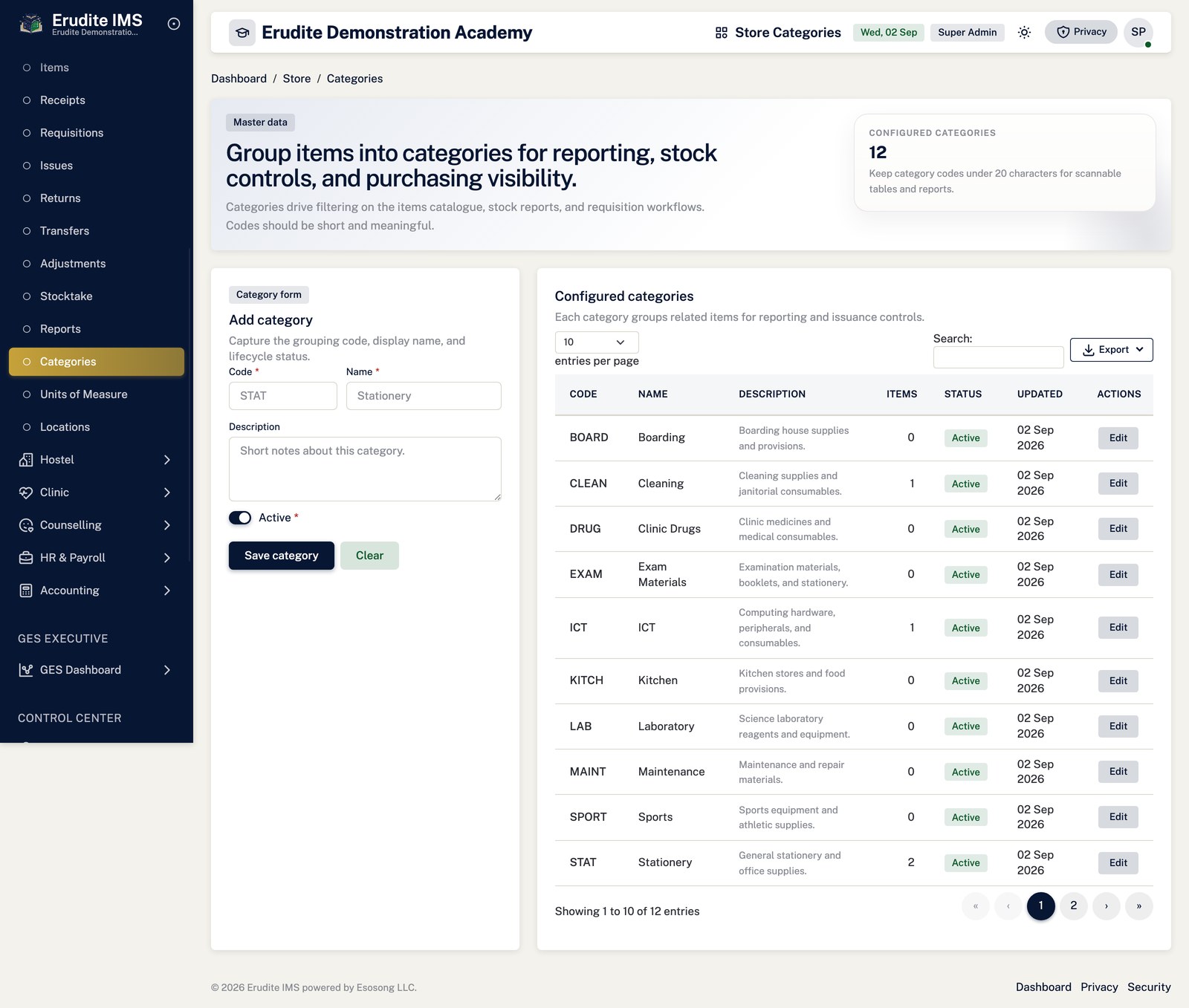
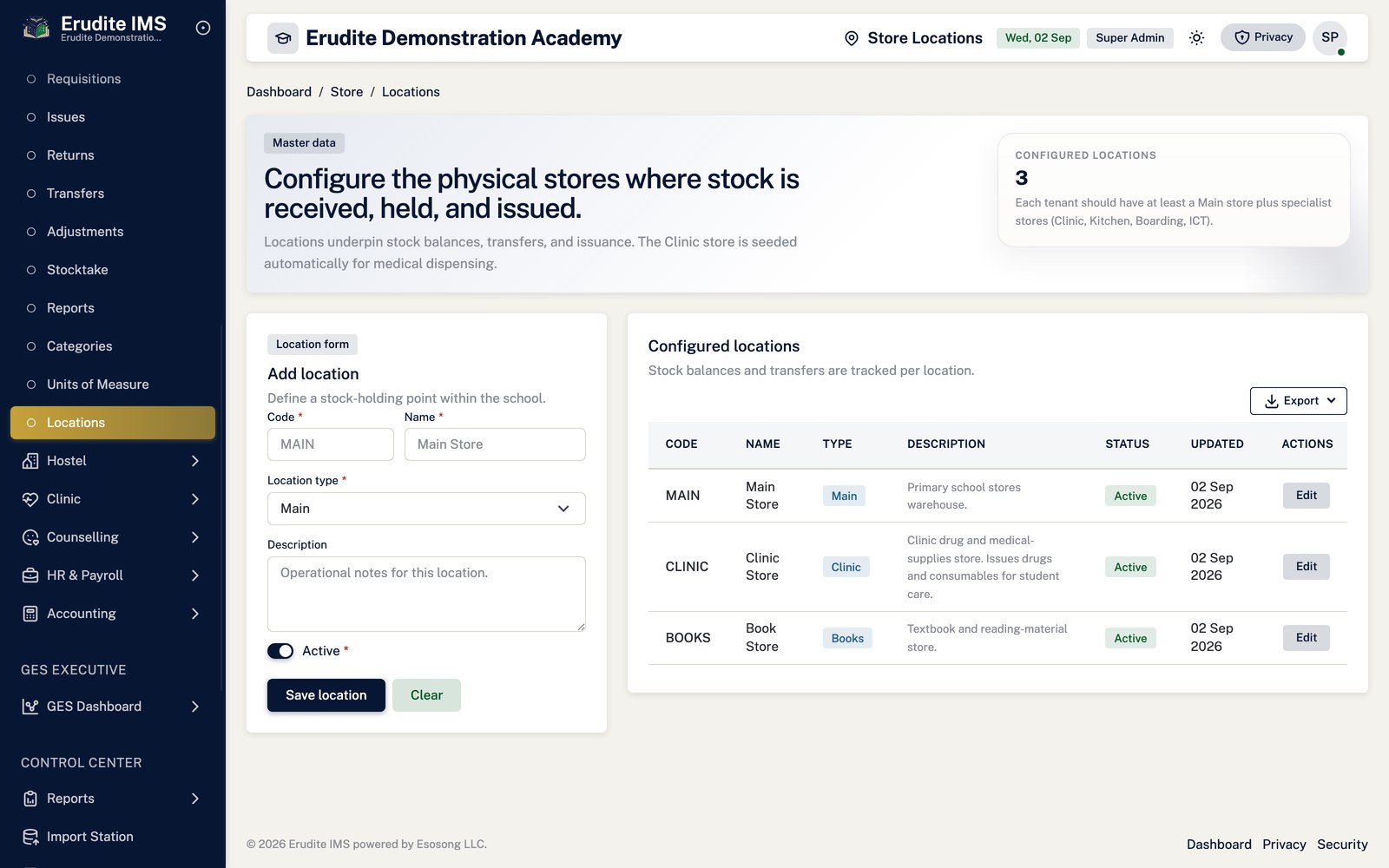
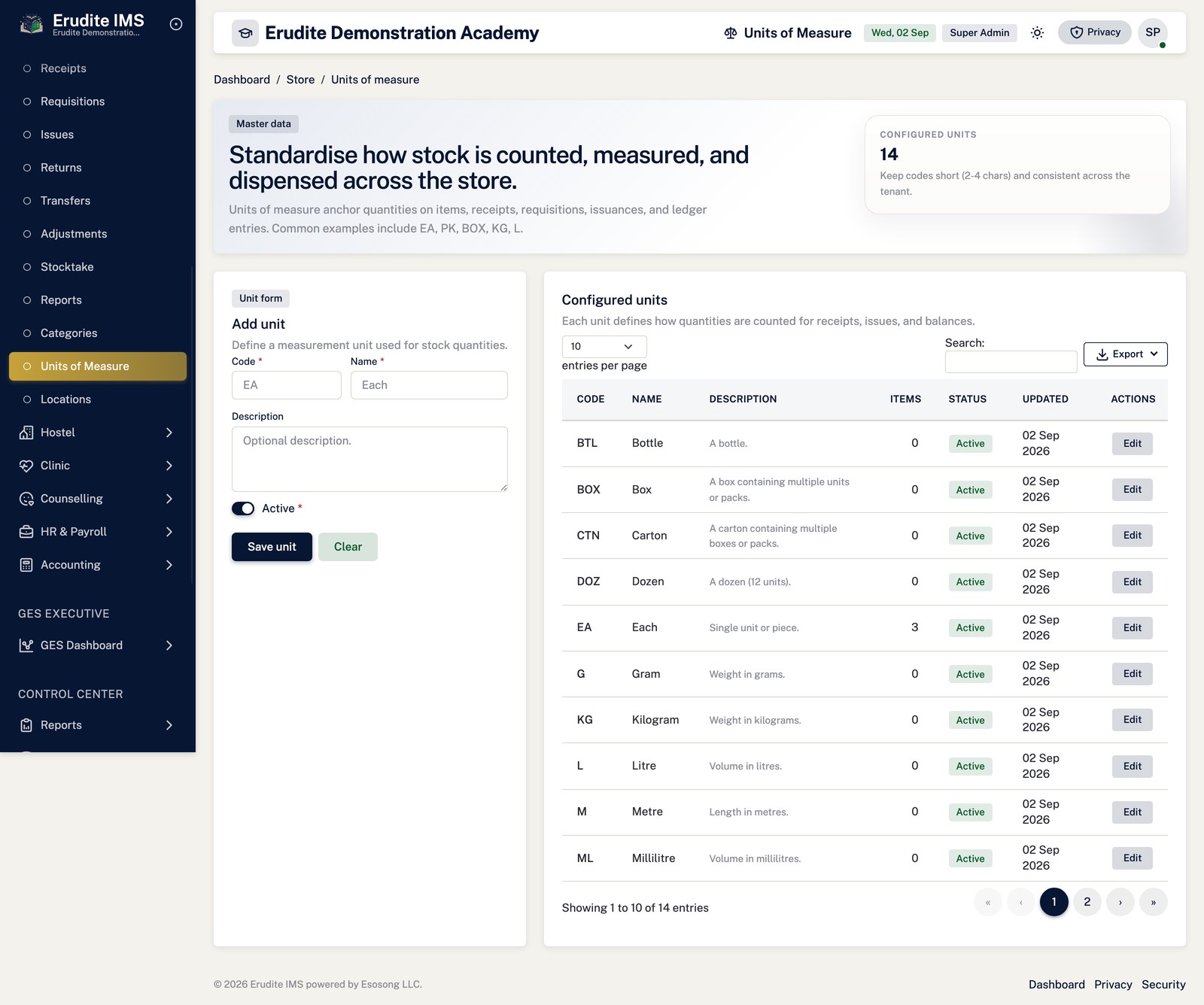
Open Store → Categories and Units of Measure to define how items are
classified and counted, then Locations for the physical stores or stockrooms in use.
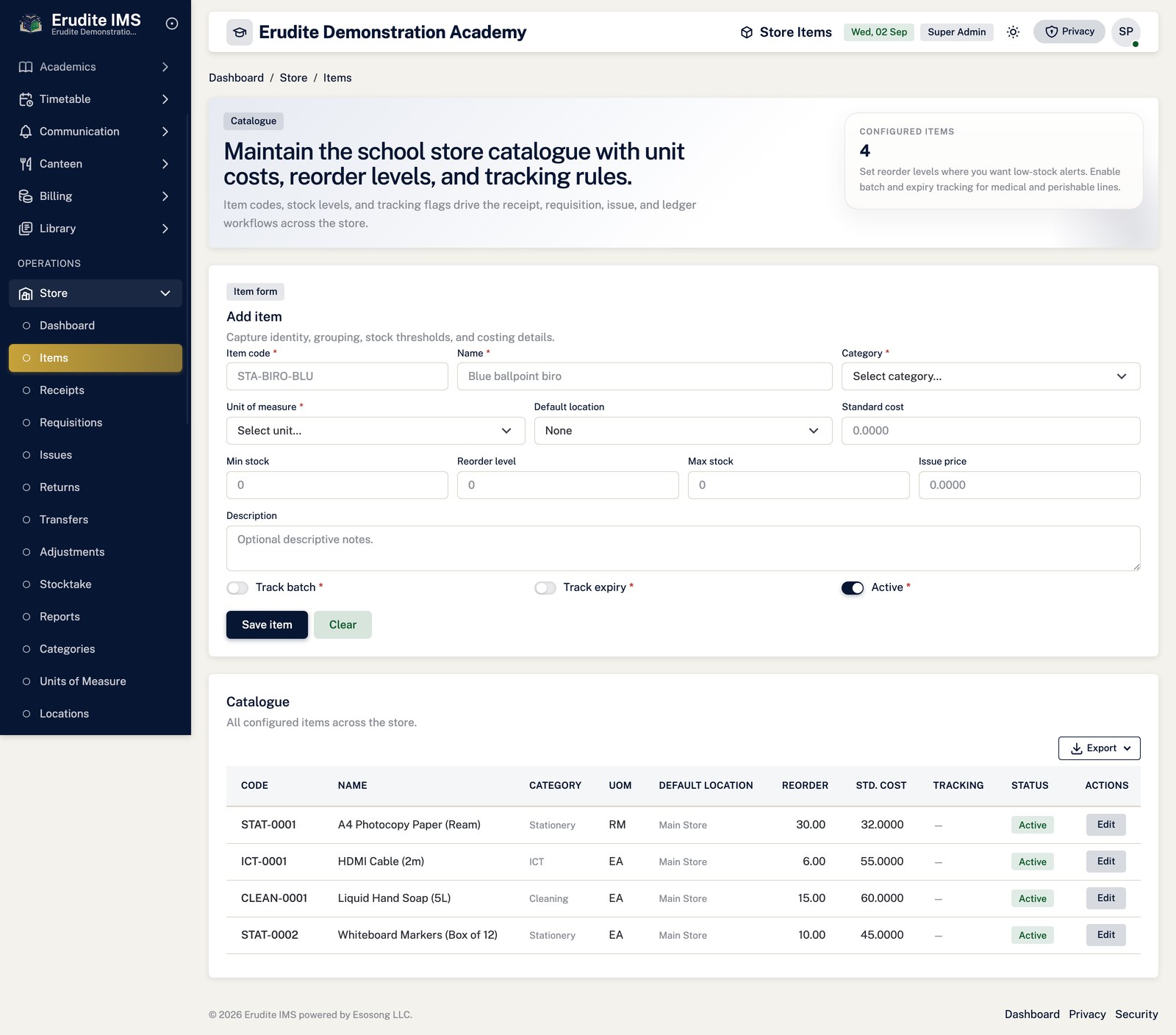
Register stock items under Store → Items, each tied to a category and a unit of measure.
Requesting stock: requisition, approval, issue
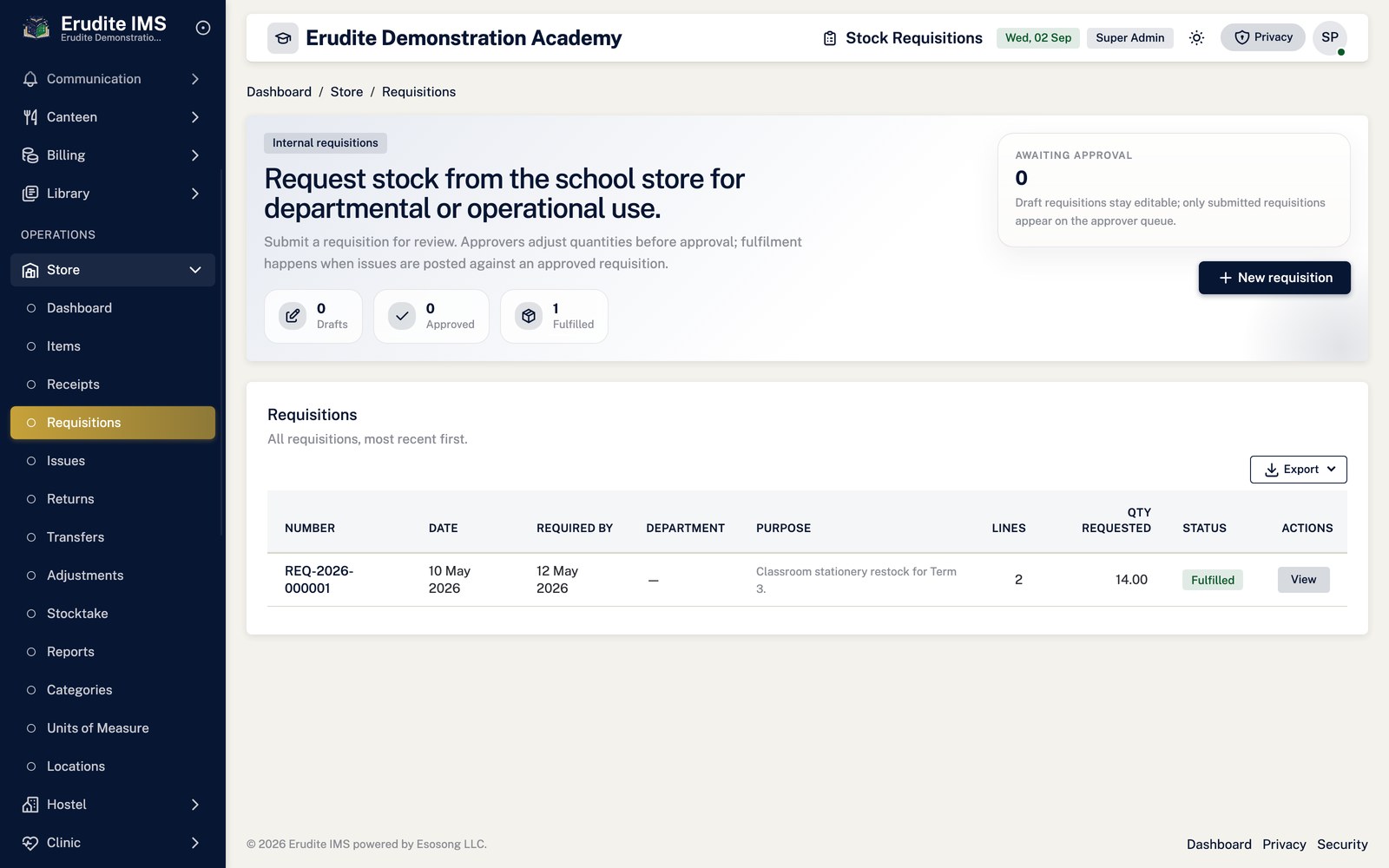
Raise a Store Requisition as a Draft and add its lines, then select Submit.
Submitting is refused if the requisition still has no lines, and only a Draft requisition can be submitted.
An approver opens the submitted requisition and either Approves it — setting an approved
quantity per line, which is capped automatically at the quantity requested — or Rejects it
with a reason. Only a Submitted requisition can be approved or rejected, and approval requires at least one
line with a positive approved quantity.
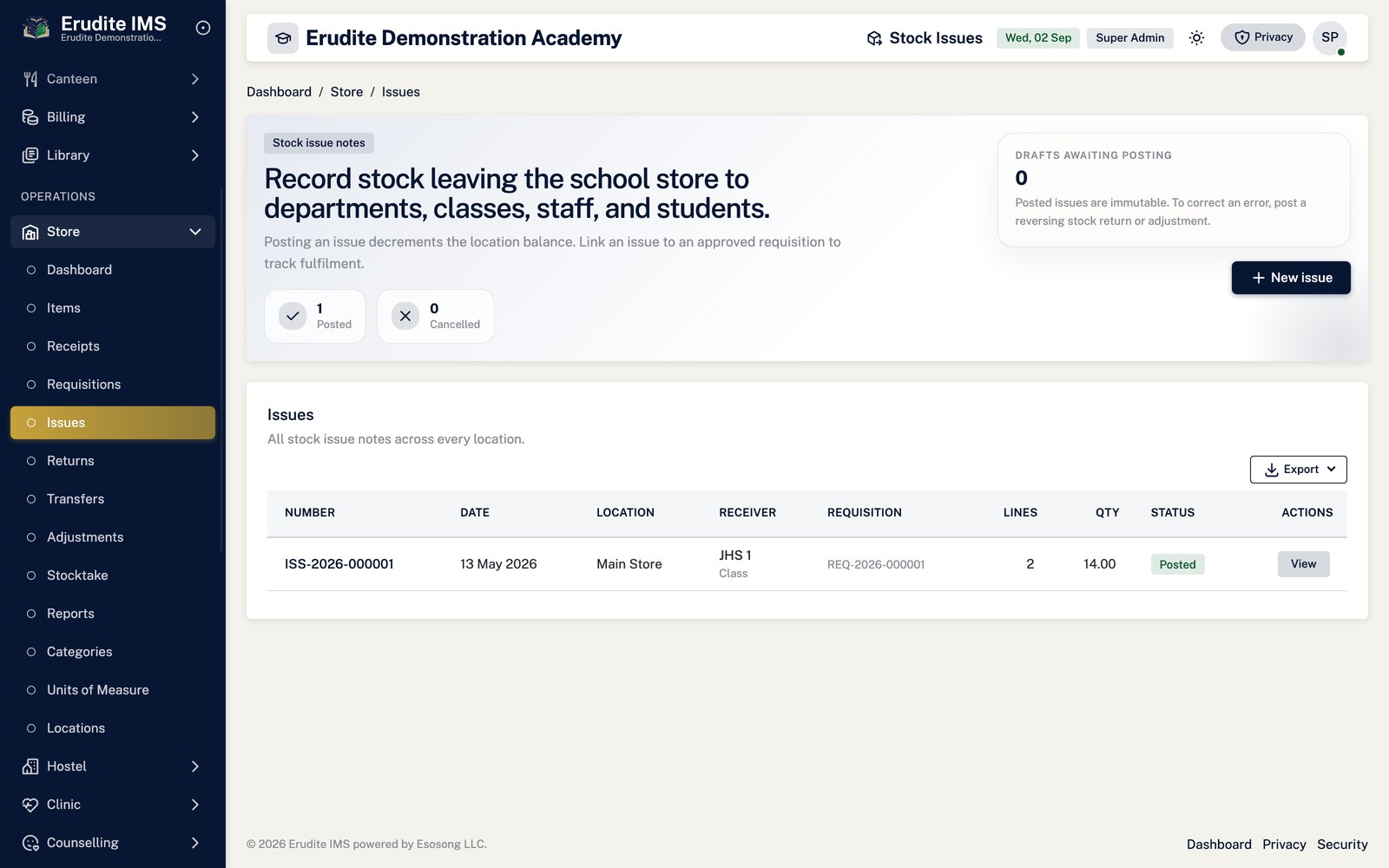
Once approved, open Store Issues → New issue against the requisition (or start one
standalone) to actually move stock out. Select Post to write the issue to the stock
ledger — the underlying workflow service refuses to post an issue that is not in a postable state, and
the reason is shown on screen rather than a raw error.
Cancel is available in place of posting for an issue that should not proceed.
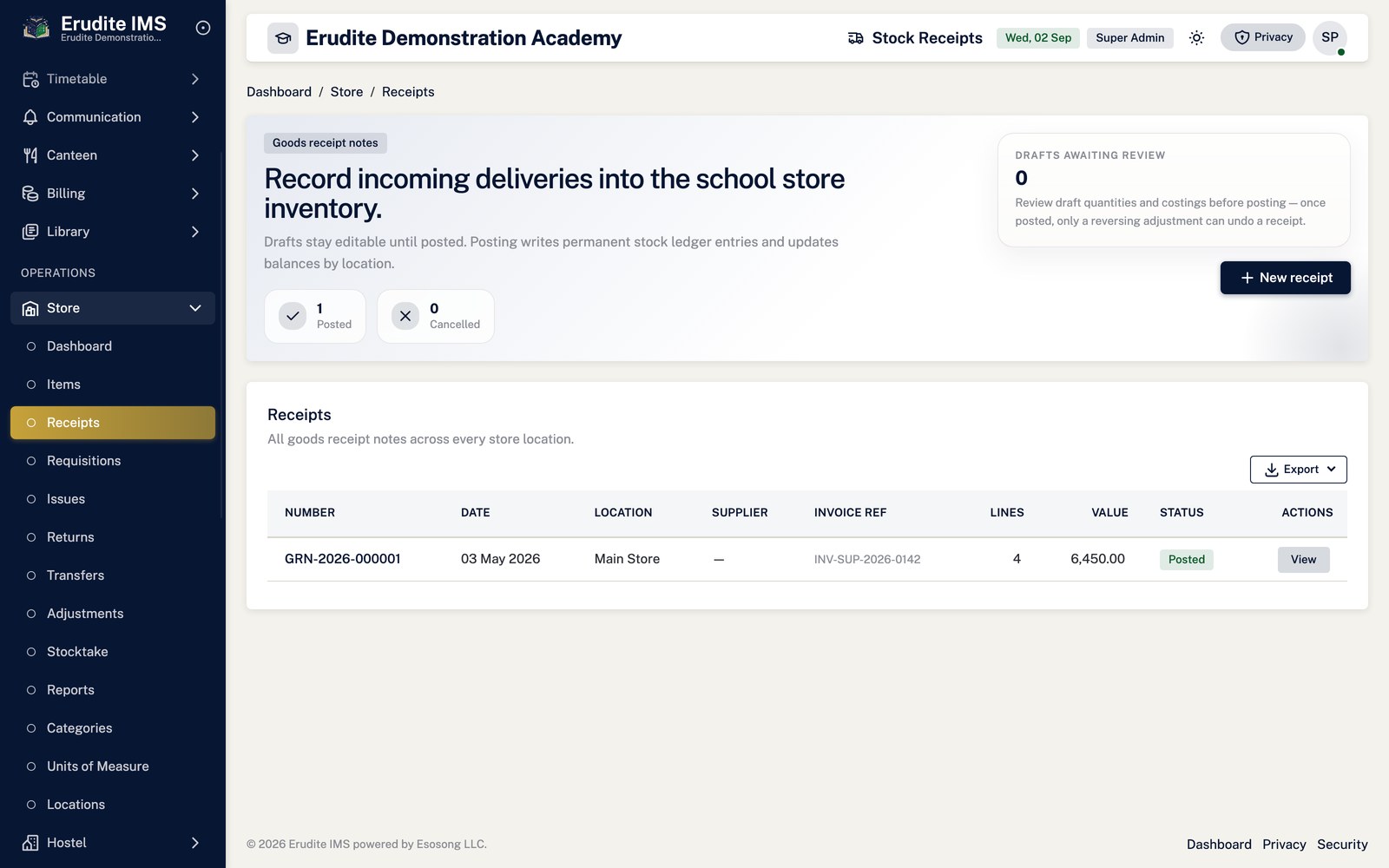
Receiving stock into a location
Open Store Receipts → New receipt, choose the location and item lines, and save as a
Draft.
Select Post to commit the receipt to stock on hand. Cancel discards a
receipt that should not be posted.
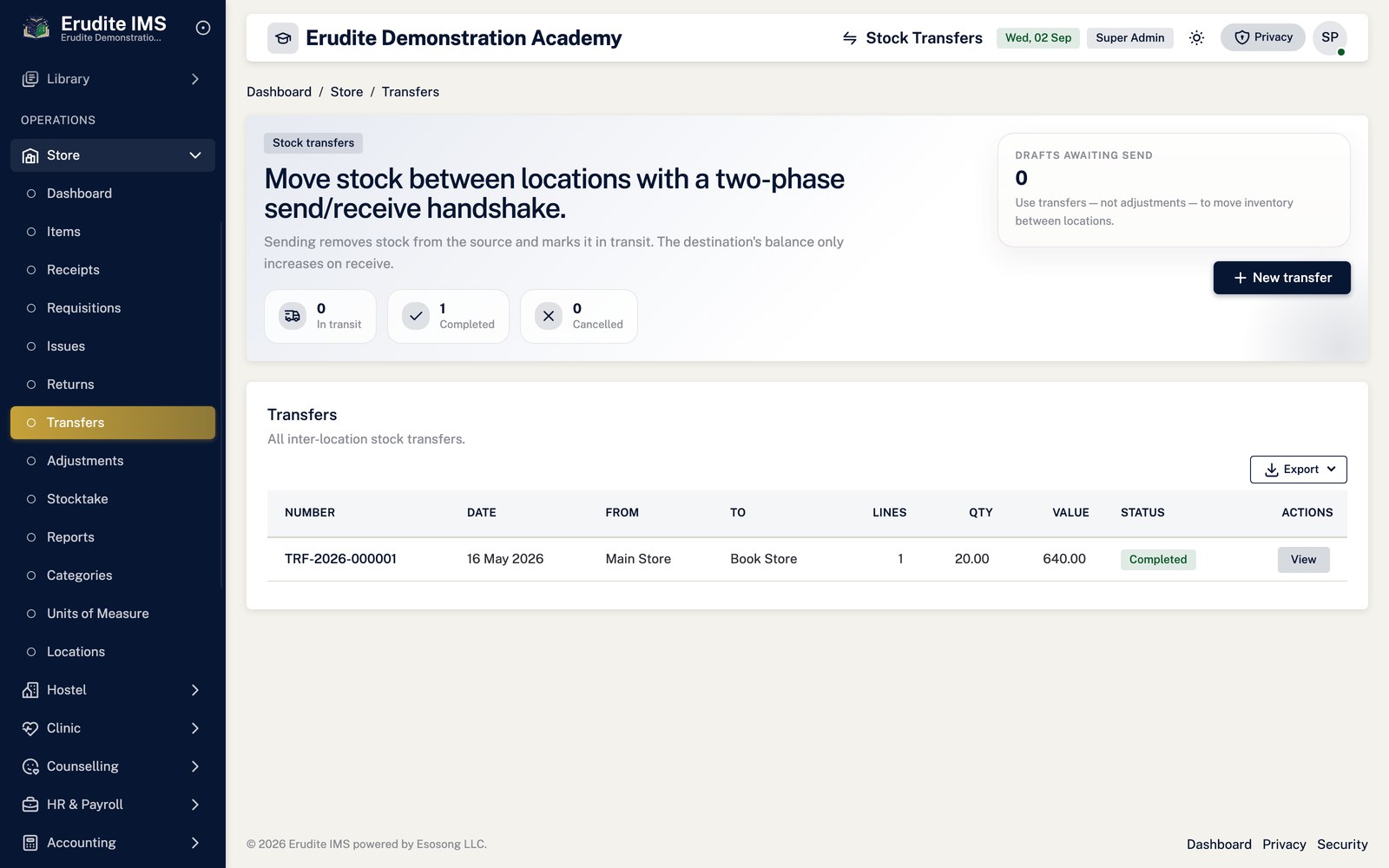
Transferring stock between locations
Open Store Transfers → New transfer, choose the source and destination locations and the
items, and save.
Select Send to move the stock out of the source location, then Receive
at the destination to complete the transfer. The two-step Send/Receive split means stock in transit is
accounted for rather than disappearing from the source and appearing at the destination in the same
instant.
Cancel is available before the transfer is complete.
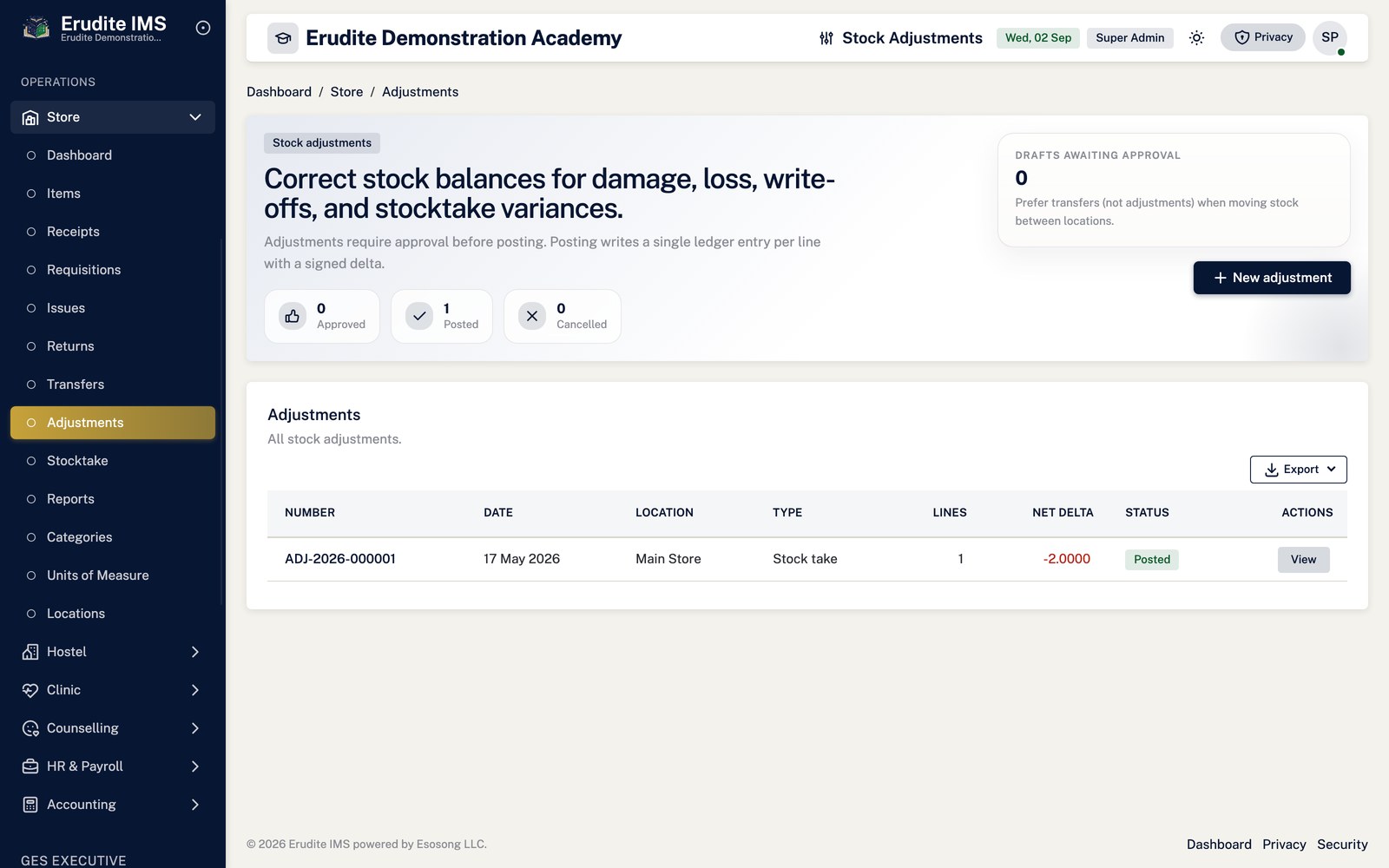
Adjusting stock (write-offs, counts, corrections)
Open Store Adjustments → New adjustment, record the item, location, quantity and reason,
and save as a Draft.
Select Approve — this only readies the adjustment; it does not touch stock on its own.
Select Post to actually apply the adjustment to the stock ledger. Cancel
is available in place of either step for an adjustment that should not proceed.
Approve and Post are separate steps everywhere in this module. Issues and
receipts go straight to Post; requisitions and adjustments require an Approve before a Post (or before the
issue it authorises) can happen. In every case, the action is rejected outright — with the reason given back to
you — if the record is not in the exact status the action expects, so a requisition cannot be approved twice
and a posted issue cannot be posted again.
Returns and reporting
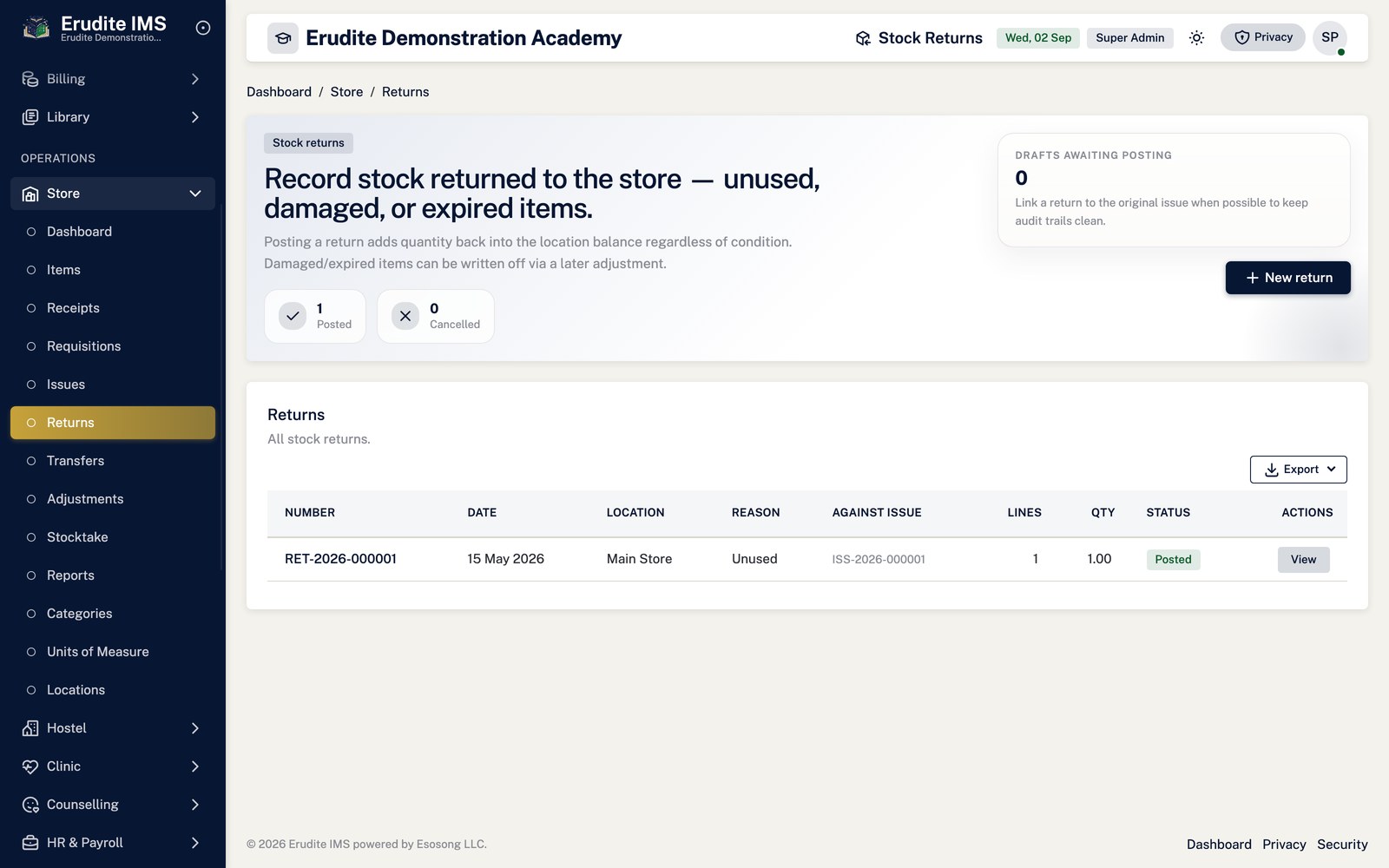
Store Returns follows the same Draft → Post/Cancel shape as receipts, for stock coming
back into a location.
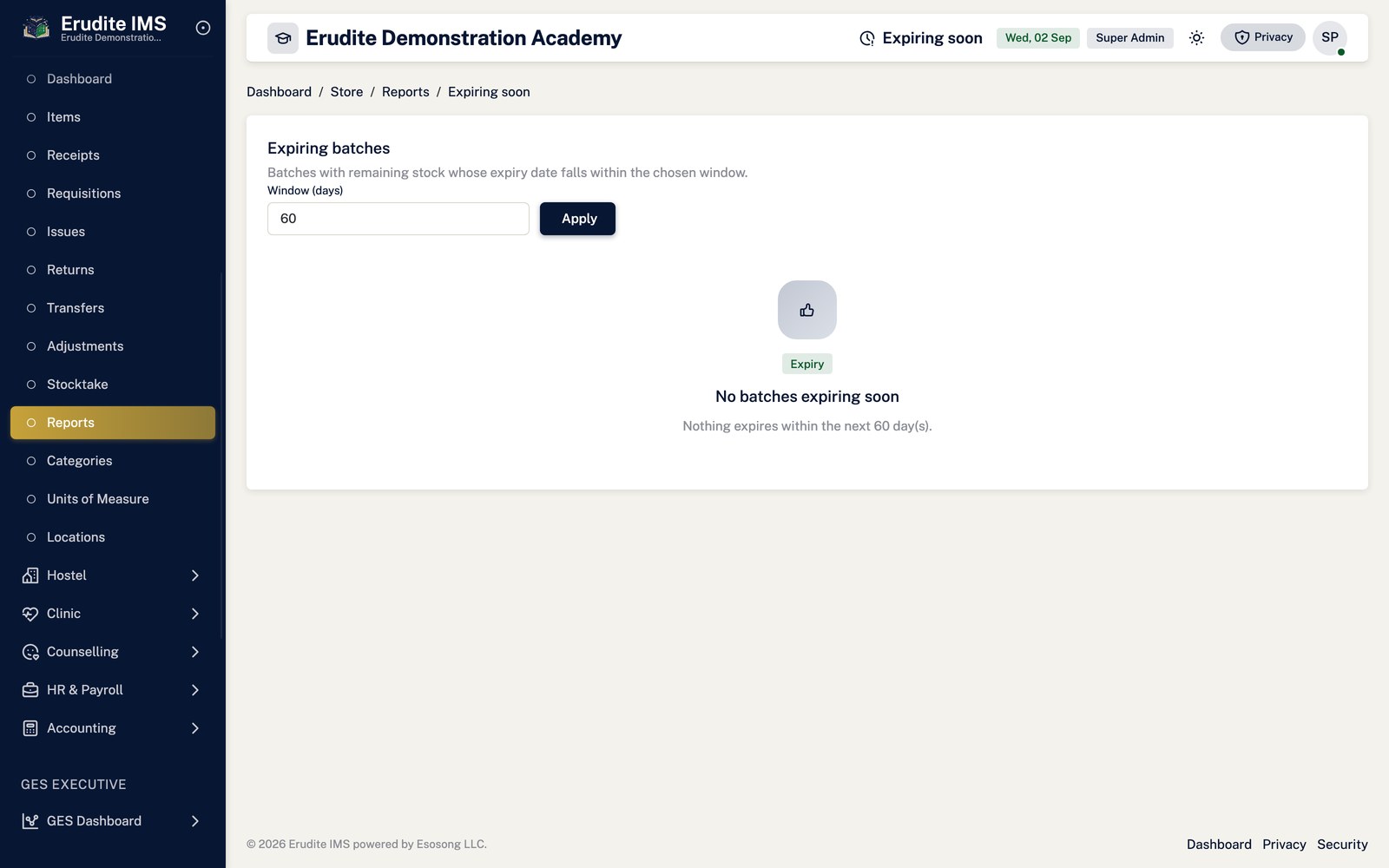
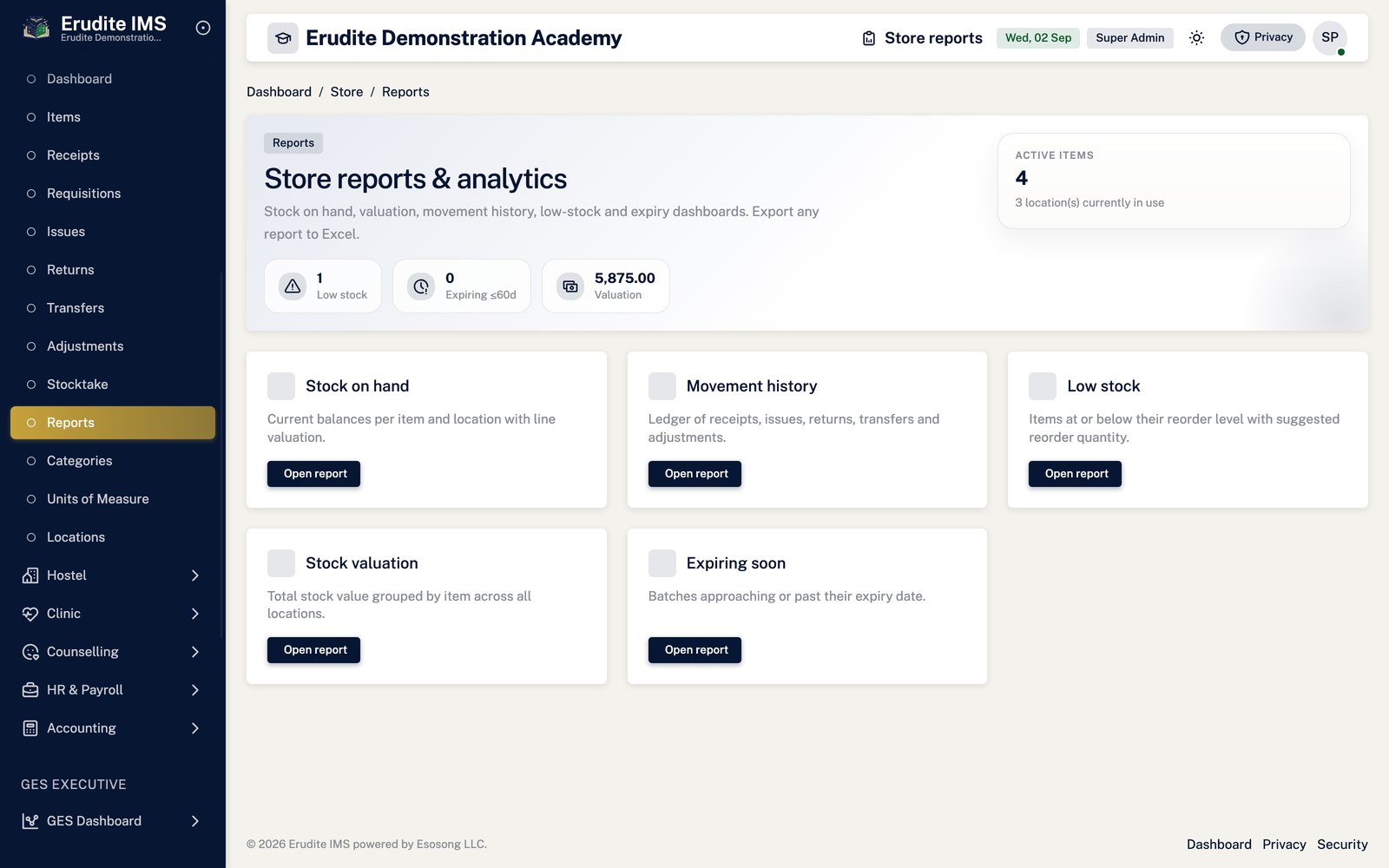
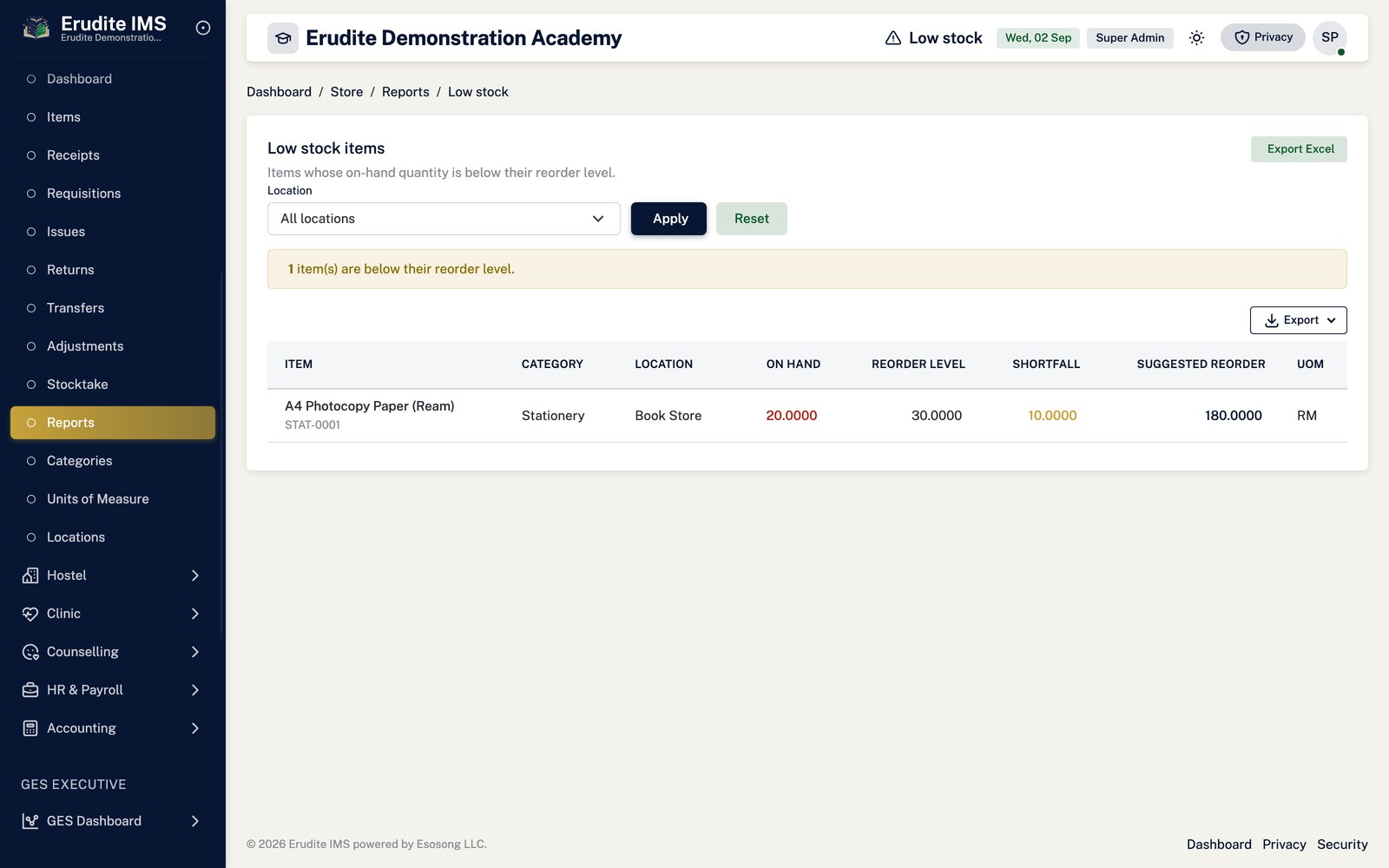
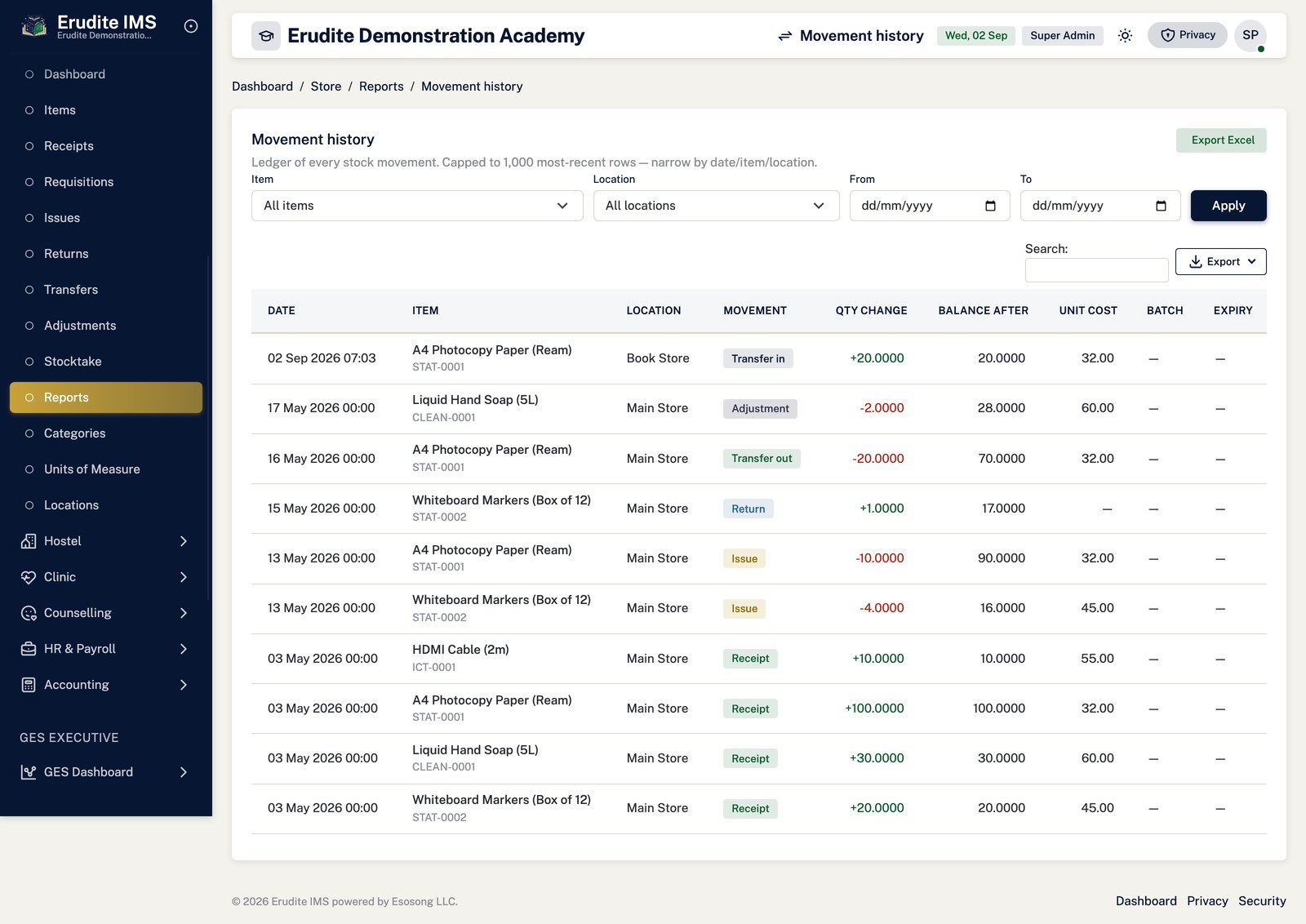
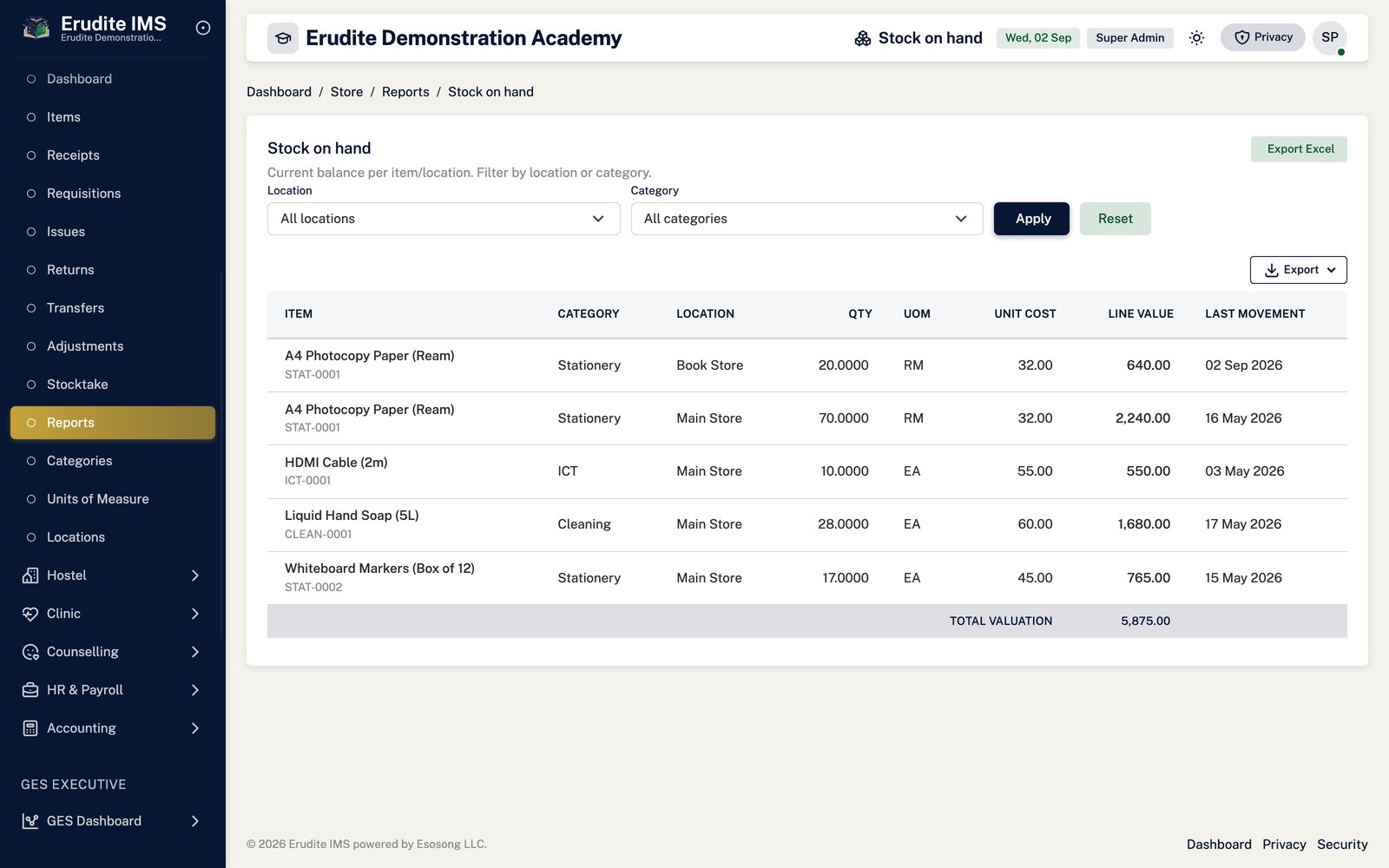
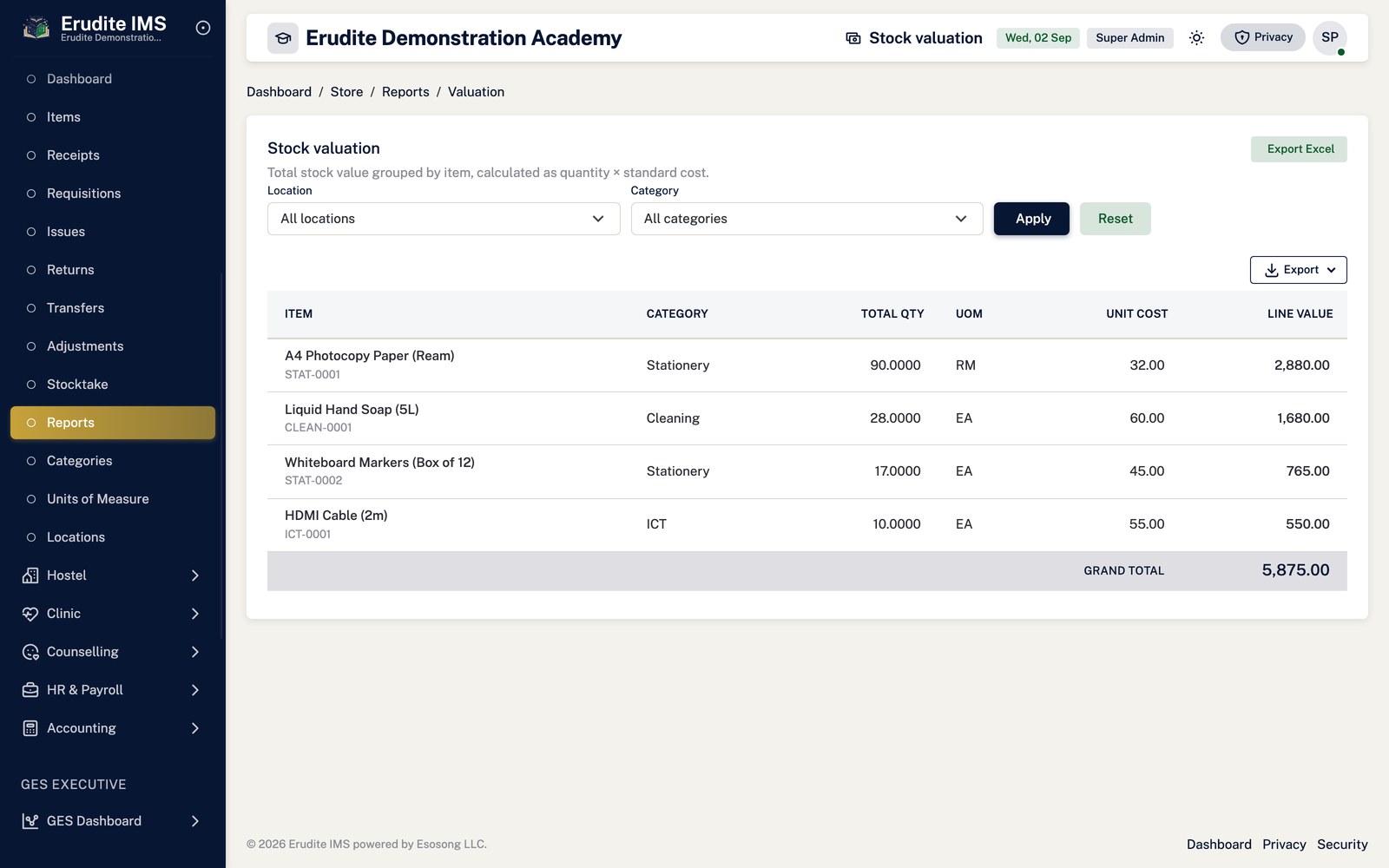
Store Reports covers Stock on Hand, Movement History, Low Stock and Valuation, each with
an Excel export, plus Expiring Soon for perishable or dated stock within a configurable
window of days.
Store
Store — categories
/Store/Categories
/Store/Categories
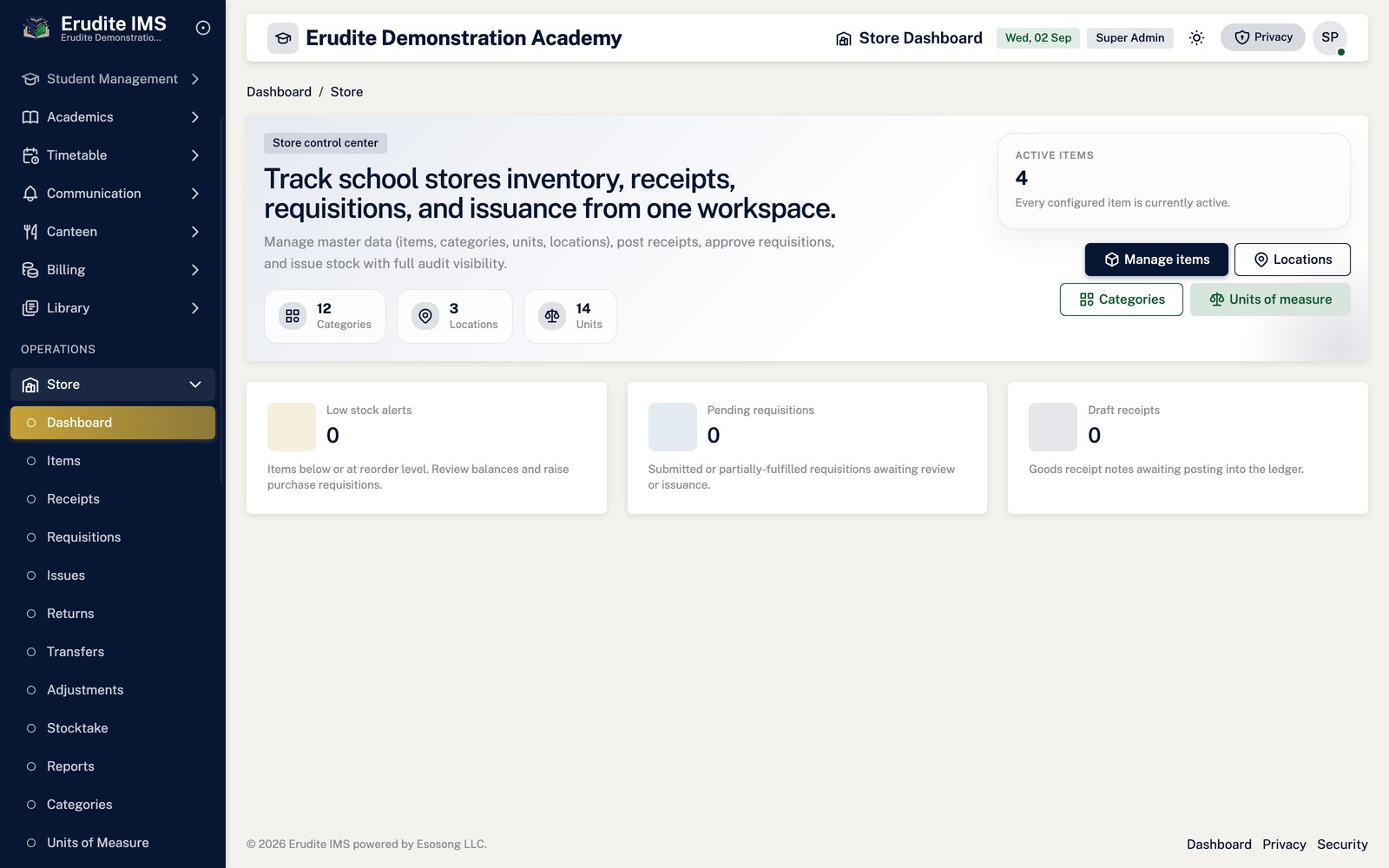
Store — list
/Store
/Store
Store — items
/Store/Items
/Store/Items
Store — locations
/Store/Locations
/Store/Locations
Store — units of measure
/Store/UnitsOfMeasure
/Store/UnitsOfMeasure
Store Adjustments
Store Adjustments — record detail
/StoreAdjustments/Details
This screen opens against a specific record and cannot be reached by URL alone. Open it from the list page for this module.
Store Adjustments — entry form
/StoreAdjustments/Form
This screen opens against a specific record and cannot be reached by URL alone. Open it from the list page for this module.
Store Adjustments — list
/StoreAdjustments
/StoreAdjustments
Store Issues
Store Issues — record detail
/StoreIssues/Details
This screen opens against a specific record and cannot be reached by URL alone. Open it from the list page for this module.
Store Issues — entry form
/StoreIssues/Form
This screen opens against a specific record and cannot be reached by URL alone. Open it from the list page for this module.
Store Issues — list
/StoreIssues
/StoreIssues
Store Receipts
Store Receipts — record detail
/StoreReceipts/Details
This screen opens against a specific record and cannot be reached by URL alone. Open it from the list page for this module.
Store Receipts — entry form
/StoreReceipts/Form
This screen opens against a specific record and cannot be reached by URL alone. Open it from the list page for this module.
Store Receipts — list
/StoreReceipts
/StoreReceipts
Store Reports
Store Reports — expiring soon
/StoreReports/ExpiringSoon
/StoreReports/ExpiringSoon
Store Reports — list
/StoreReports
/StoreReports
Store Reports — low stock
/StoreReports/LowStock
/StoreReports/LowStock
Store Reports — movement history
/StoreReports/MovementHistory
/StoreReports/MovementHistory
Store Reports — stock on hand
/StoreReports/StockOnHand
/StoreReports/StockOnHand
Store Reports — valuation
/StoreReports/Valuation
/StoreReports/Valuation
Store Requisitions
Store Requisitions — record detail
/StoreRequisitions/Details
This screen opens against a specific record and cannot be reached by URL alone. Open it from the list page for this module.
Store Requisitions — entry form
/StoreRequisitions/Form
This screen opens against a specific record and cannot be reached by URL alone. Open it from the list page for this module.
Store Requisitions — list
/StoreRequisitions
/StoreRequisitions
Store Returns
Store Returns — record detail
/StoreReturns/Details
This screen opens against a specific record and cannot be reached by URL alone. Open it from the list page for this module.
Store Returns — entry form
/StoreReturns/Form
This screen opens against a specific record and cannot be reached by URL alone. Open it from the list page for this module.
Store Returns — list
/StoreReturns
/StoreReturns
Store Transfers
Store Transfers — record detail
/StoreTransfers/Details
This screen opens against a specific record and cannot be reached by URL alone. Open it from the list page for this module.
Store Transfers — entry form
/StoreTransfers/Form
This screen opens against a specific record and cannot be reached by URL alone. Open it from the list page for this module.
Store Transfers — list
/StoreTransfers
/StoreTransfers
Timetable
Setting up the building blocks
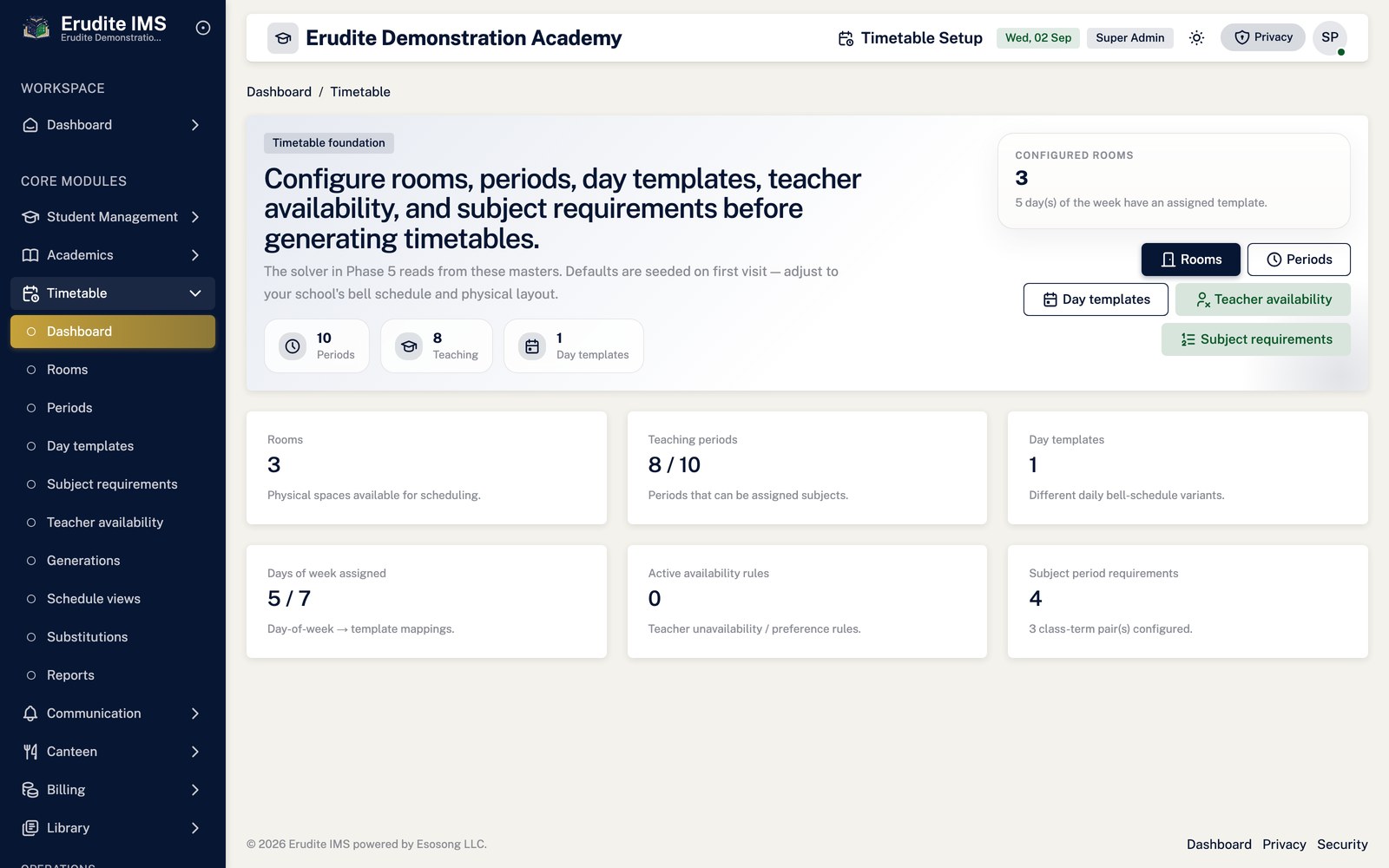
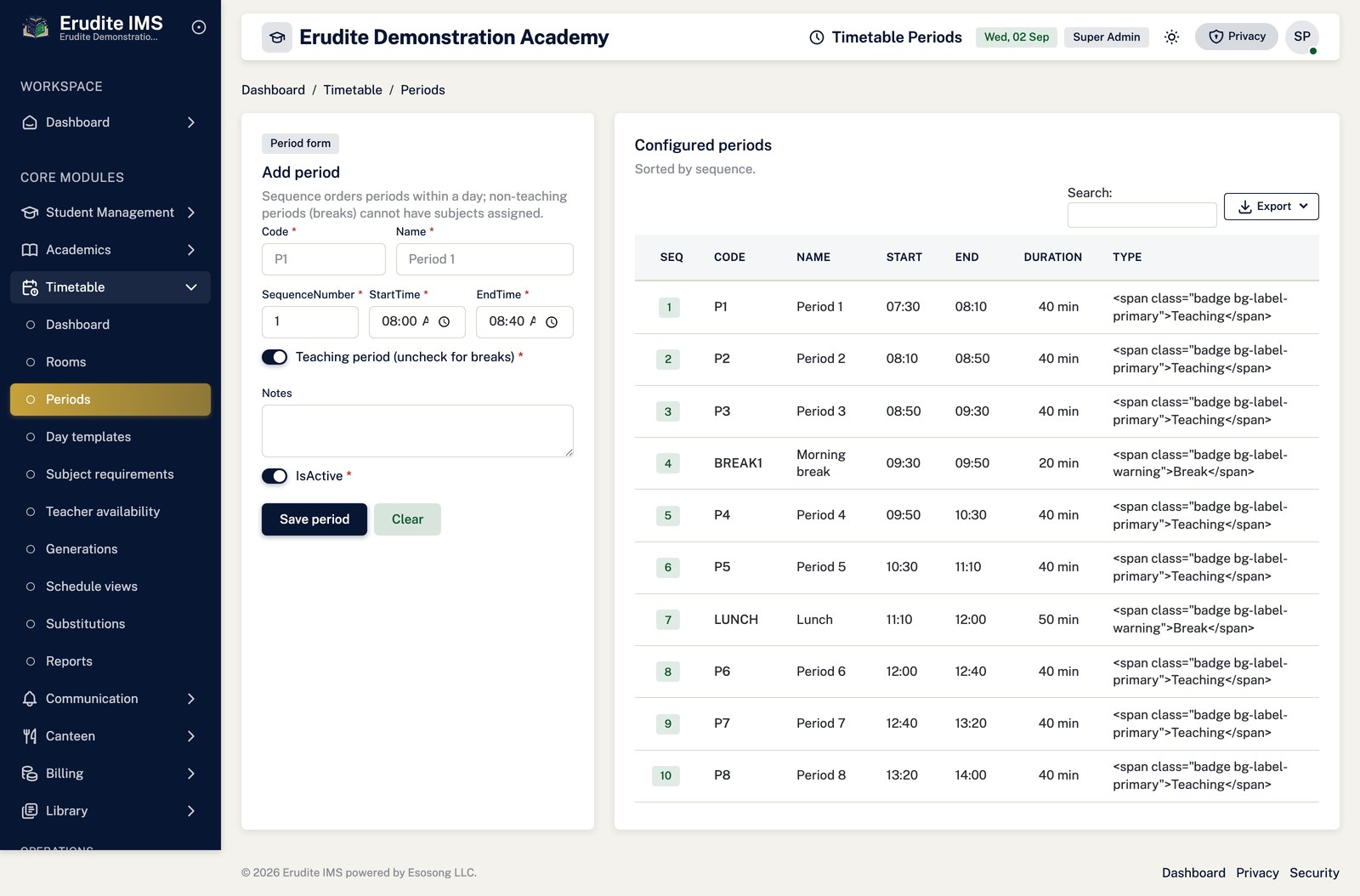
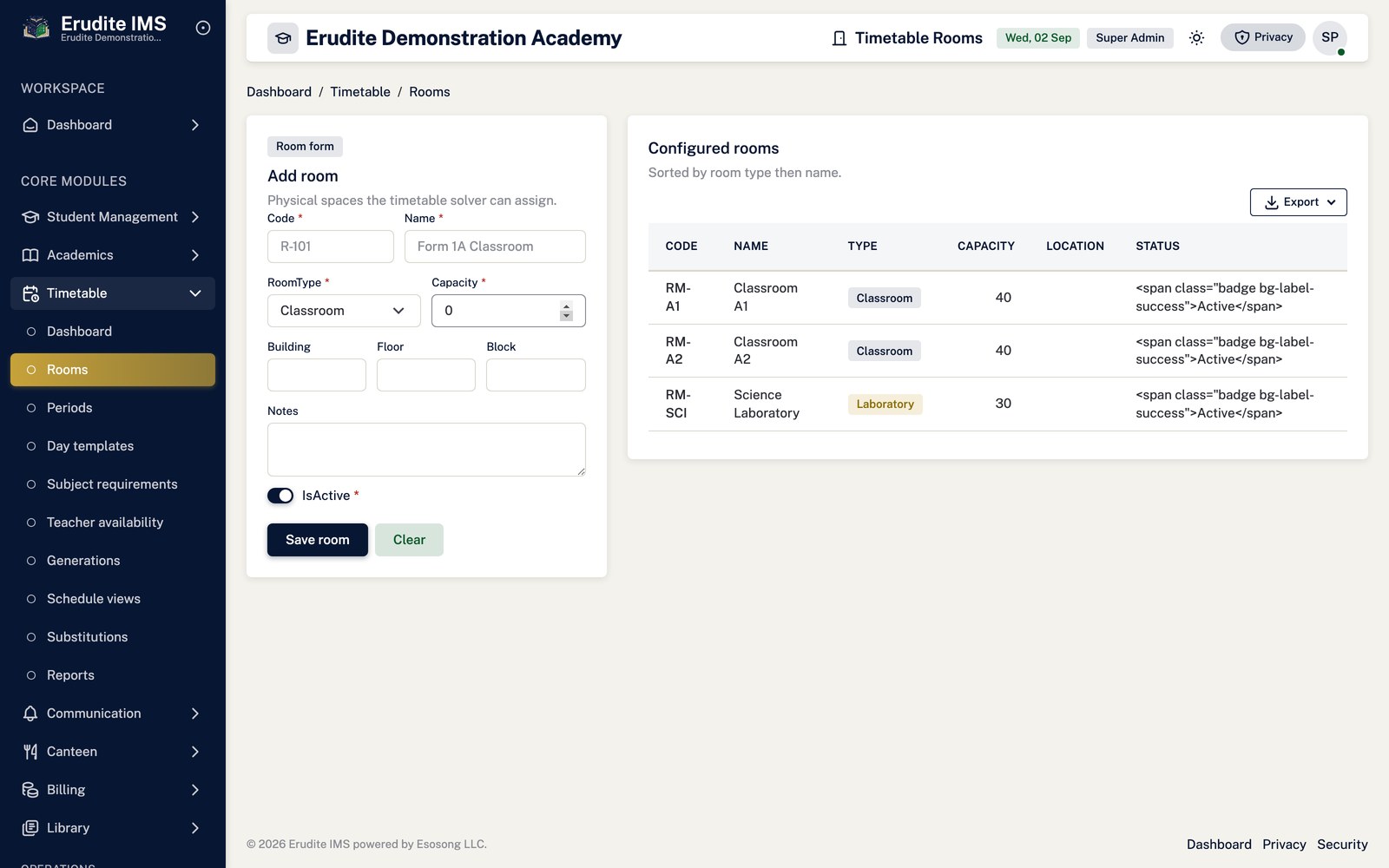
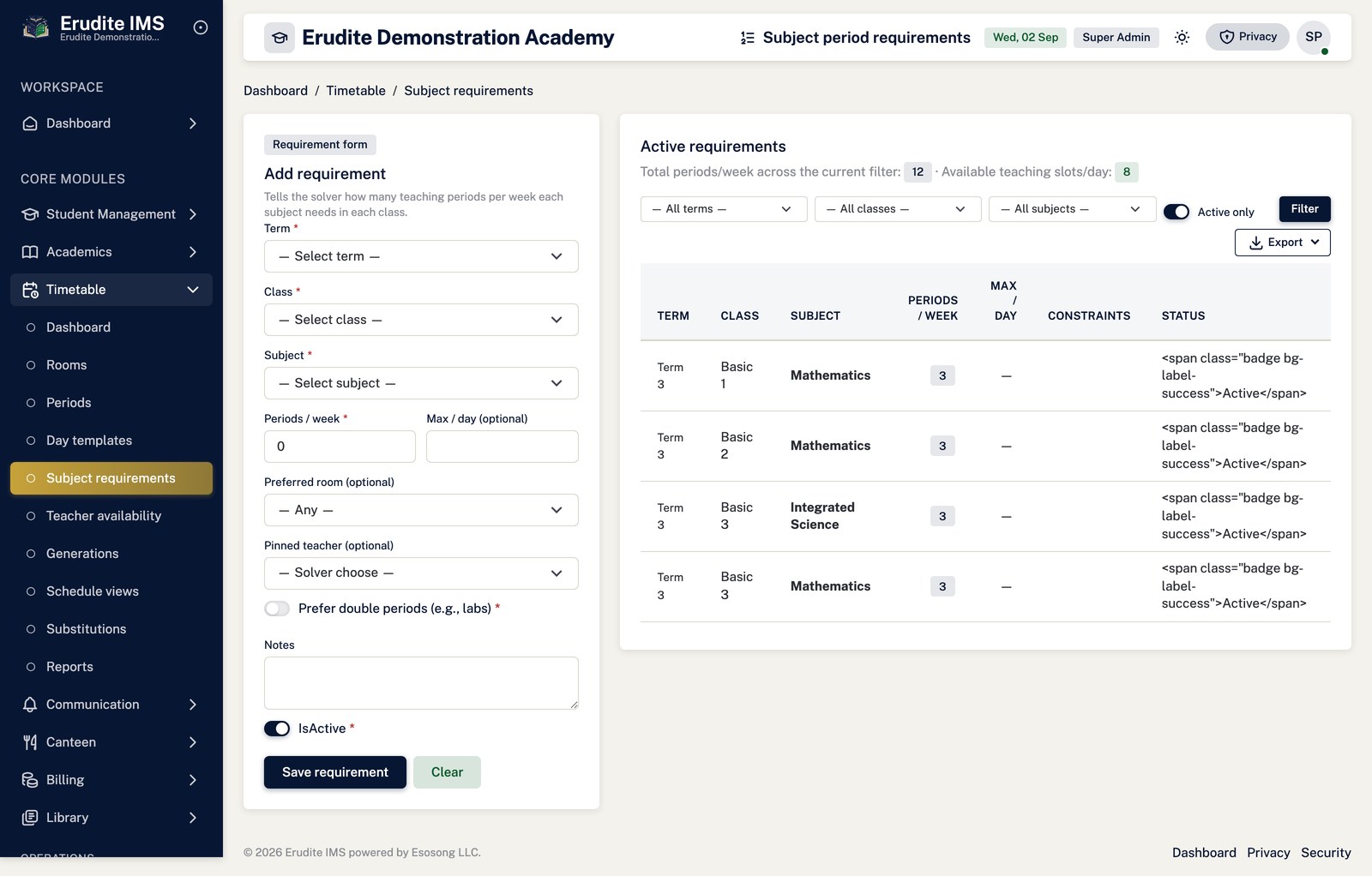
Open Timetable → Setup → Rooms and register the physical rooms available for scheduling.
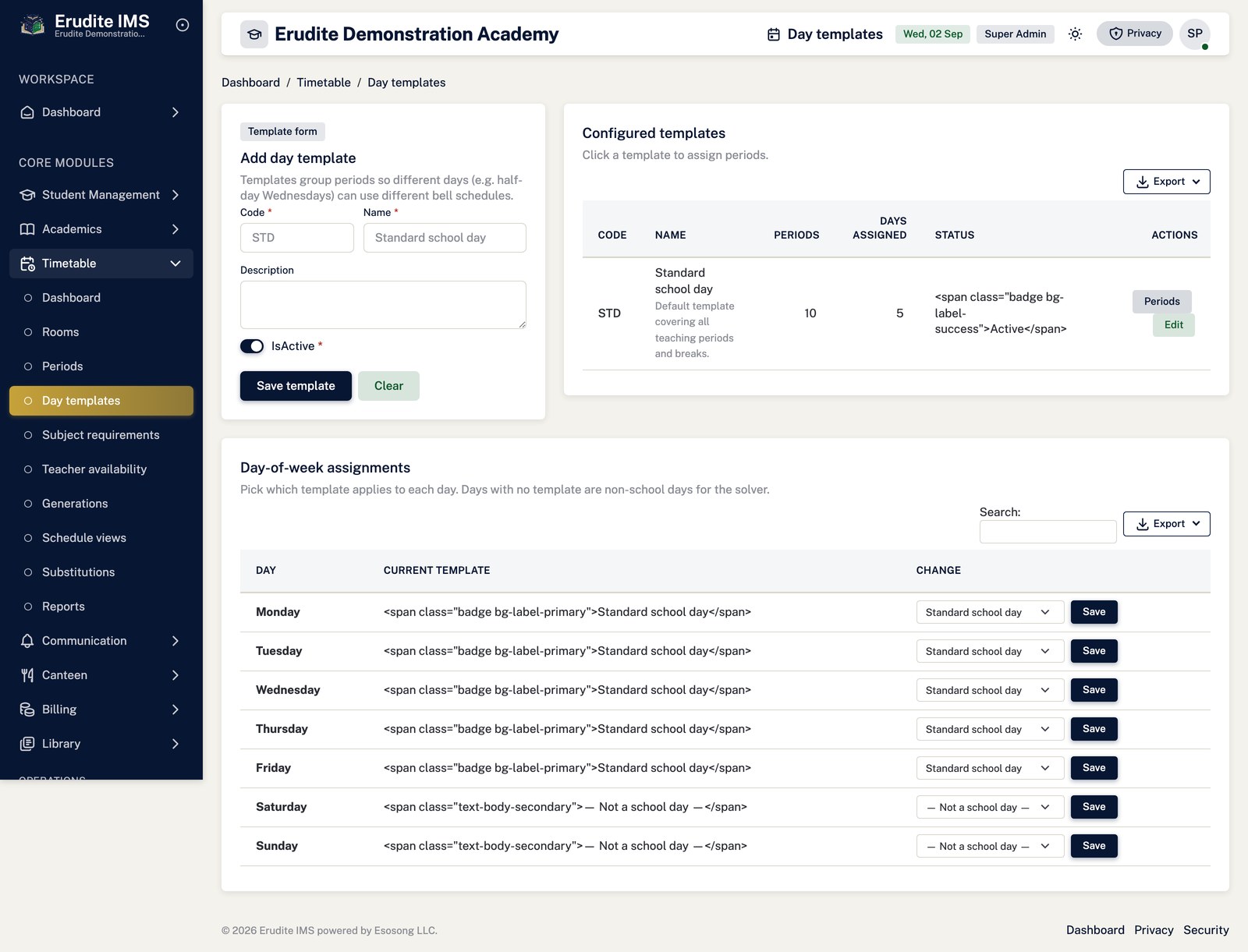
Define the school's Periods (the time slots in a day) and Day Templates
(which periods apply on which kind of day) — a day template is built from
Add template period entries, each of which can be removed individually.
Assign day templates to actual calendar days with Save day assignment, so the generator
knows which template governs a given date.
Teacher availability windows and per-class/subject period requirements are configured
separately (Timetable Availability and Timetable Requirements, in the Other Modules chapter) and both feed the
generator described below.
Generating a term's timetable
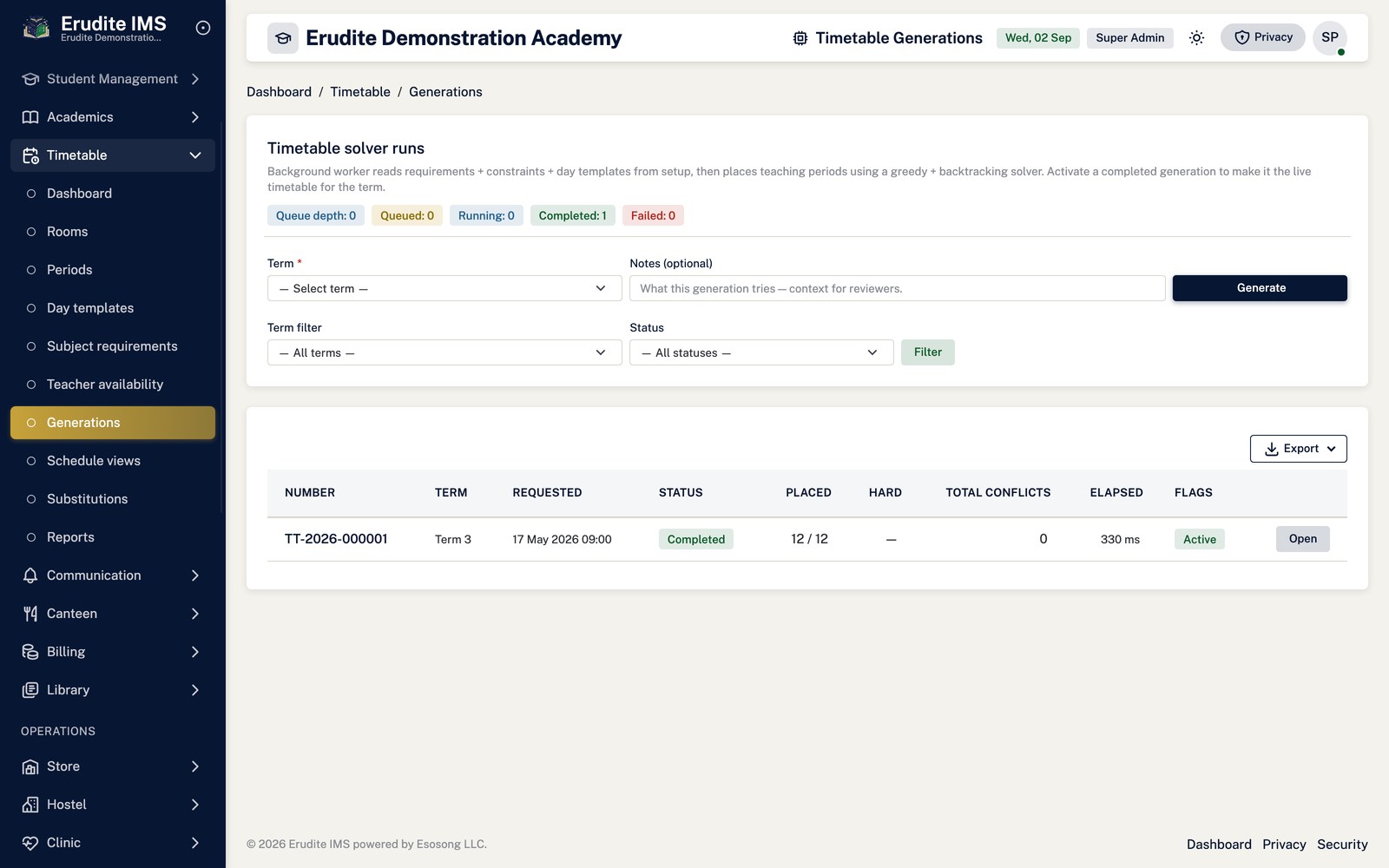
Open Timetable → Generations and select Run, choosing the term. You must
be working within a specific school — the action is refused if no school context is selected, since a
timetable is generated one school at a time.
Generation runs as a background job: the request is queued immediately with status
Queued, then moves to Running and finally Completed (or
a failed status) once the job picks it up. Reload the Details page to see progress — nothing here happens
synchronously in the request.
Only a Completed generation can be Activated. Activating one
automatically deactivates whichever other generation was previously active for that term, and locks the
newly active one against deletion.
Deactivate is only offered on a generation that is currently active. Toggle
lock can protect any other generation from deletion, but an active generation cannot be unlocked
without deactivating it first.
Delete is refused for anything active, locked, queued or still running — only a finished,
inactive, unlocked generation can be removed.
Only one generation is live per term. Activating a new generation for a
term silently retires the old one — class, teacher and room schedules everywhere switch to the newly active
version at that moment. Keep the previous generation rather than deleting it until you are confident the new
one is correct, since deletion is only possible once it is inactive and unlocked.
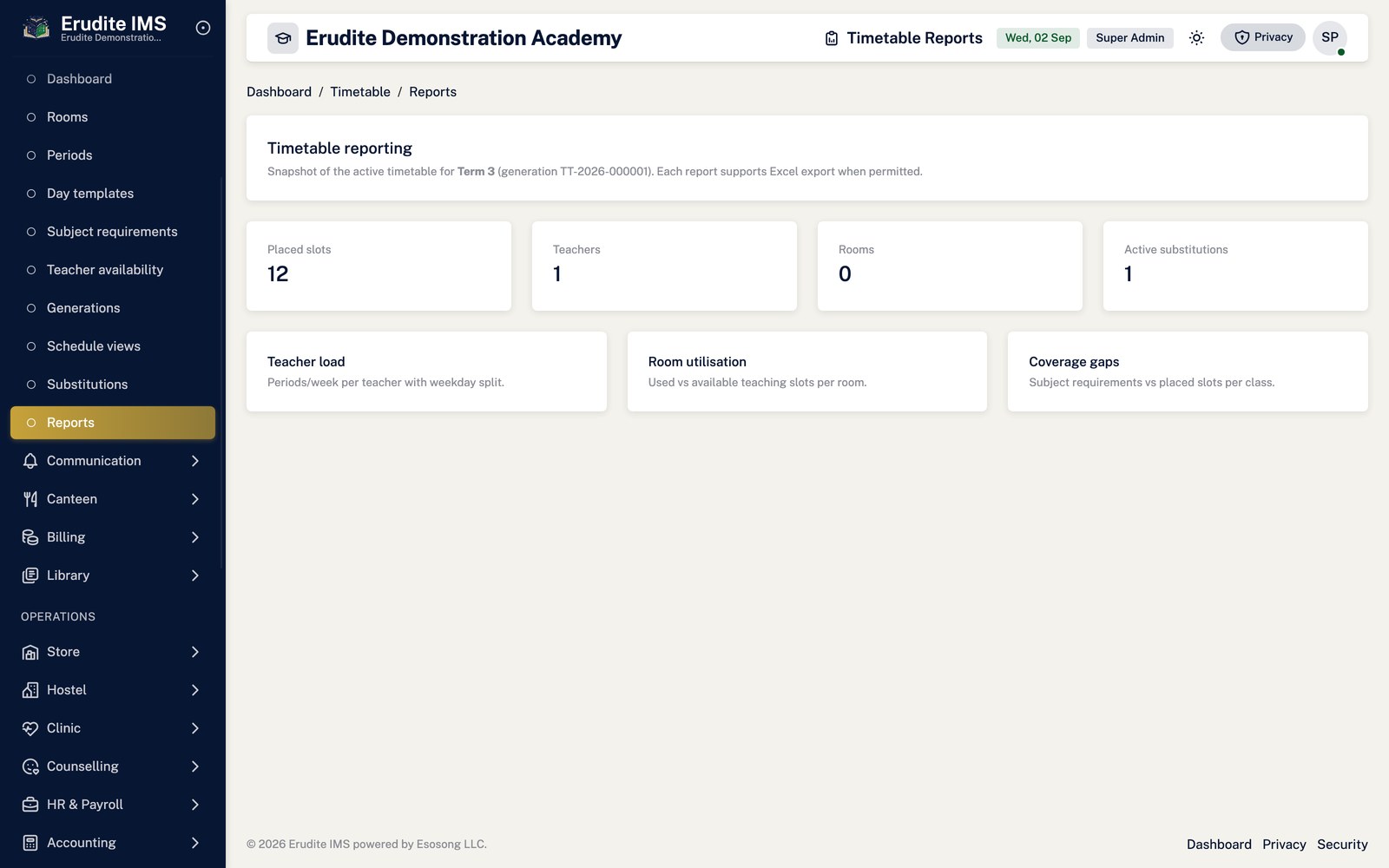
Reading the timetable reports
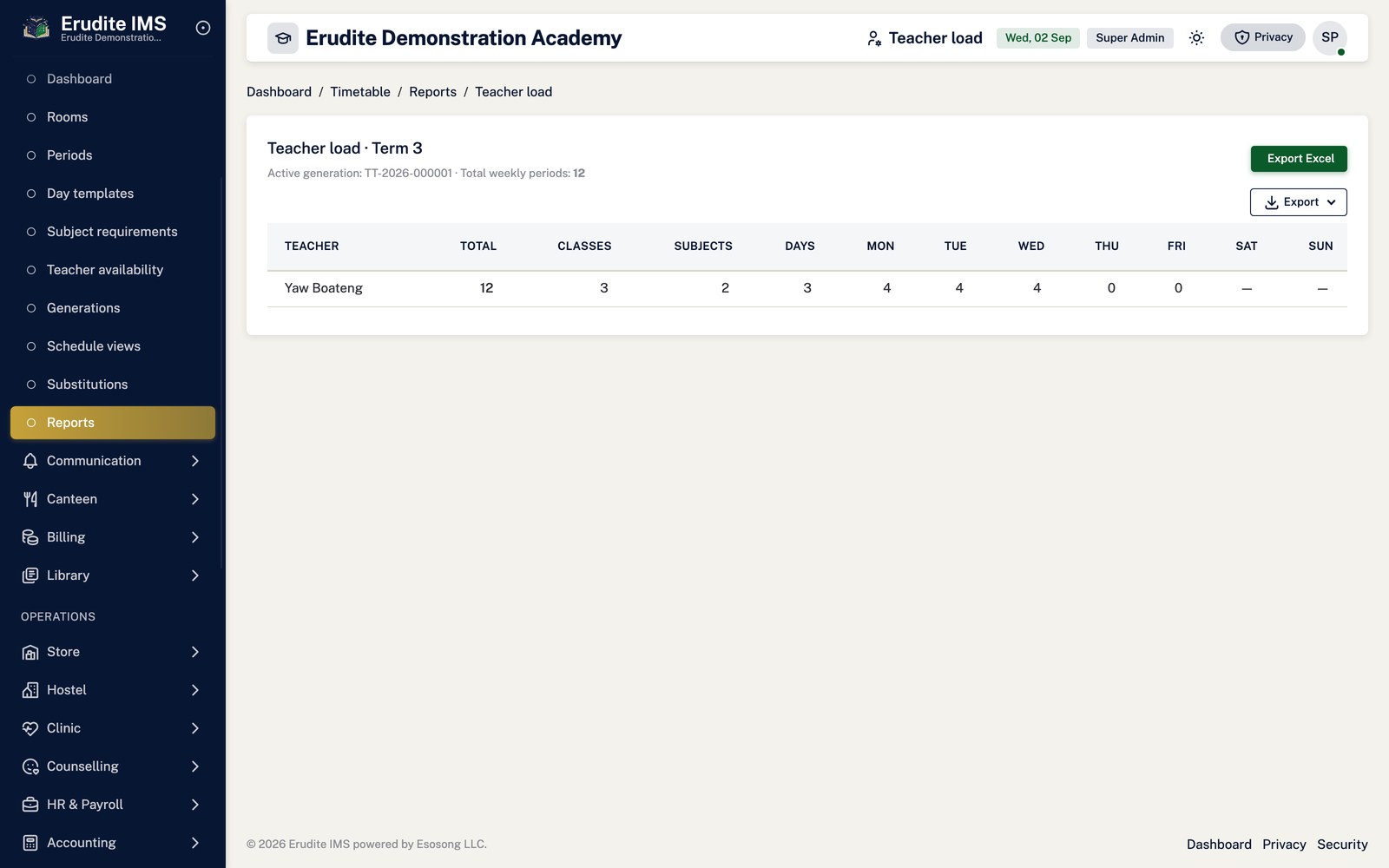
Timetable → Reports → Teacher Load shows each teacher's assigned periods against their
configured availability, with an Excel export.
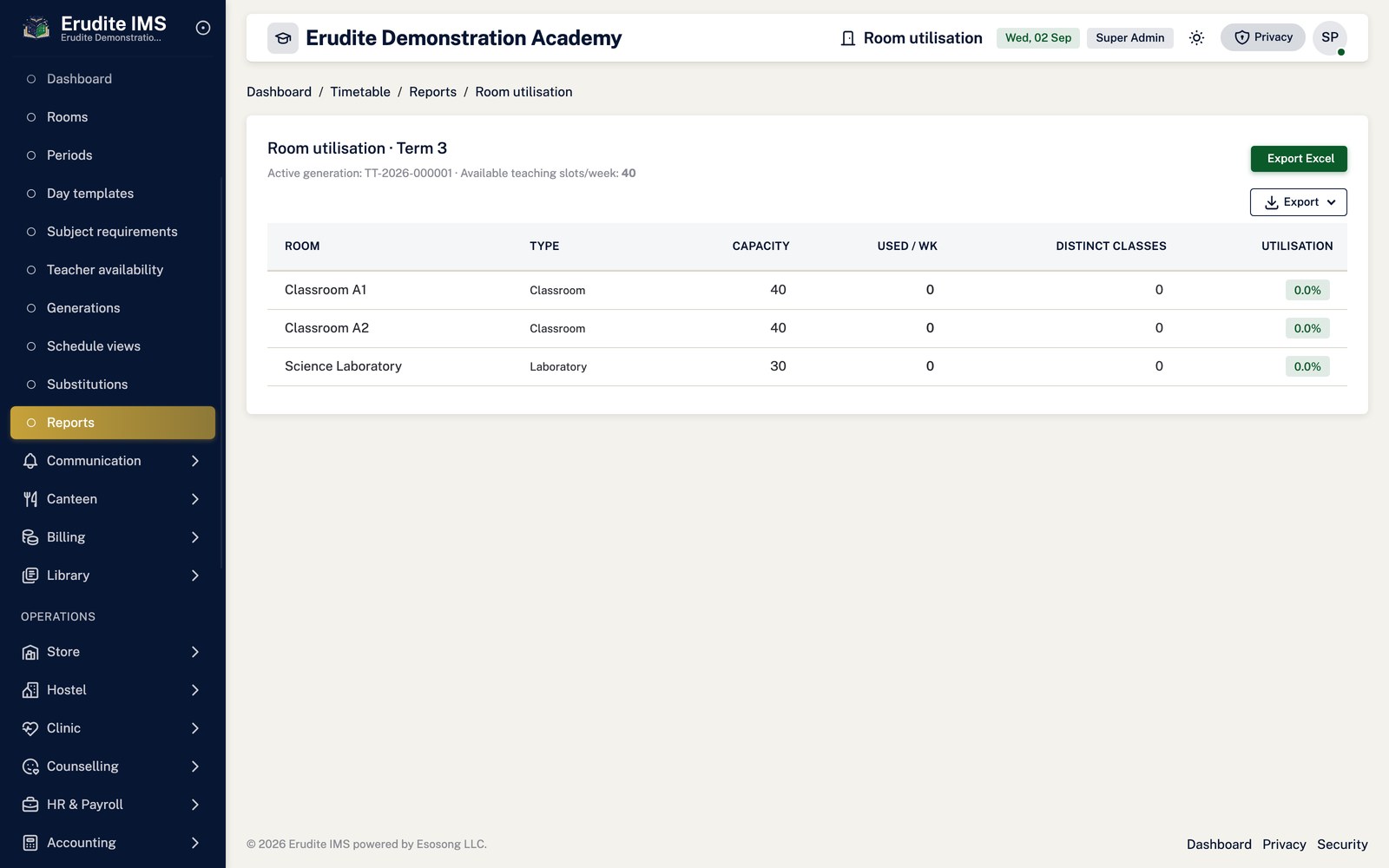
Room Utilisation shows how heavily each room is booked across the week.
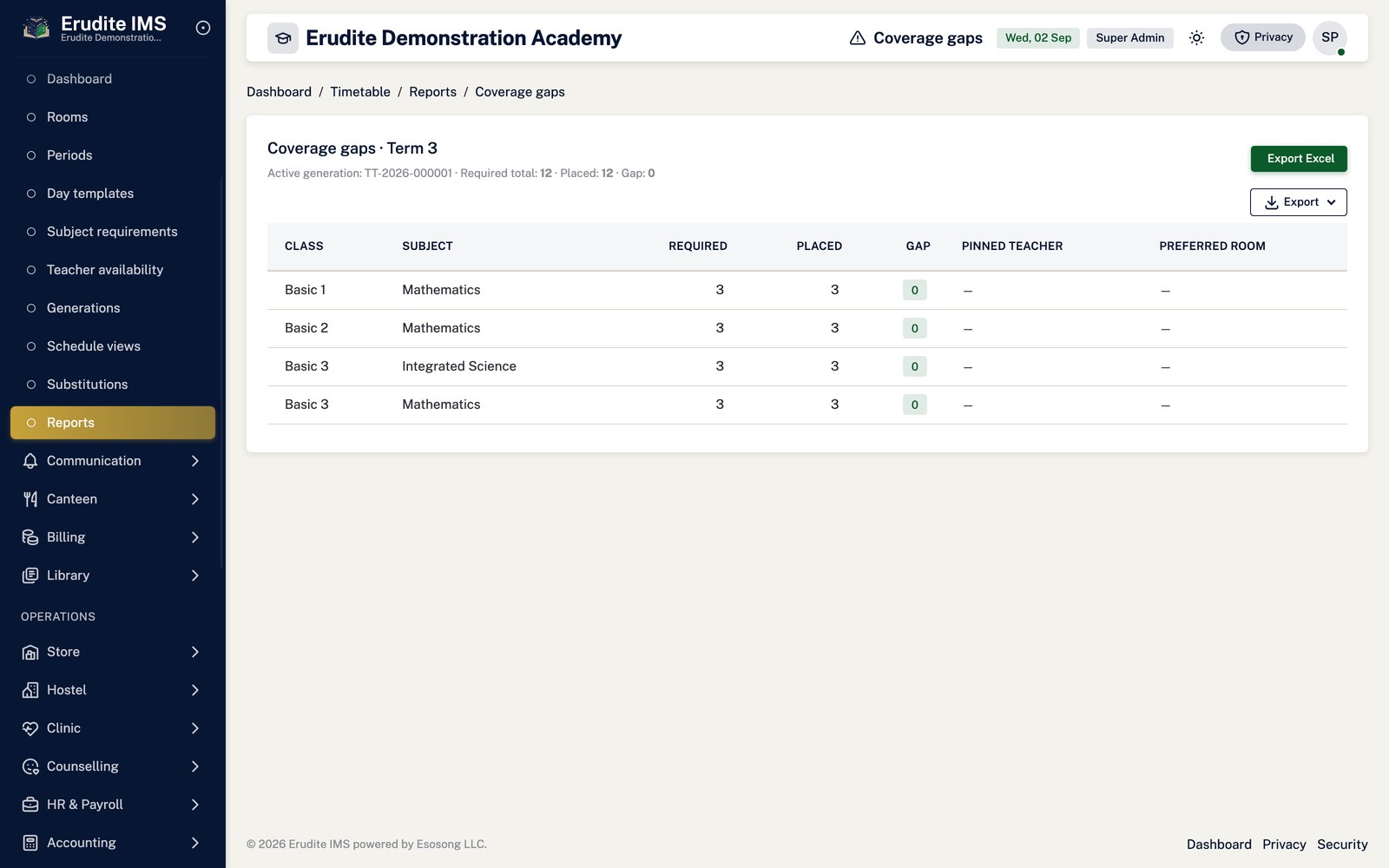
Coverage Gaps lists periods that the generator could not fill — a class/subject
requirement with no teacher or room available for it — so this is the first place to check when a
generation completes but the result looks incomplete.
Timetable Generations
Timetable Generations — record detail
/TimetableGenerations/Details
This screen opens against a specific record and cannot be reached by URL alone. Open it from the list page for this module.
Timetable Generations — list
/TimetableGenerations
/TimetableGenerations
Timetable Reports
Timetable Reports — coverage gaps
/TimetableReports/CoverageGaps
/TimetableReports/CoverageGaps
Timetable Reports — list
/TimetableReports
/TimetableReports
Timetable Reports — room utilisation
/TimetableReports/RoomUtilisation
/TimetableReports/RoomUtilisation
Timetable Reports — teacher load
/TimetableReports/TeacherLoad
/TimetableReports/TeacherLoad
Timetable Setup
Timetable Setup — day template
/TimetableSetup/DayTemplate
This screen opens against a specific record and cannot be reached by URL alone. Open it from the list page for this module.
Timetable Setup — day templates
/TimetableSetup/DayTemplates
/TimetableSetup/DayTemplates
Timetable Setup — list
/TimetableSetup
/TimetableSetup
Timetable Setup — periods
/TimetableSetup/Periods
/TimetableSetup/Periods
Timetable Setup — rooms
/TimetableSetup/Rooms
/TimetableSetup/Rooms
Library
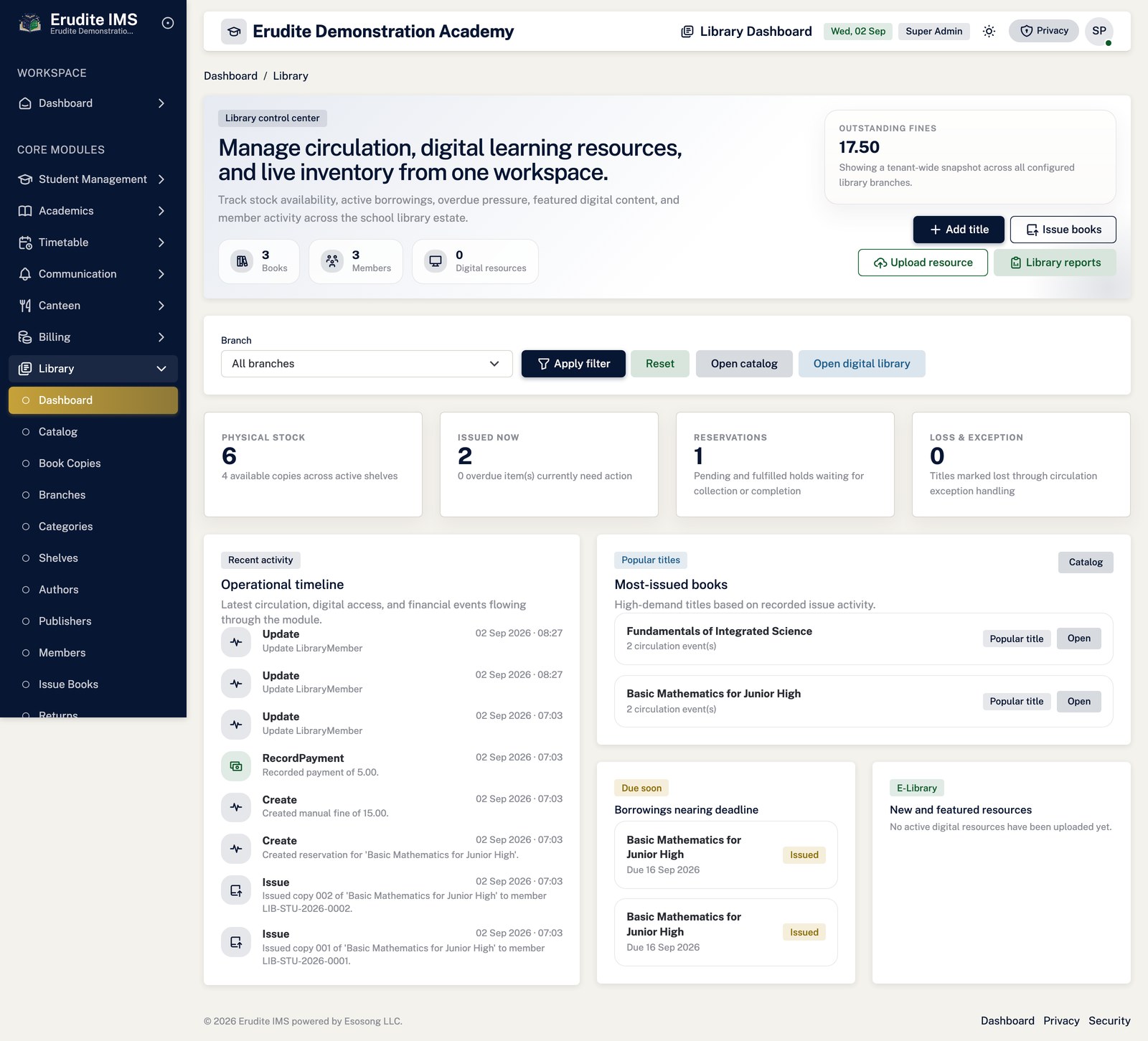
Cataloguing before you can lend anything
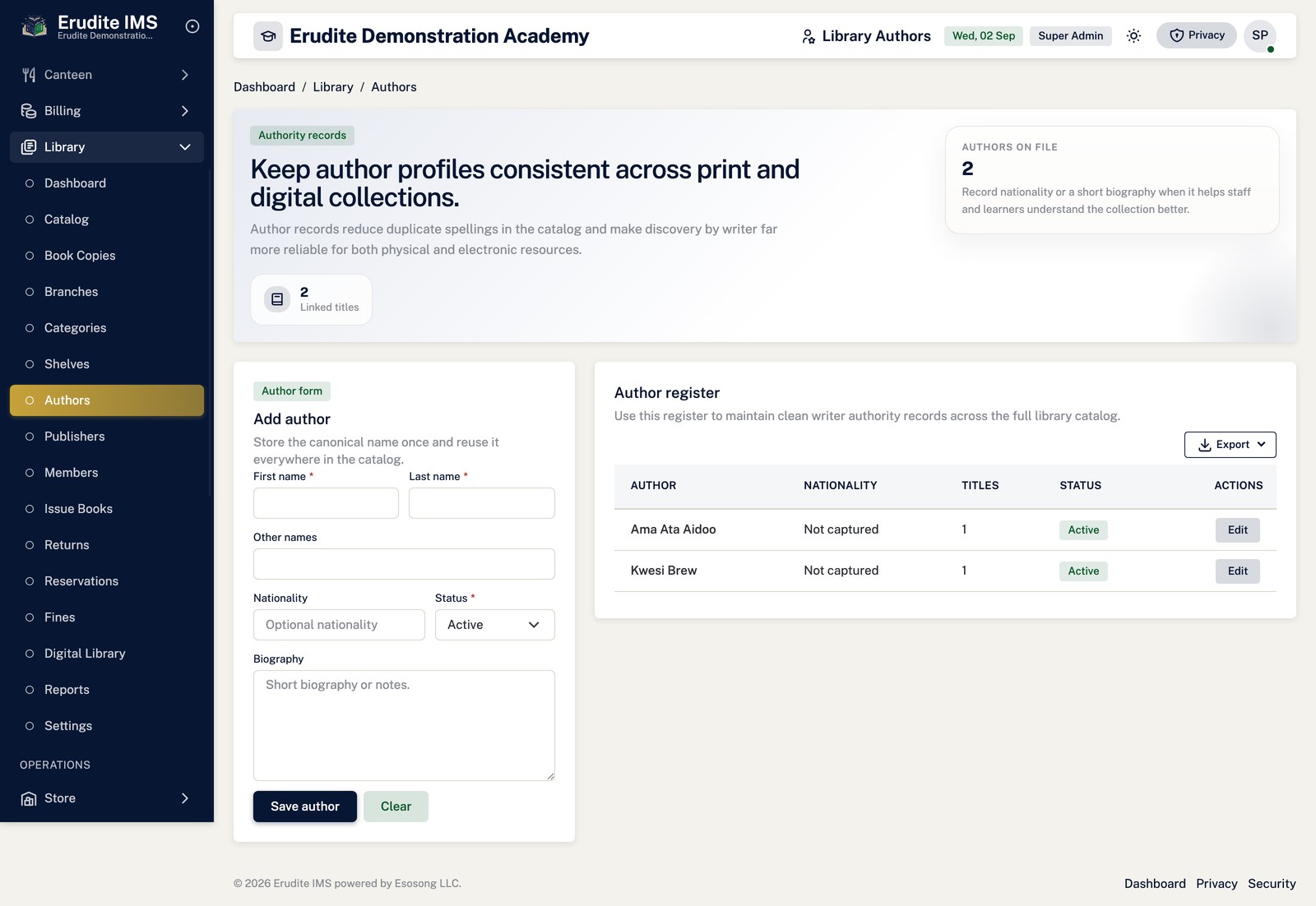
Configure Branches, Categories, Shelves,
Authors and Publishers under Library — each has its own settings page
with a Save action.
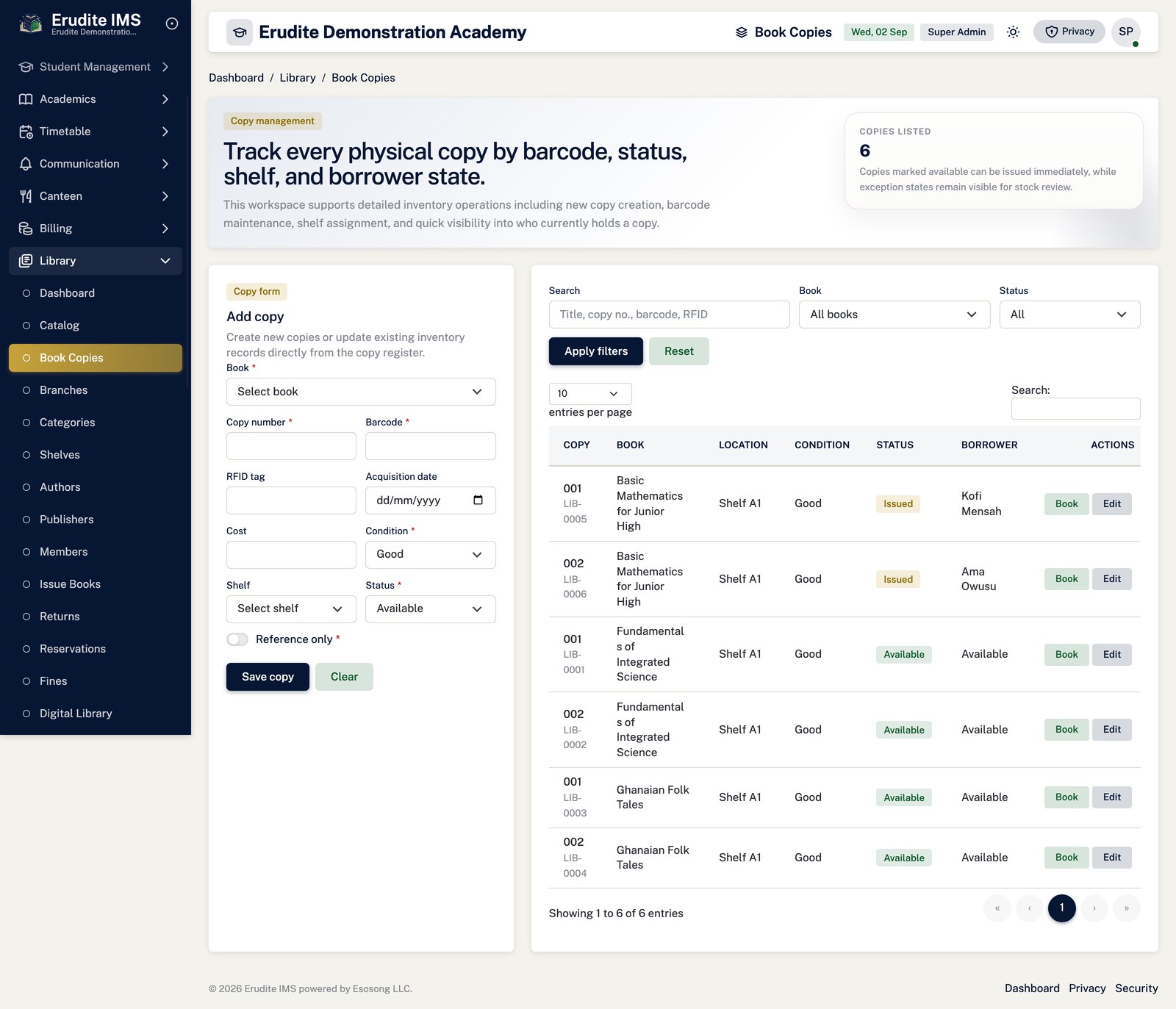
Add the title itself under Catalog → New book, then add its physical copies from the
book's Details page with Save copy. A copy marked Reference-only can
never be issued — the issuing screen refuses it outright.
Set the loan period, renewal limits, overdue fine rate and grace period once under
Settings, and whether members with overdue items are blocked from borrowing further.
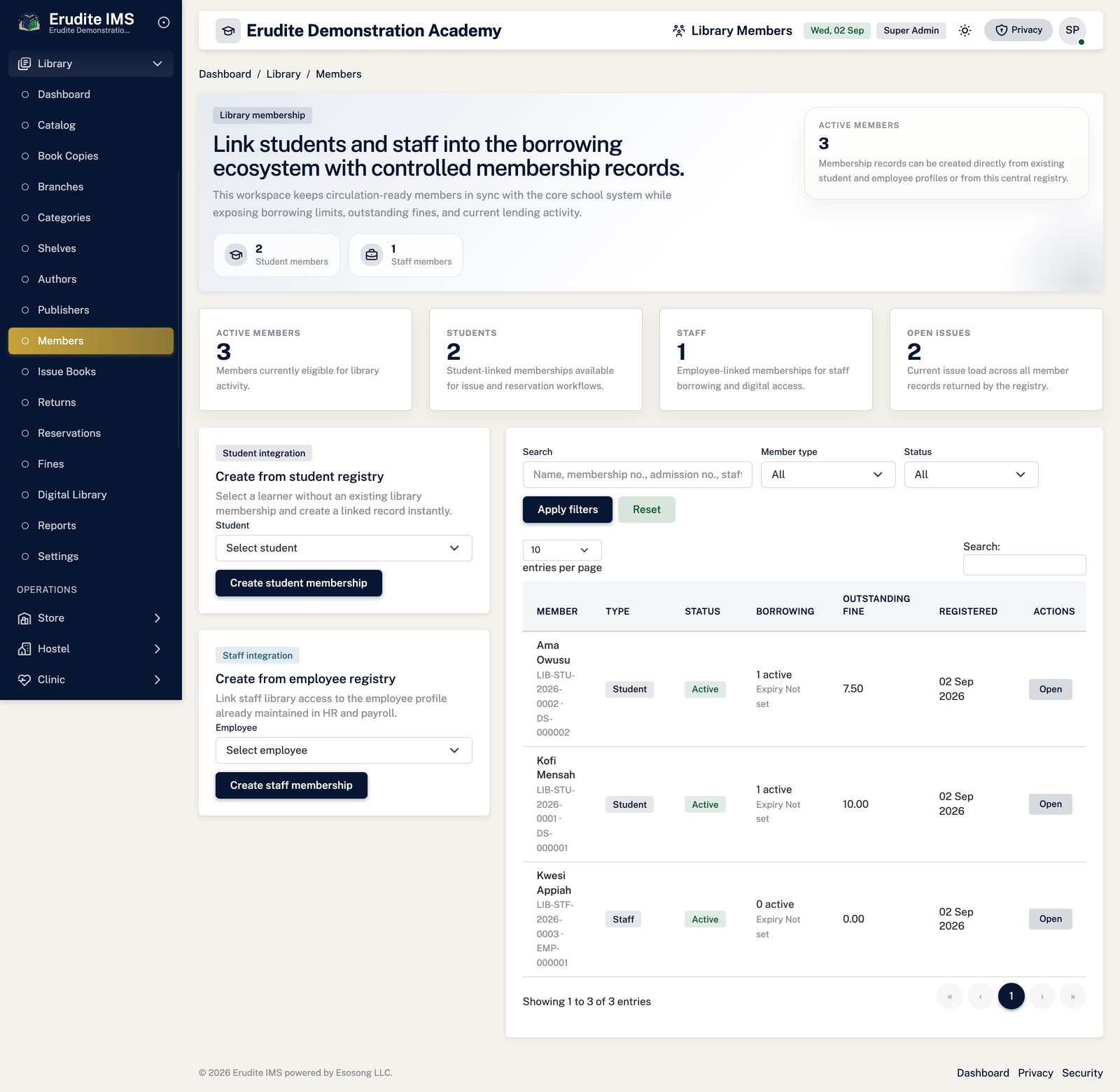
Enrolling a member
From a learner's record use Create student member, or from a staff record
Create employee member, to open a library membership.
Update contact and status details from the member's own page with Update member.
Issuing, renewing and returning a book
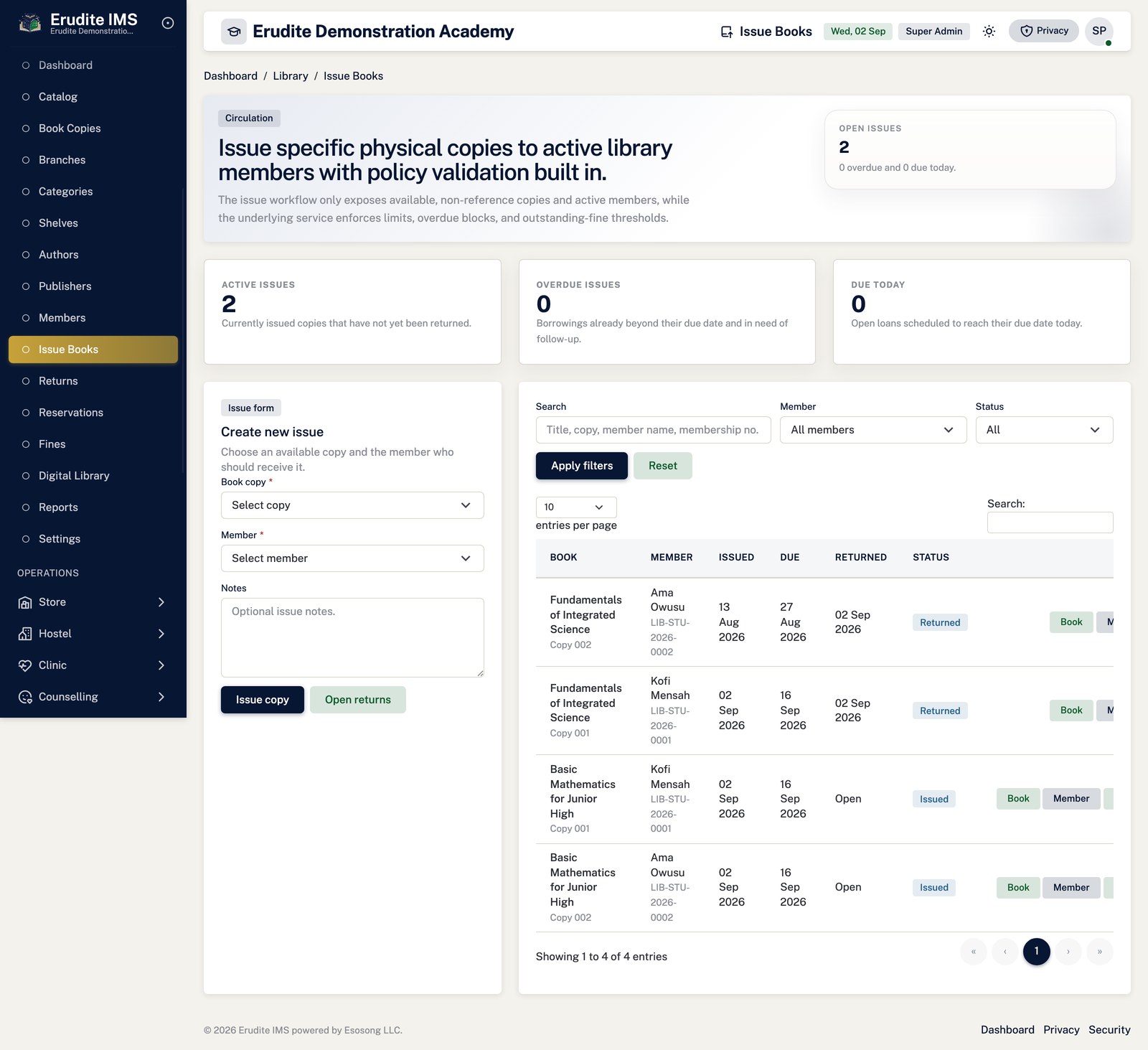
Open Library → Issue Books, choose the book copy and the member, and confirm. Issuing is
refused, with the specific reason shown, if the copy is not available, is reference-only, is currently
reserved for someone else, or if the title is inactive.
It is also refused if the member has overdue items and the school has overdue-blocking switched on, if
their outstanding fines exceed the configured threshold, or if they are already at their active-issue
limit.
Use Renew from the same screen to extend a loan. Renewal is refused if the issue is
already overdue (it must be returned first), if it has reached its renewal limit, or if another member
has an active reservation on the title.
Process the physical hand-back from Returns with Return book. If the
item comes back late, the return calculates and displays the fine assessed at that moment.
Where a copy is lost or damaged rather than returned, use Mark lost or Mark
damaged from the issue instead — an issue that has already been returned cannot be marked either
way.
Reservations and fines
A reservation can only be placed on a title with no available copies — if a copy is free,
the system expects you to issue it directly rather than reserve it. Each member is limited to one active
reservation per title and to the school's overall reservation limit.
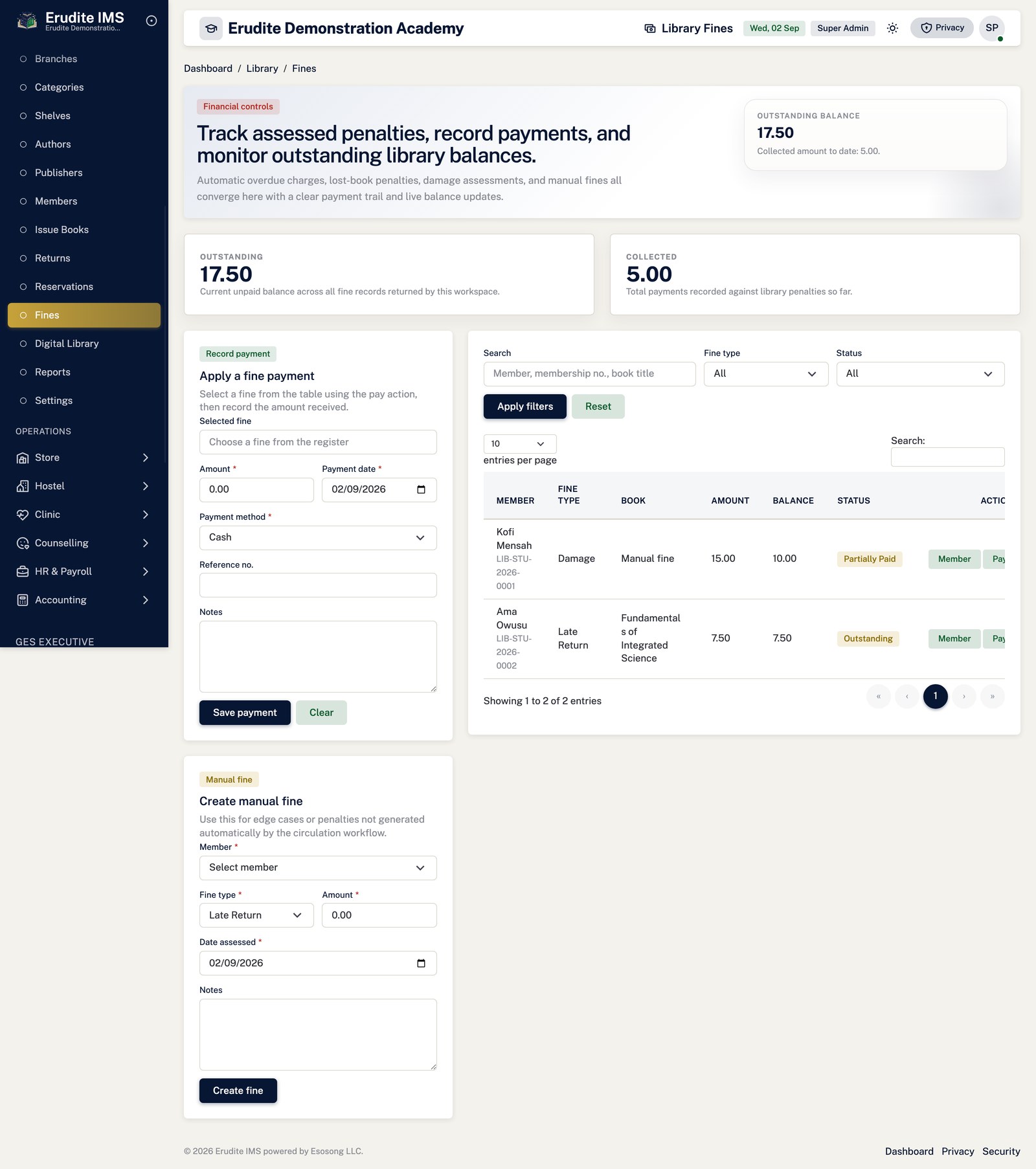
Outstanding balances are managed from Fines: Record fine payment takes a
payment against the balance (capped at what is owed), and Create manual fine raises a
fine outside the automatic overdue calculation, for damage or loss.
Digital resources
Add an e-book, document or media item under Digital Library → New resource, including
any access restrictions.
Members open it with Open resource or pull a copy with Download, subject
to the Digital Resources Download permission.
Reporting
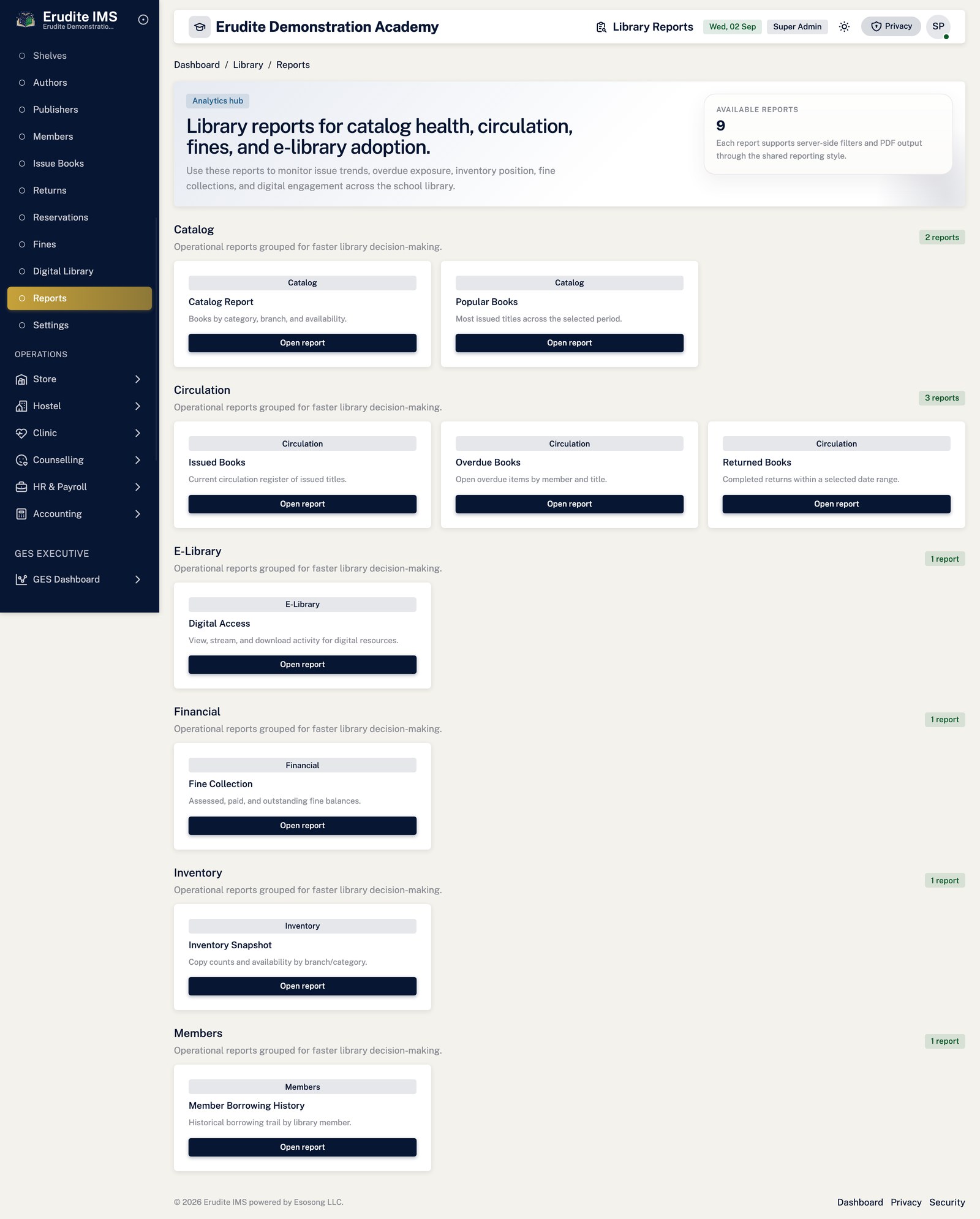
Library Reports covers the catalogue, issued and overdue books, returns,
fine collections, member borrowing history, popular titles, digital-resource access and a stock inventory —
each with a screen view and a separate permission-gated PDF export.
Library
Library — authors
/Library/Authors
/Library/Authors
Library — book copies
/Library/BookCopies
/Library/BookCopies
Library — book details
/Library/BookDetails
This screen opens against a specific record and cannot be reached by URL alone. Open it from the list page for this module.
Library — book form
/Library/BookForm
This screen opens against a specific record and cannot be reached by URL alone. Open it from the list page for this module.
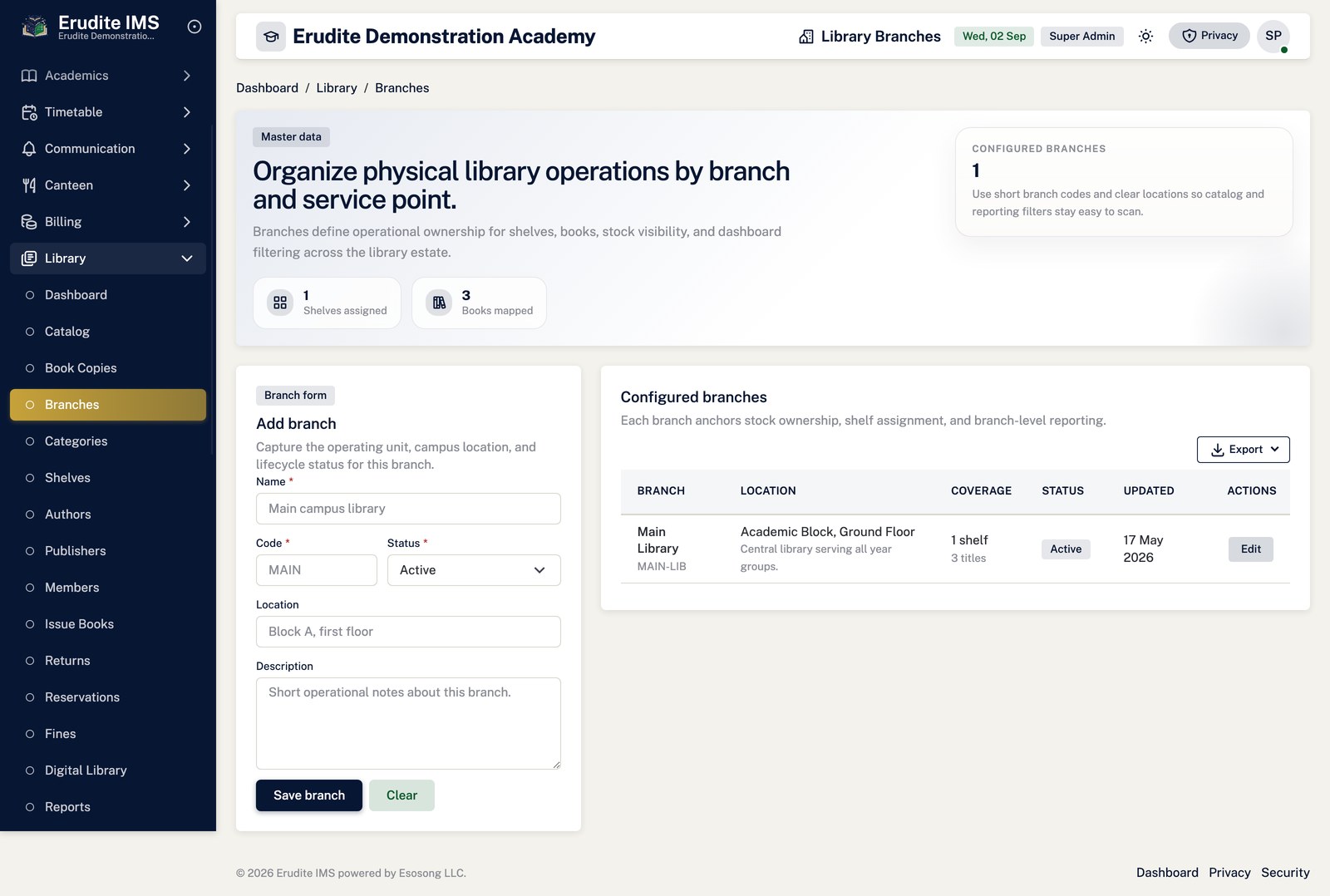
Library — branches
/Library/Branches
/Library/Branches
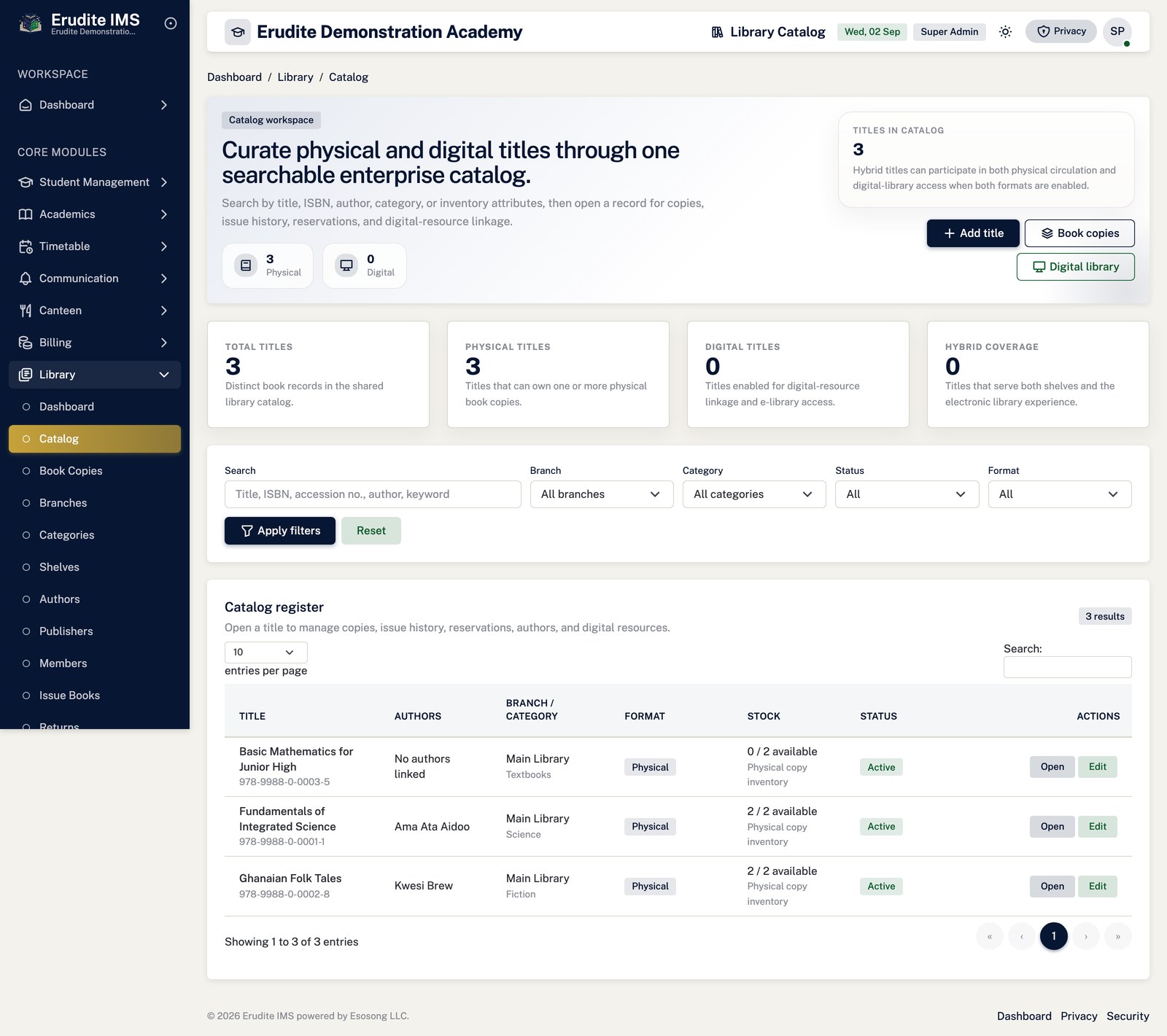
Library — catalog
/Library/Catalog
/Library/Catalog
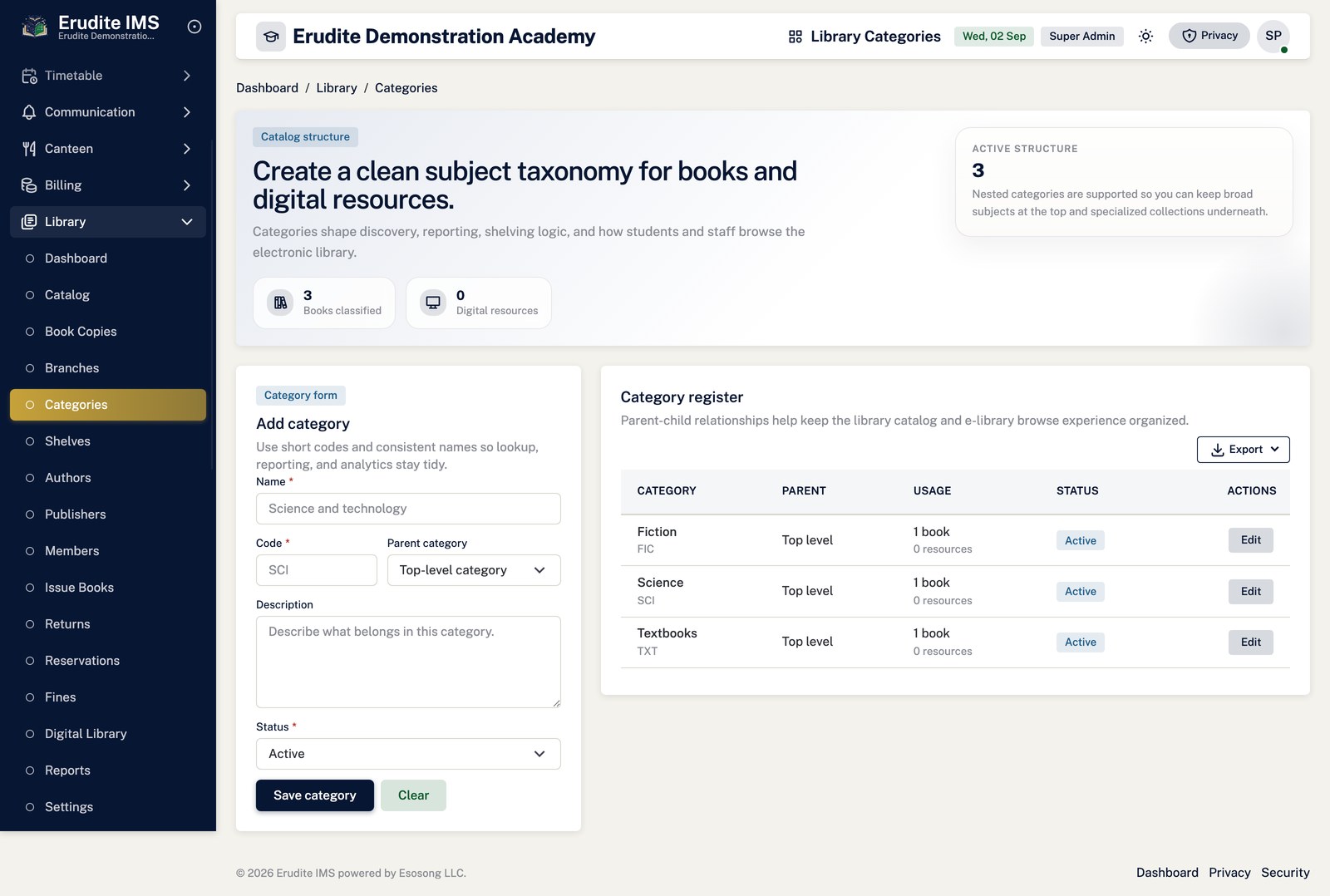
Library — categories
/Library/Categories
/Library/Categories
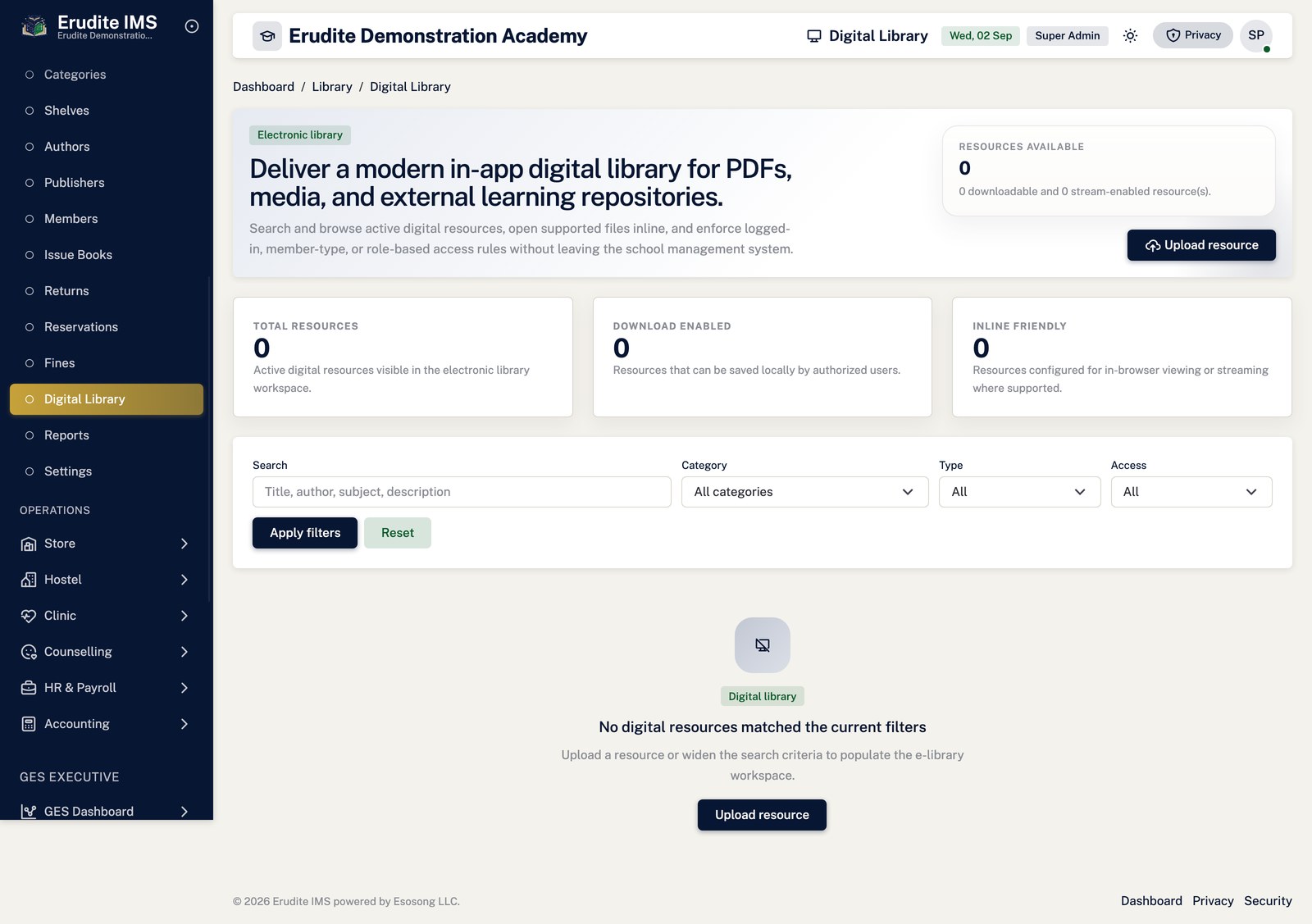
Library — digital library
/Library/DigitalLibrary
/Library/DigitalLibrary
Library — digital resource details
/Library/DigitalResourceDetails
This screen opens against a specific record and cannot be reached by URL alone. Open it from the list page for this module.
Library — digital resource form
/Library/DigitalResourceForm
This screen opens against a specific record and cannot be reached by URL alone. Open it from the list page for this module.
Library — fines
/Library/Fines
/Library/Fines
Library — list
/Library
/Library
Library — issue books
/Library/IssueBooks
/Library/IssueBooks
Library — member details
/Library/MemberDetails
This screen opens against a specific record and cannot be reached by URL alone. Open it from the list page for this module.
Library — members
/Library/Members
/Library/Members
Library — publishers
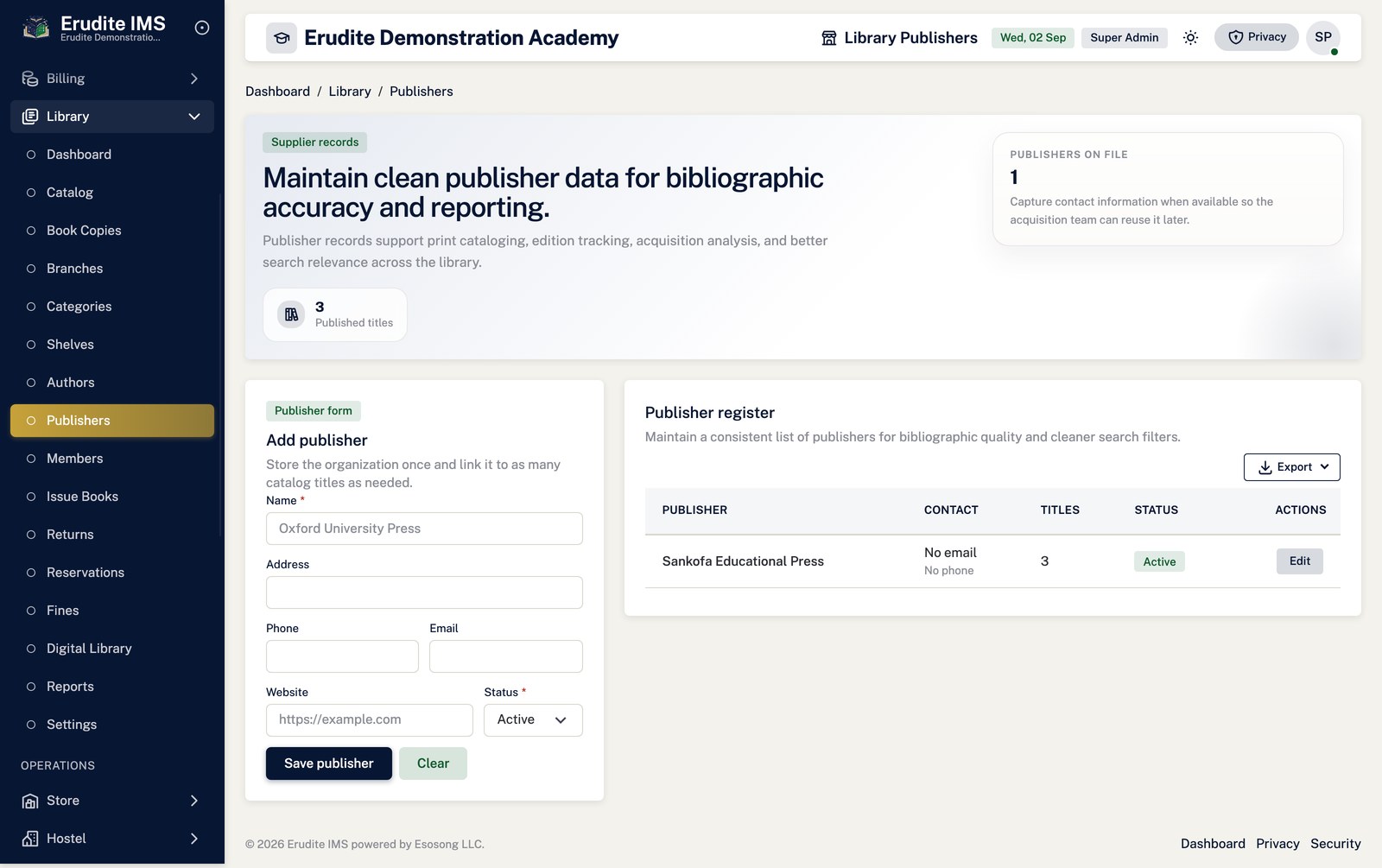
/Library/Publishers
/Library/Publishers
Library — reservations
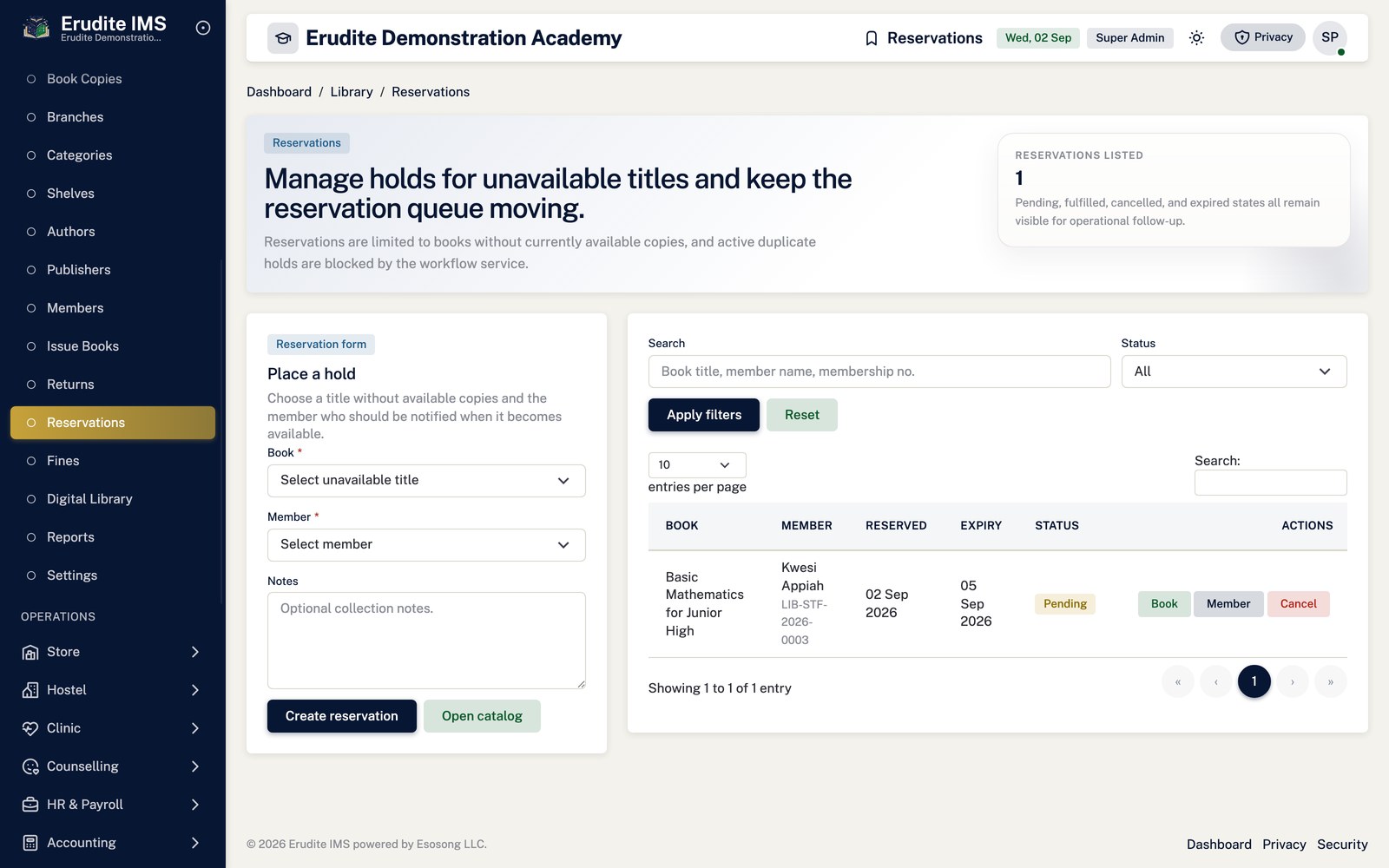
/Library/Reservations
/Library/Reservations
Library — returns
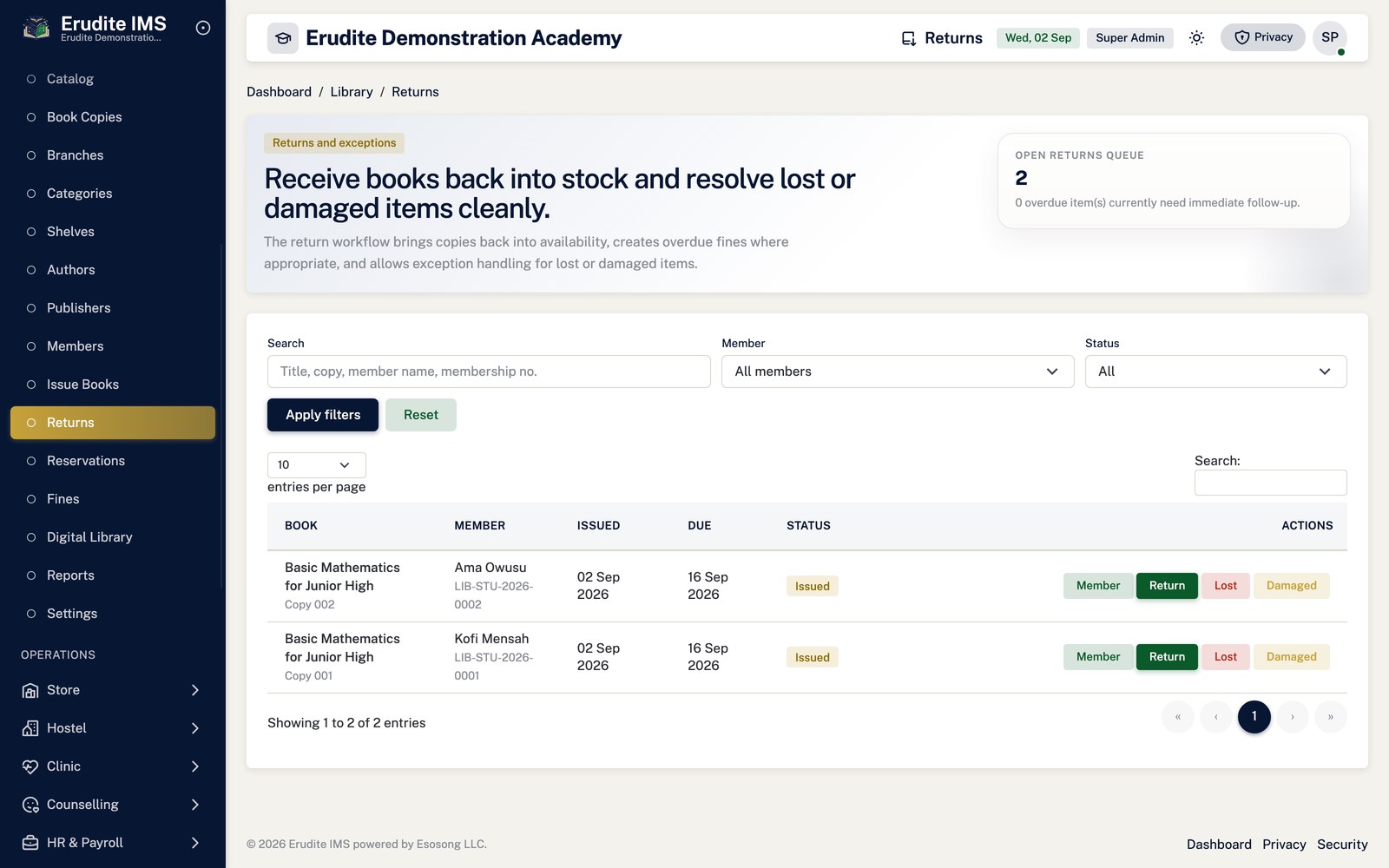
/Library/Returns
/Library/Returns
Library — settings
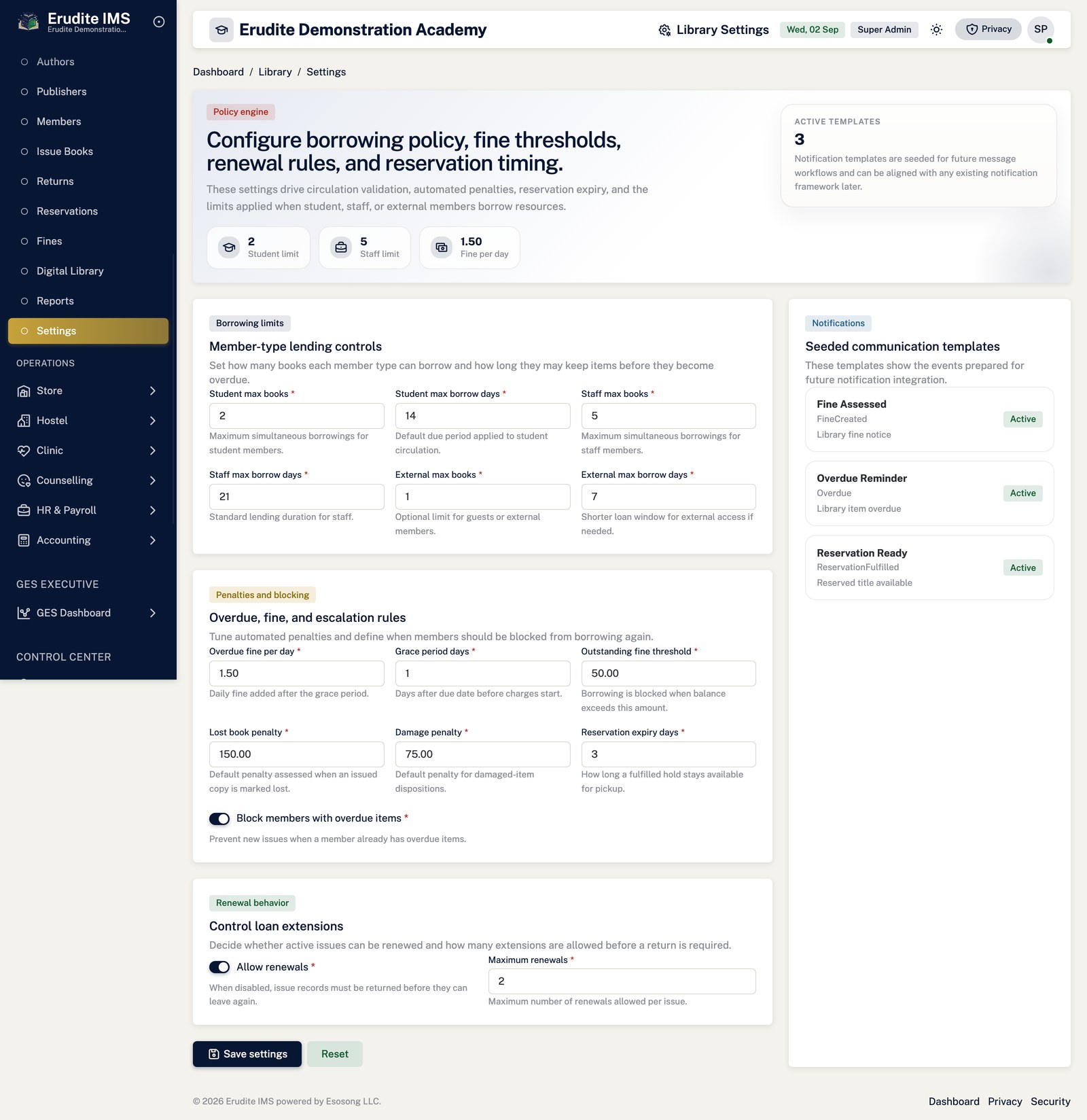
/Library/Settings
/Library/Settings
Library — shelves
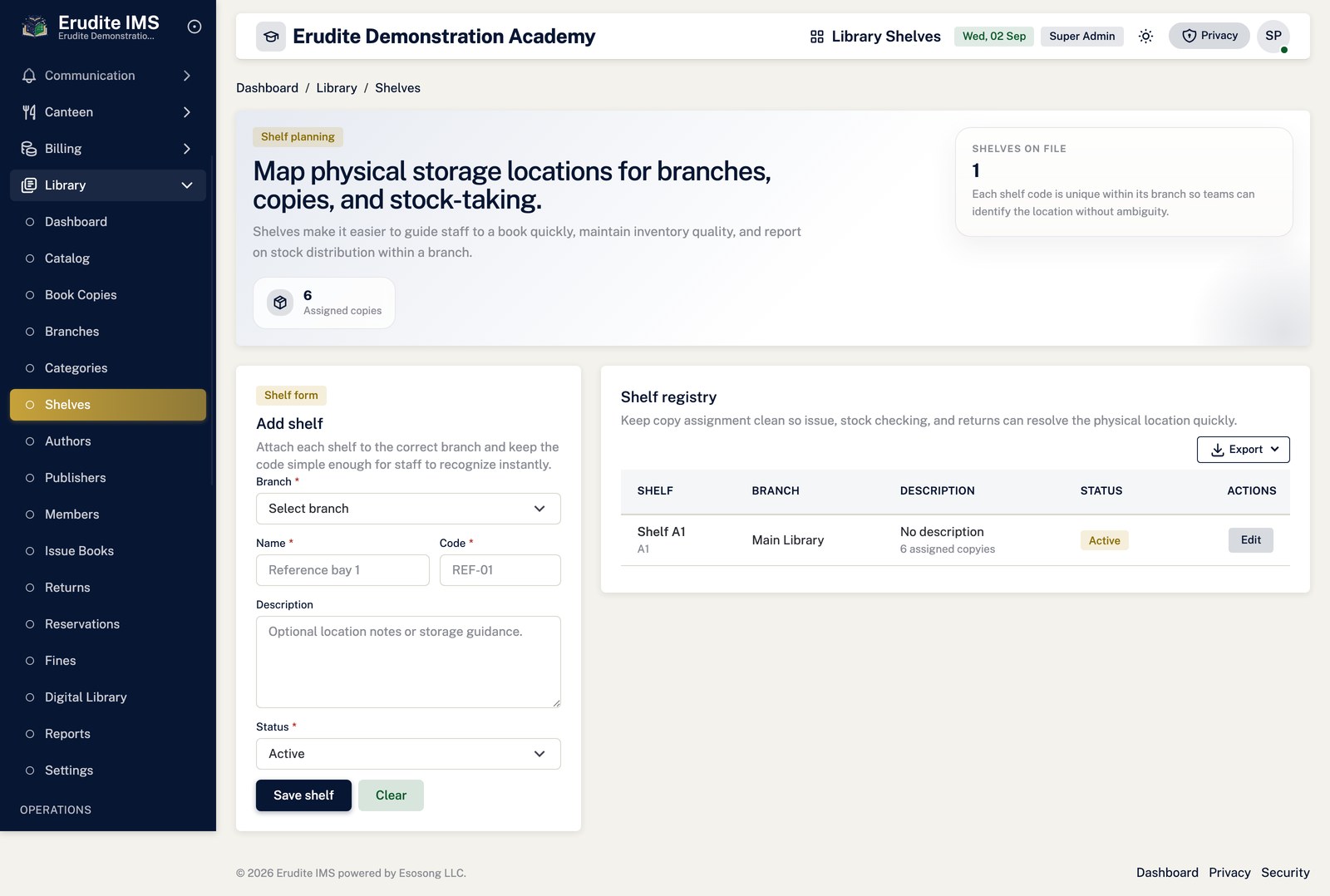
/Library/Shelves
/Library/Shelves
Library Reports
Library Reports — list
/LibraryReports
/LibraryReports
Library Reports — report
/LibraryReports/Report
This screen opens against a specific record and cannot be reached by URL alone. Open it from the list page for this module.
Reports and analytics
Finding a report
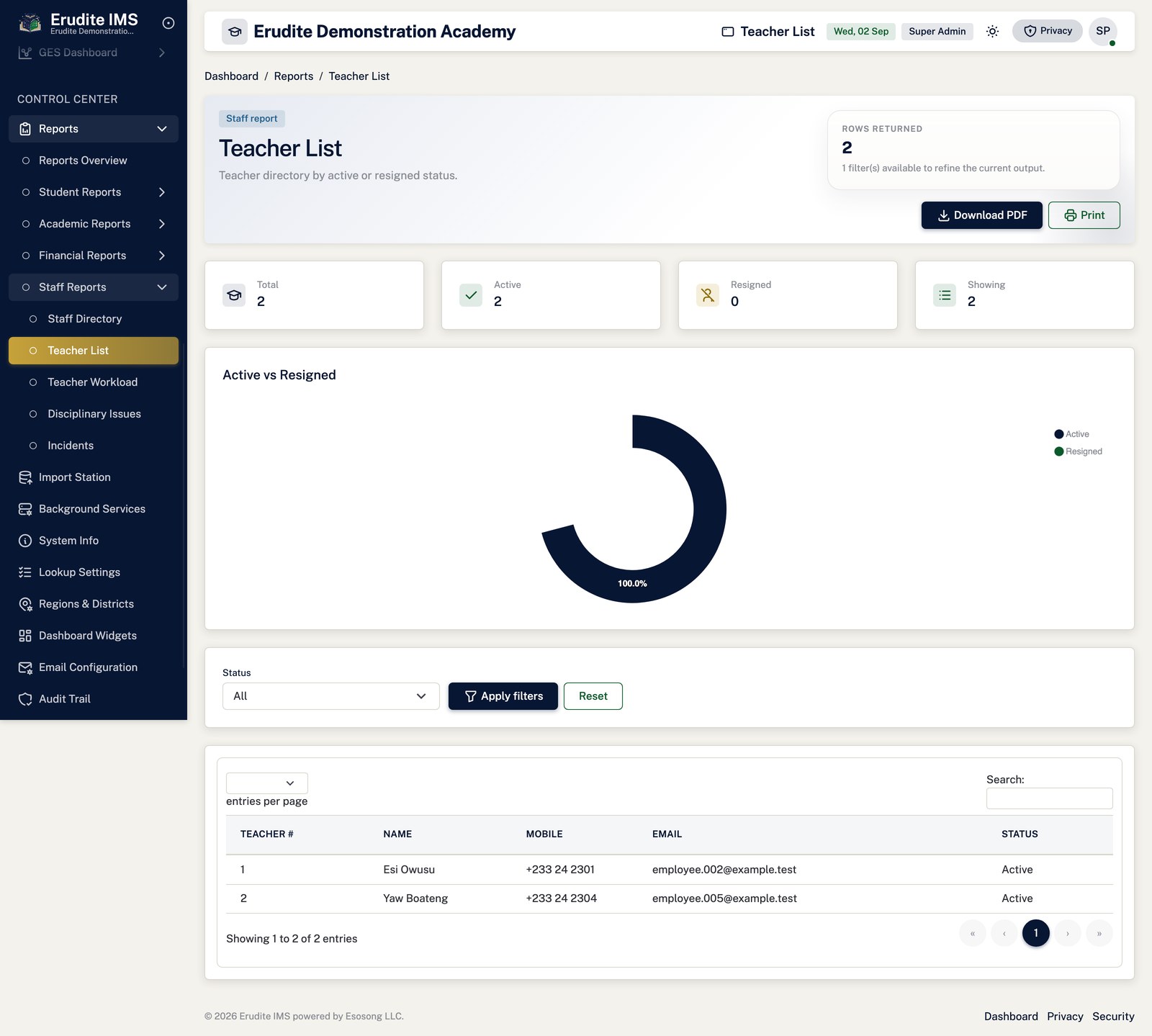
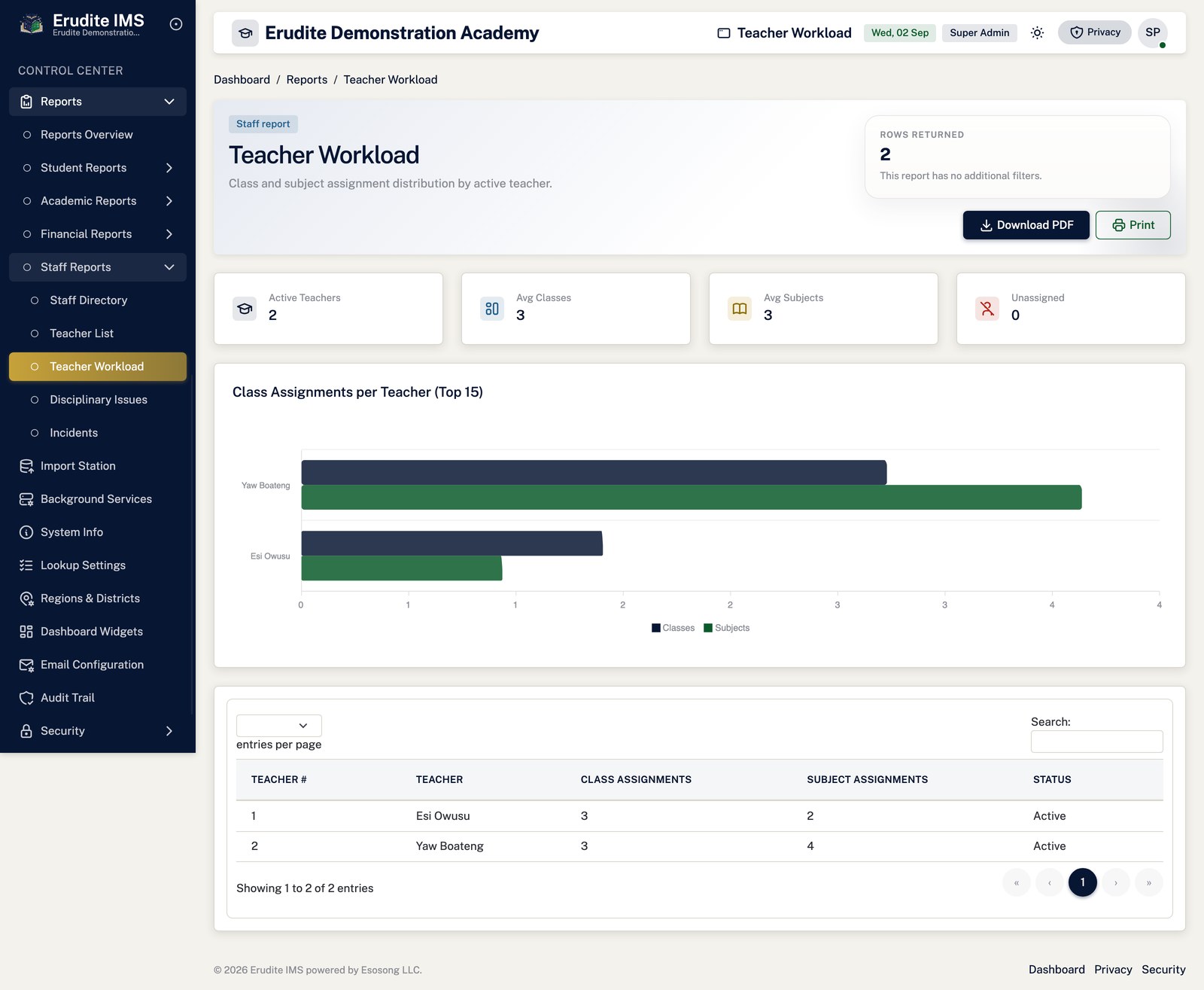
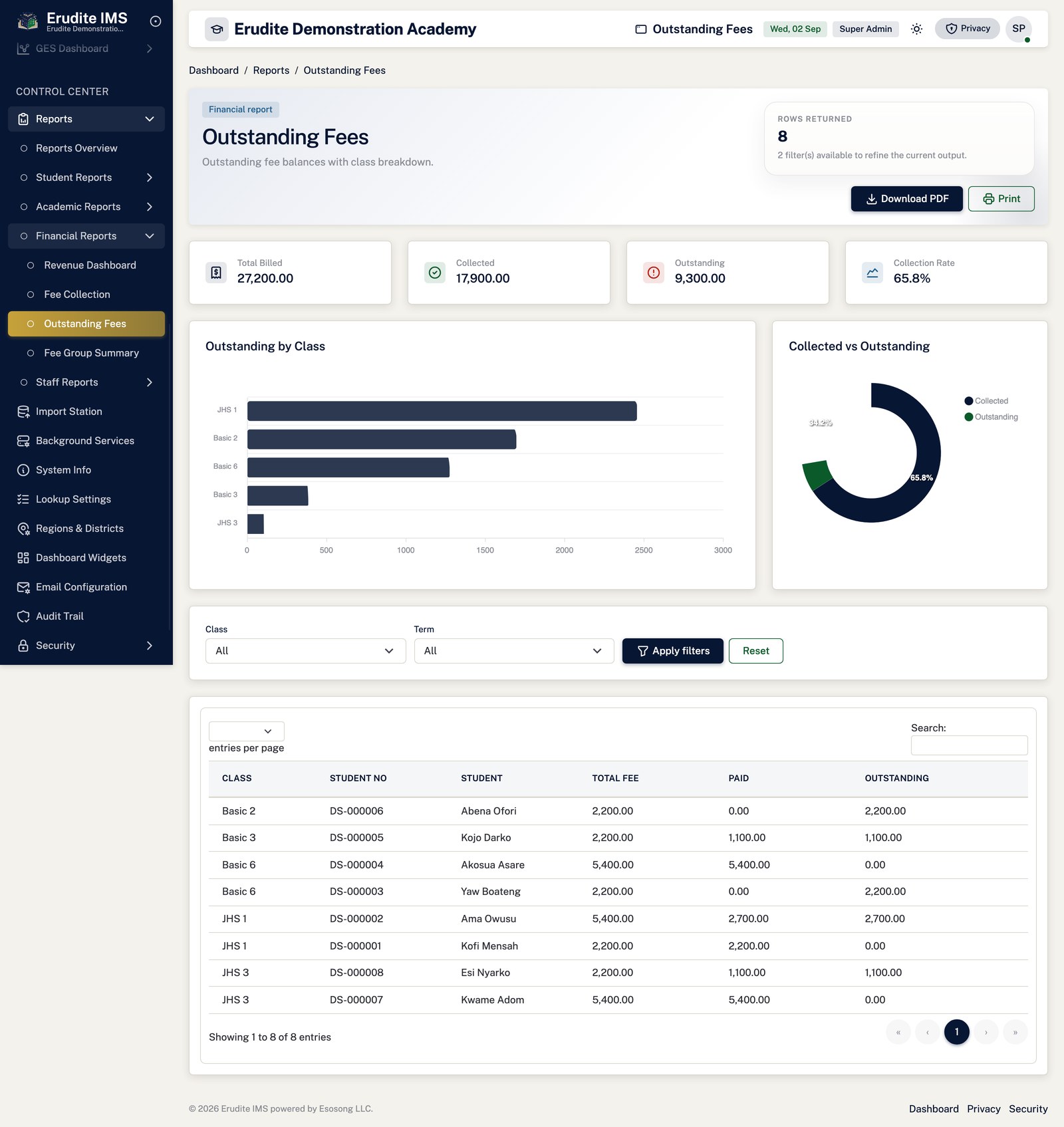
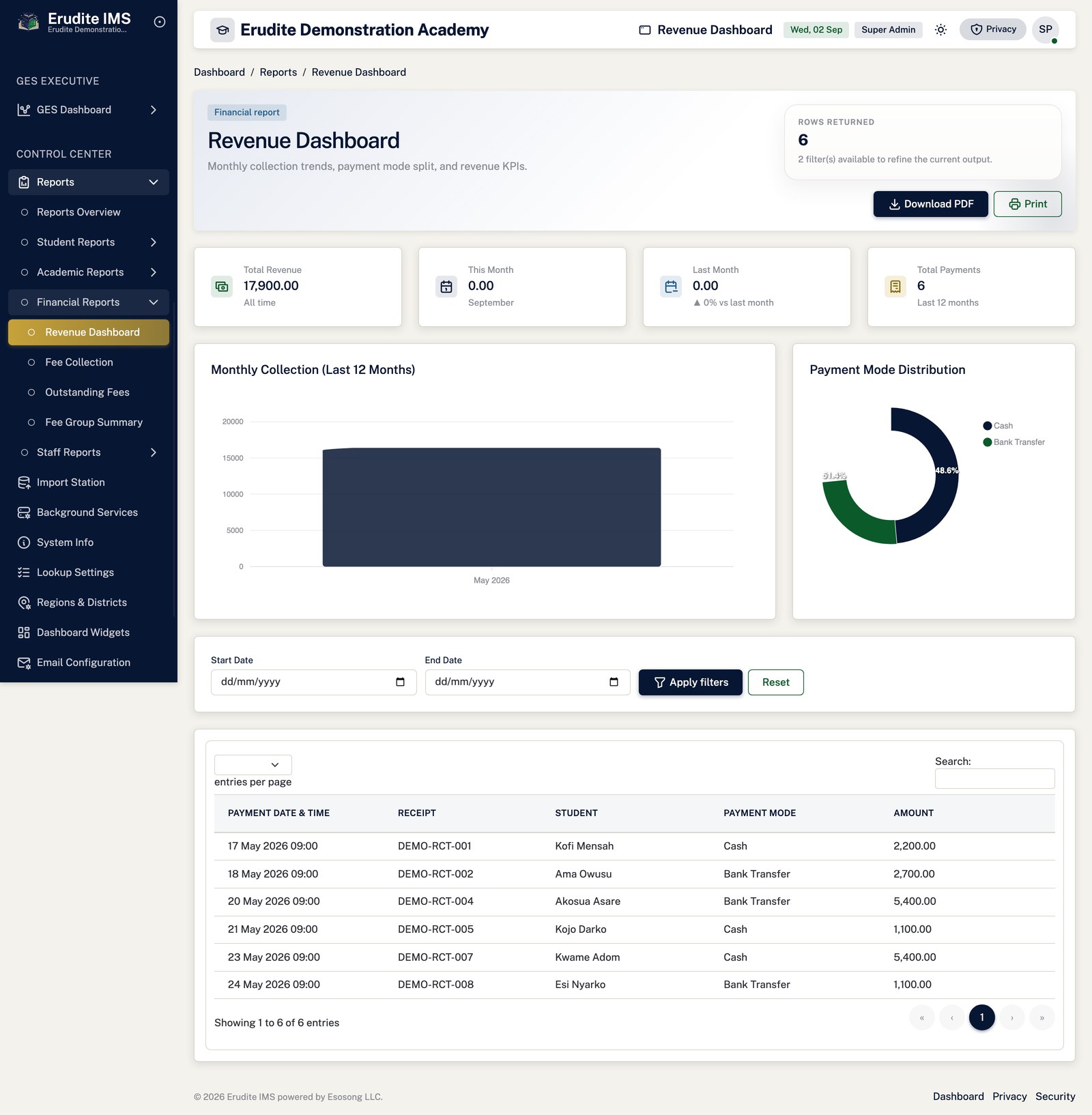
Open Reports from the sidebar. The landing page groups reports by area — enrolment and
admissions, attendance and academics, finance, staff, and discipline/incidents — with roughly forty
individual reports across the module.
Each report opens with its own filters (class, term, subject, date range, and so on as relevant) and a
results view. Where a permission-gated PDF, Excel, Word
or CSV export exists on that report it appears next to the filters — the export always
needs the separate Reports Export permission, so a user can be able to view a report on screen without
being able to extract it.
Reports read the same underlying figures as their owning modules rather than a separate copy —
the Class Billing Summary here is the same report referenced in the Billing and Payments chapter, for example.
None of the reports in this module post or change data; they are read-only by design.
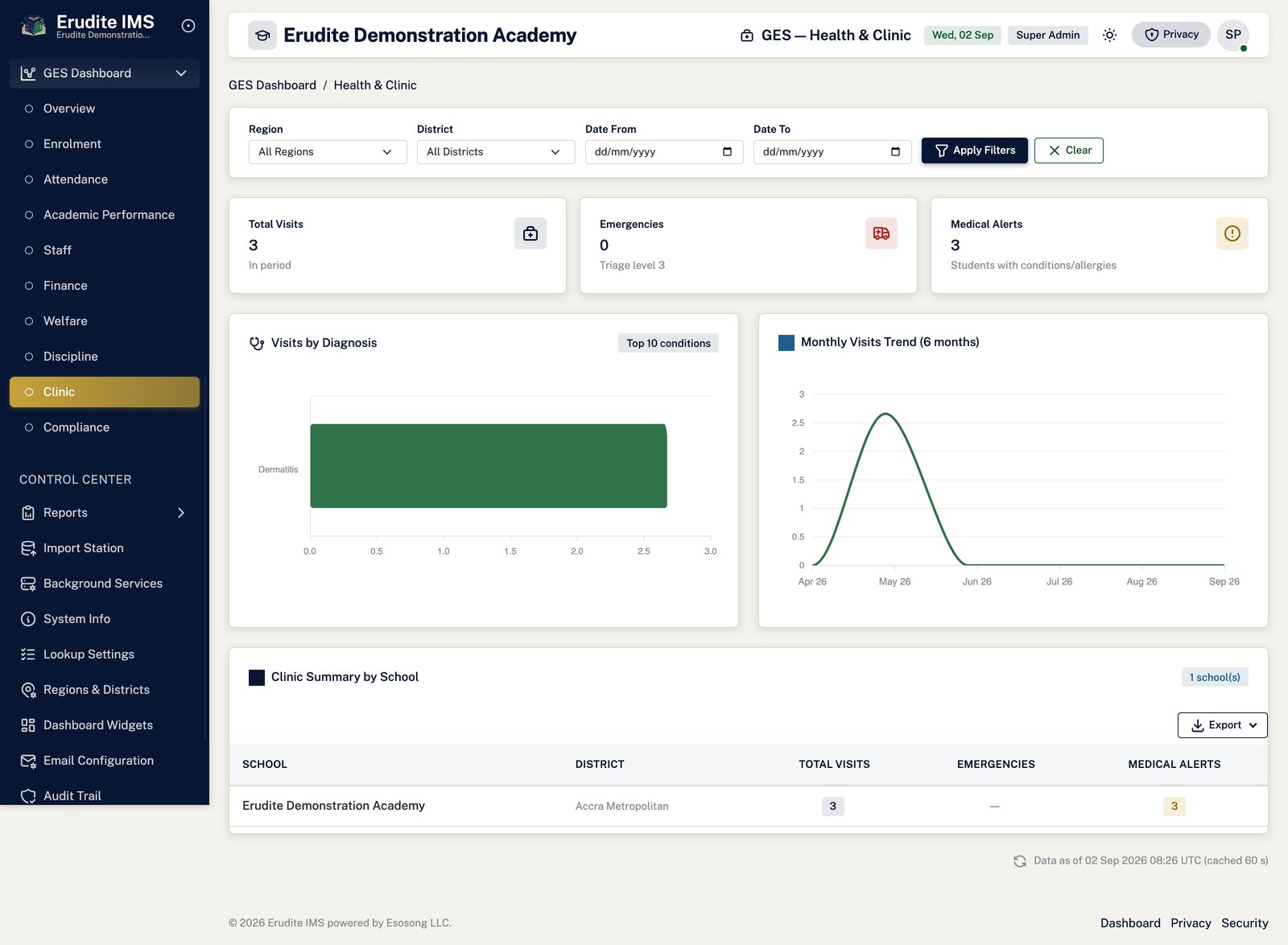
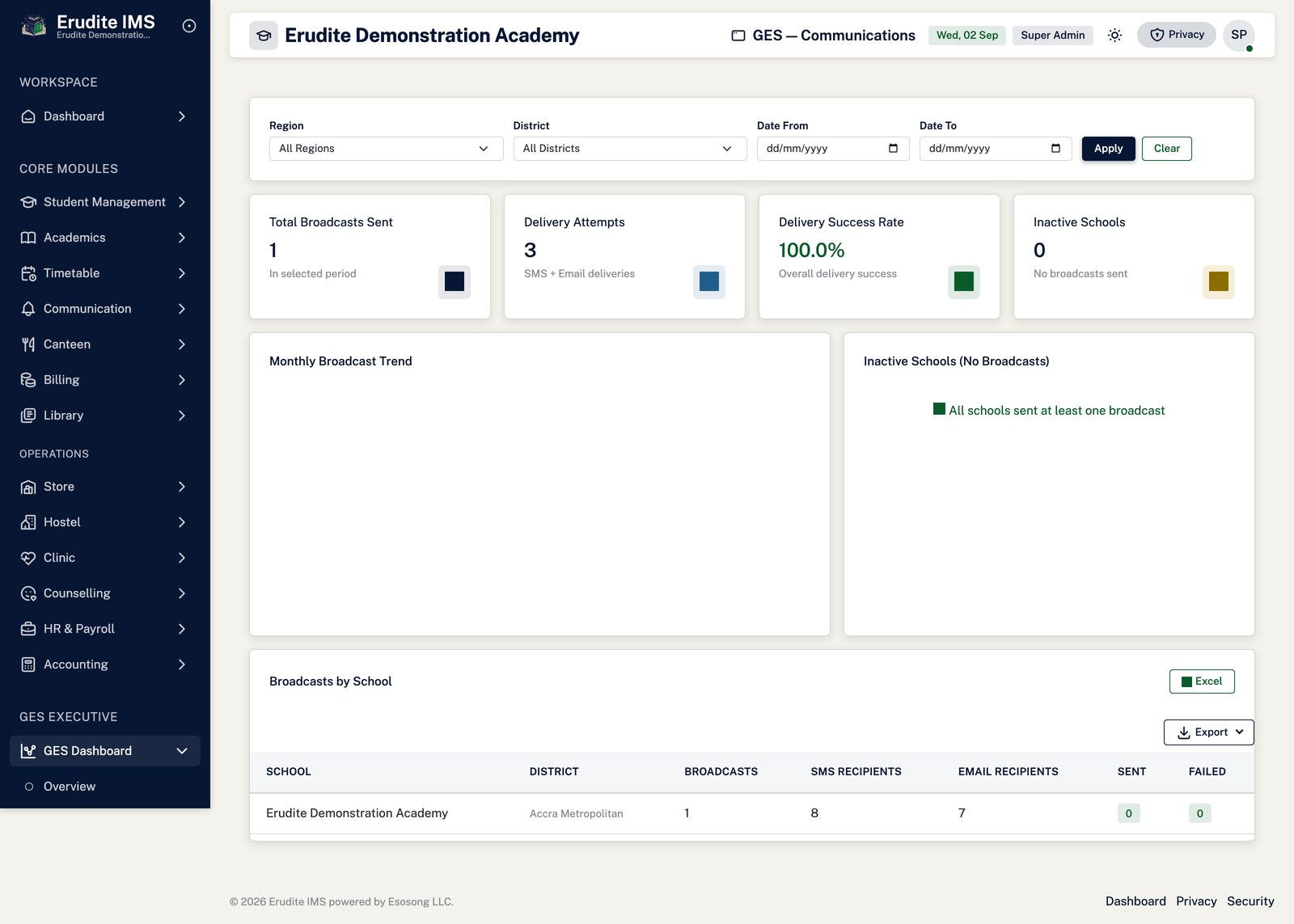
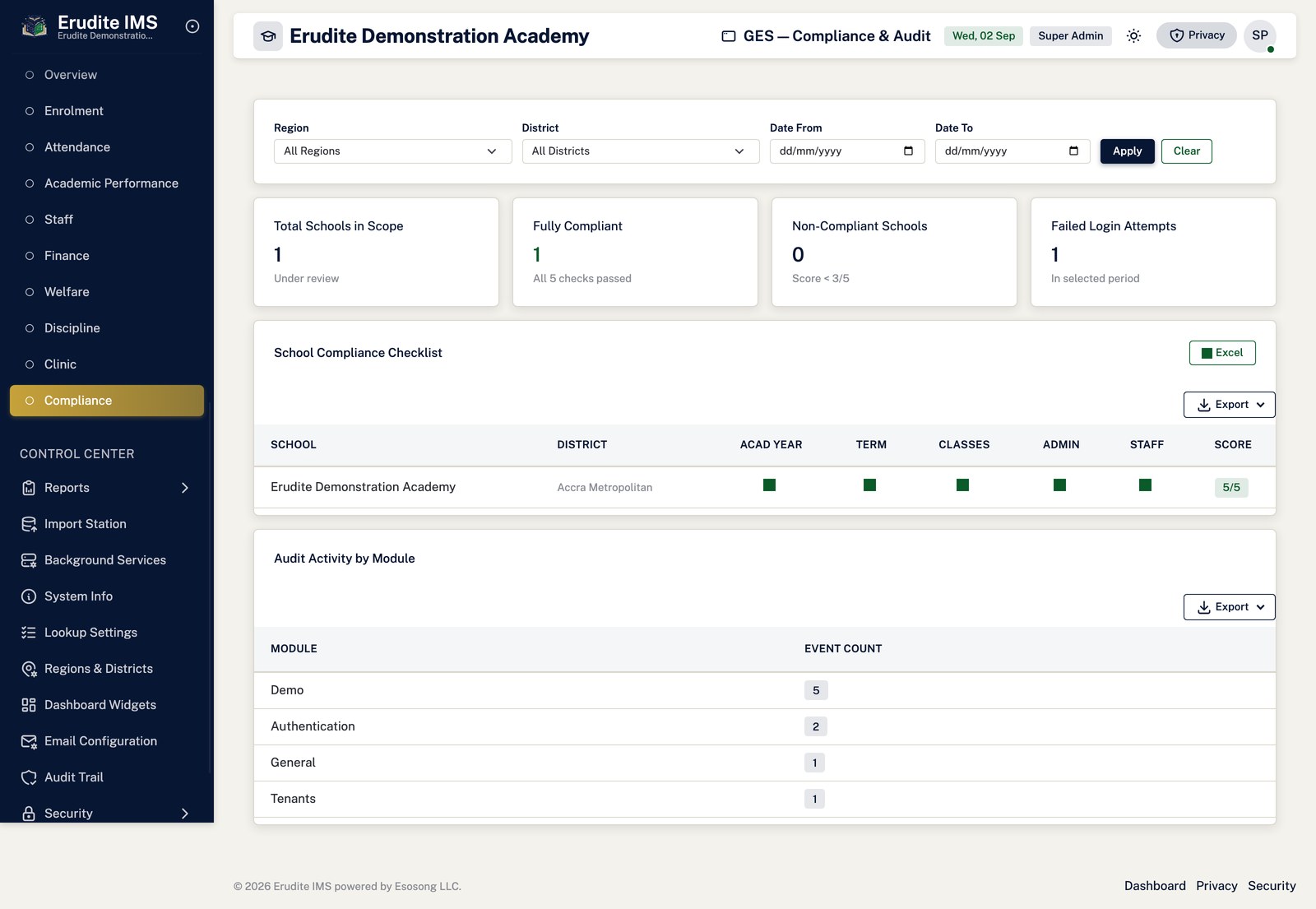
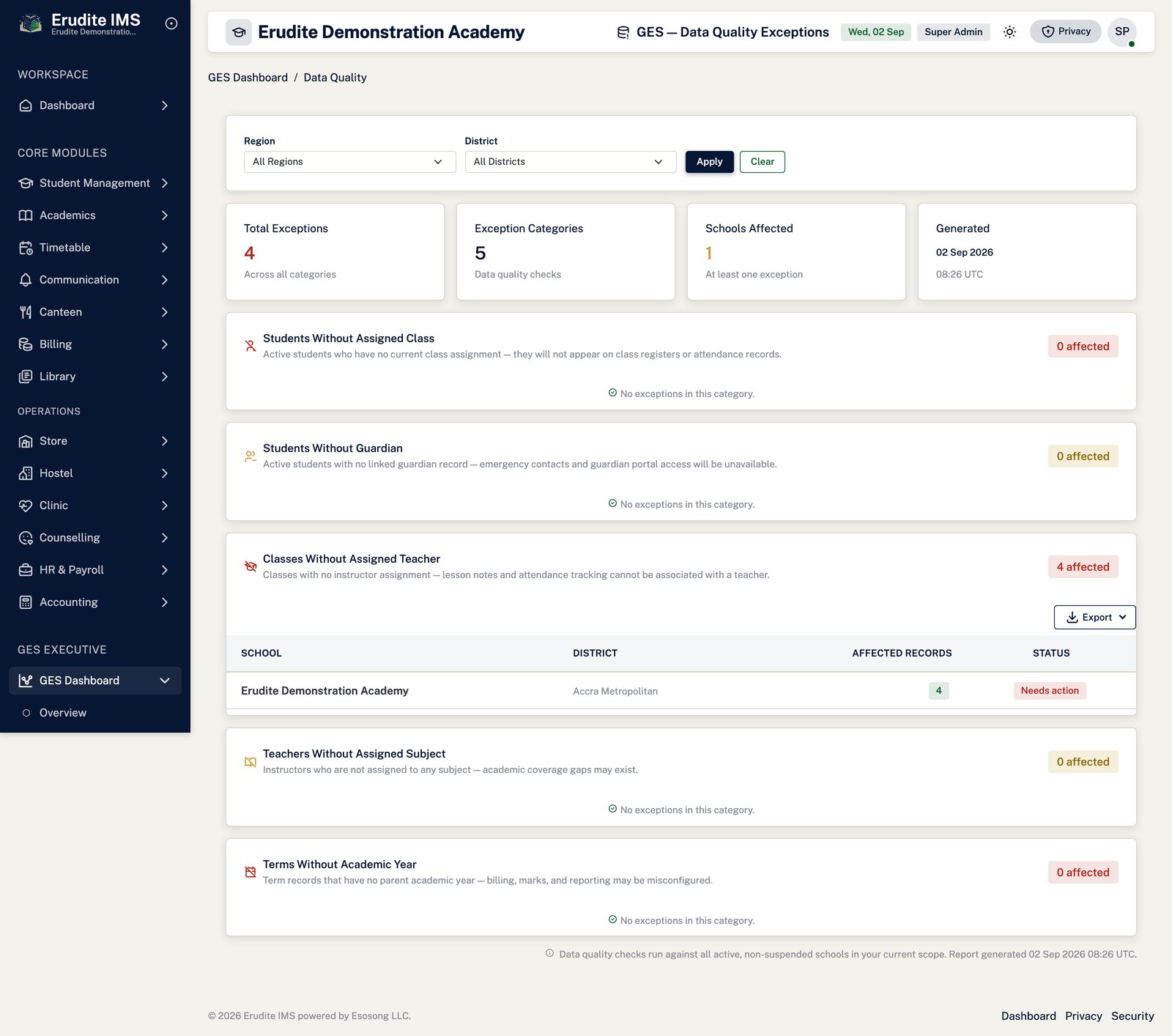
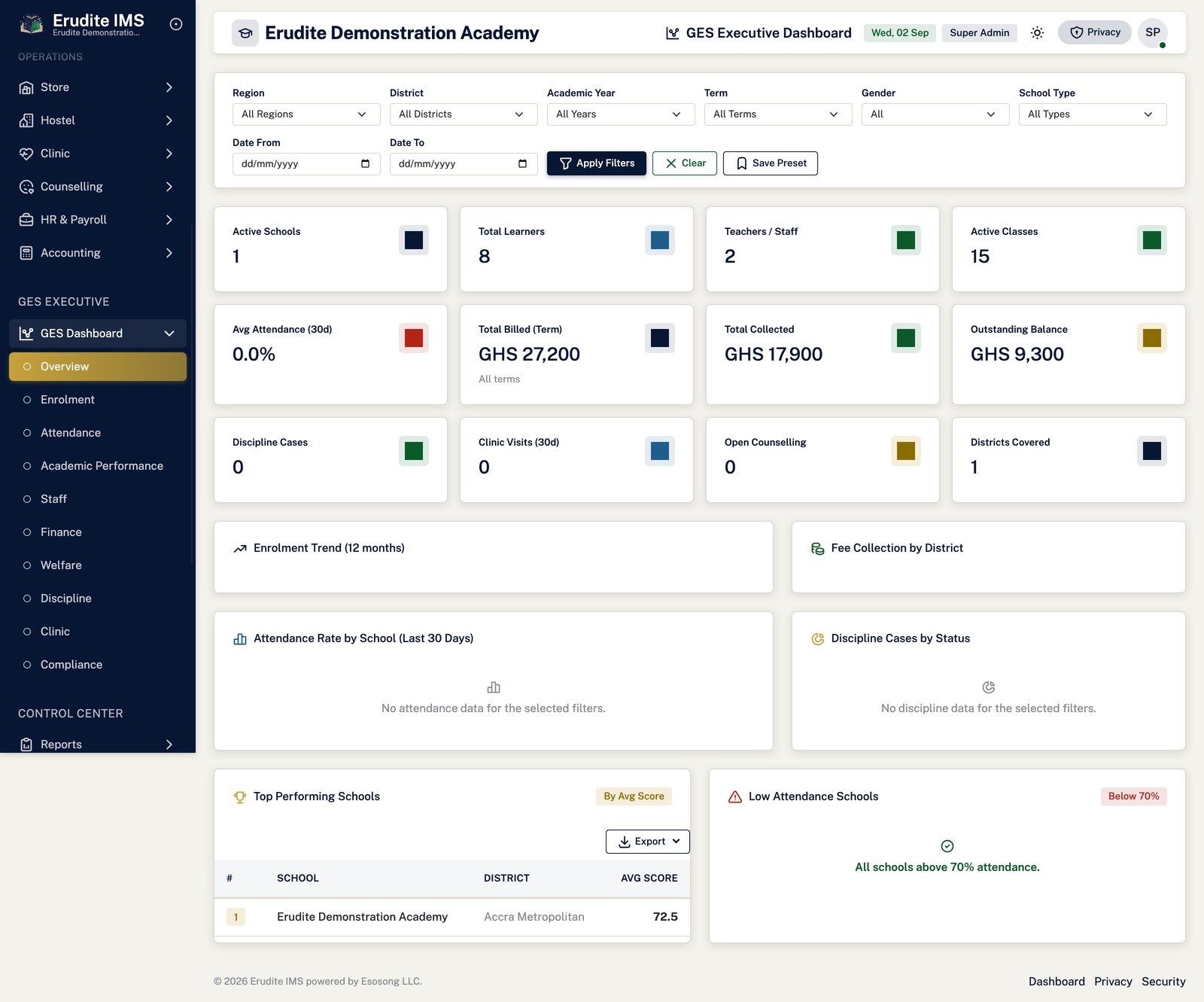
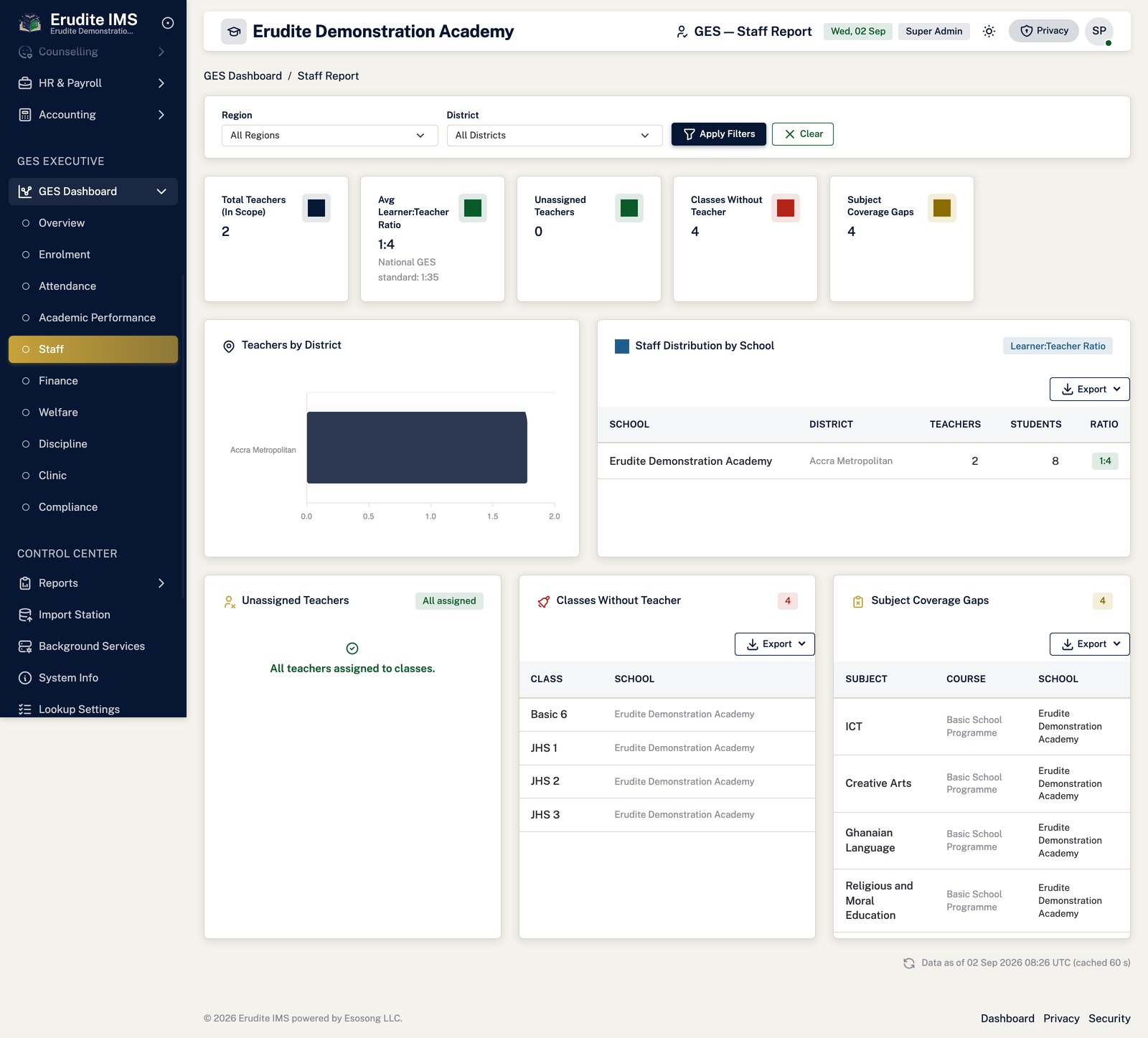
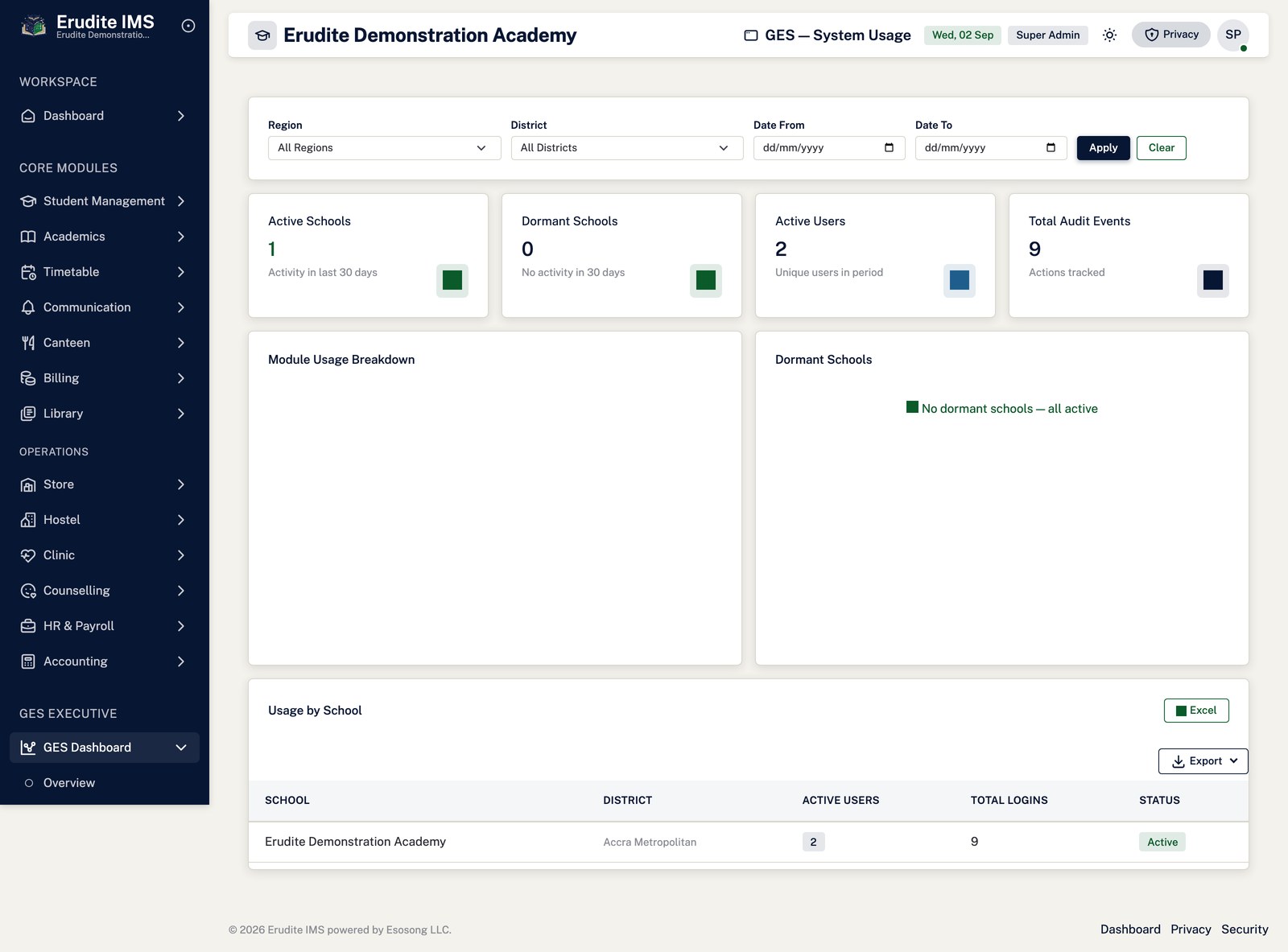
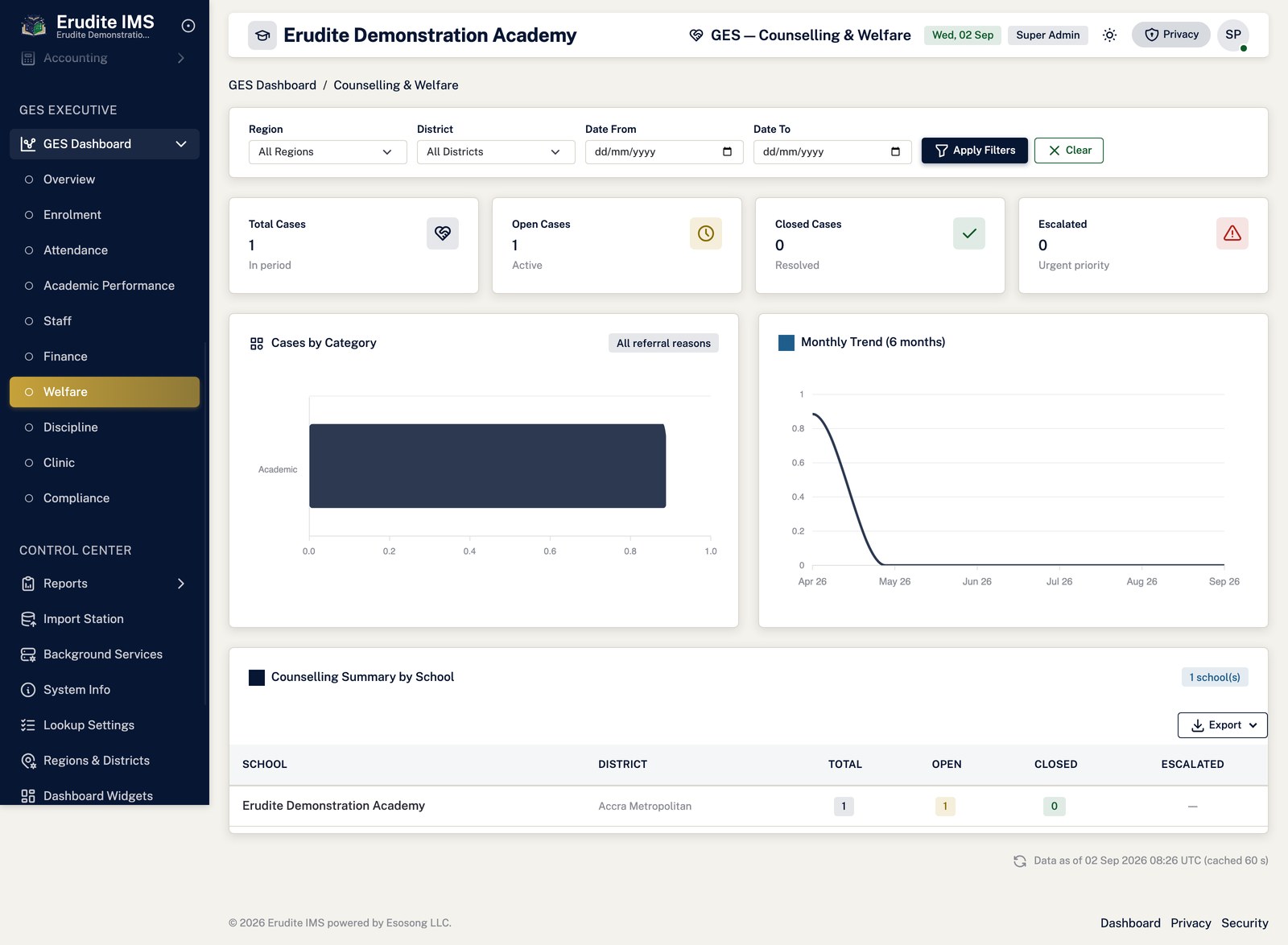
Reading the GES Executive Dashboard
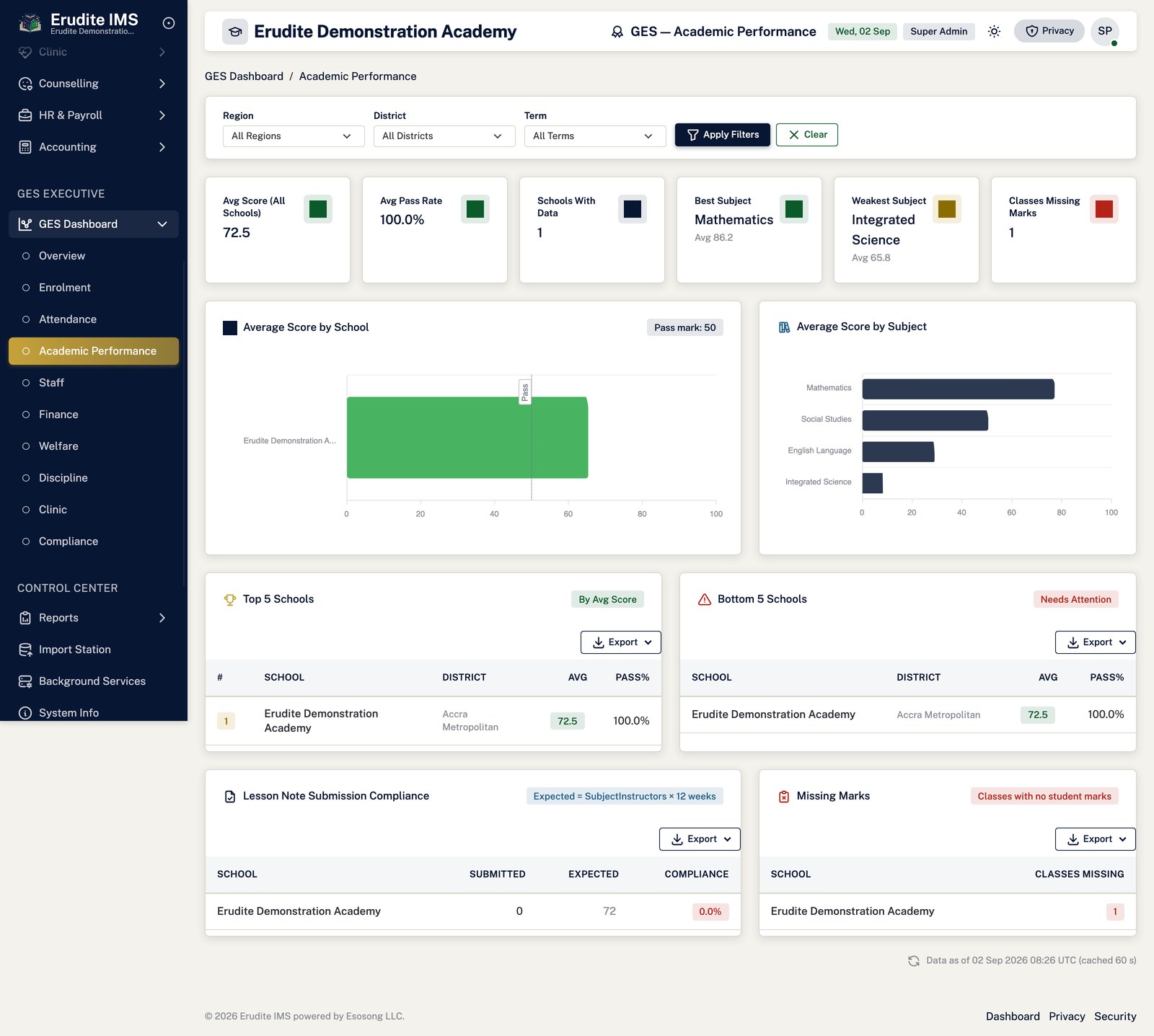
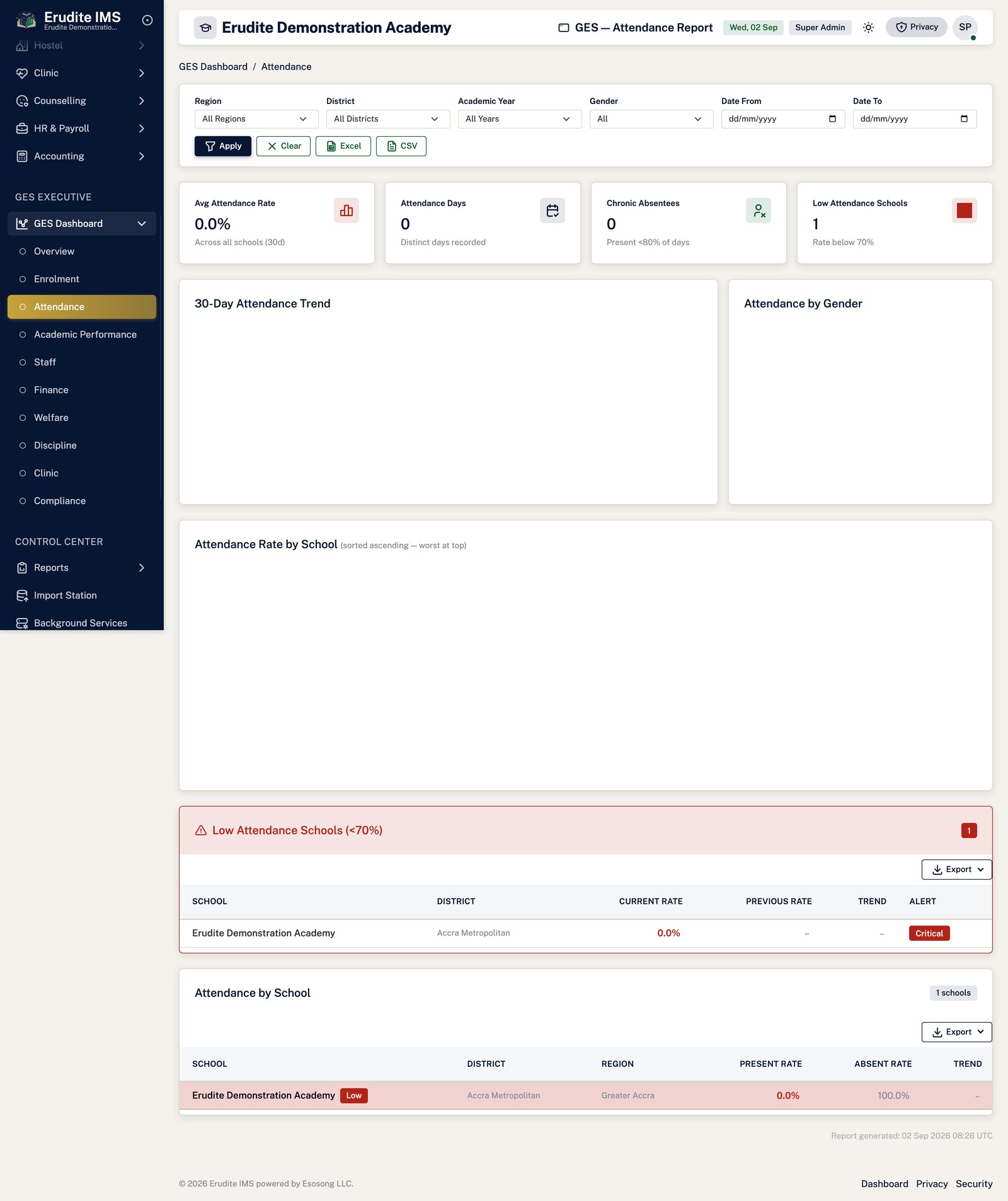
Open GES Dashboard for the national/consolidated overview: enrolment, attendance,
academic performance, finance, staff, welfare, discipline, clinic, HR, compliance, communication and
system usage each have their own tab, gated by their own permission.
Apply a filter (region, district, school, term and so on, depending on your scope) and select
Save preset to keep it for next time rather than re-entering it on every visit.
Export produces the consolidated figures for the currently selected filter and tab; it
needs its own export permission separate from viewing the dashboard.
Data Quality flags gaps and inconsistencies in the underlying data — missing fields, stale
records and the like — that would otherwise silently understate a figure elsewhere on the dashboard.
Who sees what depends on scope, not just permission. A Super Admin sees
the picture across every school; a scoped GES user (configured under GES User Scope, in Administration) sees
only the region or district they have been granted. Two people with the identical dashboard permission can
therefore see different totals — that is scope working as intended, not a bug.
Ges Dashboard
Ges Dashboard — academic performance
/GesDashboard/AcademicPerformance
/GesDashboard/AcademicPerformance
Ges Dashboard — attendance
/GesDashboard/Attendance
/GesDashboard/Attendance
Ges Dashboard — clinic
/GesDashboard/Clinic
/GesDashboard/Clinic
Ges Dashboard — communication
/GesDashboard/Communication
/GesDashboard/Communication
Ges Dashboard — compliance
/GesDashboard/Compliance
/GesDashboard/Compliance
Ges Dashboard — data quality
/GesDashboard/DataQuality
/GesDashboard/DataQuality
Ges Dashboard — discipline
/GesDashboard/Discipline
/GesDashboard/Discipline
Ges Dashboard — enrolment
/GesDashboard/Enrolment
/GesDashboard/Enrolment
Ges Dashboard — finance
/GesDashboard/Finance
/GesDashboard/Finance
Ges Dashboard — hr
/GesDashboard/Hr
/GesDashboard/Hr
Ges Dashboard — list
/GesDashboard
/GesDashboard
Ges Dashboard — staff
/GesDashboard/Staff
/GesDashboard/Staff
Ges Dashboard — system usage
/GesDashboard/SystemUsage
/GesDashboard/SystemUsage
Ges Dashboard — welfare
/GesDashboard/Welfare
/GesDashboard/Welfare
Reports
Reports — admissions pipeline
/Reports/AdmissionsPipeline
/Reports/AdmissionsPipeline
Reports — attendance summary
/Reports/AttendanceSummary
/Reports/AttendanceSummary
Reports — class performance summary
/Reports/ClassPerformanceSummary
/Reports/ClassPerformanceSummary
Reports — disciplinary issues
/Reports/DisciplinaryIssues
/Reports/DisciplinaryIssues
Reports — fee collection
/Reports/FeeCollection
/Reports/FeeCollection
Reports — fee group summary
/Reports/FeeGroupSummary
/Reports/FeeGroupSummary
Reports — incidents
/Reports/Incidents
/Reports/Incidents
Reports — list
/Reports
/Reports
Reports — instructor list
/Reports/InstructorList
/Reports/InstructorList
Reports — instructor workload
/Reports/InstructorWorkload
/Reports/InstructorWorkload
Reports — outstanding fees
/Reports/OutstandingFees
/Reports/OutstandingFees
Reports — revenue dashboard
/Reports/RevenueDashboard
/Reports/RevenueDashboard
Reports — staff directory
/Reports/StaffDirectory
/Reports/StaffDirectory
Reports — student class list
/Reports/StudentClassList
/Reports/StudentClassList
Reports — student demographics
/Reports/StudentDemographics
/Reports/StudentDemographics
Reports — student enrollment
/Reports/StudentEnrollment
/Reports/StudentEnrollment
Reports — student performance
/Reports/StudentPerformance
/Reports/StudentPerformance
Reports — studentsby class
/Reports/StudentsbyClass
/Reports/StudentsbyClass
Communication
Drafting and sending a broadcast
Open Communication → Broadcasts → New broadcast, optionally starting from a saved
template. Choose the audience, channel and message body.
Select Preview at any point to see how the message and recipient count resolve without
saving. Select Save draft to keep it as a Draft (or, if you gave it a schedule, as
Scheduled) for later.
Select Send — either directly from the editor or from the broadcast's Details
page — to dispatch it now. Sending needs the separate Broadcasts Send permission: a user who can only
create broadcasts will have their attempt to send from the editor refused, even though they can still
save the draft.
Once sending starts the broadcast moves to Sending and finishes as Sent
or, if only some recipients could be reached, Partially Sent — the Details page's
delivery log shows the outcome and any error per recipient.
Cancel is only available while the broadcast is still Draft or
Scheduled; a broadcast that is Sending, Sent, Partially Sent or already Cancelled cannot
be cancelled or re-sent from here.
Reusable message layouts live under Templates, gated by the Broadcasts Manage
Templates permission — starting a new broadcast from a template only pre-fills the editor; it does not link the
broadcast back to the template afterwards.
Dedicated Email Settings and Email Templates controllers do not exist as separate screens in this
codebase. The equivalent functionality — SMTP configuration, sending a test email or SMS, editing notification
email templates, per-category notification preferences, and the delivery queue with its Retry and Cancel
actions — lives under Notifications → Settings / Templates / Queue, which the manual lists in
the Getting Started section rather than here, because that is the controller that actually owns those pages.
Broadcasts
Broadcasts — record detail
/Broadcasts/Details
A record opened from the Broadcasts list
Broadcasts — edit form
/Broadcasts/Edit
A record opened from the Broadcasts list
Broadcasts — list
/Broadcasts
/Broadcasts
Broadcasts — templates
/Broadcasts/Templates
/Broadcasts/Templates
Administration and security
Creating a user and setting their access
Open Administration → Users → New user, complete their details and set an initial
password.
Assign one or more roles from the same form. A user's effective permissions are the union of everything
their roles carry — permissions are never granted to a user directly outside of a role.
Use Reset password from the user's Details page when they are locked out or need a new
one issued; this also clears their failed-login count and lockout, and it emails the new password to the
user directly, so treat it as an action taken on their behalf rather than something you keep yourself.
Tick Must change password to force them to set their own on next sign-in.
Unlock clears a lockout caused by repeated failed sign-in attempts without touching the
password itself.
A Super Admin manages which schools a user can access from Manage tenant access, using
Assign tenant and Remove tenant — this tier is Super Admin only and
separate from the roles/permissions system below it.
Building a role
Open Administration → Roles → New role, or start from an existing role as a template —
the new role is offered a unique name automatically (for example "Class Teacher Copy") and starts with the
template's permission set already ticked, which you can then adjust.
Tick the permissions the role should carry. Permission editing itself is only available to a user who can
manage permissions; someone with Roles Manage but not permission-editing rights can rename a role or
change its description but not touch its permission list.
Compare Templates lists every built-in role template side by side with its permissions,
useful for deciding which one to start a new role from.
A GES-restricted administrator cannot open a role for editing if it carries any GES-scoped permission —
that edit is refused outright rather than silently stripping the GES permissions.
Application Permissions is a read-only reference listing every permission
code in the system and what it gates — useful when deciding what a role needs, but nothing is editable there.
Reading the audit trail
Open Administration → Audit Trail. Every write action across the system that calls the
audit recorder — user, role, tenant, payroll, billing, store and more — lands here with who did it, when,
and (where the action captured it) the before/after values.
Select a row's Details to see the full event, including its category, severity and any
linked subjects (for example, both a leave request and the employee it belongs to).
Export PDF is a separate permission from viewing the trail.
Running and scheduling background services
Open Administration → Background Services for the school (or, as Super Admin, pick the
tenant). Each row is one scheduled job — billing runs, notification sweeps, migrations and the like —
with its current status and next run time.
Enable and Disable switch a service on or off without changing its
schedule. Update schedule changes how often it runs.
Trigger now runs the service immediately, outside its schedule — useful for confirming a
fix without waiting for the next scheduled window.
Schools versus Tenants — two different levels
Administration → Schools manages the branches or campuses that exist inside your own
tenant — each with its own contact details and community. Any user with the Settings Manage permission
for their school can maintain this list.
Tenants, by contrast, is the platform level: each tenant is a separate customer/school
account entirely, and this screen is Super Admin only. Toggle status deactivates a
tenant outright — every Super Admin is notified when a tenant's status flips, since this is treated as a
critical action.
Approving a demo or pilot request
Open Demo Requests and select a Pending request's Details.
Approve asks for the institution name and subdomain, checks the subdomain is not already
taken, then provisions a brand-new tenant and its administrator account. A request already Provisioned or
with credentials sent cannot be approved again, and a Rejected request cannot be approved at all.
If provisioning fails partway, the request is marked Failed with the reason recorded
rather than left in limbo; you can correct the problem and approve again.
Once the tenant exists, a one-time credentials email is sent to the contact automatically and the request
moves to Credentials Sent. Reject is available instead of approving, and
is final.
Approving a demo request is irreversible in effect. It creates a live
tenant with its own database-level data and a real administrator login, not a preview. Get the institution
name and subdomain right the first time — the subdomain becomes the school's permanent sign-in address.
System Info
Administration → System Info is a read-only diagnostics page (application
version, environment, and similar operational facts) gated by the Settings View permission; it does not change
any configuration.
Application Permissions
Application Permissions — list
/ApplicationPermissions
/ApplicationPermissions
Application Roles
Application Roles — compare templates
/ApplicationRoles/CompareTemplates
/ApplicationRoles/CompareTemplates
Application Roles — create form
/ApplicationRoles/Create
/ApplicationRoles/Create
Application Roles — record detail
/ApplicationRoles/Details
A record opened from the Application Roles list
Application Roles — edit form
/ApplicationRoles/Edit
A record opened from the Application Roles list
Application Roles — list
/ApplicationRoles
/ApplicationRoles
Application Users
Application Users — create form
/ApplicationUsers/Create
/ApplicationUsers/Create
Application Users — record detail
/ApplicationUsers/Details
A record opened from the Application Users list
Application Users — edit form
/ApplicationUsers/Edit
A record opened from the Application Users list
Application Users — list
/ApplicationUsers
/ApplicationUsers
Application Users — manage tenant access
/ApplicationUsers/ManageTenantAccess
A record opened from the Application Users list
Application Users — reset password
/ApplicationUsers/ResetPassword
A record opened from the Application Users list
Audit Trail
Audit Trail — list
/AuditTrail
/AuditTrail
Background Services
Background Services — list
/BackgroundServices
/BackgroundServices
Demo Requests
Demo Requests — record detail
/DemoRequests/Details
This screen opens against a specific record and cannot be reached by URL alone. Open it from the list page for this module.
Demo Requests — list
/DemoRequests
/DemoRequests
Schools
Schools — create form
/Schools/Create
/Schools/Create
Schools — record detail
/Schools/Details
This screen opens against a specific record and cannot be reached by URL alone. Open it from the list page for this module.
Schools — edit form
/Schools/Edit
This screen opens against a specific record and cannot be reached by URL alone. Open it from the list page for this module.
Schools — list
/Schools
/Schools
System Info
System Info — list
/SystemInfo
/SystemInfo
Tenants
Tenants — create form
/Tenants/Create
/Tenants/Create
Tenants — record detail
/Tenants/Details
A record opened from the Tenants list
Tenants — edit form
/Tenants/Edit
A record opened from the Tenants list
Tenants — list
/Tenants
/Tenants
Platform (Super Admin)
These screens belong to the platform operator, not to a school. They are visible only to a
Super Admin holding the platform billing permissions.
Billing a school immediately
Open Platform Billing from the sidebar (/PlatformBilling).
Use the Generate a bill now panel at the top. Choose the school and the term.
Select Generate Now. The bill is raised against the school's current active
student count at the per-student rate configured for that school, the recipients on its billing list are
notified by email and SMS, and you land on the new bill.
The action is safe to repeat. If a bill already exists for that school and term you are told its number
and taken to it; a unique constraint prevents a duplicate.
Printing a bill
From the bills list, select PDF on the row to open the invoice directly, or
View (or the bill number) to open the bill first and use Report there.
The PDF opens in a new tab and can be printed or saved like any document.
A school can print its own invoice from Platform Bills in its sidebar, without you
sending it.
Recording a payment, resending or cancelling
Open the bill with View.
Record payment takes the amount, method and reference; it appears once the bill still
carries a balance.
Resend notification re-sends to the school's billing recipients and logs the attempt.
Cancel requires a reason, which is stored with the bill.
Rates and recipients
Select Billing settings from the bills list.
The global per-student rate applies to every school that has no override of its own.
A school-specific configuration overrides the rate, payment terms and billing recipients for that school
alone.
The rate is captured onto each bill at the moment it is generated. Changing a rate does
not restate bills already raised — those keep the rate they were issued at until cancelled and reissued.
Reading the totals. Total billed, total paid and total outstanding above
the list describe the bills currently listed, so they follow your school and term filters. If the listed bills
ever span more than one currency the totals drop the currency symbol and warn, rather than adding unlike
amounts together.
My Platform Billing
My Platform Billing — record detail
/MyPlatformBilling/Details
This screen opens against a specific record and cannot be reached by URL alone. Open it from the list page for this module.
My Platform Billing — list
/MyPlatformBilling
/MyPlatformBilling
Platform Billing
Platform Billing — record detail
/PlatformBilling/Details
This screen opens against a specific record and cannot be reached by URL alone. Open it from the list page for this module.
Platform Billing — list
/PlatformBilling
/PlatformBilling
Platform Billing — settings
/PlatformBilling/Settings
/PlatformBilling/Settings
Other modules
This chapter covers screens whose controller does not fall neatly under one of the named
modules above. Several belong functionally to Student Life, Billing, HR/Payroll, Store or Timetable but are
grouped here because of how the manual's page inventory is built; where that is the case, the workflow is
cross-referenced to its natural chapter rather than repeated.
Posting draft bills to the ledger
Open Draft Bill Posting. It lists every draft bill with an up-front verdict on whether it
is ready to post — a school must be selected first, since bills post into one school's ledger and the
screen refuses to run without one.
If the required GL setup (journal type, receivable control account) is missing, the page shows the exact
blockers and Post Selected is disabled until they are fixed — this avoids one exception
per bill.
Tick the bills to post and select Post Selected. A single run posts at most 250 bills; if
you select more, the rest are reported as skipped with instructions to run again. If an early bill fails,
the run stops rather than pushing on and leaving a partial, hard-to-audit result.
Legacy admission-era drafts that were stored in an old amount shape can be fixed with
Normalize legacy drafts — this only rewrites the amount and revenue-account fields on the
bill; it never posts anything itself. Review the normalized rows and post them as a separate, deliberate
step.
Posting always goes through one code path. Every bill posted here — and
everywhere else in the system — goes through the same posting service that sets the bill status, links the GL
journal and writes the journal lines. There is no shortcut that skips the ledger.
Reviewing a guardian's self-reported payment
A guardian records a payment they made outside the system from their own portal (Guardian →
Make Payment), which creates a submission awaiting review rather than a posted payment.
Staff review it from Guardian Payment Submissions. Approve posts the
actual receipt against the student's bill and returns its receipt number. Reject declines
it outright. Request Clarification sends it back to the guardian with a note instead of
closing it either way.
Every outcome notifies the guardian automatically with the note the reviewer entered.
Student Fees is the read-only per-student ledger view behind this and the wider billing module
— see the Billing and Payments chapter for generating and correcting bills themselves; Class Fee Groups is
where a class is linked to the fee groups it should be billed under, maintained from Billing setup.
Counting physical stock (stocktake)
Open Store Stocktake and select Start for a location. This creates a
stock-adjustment record of type Stocktake in Draft.
It follows the same Approve → Post pattern as any other store adjustment (see the Store and Inventory
chapter) — record the counted quantities, approve, then post to apply the variance to stock on hand.
Payslips and payroll periods
Payroll Periods defines the periods a payroll run is processed against — create, edit or
delete a period before it has been used.
Payslips lists every employee's payslip once a payroll run exists; Print
and Batch Print produce individual or whole-run PDFs. Update payment status
needs the Payroll Approve permission, separate from viewing payslips.
School-year housekeeping: holidays and lookups
Holidays maintains the calendar dates that attendance and timetable generation both treat
as non-school days.
Lookup Settings is the catch-all editor for the smaller reference lists used across the
system (each tab is its own table) — viewing needs Settings View, editing needs Settings Manage.
SMS Pendings shows outbound SMS messages still queued for delivery, for diagnosing why a
text has not gone out.
Platform-level reference data and provisioning (Super Admin)
Regions maintains the region/district reference data used across GES scoping and demo
provisioning — regions and districts can be added and individually toggled active or inactive.
Tenant Templates holds the reusable school-structure, fee and chart-of-accounts templates
offered when approving a demo request (see Administration and Security); each template is versioned —
Clone starts a new version from an old one rather than editing history, and
Toggle Status retires a version without deleting it.
Super Admin itself carries the highest-privilege actions in the system: Promote
and Demote a user's Super Admin status, and Change Tenant /
Reverse Tenant Change for moving a user's home tenant — each behind its own named policy,
not the general Users Manage permission.
GES User Scope is where a Super Admin restricts a GES-facing user to a specific region or
district for the GES Dashboard (see Reports and Analytics) — Deactivate and
Reactivate suspend or restore a scope without deleting the record; Delete
removes it outright.
Dashboard Config lets a school customise which widgets appear on its own landing
dashboard.
Screens documented elsewhere
Hostel Allocations, Hostel Discipline, Hostel Beds, Hostel Rooms, Hostel Maintenance and
Hostel Roll Call; Clinic Patients and Clinic Visits; and Counselling Cases, Sessions, Referrals, Plans,
Profiles and Recommendations are all part of the day-to-day Hostel, Clinic and Counselling workflows described
in the Student Life chapter. Timetable Availability, Timetable Requirements, Timetable Schedule and Timetable
Substitutes feed and display the generated timetable described in the Timetable chapter — Availability and
Requirements are the inputs the generator reads, Schedule is where class/teacher/room views and their PDFs are
produced, and Substitutes covers finding and recording cover for an absent teacher's slot. Tenant Selection is
the screen behind "Choosing a school" in Getting Started, and Demo Request is the public-facing form a
prospective school fills in, which becomes the request an administrator later approves in Administration and
Security.
Class Fee Groups
Class Fee Groups — record detail
/ClassFeeGroups/Details
This screen opens against a specific record and cannot be reached by URL alone. Open it from the list page for this module.
Class Fee Groups — list
/ClassFeeGroups
/ClassFeeGroups
Clinic Patients
Clinic Patients — record detail
/ClinicPatients/Details
A record opened from the Clinic Patients list
Clinic Patients — list
/ClinicPatients
/ClinicPatients
Clinic Visits
Clinic Visits — record detail
/ClinicVisits/Details
A record opened from the Clinic Visits list
Clinic Visits — entry form
/ClinicVisits/Form
A record opened from the Clinic Visits list
Clinic Visits — list
/ClinicVisits
/ClinicVisits
Counselling Cases
Counselling Cases — create form
/CounsellingCases/Create
/CounsellingCases/Create
Counselling Cases — record detail
/CounsellingCases/Details
This screen opens against a specific record and cannot be reached by URL alone. Open it from the list page for this module.
Counselling Cases — list
/CounsellingCases
/CounsellingCases
Counselling Plans
Counselling Plans — record detail
/CounsellingPlans/Details
This screen opens against a specific record and cannot be reached by URL alone. Open it from the list page for this module.
Counselling Plans — list
/CounsellingPlans
/CounsellingPlans
Counselling Profiles
Counselling Profiles — record detail
/CounsellingProfiles/Details
This screen opens against a specific record and cannot be reached by URL alone. Open it from the list page for this module.
Counselling Profiles — list
/CounsellingProfiles
/CounsellingProfiles
Counselling Recommendations
Counselling Recommendations — record detail
/CounsellingRecommendations/Details
This screen opens against a specific record and cannot be reached by URL alone. Open it from the list page for this module.
Counselling Recommendations — list
/CounsellingRecommendations
/CounsellingRecommendations
Counselling Referrals
Counselling Referrals — create form
/CounsellingReferrals/Create
/CounsellingReferrals/Create
Counselling Referrals — record detail
/CounsellingReferrals/Details
This screen opens against a specific record and cannot be reached by URL alone. Open it from the list page for this module.
Counselling Referrals — list
/CounsellingReferrals
/CounsellingReferrals
Counselling Sessions
Counselling Sessions — list
/CounsellingSessions
/CounsellingSessions
Dashboard Config
Dashboard Config — list
/DashboardConfig
/DashboardConfig
Demo Request
Demo Request — confirmation
/DemoRequest/Confirmation
/DemoRequest/Confirmation
Demo Request — request
/DemoRequest/Request
/DemoRequest/Request
Draft Bill Posting
Draft Bill Posting — list
/DraftBillPosting
/DraftBillPosting
Draft Bill Posting — result
/DraftBillPosting/Result
This screen opens against a specific record and cannot be reached by URL alone. Open it from the list page for this module.
Ges User Scope
Ges User Scope — create form
/GesUserScope/Create
/GesUserScope/Create
Ges User Scope — list
/GesUserScope
/GesUserScope
Guardian
Guardian — dashboard
/Guardian/Dashboard
/Guardian/Dashboard
Guardian — make payment
/Guardian/MakePayment
This screen opens against a specific record and cannot be reached by URL alone. Open it from the list page for this module.
Guardian — ward details
/Guardian/WardDetails
This screen opens against a specific record and cannot be reached by URL alone. Open it from the list page for this module.
Guardian Payment Submissions
Guardian Payment Submissions — list
/GuardianPaymentSubmissions
/GuardianPaymentSubmissions
Holidays
Holidays — list
/Holidays
/Holidays
Hostel Allocations
Hostel Allocations — allocate
/HostelAllocations/Allocate
/HostelAllocations/Allocate
Hostel Allocations — record detail
/HostelAllocations/Detail
A record opened from the Hostel Allocations list
Hostel Allocations — list
/HostelAllocations
/HostelAllocations
Hostel Beds
Hostel Beds — list
/HostelBeds
This screen opens against a specific record and cannot be reached by URL alone. Open it from the list page for this module.
Hostel Billing
Hostel Billing — student billing
/HostelBilling/StudentBilling
This screen opens against a specific record and cannot be reached by URL alone. Open it from the list page for this module.
Hostel Discipline
Hostel Discipline — create form
/HostelDiscipline/Create
/HostelDiscipline/Create
Hostel Discipline — record detail
/HostelDiscipline/Detail
A record opened from the Hostel Discipline list
Hostel Discipline — list
/HostelDiscipline
/HostelDiscipline
Hostel Maintenance
Hostel Maintenance — create form
/HostelMaintenance/Create
/HostelMaintenance/Create
Hostel Maintenance — record detail
/HostelMaintenance/Detail
A record opened from the Hostel Maintenance list
Hostel Maintenance — list
/HostelMaintenance
/HostelMaintenance
Hostel Roll Call
Hostel Roll Call — list
/HostelRollCall
/HostelRollCall
Hostel Roll Call — session
/HostelRollCall/Session
This screen opens against a specific record and cannot be reached by URL alone. Open it from the list page for this module.
Hostel Rooms
Hostel Rooms — list
/HostelRooms
/HostelRooms
Hr Payroll
Hr Payroll — list
/HrPayroll
/HrPayroll
Lookup Settings
Lookup Settings — list
/LookupSettings
/LookupSettings
Payroll Periods
Payroll Periods — entry form
/PayrollPeriods/Form
A record opened from the Payroll Periods list
Payroll Periods — list
/PayrollPeriods
/PayrollPeriods
Payslips
Payslips — record detail
/Payslips/Details
A record opened from the Payslips list
Payslips — list
/Payslips
/Payslips
Regions
Regions — list
/Regions
/Regions
S M S Pendings
S M S Pendings — record detail
/SMSPendings/Details
This screen opens against a specific record and cannot be reached by URL alone. Open it from the list page for this module.
S M S Pendings — list
/SMSPendings
/SMSPendings
Store Stocktake
Store Stocktake — list
/StoreStocktake
/StoreStocktake
Student Fees
Student Fees — record detail
/StudentFees/Details
This screen opens against a specific record and cannot be reached by URL alone. Open it from the list page for this module.
Student Fees — list
/StudentFees
/StudentFees
Super Admin
Super Admin — user details
/SuperAdmin/UserDetails
This screen opens against a specific record and cannot be reached by URL alone. Open it from the list page for this module.
Tenant Selection
Tenant Selection — list
/TenantSelection
/TenantSelection
Tenant Templates
Tenant Templates — edit form
/TenantTemplates/Edit
A record opened from the Tenant Templates list
Tenant Templates — list
/TenantTemplates
/TenantTemplates
Timetable Availability
Timetable Availability — list
/TimetableAvailability
/TimetableAvailability
Timetable Requirements
Timetable Requirements — list
/TimetableRequirements
/TimetableRequirements
Timetable Schedule
Timetable Schedule — grid
/TimetableSchedule/Grid
This screen opens against a specific record and cannot be reached by URL alone. Open it from the list page for this module.
Timetable Schedule — list
/TimetableSchedule
/TimetableSchedule
Timetable Substitutes
Timetable Substitutes — find
/TimetableSubstitutes/Find
This screen opens against a specific record and cannot be reached by URL alone. Open it from the list page for this module.
Timetable Substitutes — list
/TimetableSubstitutes
/TimetableSubstitutes
Erudite IMS Operating Manual · generated from the application view inventory and a
Documentation-mode capture run · synthetic data only.